top BMW 128I CONVERTIBLE 2008 E88 Owner's Guide
[x] Cancel search | Manufacturer: BMW, Model Year: 2008, Model line: 128I CONVERTIBLE, Model: BMW 128I CONVERTIBLE 2008 E88Pages: 264, PDF Size: 8.68 MB
Page 117 of 264
Driving tips
115Reference
At a glance
Controls
Communications
Navigation
Entertainment
Mobility
Drive defensively
Avoid unnecessary acceleration and braking
maneuvers. To do so, keep an adequate dis-
tance to the forward vehicle. A defensive and
smooth driving style keeps fuel consumption
down.
Avoid high engine speeds
Only use first gear when setting off. In second
and higher gears, accelerate without hesitation
or pauses. When accelerating, shift up before
reaching high engine speeds.
When you reach the desired speed, shift into
the highest applicable gear and drive with the
engine speed as low as possible and at a con-
stant speed.
As a rule: driving at low engine speeds lowers
fuel consumption and reduces wear.
Coasting
When approaching a red light, take your foot off
the accelerator and coast to a stop in the high-
est applicable gear.
O n a d o w n h il l s lo p e , t a k e y o u r f o o t o f f t h e a c c el -
erator and coast in a suitable gear.
The fuel supply is interrupted when coasting.
Switch off the engine during lengthy
stops
Switch off the engine when stopping for lengthy
periods, e.g. at traffic lights, railroad crossings
or in traffic congestions. You achieve fuel sav-
ings even if standing time is as short as approx.
4 seconds.
Switch off functions you do not need at
the moment
Functions such as the air conditioner and the
seat or rear window heating draw large amounts
of power and consume additional fuel. Espe-
cially in city traffic and in stop-and-go driving
they have a considerable impact. Therefore,
switch these functions off when they are not
really needed.
Have the vehicle serviced
Have the vehicle serviced regularly to achieve
good economy and a long vehicle life. BMW
recommends having the vehicle serviced at a
BMW center. Also note the BMW service sys-
tem, refer to page217.
General driving notes
Close the luggage compartment lid
Operate the vehicle only when the lug-
gage compartment lid is closed. Other-
wise, exhaust fumes could enter the interior of
the vehicle.<
If the vehicle must be driven with the luggage
compartment lid open:
1.Close all windows and the glass roof.
2.Greatly increase the air volume of the auto-
matic climate control system, refer to
page99.
Hot exhaust system
In all vehicles, extremely high tempera-
tures are generated in the exhaust sys-
tem. Do not remove the heat shields installed in
its vicinity, and never apply undercoating to
them. When driving, standing at idle and while
parking, take care to avoid possible contact
between the hot exhaust system and any highly
flammable materials such as hay, leaves, grass,
etc. Such contact could lead to a fire, with the
risk of serious personal injuries and property
damage. Do not touch hot exhaust tail pipes.
Otherwise there is a risk of burns.<
Hydroplaning
When driving on wet or slushy roads,
reduce road speed. If you do not, a wedge
of water can form between tires and road sur-
face. This situation, known as hydroplaning,
means that the tire can completely lose contact
with the road surface, so that neither the car can
be steered nor the brake be properly applied.<
Page 127 of 264
Navigation
Driving tips
125Reference
At a glance
Controls
Communications
Entertainment
Mobility
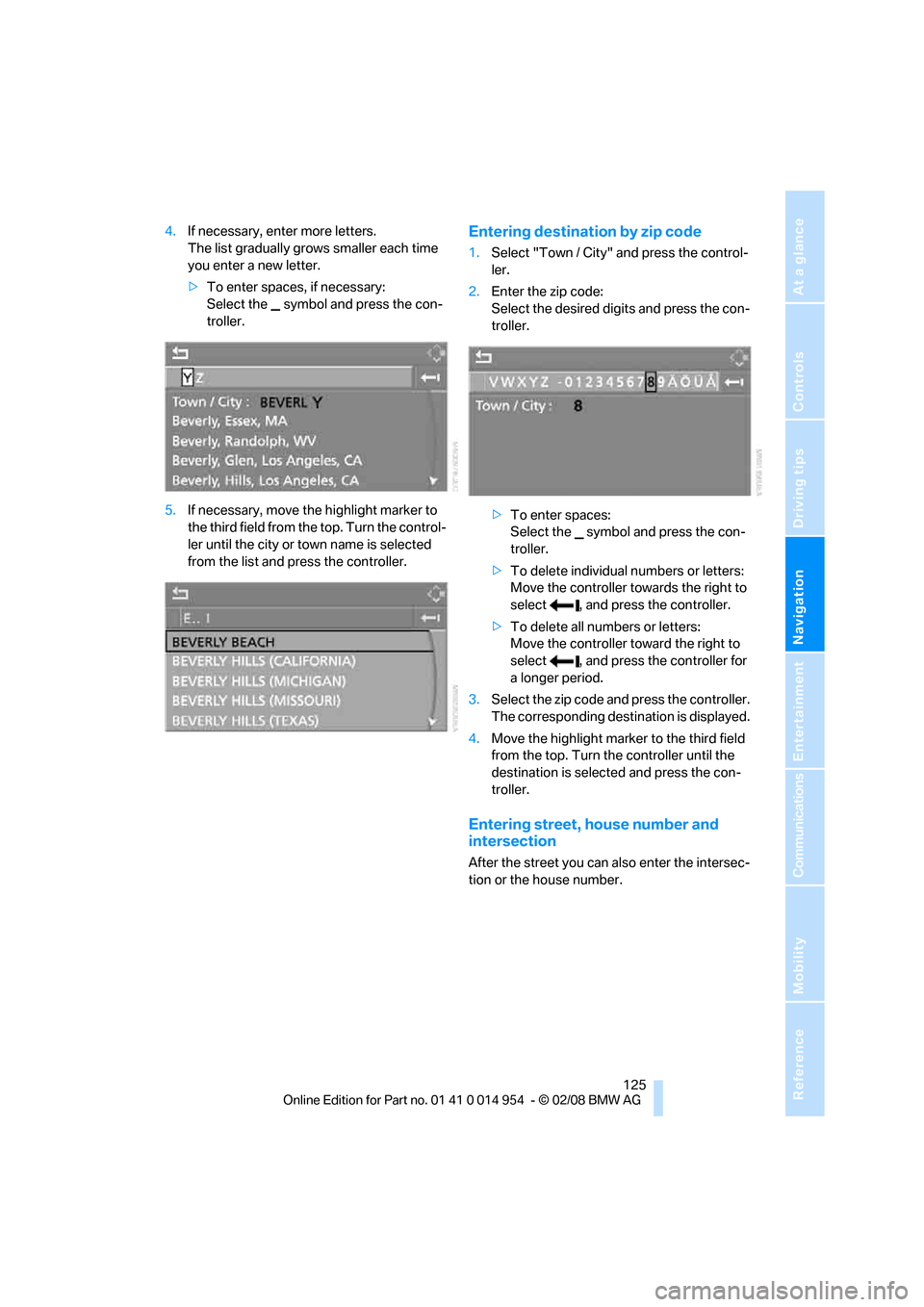
4.If necessary, enter more letters.
The list gradually grows smaller each time
you enter a new letter.
>To enter spaces, if necessary:
Select the symbol and press the con-
troller.
5.If necessary, move the highlight marker to
the third field from the top. Turn the control-
ler until the city or town name is selected
from the list and press the controller.Entering destination by zip code
1.Select "Town / City" and press the control-
ler.
2.Enter the zip code:
Select the desired digits and press the con-
troller.
>To enter spaces:
Select the symbol and press the con-
troller.
>To delete individual numbers or letters:
Move the controller towards the right to
select , and press the controller.
>To delete all numbers or letters:
Move the controller toward the right to
select , and press the controller for
a longer period.
3.Select the zip code and press the controller.
The corresponding destination is displayed.
4.Move the highlight marker to the third field
from the top. Turn the controller until the
destination is selected and press the con-
troller.
Entering street, house number and
intersection
After the street you can also enter the intersec-
tion or the house number.
Page 128 of 264
Destination entry
126
Entering street and intersection
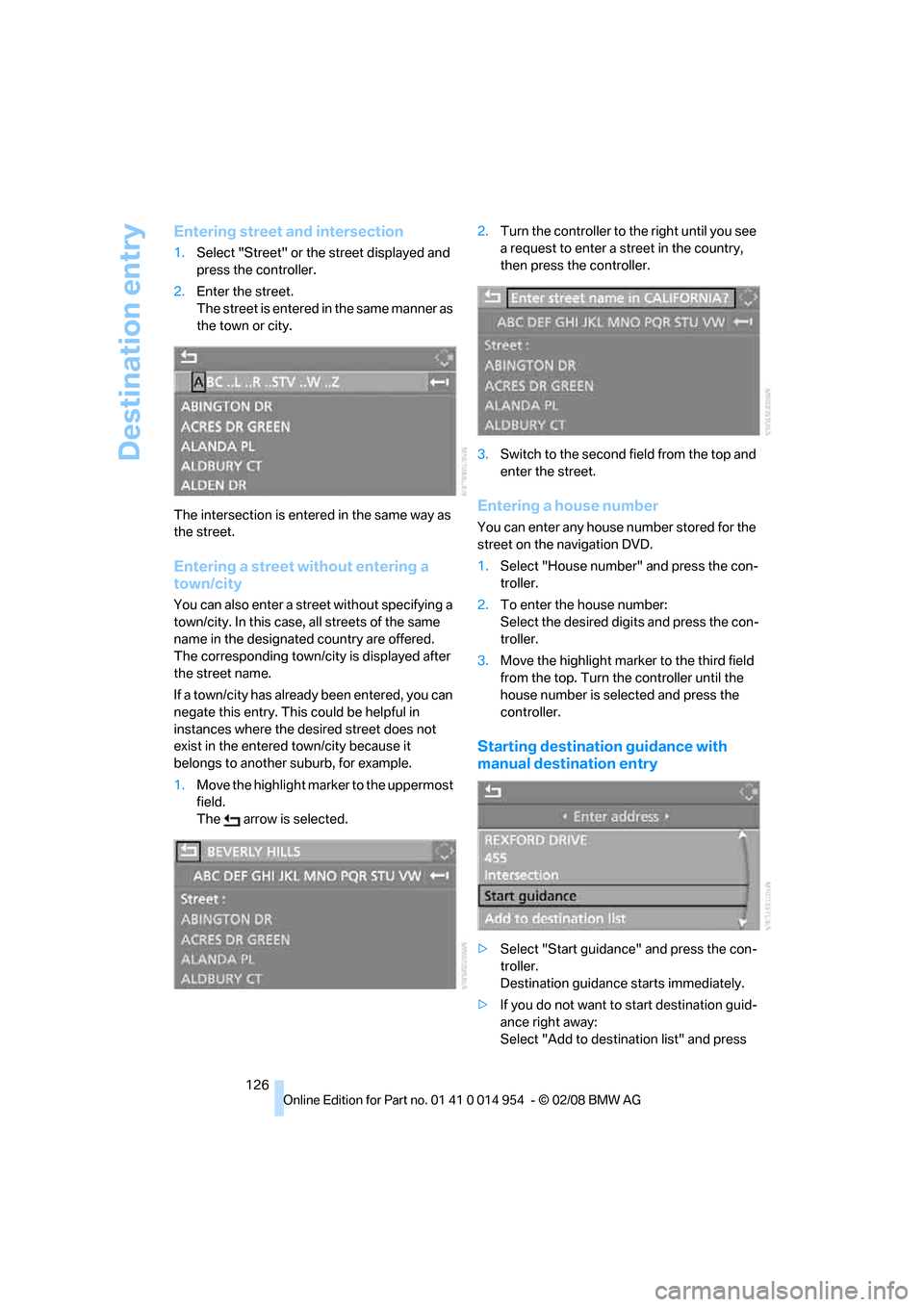
1.Select "Street" or the street displayed and
press the controller.
2.Enter the street.
The street is entered in the same manner as
the town or city.
The intersection is entered in the same way as
the street.
Entering a street without entering a
town/city
You can also enter a street without specifying a
town/city. In this case, all streets of the same
name in the designated country are offered.
The corresponding town/city is displayed after
the street name.
If a town/city has already been entered, you can
negate this entry. This could be helpful in
instances where the desired street does not
exist in the entered town/city because it
belongs to another suburb, for example.
1.Move the highlight marker to the uppermost
field.
The arrow is selected.2.Turn the controller to the right until you see
a request to enter a street in the country,
then press the controller.
3.Switch to the second field from the top and
enter the street.
Entering a house number
You can enter any house number stored for the
street on the navigation DVD.
1.Select "House number" and press the con-
troller.
2.To enter the house number:
Select the desired digits and press the con-
troller.
3.Move the highlight marker to the third field
from the top. Turn the controller until the
house number is selected and press the
controller.
Starting destination guidance with
manual destination entry
>Select "Start guidance" and press the con-
troller.
Destination guidance starts immediately.
>If you do not want to start destination guid-
ance right away:
Select "Add to destination list" and press
Page 134 of 264
Destination entry
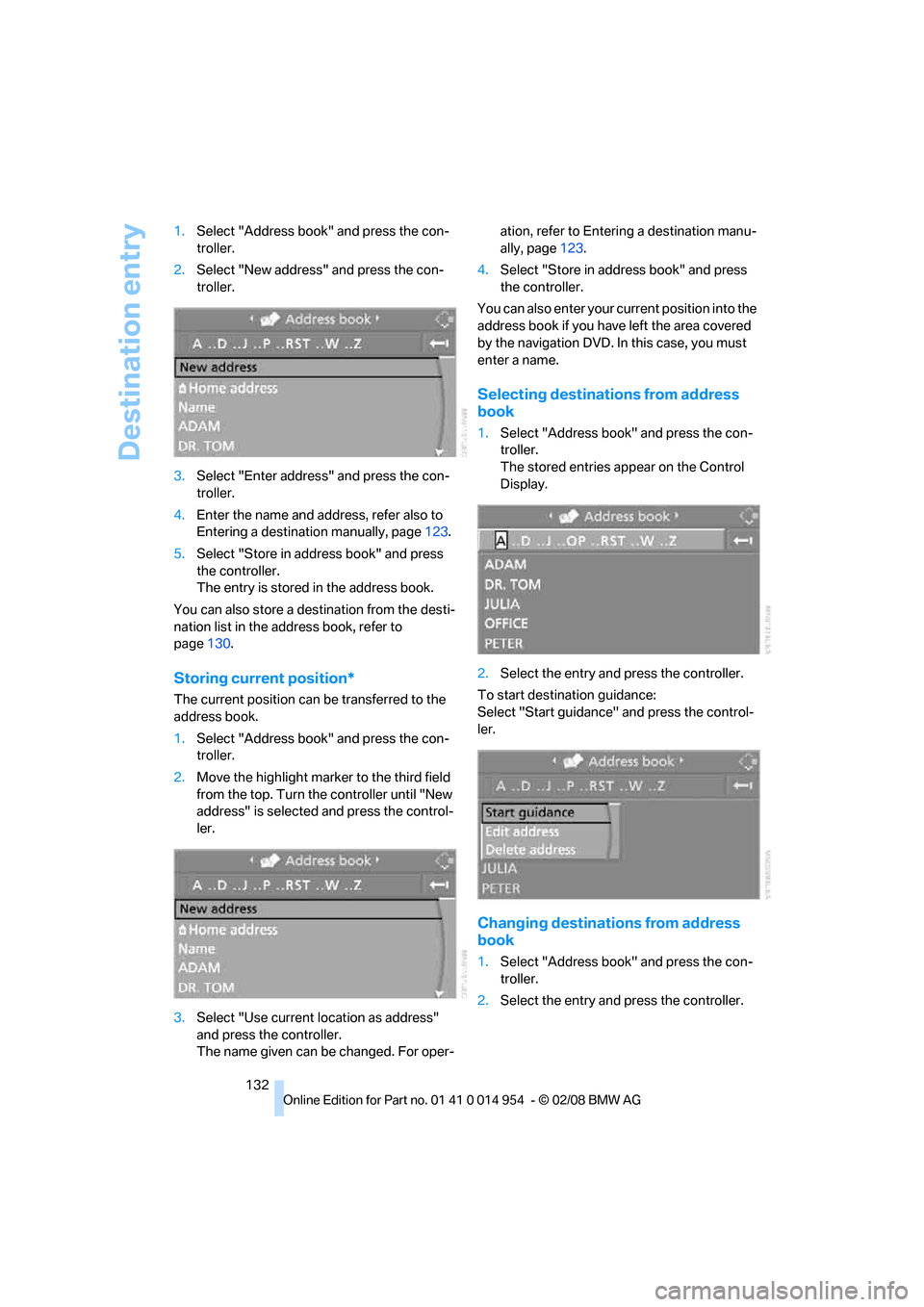
132 1.Select "Address book" and press the con-
troller.
2.Select "New address" and press the con-
troller.
3.Select "Enter address" and press the con-
troller.
4.Enter the name and address, refer also to
Entering a destination manually, page123.
5.Select "Store in address book" and press
the controller.
The entry is stored in the address book.
You can also store a destination from the desti-
nation list in the address book, refer to
page130.
Storing current position*
The current position can be transferred to the
address book.
1.Select "Address book" and press the con-
troller.
2.Move the highlight marker to the third field
from the top. Turn the controller until "New
address" is selected and press the control-
ler.
3.Select "Use current location as address"
and press the controller.
The name given can be changed. For oper-ation, refer to Entering a destination manu-
ally, page123.
4.Select "Store in address book" and press
the controller.
You can also enter your current position into the
address book if you have left the area covered
by the navigation DVD. In this case, you must
enter a name.
Selecting destinations from address
book
1.Select "Address book" and press the con-
troller.
The stored entries appear on the Control
Display.
2.Select the entry and press the controller.
To start destination guidance:
Select "Start guidance" and press the control-
ler.
Changing destinations from address
book
1.Select "Address book" and press the con-
troller.
2.Select the entry and press the controller.
Page 135 of 264
Navigation
Driving tips
133Reference
At a glance
Controls
Communications
Entertainment
Mobility
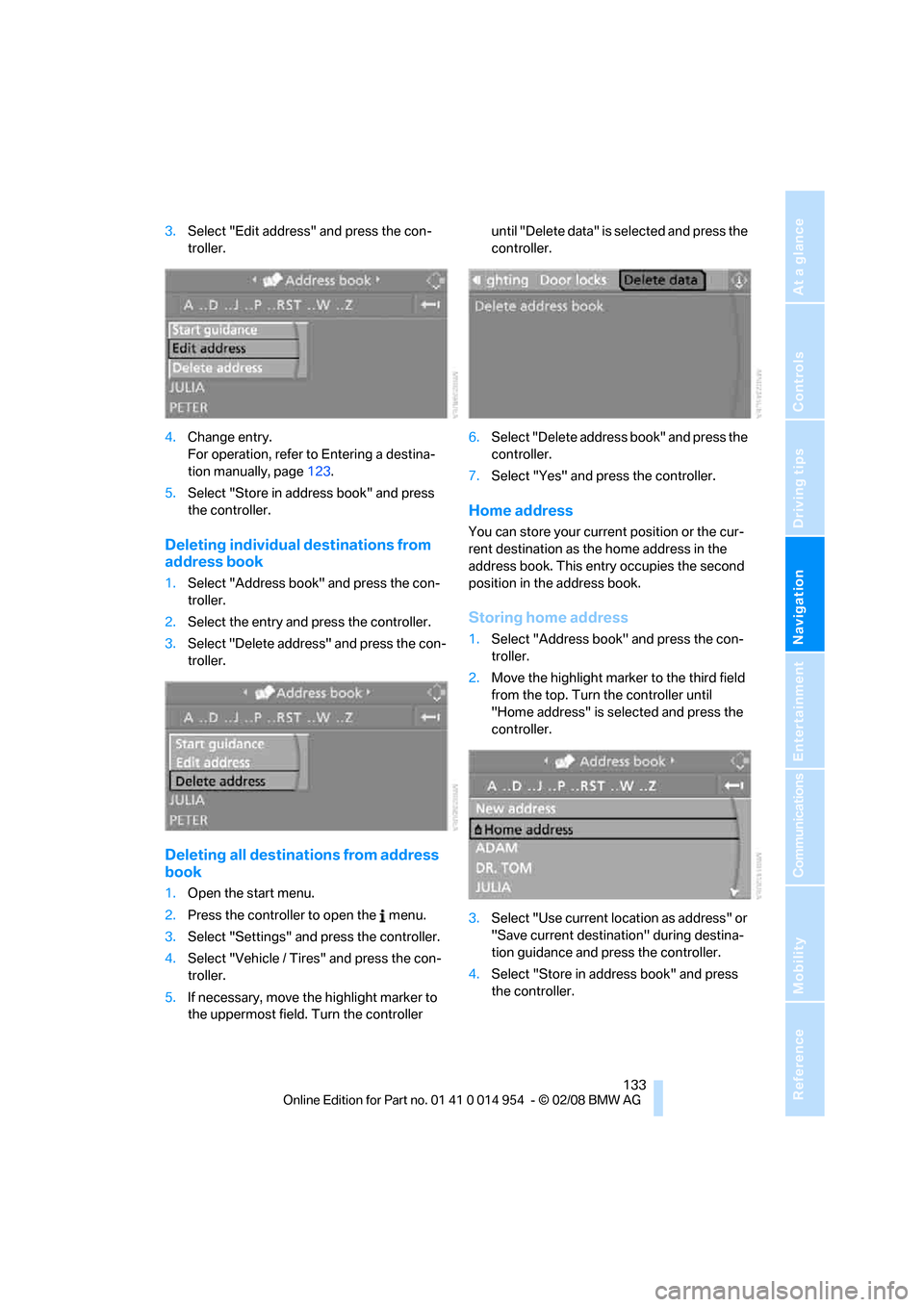
3.Select "Edit address" and press the con-
troller.
4.Change entry.
For operation, refer to Entering a destina-
tion manually, page123.
5.Select "Store in address book" and press
the controller.
Deleting individual destinations from
address book
1.Select "Address book" and press the con-
troller.
2.Select the entry and press the controller.
3.Select "Delete address" and press the con-
troller.
Deleting all destinations from address
book
1.Open the start menu.
2.Press the controller to open the menu.
3.Select "Settings" and press the controller.
4.Select "Vehicle / Tires" and press the con-
troller.
5.If necessary, move the highlight marker to
the uppermost field. Turn the controller until "Delete data" is selected and press the
controller.
6.Select "Delete address book" and press the
controller.
7.Select "Yes" and press the controller.
Home address
You can store your current position or the cur-
rent destination as the home address in the
address book. This entry occupies the second
position in the address book.
Storing home address
1.Select "Address book" and press the con-
troller.
2.Move the highlight marker to the third field
from the top. Turn the controller until
"Home address" is selected and press the
controller.
3.Select "Use current location as address" or
"Save current destination" during destina-
tion guidance and press the controller.
4.Select "Store in address book" and press
the controller.
Page 136 of 264
Destination entry
134
Using home address as destination
1.Select "Home address" and press the con-
troller.
2.Select "Start guidance" and press the con-
troller.
Changing home address
1.Select "Home address" and press the con-
troller.
2.Select "Edit address" and press the con-
troller. For operation, refer to Entering a
destination manually, page123.
Route selection
You can influence the calculated route by
choosing certain route criteria. You can change
the route criteria as often as you like during des-
tination entry or during destination guidance.
The route is planned according to fixed rules.
The type of road is taken into account, e.g.
whether it is a highway or a winding road. The
road types are stored on the navigation DVD. As
a result, the routes recommended by the navi-
gation system may not always be the same
ones that you would choose based on personal
experience.
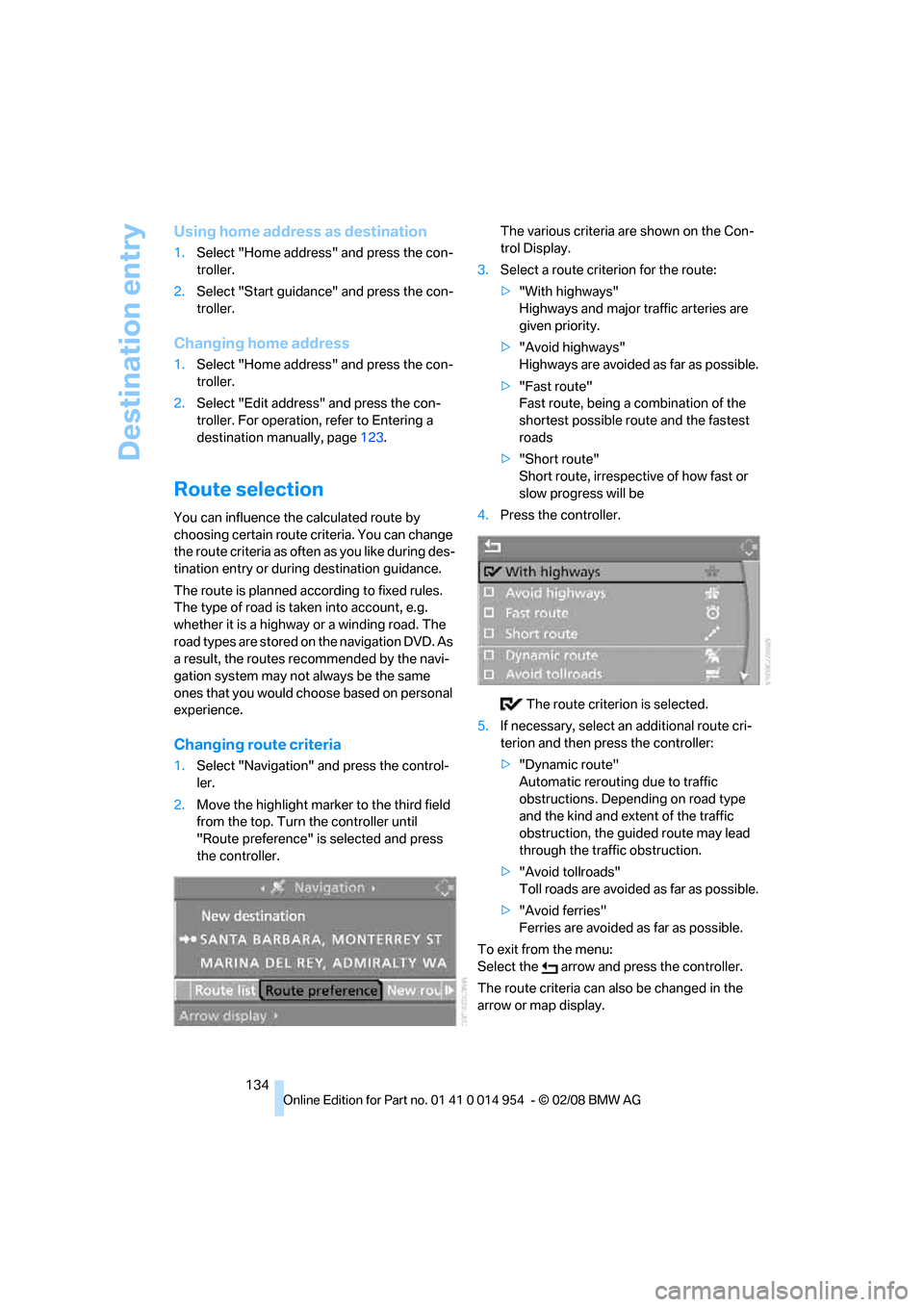
Changing route criteria
1.Select "Navigation" and press the control-
ler.
2.Move the highlight marker to the third field
from the top. Turn the controller until
"Route preference" is selected and press
the controller.The various criteria are shown on the Con-
trol Display.
3.Select a route criterion for the route:
>"With highways"
Highways and major traffic arteries are
given priority.
>"Avoid highways"
Highways are avoided as far as possible.
>"Fast route"
Fast route, being a combination of the
shortest possible route and the fastest
roads
>"Short route"
Short route, irrespective of how fast or
slow progress will be
4.Press the controller.
The route criterion is selected.
5.If necessary, select an additional route cri-
terion and then press the controller:
>"Dynamic route"
Automatic rerouting due to traffic
obstructions. Depending on road type
and the kind and extent of the traffic
obstruction, the guided route may lead
through the traffic obstruction.
>"Avoid tollroads"
Toll roads are avoided as far as possible.
>"Avoid ferries"
Ferries are avoided as far as possible.
To exit from the menu:
Select the arrow and press the controller.
The route criteria can also be changed in the
arrow or map display.
Page 139 of 264
Navigation
Driving tips
137Reference
At a glance
Controls
Communications
Entertainment
Mobility
2.Select "Stop guidance" and press the con-
troller.
If you did not reach the destination before the
end of the last journey, the following question
will appear in the display at the start of the next
journey:
"Continue guidance to destination?".
The destination guidance starts automatically
after a short time.
To start destination guidance immediately:
Select "Yes" and press the controller.
Route display
You can have the route during destination guid-
ance displayed in various ways.
From another menu, you can switch
directly to the screen last displayed, refer
to Convenient call-up of menu items on
page18.<
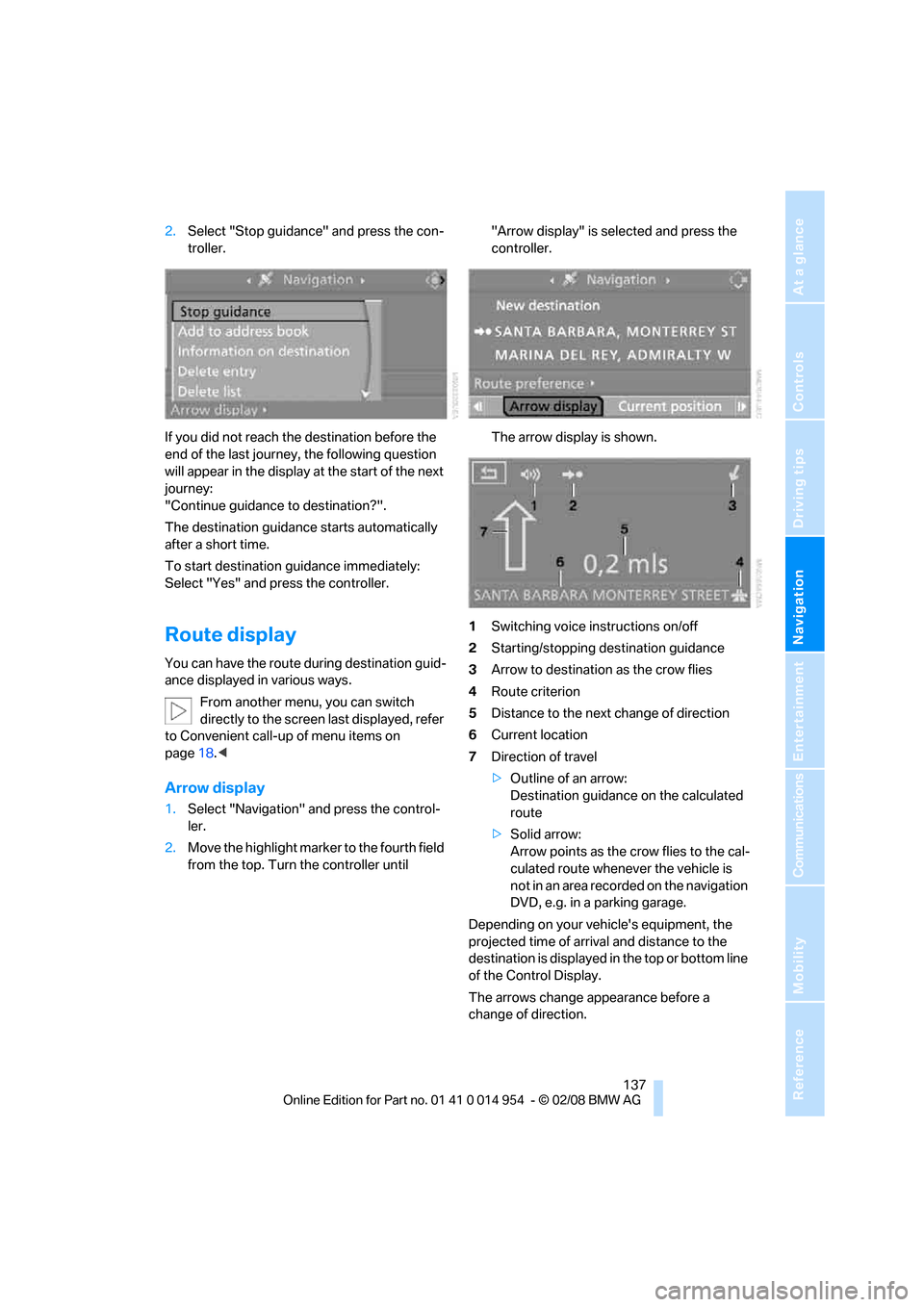
Arrow display
1.Select "Navigation" and press the control-
ler.
2.Move the highlight marker to the fourth field
from the top. Turn the controller until "Arrow display" is selected and press the
controller.
The arrow display is shown.
1Switching voice instructions on/off
2Starting/stopping destination guidance
3Arrow to destination as the crow flies
4Route criterion
5Distance to the next change of direction
6Current location
7Direction of travel
>Outline of an arrow:
Destination guidance on the calculated
route
>Solid arrow:
Arrow points as the crow flies to the cal-
culated route whenever the vehicle is
not in an area recorded on the navigation
DVD, e.g. in a parking garage.
Depending on your vehicle's equipment, the
projected time of arrival and distance to the
destination is displayed in the top or bottom line
of the Control Display.
The arrows change appearance before a
change of direction.
Page 140 of 264
Destination guidance
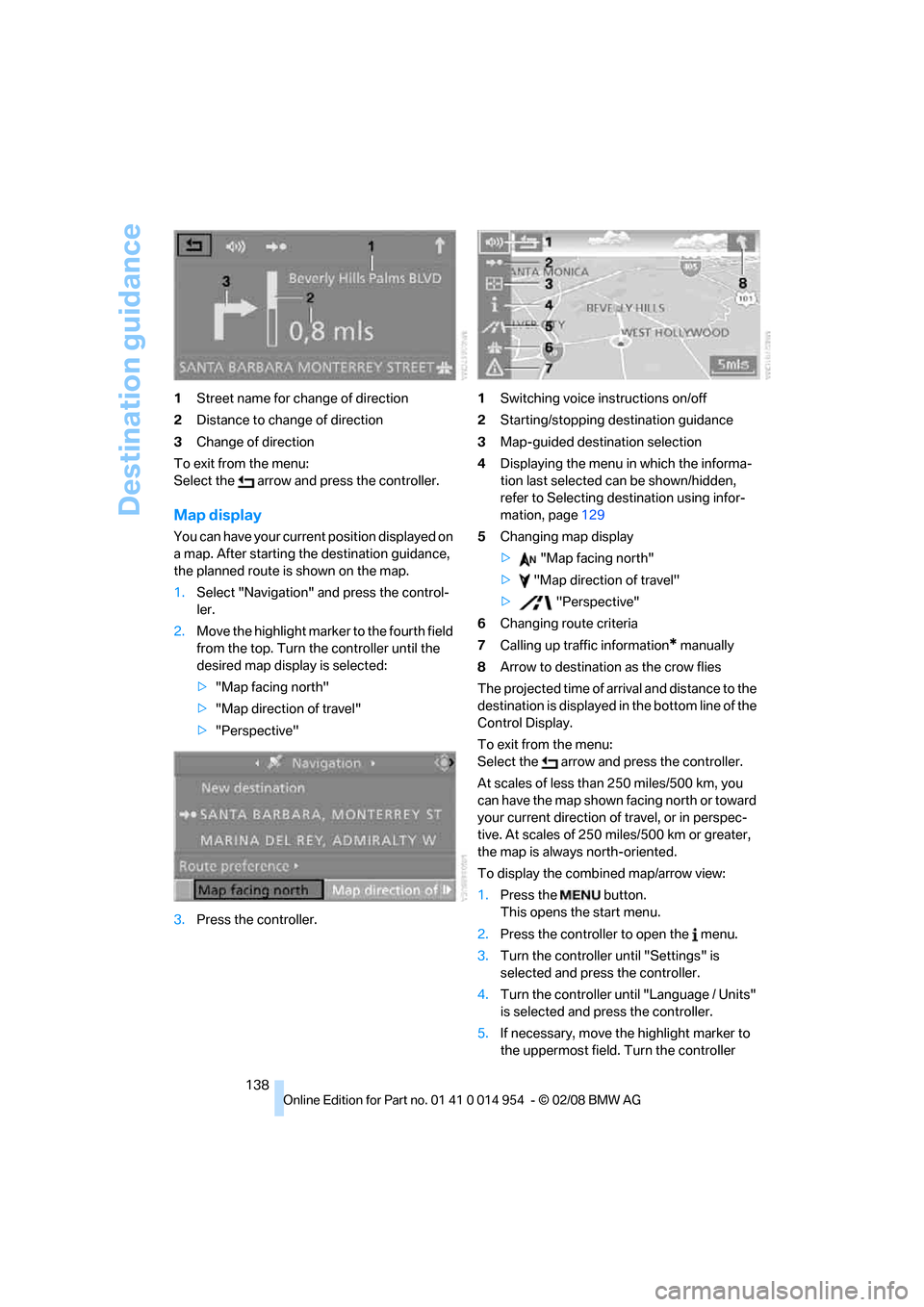
138 1Street name for change of direction
2Distance to change of direction
3Change of direction
To exit from the menu:
Select the arrow and press the controller.
Map display
You can have your current position displayed on
a map. After starting the destination guidance,
the planned route is shown on the map.
1.Select "Navigation" and press the control-
ler.
2.Move the highlight marker to the fourth field
from the top. Turn the controller until the
desired map display is selected:
>"Map facing north"
>"Map direction of travel"
>"Perspective"
3.Press the controller.1Switching voice instructions on/off
2Starting/stopping destination guidance
3Map-guided destination selection
4Displaying the menu in which the informa-
tion last selected can be shown/hidden,
refer to Selecting destination using infor-
mation, page129
5Changing map display
> "Map facing north"
> "Map direction of travel"
> "Perspective"
6Changing route criteria
7Calling up traffic information
* manually
8Arrow to destination as the crow flies
The projected time of arrival and distance to the
destination is displayed in the bottom line of the
Control Display.
To exit from the menu:
Select the arrow and press the controller.
At scales of less than 250 miles/500 km, you
can have the map shown facing north or toward
your current direction of travel, or in perspec-
tive. At scales of 250 miles/500 km or greater,
the map is always north-oriented.
To display the combined map/arrow view:
1.Press the button.
This opens the start menu.
2.Press the controller to open the menu.
3.Turn the controller until "Settings" is
selected and press the controller.
4.Turn the controller until "Language / Units"
is selected and press the controller.
5.If necessary, move the highlight marker to
the uppermost field. Turn the controller
Page 141 of 264
Navigation
Driving tips
139Reference
At a glance
Controls
Communications
Entertainment
Mobility
until "Languages" is selected and press the
controller.
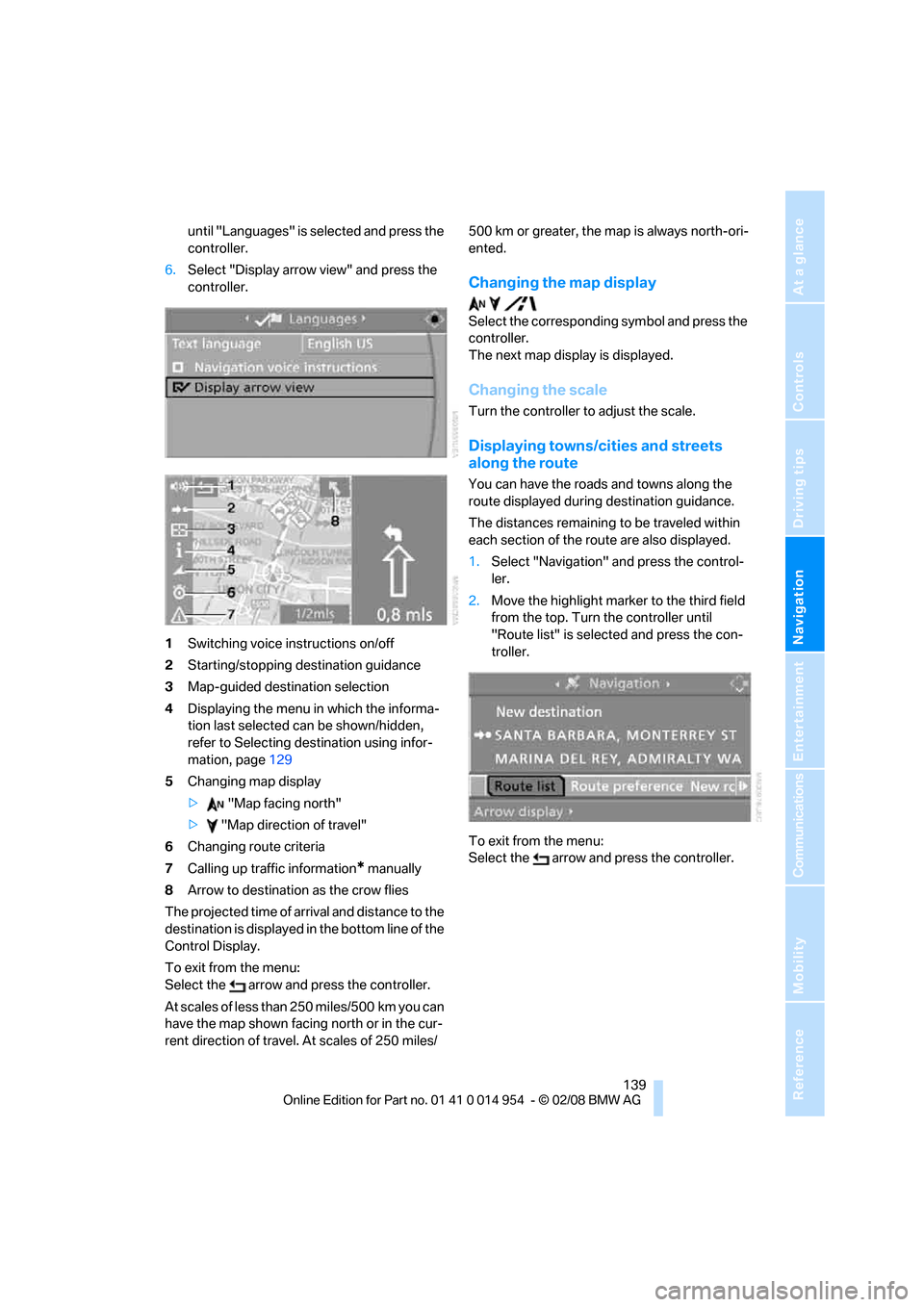
6.Select "Display arrow view" and press the
controller.
1Switching voice instructions on/off
2Starting/stopping destination guidance
3Map-guided destination selection
4Displaying the menu in which the informa-
tion last selected can be shown/hidden,
refer to Selecting destination using infor-
mation, page129
5Changing map display
> "Map facing north"
> "Map direction of travel"
6Changing route criteria
7Calling up traffic information
* manually
8Arrow to destination as the crow flies
The projected time of arrival and distance to the
destination is displayed in the bottom line of the
Control Display.
To exit from the menu:
Select the arrow and press the controller.
At scales of less than 250 miles/500 km you can
have the map shown facing north or in the cur-
rent direction of travel. At scales of 250 miles/500 km or greater, the map is always north-ori-
ented.
Changing the map display
Select the corresponding symbol and press the
controller.
The next map display is displayed.
Changing the scale
Turn the controller to adjust the scale.
Displaying towns/cities and streets
along the route
You can have the roads and towns along the
route displayed during destination guidance.
The distances remaining to be traveled within
each section of the route are also displayed.
1.Select "Navigation" and press the control-
ler.
2.Move the highlight marker to the third field
from the top. Turn the controller until
"Route list" is selected and press the con-
troller.
To exit from the menu:
Select the arrow and press the controller.
Page 143 of 264
Navigation
Driving tips
141Reference
At a glance
Controls
Communications
Entertainment
Mobility
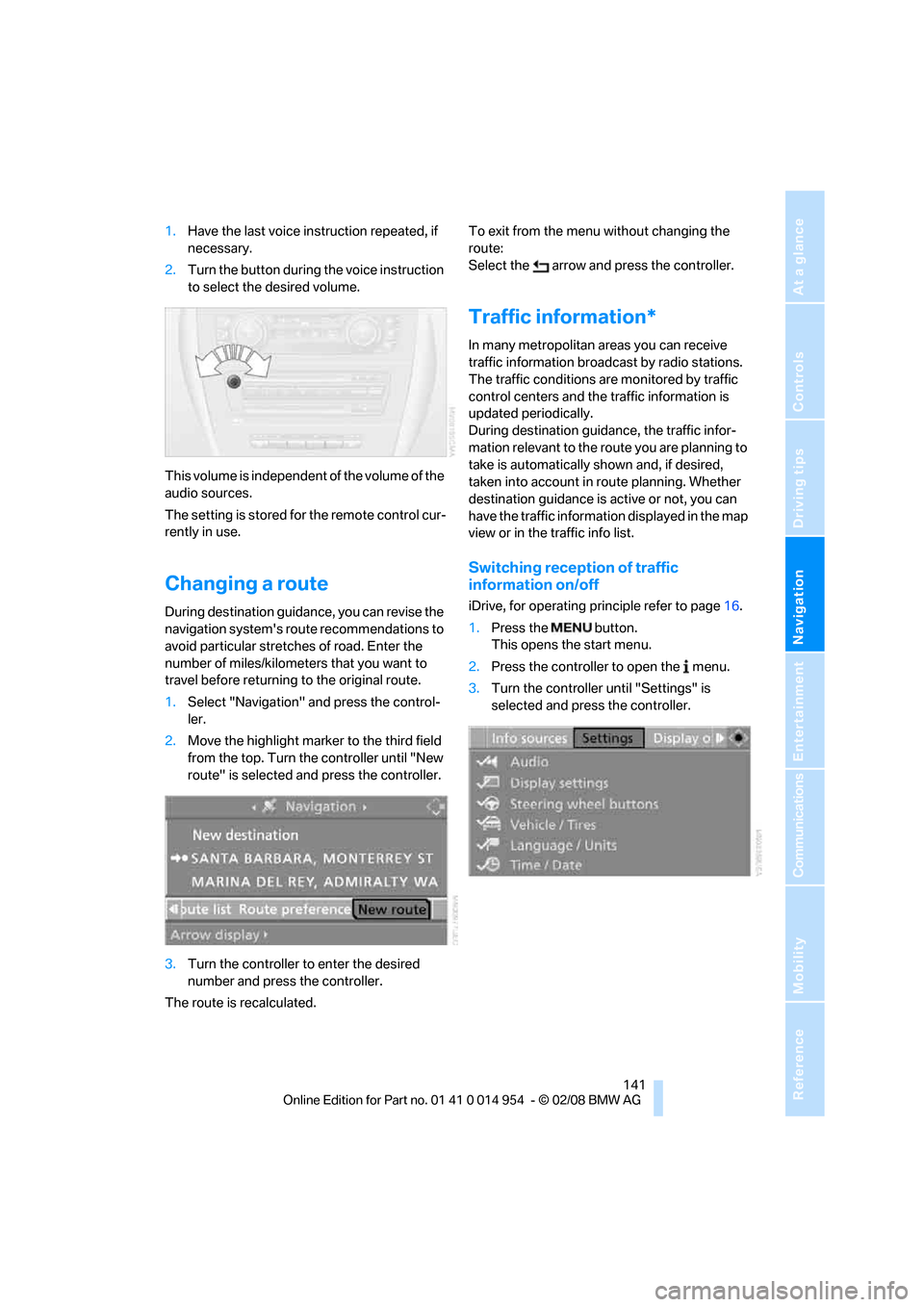
1.Have the last voice instruction repeated, if
necessary.
2.Turn the button during the voice instruction
to select the desired volume.
This volume is independent of the volume of the
audio sources.
The setting is stored for the remote control cur-
rently in use.
Changing a route
During destination guidance, you can revise the
navigation system's route recommendations to
avoid particular stretches of road. Enter the
number of miles/kilometers that you want to
travel before returning to the original route.
1.Select "Navigation" and press the control-
ler.
2.Move the highlight marker to the third field
from the top. Turn the controller until "New
route" is selected and press the controller.
3.Turn the controller to enter the desired
number and press the controller.
The route is recalculated.To exit from the menu without changing the
route:
Select the arrow and press the controller.
Traffic information*
In many metropolitan areas you can receive
traffic information broadcast by radio stations.
The traffic conditions are monitored by traffic
control centers and the traffic information is
updated periodically.
During destination guidance, the traffic infor-
mation relevant to the route you are planning to
take is automatically shown and, if desired,
taken into account in route planning. Whether
destination guidance is active or not, you can
have the traffic information displayed in the map
view or in the traffic info list.
Switching reception of traffic
information on/off
iDrive, for operating principle refer to page16.
1.Press the button.
This opens the start menu.
2.Press the controller to open the menu.
3.Turn the controller until "Settings" is
selected and press the controller.