top BMW 128I CONVERTIBLE 2008 E88 Service Manual
[x] Cancel search | Manufacturer: BMW, Model Year: 2008, Model line: 128I CONVERTIBLE, Model: BMW 128I CONVERTIBLE 2008 E88Pages: 264, PDF Size: 8.68 MB
Page 145 of 264
Navigation
Driving tips
143Reference
At a glance
Controls
Communications
Entertainment
Mobility
Displaying traffic information in map
display
The traffic information icons are shown in the
map display up to a scale of 100 miles/200 km.
The highlighting of the stretch corresponding
to the traffic report and the icons for the type of
event as described below are displayed and
hidden. This depends on the selected scale.
Displaying detailed traffic information
Select a traffic information item from the list and
press the controller.
To exit from the menu:
Select the arrow and press the controller.
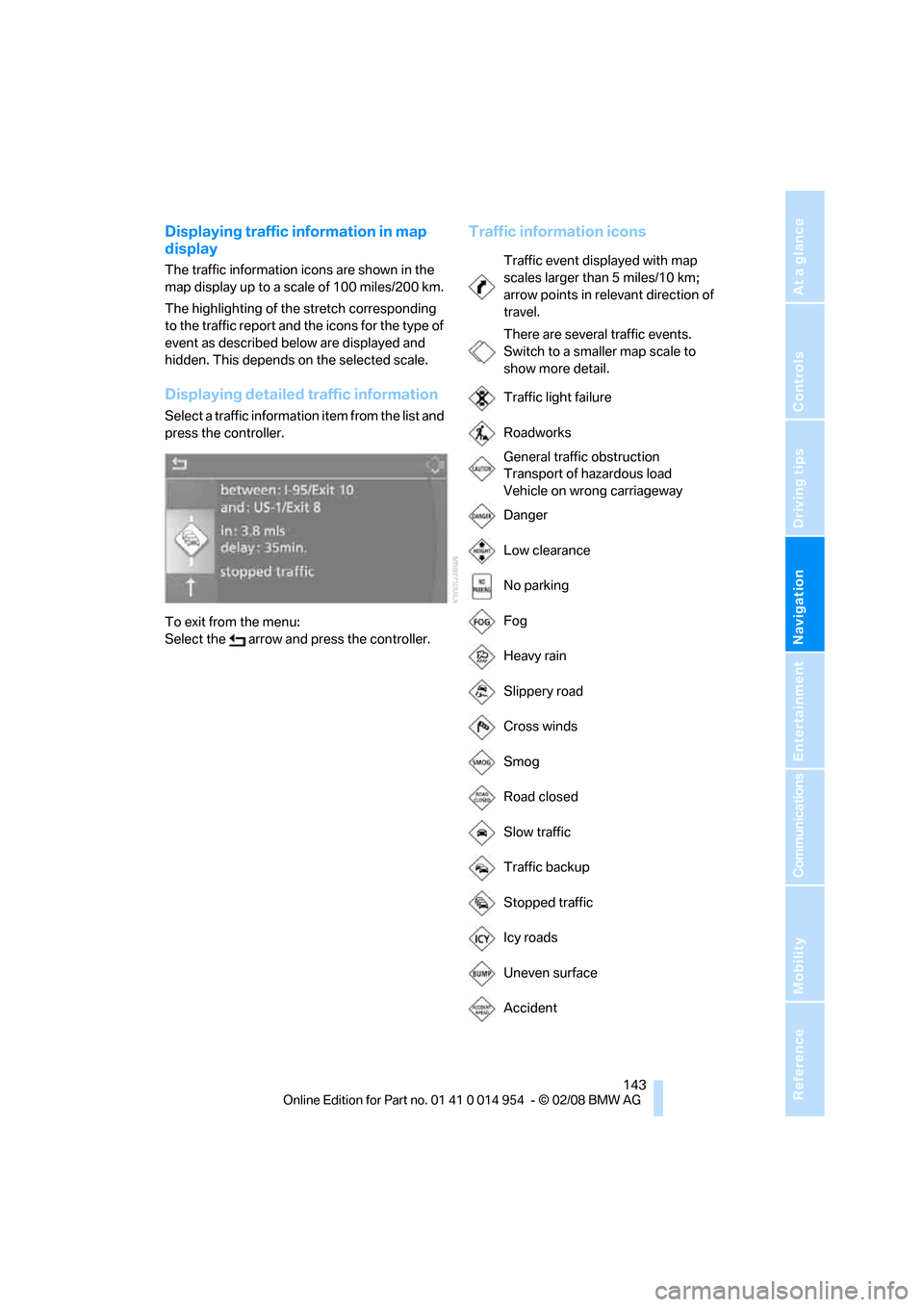
Traffic information icons
Traffic event displayed with map
scales larger than 5 miles/10 km;
arrow points in relevant direction of
travel.
There are several traffic events.
Switch to a smaller map scale to
show more detail.
Traffic light failure
Roadworks
General traffic obstruction
Transport of hazardous load
Vehicle on wrong carriageway
Danger
Low clearance
No parking
Fog
Heavy rain
Slippery road
Cross winds
Smog
Road closed
Slow traffic
Traffic backup
Stopped traffic
Icy roads
Uneven surface
Accident
Page 146 of 264
Destination guidance
144
Traffic information during destination
guidance
In the event of a traffic obstruction on the
planned route, the traffic information icons are
shown with a red border.
System response will vary depending on
whether or not "Dynamic route" is selected,
refer to page134.
Displaying traffic obstructions
When the navigation system receives a traffic
obstruction message and "Dynamic route" is
not selected, you are shown certain informa-
tion, such as the length of the traffic congestion,
when you are approx. 25 miles/40 km away
from the traffic obstruction.
The last possible detour exit is indicated just
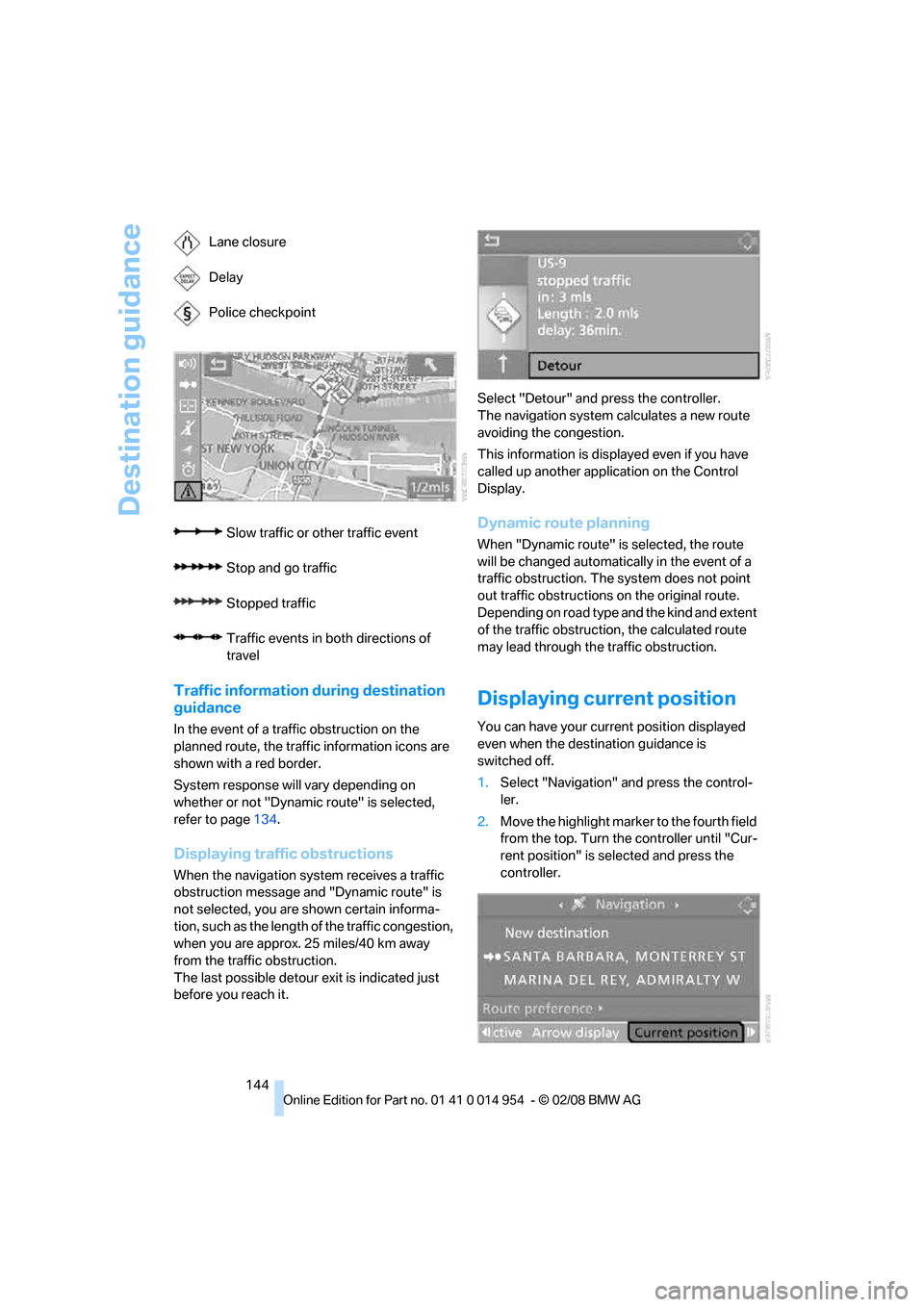
before you reach it.Select "Detour" and press the controller.
The navigation system calculates a new route
avoiding the congestion.
This information is displayed even if you have
called up another application on the Control
Display.
Dynamic route planning
When "Dynamic route" is selected, the route
will be changed automatically in the event of a
traffic obstruction. The system does not point
out traffic obstructions on the original route.
Depending on road type and the kind and extent
of the traffic obstruction, the calculated route
may lead through the traffic obstruction.
Displaying current position
You can have your current position displayed
even when the destination guidance is
switched off.
1.Select "Navigation" and press the control-
ler.
2.Move the highlight marker to the fourth field
from the top. Turn the controller until "Cur-
rent position" is selected and press the
controller. Lane closure
Delay
Police checkpoint
Slow traffic or other traffic event
Stop and go traffic
Stopped traffic
Traffic events in both directions of
travel
Page 148 of 264
What to do if …
146
What to do if …
What to do if …
>a navigation DVD is inserted, but an instruc-
tion to insert the DVD appears on the Con-
trol Display?
The navigation DVD may not be the correct
DVD for the navigation system. This infor-
mation is indicated on the DVD label.
>you request the current position of your
vehicle, but do not receive a precise dis-
play?
The system is unable to receive enough
GPS signals at your current position due to
obstructions, your current position is not
yet available on your navigation DVD, or the
system is in the process of calculating your
current position. As a rule, reception is
guaranteed when you are in the open.
>the destination guidance does not accept a
destination?
The data of the destination is not stored on
the navigation DVD that is loaded. Choose a
destination as close as possible to the orig-
inal one.
>the destination guidance does not accept
an address without the street name?
On the navigation DVD, no downtown area
can be determined for the city or town
entered. Enter any street, or a destination
such as the railway station in the selected
town, and then start the destination guid-
ance.
>you want to enter a destination for the des-
tination guidance, but it is not possible to
select the letters for your desired entry?
The data of the destination is not stored on
the navigation DVD that is loaded. In this
case, the system will not offer you any let-
ters to choose from. Choose a destination
as close as possible to the original one.
>the system stops furnishing directions on
which way to turn as you approach intersec-
tions?
You are driving in an area that has not yet
been completely recorded on the naviga-tion DVD. Instead of an arrow indicating a
turn, you will see an arrow which indicates
the general direction of your planned route.
Or you have left the recommended route
and the system requires a few seconds to
calculate a new recommended route.
>the navigation system does not react to
entries?
If the battery was disconnected, it takes
about 10 minutes before the system is once
again operational.
Page 157 of 264
Navigation
Entertainment
Driving tips
155Reference
At a glance
Controls
Communications
Mobility
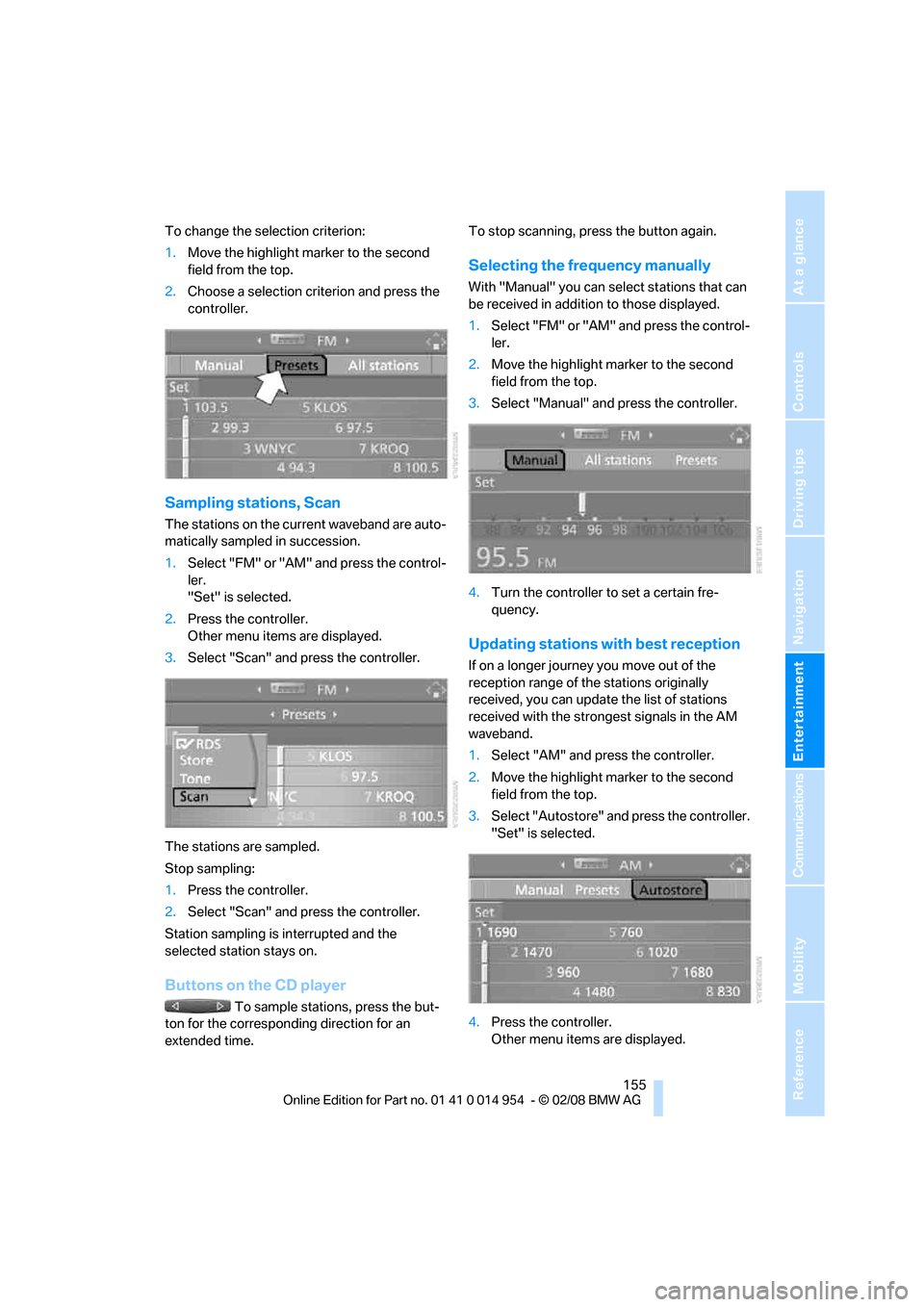
To change the selection criterion:
1.Move the highlight marker to the second
field from the top.
2.Choose a selection criterion and press the
controller.
Sampling stations, Scan
The stations on the current waveband are auto-
matically sampled in succession.
1.Select "FM" or "AM" and press the control-
ler.
"Set" is selected.
2.Press the controller.
Other menu items are displayed.
3.Select "Scan" and press the controller.
The stations are sampled.
Stop sampling:
1.Press the controller.
2.Select "Scan" and press the controller.
Station sampling is interrupted and the
selected station stays on.
Buttons on the CD player
To sample stations, press the but-
ton for the corresponding direction for an
extended time.To stop scanning, press the button again.
Selecting the frequency manually
With "Manual" you can select stations that can
be received in addition to those displayed.
1.Select "FM" or "AM" and press the control-
ler.
2.Move the highlight marker to the second
field from the top.
3.Select "Manual" and press the controller.
4.Turn the controller to set a certain fre-
quency.
Updating stations with best reception
If on a longer journey you move out of the
reception range of the stations originally
received, you can update the list of stations
received with the strongest signals in the AM
waveband.
1.Select "AM" and press the controller.
2.Move the highlight marker to the second
field from the top.
3.Select "Autostore" and press the controller.
"Set" is selected.
4.Press the controller.
Other menu items are displayed.
Page 158 of 264
Radio
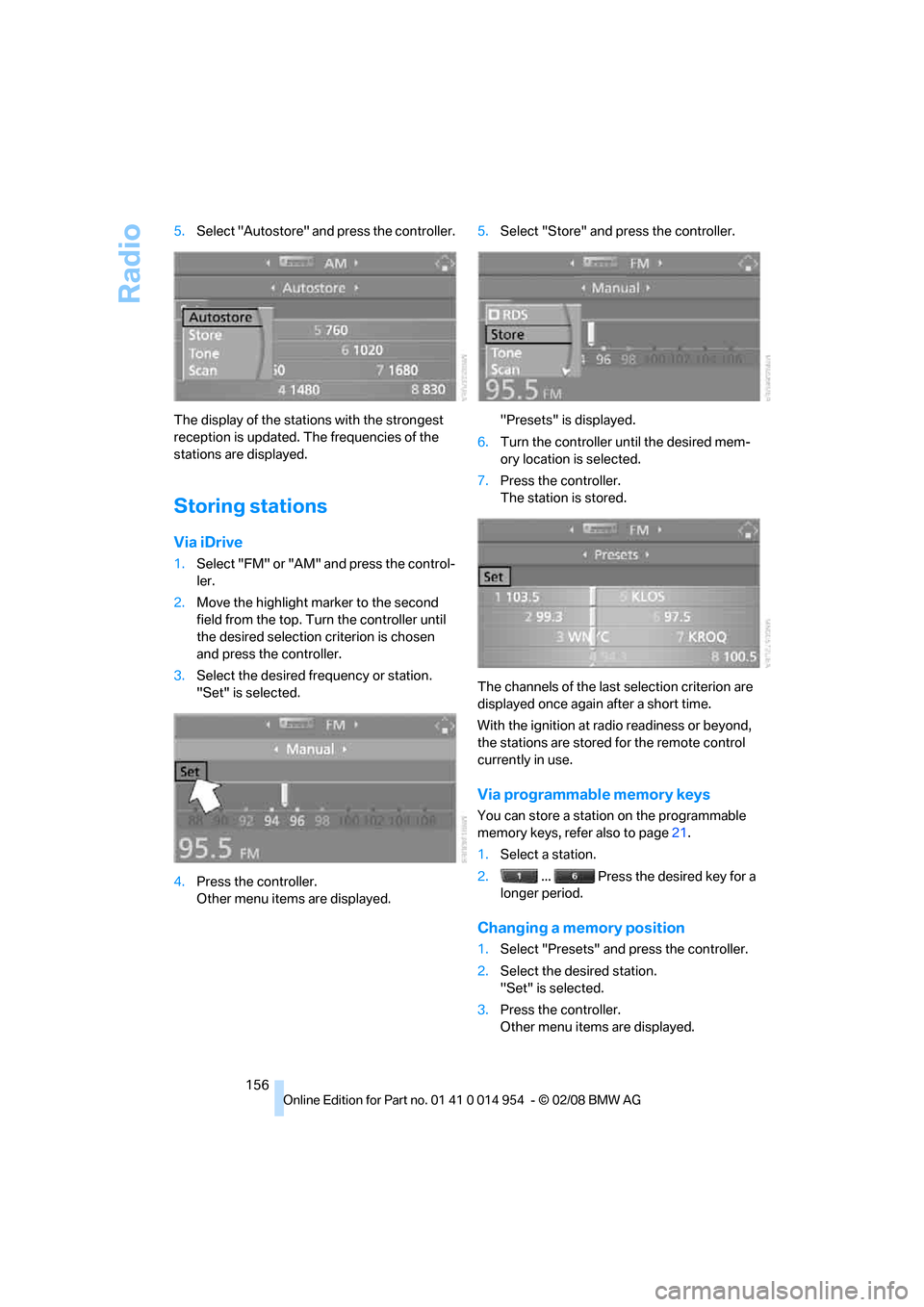
156 5.Select "Autostore" and press the controller.
The display of the stations with the strongest
reception is updated. The frequencies of the
stations are displayed.
Storing stations
Via iDrive
1.Select "FM" or "AM" and press the control-
ler.
2.Move the highlight marker to the second
field from the top. Turn the controller until
the desired selection criterion is chosen
and press the controller.
3.Select the desired frequency or station.
"Set" is selected.
4.Press the controller.
Other menu items are displayed.5.Select "Store" and press the controller.
"Presets" is displayed.
6.Turn the controller until the desired mem-
ory location is selected.
7.Press the controller.
The station is stored.
The channels of the last selection criterion are
displayed once again after a short time.
With the ignition at radio readiness or beyond,
the stations are stored for the remote control
currently in use.
Via programmable memory keys
You can store a station on the programmable
memory keys, refer also to page21.
1.Select a station.
2. ... Press the desired key for a
longer period.
Changing a memory position
1.Select "Presets" and press the controller.
2.Select the desired station.
"Set" is selected.
3.Press the controller.
Other menu items are displayed.
Page 160 of 264
Radio
158 Some stations do not transmit the digital and
analog signals simultaneously. If you are in an
area in which digital reception of the selected
station is not possible continuously, reception
will alternate between analog and digital. This
can cause repetitions or interruptions. In this
case it may be preferable to switch off digital
reception.
Selecting the programs of a digital
station*
Some stations broadcast several programs on a
single frequency. To select one of these pro-
grams:
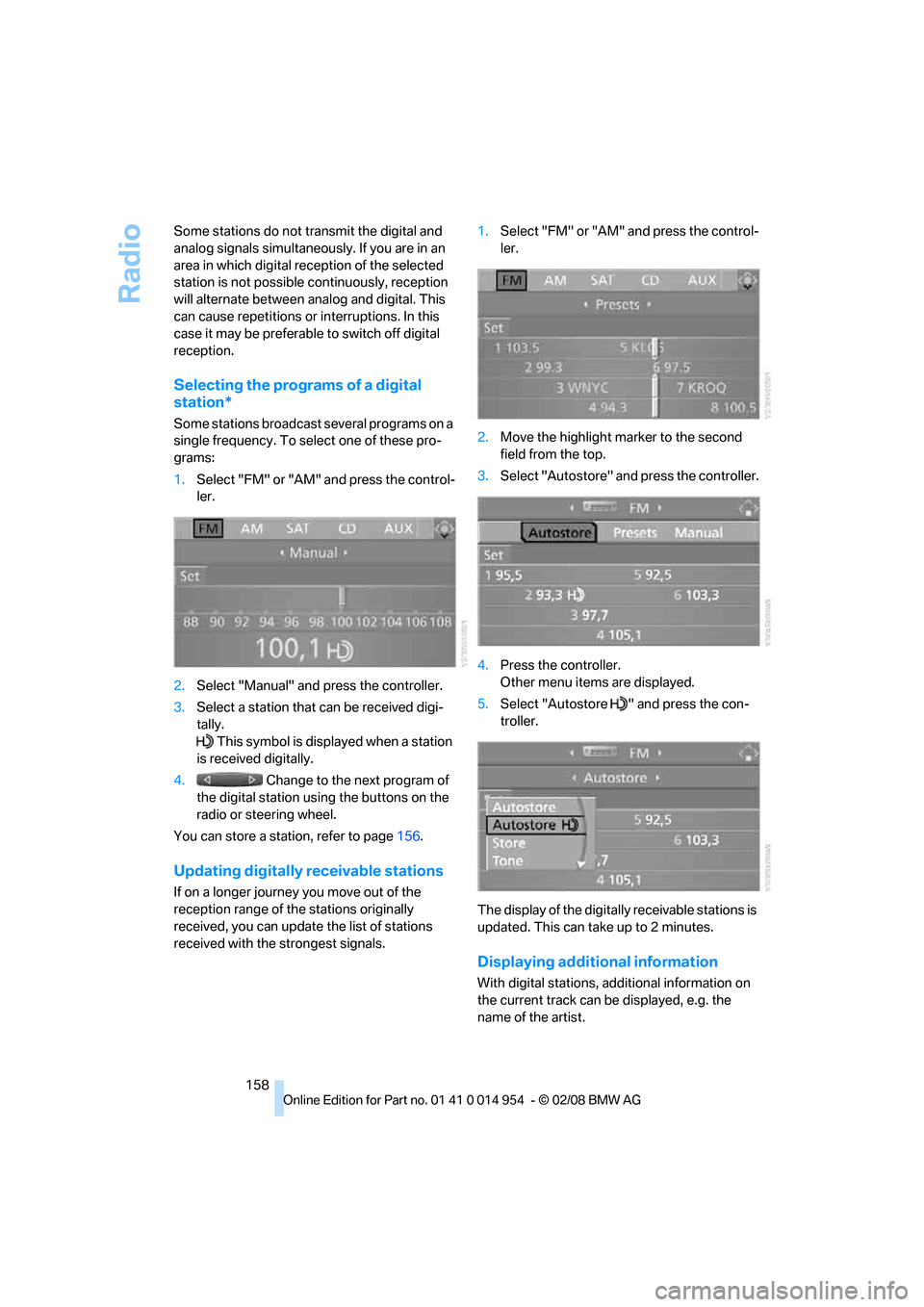
1.Select "FM" or "AM" and press the control-
ler.
2.Select "Manual" and press the controller.
3.Select a station that can be received digi-
tally.
This symbol is displayed when a station
is received digitally.
4. Change to the next program of
the digital station using the buttons on the
radio or steering wheel.
You can store a station, refer to page156.
Updating digitally receivable stations
If on a longer journey you move out of the
reception range of the stations originally
received, you can update the list of stations
received with the strongest signals.1.Select "FM" or "AM" and press the control-
ler.
2.Move the highlight marker to the second
field from the top.
3.Select "Autostore" and press the controller.
4.Press the controller.
Other menu items are displayed.
5.Select "Autostore " and press the con-
troller.
The display of the digitally receivable stations is
updated. This can take up to 2 minutes.
Displaying additional information
With digital stations, additional information on
the current track can be displayed, e.g. the
name of the artist.
Page 164 of 264
Satellite radio
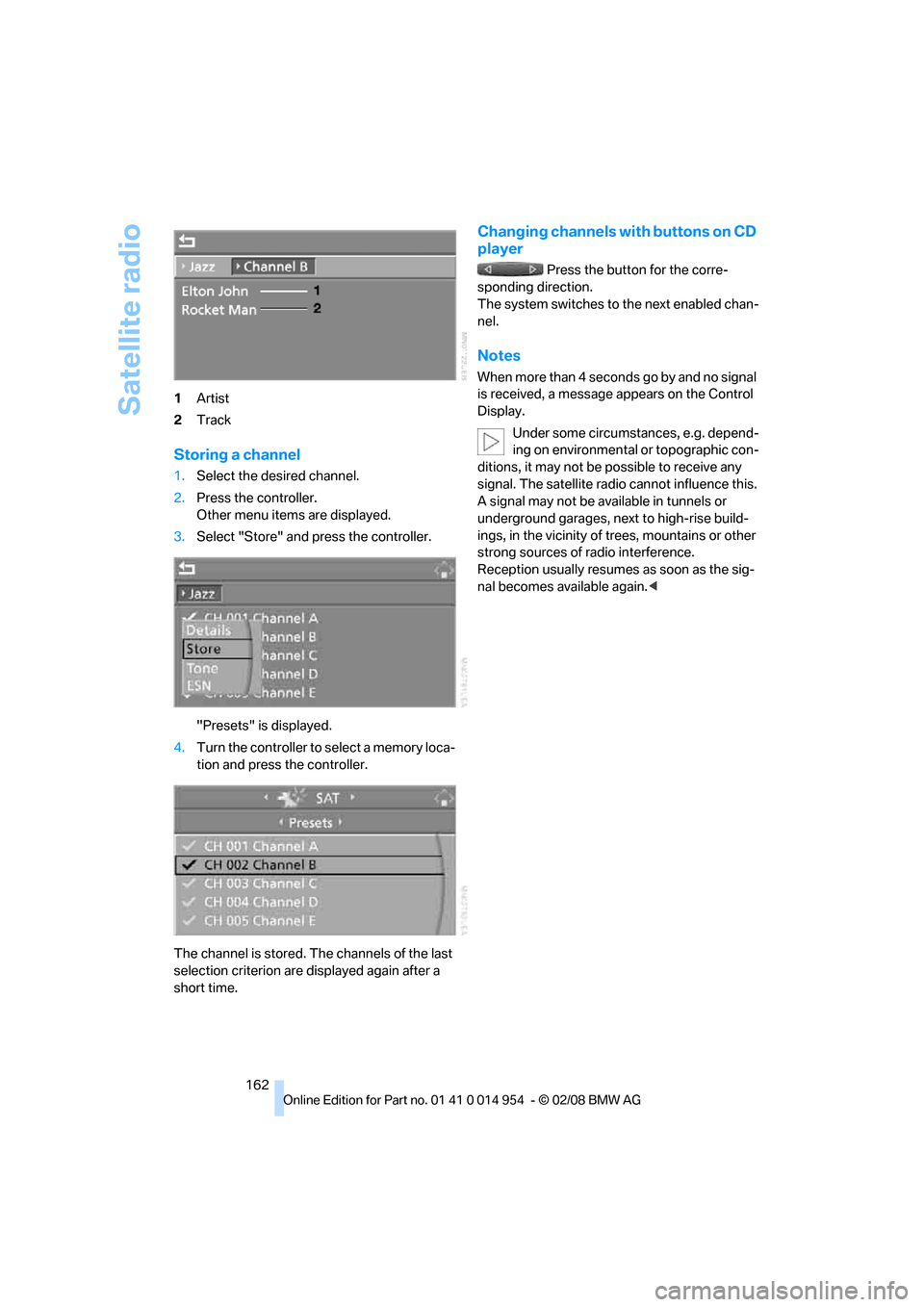
162 1Artist
2Track
Storing a channel
1.Select the desired channel.
2.Press the controller.
Other menu items are displayed.
3.Select "Store" and press the controller.
"Presets" is displayed.
4.Turn the controller to select a memory loca-
tion and press the controller.
The channel is stored. The channels of the last
selection criterion are displayed again after a
short time.
Changing channels with buttons on CD
player
Press the button for the corre-
sponding direction.
The system switches to the next enabled chan-
nel.
Notes
W hen mo re than 4 seconds go by and no s igna l
is received, a message appears on the Control
Display.
Under some circumstances, e.g. depend-
ing on environmental or topographic con-
ditions, it may not be possible to receive any
signal. The satellite radio cannot influence this.
A signal may not be available in tunnels or
underground garages, next to high-rise build-
ings, in the vicinity of trees, mountains or other
strong sources of radio interference.
Reception usually resumes as soon as the sig-
nal becomes available again.<
Page 165 of 264
Navigation
Entertainment
Driving tips
163Reference
At a glance
Controls
Communications
Mobility
CD player and CD changer
Listening to CDs
Compressed audio files
CDs with compressed audio files, MP3s, can be
played by the CD player and CD changer.
Starting the CD player
The upper drive is for audio CDs.
Insert the CD into the drive with the labeled side
up.
The CD is pulled in automatically. Playback
starts automatically if the sound output is on.
When playing CDs with compressed audio files,
it can take the CD player approx. 1 minute to
read in the data, depending on the directory
structure.
To start playback when there is already a CD in
the drive:
iDrive, for operating principle refer to page16.
1.Press the button.
This opens the start menu.
2.Move the controller backwards to call up
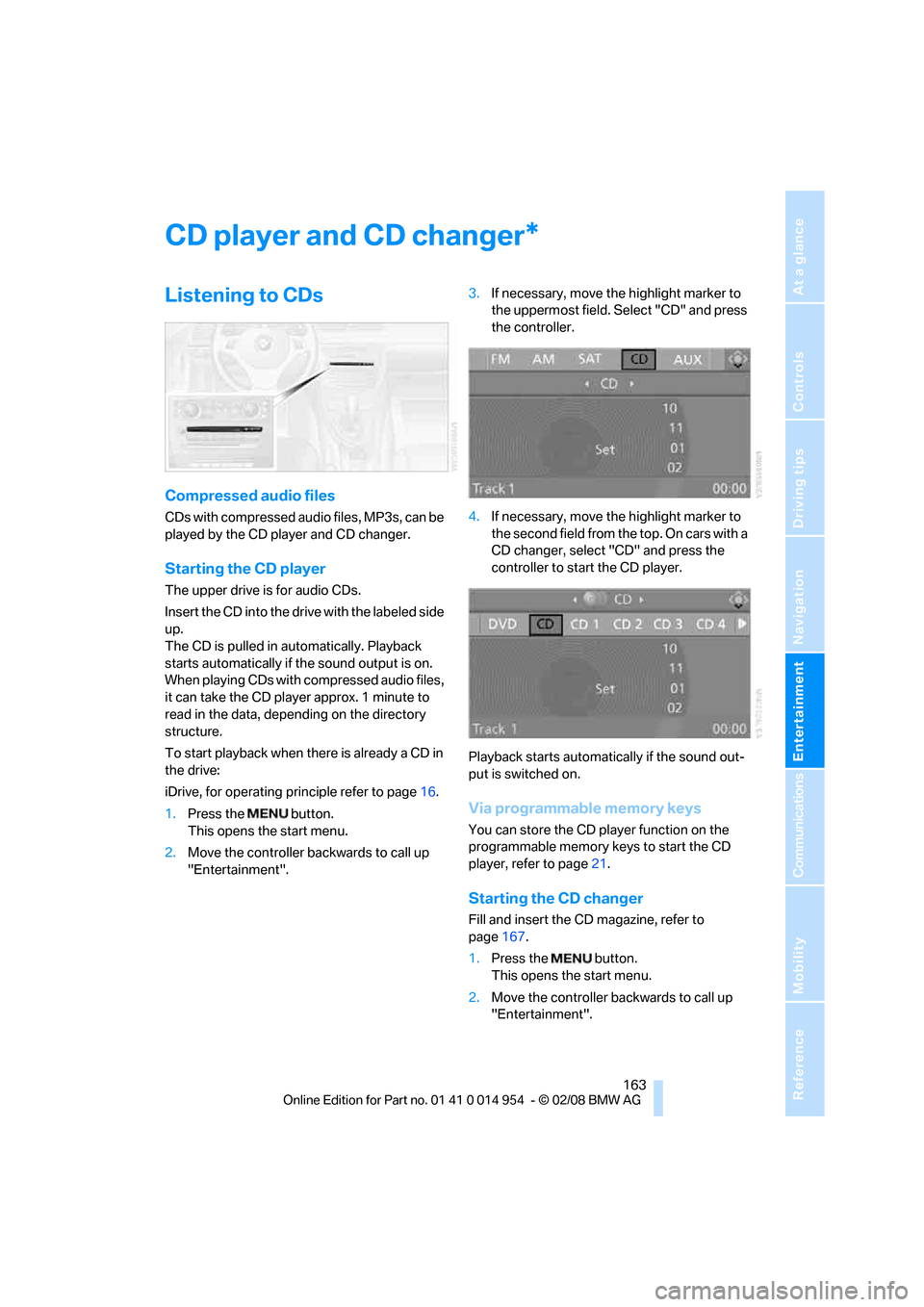
"Entertainment".3.If necessary, move the highlight marker to
the uppermost field. Select "CD" and press
the controller.
4.If necessary, move the highlight marker to
the second field from the top. On cars with a
CD changer, select "CD" and press the
controller to start the CD player.
Playback starts automatically if the sound out-
put is switched on.
Via programmable memory keys
You can store the CD player function on the
programmable memory keys to start the CD
player, refer to page21.
Starting the CD changer
Fill and insert the CD magazine, refer to
page167.
1.Press the button.
This opens the start menu.
2.Move the controller backwards to call up
"Entertainment".
*
Page 166 of 264
CD player and CD changer
164 3.If necessary, move the highlight marker to
the uppermost field. Select "CD" and press
the controller.
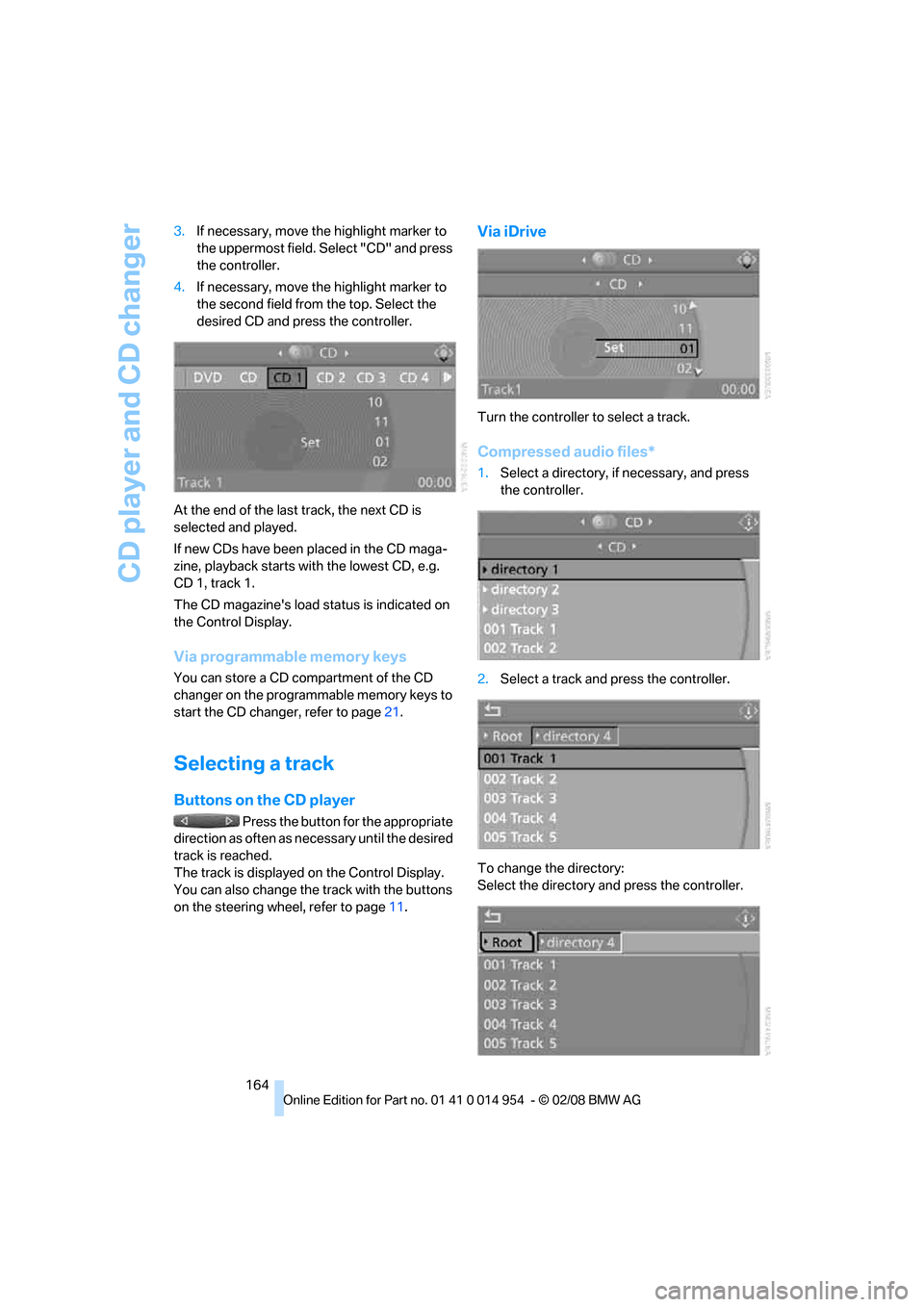
4.If necessary, move the highlight marker to
the second field from the top. Select the
desired CD and press the controller.
At the end of the last track, the next CD is
selected and played.
If new CDs have been placed in the CD maga-
zine, playback starts with the lowest CD, e.g.
CD 1, track 1.
The CD magazine's load status is indicated on
the Control Display.
Via programmable memory keys
You can store a CD compartment of the CD
changer on the programmable memory keys to
start the CD changer, refer to page21.
Selecting a track
Buttons on the CD player
Press the button for the appropriate
direction as often as necessary until the desired
track is reached.
The track is displayed on the Control Display.
You can also change the track with the buttons
on the steering wheel, refer to page11.
Via iDrive
Turn the controller to select a track.
Compressed audio files*
1.Select a directory, if necessary, and press
the controller.
2.Select a track and press the controller.
To change the directory:
Select the directory and press the controller.
Page 167 of 264
Navigation
Entertainment
Driving tips
165Reference
At a glance
Controls
Communications
Mobility
To exit from the menu:
Select the arrow and press the controller.
If the car is equipped with two CD drives, you
can save specific tracks on the programmable
memory keys, refer to page21.
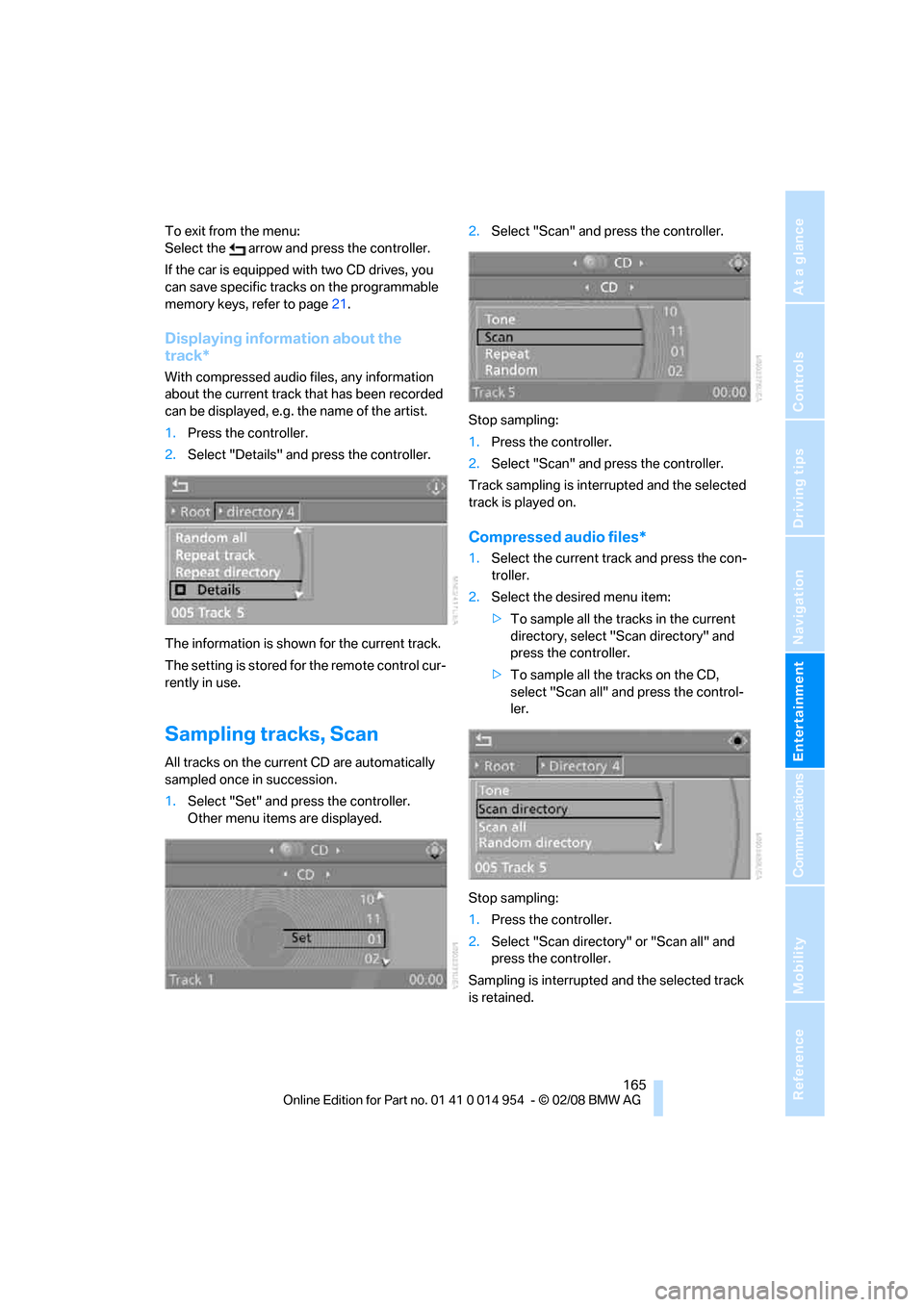
Displaying information about the
track*
With compressed audio files, any information
about the current track that has been recorded
can be displayed, e.g. the name of the artist.
1.Press the controller.
2.Select "Details" and press the controller.
The information is shown for the current track.
The setting is stored for the remote control cur-
rently in use.
Sampling tracks, Scan
All tracks on the current CD are automatically
sampled once in succession.
1.Select "Set" and press the controller.
Other menu items are displayed.2.Select "Scan" and press the controller.
Stop sampling:
1.Press the controller.
2.Select "Scan" and press the controller.
Track sampling is interrupted and the selected
track is played on.
Compressed audio files*
1.Select the current track and press the con-
troller.
2.Select the desired menu item:
>To sample all the tracks in the current
directory, select "Scan directory" and
press the controller.
>To sample all the tracks on the CD,
select "Scan all" and press the control-
ler.
Stop sampling:
1.Press the controller.
2.Select "Scan directory" or "Scan all" and
press the controller.
Sampling is interrupted and the selected track
is retained.