top BMW 128I CONVERTIBLE 2008 E88 Workshop Manual
[x] Cancel search | Manufacturer: BMW, Model Year: 2008, Model line: 128I CONVERTIBLE, Model: BMW 128I CONVERTIBLE 2008 E88Pages: 264, PDF Size: 8.68 MB
Page 168 of 264
CD player and CD changer
166
Repeating tracks
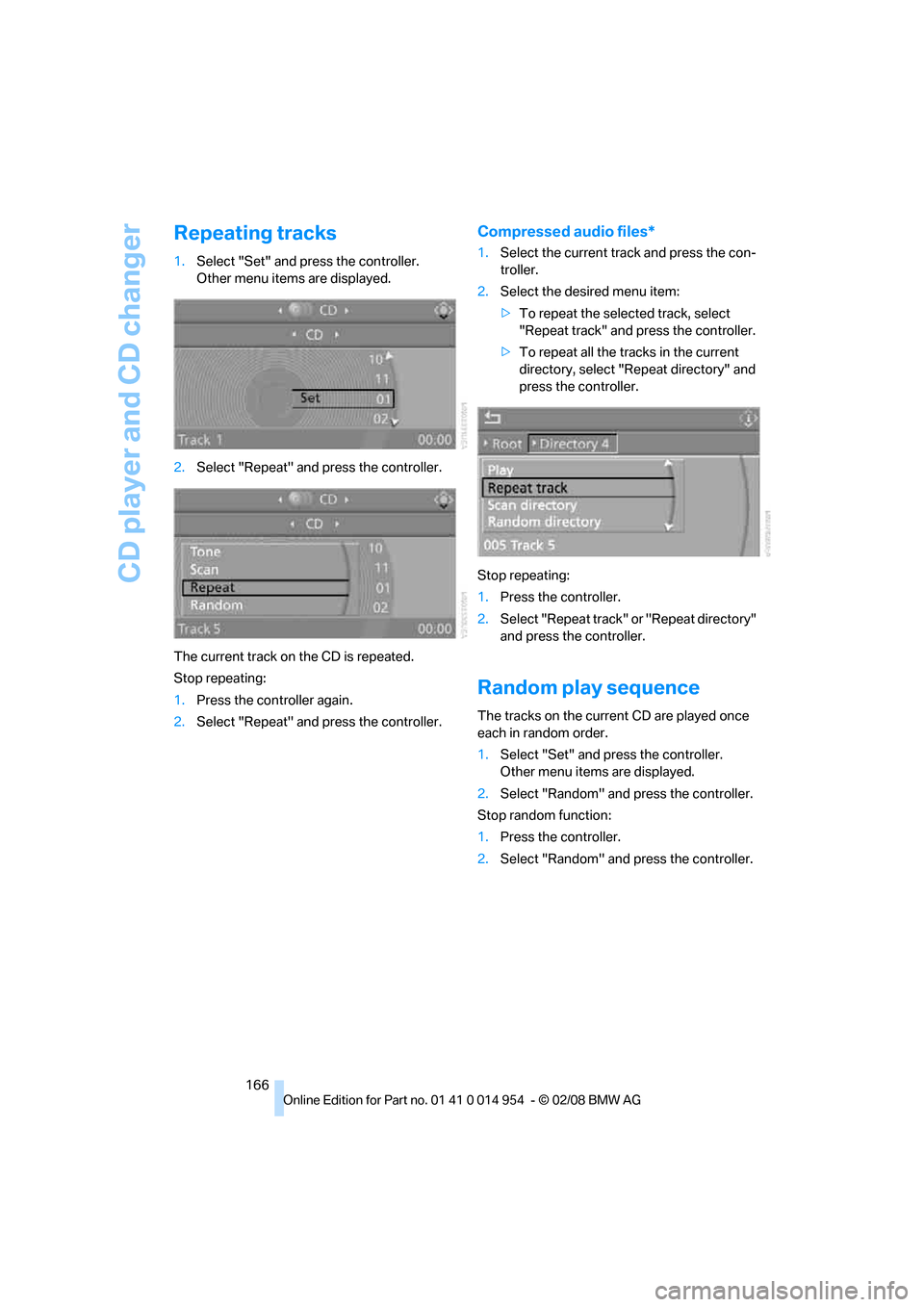
1.Select "Set" and press the controller.
Other menu items are displayed.
2.Select "Repeat" and press the controller.
The current track on the CD is repeated.
Stop repeating:
1.Press the controller again.
2.Select "Repeat" and press the controller.
Compressed audio files*
1.Select the current track and press the con-
troller.
2.Select the desired menu item:
>To repeat the selected track, select
"Repeat track" and press the controller.
>To repeat all the tracks in the current
directory, select "Repeat directory" and
press the controller.
Stop repeating:
1.Press the controller.
2.Select "Repeat track" or "Repeat directory"
and press the controller.
Random play sequence
The tracks on the current CD are played once
each in random order.
1.Select "Set" and press the controller.
Other menu items are displayed.
2.Select "Random" and press the controller.
Stop random function:
1.Press the controller.
2.Select "Random" and press the controller.
Page 169 of 264
Navigation
Entertainment
Driving tips
167Reference
At a glance
Controls
Communications
Mobility
Compressed audio files*
1.Select the current track and press the con-
troller.
2.Select the desired menu item:
>To play all the tracks in the current direc-
tory in random order, select "Random
directory" and press the controller.
>To play all the tracks on the CD in ran-
dom order, select "Random all" and
press the controller.
Stop random function:
1.Press the controller.
2.Select "Random directory" or "Random all"
and press the controller.
Fast forward/reverse
Buttons on the CD player:
Press and hold the button for the
corresponding direction.
The tracks can be heard, but reproduction is
distorted.
CD magazine
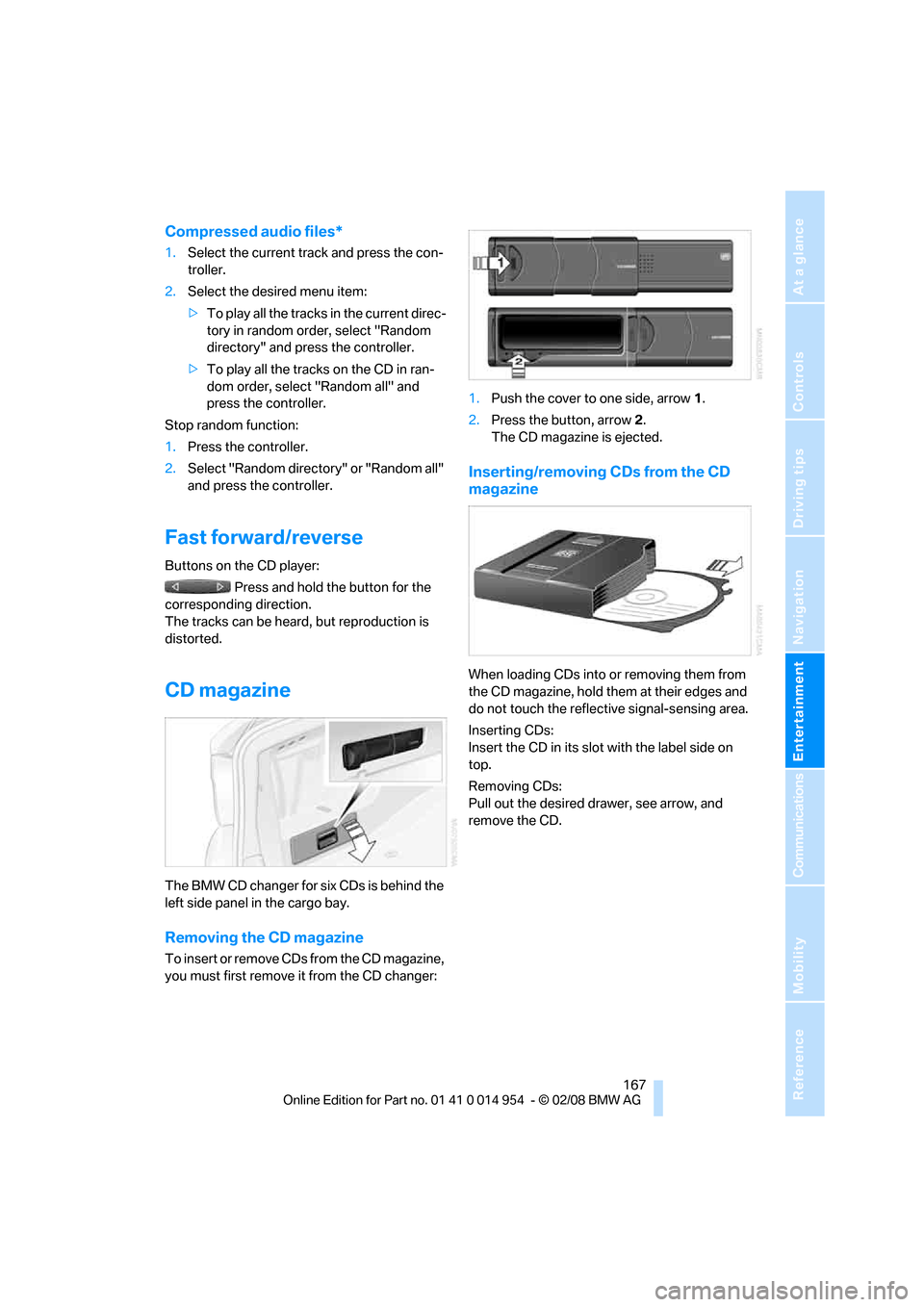
The BMW CD changer for six CDs is behind the
left side panel in the cargo bay.
Removing the CD magazine
T o i n s e r t o r r e m o v e C D s f r o m t h e C D m a g a z i n e ,
you must first remove it from the CD changer:1.Push the cover to one side, arrow 1.
2.Press the button, arrow 2.
The CD magazine is ejected.
Inserting/removing CDs from the CD
magazine
When loading CDs into or removing them from
the CD magazine, hold them at their edges and
do not touch the reflective signal-sensing area.
Inserting CDs:
Insert the CD in its slot with the label side on
top.
Removing CDs:
Pull out the desired drawer, see arrow, and
remove the CD.
Page 170 of 264
CD player and CD changer
168
Inserting the CD magazine
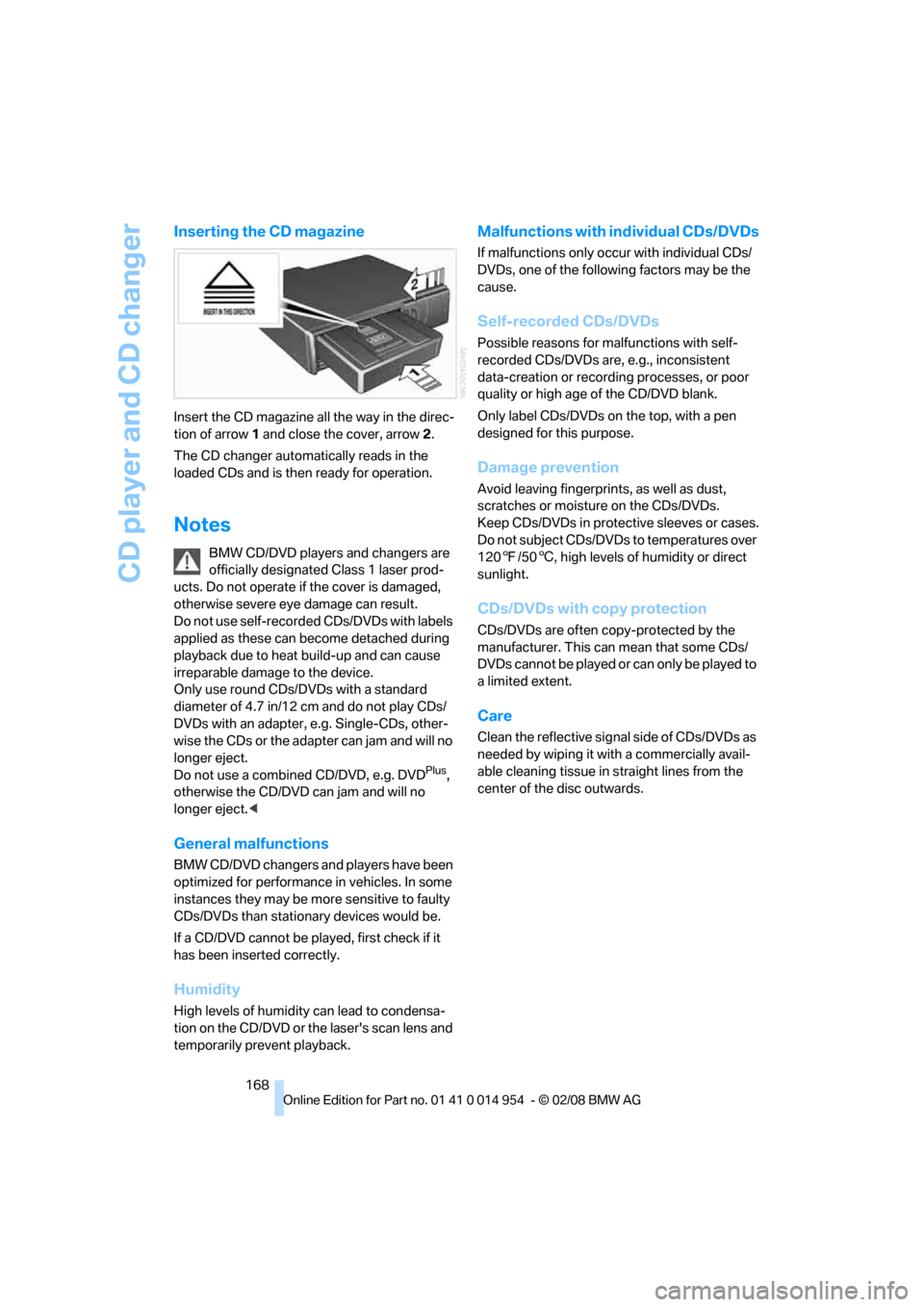
Insert the CD magazine all the way in the direc-
tion of arrow 1 and close the cover, arrow 2.
The CD changer automatically reads in the
loaded CDs and is then ready for operation.
Notes
BMW CD/DVD players and changers are
officially designated Class 1 laser prod-
ucts. Do not operate if the cover is damaged,
otherwise severe eye damage can result.
Do not use self-recorded CDs/DVDs with labels
applied as these can become detached during
playback due to heat build-up and can cause
irreparable damage to the device.
Only use round CDs/DVDs with a standard
diameter of 4.7 in/12 cm and do not play CDs/
DVDs with an adapter, e.g. Single-CDs, other-
wise the CDs or the adapter can jam and will no
longer eject.
Do not use a combined CD/DVD, e.g. DVD
Plus,
otherwise the CD/DVD can jam and will no
longer eject.<
General malfunctions
BMW CD/DVD changers and players have been
optimized for performance in vehicles. In some
instances they may be more sensitive to faulty
CDs/DVDs than stationary devices would be.
If a CD/DVD cannot be played, first check if it
has been inserted correctly.
Humidity
High levels of humidity can lead to condensa-
tion on the CD/DVD or the laser's scan lens and
temporarily prevent playback.
Malfunctions with individual CDs/DVDs
If malfunctions only occur with individual CDs/
DVDs, one of the following factors may be the
cause.
Self-recorded CDs/DVDs
Possible reasons for malfunctions with self-
recorded CDs/DVDs are, e.g., inconsistent
data-creation or recording processes, or poor
quality or high age of the CD/DVD blank.
Only label CDs/DVDs on the top, with a pen
designed for this purpose.
Damage prevention
Avoid leaving fingerprints, as well as dust,
scratches or moisture on the CDs/DVDs.
Keep CDs/DVDs in protective sleeves or cases.
Do not subject CDs/DVDs to temperatures over
1207/506, high levels of humidity or direct
sunlight.
CDs/DVDs with copy protection
CDs/DVDs are often copy-protected by the
manufacturer. This can mean that some CDs/
DVDs cannot be played or can only be played to
a limited extent.
Care
Clean the reflective signal side of CDs/DVDs as
needed by wiping it with a commercially avail-
able cleaning tissue in straight lines from the
center of the disc outwards.
Page 174 of 264
USB-audio interface
172
Repeating tracks
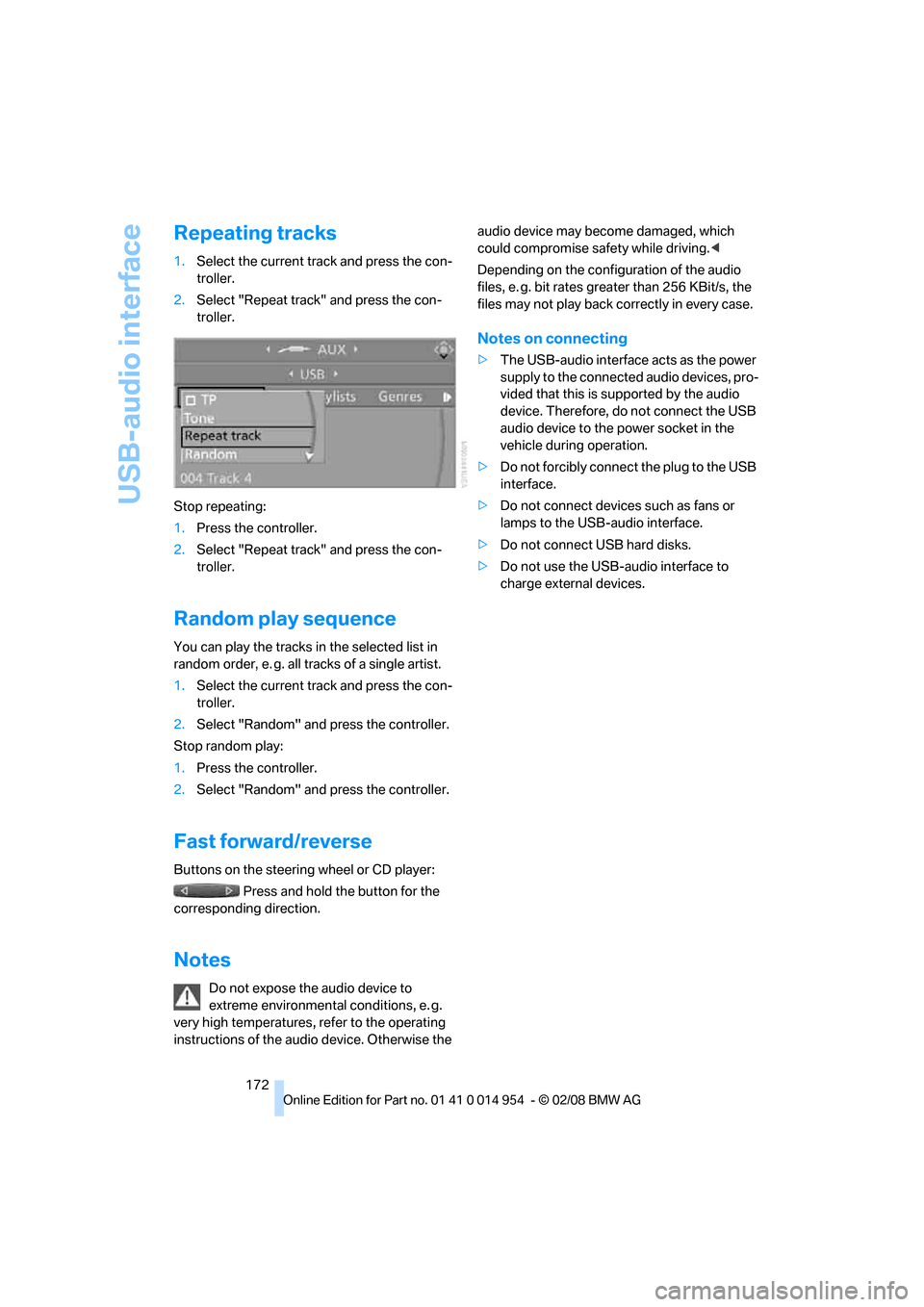
1.Select the current track and press the con-
troller.
2.Select "Repeat track" and press the con-
troller.
Stop repeating:
1.Press the controller.
2.Select "Repeat track" and press the con-
troller.
Random play sequence
You can play the tracks in the selected list in
random order, e. g. all tracks of a single artist.
1.Select the current track and press the con-
troller.
2.Select "Random" and press the controller.
Stop random play:
1.Press the controller.
2.Select "Random" and press the controller.
Fast forward/reverse
Buttons on the steering wheel or CD player:
Press and hold the button for the
corresponding direction.
Notes
Do not expose the audio device to
extreme environmental conditions, e. g.
very high temperatures, refer to the operating
instructions of the audio device. Otherwise the audio device may become damaged, which
could compromise safety while driving.<
Depending on the configuration of the audio
files, e. g. bit rates greater than 256 KBit/s, the
files may not play back correctly in every case.
Notes on connecting
>The USB-audio interface acts as the power
supply to the connected audio devices, pro-
vided that this is supported by the audio
device. Therefore, do not connect the USB
audio device to the power socket in the
vehicle during operation.
>Do not forcibly connect the plug to the USB
interface.
>Do not connect devices such as fans or
lamps to the USB-audio interface.
>Do not connect USB hard disks.
>Do not use the USB-audio interface to
charge external devices.
Page 179 of 264
177
Entertainment
Reference
At a glance
Controls
Driving tips Communications
Navigation
Mobility
When the status information "BMW Assist" or
"BMW Service" is displayed in "Communica-
tion", only BMW Assist calls are possible.
It may not be possible to establish a telephone
connection using the mobile phone while a con-
nection is being established to BMW Assist or
while a call to BMW Assist is already in
progress. If this happens, you must unpair the
mobile phone and the vehicle if you wish to
place a call with the mobile phone.
Start-up
Pairing the mobile phone with the
vehicle
The following prerequisites must be met:
>Compatible mobile phone: the mobile
phone is supported by the full preparation
package mobile phone. You can obtain
information on the Internet at:
www.bmw.com
>The mobile phone is ready to operate.
>The Bluetooth link is activated in the vehi-
cle, refer to page181, and in the mobile
phone.
>Depending on the mobile phone, some
default settings may be necessary for the
mobile phone: e. g. using the following
menu items:
>Bluetooth switched on
>Connection without confirmation
>Reconnection
>Depending on the mobile phone type, the
power-saving mode setting, for example,
may result in a paired mobile phone not
being detected by the vehicle.
>For pairing purposes, define any number as
the Bluetooth passkey, e.g. 1. This Blue-
tooth passkey is no longer required after
pairing has been successful.
>The ignition is switched on.
Pair the mobile phone with the vehicle
only when the car is stationary, to avoid endangering the car's occupants and other
road users by being distracted.<
Switch on ignition
1.Insert remote control all the way into the
ignition lock.
2.Switch on ignition without operating the
brake or clutch or pressing the start/stop
button.
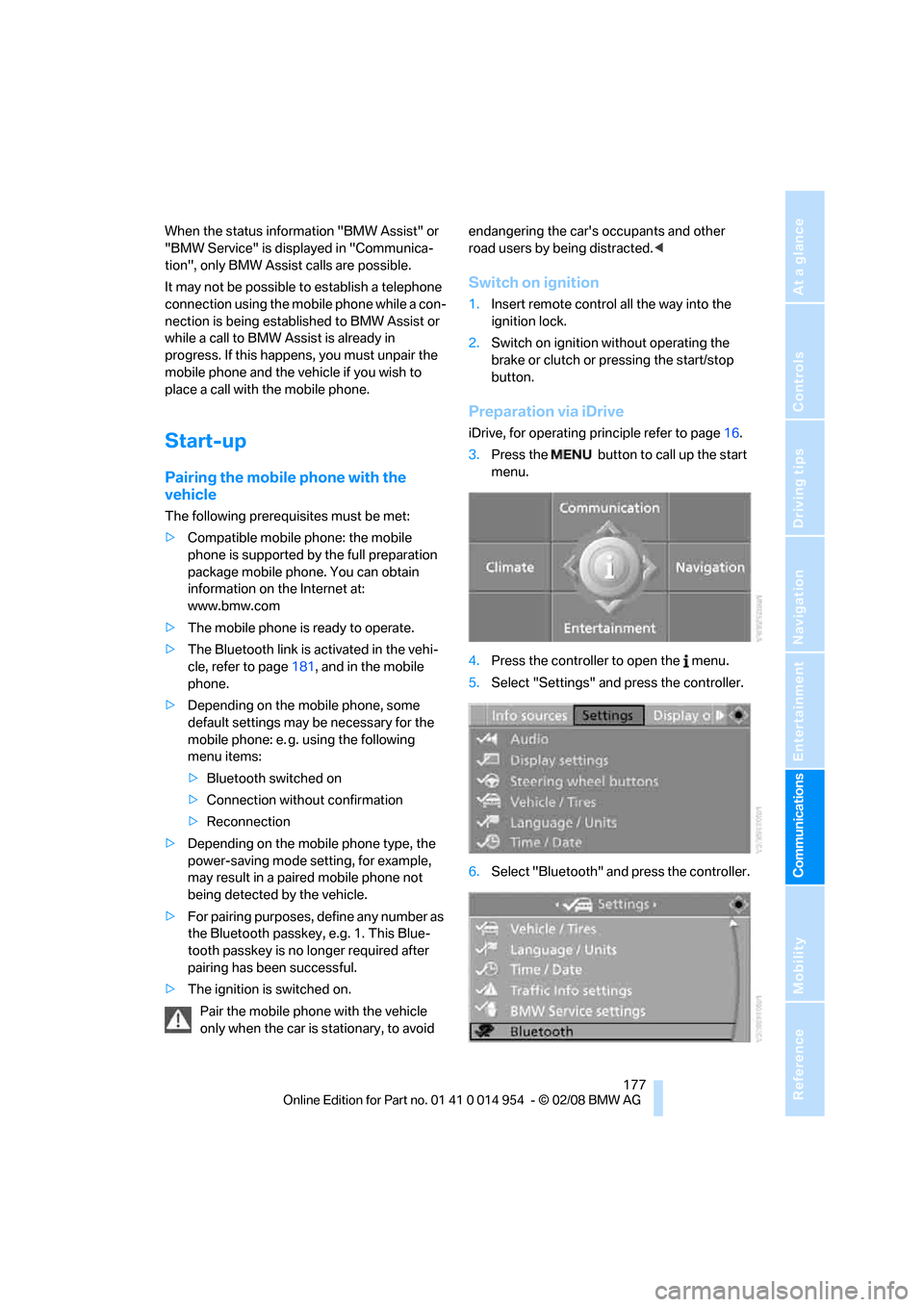
Preparation via iDrive
iDrive, for operating principle refer to page16.
3.Press the button to call up the start
menu.
4.Press the controller to open the menu.
5.Select "Settings" and press the controller.
6.Select "Bluetooth" and press the controller.
Page 180 of 264
Telephoning
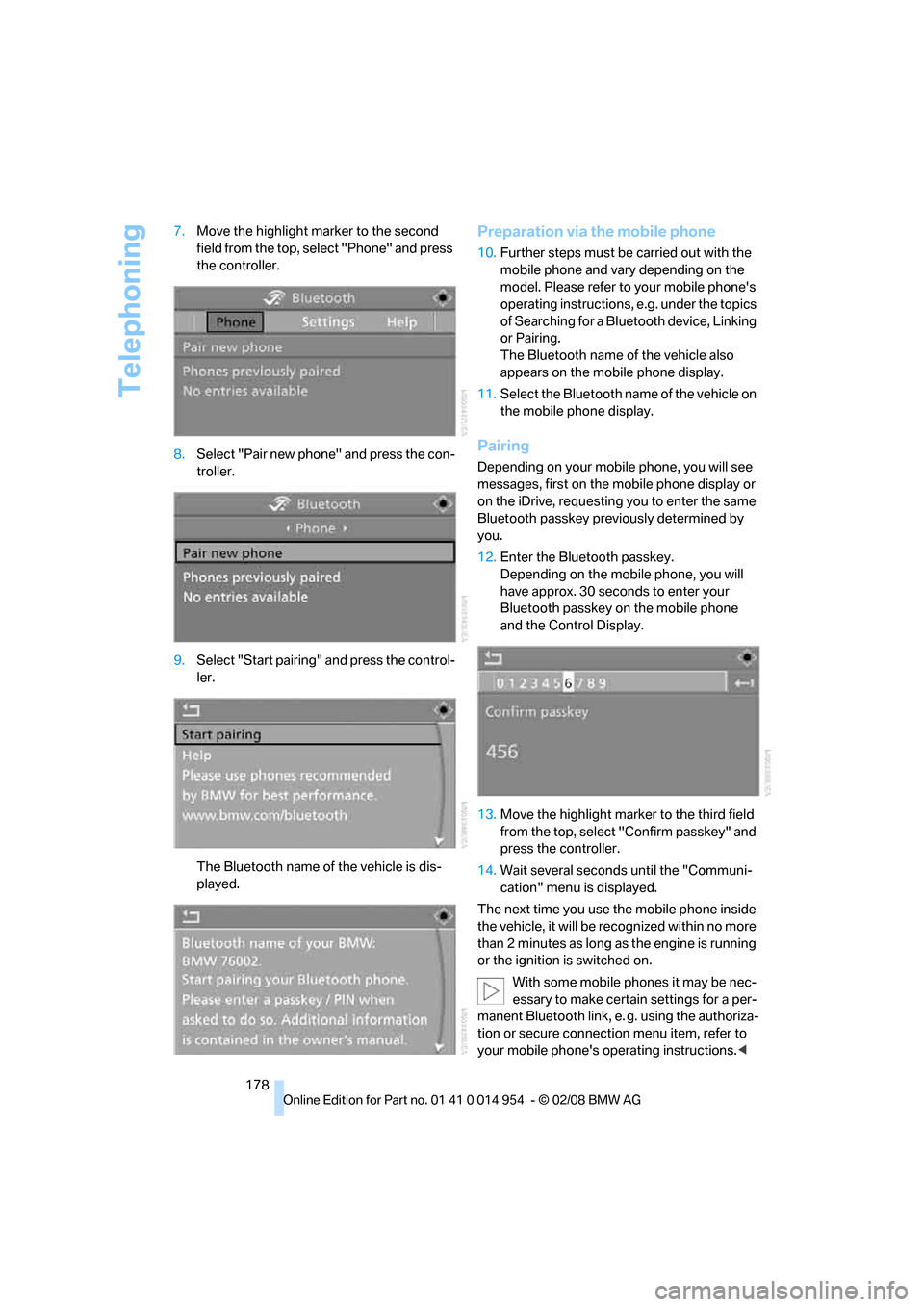
178 7.Move the highlight marker to the second
field from the top, select "Phone" and press
the controller.
8.Select "Pair new phone" and press the con-
troller.
9.Select "Start pairing" and press the control-
ler.
The Bluetooth name of the vehicle is dis-
played.
Preparation via the mobile phone
10.Further steps must be carried out with the
mobile phone and vary depending on the
model. Please refer to your mobile phone's
operating instructions, e.g. under the topics
of Searching for a Bluetooth device, Linking
or Pairing.
The Bluetooth name of the vehicle also
appears on the mobile phone display.
11.Select the Bluetooth name of the vehicle on
the mobile phone display.
Pairing
Depending on your mobile phone, you will see
messages, first on the mobile phone display or
on the iDrive, requesting you to enter the same
Bluetooth passkey previously determined by
you.
12.Enter the Bluetooth passkey.
Depending on the mobile phone, you will
have approx. 30 seconds to enter your
Bluetooth passkey on the mobile phone
and the Control Display.
13.Move the highlight marker to the third field
from the top, select "Confirm passkey" and
press the controller.
14.Wait several seconds until the "Communi-
cation" menu is displayed.
The next time you use the mobile phone inside
the vehicle, it will be recognized within no more
than 2 minutes as long as the engine is running
or the ignition is switched on.
With some mobile phones it may be nec-
essary to make certain settings for a per-
manent Bluetooth link, e. g. using the authoriza-
tion or secure connection menu item, refer to
your mobile phone's operating instructions.<
Page 182 of 264
Telephoning
180 time, the mobile phone at the top of the list can
be operated via the vehicle.
You can change the order of the mobile phones
on the list. As long as a mobile phone from this
list is selected, you cannot operate the mobile
phones via the vehicle.
iDrive, for operating principle refer to page16.
1.Press the button to call up the start
menu.
2.Press the controller to open the menu.
3.Select "Settings" and press the controller.
4.Select "Bluetooth" and press the controller.
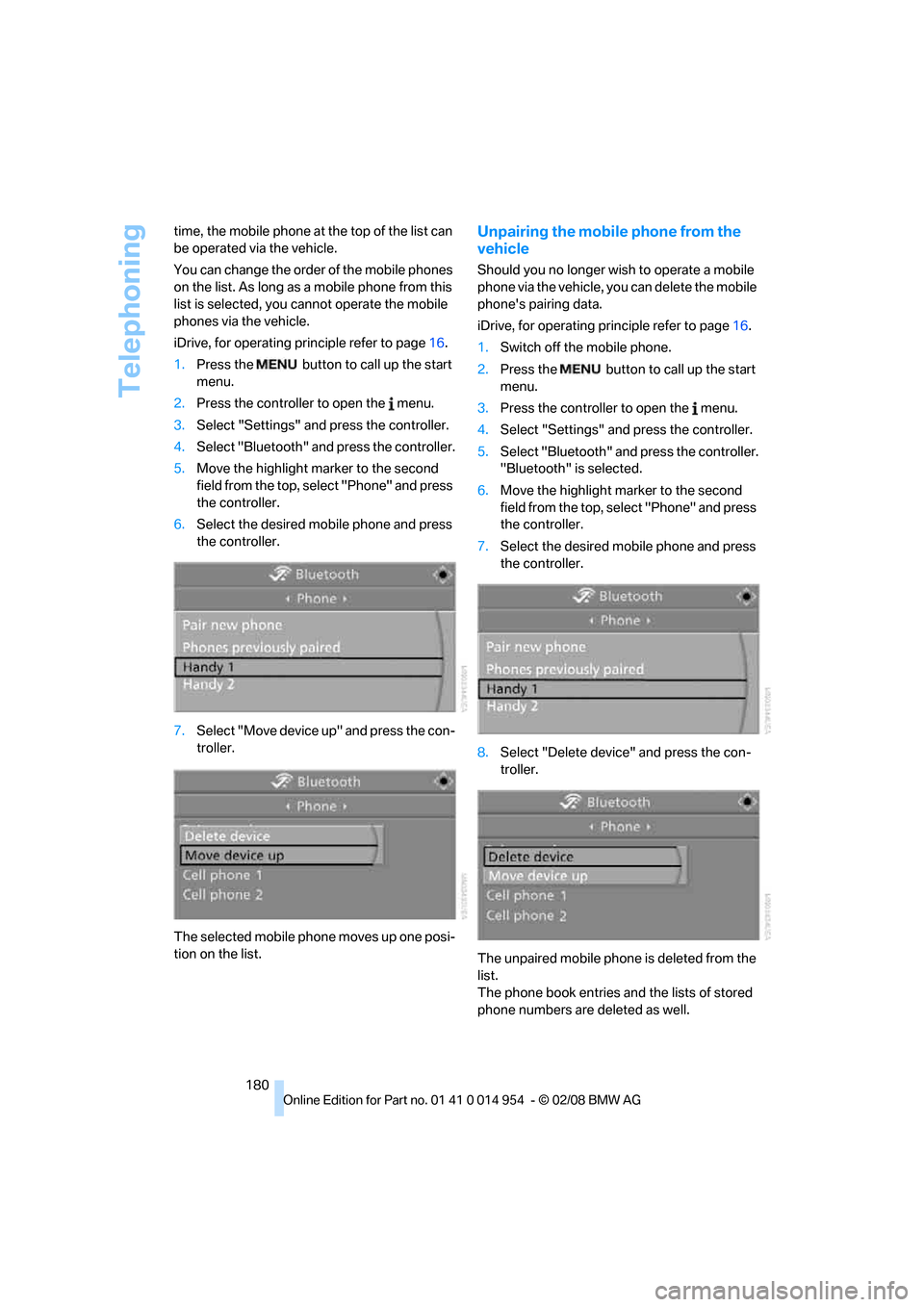
5.Move the highlight marker to the second
field from the top, select "Phone" and press
the controller.
6.Select the desired mobile phone and press
the controller.
7.Select "Move device up" and press the con-
troller.
The selected mobile phone moves up one posi-
tion on the list.
Unpairing the mobile phone from the
vehicle
Should you no longer wish to operate a mobile
phone via the vehicle, you can delete the mobile
phone's pairing data.
iDrive, for operating principle refer to page16.
1.Switch off the mobile phone.
2.Press the button to call up the start
menu.
3.Press the controller to open the menu.
4.Select "Settings" and press the controller.
5.Select "Bluetooth" and press the controller.
"Bluetooth" is selected.
6.Move the highlight marker to the second
field from the top, select "Phone" and press
the controller.
7.Select the desired mobile phone and press
the controller.
8.Select "Delete device" and press the con-
troller.
The unpaired mobile phone is deleted from the
list.
The phone book entries and the lists of stored
phone numbers are deleted as well.
Page 185 of 264
Telephoning
184 book, consisting of names and phone num-
bers, are sorted alphabetically.
>"Top 8"
The eight numbers dialed most frequently
from the "A - Z" phone book are automati-
cally stored in the Top 8 list.
>"Redial"
The last eight phone numbers you have
dialed are automatically stored. The last
number dialed is at the top of the list.
>"Missed calls"
The phone numbers of the last eight
rejected calls are stored. This requires the
telephone number of the caller to have been
transmitted.
>"Received calls"
The phone numbers of the last eight
accepted calls are stored. This requires the
telephone number of the caller to have been
transmitted.
Selecting phone numbers from phone
book
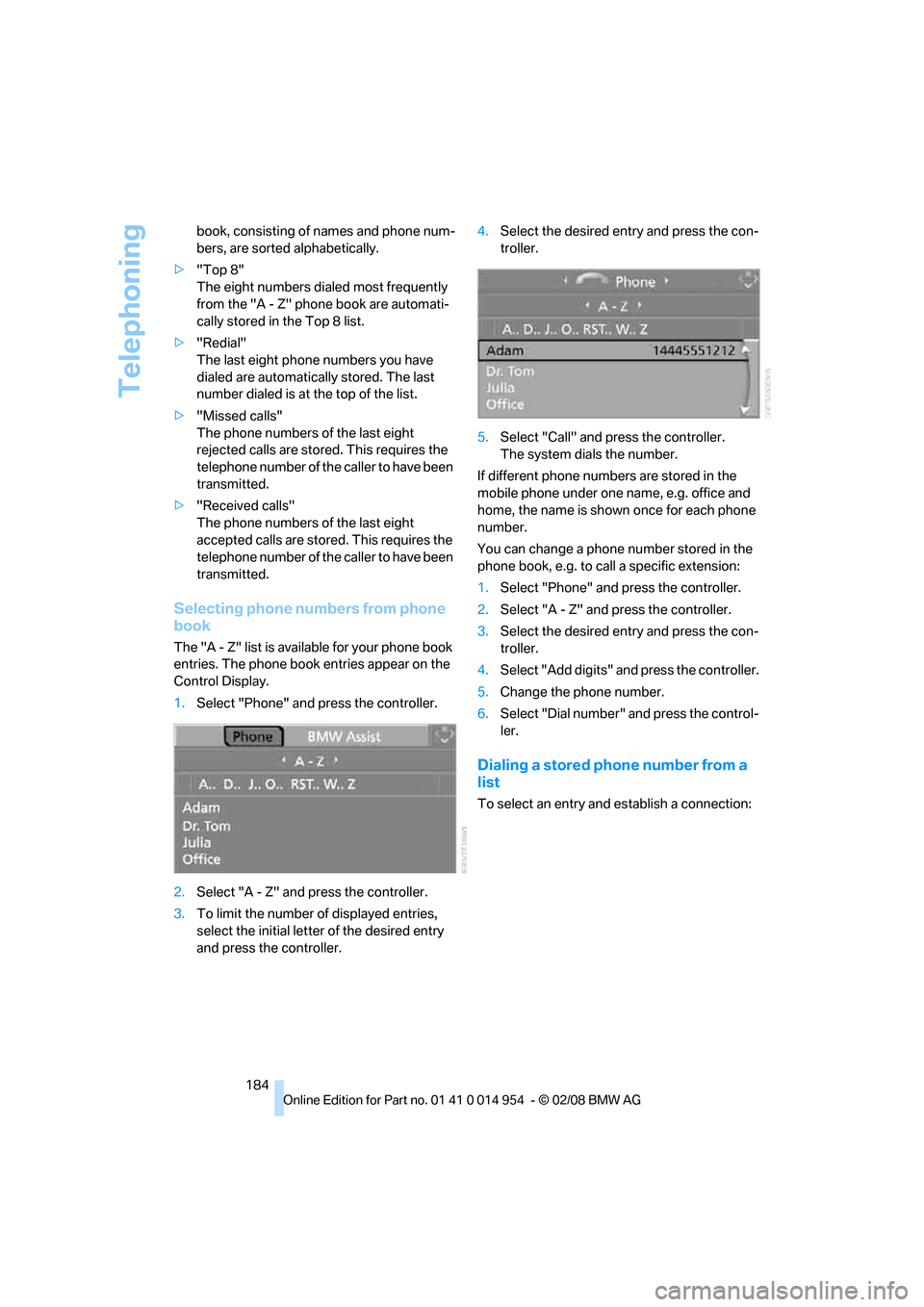
The "A - Z" list is available for your phone book
entries. The phone book entries appear on the
Control Display.
1.Select "Phone" and press the controller.
2.Select "A - Z" and press the controller.
3.To limit the number of displayed entries,
select the initial letter of the desired entry
and press the controller.4.Select the desired entry and press the con-
troller.
5.Select "Call" and press the controller.
The system dials the number.
If different phone numbers are stored in the
mobile phone under one name, e.g. office and
home, the name is shown once for each phone
number.
You can change a phone number stored in the
phone book, e.g. to call a specific extension:
1.Select "Phone" and press the controller.
2.Select "A - Z" and press the controller.
3.Select the desired entry and press the con-
troller.
4.Select "Add digits" and press the controller.
5.Change the phone number.
6.Select "Dial number" and press the control-
ler.
Dialing a stored phone number from a
list
To select an entry and establish a connection:
Page 186 of 264
185
Entertainment
Reference
At a glance
Controls
Driving tips Communications
Navigation
Mobility
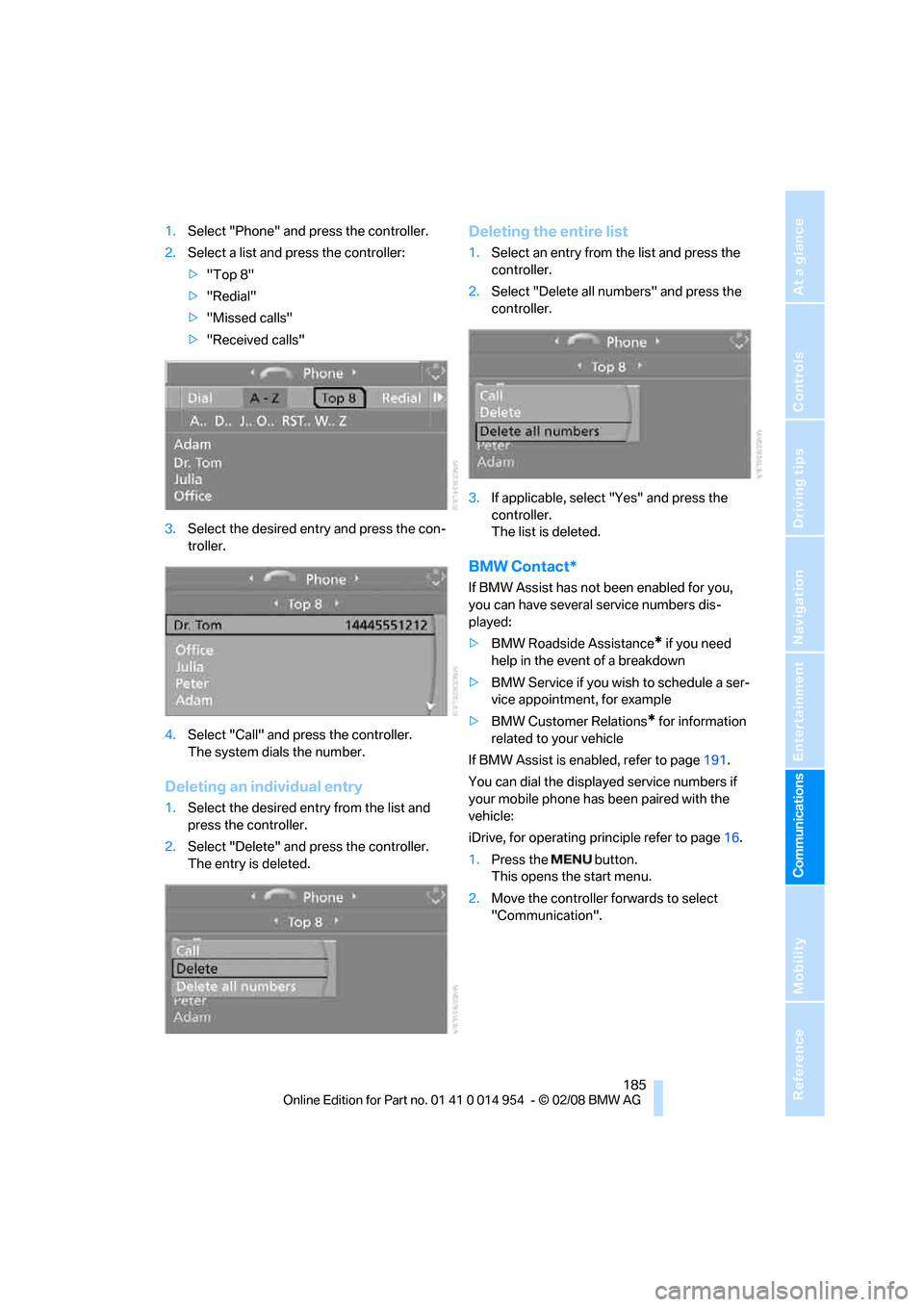
1.Select "Phone" and press the controller.
2.Select a list and press the controller:
>"Top 8"
>"Redial"
>"Missed calls"
>"Received calls"
3.Select the desired entry and press the con-
troller.
4.Select "Call" and press the controller.
The system dials the number.
Deleting an individual entry
1.Select the desired entry from the list and
press the controller.
2.Select "Delete" and press the controller.
The entry is deleted.
Deleting the entire list
1.Select an entry from the list and press the
controller.
2.Select "Delete all numbers" and press the
controller.
3.If applicable, select "Yes" and press the
controller.
The list is deleted.
BMW Contact*
If BMW Assist has not been enabled for you,
you can have several service numbers dis-
played:
>BMW Roadside Assistance
* if you need
help in the event of a breakdown
>BMW Service if you wish to schedule a ser-
vice appointment, for example
>BMW Customer Relations
* for information
related to your vehicle
If BMW Assist is enabled, refer to page191.
You can dial the displayed service numbers if
your mobile phone has been paired with the
vehicle:
iDrive, for operating principle refer to page16.
1.Press the button.
This opens the start menu.
2.Move the controller forwards to select
"Communication".
Page 201 of 264
181
Entertainment
Reference
At a glance
Controls
Driving tips Communications
Navigation
Mobility
Activating/deactivating the Bluetooth
link
The use of Bluetooth technology is not
permitted in all countries. Observe all
applicable local regulations. Temporarily deac-
tivate the Bluetooth link between the vehicle
and the mobile phone, if necessary.
If the Bluetooth link is deactivated, you can no
longer operate the mobile phone via the vehicle,
and other devices with a Bluetooth interface
can be used in combination with the mobile
phone, e.g. a laptop.<
To temporarily deactivate the Bluetooth link
between the vehicle and your mobile phone:
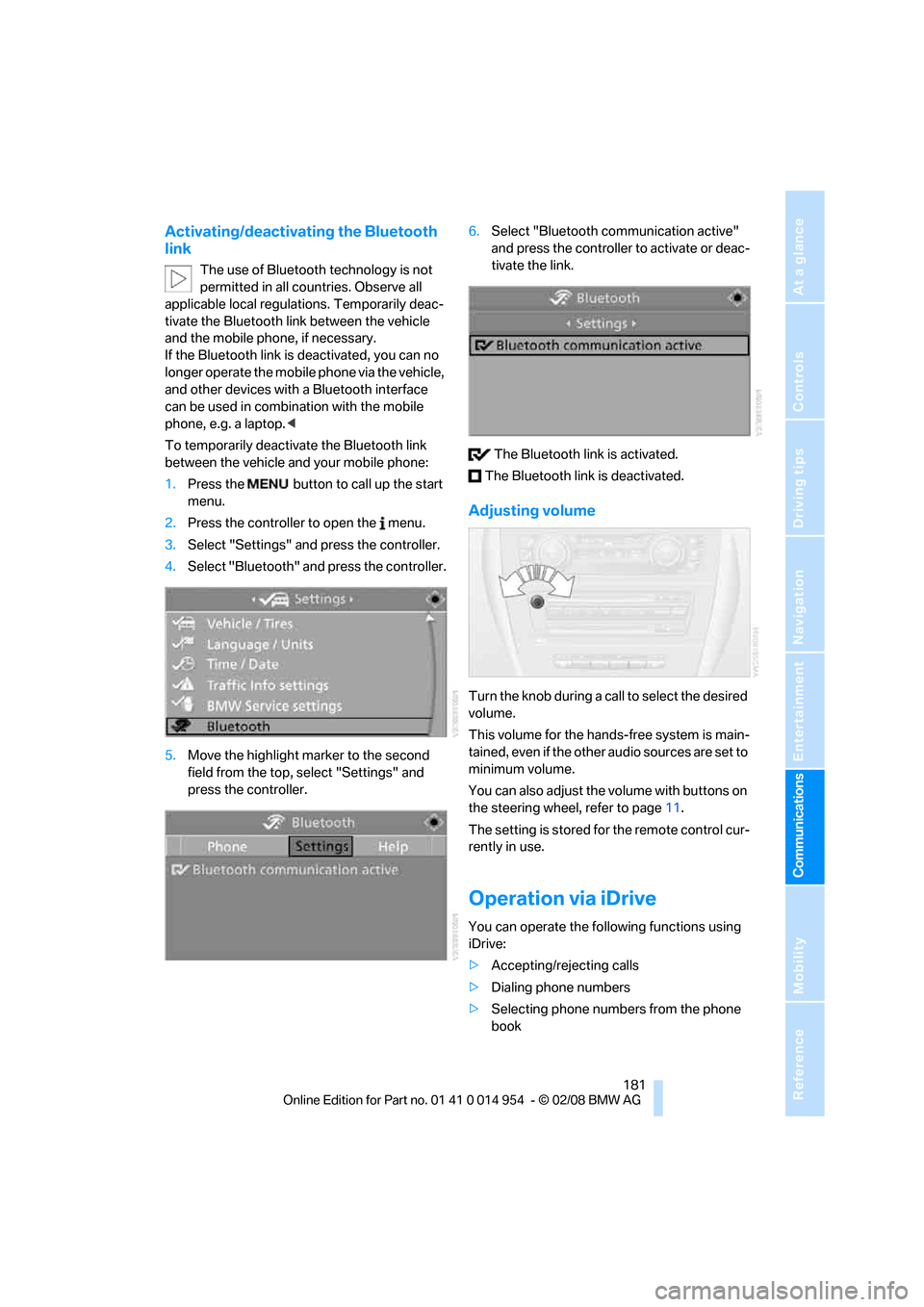
1.Press the button to call up the start
menu.
2.Press the controller to open the menu.
3.Select "Settings" and press the controller.
4.Select "Bluetooth" and press the controller.
5.Move the highlight marker to the second
field from the top, select "Settings" and
press the controller.6.Select "Bluetooth communication active"
and press the controller to activate or deac-
tivate the link.
The Bluetooth link is activated.
The Bluetooth link is deactivated.
Adjusting volume
Turn the knob during a call to select the desired
volume.
This volume for the hands-free system is main-
tained, even if the other audio sources are set to
minimum volume.
You can also adjust the volume with buttons on
the steering wheel, refer to page11.
The setting is stored for the remote control cur-
rently in use.
Operation via iDrive
You can operate the following functions using
iDrive:
>Accepting/rejecting calls
>Dialing phone numbers
>Selecting phone numbers from the phone
book