navigation system BMW 745LI SEDAN 2002 Workshop Manual
[x] Cancel search | Manufacturer: BMW, Model Year: 2002, Model line: 745LI SEDAN, Model: BMW 745LI SEDAN 2002Pages: 208, PDF Size: 6.33 MB
Page 133 of 208
Navigation
132 The system also provides you with voice
instructions.
The system continues to guide you to
your destination when you select
another menu, such as "Entertainment" or
"Climate control." Voice instructions will
inform you of upcoming turns well before
you arrive at the intersections.<
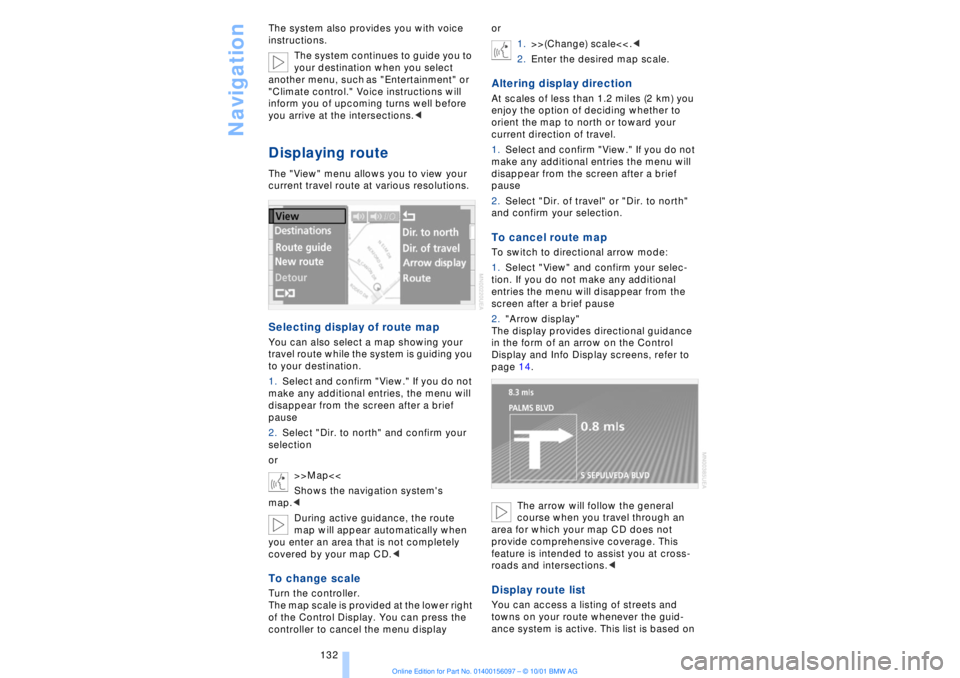
Displaying routeThe "View" menu allows you to view your
current travel route at various resolutions.Selecting display of route mapYou can also select a map showing your
travel route while the system is guiding you
to your destination.
1.Select and confirm "View." If you do not
make any additional entries, the menu will
disappear from the screen after a brief
pause
2.Select "Dir. to north" and confirm your
selection
or
>>Map<<
Shows the navigation system's
map.<
During active guidance, the route
map will appear automatically when
you enter an area that is not completely
covered by your map CD.
of the Control Display. You can press the
controller to cancel the menu displayor
1.>>(Change) scale<<.<
2.Enter the desired map scale.
Altering display directionAt scales of less than 1.2 miles (2 km) you
enjoy the option of deciding whether to
orient the map to north or toward your
current direction of travel.
1.Select and confirm "View." If you do not
make any additional entries the menu will
disappear from the screen after a brief
pause
2.Select "Dir. of travel" or "Dir. to north"
and confirm your selection.To cancel route mapTo switch to directional arrow mode:
1.Select "View" and confirm your selec-
tion. If you do not make any additional
entries the menu will disappear from the
screen after a brief pause
2."Arrow display"
The display provides directional guidance
in the form of an arrow on the Control
Display and Info Display screens, refer to
page 14.
The arrow will follow the general
course when you travel through an
area for which your map CD does not
provide comprehensive coverage. This
feature is intended to assist you at cross-
roads and intersections.< Display route listYou can access a listing of streets and
towns on your route whenever the guid-
ance system is active. This list is based on
Page 134 of 208
At a glanceControlsDriving tipsCommunicationsNavigationEntertainmentMobilityReference
133
the navigation system's suggested travel
route.
The distances remaining to be traveled on
each individual road are also displayed.
1.Select "View" and confirm your selec-
tion. If you do not make any additional
entries the menu will disappear from the
screen after a brief pause
2.Select "Route" and confirm.
If the system has not yet completely
defined the travel route, "..." will appear in
the list.
select and confirm to cancel "Route"
mode.Select new routeDuring active guidance you can revise the
navigation system's route recommenda-
tions to avoid particular stretches of road.
Enter the number of miles (kilometers) that
you want to travel before returning to the
original route.
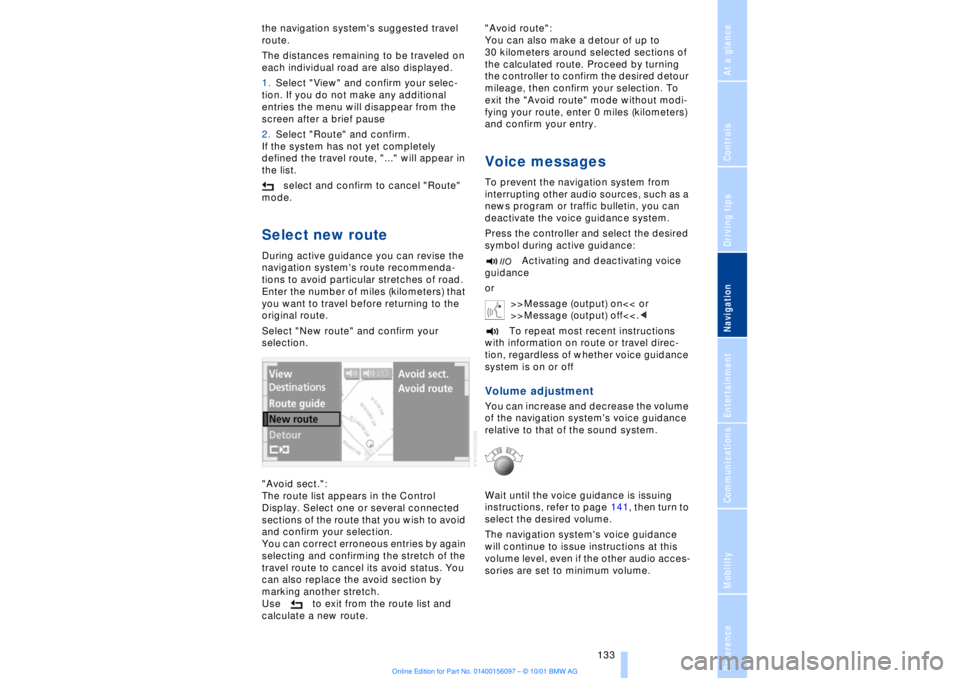
Select "New route" and confirm your
selection.
"Avoid sect.":
The route list appears in the Control
Display. Select one or several connected
sections of the route that you wish to avoid
and confirm your selection.
You can correct erroneous entries by again
selecting and confirming the stretch of the
travel route to cancel its avoid status. You
can also replace the avoid section by
marking another stretch.
Use to exit from the route list and
calculate a new route."Avoid route":
You can also make a detour of up to
30 kilometers around selected sections of
the calculated route. Proceed by turning
the controller to confirm the desired detour
mileage, then confirm your selection. To
exit the "Avoid route" mode without modi-
fying your route, enter 0 miles (kilometers)
and confirm your entry.
Voice messagesTo prevent the navigation system from
interrupting other audio sources, such as a
news program or traffic bulletin, you can
deactivate the voice guidance system.
Press the controller and select the desired
symbol during active guidance:
Activating and deactivating voice
guidance
or
>>Message (output) on<< or
>>Message (output) off<<.<
To repeat most recent instructions
with information on route or travel direc-
tion, regardless of whether voice guidance
system is on or offVolume adjustmentYou can increase and decrease the volume
of the navigation system's voice guidance
relative to that of the sound system.
Wait until the voice guidance is issuing
instructions, refer to page 141, then turn to
select the desired volume.
The navigation system's voice guidance
will continue to issue instructions at this
volume level, even if the other audio acces-
sories are set to minimum volume.
Page 135 of 208
Navigation
134
Terminate/interrupt active
guidanceSelect "Route guide" and confirm your
selection
or
1.>>Navigation (menu)<<
(>>Navi (menu)<<)
2.>>Route guidance off<<.<
The system suspends active guidance,
including voice guidance, until reactivated.Creating a directory
You can also enter your current posi-
tion in the address book after leaving
the sector covered by the map CD. You
must also enter a designation for the loca-
tion in order to use this feature.<
To store addressesTo make it even easier to enter destina-
tions, the system lets you store more than
50 addresses for frequent destinations in
an address book.
Addresses can be entered from different
menus.
The system stores the current address in
the address book as "AS ADDRESS."
The first destination in the destination list
can be stored in a special address book for
the voice command system:
1.>>Navigation (menu)<<
(>>Navi (menu)<<)
2.>>Save destination per voice<<
(>>Save destination per voice recogni-
tion<<)
3.Assign a name to the destination's map
coordinates.
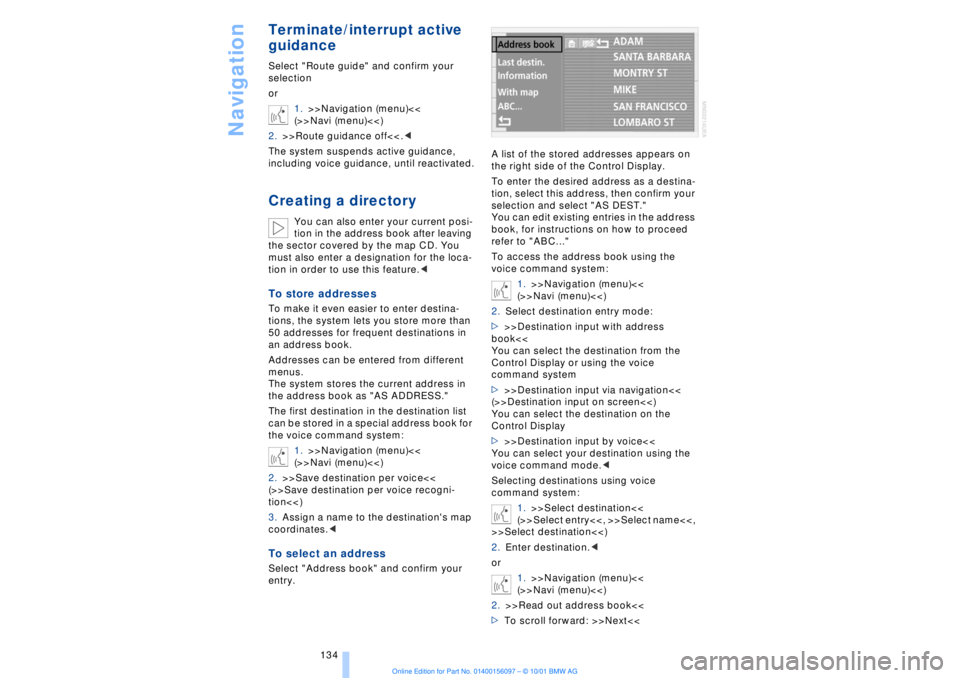
the right side of the Control Display.
To enter the desired address as a destina-
tion, select this address, then confirm your
selection and select "AS DEST."
You can edit existing entries in the address
book, for instructions on how to proceed
refer to "ABC..."
To access the address book using the
voice command system:
1.>>Navigation (menu)<<
(>>Navi (menu)<<)
2.Select destination entry mode:
>>>Destination input with address
book<<
You can select the destination from the
Control Display or using the voice
command system
>>>Destination input via navigation<<
(>>Destination input on screen<<)
You can select the destination on the
Control Display
>>>Destination input by voice<<
You can select your destination using the
voice command mode.<
Selecting destinations using voice
command system:
1.>>Select destination<<
(>>Select entry<<, >>Select name<<,
>>Select destination<<)
2.Enter destination.<
or
1.>>Navigation (menu)<<
(>>Navi (menu)<<)
2.>>Read out address book<<
>To scroll forward: >>Next<<
Page 136 of 208
At a glanceControlsDriving tipsCommunicationsNavigationEntertainmentMobilityReference
135
>To scroll back: >>Back<<
>To repeat: >>Repeat<<
>To import to destination list: >>Select<<
(>>Destination selection<<)
3.To delete an entry: >>Delete entry<<
(>>Delete name<<).
Select and confirm.
>"AS DEST." adopts the current home
address as the destination
>You can enter and edit the home
address using the "ABC..." function
>"LOCATION" imports your current loca-
tion as the home address
>"AS ADDRESS" stores the entered
address or current location as your home
address.
Using the voice command system:
1.>>Navigation (menu)<<
(>>Navi (menu)<<)
2.>>Route guidance to home<<.
(>>Navi (menu)<<)
2.>>Delete entry<<
(>>Delete name<<, >>Delete destina-
tion<<).<
3.Select name.
To delete all current entries:
Select and confirm your selection
or
1.>>Navigation (menu)<<
(>>Navi (menu)<<)
2.>>Delete address book<<.<
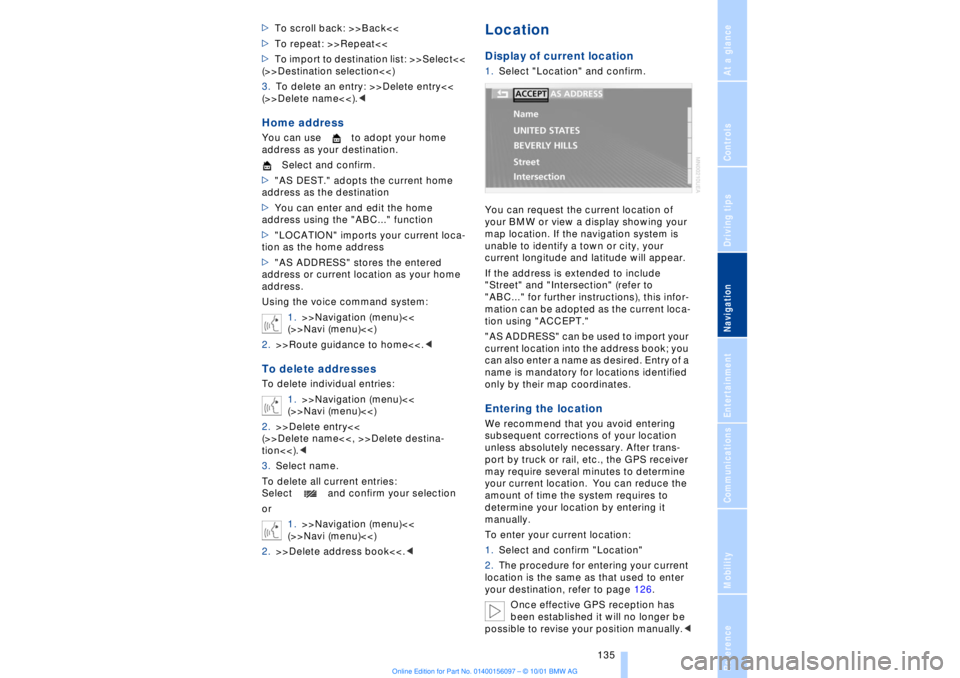
LocationDisplay of current location1.Select "Location" and confirm.
You can request the current location of
your BMW or view a display showing your
map location. If the navigation system is
unable to identify a town or city, your
current longitude and latitude will appear.
If the address is extended to include
"Street" and "Intersection" (refer to
"ABC..." for further instructions), this infor-
mation can be adopted as the current loca-
tion using "ACCEPT."
"AS ADDRESS" can be used to import your
current location into the address book; you
can also enter a name as desired. Entry of a
name is mandatory for locations identified
only by their map coordinates.Entering the location We recommend that you avoid entering
subsequent corrections of your location
unless absolutely necessary. After trans-
port by truck or rail, etc., the GPS receiver
may require several minutes to determine
your current location. You can reduce the
amount of time the system requires to
determine your location by entering it
manually.
To enter your current location:
1.Select and confirm "Location"
2.The procedure for entering your current
location is the same as that used to enter
your destination, refer to page 126.
Once effective GPS reception has
been established it will no longer be
possible to revise your position manually.<
Page 137 of 208
Navigation
136
Wordmatch principleYour navigation system features a word-
match system designed to make it easier
for you to enter names. The system runs
ongoing checks, comparing your destina-
tion entries with the data stored on the map
CD as the basis for instant response. The
user benefits include:
>When you make an entry that consists of
more than one word, the system can iden-
tify the name regardless of the sequence in
which you enter the individual words.
Example:
Official version:
J.F. Kennedy Square
Possible entries:
Kennedy Square J.F.
or:
Square J.F. Kennedy
>Names of specific locations can also
vary from the official versions provided that
the spelling of the entry corresponds to a
standard form used in another country.
>When you are entering the names of
cities and streets the system will complete
them automatically as soon as enough
letters are available to ensure unambig-
uous identification.
Example:
For instance, if you were searching for Iowa
Ave NW in Washington, the system could
identify the street as soon as you typed in
the letter "o" and would proceed to
complete the entry automatically
>The system only accepts name entries
beginning with letters that are stored on the
map CD. The system will not accept non-
existent names and addresses.What to do if ÉWhat to do if É
>you request the current location of your
vehicle, but do not receive a precise
display?
The system is unable to receive enough GPS signals at your current location owing
to obstructions, your location is not yet
available on your CD, or the system is in the
process of calculating your location. Please
wait and then try again later on.
>the GPS logo disappears from the
Control Display screen?
Reception is interrupted; a building or
similar obstruction may be the cause.
>the guidance system refuses to import
an address from the destination directory
as its destination?
The address is in the list, but not on the
map CD currently in use. Choose an
address as close as possible to the original
one, using the destination entry map as
required.
>the guidance system adopts an address
without the street?
No specified center is defined for the
selected locality on your CD. Enter any
street, or a destination such as the railway
station, etc., then start the guidance
system.
>you want to enter an address for the
guidance system, but it is not possible to
select the letters for your desired entry?
The address is in the list, but not on the
map CD currently in use. In this case, the
system will not offer you any letters to
choose from. Choose an address as close
as possible to the original one, using the
destination entry map as required.
>you attempt to enter a destination
address using the target cursor, but the
guidance system refuses to accept your
entry?
Your current scale does not offer adequate
resolution. The system can only import
destinations at map scales to 0.6 miles
(1 km).
>the system stops furnishing directions
on which way to turn as you approach
intersections?
You are driving in an area that has not yet
been completely recorded on the map CD.
Instead of an arrow indicating a turn, you
will see an arrow which indicates the
general direction of your planned route;
Page 138 of 208
At a glanceControlsDriving tipsCommunicationsNavigationEntertainmentMobilityReference
137
or
you have left the recommended route and
the system requires a few seconds to
calculate a new recommended route.
>while the destination route map has
automatically been adopted for display?
You are driving in an area that has not yet
been recorded on the map CD. The guid-
ance system cannot operate under these
conditions. However, you will see the
current position of your BMW in the map
display to help you orient yourself.
>the battery has been disconnected?
It will take approx. 15 minutes for the
system to resume operation.
Page 142 of 208
At a glanceControlsDriving tipsCommunicationsNavigationEntertainmentMobilityReference
141
It is not possible to operate the
system using the control buttons in
the steering wheel when the ignition is off.
To avoid discharging the battery you
should always switch off the sound system
when leaving the vehicle.<
Volume adjustmentAdjusting volumeTurn adjust the desired volume level.
The sound system automatically
reverts to its mute mode whenever
you use your mobile phone.
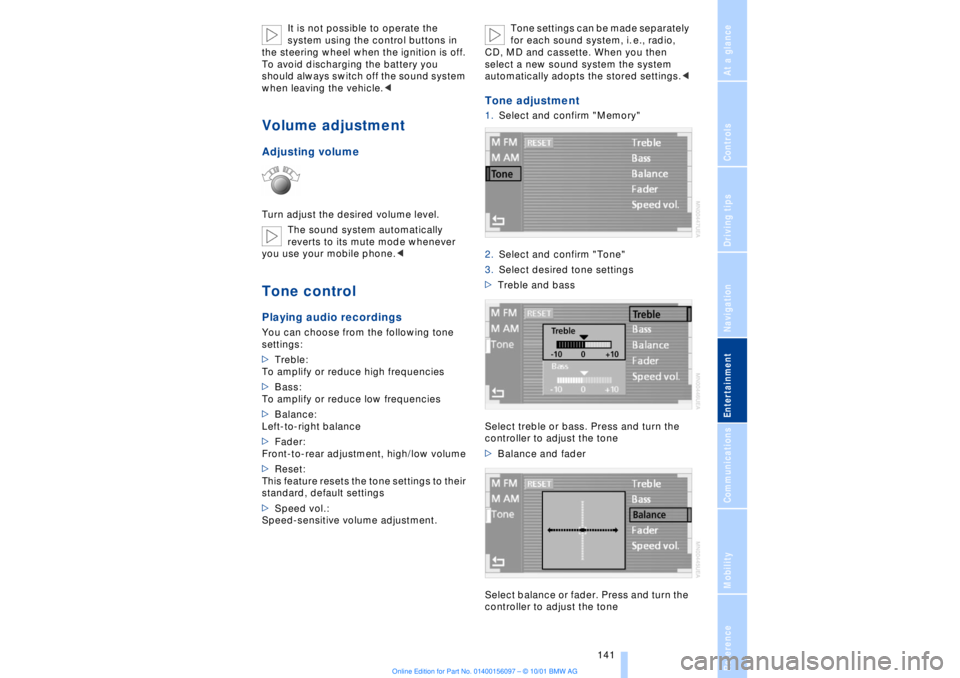
>Treble:
To amplify or reduce high frequencies
>Bass:
To amplify or reduce low frequencies
>Balance:
Left-to-right balance
>Fader:
Front-to-rear adjustment, high/low volume
>Reset:
This feature resets the tone settings to their
standard, default settings
>Speed vol.:
Speed-sensitive volume adjustment. Tone settings can be made separately
for each sound system, i. e., radio,
CD, MD and cassette. When you then
select a new sound system the system
automatically adopts the stored settings.<
Tone adjustment1.Select and confirm "Memory"
2.Select and confirm "Tone"
3.Select desired tone settings
>Treble and bass
Select treble or bass. Press and turn the
controller to adjust the tone
>Balance and fader
Select balance or fader. Press and turn the
controller to adjust the tone
Page 144 of 208
At a glanceControlsDriving tipsCommunicationsNavigationEntertainmentMobilityReference
143
RadioSelect the frequency bandYour radio provides reception of FM and
AM wavebands.
AM provides good long-range reception,
as its broadcast signals are not only propa-
gated at ground level as surface waves, but
also reflected from the ionosphere as
atmospheric waves.
FM furnishes substantially better acoustic
quality than AM broadcasts. However,
transmission range is limited, as FM relies
on line-of-sight broadcast signals.
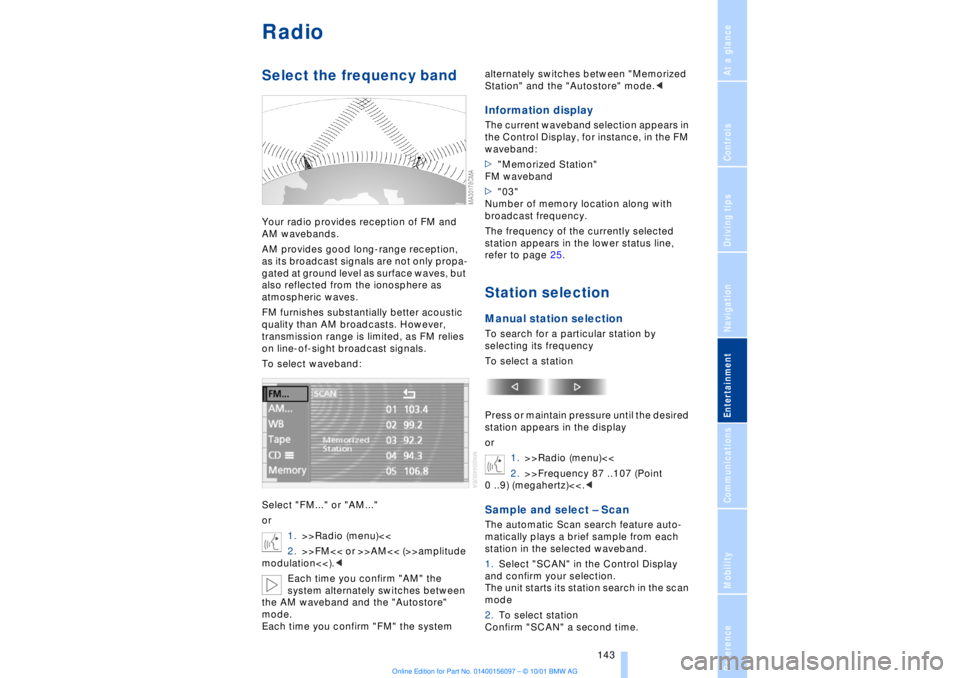
To select waveband:
Select "FM..." or "AM..."
or
1.>>Radio (menu)<<
2.>>FM<< or >>AM<< (>>amplitude
modulation<<).<
Each time you confirm "AM" the
system alternately switches between
the AM waveband and the "Autostore"
mode.
Each time you confirm "FM" the system alternately switches between "Memorized
Station" and the "Autostore" mode.<
Information displayThe current waveband selection appears in
the Control Display, for instance, in the FM
waveband:
>"Memorized Station"
FM waveband
>"03"
Number of memory location along with
broadcast frequency.
The frequency of the currently selected
station appears in the lower status line,
refer to page 25.Station selectionManual station selectionTo search for a particular station by
selecting its frequency
To select a station
Press or maintain pressure until the desired
station appears in the display
or
1.>>Radio (menu)<<
2.>>Frequency 87 ..107 (Point
0 ..9) (megahertz)<<.
station in the selected waveband.
1.Select "SCAN" in the Control Display
and confirm your selection.
The unit starts its station search in the scan
mode
2.To select station
Confirm "SCAN" a second time.
Page 146 of 208
At a glanceControlsDriving tipsCommunicationsNavigationEntertainmentMobilityReference
145
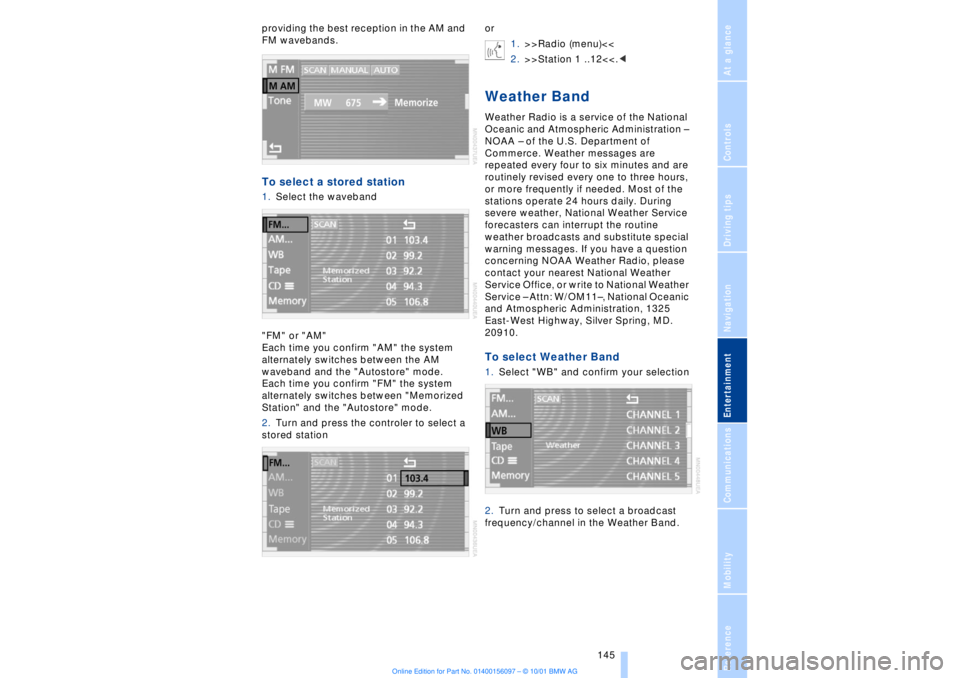
providing the best reception in the AM and
FM wavebands.To select a stored station 1.Select the waveband
"FM" or "AM"
Each time you confirm "AM" the system
alternately switches between the AM
waveband and the "Autostore" mode.
Each time you confirm "FM" the system
alternately switches between "Memorized
Station" and the "Autostore" mode.
2.Turn and press the controler to select a
stored stationor
1.>>Radio (menu)<<
2.>>Station 1 ..12<<.<
Weather BandWeather Radio is a service of the National
Oceanic and Atmospheric Administration Ð
NOAA Ð of the U.S. Department of
Commerce. Weather messages are
repeated every four to six minutes and are
routinely revised every one to three hours,
or more frequently if needed. Most of the
stations operate 24 hours daily. During
severe weather, National Weather Service
forecasters can interrupt the routine
weather broadcasts and substitute special
warning messages. If you have a question
concerning NOAA Weather Radio, please
contact your nearest National Weather
Service Office, or write to National Weather
Service Ð Attn: W/OM11Ð, National Oceanic
and Atmospheric Administration, 1325
East-West Highway, Silver Spring, MD.
20910.To select Weather Band1.Select "WB" and confirm your selection
2.Turn and press to select a broadcast
frequency/channel in the Weather Band.
Page 148 of 208
At a glanceControlsDriving tipsCommunicationsNavigationEntertainmentMobilityReference
147
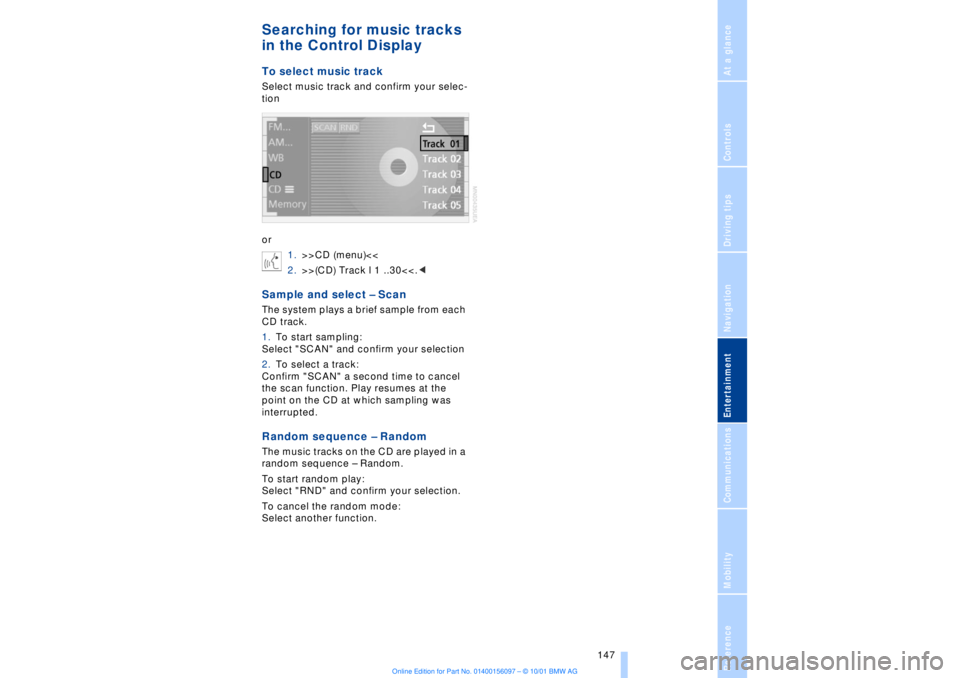
Searching for music tracks
in the Control DisplayTo select music trackSelect music track and confirm your selec-
tion
or
1.>>CD (menu)<<
2.>>(CD) Track l 1 ..30<<.
1.To start sampling:
Select "SCAN" and confirm your selection
2.To select a track:
Confirm "SCAN" a second time to cancel
the scan function. Play resumes at the
point on the CD at which sampling was
interrupted.Random sequence Ð RandomThe music tracks on the CD are played in a
random sequence Ð Random.
To start random play:
Select "RND" and confirm your selection.
To cancel the random mode:
Select another function.