display BMW 750LI SEDAN 2015 Owner's Manual
[x] Cancel search | Manufacturer: BMW, Model Year: 2015, Model line: 750LI SEDAN, Model: BMW 750LI SEDAN 2015Pages: 314, PDF Size: 7.9 MB
Page 41 of 314
General information
Depending on the equipment package, the fol‐
lowing data can be deleted:▷Profile settings.▷Stored radio stations.▷Stored Favorites buttons.▷Travel and on-board comupter information.▷Music collection.▷Navigation, e.g. stored destinations.▷Phone book.▷Online data, e.g. Favorites, cookies.▷Office data, e.g. voice notes.▷Login accounts.
Altogether, the deletion of the data can take up
to 15 minutes.
Functional requirement Data can only be deleted while stationary.
Deleting data Heed and follow the instructions on the Con‐
trol Display.
About iDrive:
1.Turn on operations.2."My Vehicle"3."System settings"4."Delete personal data"5."Delete personal data"6."OK"7.Exit and lock the vehicle.
After 15 minutes, the deletion process is com‐
pleted.
If not all of the data was deleted, repeat the de‐
letion.
Canceling deletionSwitch on the drive-ready function to cancel
deletion of the data.
Connections
The concept Devices, such as mobile phones or laptops,
can be connected to the vehicle in different
ways and used.▷Connect mobile phone with the vehicle via
Bluetooth and use it.▷Listen to music of an audio player via Blue‐
tooth.▷Play back smartphone videos on the Con‐
trol Display.▷Use smartphone apps in the vehicle.▷Connect a device using the vehicle-
integrated WLAN hotspot to use the Inter‐
net.▷Use vehicle functions via Touch Com‐
mand, refer to page 36.
General information
All devices paired and/or connected with the
vehicle are displayed in the device list.
About iDrive:
1."My Vehicle"2."System settings"3."Mobile devices"
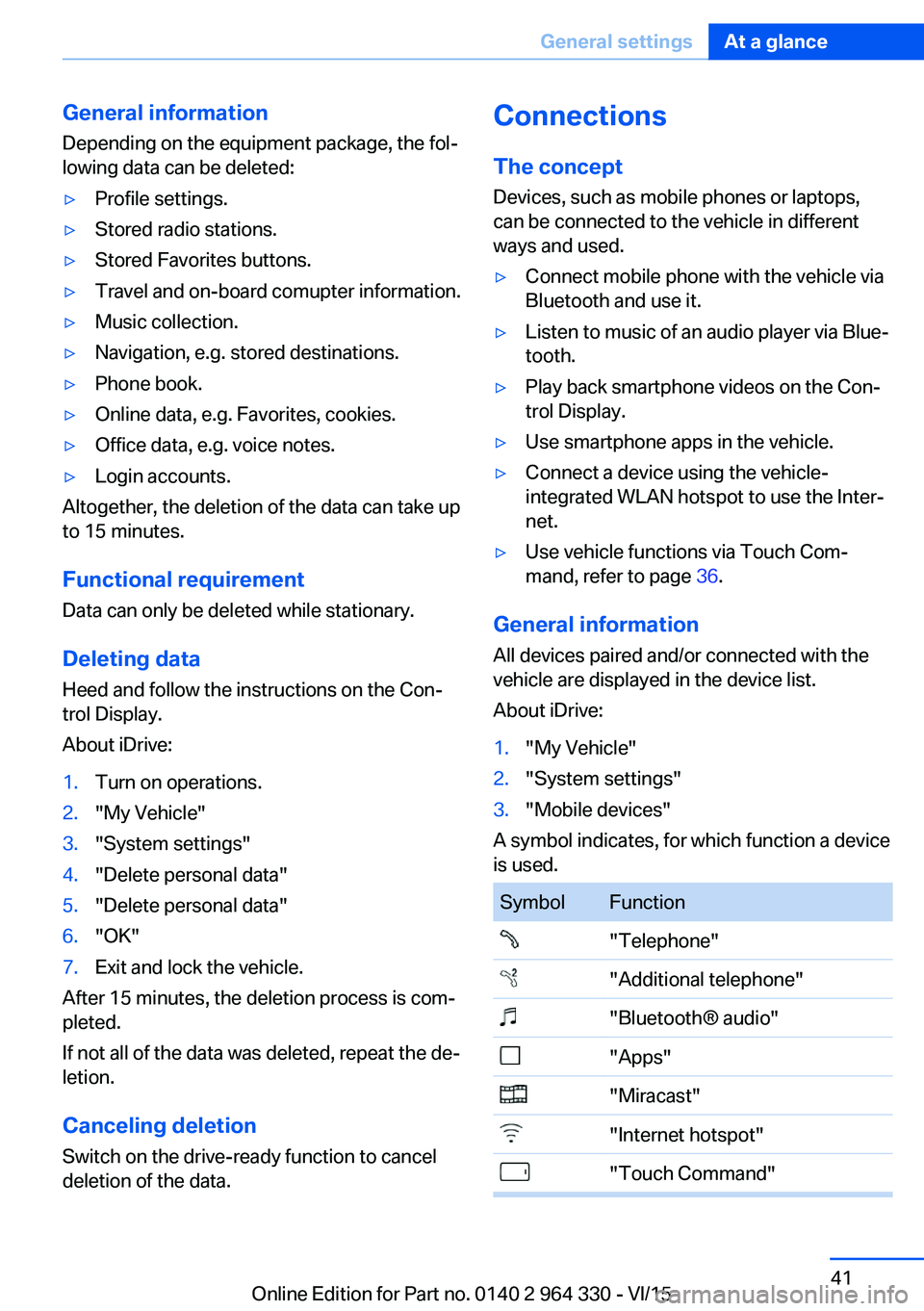
A symbol indicates, for which function a device
is used.
SymbolFunction"Telephone""Additional telephone""Bluetooth® audio""Apps""Miracast""Internet hotspot""Touch Command"Seite 41General settingsAt a glance41
Online Edition for Part no. 0140 2 964 330 - VI/15
Page 42 of 314
InformationWARNING
Operating the integrated information
system and communication devices while driv‐
ing can distract from traffic. It is possible to
lose control of the vehicle. There is risk of an
accident. Only use the systems or devices
when the traffic situation allows. If necessary
stop and use the systems and devices while
the vehicle is stationary.◀
Compatible devices
General information
Details on which mobile phones and external
devices with a Bluetooth interface are sup‐
ported can be obtained at www.bmwusa.com/
bluetooth.
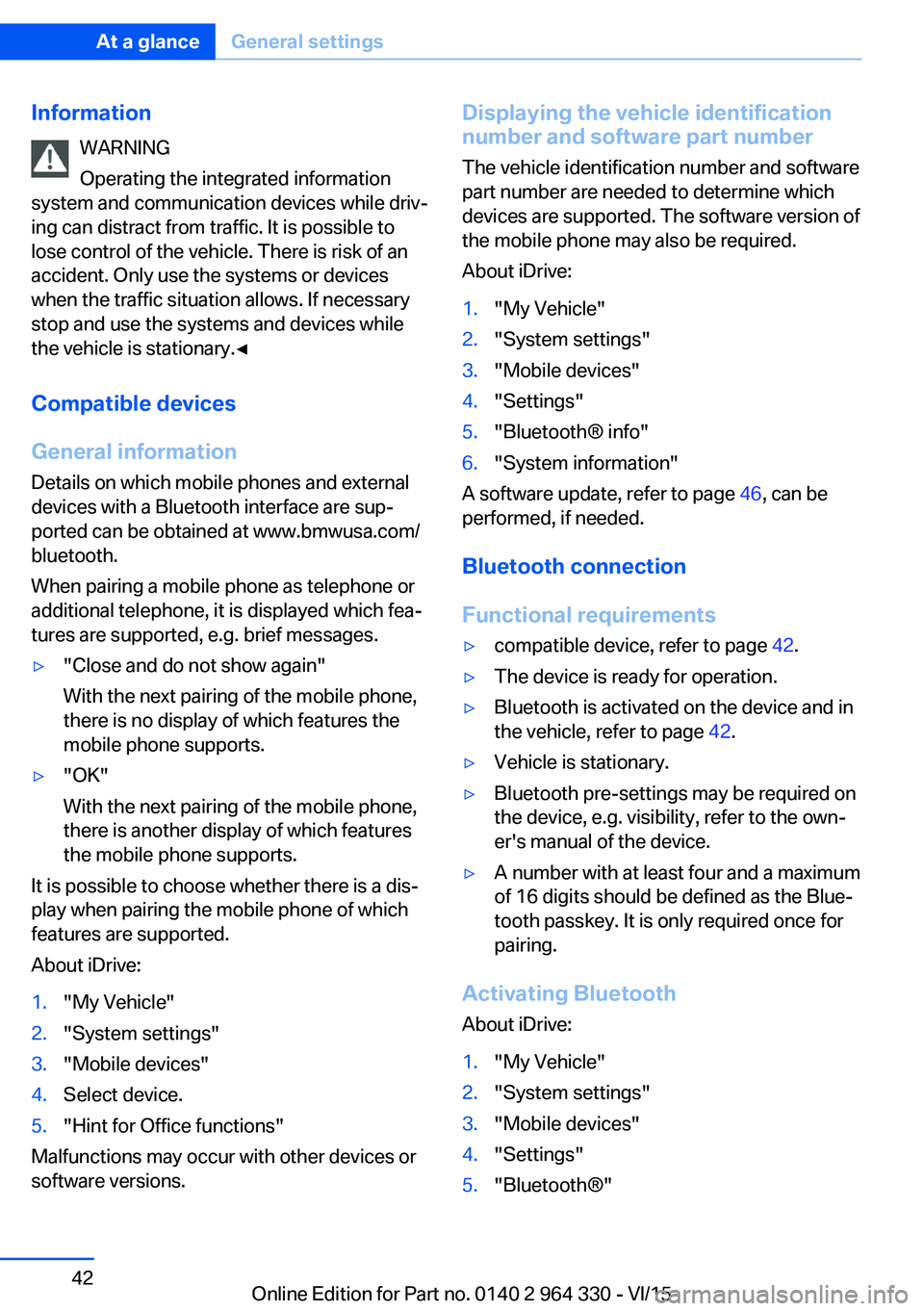
When pairing a mobile phone as telephone or
additional telephone, it is displayed which fea‐
tures are supported, e.g. brief messages.▷"Close and do not show again"
With the next pairing of the mobile phone,
there is no display of which features the
mobile phone supports.▷"OK"
With the next pairing of the mobile phone,
there is another display of which features
the mobile phone supports.
It is possible to choose whether there is a dis‐
play when pairing the mobile phone of which
features are supported.
About iDrive:
1."My Vehicle"2."System settings"3."Mobile devices"4.Select device.5."Hint for Office functions"
Malfunctions may occur with other devices or
software versions.
Displaying the vehicle identification
number and software part number
The vehicle identification number and software
part number are needed to determine which
devices are supported. The software version of
the mobile phone may also be required.
About iDrive:1."My Vehicle"2."System settings"3."Mobile devices"4."Settings"5."Bluetooth® info"6."System information"
A software update, refer to page 46, can be
performed, if needed.
Bluetooth connection
Functional requirements
▷compatible device, refer to page 42.▷The device is ready for operation.▷Bluetooth is activated on the device and in
the vehicle, refer to page 42.▷Vehicle is stationary.▷Bluetooth pre-settings may be required on
the device, e.g. visibility, refer to the own‐
er's manual of the device.▷A number with at least four and a maximum
of 16 digits should be defined as the Blue‐
tooth passkey. It is only required once for
pairing.
Activating Bluetooth
About iDrive:
1."My Vehicle"2."System settings"3."Mobile devices"4."Settings"5."Bluetooth®"Seite 42At a glanceGeneral settings42
Online Edition for Part no. 0140 2 964 330 - VI/15
Page 43 of 314
Activating/deactivating telephone
functions
To use all supported functions of the mobile
phone, the following functions must be acti‐
vated prior to pairing.
About iDrive:1."My Vehicle"2."System settings"3."Mobile devices"4."Settings"5.Select desired setting:▷"Office"
Activate functions to transmit short
messages, e-mails, calendars, tasks,
notes, and reminders to the vehicle.
Costs can be incurred by transmitting
all data to the vehicle.▷"Contact images"
Activate function to show the contact
pictures.6.Move the controller to the left.
Connecting the device via passkey
entry
Pair the vehicle entirely on the front or rear
Control Display.
About iDrive:
1."My Vehicle"2."System settings"3."Mobile devices"4."Connect new device"5.Select the functions for which the device is
to be used:▷ "Telephone"▷ "Bluetooth® audio"▷ "Apps"
The Bluetooth name of the vehicle is dis‐
played on the Control Display.
6.Search for Bluetooth devices in the sur‐
roundings of the device.
The Bluetooth name of the vehicle appears
on the device display. Select the Bluetooth
name of the vehicle.7.Enter and confirm the same passkey on
the device and via iDrive.
or
Compare the control number on the Con‐
trol Display with the control number on the
display of the device. Confirm the control
number on the device and on the Control
Display.8.The device is connected and displayed in
the device list.
There is a display of which features the
mobile phone supports, refer to page 42.
If pairing was unsuccessful: What to do if..., re‐
fer to page 47.
Connecting the device via near-field
communication, NFC
With near-field communication, NDC, data can
be transmitted over short distances using radio
technology.
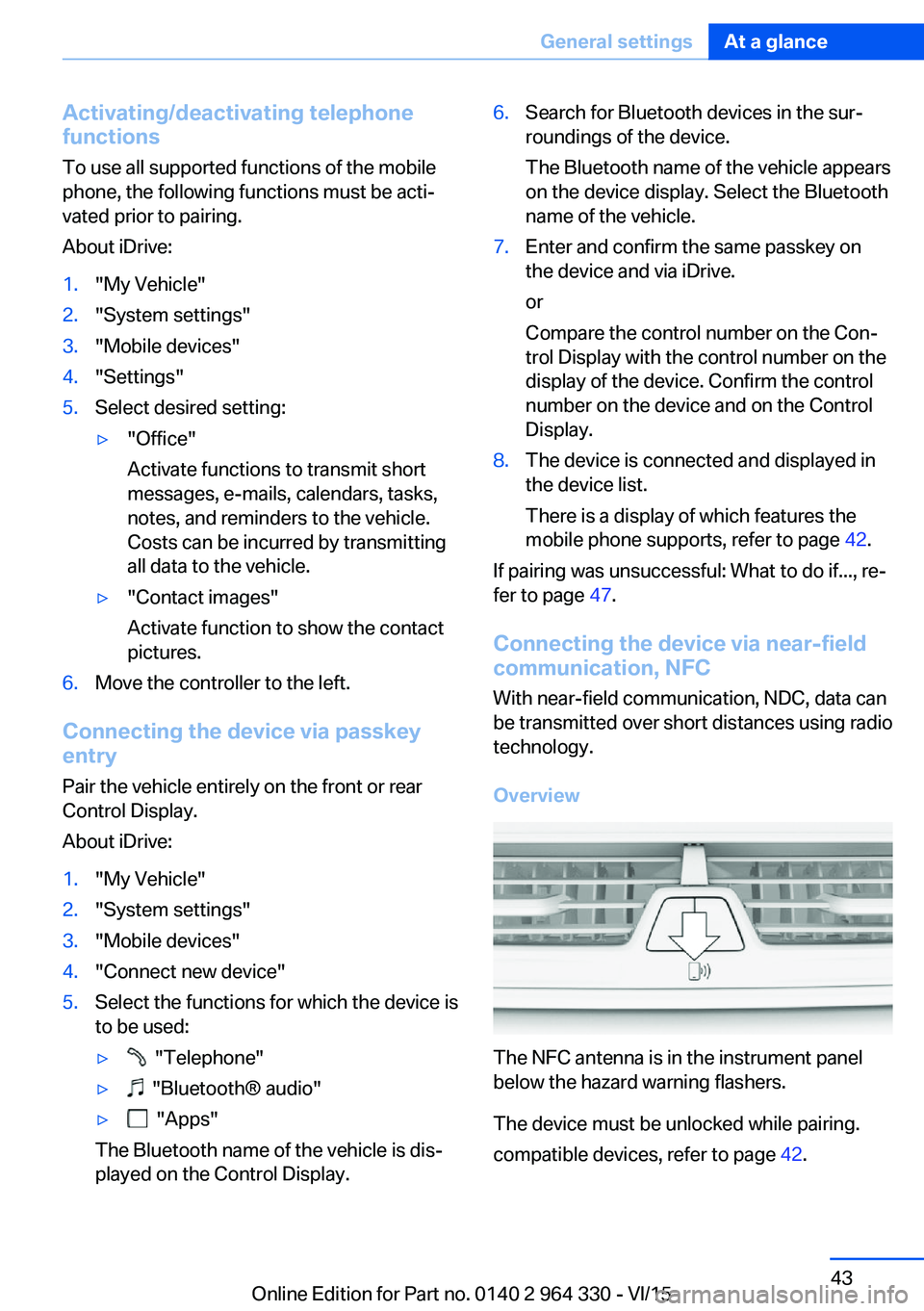
Overview
The NFC antenna is in the instrument panel
below the hazard warning flashers.
The device must be unlocked while pairing.
compatible devices, refer to page 42.
Seite 43General settingsAt a glance43
Online Edition for Part no. 0140 2 964 330 - VI/15
Page 44 of 314
Pairing is also possible while driving.1.Activate the NFC function on the device,
see the owner's manual of the device2.Hold the device close to the NFC antenna.3.Compare the control number on the Con‐
trol Display with the control number on the
display of the device. Confirm the control
number on the device and on the Control
Display.
or
Confirm the connection on the device.4.The device is connected and displayed in
the device list.
There is a display of which features the
mobile phone supports, refer to page 42.
Depending on which functions are already oc‐
cupied, the device is connected with the
phone, additional phone, or music function.
If pairing was unsuccessful: What to do if..., re‐
fer to page 47.
Pairing the snap-in adapter in the rear
with the vehicle
▷The Bluetooth passkey on the back of the
snap-in adapter is known.▷The snap-in adapter is installed in the cen‐
ter armrest.▷Operating readiness is switched on.▷The SIM card is inserted in the snap-in
adapter or the SIM Access Profile is active.
About iDrive:
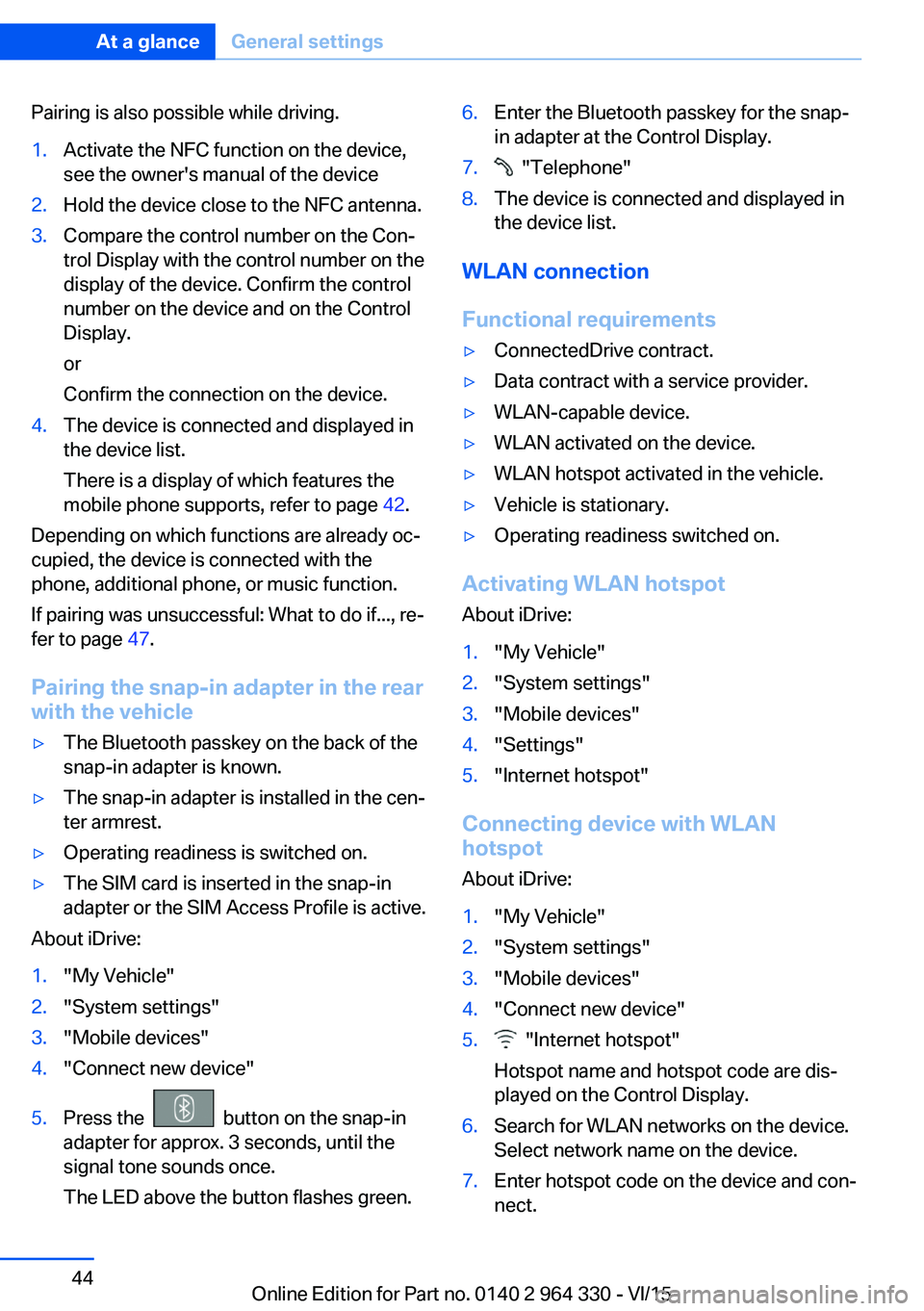
1."My Vehicle"2."System settings"3."Mobile devices"4."Connect new device"5.Press the button on the snap-in
adapter for approx. 3 seconds, until the
signal tone sounds once.
The LED above the button flashes green.6.Enter the Bluetooth passkey for the snap-
in adapter at the Control Display.7. "Telephone"8.The device is connected and displayed in
the device list.
WLAN connection
Functional requirements
▷ConnectedDrive contract.▷Data contract with a service provider.▷WLAN-capable device.▷WLAN activated on the device.▷WLAN hotspot activated in the vehicle.▷Vehicle is stationary.▷Operating readiness switched on.
Activating WLAN hotspot
About iDrive:
1."My Vehicle"2."System settings"3."Mobile devices"4."Settings"5."Internet hotspot"
Connecting device with WLAN
hotspot
About iDrive:
1."My Vehicle"2."System settings"3."Mobile devices"4."Connect new device"5. "Internet hotspot"
Hotspot name and hotspot code are dis‐
played on the Control Display.6.Search for WLAN networks on the device.
Select network name on the device.7.Enter hotspot code on the device and con‐
nect.Seite 44At a glanceGeneral settings44
Online Edition for Part no. 0140 2 964 330 - VI/15
Page 45 of 314
The device connects to the hotspot via
WLAN.
With the first Internet usage via the WLAN hot‐
spot, data volume must be purchased from a
service provider.
All devices connected via the WLAN hotspot
use this data volume.
If necessary, data volume can be purchased
from the ConnectedDrive Store.
WiFi connection Pair the vehicle entirely on the front or rear
Control Display.
About iDrive:
1."My Vehicle"2."System settings"3."Mobile devices"4."Connect new device"5. "Miracast"
The WiFi name of the vehicle is displayed
on the Control Display.6.Search for WiFi devices in the surround‐
ings of the device.
The WiFi name of the vehicle appears on
the device display. Select the WiFi name of
the vehicle.7.Compare the control number on the Con‐
trol Display with the control number on the
display of the device. Confirm the control
number on the device and on the Control
Display.8.The device is connected and displayed in
the device list.
If pairing was unsuccessful: What to do if..., re‐
fer to page 47.
Additional functions
After initial pairing
▷The device is connected with the vehicle
within a short period of time if the engine isrunning or the operating readiness is
switched on.▷The data stored on the SIM card or in the
mobile phone are transferred to the vehicle
after recognition.▷For some devices, certain settings may be
necessary, e.g. authorization, see owner's
manual of the device.▷After one-time pairing, the devices are au‐
tomatically recognized and reconnected
when operating readiness is switched on.
Configuring the device
Functions can be activated or deactivated for
paired and connected devices.
About iDrive:
1."My Vehicle"2."System settings"3."Mobile devices"4.Select the desired device.5.Select desired setting.
If a function is assigned to a device, the func‐
tion will be deactivated where appropriate for a
device that is already connected and the de‐
vice will be disconnected.
Connecting a specific device About iDrive:
1."My Vehicle"2."System settings"3."Mobile devices"4.Select device.5."Connect device"
The functions that were assigned to the device
before unpairing are assigned to the device
when it is reconnected. If the device is already
connected, these functions are deactivated.
Disconnecting the device
The connection of the device to the vehicle is
disconnected.
Seite 45General settingsAt a glance45
Online Edition for Part no. 0140 2 964 330 - VI/15
Page 46 of 314
The device remains pairs and can be con‐
nected again, refer to page 45.
About iDrive:1."My Vehicle"2."System settings"3."Mobile devices"4.Select device.5."Disconnect device"
Deleting the device
The device is disconnected and removed from
the device list.
About iDrive:
1."My Vehicle"2."System settings"3."Mobile devices"4.Select device.5."Delete device"
Swapping the telephone and
additional telephone
If two mobile phones are connected to the ve‐
hicle, the functions of phone and additional
phone can be switched.
About iDrive:
1."My Vehicle"2."System settings"3."Mobile devices"4."Settings"5."Swap telephone 1 and 2"
Software Update
General information
The vehicle supports various external devices
depending on the current software version.
With a software update, compatibility with the
vehicle can be improved, so that the vehicle
can support new mobile phones or new exter‐
nal devices, e.g.
Updates and related current information are
available at www.bmw.com/update.
Displaying the current version The currently installed software is displayed.
About iDrive:1."My Vehicle"2."System settings"3."Software update"4."Show current version"
If an update has been carried out before, select
the desired version to display additional infor‐
mation.
Updating software via USB
The software may only be updated when the
vehicle is stationary.
About iDrive:
1.Store the file for the software update in the
main directory of a USB flash drive.2.Connect the USB data storage to an USB
interface, refer to page 221.3."My Vehicle"4."System settings"5."Software update"6."Update software"7."USB"8."Install software"9."OK"10.Await the updating.11.Confirm system restart.
Updating software via BMW
Teleservices
Software update via BMW Teleservices is
country-specific and may not be available.
The software is first transferred into the vehicle
and can then be installed. The software can be
installed at a time different from the time of
transfer.
Seite 46At a glanceGeneral settings46
Online Edition for Part no. 0140 2 964 330 - VI/15
Page 48 of 314
▷Is Bluetooth audio activated? Deactivate
Bluetooth audio.▷Delete all known Bluetooth connections
from the device list on the mobile phone
prior to pairing. Start new device search.▷Is the mobile phone in power-save mode or
does it have only a limited remaining bat‐
tery life? Charge the mobile phone in the
snap-in adapter, wireless charging storage
or via the charging cable.▷Depending on the mobile phone, it is pos‐
sible that only one mobile phone can be
connected to the vehicle. Unpair the con‐
nected mobile phone from the vehicle and
pair and connect only one mobile phone.
The mobile phone no longer reacts.
▷Switch the mobile phone off and on again.▷Ambient temperatures too high or too low?
Do not subject the mobile phone to ex‐
treme ambient temperatures.
The telephone functions are not available.
▷Configure the mobile phone and connect it
with the telephone or auxiliary phone func‐
tion.
No or not all phone book entries are displayed,
or they are incomplete.
▷Transmission of the phone book entries is
not yet complete.▷It is possible that only the phone book en‐
tries of the mobile phone or the SIM card
are transmitted.▷It may not be possible to display phone
book entries with special characters.▷The number of phone book entries to be
stored is too high.▷Is the data volume of the contact too large,
e.g., due to stored information such as
notes? Reduce the data volume of the con‐
tact.▷Is the mobile phone connected as an audio
source? Configure the mobile phone andconnect it with the telephone or auxiliary
phone function.
The phone connection quality is poor.
▷The strength of the Bluetooth signal on the
mobile phone can be adjusted, depending
on the mobile phone.▷Insert the mobile phone into the snap-in
adapter or place it in the area of the center
console.▷Insert mobile phone into the wireless
charging tray.▷Adjust the volume of the microphone and
loudspeakers separately.
If all points in this list have been checked and
the required function is still not available, con‐
tact the hotline, a dealer’s service center or an‐
other qualified service center or repair shop.
Seite 48At a glanceGeneral settings48
Online Edition for Part no. 0140 2 964 330 - VI/15
Page 49 of 314
Integrated Owner's Manual in the vehicleVehicle features and optionsThis chapter describes all standard, country-
specific and optional features offered with the
series. It also describes features that are not
necessarily available in your car, e. g., due to
the selected options or country versions. This
also applies to safety-related functions and
systems. The respectively applicable country
provisions must be observed when using the
respective features and systems.
Integrated Owner's Manual
in the vehicle
The concept
The Integrated Owner's Manual can be dis‐
played on the Control Display. It specifically
describes features and functions found in the
vehicle.
Components of the IntegratedOwner's Manual
The Integrated owner's manual consists of
four parts, which offer various levels of infor‐
mation or possible access.
Quick Reference Guide
The Quick Reference Guide provides informa‐
tion how to operate the car, how to use basic
vehicle functions or what to do in case of a
breakdown. This information can also be dis‐
played while driving.
Search by images
Image search provides information and de‐
scriptions. This is helpful when the terminol‐
ogy for a feature is not at hand.Keyword search
Search for information and descriptions by en‐
tering terms selected from the index.
Videos
The basic functions of selected systems are
explained in the videos.
Select components1. Press button.2."My Vehicle"3."Owner's Manual"4.Select desired setting.
Scrolling through the owner's manualTurn controller, until the next or previous con‐
tents are displayed.
Context help - Owner's Manual to the
temporarily selected function
You may open the relevant information di‐
rectly.
Opening via the iDrive
To move directly from the application on the
Control Display to the Options menu:
1. Press button.2."Owner's Manual"
Opening when a Check Control
message is displayed
Directly from the Check Control message on
the Control Display:
"Owner's Manual"
Seite 49Integrated Owner's Manual in the vehicleAt a glance49
Online Edition for Part no. 0140 2 964 330 - VI/15
Page 50 of 314
Changing between a function and the
Owner's Manual
To switch from a function, e. g., radio, to the
Owner's Manual on the Control Display and to
alternate between the two displays:1. Press button.2."Owner's Manual"3.Select the desired page in the Owner's
Manual.4. Press button again to return to last
displayed function.5. Press button to return to the page of
the Owner's Manual displayed last.
To alternate permanently between the last dis‐
played function and the Owner's Manual re‐
peat steps 4 & 5. Opens a new display every
time.
Programmable memory buttons
General information The jumps into the Owner's Manual can be
stored on the Programmable memory buttons,
refer to page 28, and called up directly.
Storing
1.Select the desired entry point via iDrive:▷"Quick reference"▷"Search by pictures"▷"Keyword search"▷"Animations"2. Press desired button and hold for
more than 2 seconds.
Executing
Press the corresponding button.
The owner's manual is directly dis‐
played via the selected entry point.
Seite 50At a glanceIntegrated Owner's Manual in the vehicle50
Online Edition for Part no. 0140 2 964 330 - VI/15
Page 55 of 314
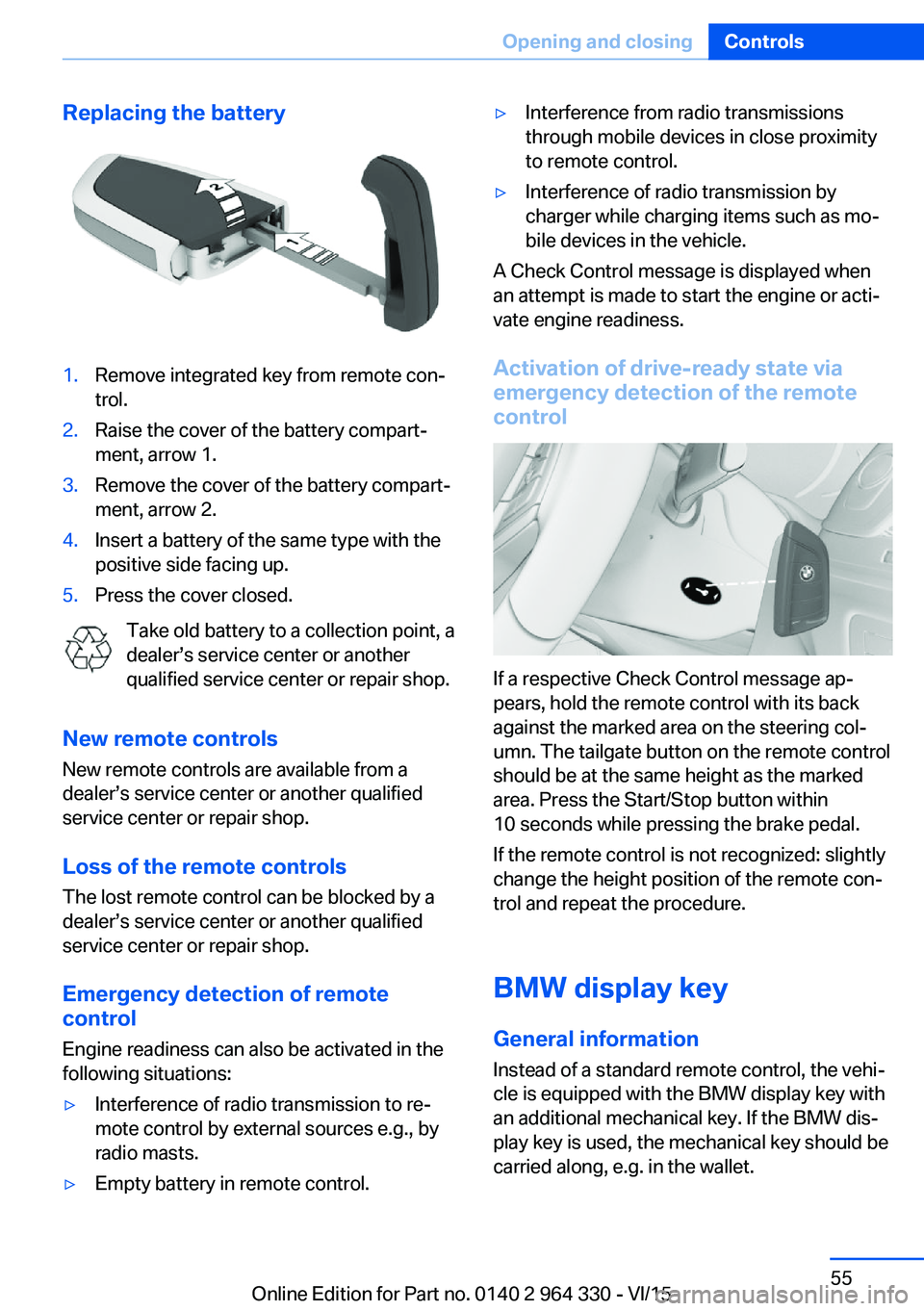
Replacing the battery1.Remove integrated key from remote con‐
trol.2.Raise the cover of the battery compart‐
ment, arrow 1.3.Remove the cover of the battery compart‐
ment, arrow 2.4.Insert a battery of the same type with the
positive side facing up.5.Press the cover closed.
Take old battery to a collection point, a
dealer’s service center or another
qualified service center or repair shop.
New remote controls New remote controls are available from a
dealer’s service center or another qualified
service center or repair shop.
Loss of the remote controls
The lost remote control can be blocked by a
dealer’s service center or another qualified
service center or repair shop.
Emergency detection of remote
control
Engine readiness can also be activated in the
following situations:
▷Interference of radio transmission to re‐
mote control by external sources e.g., by
radio masts.▷Empty battery in remote control.▷Interference from radio transmissions
through mobile devices in close proximity
to remote control.▷Interference of radio transmission by
charger while charging items such as mo‐
bile devices in the vehicle.
A Check Control message is displayed when
an attempt is made to start the engine or acti‐
vate engine readiness.
Activation of drive-ready state via
emergency detection of the remote
control
If a respective Check Control message ap‐
pears, hold the remote control with its back
against the marked area on the steering col‐
umn. The tailgate button on the remote control
should be at the same height as the marked
area. Press the Start/Stop button within
10 seconds while pressing the brake pedal.
If the remote control is not recognized: slightly
change the height position of the remote con‐
trol and repeat the procedure.
BMW display key
General information
Instead of a standard remote control, the vehi‐
cle is equipped with the BMW display key with
an additional mechanical key. If the BMW dis‐
play key is used, the mechanical key should be
carried along, e.g. in the wallet.
Seite 55Opening and closingControls55
Online Edition for Part no. 0140 2 964 330 - VI/15