display BMW 750LI SEDAN 2015 User Guide
[x] Cancel search | Manufacturer: BMW, Model Year: 2015, Model line: 750LI SEDAN, Model: BMW 750LI SEDAN 2015Pages: 314, PDF Size: 7.9 MB
Page 26 of 314
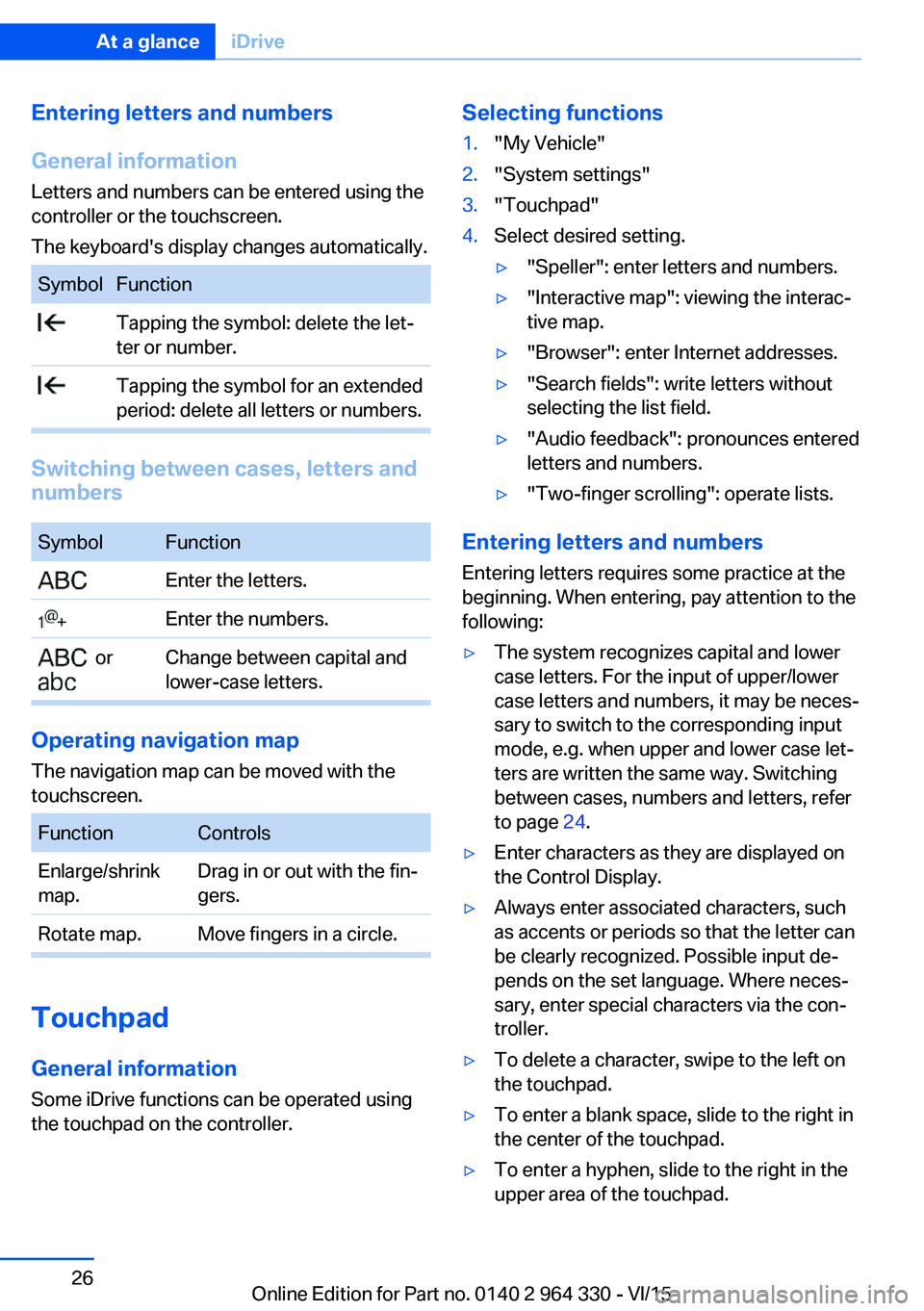
Entering letters and numbers
General information
Letters and numbers can be entered using the
controller or the touchscreen.
The keyboard's display changes automatically.SymbolFunction Tapping the symbol: delete the let‐
ter or number. Tapping the symbol for an extended
period: delete all letters or numbers.
Switching between cases, letters and
numbers
SymbolFunction Enter the letters. Enter the numbers. or
Change between capital and
lower-case letters.
Operating navigation map
The navigation map can be moved with the
touchscreen.
FunctionControlsEnlarge/shrink
map.Drag in or out with the fin‐
gers.Rotate map.Move fingers in a circle.
Touchpad
General information
Some iDrive functions can be operated using
the touchpad on the controller.
Selecting functions1."My Vehicle"2."System settings"3."Touchpad"4.Select desired setting.▷"Speller": enter letters and numbers.▷"Interactive map": viewing the interac‐
tive map.▷"Browser": enter Internet addresses.▷"Search fields": write letters without
selecting the list field.▷"Audio feedback": pronounces entered
letters and numbers.▷"Two-finger scrolling": operate lists.
Entering letters and numbers
Entering letters requires some practice at the
beginning. When entering, pay attention to the
following:
▷The system recognizes capital and lower
case letters. For the input of upper/lower
case letters and numbers, it may be neces‐
sary to switch to the corresponding input
mode, e.g. when upper and lower case let‐
ters are written the same way. Switching
between cases, numbers and letters, refer
to page 24.▷Enter characters as they are displayed on
the Control Display.▷Always enter associated characters, such
as accents or periods so that the letter can
be clearly recognized. Possible input de‐
pends on the set language. Where neces‐
sary, enter special characters via the con‐
troller.▷To delete a character, swipe to the left on
the touchpad.▷To enter a blank space, slide to the right in
the center of the touchpad.▷To enter a hyphen, slide to the right in the
upper area of the touchpad.Seite 26At a glanceiDrive26
Online Edition for Part no. 0140 2 964 330 - VI/15
Page 27 of 314
▷To enter an underscore, swipe to the right
in the lower area of the touchpad.
Using interactive map and Internet
Via touch-pad move the interactive map in the
navigation system and Internet sites.
FunctionControlsMove interactive map or
Internet sites.Swipe in the ap‐
propriate direc‐
tion.Enlarge/shrink interactive
map or Internet sites.Drag in or out on
the touchpad with
fingers.Display the menu or
open a link in the Inter‐
net.Tap once.
Changing settings
You may change control display settings via
touchpad. Slide left or right accordingly.
Split screen
General information Additional information can be displayed on the
right side of the split screen, e.g., information
from the on-board comupter.
In the divided screen view, the so-called split
screen, this information remains visible even
when you change to another menu.
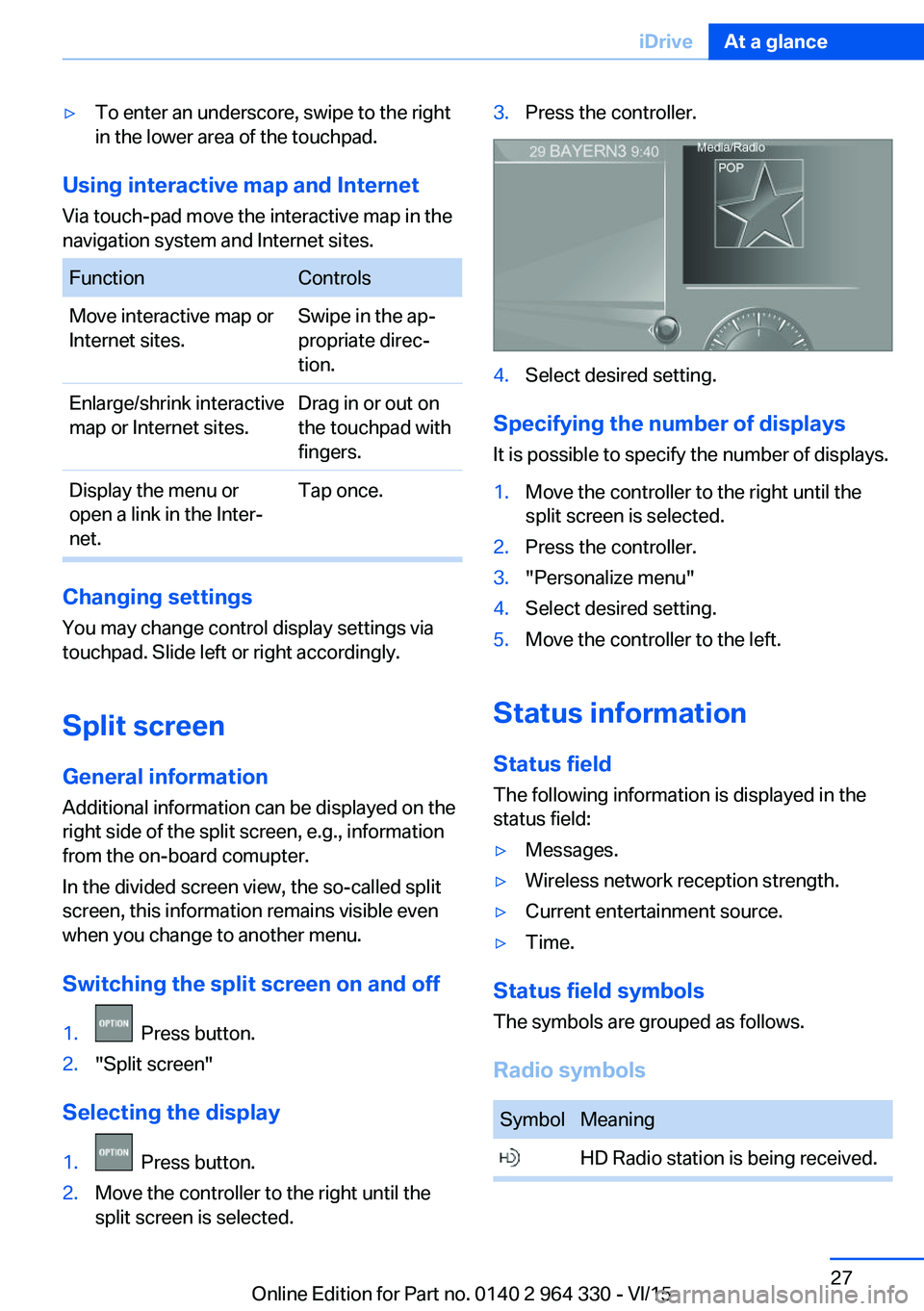
Switching the split screen on and off
1. Press button.2."Split screen"
Selecting the display
1. Press button.2.Move the controller to the right until the
split screen is selected.3.Press the controller.4.Select desired setting.
Specifying the number of displays
It is possible to specify the number of displays.
1.Move the controller to the right until the
split screen is selected.2.Press the controller.3."Personalize menu"4.Select desired setting.5.Move the controller to the left.
Status information
Status field The following information is displayed in the
status field:
▷Messages.▷Wireless network reception strength.▷Current entertainment source.▷Time.
Status field symbols
The symbols are grouped as follows.
Radio symbols
SymbolMeaning HD Radio station is being received.Seite 27iDriveAt a glance27
Online Edition for Part no. 0140 2 964 330 - VI/15
Page 28 of 314
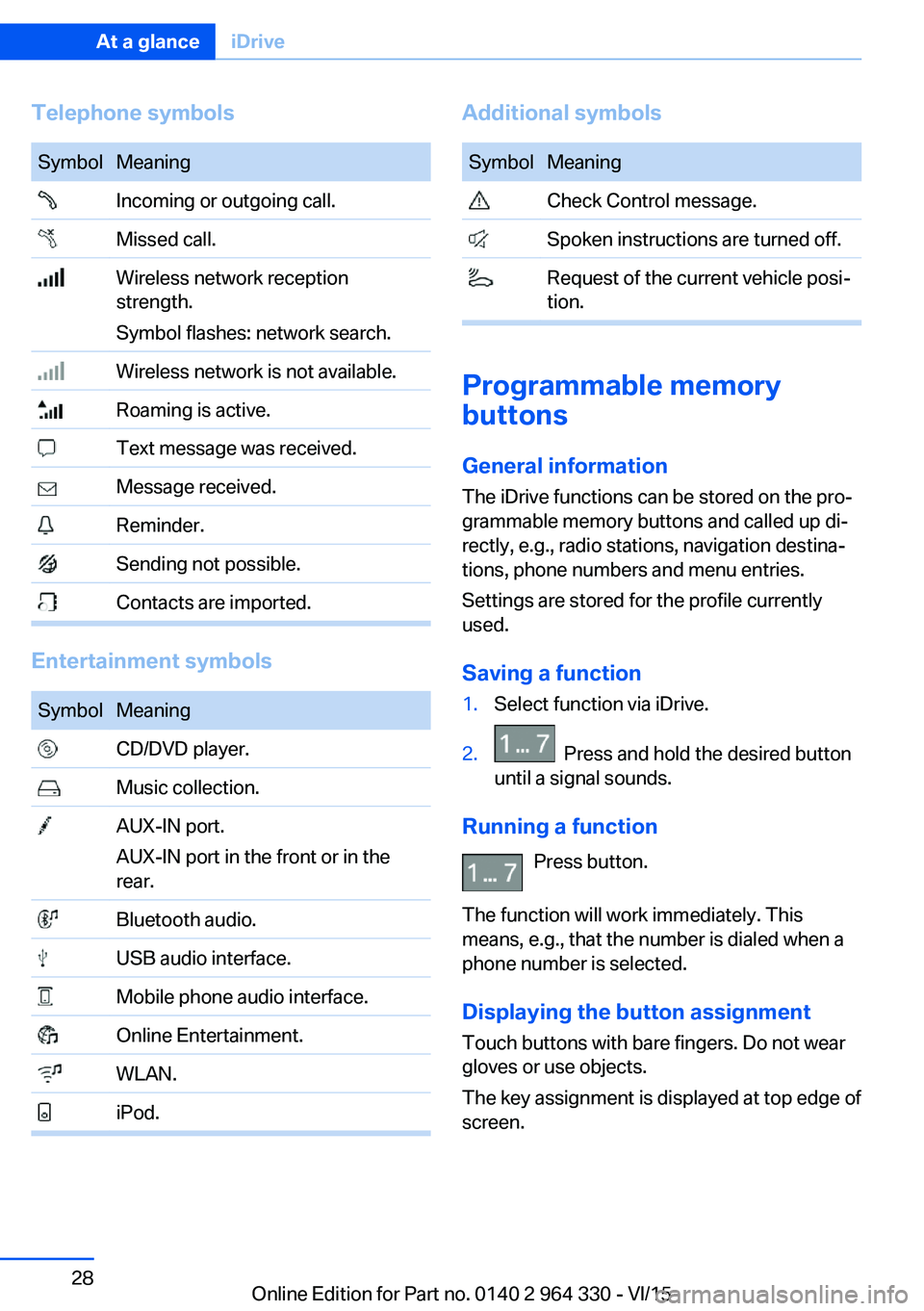
Telephone symbolsSymbolMeaning Incoming or outgoing call. Missed call. Wireless network reception
strength.
Symbol flashes: network search. Wireless network is not available. Roaming is active. Text message was received. Message received. Reminder. Sending not possible. Contacts are imported.
Entertainment symbols
SymbolMeaning CD/DVD player. Music collection. AUX-IN port.
AUX-IN port in the front or in the
rear. Bluetooth audio. USB audio interface. Mobile phone audio interface. Online Entertainment. WLAN. iPod.Additional symbolsSymbolMeaning Check Control message. Spoken instructions are turned off. Request of the current vehicle posi‐
tion.
Programmable memory
buttons
General information
The iDrive functions can be stored on the pro‐
grammable memory buttons and called up di‐
rectly, e.g., radio stations, navigation destina‐
tions, phone numbers and menu entries.
Settings are stored for the profile currently
used.
Saving a function
1.Select function via iDrive.2. Press and hold the desired button
until a signal sounds.
Running a function
Press button.
The function will work immediately. This
means, e.g., that the number is dialed when a
phone number is selected.
Displaying the button assignment Touch buttons with bare fingers. Do not wear
gloves or use objects.
The key assignment is displayed at top edge of
screen.
Seite 28At a glanceiDrive28
Online Edition for Part no. 0140 2 964 330 - VI/15
Page 30 of 314
BMW gesture controlVehicle features and optionsThis chapter describes all standard, country-
specific and optional features offered with the
series. It also describes features that are not
necessarily available in your car, e. g., due to
the selected options or country versions. This
also applies to safety-related functions and
systems. The respectively applicable country
provisions must be observed when using the
respective features and systems.
The concept
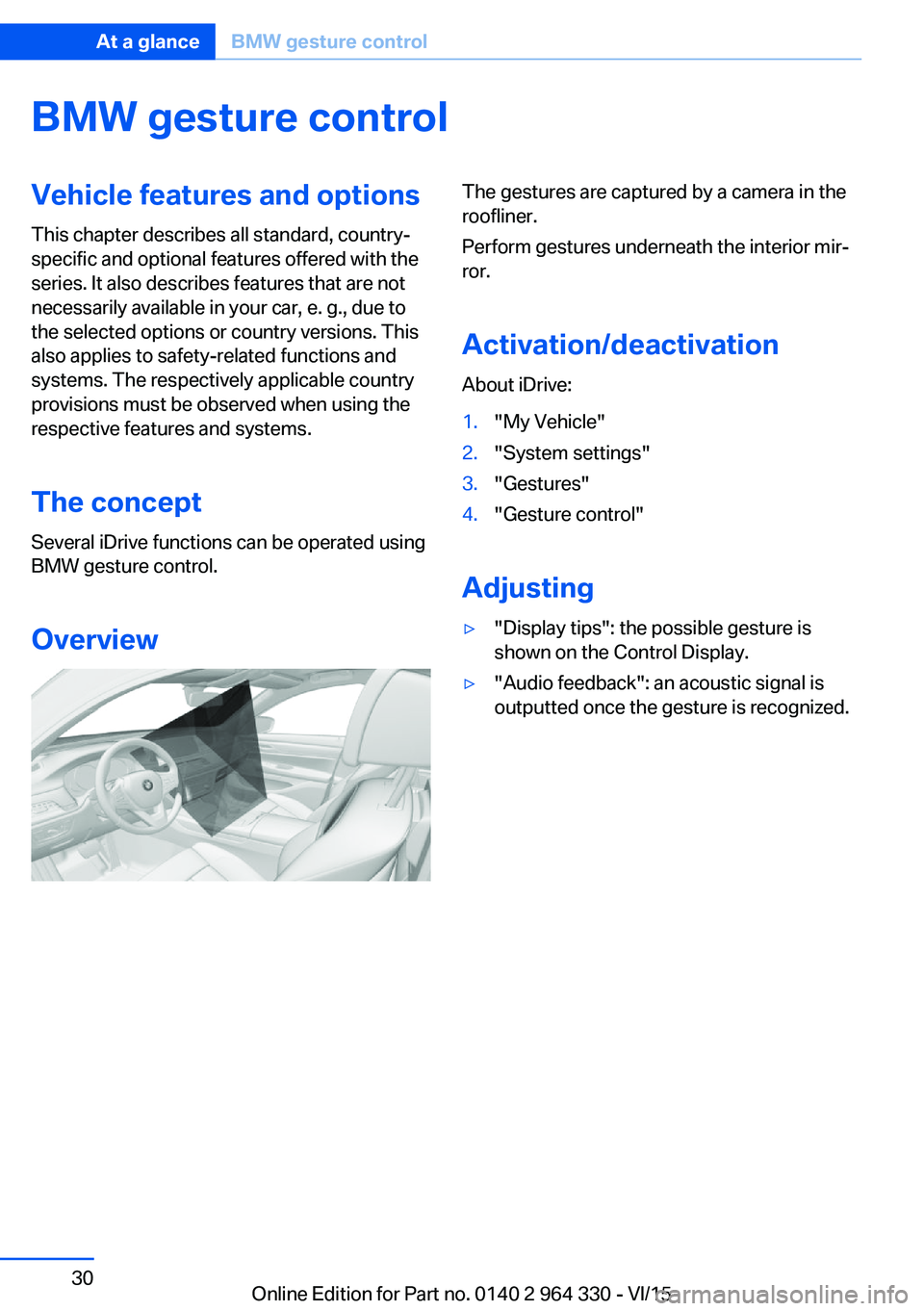
Several iDrive functions can be operated using
BMW gesture control.
OverviewThe gestures are captured by a camera in the
roofliner.
Perform gestures underneath the interior mir‐
ror.
Activation/deactivation
About iDrive:1."My Vehicle"2."System settings"3."Gestures"4."Gesture control"
Adjusting
▷"Display tips": the possible gesture is
shown on the Control Display.▷"Audio feedback": an acoustic signal is
outputted once the gesture is recognized.Seite 30At a glanceBMW gesture control30
Online Edition for Part no. 0140 2 964 330 - VI/15
Page 33 of 314
Voice activation systemVehicle features and options
This chapter describes all standard, country-
specific and optional features offered with the
series. It also describes features that are not
necessarily available in your car, e. g., due to
the selected options or country versions. This
also applies to safety-related functions and
systems. The respectively applicable country
provisions must be observed when using the
respective features and systems.
The concept▷Most functions displayed on the Control
Display can be operated by voice com‐
mands via the voice activation system. The
system supports you with announcements
during input.▷Functions that can only be used when the
vehicle is stationary cannot be used via the
voice activation system.▷The system uses a special microphone on
the driver's side.▷›...‹ Verbal instructions in the Owner's
Manual to use with the voice activation
system.
Requirements
Via the Control Display, set a language that is
also supported by the voice activation system
so that the spoken commands can be identi‐
fied.
Set the language, refer to page 38.
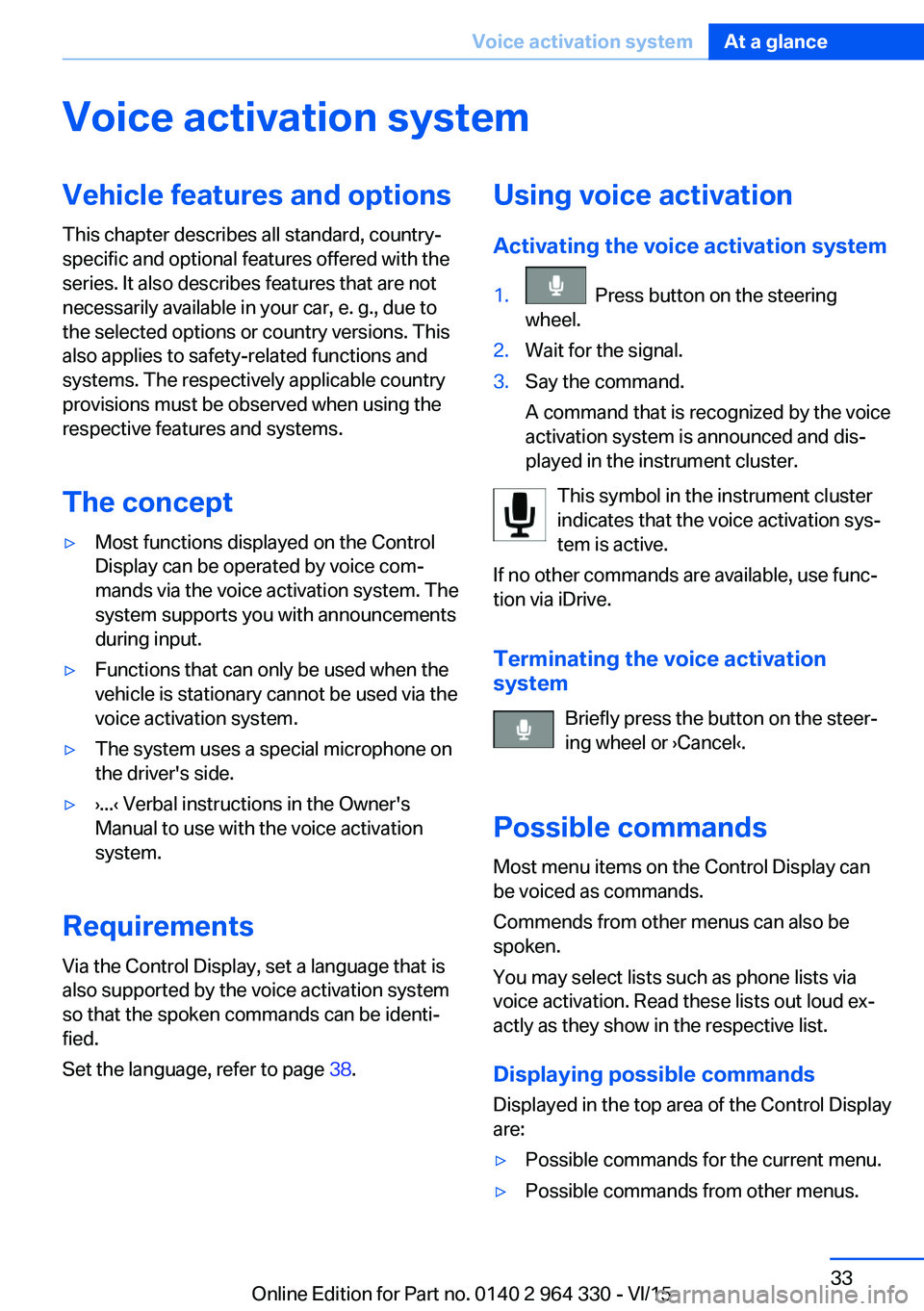
Using voice activation
Activating the voice activation system1. Press button on the steering
wheel.2.Wait for the signal.3.Say the command.
A command that is recognized by the voice
activation system is announced and dis‐
played in the instrument cluster.
This symbol in the instrument cluster
indicates that the voice activation sys‐
tem is active.
If no other commands are available, use func‐
tion via iDrive.
Terminating the voice activation
system
Briefly press the button on the steer‐
ing wheel or ›Cancel‹.
Possible commands Most menu items on the Control Display can
be voiced as commands.
Commends from other menus can also be
spoken.
You may select lists such as phone lists via
voice activation. Read these lists out loud ex‐
actly as they show in the respective list.
Displaying possible commands Displayed in the top area of the Control Display
are:
▷Possible commands for the current menu.▷Possible commands from other menus.Seite 33Voice activation systemAt a glance33
Online Edition for Part no. 0140 2 964 330 - VI/15
Page 36 of 314
BMW Touch CommandVehicle features and options
This chapter describes all standard, country-
specific and optional features offered with the
series. It also describes features that are not
necessarily available in your car, e. g., due to
the selected options or country versions. This
also applies to safety-related functions and
systems. The respectively applicable country
provisions must be observed when using the
respective features and systems.
BMW Touch Command The concept
Important functions of the vehicle can be used
via BMW Touch Command.▷Seat adjustments for front passenger seat
and seats in the rear.▷Climate control in the rear.▷Sun protection.▷Ambient light.▷Ambient light accent.▷Bowers & Wilkins loudspeaker lighting.▷Audio sources front.▷Rear entertainment.▷Some functions of the telephone in the
rear.
General information
Depending on the vehicle's equipment, BMW
Touch Command is located in the rear console
or in the center armrest in the rear.
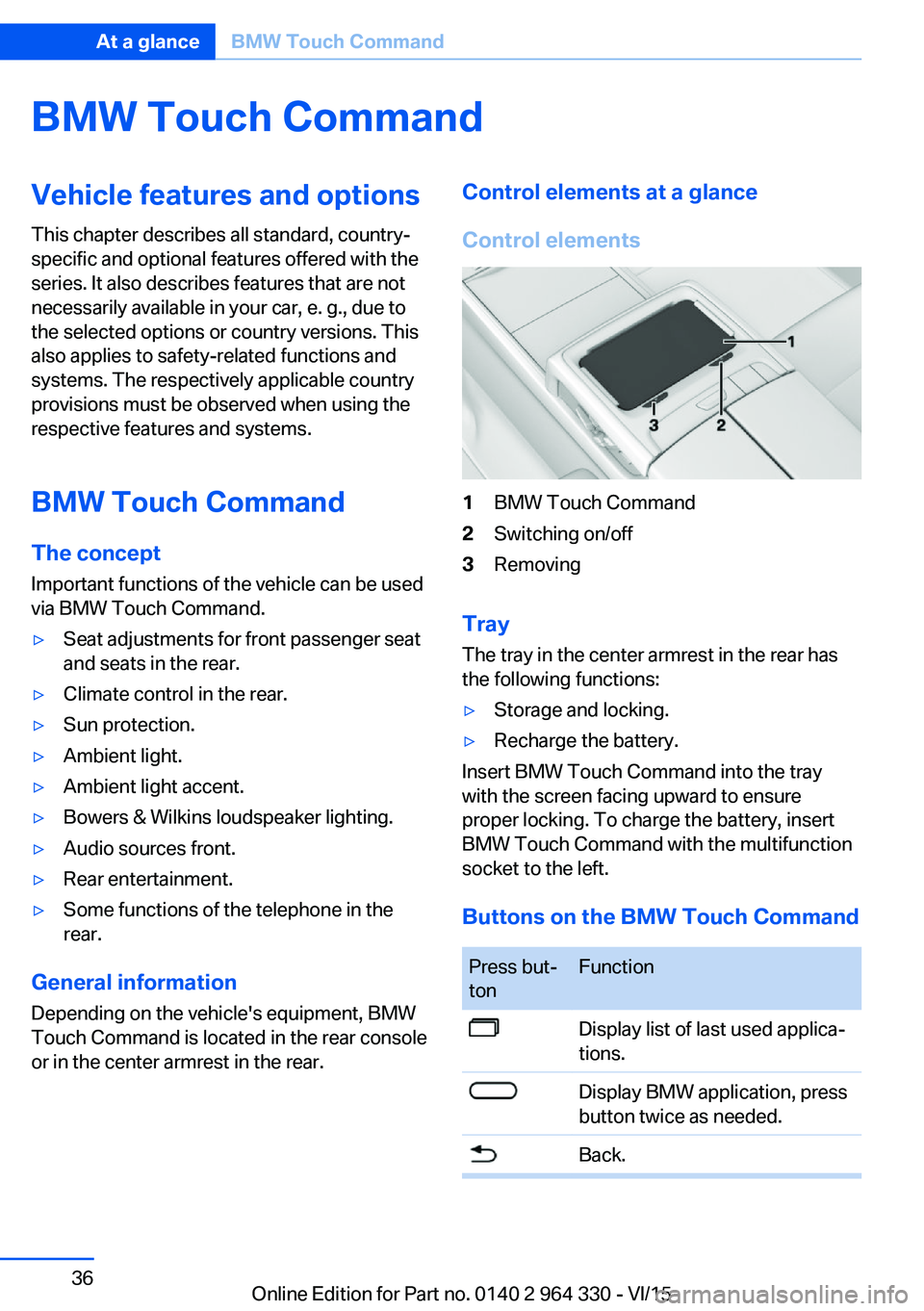
Control elements at a glance
Control elements1BMW Touch Command2Switching on/off3Removing
Tray
The tray in the center armrest in the rear has
the following functions:
▷Storage and locking.▷Recharge the battery.
Insert BMW Touch Command into the tray
with the screen facing upward to ensure
proper locking. To charge the battery, insert
BMW Touch Command with the multifunction
socket to the left.
Buttons on the BMW Touch Command
Press but‐
tonFunctionDisplay list of last used applica‐
tions.Display BMW application, press
button twice as needed.Back.Seite 36At a glanceBMW Touch Command36
Online Edition for Part no. 0140 2 964 330 - VI/15
Page 37 of 314
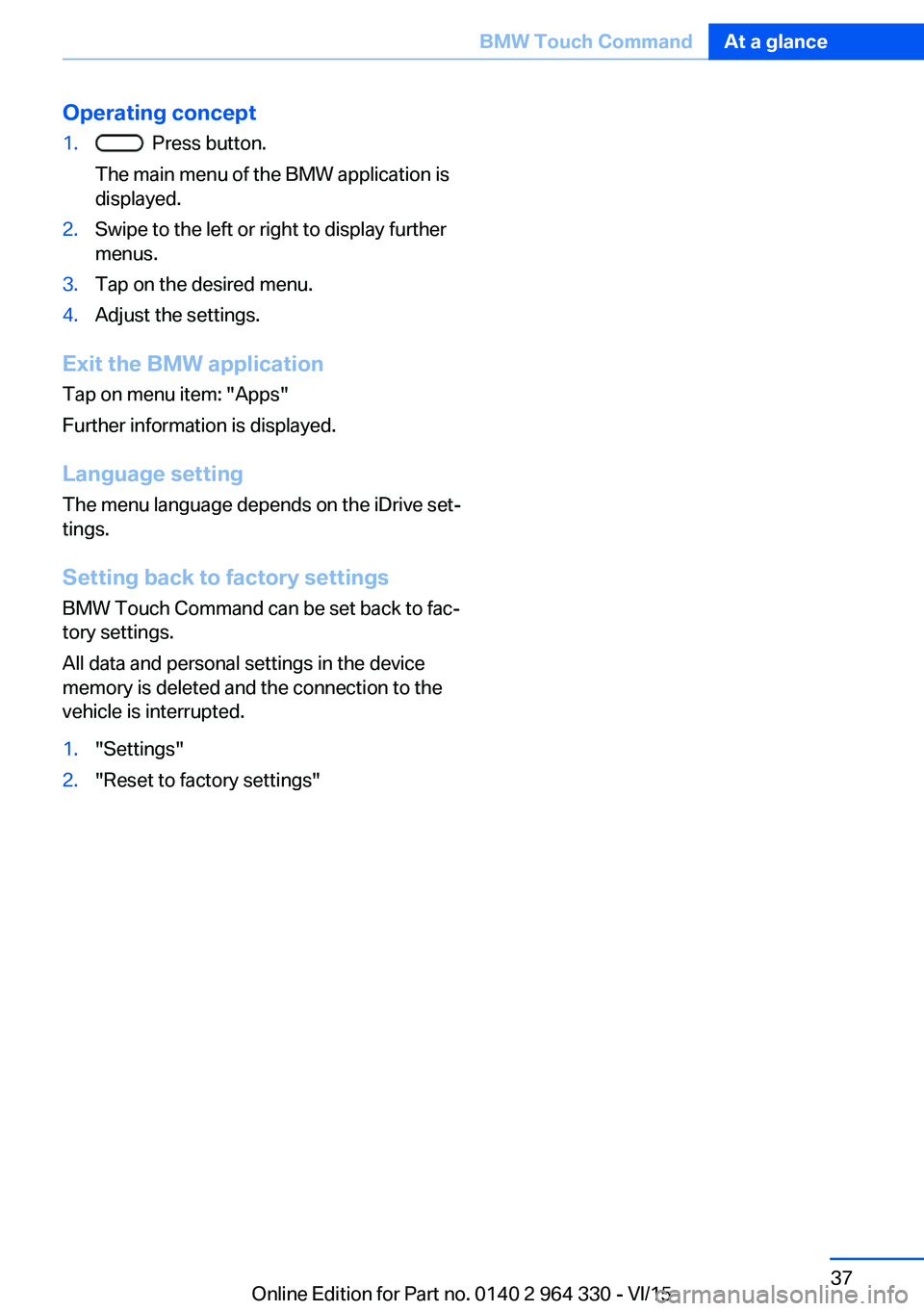
Operating concept1. Press button.
The main menu of the BMW application is
displayed.2.Swipe to the left or right to display further
menus.3.Tap on the desired menu.4.Adjust the settings.
Exit the BMW application
Tap on menu item: "Apps"
Further information is displayed.
Language setting The menu language depends on the iDrive set‐
tings.
Setting back to factory settings BMW Touch Command can be set back to fac‐
tory settings.
All data and personal settings in the device
memory is deleted and the connection to the
vehicle is interrupted.
1."Settings"2."Reset to factory settings"Seite 37BMW Touch CommandAt a glance37
Online Edition for Part no. 0140 2 964 330 - VI/15
Page 38 of 314
General settingsVehicle features and optionsThis chapter describes all standard, country-
specific and optional features offered with the
series. It also describes features that are not
necessarily available in your car, e. g., due to
the selected options or country versions. This
also applies to safety-related functions and
systems. The respectively applicable country
provisions must be observed when using the
respective features and systems.
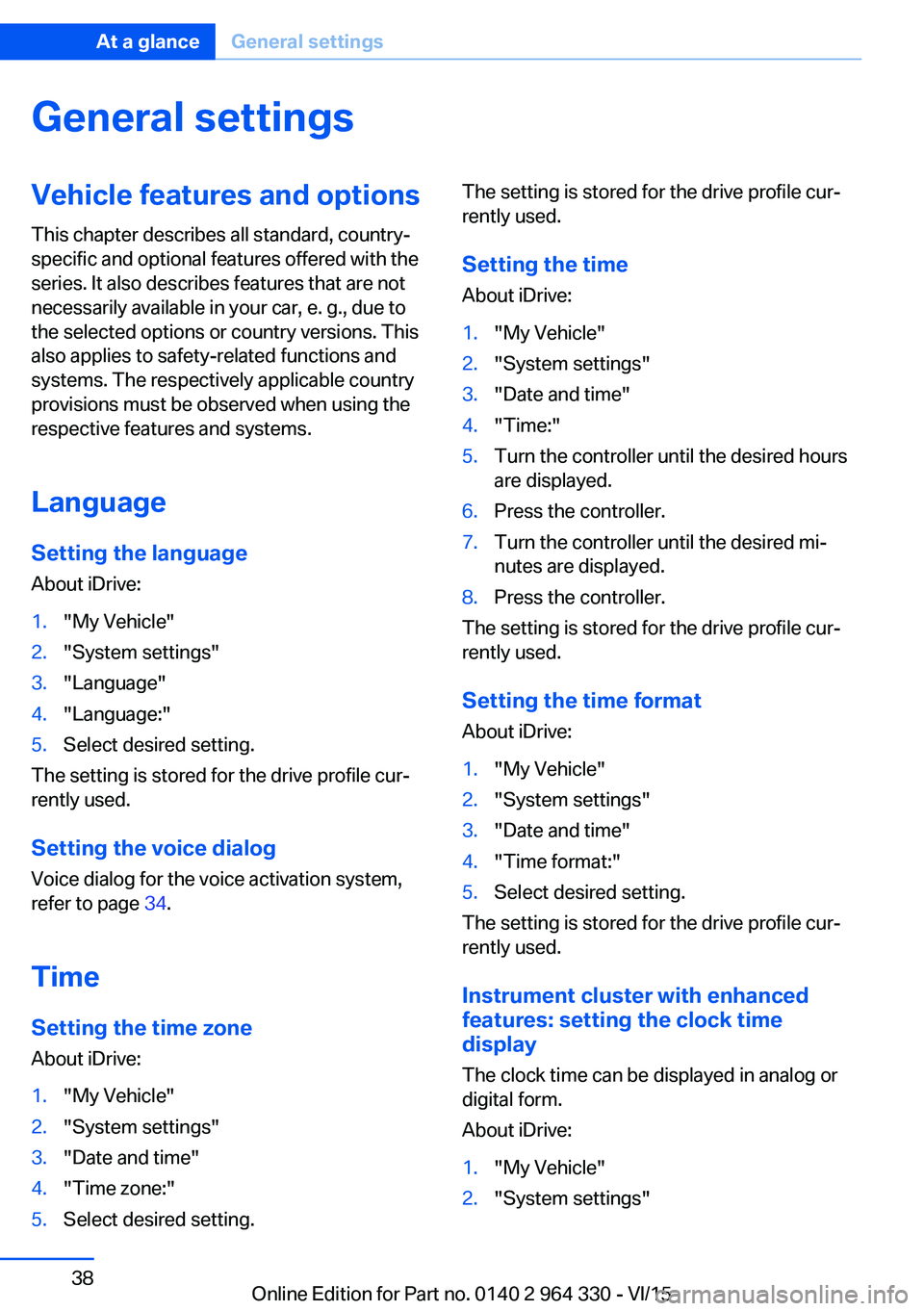
Language Setting the language
About iDrive:1."My Vehicle"2."System settings"3."Language"4."Language:"5.Select desired setting.
The setting is stored for the drive profile cur‐
rently used.
Setting the voice dialog Voice dialog for the voice activation system,
refer to page 34.
Time Setting the time zoneAbout iDrive:
1."My Vehicle"2."System settings"3."Date and time"4."Time zone:"5.Select desired setting.The setting is stored for the drive profile cur‐
rently used.
Setting the time About iDrive:1."My Vehicle"2."System settings"3."Date and time"4."Time:"5.Turn the controller until the desired hours
are displayed.6.Press the controller.7.Turn the controller until the desired mi‐
nutes are displayed.8.Press the controller.
The setting is stored for the drive profile cur‐
rently used.
Setting the time format
About iDrive:
1."My Vehicle"2."System settings"3."Date and time"4."Time format:"5.Select desired setting.
The setting is stored for the drive profile cur‐
rently used.
Instrument cluster with enhanced
features: setting the clock time
display
The clock time can be displayed in analog or
digital form.
About iDrive:
1."My Vehicle"2."System settings"Seite 38At a glanceGeneral settings38
Online Edition for Part no. 0140 2 964 330 - VI/15
Page 39 of 314
3."Displays"4."Instrument panel"5."Time"6.Select desired setting.
The setting is stored for the drive profile cur‐
rently used.
Automatic time setting Depending on your vehicle's optional features,
the time, date and, if needed, the time zone are
updated automatically.
About iDrive:
1."My Vehicle"2."System settings"3."Date and time"4."Automatic time setting"
The setting is stored for the drive profile cur‐
rently used.
Date Setting the date
About iDrive:
1."My Vehicle"2."System settings"3."Date and time"4."Date:"5.Turn the controller until the desired day is
displayed.6.Press the controller.7.Make the necessary settings for the month
and year.
The setting is stored for the drive profile cur‐
rently used.
Setting the date format
About iDrive:1."My Vehicle"2."System settings"3."Date and time"4."Date format:"5.Select desired setting.
The setting is stored for the drive profile cur‐
rently used.
Units of measurement Setting the units of measurement Set the units for e.g. fuel consumption, routes/
distances and temperature:
About iDrive:
1."My Vehicle"2."System settings"3."Units"4.Select the desired menu item.5.Select desired setting.
The setting is stored for the drive profile cur‐
rently used.
Control Display Brightness
About iDrive:
1."My Vehicle"2."System settings"3."Displays"4."Control display"5."Brightness at night"6.Turn the controller until the desired bright‐
ness is set.7.Press the controller.Seite 39General settingsAt a glance39
Online Edition for Part no. 0140 2 964 330 - VI/15
Page 40 of 314
The setting is stored for the drive profile cur‐
rently used.
Depending on the light conditions, the bright‐
ness settings may not be clearly visible.
Screen saver
If no settings are made via iDriver, after a time
that can be set, a screen saver is displayed.
About iDrive:1."My Vehicle"2."System settings"3."Pop-ups"4."Screensaver"5.Select desired setting.
The setting is stored for the drive profile cur‐
rently used.
Messages The concept
The menu centrally displays all messages ar‐
riving in the vehicle in list form.
The following messages can be displayed:
▷Traffic messages.▷Check Control messages.▷Communication messages, e.g. e-mail,
SMS or Twitter.▷Service requirements messages.
Messages are additionally displayed in the sta‐
tus field.
Retrieving messages About iDrive:
1."Notifications"2.Select the desired message.
The respective menu is opened, where the
message is displayed.
Deleting messages
All messages, except Check Control mes‐
sages, can be deleted from the list. Check
Control messages are displayed as long as
they are relevant.
About iDrive:1."Notifications"2.Select the desired message.3. Press button.4."Delete this notification" or "Delete all
notifications"
Adjusting
The following settings can be adjusted:
▷Select the applications, from which mes‐
sages will be permitted.▷Define the number of new messages per
application, e.g. maximum ten new e-mails.▷Sort the messages according to date or
priority.▷Combine several messages of the same
type.
About iDrive:
1."My Vehicle"2."System settings"3."Notifications"4.Select desired setting.
Deleting personal in the
vehicle
The concept
Depending on the usage, the vehicle saves
personal data, such as stored radio stations.
These personal data can be permanently de‐
leted through iDrive.
Seite 40At a glanceGeneral settings40
Online Edition for Part no. 0140 2 964 330 - VI/15