display BMW 760i 2005 E65 Owner's Guide
[x] Cancel search | Manufacturer: BMW, Model Year: 2005, Model line: 760i, Model: BMW 760i 2005 E65Pages: 239, PDF Size: 8.03 MB
Page 73 of 239
Controls
71Reference
At a glance
Driving tips
Communications
Navigation
Entertainment
Mobility
Releasing
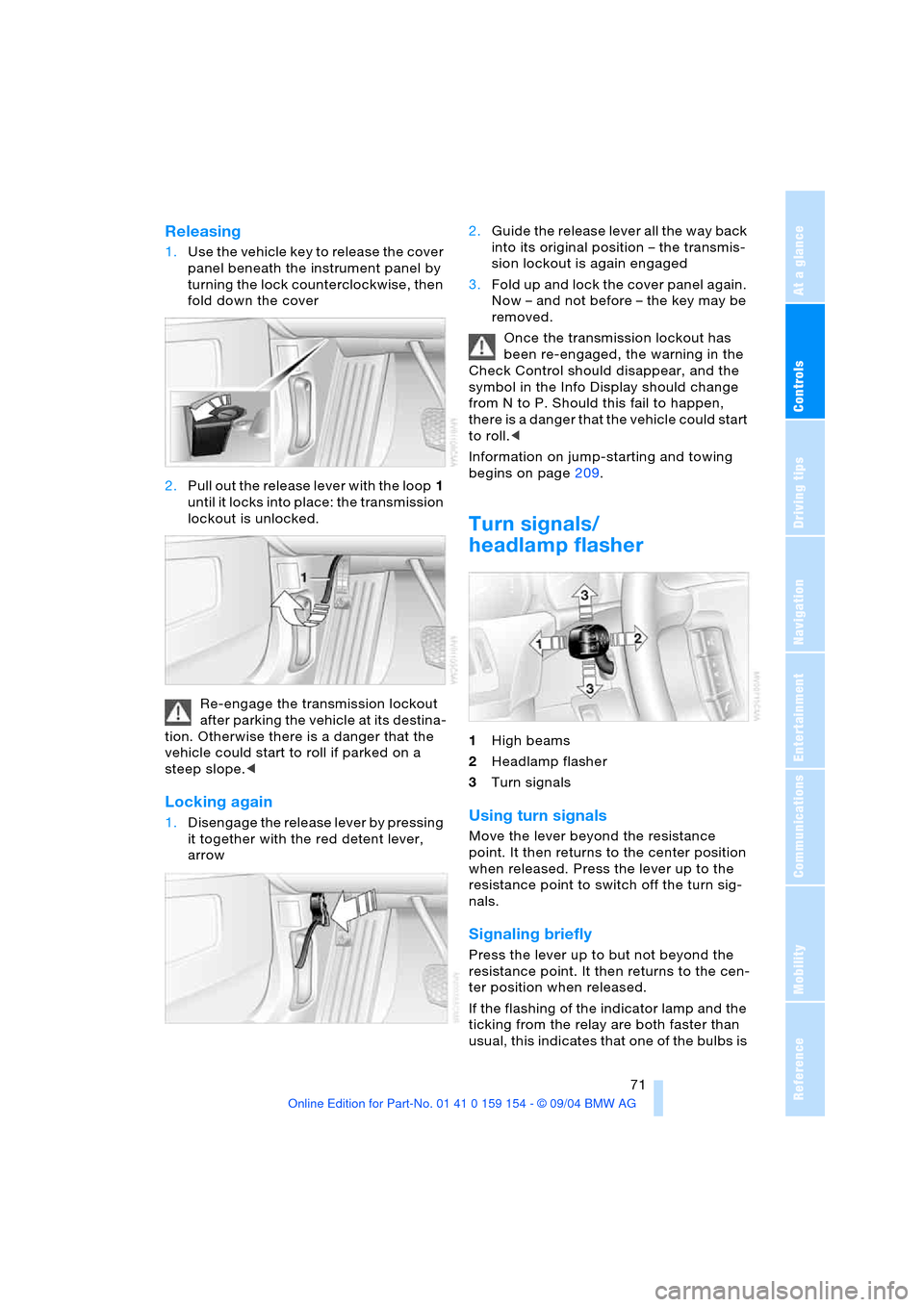
1.Use the vehicle key to release the cover
panel beneath the instrument panel by
turning the lock counterclockwise, then
fold down the cover
2.Pull out the release lever with the loop1
until it locks into place: the transmission
lockout is unlocked.
Re-engage the transmission lockout
after parking the vehicle at its destina-
tion. Otherwise there is a danger that the
vehicle could start to roll if parked on a
steep slope.<
Locking again
1.Disengage the release lever by pressing
it together with the red detent lever,
arrow 2.Guide the release lever all the way back
into its original position – the transmis-
sion lockout is again engaged
3.Fold up and lock the cover panel again.
Now – and not before – the key may be
removed.
Once the transmission lockout has
been re-engaged, the warning in the
Check Control should disappear, and the
symbol in the Info Display should change
from N to P. Should this fail to happen,
there is a danger that the vehicle could start
to roll.<
Information on jump-starting and towing
begins on page209.
Turn signals/
headlamp flasher
1High beams
2Headlamp flasher
3Turn signals
Using turn signals
Move the lever beyond the resistance
point. It then returns to the center position
when released. Press the lever up to the
resistance point to switch off the turn sig-
nals.
Signaling briefly
Press the lever up to but not beyond the
resistance point. It then returns to the cen-
ter position when released.
If the flashing of the indicator lamp and the
ticking from the relay are both faster than
usual, this indicates that one of the bulbs is
Page 76 of 239
Driving
74
One lever for all functions
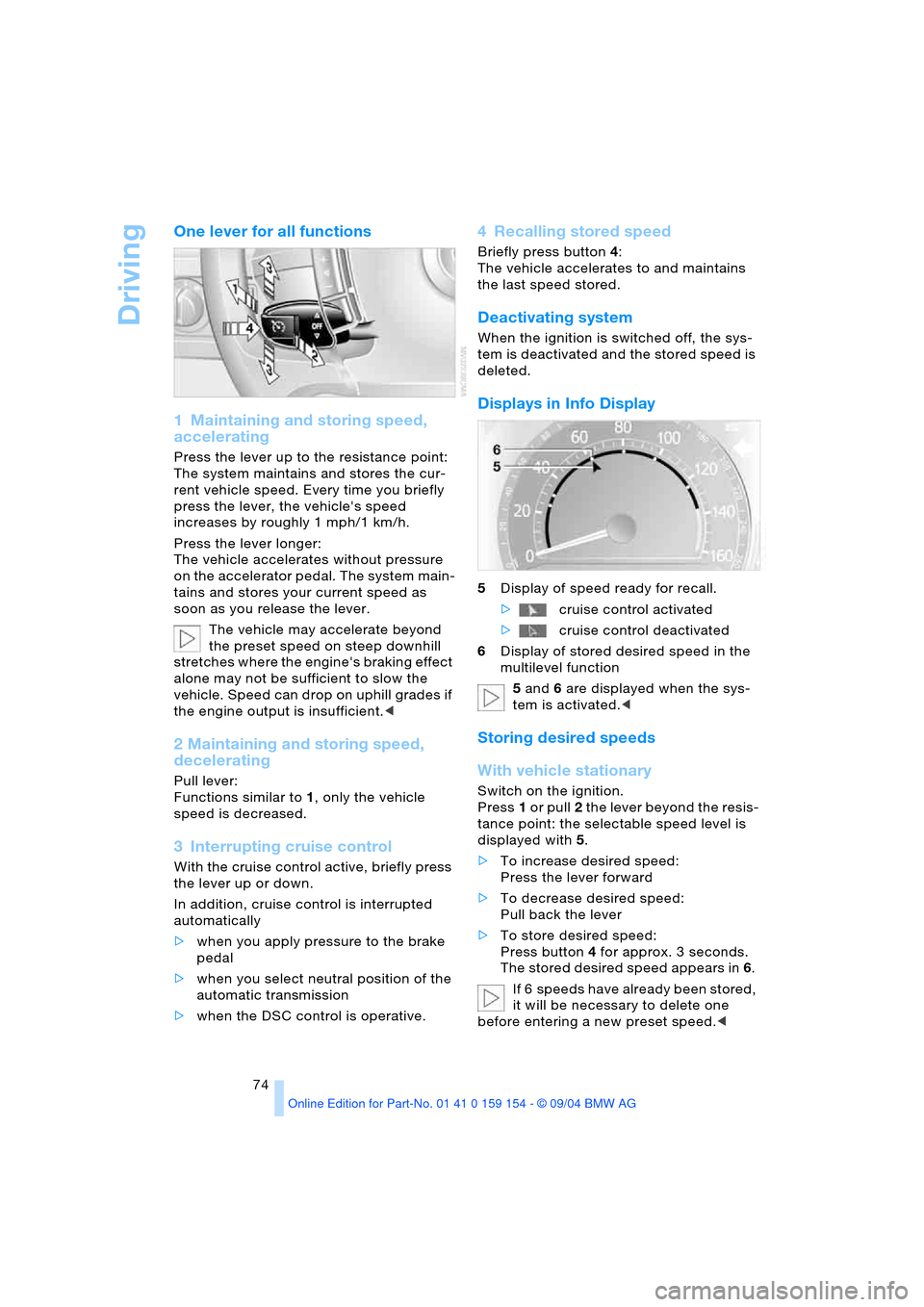
1 Maintaining and storing speed,
accelerating
Press the lever up to the resistance point:
The system maintains and stores the cur-
rent vehicle speed. Every time you briefly
press the lever, the vehicle's speed
increases by roughly 1 mph/1 km/h.
Press the lever longer:
The vehicle accelerates without pressure
on the accelerator pedal. The system main-
tains and stores your current speed as
soon as you release the lever.
The vehicle may accelerate beyond
the preset speed on steep downhill
stretches where the engine's braking effect
alone may not be sufficient to slow the
vehicle. Speed can drop on uphill grades if
the engine output is insufficient.<
2 Maintaining and storing speed,
decelerating
Pull lever:
Functions similar to1, only the vehicle
speed is decreased.
3 Interrupting cruise control
With the cruise control active, briefly press
the lever up or down.
In addition, cruise control is interrupted
automatically
>when you apply pressure to the brake
pedal
>when you select neutral position of the
automatic transmission
>when the DSC control is operative.
4 Recalling stored speed
Briefly press button4:
The vehicle accelerates to and maintains
the last speed stored.
Deactivating system
When the ignition is switched off, the sys-
tem is deactivated and the stored speed is
deleted.
Displays in Info Display
5Display of speed ready for recall.
>cruise control activated
>cruise control deactivated
6Display of stored desired speed in the
multilevel function
5 and 6 are displayed when the sys-
tem is activated.<
Storing desired speeds
With vehicle stationary
Switch on the ignition.
Press1 or pull2 the lever beyond the resis-
tance point: the selectable speed level is
displayed with5.
>To increase desired speed:
Press the lever forward
>To decrease desired speed:
Pull back the lever
>To store desired speed:
Press button4 for approx. 3 seconds.
The stored desired speed appears in 6.
If 6 speeds have already been stored,
it will be necessary to delete one
before entering a new preset speed.<
Page 77 of 239
Controls
75Reference
At a glance
Driving tips
Communications
Navigation
Entertainment
Mobility
While driving
Press1 or pull2 the lever beyond the resis-
tance point:
Press button4 for approx. 3 seconds. The
respective driven speed is applied as the
desired speed and displayed with6.
If all of the graduations flash twice,
this indicates that 6 desired speeds
have already been stored. You must then
delete at least one.<
Deleting desired speeds
Select the desired speed5.
Press button4 for approx. 3 seconds.
Activating multilevel preset mode
Press 1 or pull 2 the lever beyond the resis-
tance point.
The current driving speed is maintained,
stored and displayed as the available
speed5.
If no desired speeds are stored, you
can increase or reduce the speed by
5 mph/10 km/h with the multilevel preset
mode activated each time you press or pull
the lever beyond the resistance point.<
Selecting desired speed
Press 1 or pull 2 the lever beyond the resis-
tance point.
The next desired speed is selected.
The available speed changes to the
minimum speed of approx. 20 mph/
30 km/h when you pull the lever beyond the
resistance point 2 at the lowest desired
speed.<
Interrupting the cruise control
With the cruise control active, briefly press
the lever up or down3.
Hiding display for multilevel preset
function
When activated, press the lever up or
down3 for approx. 3 seconds.
Showing display for multilevel preset
function again
Press 1 or pull2 the lever beyond the resis-
tance point.
Deactivating multilevel preset mode
The multilevel preset function is also deac-
tivated when you switch off the ignition.
Active cruise control*
The concept
With active cruise control you can select a
desired speed which is not only automati-
cally maintained when driving on open
roadways, but also varied to maintain a
selected distance setting as slower traffic is
encountered.
Active cruise control is a technological
advance over the familiar cruise control and
is a welcome relief from the constant
adjustment of speed that can accompany
driving in traffic on freeways or other high-
speed thoroughfares. Especially on longer
trips, the system can reduce fatigue and
tension, while increasing your enjoyment of
driving. Please use it safely and responsi-
bly.
In addition to holding a steady cruising
speed, if you do encounter slower vehicles
ahead, active cruise control will, within the
scope of given possibilities, adjust your
vehicle’s speed automatically so that you
can flow with the traffic without frequent
intervention by the driver. If, for example,
while cruising at the selected speed, you
begin to approach a slower vehicle ahead
of you in the same lane, the system will
reduce your vehicle's speed to the same as
that of the vehicle ahead to maintain your
selected distance setting between your
vehicle and the vehicle ahead. There are
four settings for distance, which is addi-
tionally speed-dependent. Based on your
selected distance setting, the system auto-
matically decreases the throttle setting and
lightly applies the brakes if necessary.
Page 78 of 239
Driving
76 The vehicle brake lamps will automatically
illuminate to signal a following driver to take
action. In addition, it may be necessary for
the vehicle to downshift to maintain the dis-
tance setting selected. If the vehicle ahead
speeds up or when the lane ahead
becomes clear, your vehicle will accelerate
to the speed you have selected by increas-
ing the throttle setting and shifting gears as
needed.
Active cruise control is not and must
not be used as a collision avoidance/
warning system.<
Since this active cruise control sys-
tem is a new technology and operates
differently from conventional cruise control
systems which you may be accustomed,
you are strongly urged to read all of the
pages relating to this system before use.
Pay special attention to the information
contained in the Things to know about
active cruise control section in this manual
beginning on page78.<
Info Display screen contents
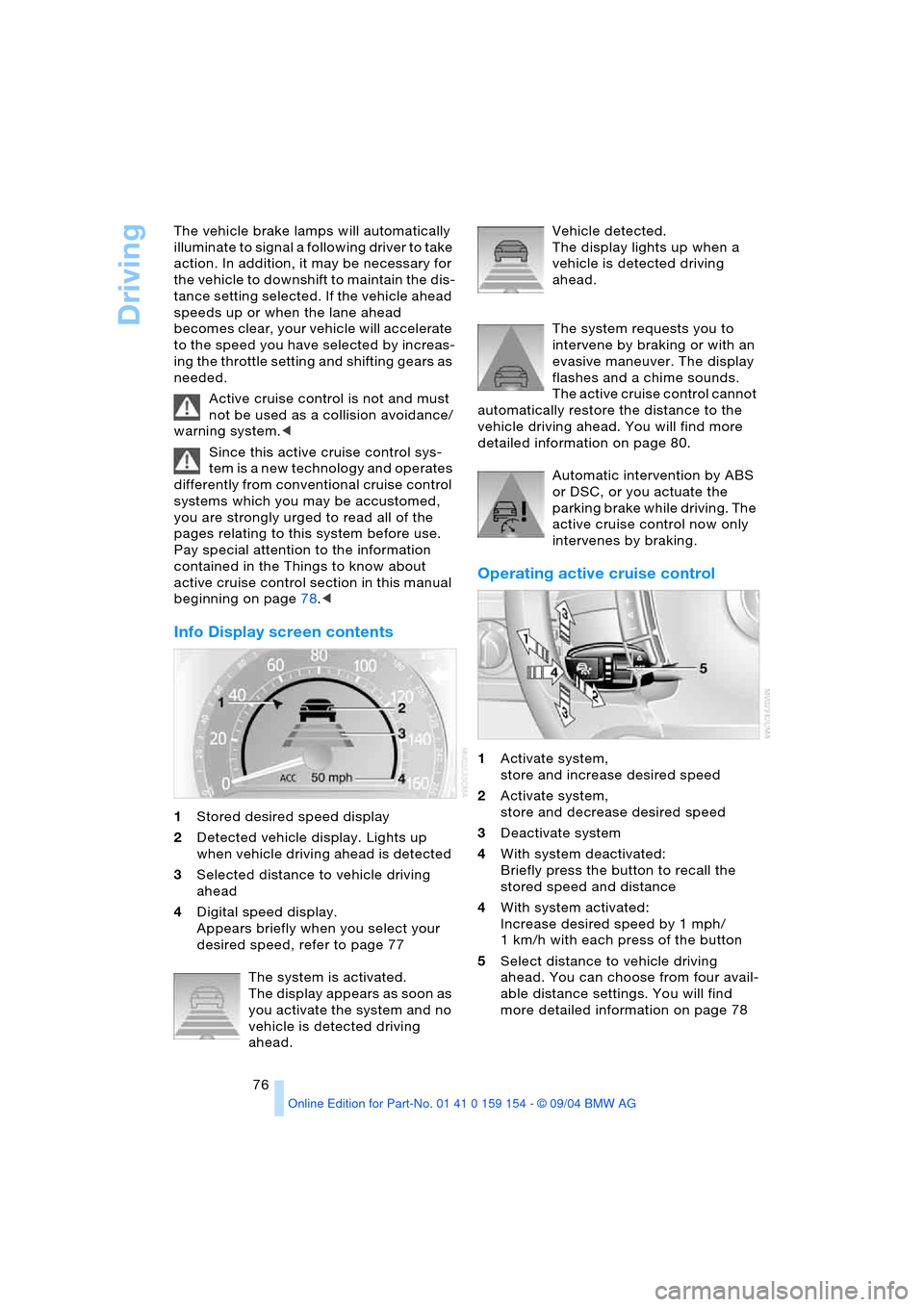
1Stored desired speed display
2Detected vehicle display. Lights up
when vehicle driving ahead is detected
3Selected distance to vehicle driving
ahead
4Digital speed display.
Appears briefly when you select your
desired speed, refer to page 77
The system is activated.
The display appears as soon as
you activate the system and no
vehicle is detected driving
ahead. Vehicle detected.
The display lights up when a
vehicle is detected driving
ahead.
The system requests you to
intervene by braking or with an
evasive maneuver. The display
flashes and a chime sounds.
The active cruise control cannot
automatically restore the distance to the
vehicle driving ahead. You will find more
detailed information on page 80.
Automatic intervention by ABS
or DSC, or you actuate the
parking brake while driving. The
active cruise control now only
intervenes by braking.
Operating active cruise control
1Activate system,
store and increase desired speed
2Activate system,
store and decrease desired speed
3Deactivate system
4With system deactivated:
Briefly press the button to recall the
stored speed and distance
4With system activated:
Increase desired speed by 1 mph/
1 km/h with each press of the button
5Select distance to vehicle driving
ahead. You can choose from four avail-
able distance settings. You will find
more detailed information on page 78
Page 79 of 239
Controls
77Reference
At a glance
Driving tips
Communications
Navigation
Entertainment
Mobility
Adjust your desired speed to the traf-
fic conditions and remain ready to
brake at all times. Great differences in
speed to the vehicles driving ahead, e.g.
when quickly approaching a truck or when
another vehicle swerves into your lane,
cannot be compensated for by the sys-
tem.<
Activate system
From approx. 20 mph/30 km/h you can
activate the system by pressing the lever
forward or pulling it back:
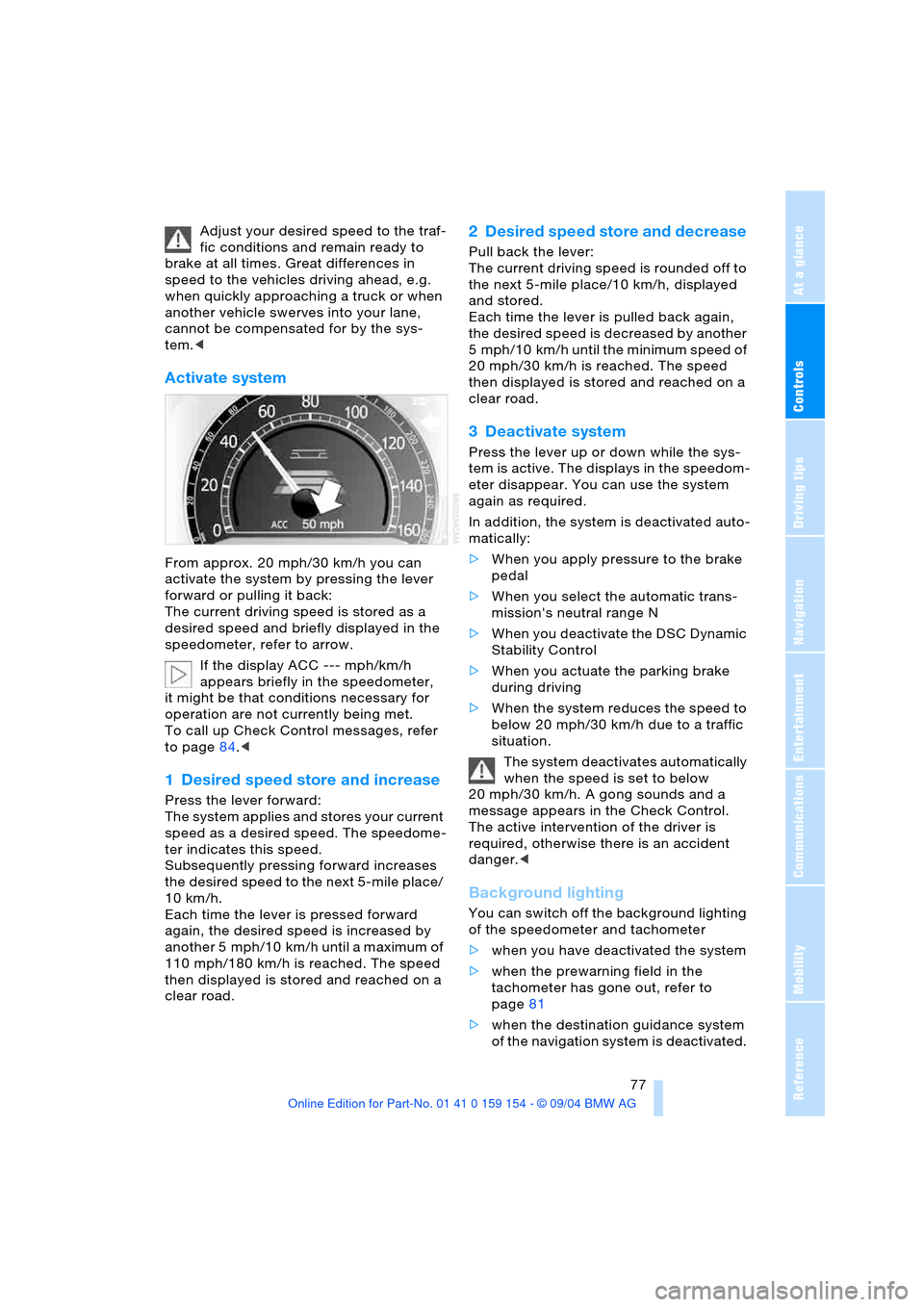
The current driving speed is stored as a
desired speed and briefly displayed in the
speedometer, refer to arrow.
If the display ACC --- mph/km/h
appears briefly in the speedometer,
it might be that conditions necessary for
operation are not currently being met.
To call up Check Control messages, refer
to page84.<
1 Desired speed store and increase
Press the lever forward:
The system applies and stores your current
speed as a desired speed. The speedome-
ter indicates this speed.
Subsequently pressing forward increases
the desired speed to the next 5-mile place/
10 km/h.
Each time the lever is pressed forward
again, the desired speed is increased by
another 5 mph/10 km/h until a maximum of
110 mph/180 km/h is reached. The speed
then displayed is stored and reached on a
clear road.
2 Desired speed store and decrease
Pull back the lever:
The current driving speed is rounded off to
the next 5-mile place/10 km/h, displayed
and stored.
Each time the lever is pulled back again,
the desired speed is decreased by another
5 mph/10 km/h until the minimum speed of
20 mph/30 km/h is reached. The speed
then displayed is stored and reached on a
clear road.
3 Deactivate system
Press the lever up or down while the sys-
tem is active. The displays in the speedom-
eter disappear. You can use the system
again as required.
In addition, the system is deactivated auto-
matically:
>When you apply pressure to the brake
pedal
>When you select the automatic trans-
mission's neutral range N
>When you deactivate the DSC Dynamic
Stability Control
>When you actuate the parking brake
during driving
>When the system reduces the speed to
below 20 mph/30 km/h due to a traffic
situation.
The system deactivates automatically
when the speed is set to below
20 mph/30 km/h. A gong sounds and a
message appears in the Check Control.
The active intervention of the driver is
required, otherwise there is an accident
danger.<
Background lighting
You can switch off the background lighting
of the speedometer and tachometer
>when you have deactivated the system
>when the prewarning field in the
tachometer has gone out, refer to
page81
>when the destination guidance system
of the navigation system is deactivated.
Page 80 of 239
Driving
78 Press the lever up or down for approx.
1second.
4 Resume to stored desired speed
and distance setting
Press button4:
The displays appear in the speedometer.
The system is reactivated and uses the last
stored desired speed and distance setting.
4 Fine adjustment of desired speed
In the activated state, the desired speed
increases by 1 mph/1 km/h each time
button4 is pressed briefly.
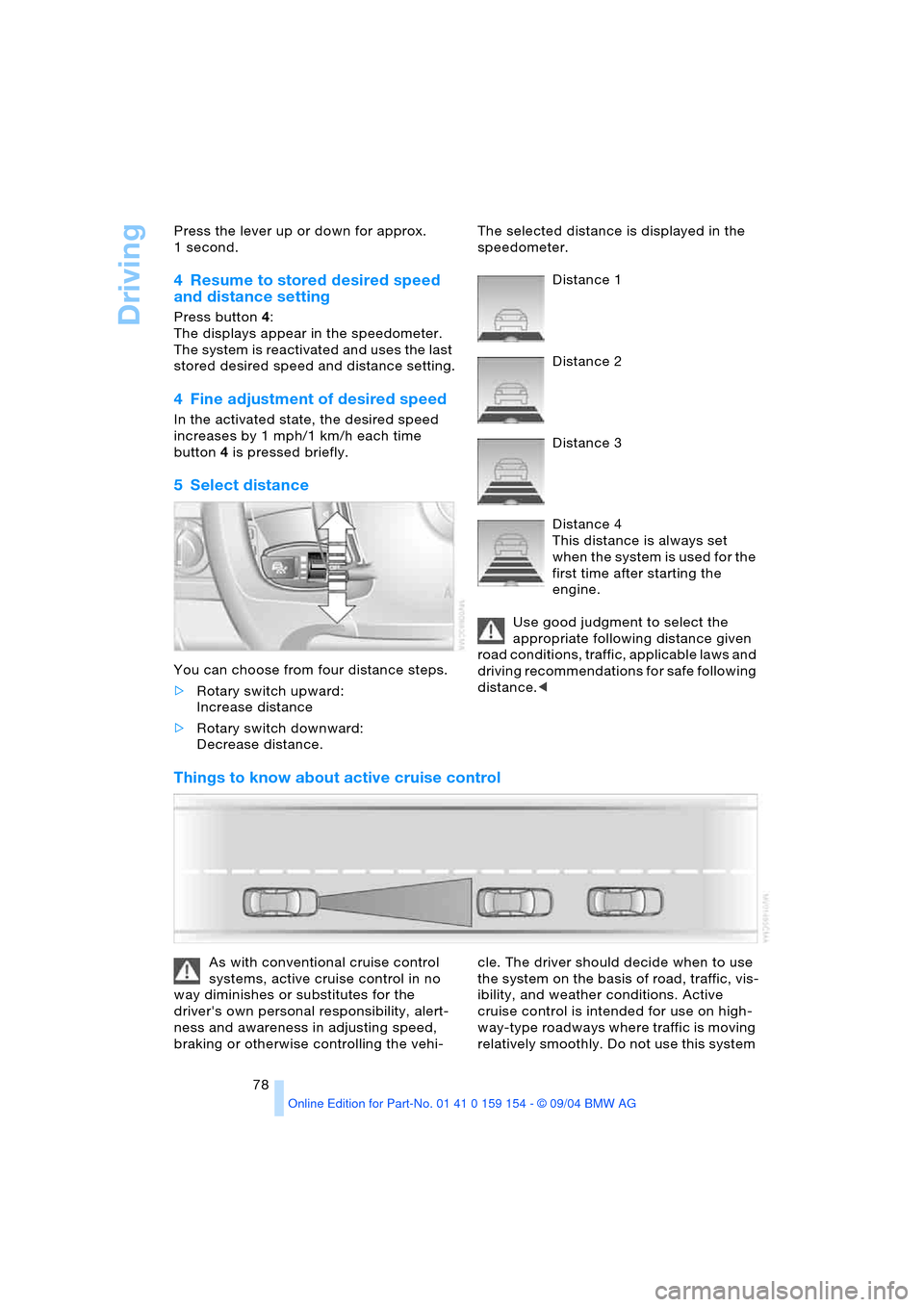
5Select distance
You can choose from four distance steps.
>Rotary switch upward:
Increase distance
>Rotary switch downward:
Decrease distance. The selected distance is displayed in the
speedometer.
Distance 1
Distance 2
Distance 3
Distance 4
This distance is always set
when the system is used for the
first time after starting the
engine.
Use good judgment to select the
appropriate following distance given
road conditions, traffic, applicable laws and
driving recommendations for safe following
distance.<
Things to know about active cruise control
As with conventional cruise control
systems, active cruise control in no
way diminishes or substitutes for the
driver's own personal responsibility, alert-
ness and awareness in adjusting speed,
braking or otherwise controlling the vehi-cle. The driver should decide when to use
the system on the basis of road, traffic, vis-
ibility, and weather conditions. Active
cruise control is intended for use on high-
way-type roadways where traffic is moving
relatively smoothly. Do not use this system
Page 82 of 239
Driving
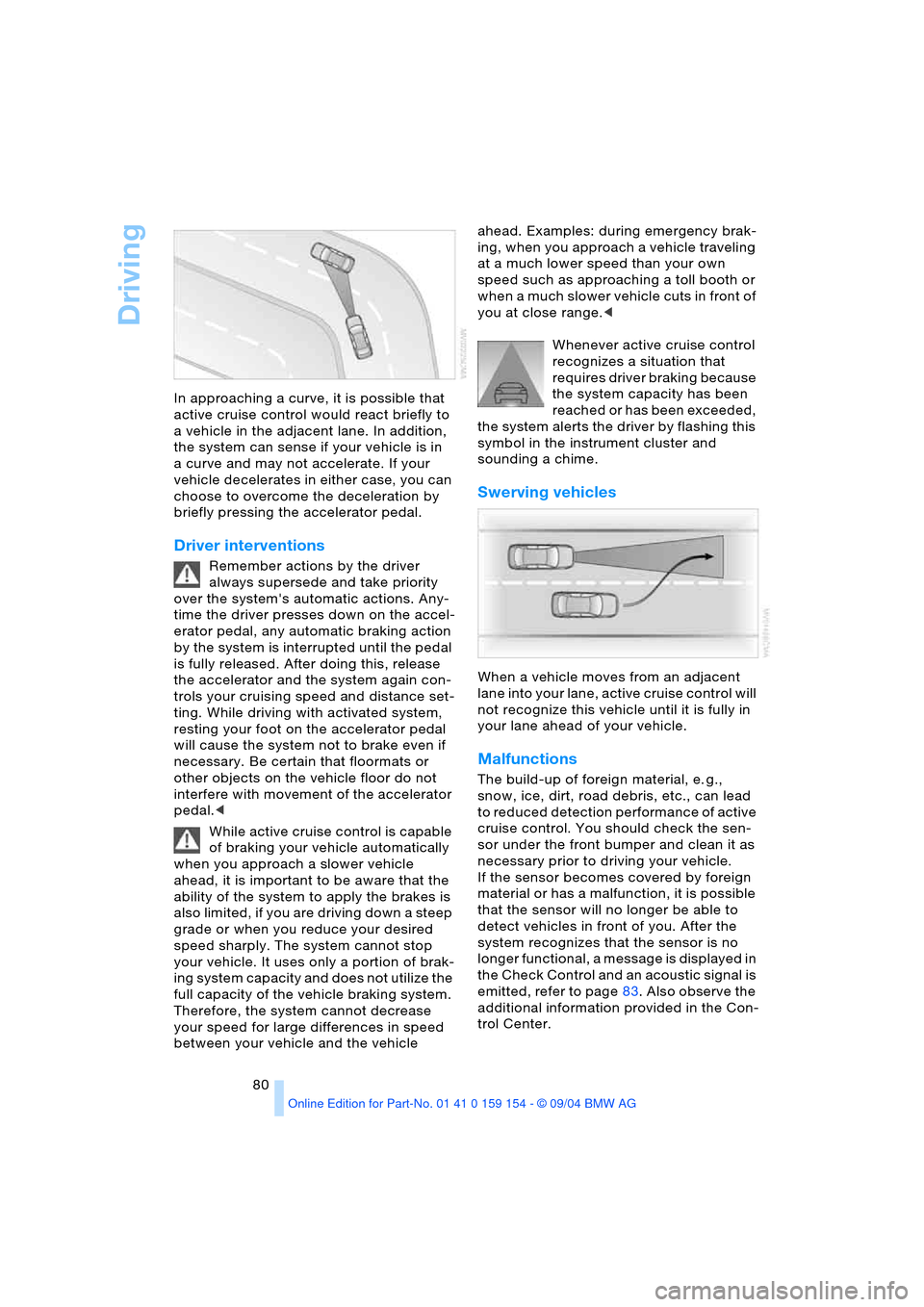
80 In approaching a curve, it is possible that
active cruise control would react briefly to
a vehicle in the adjacent lane. In addition,
the system can sense if your vehicle is in
a curve and may not accelerate. If your
vehicle decelerates in either case, you can
choose to overcome the deceleration by
briefly pressing the accelerator pedal.
Driver interventions
Remember actions by the driver
always supersede and take priority
over the system's automatic actions. Any-
time the driver presses down on the accel-
erator pedal, any automatic braking action
by the system is interrupted until the pedal
is fully released. After doing this, release
the accelerator and the system again con-
trols your cruising speed and distance set-
ting. While driving with activated system,
resting your foot on the accelerator pedal
will cause the system not to brake even if
necessary. Be certain that floormats or
other objects on the vehicle floor do not
interfere with movement of the accelerator
pedal.<
While active cruise control is capable
of braking your vehicle automatically
when you approach a slower vehicle
ahead, it is important to be aware that the
ability of the system to apply the brakes is
also limited, if you are driving down a steep
grade or when you reduce your desired
speed sharply. The system cannot stop
your vehicle. It uses only a portion of brak-
ing system capacity and does not utilize the
full capacity of the vehicle braking system.
Therefore, the system cannot decrease
your speed for large differences in speed
between your vehicle and the vehicle ahead. Examples: during emergency brak-
ing, when you approach a vehicle traveling
at a much lower speed than your own
speed such as approaching a toll booth or
when a much slower vehicle cuts in front of
you at close range.<
Whenever active cruise control
recognizes a situation that
requires driver braking because
the system capacity has been
reached or has been exceeded,
the system alerts the driver by flashing this
symbol in the instrument cluster and
sounding a chime.
Swerving vehicles
When a vehicle moves from an adjacent
lane into your lane, active cruise control will
not recognize this vehicle until it is fully in
your lane ahead of your vehicle.
Malfunctions
The build-up of foreign material, e. g.,
snow, ice, dirt, road debris, etc., can lead
to reduced detection performance of active
cruise control. You should check the sen-
sor under the front bumper and clean it as
necessary prior to driving your vehicle.
If the sensor becomes covered by foreign
material or has a malfunction, it is possible
that the sensor will no longer be able to
detect vehicles in front of you. After the
system recognizes that the sensor is no
longer functional, a message is displayed in
the Check Control and an acoustic signal is
emitted, refer to page83. Also observe the
additional information provided in the Con-
trol Center.
Page 83 of 239
Controls
81Reference
At a glance
Driving tips
Communications
Navigation
Entertainment
Mobility
Everything under control
Odometer, outside temperature display, clock
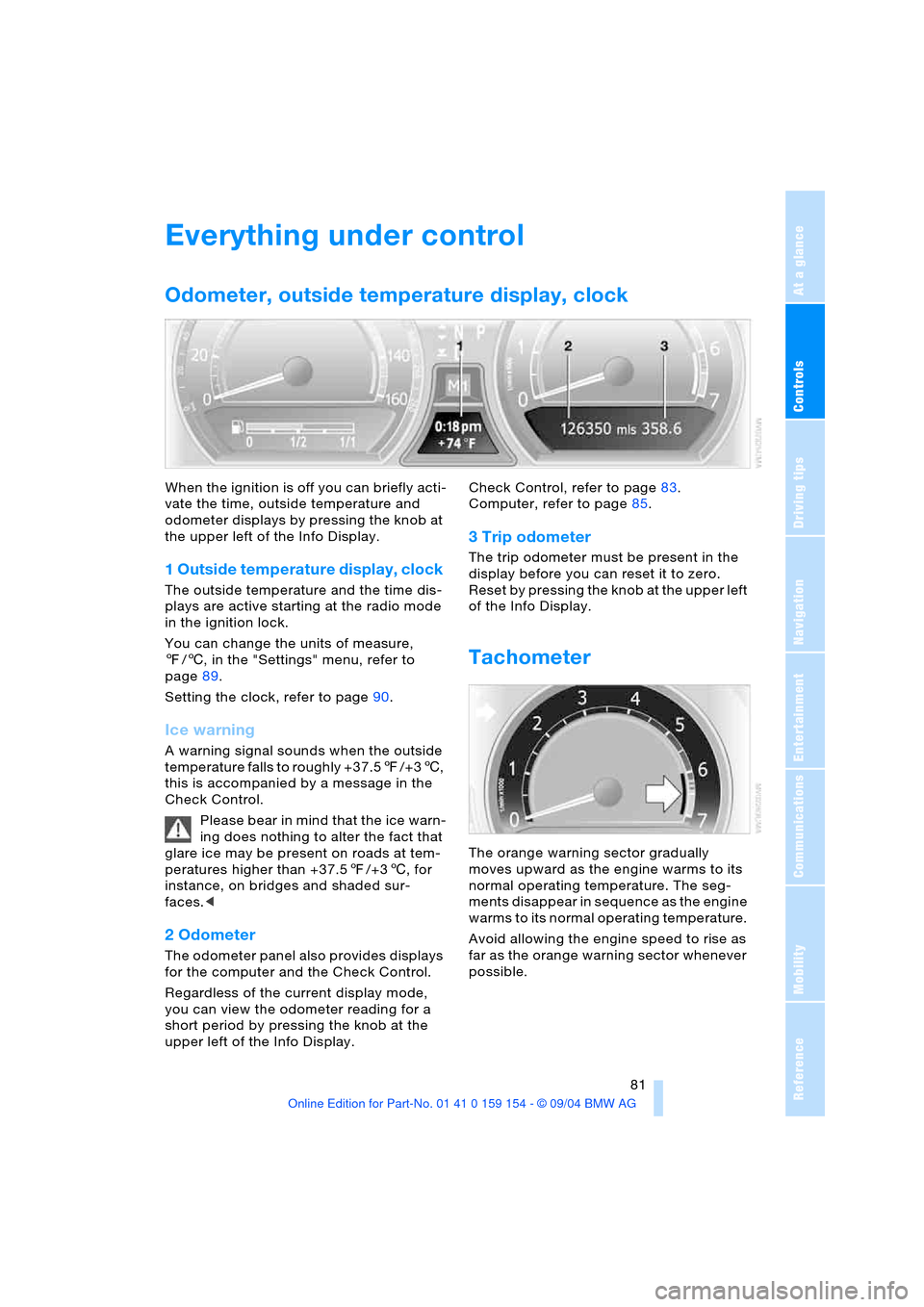
When the ignition is off you can briefly acti-
vate the time, outside temperature and
odometer displays by pressing the knob at
the upper left of the Info Display.
1 Outside temperature display, clock
The outside temperature and the time dis-
plays are active starting at the radio mode
in the ignition lock.
You can change the units of measure,
7/6, in the "Settings" menu, refer to
page89.
Setting the clock, refer to page90.
Ice warning
A warning signal sounds when the outside
temperature falls to roughly +37.57/+36,
this is accompanied by a message in the
Check Control.
Please bear in mind that the ice warn-
ing does nothing to alter the fact that
glare ice may be present on roads at tem-
peratures higher than +37.57/+36, for
instance, on bridges and shaded sur-
faces.<
2 Odometer
The odometer panel also provides displays
for the computer and the Check Control.
Regardless of the current display mode,
you can view the odometer reading for a
short period by pressing the knob at the
upper left of the Info Display. Check Control, refer to page83.
Computer, refer to page85.
3 Trip odometer
The trip odometer must be present in the
display before you can reset it to zero.
Reset by pressing the knob at the upper left
of the Info Display.
Tachometer
The orange warning sector gradually
moves upward as the engine warms to its
normal operating temperature. The seg-
ments disappear in sequence as the engine
warms to its normal operating temperature.
Avoid allowing the engine speed to rise as
far as the orange warning sector whenever
possible.
Page 84 of 239
Everything under control
82
Service requirement display
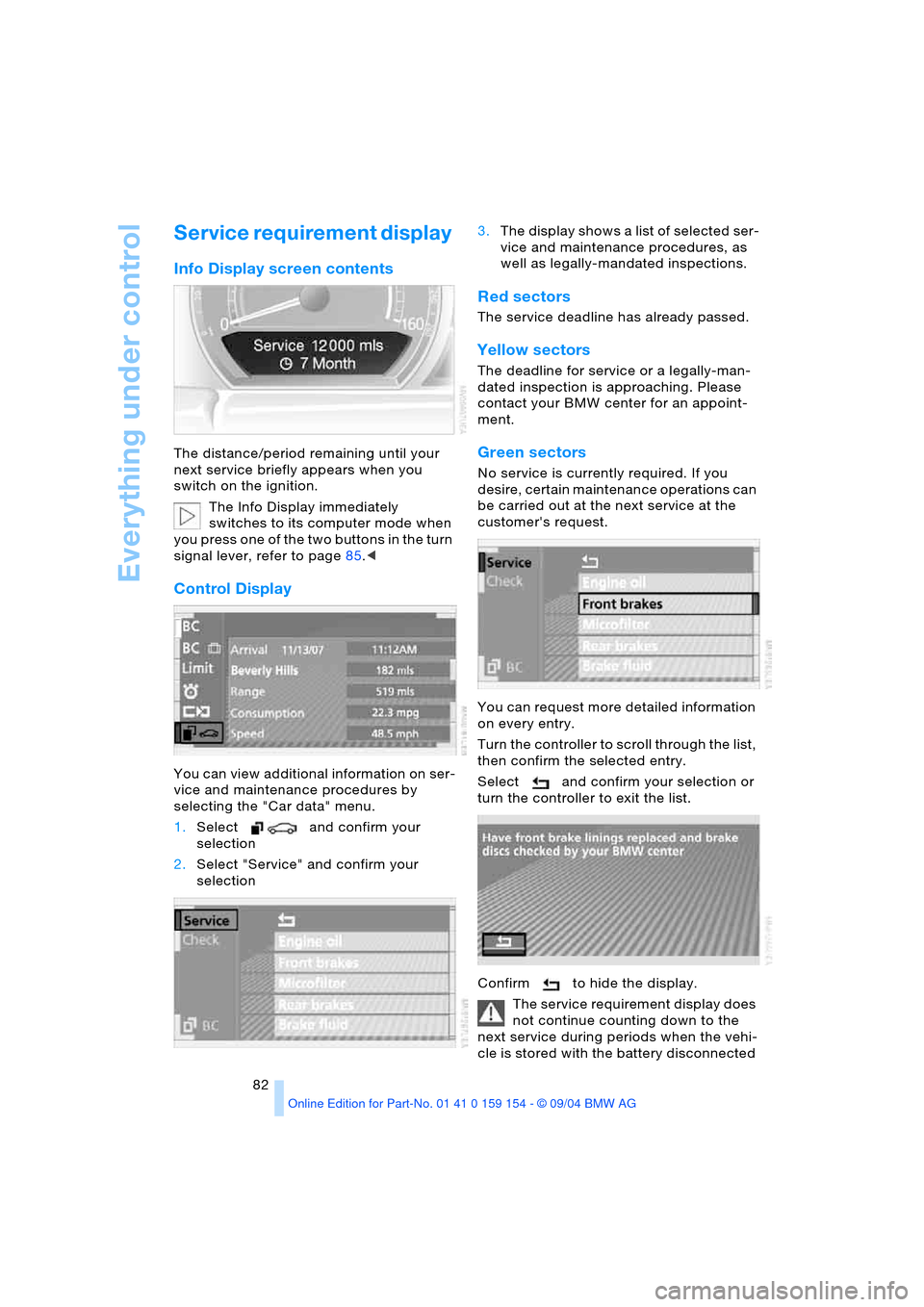
Info Display screen contents
The distance/period remaining until your
next service briefly appears when you
switch on the ignition.
The Info Display immediately
switches to its computer mode when
you press one of the two buttons in the turn
signal lever, refer to page85.<
Control Display
You can view additional information on ser-
vice and maintenance procedures by
selecting the "Car data" menu.
1.Select and confirm your
selection
2.Select "Service" and confirm your
selection 3.The display shows a list of selected ser-
vice and maintenance procedures, as
well as legally-mandated inspections.
Red sectors
The service deadline has already passed.
Yellow sectors
The deadline for service or a legally-man-
dated inspection is approaching. Please
contact your BMW center for an appoint-
ment.
Green sectors
No service is currently required. If you
desire, certain maintenance operations can
be carried out at the next service at the
customer's request.
You can request more detailed information
on every entry.
Turn the controller to scroll through the list,
then confirm the selected entry.
Select and confirm your selection or
turn the controller to exit the list.
Confirm to hide the display.
The service requirement display does
not continue counting down to the
next service during periods when the vehi-
cle is stored with the battery disconnected
Page 85 of 239
Controls
83Reference
At a glance
Driving tips
Communications
Navigation
Entertainment
Mobility
or the battery switch OFF.
Please remember that brake fluid should be
changed every two years at the latest, even
if the display does not yet indicate that ser-
vice is required, refer to page197.
This same precaution applies to all of the
other service and maintenance operations
scheduled according to periodic inter-
vals.<
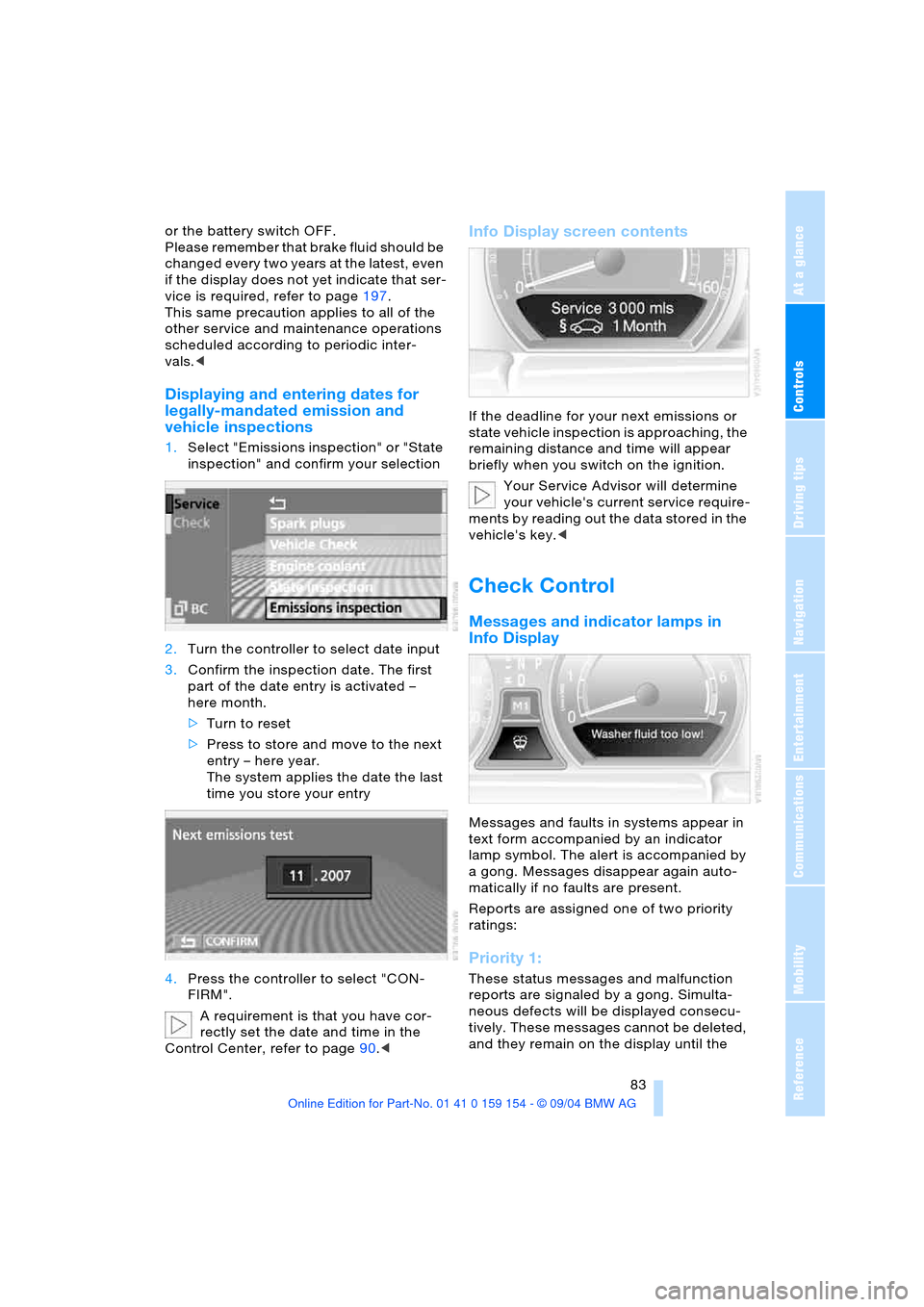
Displaying and entering dates for
legally-mandated emission and
vehicle inspections
1.Select "Emissions inspection" or "State
inspection" and confirm your selection
2.Turn the controller to select date input
3.Confirm the inspection date. The first
part of the date entry is activated –
here month.
>Turn to reset
>Press to store and move to the next
entry – here year.
The system applies the date the last
time you store your entry
4.Press the controller to select "CON-
FIRM".
A requirement is that you have cor-
rectly set the date and time in the
Control Center, refer to page90.<
Info Display screen contents
If the deadline for your next emissions or
state vehicle inspection is approaching, the
remaining distance and time will appear
briefly when you switch on the ignition.
Your Service Advisor will determine
your vehicle's current service require-
ments by reading out the data stored in the
vehicle's key.<
Check Control
Messages and indicator lamps in
Info Display
Messages and faults in systems appear in
text form accompanied by an indicator
lamp symbol. The alert is accompanied by
a gong. Messages disappear again auto-
matically if no faults are present.
Reports are assigned one of two priority
ratings:
Priority 1:
These status messages and malfunction
reports are signaled by a gong. Simulta-
neous defects will be displayed consecu-
tively. These messages cannot be deleted,
and they remain on the display until the