display BMW 760i 2005 E65 Workshop Manual
[x] Cancel search | Manufacturer: BMW, Model Year: 2005, Model line: 760i, Model: BMW 760i 2005 E65Pages: 239, PDF Size: 8.03 MB
Page 97 of 239
Controls
95Reference
At a glance
Driving tips
Communications
Navigation
Entertainment
Mobility
Have the system checked as soon as pos-
sible.
Display of the previously described
malfunction on Canadian models.
Dynamic Drive
The concept
Dynamic Drive minimizes body roll and
optimizes vehicle stability during cornering
and evasive maneuvers.
Active stabilizers at the front and rear axles
form the basis for Dynamic Drive. Suspen-
sion compliance adapts to suit driving con-
ditions, varying from performance-oriented
during cornering to smooth and comfort-
oriented when the vehicle is proceeding in
a straight line.
The system assumes operational status
each time you start the engine.
Driving with Dynamic Drive
During vehicle operation, the system con-
tinuously runs through closed-loop control
cycles lasting only fractions of a second.
Malfunction
The warning lamp lights up, accom-
panied by a status message in the
Check Control. Please take note of
the additional information on the Control
Display. A malfunction has occurred in the
system. Have the system checked as soon
as possible.
If the Dynamic Drive system switches
off in response to malfunction, please
remember to adapt your speed accord-
ingly, especially in curves.
The suspension will be noticeably softer
and the vehicle will display a greater ten-
dency to tilt during cornering and in cross-
winds.
If a Check Control message stating that you
should stop appears in addition to the red
symbol, stop immediately and switch off
the engine. In this case the oil level in the
reservoir may have dropped below the min-imum, possibly owing to a leak in the
hydraulic system.
Please observe the additional instructions
provided on the Control Display.<
EDC Electronic Damping
Control*
The suspension responds to changes in
factors such as road surface, or operating
conditions such as steering and braking, by
adapting to the new conditions within frac-
tions of a second.
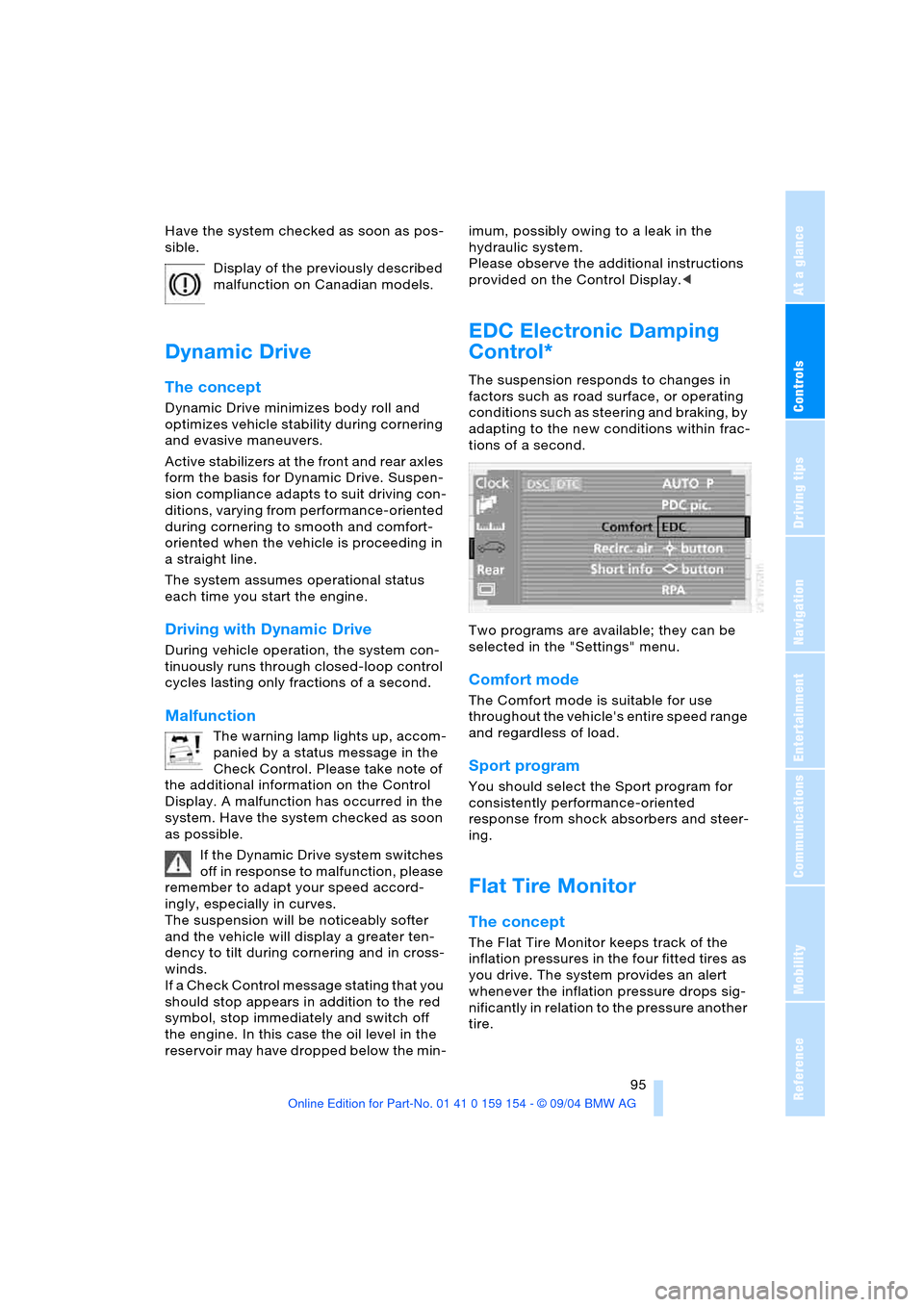
Two programs are available; they can be
selected in the "Settings" menu.
Comfort mode
The Comfort mode is suitable for use
throughout the vehicle's entire speed range
and regardless of load.
Sport program
You should select the Sport program for
consistently performance-oriented
response from shock absorbers and steer-
ing.
Flat Tire Monitor
The concept
The Flat Tire Monitor keeps track of the
inflation pressures in the four fitted tires as
you drive. The system provides an alert
whenever the inflation pressure drops sig-
nificantly in relation to the pressure another
tire.
Page 98 of 239
Technology for comfort, convenience and safety
96 The check of the tire inflation pressure is
based on monitoring the relative speeds of
the wheels. A flat tire is detected and
reported on the basis of a deviation in cer-
tain speed ratios.
Functional requirements
So that the Flat Tire Monitor can learn the
correct inflation pressure, please perform
the following:
1.Check the inflation pressures in all tires
2.Compare with the inflation pressure
table on page189 and correct if neces-
sary
3.Initialize the system.
System limits
The Flat Tire Monitor cannot indicate
sudden severe tire damage caused by
outside factors and does not detect a natu-
ral, even pressure drop in all four tires.<
In the following situations, on the other
hand, there can be delays in detecting tire
pressure losses, and even system failure:
>When you are driving on snow-covered
or slippery road surfaces
>In the case of performance-oriented
driving: slip on the drive wheels, high
lateral acceleration
>False alarms and undetected loss of
pressure may occur when you are driv-
ing with snow chains fitted.
Initializing system
Perform the initialization immediately
after correcting the inflation pressure,
changing a tire or changing a wheel or all
wheels. A drive is necessary for this pur-
pose.<
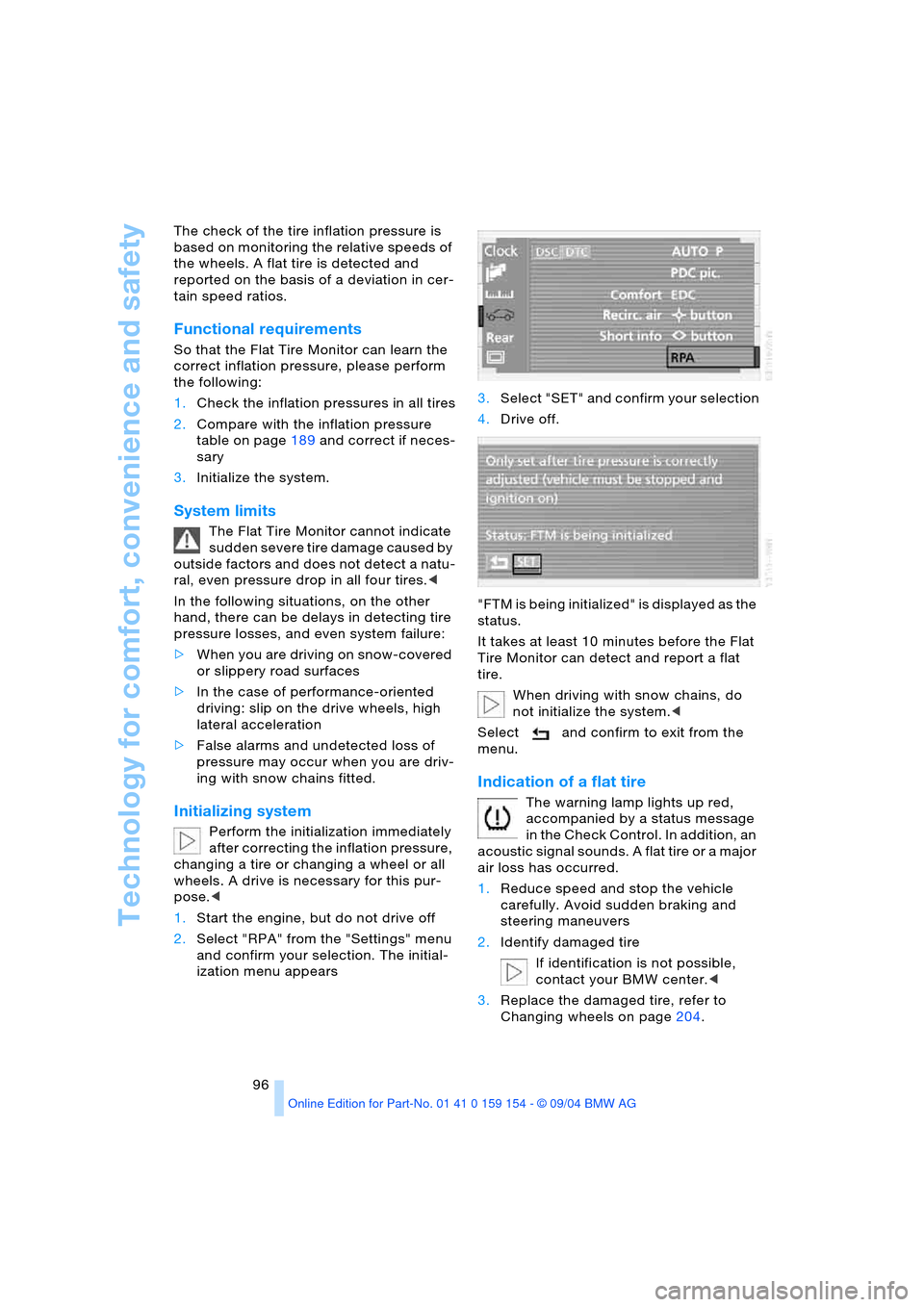
1.Start the engine, but do not drive off
2.Select "RPA" from the "Settings" menu
and confirm your selection. The initial-
ization menu appears 3.Select "SET" and confirm your selection
4.Drive off.
"FTM is being initialized" is displayed as the
status.
It takes at least 10 minutes before the Flat
Tire Monitor can detect and report a flat
tire.
When driving with snow chains, do
not initialize the system.<
Select and confirm to exit from the
menu.
Indication of a flat tire
The warning lamp lights up red,
accompanied by a status message
in the Check Control. In addition, an
acoustic signal sounds. A flat tire or a major
air loss has occurred.
1.Reduce speed and stop the vehicle
carefully. Avoid sudden braking and
steering maneuvers
2.Identify damaged tire
If identification is not possible,
contact your BMW center.<
3.Replace the damaged tire, refer to
Changing wheels on page204.
Page 99 of 239
Controls
97Reference
At a glance
Driving tips
Communications
Navigation
Entertainment
Mobility
Vehicles with run-flat tires:
1.Cautiously reduce the vehicle speed to
below 50 mph/80 km/h. Avoid sudden
braking and steering maneuvers. Do not
exceed a vehicle speed of 50 mph/80
km/h
Due to the reinforcement on the
side walls of the run-flat tires,
inflation pressure loss can not usually
be recognized from the outside, refer to
Run-flat tires on page206.<
2.To continue driving, comply with the
instructions for driving with damaged
tires on page206.
Malfunction
The indicator lamp lights up yellow,
accompanied by a status message
in the Check Control. The Flat Tire
Monitor has malfunctioned or failed. Have
the system checked as soon as possible.
Self-leveling suspension*
Malfunction
A Check Control message appear-
ing together with this symbol indi-
cates a malfunction in the self-level-
ing suspension. Please take note of the
additional information on the Control Dis-
play.
Stop and inspect the vehicle. If the rear of
the vehicle is visibly lower than the front,
possibly accompanied by a tilt noticeable
when you compare the left rear with the
right rear, please respond by immediately
proceeding to the nearest BMW center.
Drive with appropriate caution in the mean-
time. The vehicle has reduced ground
clearance and driving comfort may be
noticeably reduced. Even if the attitude of
the vehicle is normal, you should consult
the nearest BMW center if the warning
lamp indicates a system fault.
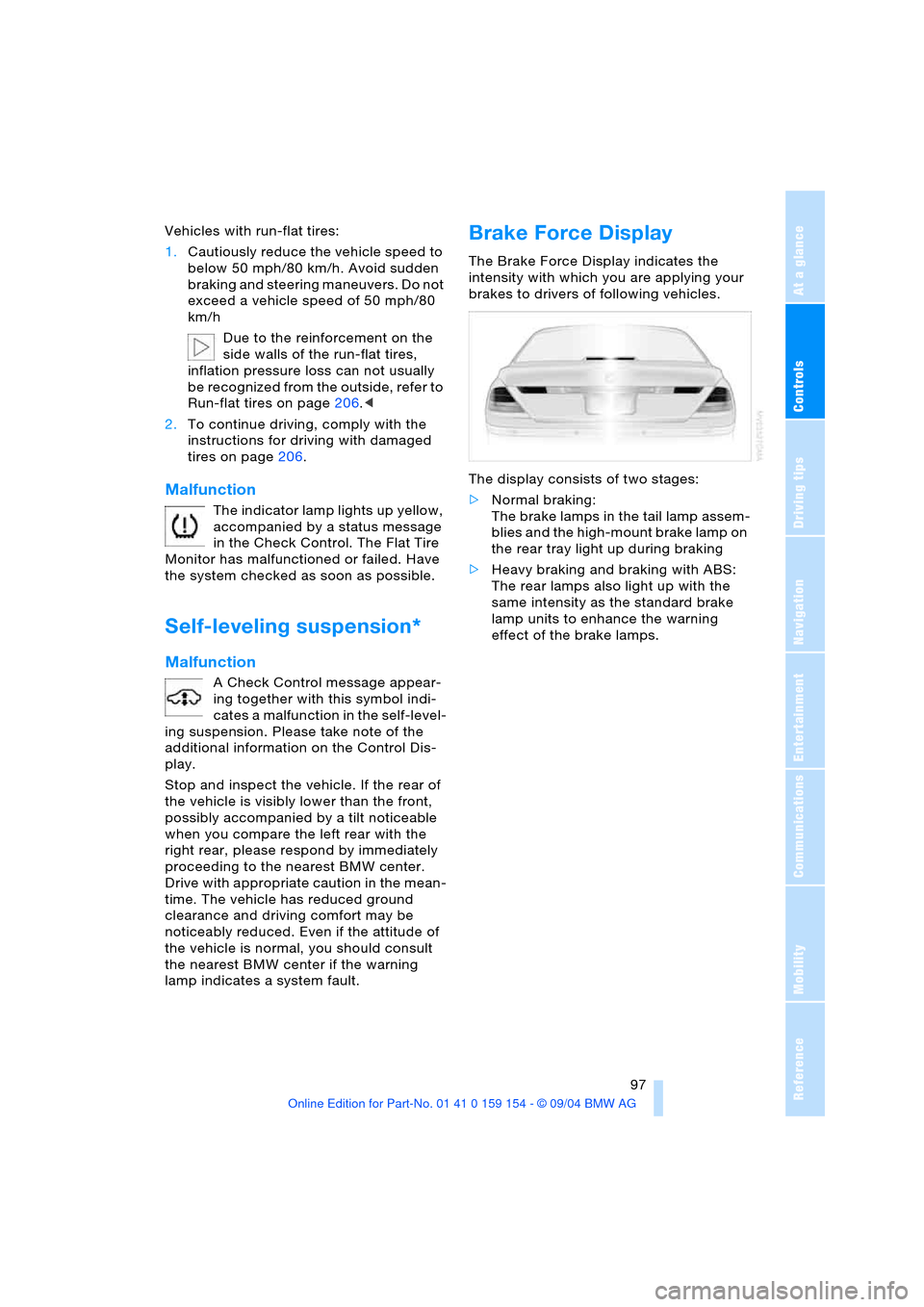
Brake Force Display
The Brake Force Display indicates the
intensity with which you are applying your
brakes to drivers of following vehicles.
The display consists of two stages:
>Normal braking:
The brake lamps in the tail lamp assem-
blies and the high-mount brake lamp on
the rear tray light up during braking
>Heavy braking and braking with ABS:
The rear lamps also light up with the
same intensity as the standard brake
lamp units to enhance the warning
effect of the brake lamps.
Page 103 of 239
Controls
101Reference
At a glance
Driving tips
Communications
Navigation
Entertainment
Mobility
Adaptive Head Light*
The concept
Adaptive Head Light is a variable headlamp
control system that enables dynamic illumi-
nation of the road surface. Depending on
the steering angle and other assumptions,
the light from the headlamp follows the
course of the road.
Activating Adaptive Head Light
With the ignition on, refer to
page62, turn the light switch to the
position 'Automatic headlamp con-
trol', refer to page100.
To avoid blinding oncoming traffic, the
Adaptive Head Light:
>Is not active when driving in reverse
>Is only active toward the passenger's
side with the vehicle stationary.
Malfunction
The LED above the symbol for automatic
headlamp control flashes. Adaptive Head
Light is faulty or has failed. Have the system
checked as soon as possible.
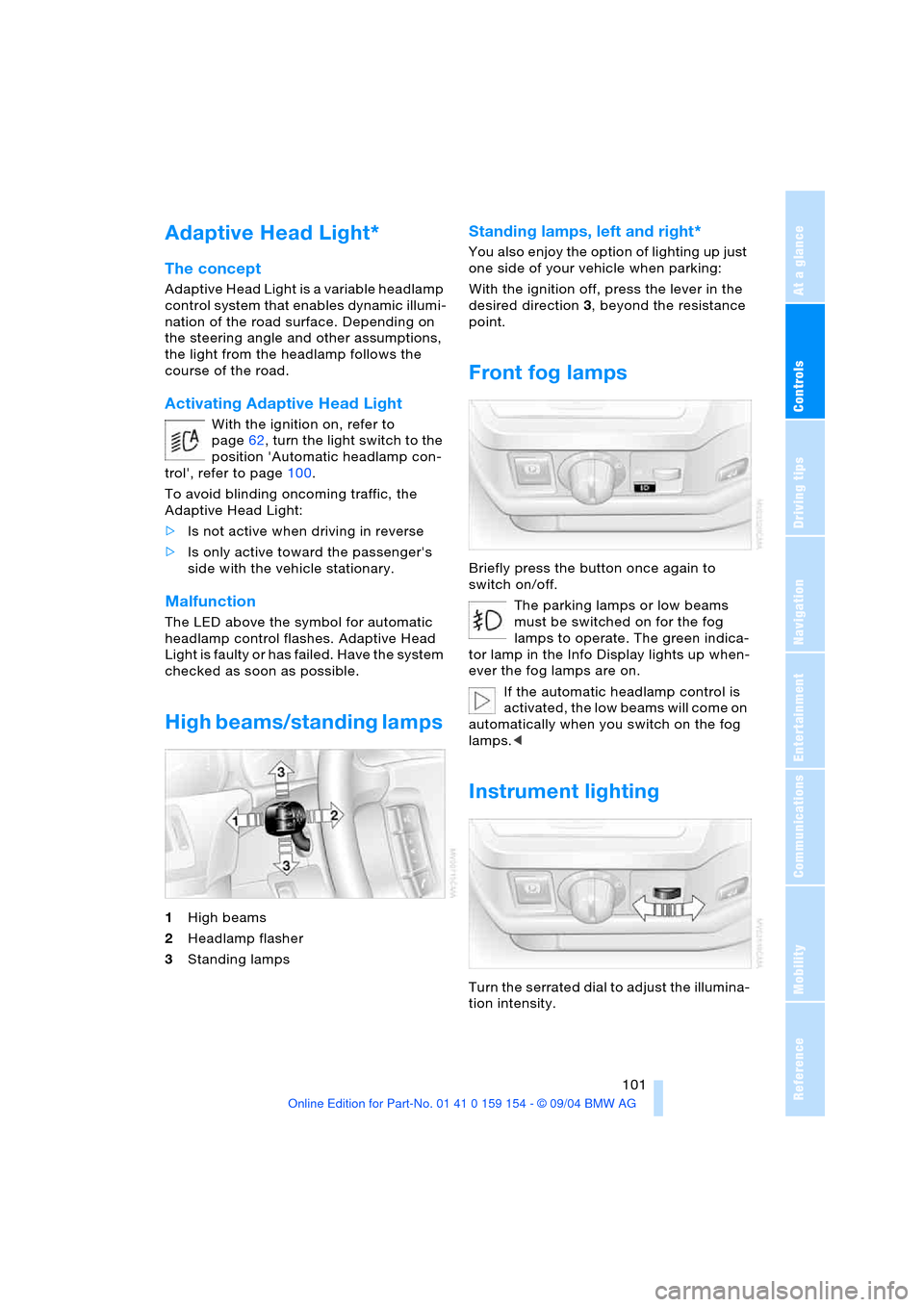
High beams/standing lamps
1High beams
2Headlamp flasher
3Standing lamps
Standing lamps, left and right*
You also enjoy the option of lighting up just
one side of your vehicle when parking:
With the ignition off, press the lever in the
desired direction3, beyond the resistance
point.
Front fog lamps
Briefly press the button once again to
switch on/off.
The parking lamps or low beams
must be switched on for the fog
lamps to operate. The green indica-
tor lamp in the Info Display lights up when-
ever the fog lamps are on.
If the automatic headlamp control is
activated, the low beams will come on
automatically when you switch on the fog
lamps.<
Instrument lighting
Turn the serrated dial to adjust the illumina-
tion intensity.
Page 106 of 239
A congenial climate
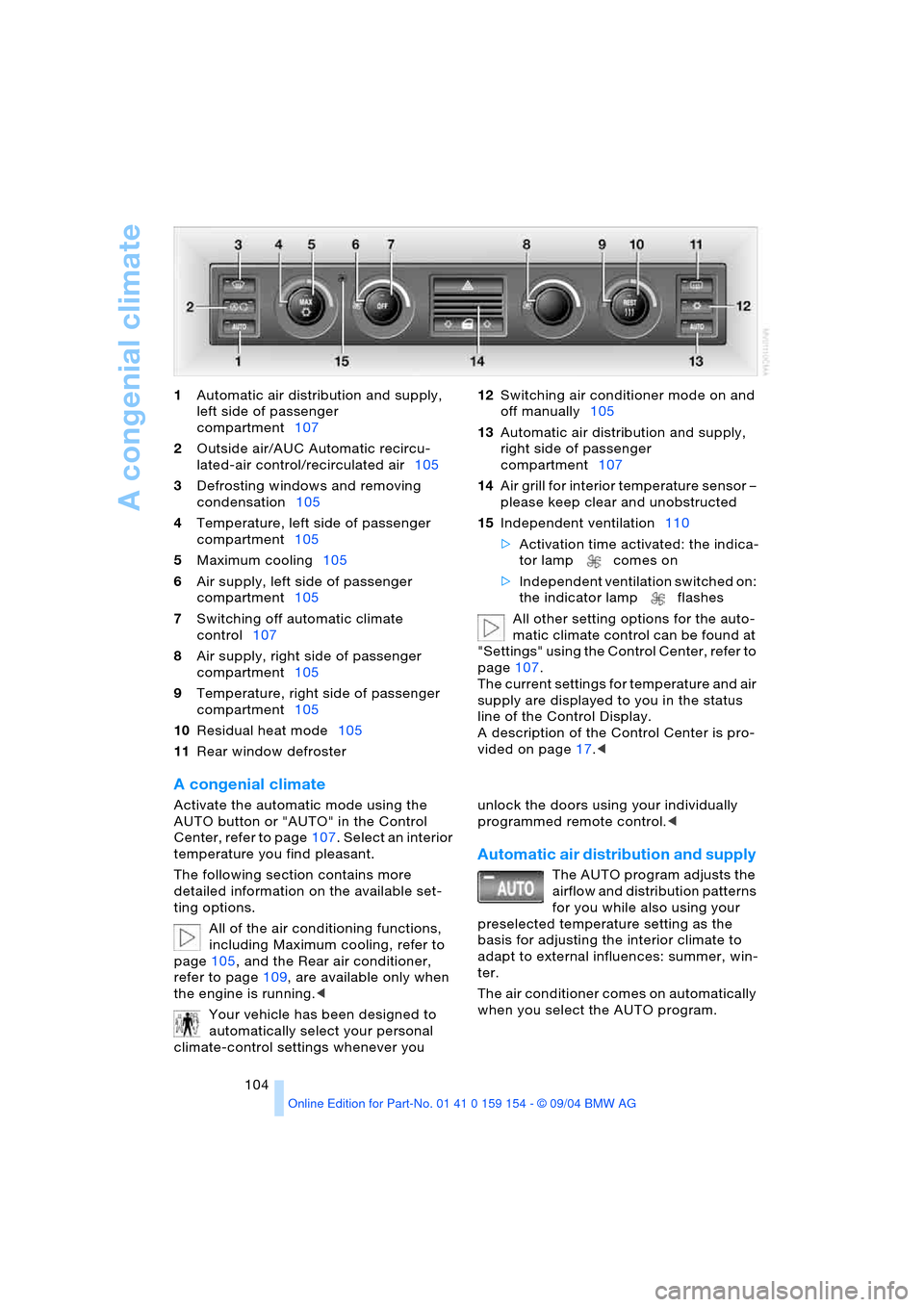
104 1Automatic air distribution and supply,
left side of passenger
compartment107
2Outside air/AUC Automatic recircu-
lated-air control/recirculated air105
3Defrosting windows and removing
condensation105
4Temperature, left side of passenger
compartment105
5Maximum cooling105
6Air supply, left side of passenger
compartment105
7Switching off automatic climate
control107
8Air supply, right side of passenger
compartment105
9Temperature, right side of passenger
compartment105
10Residual heat mode105
11Rear window defroster 12Switching air conditioner mode on and
off manually105
13Automatic air distribution and supply,
right side of passenger
compartment107
14Air grill for interior temperature sensor –
please keep clear and unobstructed
15Independent ventilation110
>Activation time activated: the indica-
tor lamp comes on
>Independent ventilation switched on:
the indicator lamp flashes
All other setting options for the auto-
matic climate control can be found at
"Settings" using the Control Center, refer to
page107.
The current settings for temperature and air
supply are displayed to you in the status
line of the Control Display.
A description of the Control Center is pro-
vided on page17.<
A congenial climate
Activate the automatic mode using the
AUTO button or "AUTO" in the Control
Center, refer to page107. Select an interior
temperature you find pleasant.
The following section contains more
detailed information on the available set-
ting options.
All of the air conditioning functions,
including Maximum cooling, refer to
page105, and the Rear air conditioner,
refer to page109, are available only when
the engine is running.<
Your vehicle has been designed to
automatically select your personal
climate-control settings whenever you unlock the doors using your individually
programmed remote control.<
Automatic air distribution and supply
The AUTO program adjusts the
airflow and distribution patterns
for you while also using your
preselected temperature setting as the
basis for adjusting the interior climate to
adapt to external influences: summer, win-
ter.
The air conditioner comes on automatically
when you select the AUTO program.
Page 107 of 239
Controls
105Reference
At a glance
Driving tips
Communications
Navigation
Entertainment
Mobility
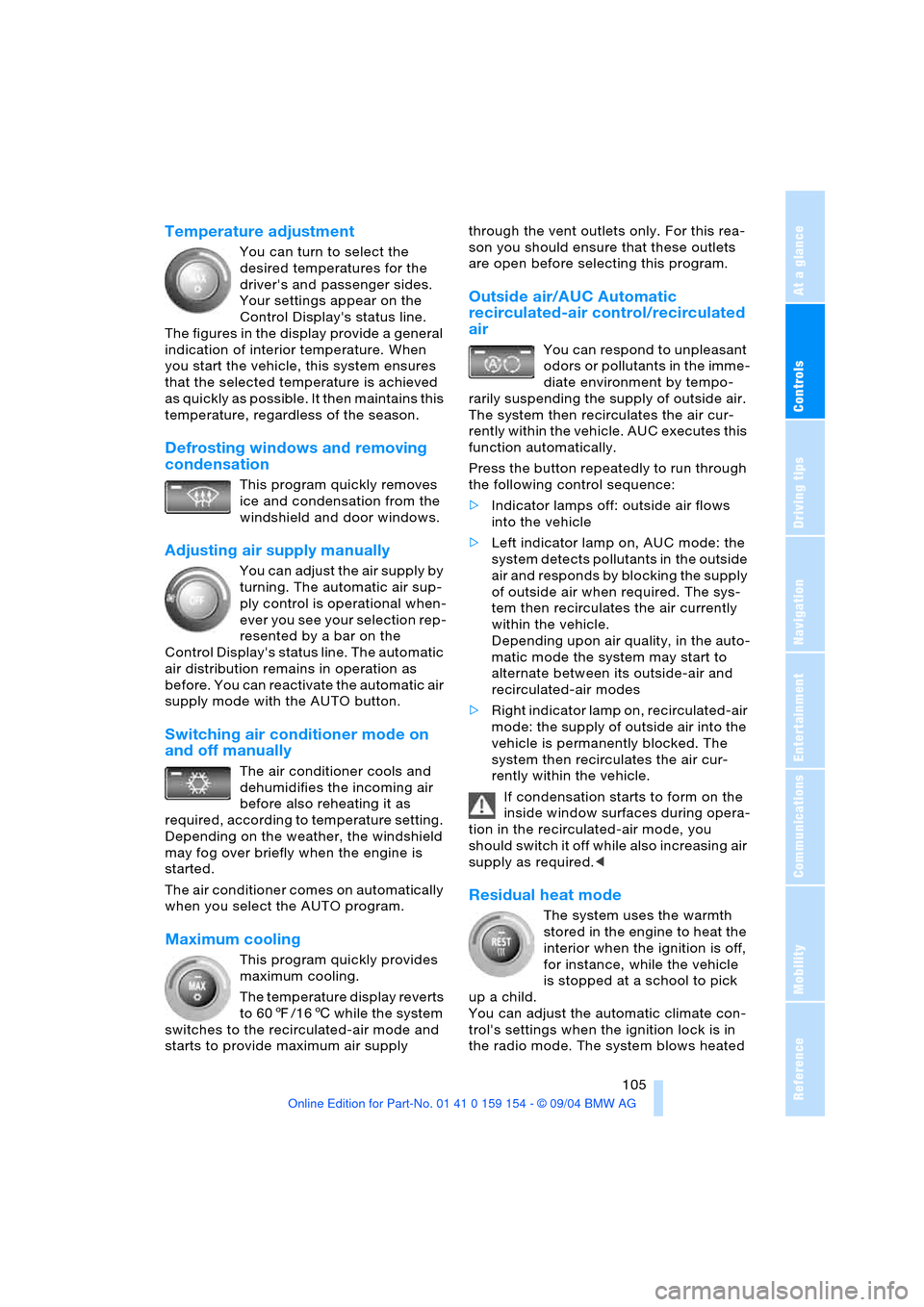
Temperature adjustment
You can turn to select the
desired temperatures for the
driver's and passenger sides.
Your settings appear on the
Control Display's status line.
The figures in the display provide a general
indication of interior temperature. When
you start the vehicle, this system ensures
that the selected temperature is achieved
as quickly as possible. It then maintains this
temperature, regardless of the season.
Defrosting windows and removing
condensation
This program quickly removes
ice and condensation from the
windshield and door windows.
Adjusting air supply manually
You can adjust the air supply by
turning. The automatic air sup-
ply control is operational when-
ever you see your selection rep-
resented by a bar on the
Control Display's status line. The automatic
air distribution remains in operation as
before. You can reactivate the automatic air
supply mode with the AUTO button.
Switching air conditioner mode on
and off manually
The air conditioner cools and
dehumidifies the incoming air
before also reheating it as
required, according to temperature setting.
Depending on the weather, the windshield
may fog over briefly when the engine is
started.
The air conditioner comes on automatically
when you select the AUTO program.
Maximum cooling
This program quickly provides
maximum cooling.
The temperature display reverts
to 607/166 while the system
switches to the recirculated-air mode and
starts to provide maximum air supply through the vent outlets only. For this rea-
son you should ensure that these outlets
are open before selecting this program.
Outside air/AUC Automatic
recirculated-air control/recirculated
air
You can respond to unpleasant
odors or pollutants in the imme-
diate environment by tempo-
rarily suspending the supply of outside air.
The system then recirculates the air cur-
rently within the vehicle. AUC executes this
function automatically.
Press the button repeatedly to run through
the following control sequence:
>Indicator lamps off: outside air flows
into the vehicle
>Left indicator lamp on, AUC mode: the
system detects pollutants in the outside
air and responds by blocking the supply
of outside air when required. The sys-
tem then recirculates the air currently
within the vehicle.
Depending upon air quality, in the auto-
matic mode the system may start to
alternate between its outside-air and
recirculated-air modes
>Right indicator lamp on, recirculated-air
mode: the supply of outside air into the
vehicle is permanently blocked. The
system then recirculates the air cur-
rently within the vehicle.
If condensation starts to form on the
inside window surfaces during opera-
tion in the recirculated-air mode, you
should switch it off while also increasing air
supply as required.<
Residual heat mode
The system uses the warmth
stored in the engine to heat the
interior when the ignition is off,
for instance, while the vehicle
is stopped at a school to pick
up a child.
You can adjust the automatic climate con-
trol's settings when the ignition lock is in
the radio mode. The system blows heated
Page 110 of 239
A congenial climate
108
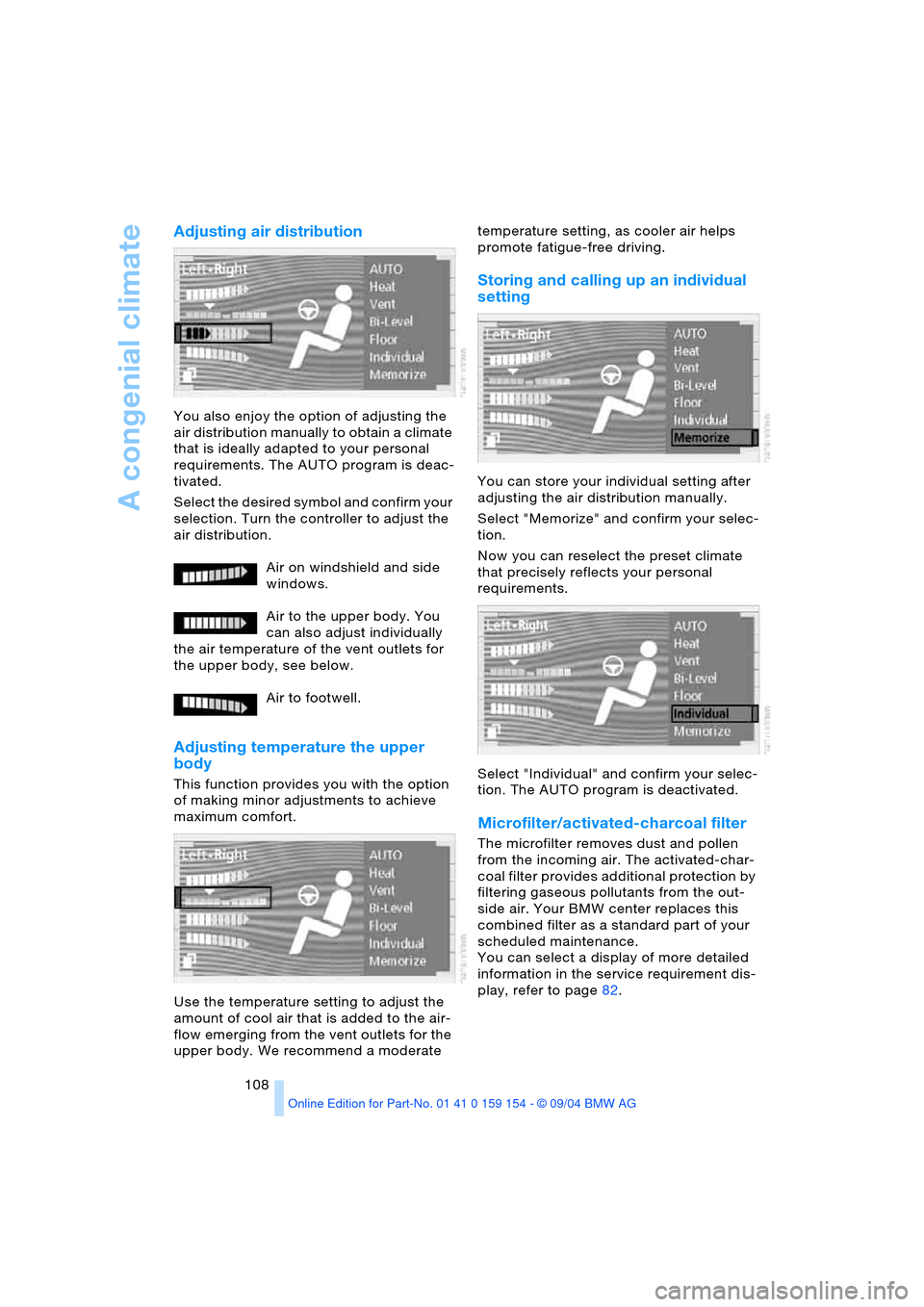
Adjusting air distribution
You also enjoy the option of adjusting the
air distribution manually to obtain a climate
that is ideally adapted to your personal
requirements. The AUTO program is deac-
tivated.
Select the desired symbol and confirm your
selection. Turn the controller to adjust the
air distribution.
Air on windshield and side
windows.
Air to the upper body. You
can also adjust individually
the air temperature of the vent outlets for
the upper body, see below.
Air to footwell.
Adjusting temperature the upper
body
This function provides you with the option
of making minor adjustments to achieve
maximum comfort.
Use the temperature setting to adjust the
amount of cool air that is added to the air-
flow emerging from the vent outlets for the
upper body. We recommend a moderate temperature setting, as cooler air helps
promote fatigue-free driving.
Storing and calling up an individual
setting
You can store your individual setting after
adjusting the air distribution manually.
Select "Memorize" and confirm your selec-
tion.
Now you can reselect the preset climate
that precisely reflects your personal
requirements.
Select "Individual" and confirm your selec-
tion. The AUTO program is deactivated.
Microfilter/activated-charcoal filter
The microfilter removes dust and pollen
from the incoming air. The activated-char-
coal filter provides additional protection by
filtering gaseous pollutants from the out-
side air. Your BMW center replaces this
combined filter as a standard part of your
scheduled maintenance.
You can select a display of more detailed
information in the service requirement dis-
play, refer to page82.
Page 133 of 239
Navigation
Driving tips
131Reference
At a glance
Controls
Communications
Entertainment
Mobility
To change the navigation CD/DVD:
1.Press button.
The CD/DVD is ejected from the naviga-
tion computer
2.Remove the CD/DVD
3.Insert the new CD/DVD with the labeled
side up.
Allow approx. eight seconds for the
system to scan the data from the new
CD/DVD.
Opening navigation
Select "Navigation".
The last selected view appears on the Con-
trol Display. This display will be continually
updated as you drive.
When you park the vehicle before reaching
the entered destination, upon restarting
you will see the question "Continue route
guidance?" on the Control Display.
>When you enter "YES", the destination
guidance resumes active operation and
the last selected screen content
appears on the Control Display
>When you enter "NO" the Control Dis-
play returns to the destination entry
mode.
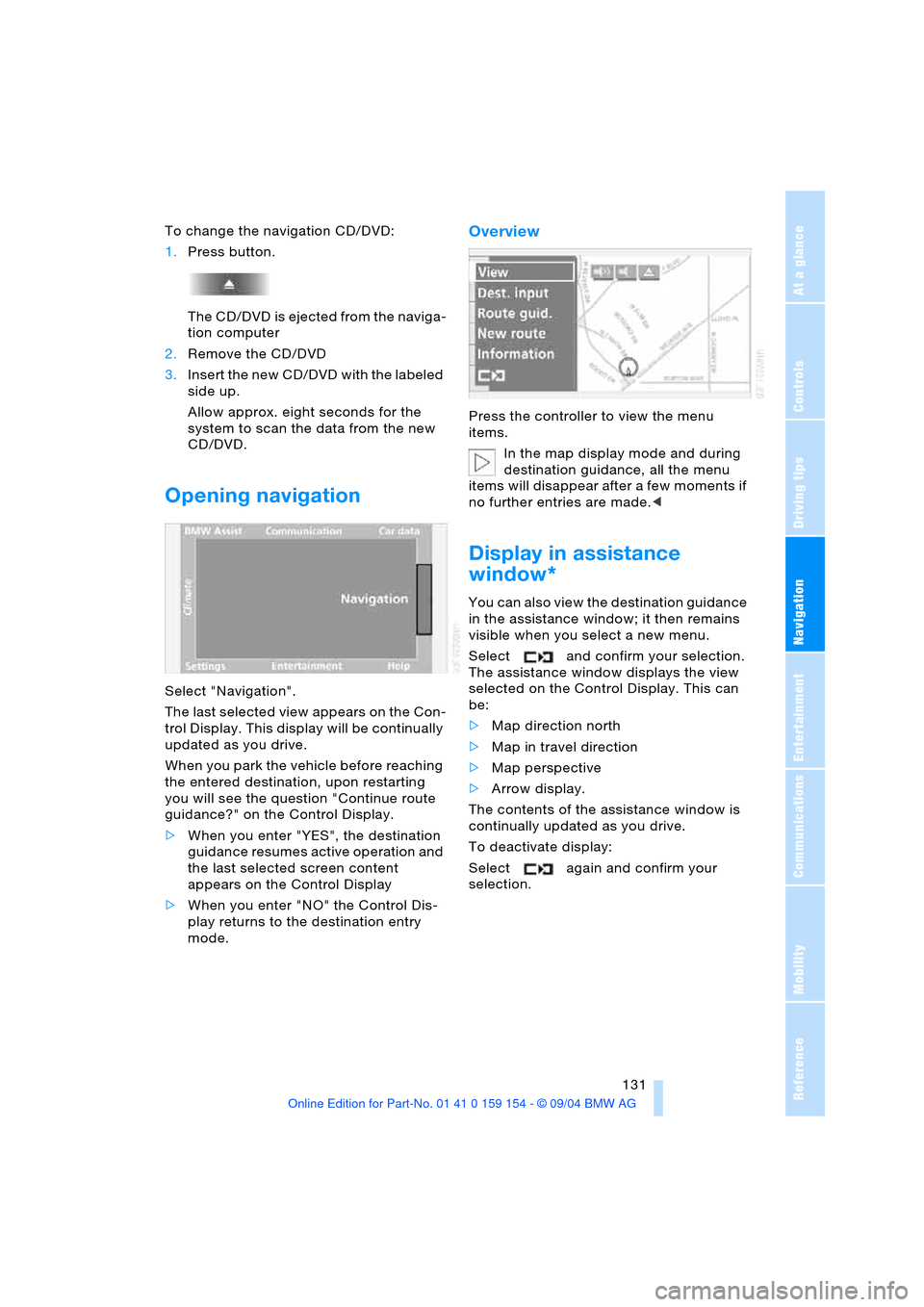
Overview
Press the controller to view the menu
items.
In the map display mode and during
destination guidance, all the menu
items will disappear after a few moments if
no further entries are made.<
Display in assistance
window*
You can also view the destination guidance
in the assistance window; it then remains
visible when you select a new menu.
Select and confirm your selection.
The assistance window displays the view
selected on the Control Display. This can
be:
>Map direction north
>Map in travel direction
>Map perspective
>Arrow display.
The contents of the assistance window is
continually updated as you drive.
To deactivate display:
Select again and confirm your
selection.
Page 135 of 239
Navigation
Driving tips
133Reference
At a glance
Controls
Communications
Entertainment
Mobility
>The "AS ADDRESS" command can be
used to store the entered address in the
address book.
You can store approx. 50 addresses
and then import them directly from your
address book to the navigation system
as travel destinations, refer to page142
>"DELETE" deletes the entered address.
The following features must be borne in
mind for destination entry:
>If you do not enter a street, the system
will guide you as far as the city limits
>Depending on the data stored on your
navigation CD/DVD, you can also enter
the house or building number on some
streets
>You can skip the entry of country and
locality if the current entries are being
retained for your new destination
>You can overwrite street names if you
would like to proceed to another street
within the same locality.
The example shows how to use the naviga-
tion system to find the following destina-
tion:
United States
Beverly Hills, Ca
455 N Rexford Drive
To enter the destination address:
Select "ABC..." and confirm your selection.
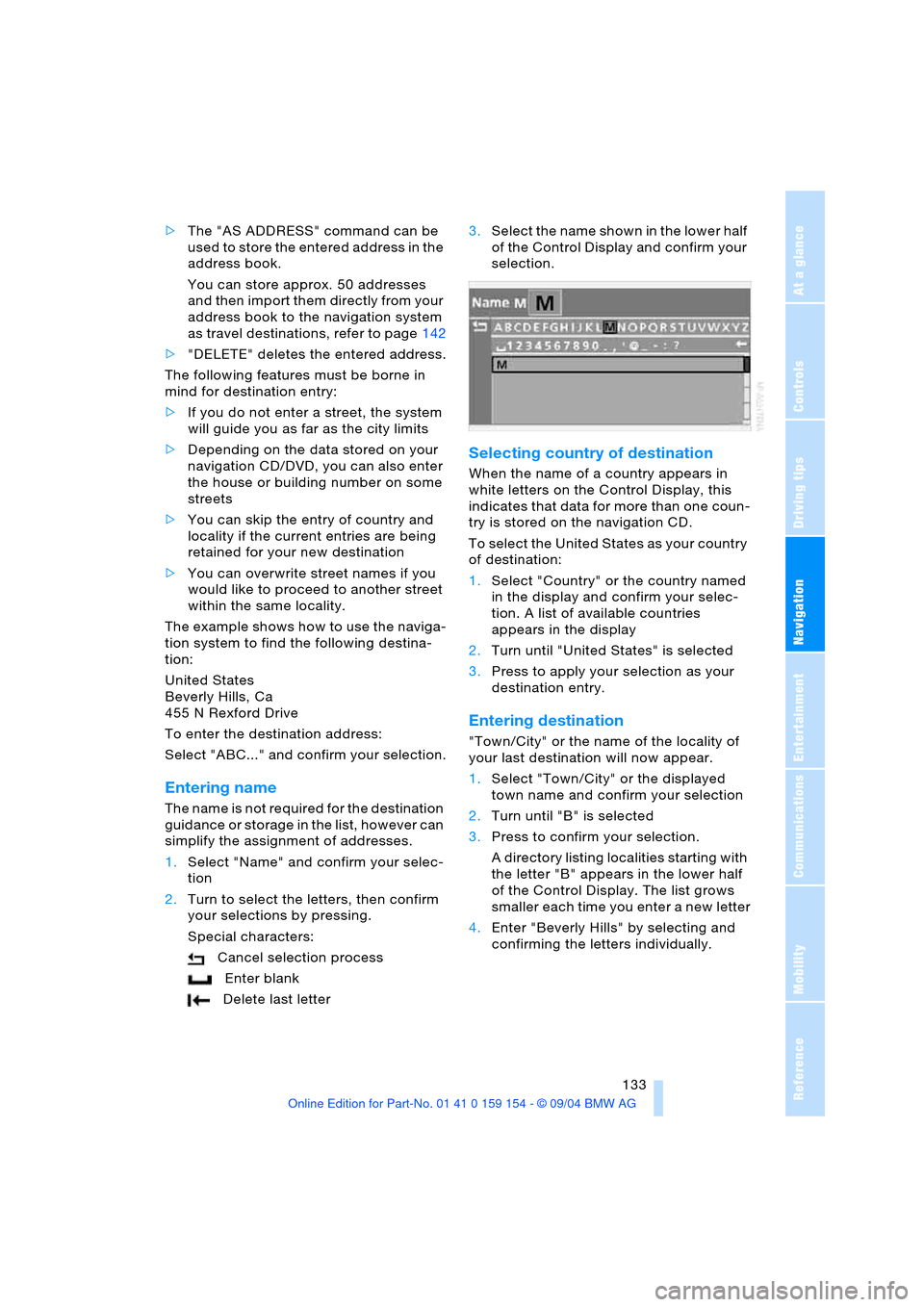
Entering name
The name is not required for the destination
guidance or storage in the list, however can
simplify the assignment of addresses.
1.Select "Name" and confirm your selec-
tion
2.Turn to select the letters, then confirm
your selections by pressing.
Special characters:
Cancel selection process
Enter blank
Delete last letter3.Select the name shown in the lower half
of the Control Display and confirm your
selection.
Selecting country of destination
When the name of a country appears in
white letters on the Control Display, this
indicates that data for more than one coun-
try is stored on the navigation CD.
To select the United States as your country
of destination:
1.Select "Country" or the country named
in the display and confirm your selec-
tion. A list of available countries
appears in the display
2.Turn until "United States" is selected
3.Press to apply your selection as your
destination entry.
Entering destination
"Town/City" or the name of the locality of
your last destination will now appear.
1.Select "Town/City" or the displayed
town name and confirm your selection
2.Turn until "B" is selected
3.Press to confirm your selection.
A directory listing localities starting with
the letter "B" appears in the lower half
of the Control Display. The list grows
smaller each time you enter a new letter
4.Enter "Beverly Hills" by selecting and
confirming the letters individually.
Page 136 of 239
Destination entry
134 Special characters:
Cancel selection process
Enter blank
Delete last letter
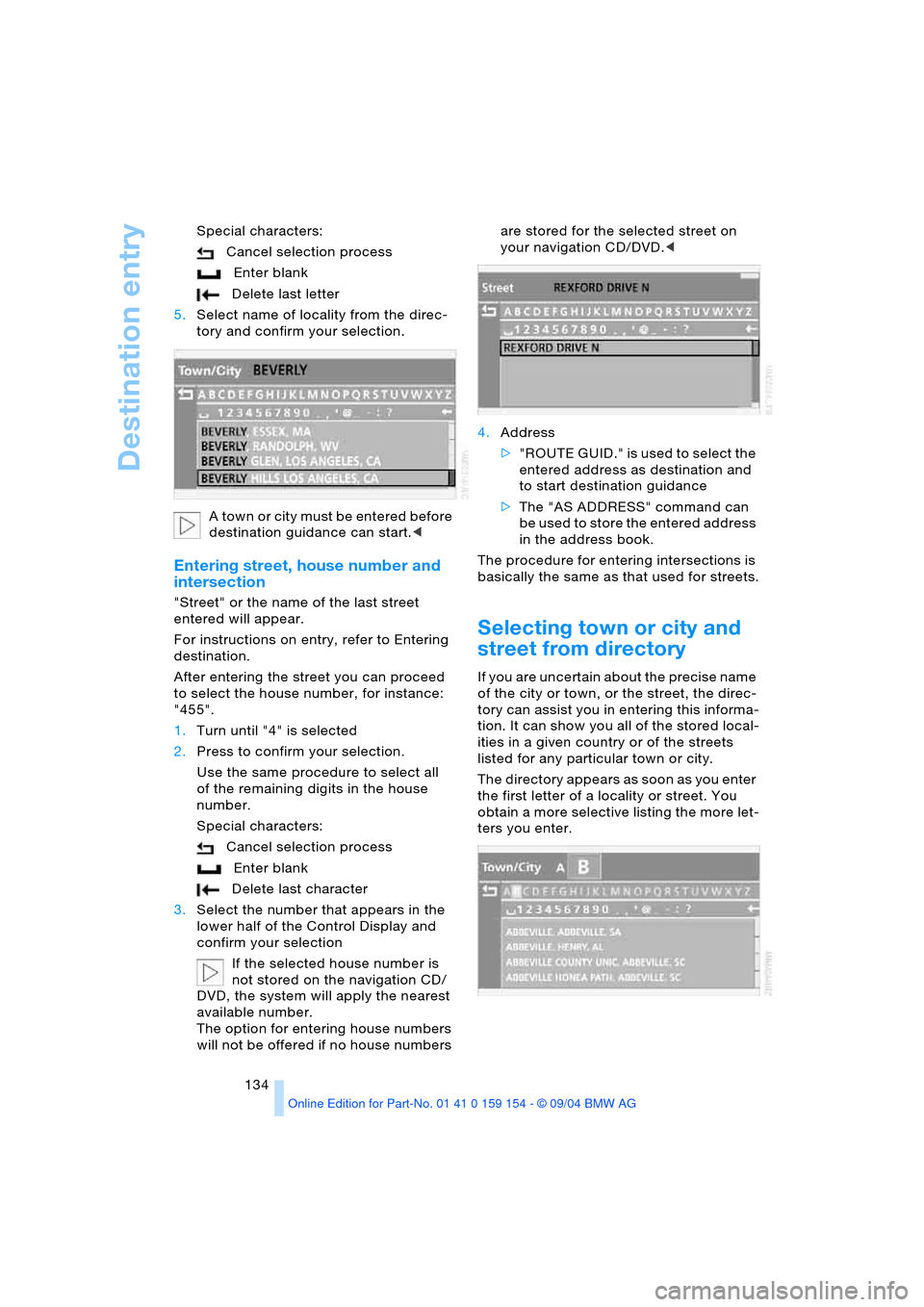
5.Select name of locality from the direc-
tory and confirm your selection.
A t o w n o r c i t y m u s t b e e n t e r e d b e f o r e
destination guidance can start.<
Entering street, house number and
intersection
"Street" or the name of the last street
entered will appear.
For instructions on entry, refer to Entering
destination.
After entering the street you can proceed
to select the house number, for instance:
"455".
1.Turn until "4" is selected
2.Press to confirm your selection.
Use the same procedure to select all
of the remaining digits in the house
number.
Special characters:
Cancel selection process
Enter blank
Delete last character
3.Select the number that appears in the
lower half of the Control Display and
confirm your selection
If the selected house number is
not stored on the navigation CD/
DVD, the system will apply the nearest
available number.
The option for entering house numbers
will not be offered if no house numbers are stored for the selected street on
your navigation CD/DVD.<
4.Address
>" R O U T E G U I D . " i s u s e d t o s e l e c t t h e
entered address as destination and
to start destination guidance
>The "AS ADDRESS" command can
be used to store the entered address
in the address book.
The procedure for entering intersections is
basically the same as that used for streets.
Selecting town or city and
street from directory
If you are uncertain about the precise name
of the city or town, or the street, the direc-
tory can assist you in entering this informa-
tion. It can show you all of the stored local-
ities in a given country or of the streets
listed for any particular town or city.
The directory appears as soon as you enter
the first letter of a locality or street. You
obtain a more selective listing the more let-
ters you enter.