phone BMW M4 2016 Owners Manual
[x] Cancel search | Manufacturer: BMW, Model Year: 2016, Model line: M4, Model: BMW M4 2016Pages: 228, PDF Size: 4.88 MB
Page 13 of 228
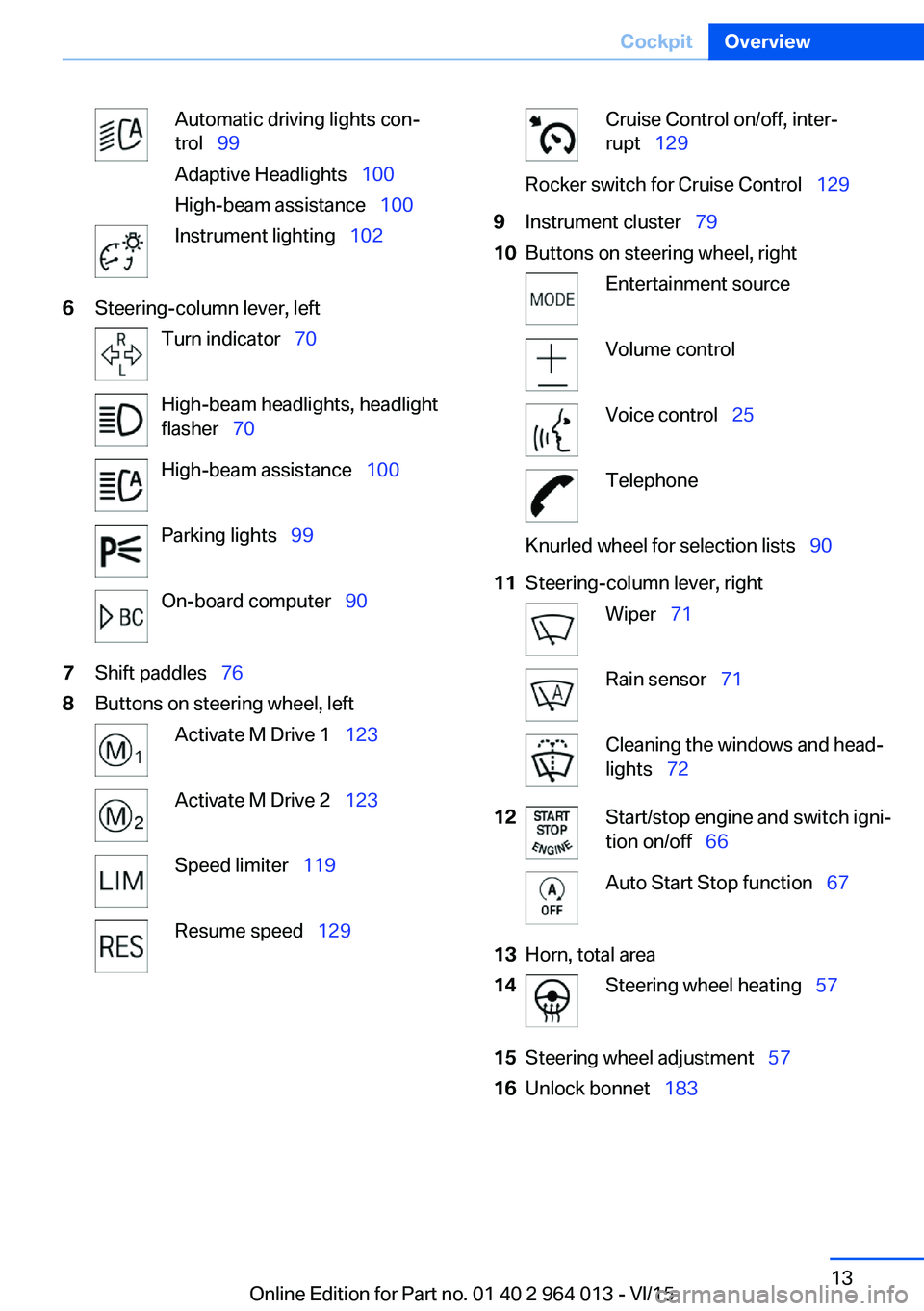
Automatic driving lights con‐
trol 99
Adaptive Headlights 100
High-beam assistance 100Instrument lighting 1026Steering-column lever, leftTurn indicator 70High-beam headlights, headlight
flasher 70High-beam assistance 100Parking lights 99On-board computer 907Shift paddles 768Buttons on steering wheel, leftActivate M Drive 1 123Activate M Drive 2 123Speed limiter 119Resume speed 129Cruise Control on/off, inter‐
rupt 129Rocker switch for Cruise Control 1299Instrument cluster 7910Buttons on steering wheel, rightEntertainment sourceVolume controlVoice control 25TelephoneKnurled wheel for selection lists 9011Steering-column lever, rightWiper 71Rain sensor 71Cleaning the windows and head‐
lights 7212Start/stop engine and switch igni‐
tion on/off 66Auto Start Stop function 6713Horn, total area14Steering wheel heating 5715Steering wheel adjustment 5716Unlock bonnet 183Seite 13CockpitOverview13
Online Edition for Part no. 01 40 2 964 013 - VI/15
Page 17 of 228
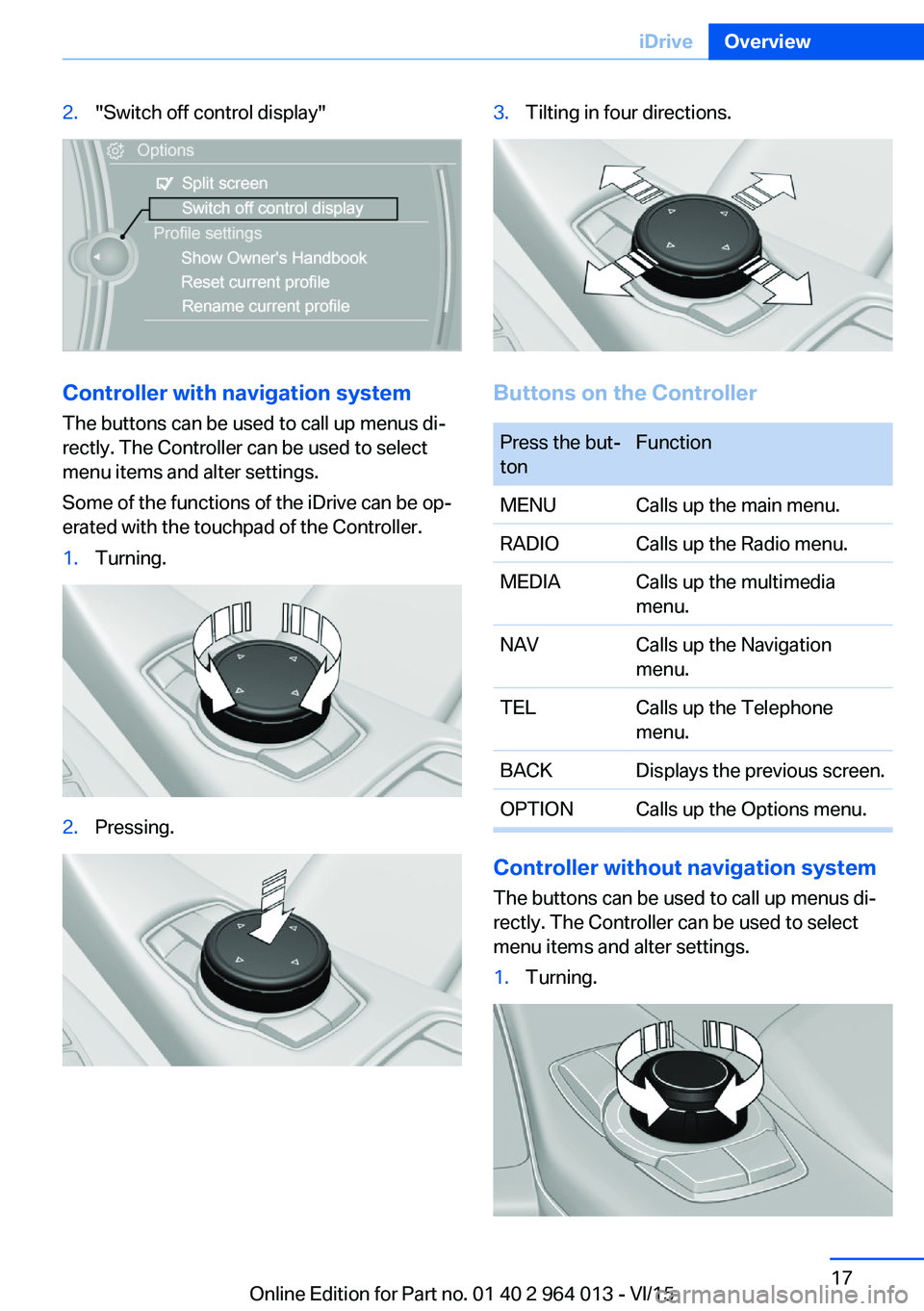
2."Switch off control display"
Controller with navigation systemThe buttons can be used to call up menus di‐
rectly. The Controller can be used to select
menu items and alter settings.
Some of the functions of the iDrive can be op‐
erated with the touchpad of the Controller.
1.Turning.2.Pressing.3.Tilting in four directions.
Buttons on the Controller
Press the but‐
tonFunctionMENUCalls up the main menu.RADIOCalls up the Radio menu.MEDIACalls up the multimedia
menu.NAVCalls up the Navigation
menu.TELCalls up the Telephone
menu.BACKDisplays the previous screen.OPTIONCalls up the Options menu.
Controller without navigation system
The buttons can be used to call up menus di‐
rectly. The Controller can be used to select
menu items and alter settings.
1.Turning.Seite 17iDriveOverview17
Online Edition for Part no. 01 40 2 964 013 - VI/15
Page 18 of 228
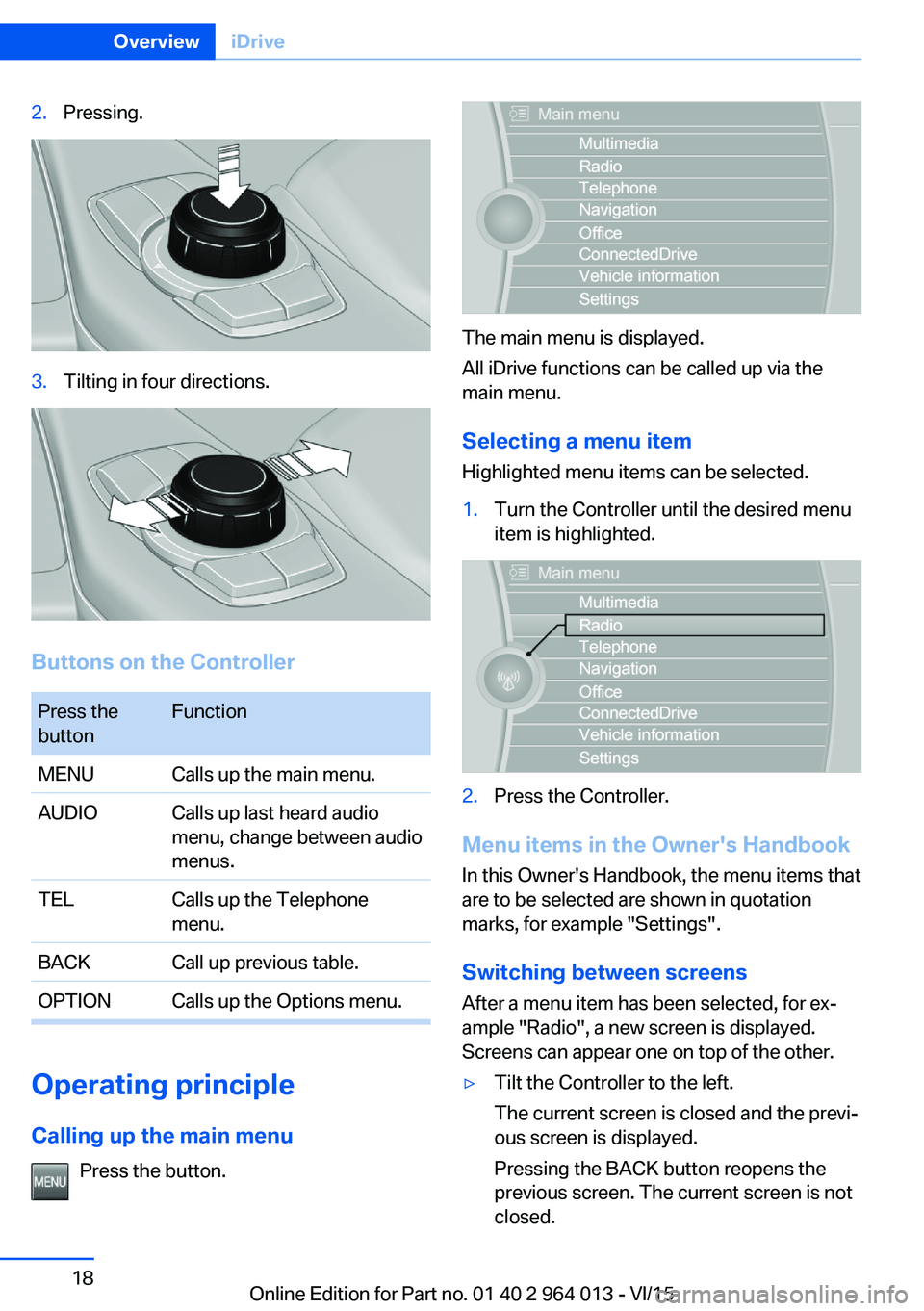
2.Pressing.3.Tilting in four directions.
Buttons on the Controller
Press the
buttonFunctionMENUCalls up the main menu.AUDIOCalls up last heard audio
menu, change between audio
menus.TELCalls up the Telephone
menu.BACKCall up previous table.OPTIONCalls up the Options menu.
Operating principle
Calling up the main menu Press the button.
The main menu is displayed.
All iDrive functions can be called up via the
main menu.
Selecting a menu item
Highlighted menu items can be selected.
1.Turn the Controller until the desired menu
item is highlighted.2.Press the Controller.
Menu items in the Owner's Handbook
In this Owner's Handbook, the menu items that
are to be selected are shown in quotation
marks, for example "Settings".
Switching between screens After a menu item has been selected, for ex‐
ample "Radio", a new screen is displayed.
Screens can appear one on top of the other.
▷Tilt the Controller to the left.
The current screen is closed and the previ‐
ous screen is displayed.
Pressing the BACK button reopens the
previous screen. The current screen is not
closed.Seite 18OverviewiDrive18
Online Edition for Part no. 01 40 2 964 013 - VI/15
Page 21 of 228
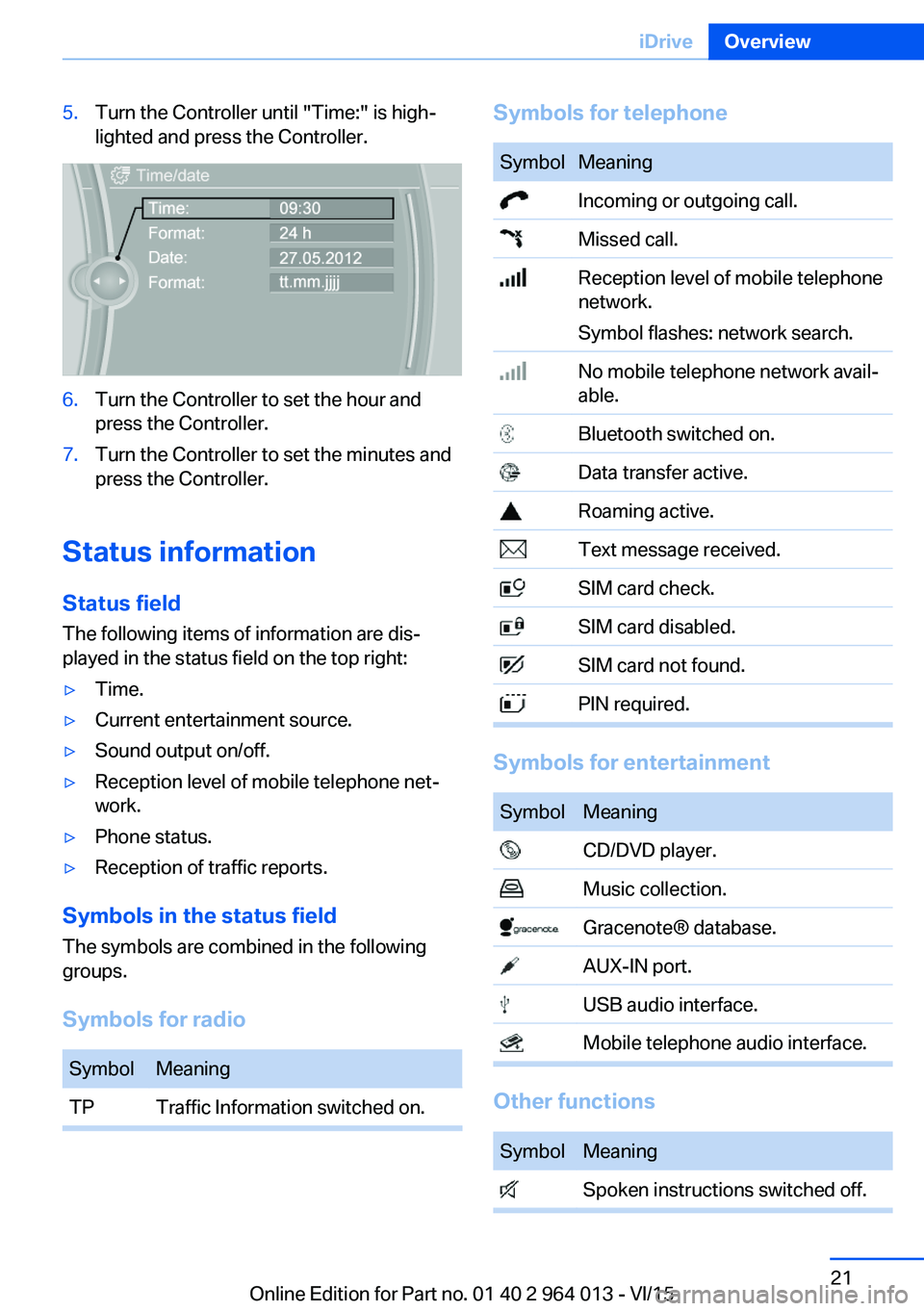
5.Turn the Controller until "Time:" is high‐
lighted and press the Controller.6.Turn the Controller to set the hour and
press the Controller.7.Turn the Controller to set the minutes and
press the Controller.
Status information
Status field The following items of information are dis‐
played in the status field on the top right:
▷Time.▷Current entertainment source.▷Sound output on/off.▷Reception level of mobile telephone net‐
work.▷Phone status.▷Reception of traffic reports.
Symbols in the status field
The symbols are combined in the following
groups.
Symbols for radio
SymbolMeaningTPTraffic Information switched on.Symbols for telephoneSymbolMeaning Incoming or outgoing call. Missed call. Reception level of mobile telephone
network.
Symbol flashes: network search. No mobile telephone network avail‐
able. Bluetooth switched on. Data transfer active. Roaming active. Text message received. SIM card check. SIM card disabled. SIM card not found. PIN required.
Symbols for entertainment
SymbolMeaning CD/DVD player. Music collection. Gracenote® database. AUX-IN port. USB audio interface. Mobile telephone audio interface.
Other functions
SymbolMeaning Spoken instructions switched off.Seite 21iDriveOverview21
Online Edition for Part no. 01 40 2 964 013 - VI/15
Page 22 of 228
Split-screen
General In the split-screen view, additional information
can be displayed on the right-hand side of the
screen, for example information from the on-
board computer.
This information remains visible in the split-
screen view even if a switch is made to another
menu.
Switching the split-screen view on
and off
On the Control Display:1. Press the button.2."Split screen"
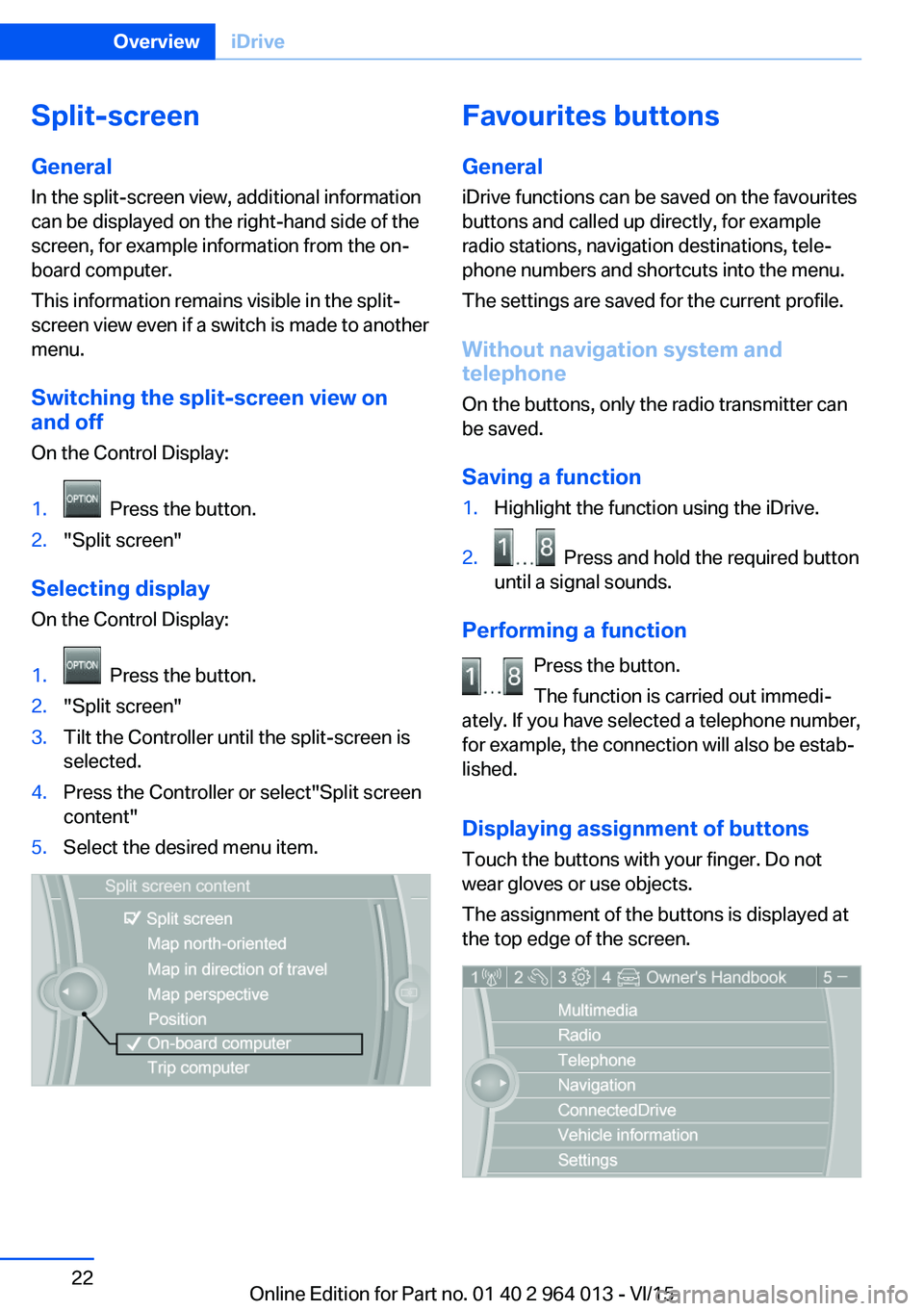
Selecting display On the Control Display:
1. Press the button.2."Split screen"3.Tilt the Controller until the split-screen is
selected.4.Press the Controller or select"Split screen
content"5.Select the desired menu item.Favourites buttons
General iDrive functions can be saved on the favourites
buttons and called up directly, for example
radio stations, navigation destinations, tele‐
phone numbers and shortcuts into the menu.
The settings are saved for the current profile.
Without navigation system and
telephone
On the buttons, only the radio transmitter can
be saved.
Saving a function1.Highlight the function using the iDrive.2. Press and hold the required button
until a signal sounds.
Performing a function
Press the button.
The function is carried out immedi‐
ately. If you have selected a telephone number,
for example, the connection will also be estab‐
lished.
Displaying assignment of buttons Touch the buttons with your finger. Do not
wear gloves or use objects.
The assignment of the buttons is displayed at
the top edge of the screen.
Seite 22OverviewiDrive22
Online Edition for Part no. 01 40 2 964 013 - VI/15
Page 23 of 228
Clearing assignment of buttons1.Press buttons 1 and 8 simultaneously for
approximately five seconds.2."OK"
Deleting personal data in
vehicle
Principle
Vehicle stores personal data, depending on
how it is used, such as stored radio stations.
This personal data can be permanently deleted
using iDrive.
General
Following data can be deleted, depending on
equipment:
▷Personal Profile settings.▷Stored radio stations.▷Stored favourite buttons.▷Trip and on-board computer values.▷Music collection.▷Navigation, for example stored destina‐
tions.▷Phone book.▷Online data, for example favourites, cook‐
ies.▷Voice memos.▷Login accounts.▷RemoteApp smartphone pairing.
It can take up to 30 minutes in total to delete
data.
Operating requirements Data can only be deleted at a standstill.
Deleting data
Follow the instructions on the Control Display.1.Switch on ignition.2."Settings"3.Calling up "Options".4."Delete personal data"5."Continue"6."OK"
Entering letters and digits
General On the Control Display:
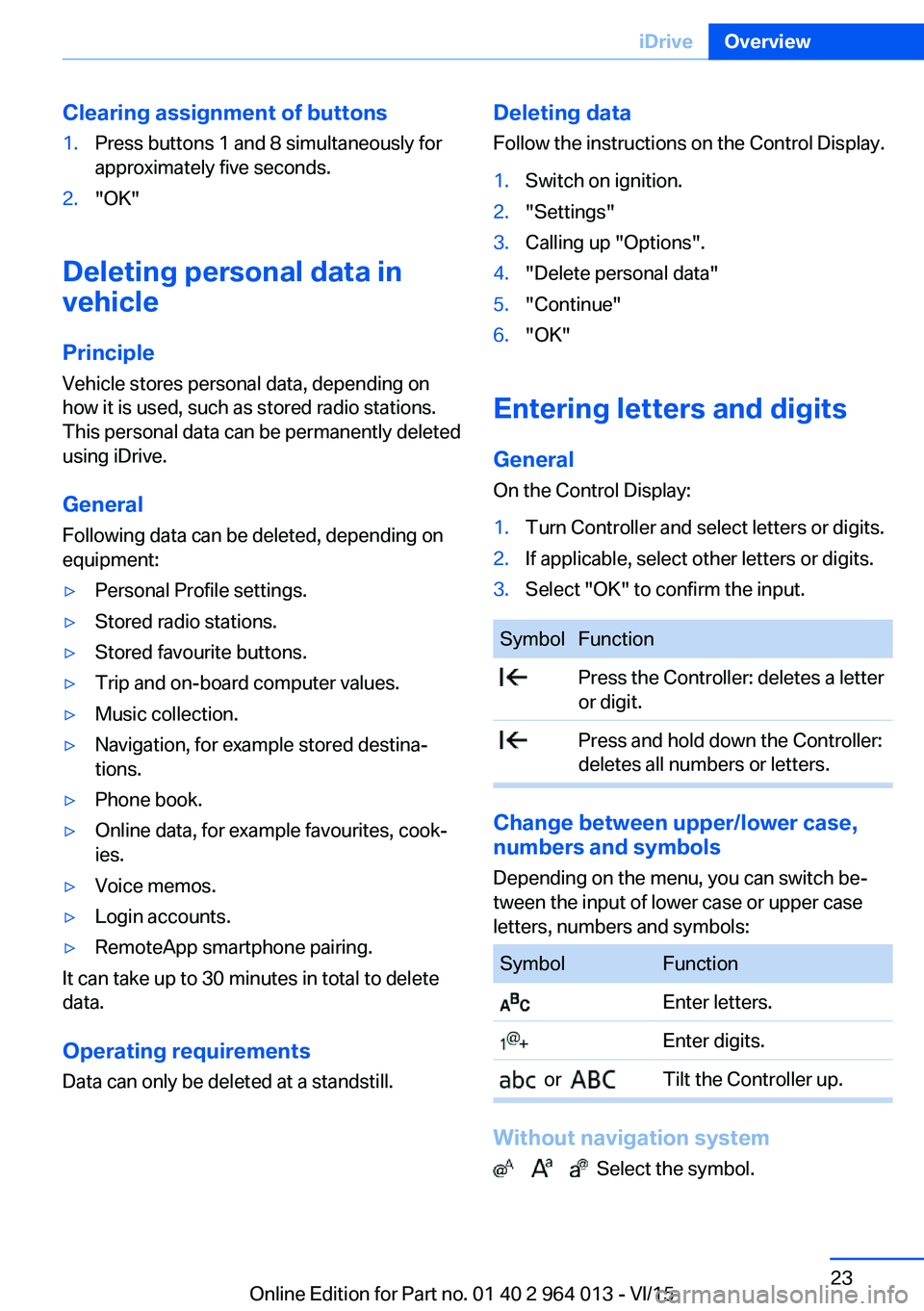
1.Turn Controller and select letters or digits.2.If applicable, select other letters or digits.3.Select "OK" to confirm the input.SymbolFunction Press the Controller: deletes a letter
or digit. Press and hold down the Controller:
deletes all numbers or letters.
Change between upper/lower case, numbers and symbols
Depending on the menu, you can switch be‐
tween the input of lower case or upper case
letters, numbers and symbols:
SymbolFunction Enter letters. Enter digits. or Tilt the Controller up.
Without navigation system
Select the symbol.
Seite 23iDriveOverview23
Online Edition for Part no. 01 40 2 964 013 - VI/15
Page 25 of 228
Voice control systemVehicle equipment
This chapter describes all standard, national
and special equipment provided in the model
series. Equipment not available in the vehicle is
therefore also described, for example the se‐
lected special equipment or national version.
This also applies to safety-relevant functions
and systems. Comply with the relevant na‐
tional regulations when using the correspond‐
ing functions and systems.
Principle▷Through the voice control system most
functions shown in the Control Display can
be operated by spoken commands. The
system supports spoken input.▷Functions that can only be used when the
vehicle is stationary cannot be operated via
the voice control system.▷The system has a special microphone on
the driver's side.▷›...‹ Indicates commands for the voice con‐
trol system in the Owner's Handbook.
Requirements
On the control display set a language that is
also supported by the voice control system, so
that the vehicle can identify spoken com‐ mands.
Setting the language, see page 94.
Issuing voice commands
Activating the voice control system1. Press the button on the steering
wheel.2.Wait for acoustic signal.3.Issue the command.
Command detected by voice control sys‐
tem is announced and displayed in instru‐
ment cluster.
Symbol in the instrument cluster indicates
that the voice control system is active.
If no further spoken commands are possible,
switch to iDrive to control the function in this
case.
Switching off the voice control system Press the button on the steering
wheel or say ›Cancel‹.
Possible commands
Most of the menu items on the Control Display
can be called up using spoken commands.
The possible commands depend on which
menu is currently displayed on the Control Dis‐
play.
For various functions there are short com‐
mands.
Several list entries, for example telephone
book entries, can also be selected using the
voice control system. When doing this, list en‐
tries are to be spoken exactly as they are
shown in the relevant list.
Having possible commands read aloud Possible commands can be read aloud: ›Voice
commands‹.
Seite 25Voice control systemOverview25
Online Edition for Part no. 01 40 2 964 013 - VI/15
Page 37 of 228
In some equipment versions, doors are also
unlocked if appropriate
To prevent the remote control from being
locked in, do not place the remote control in
the boot.
If the doors were not unlocked, the boot lid is
locked again as soon as it is closed.
Malfunction
Detection of the remote control by the vehicle
may be disrupted by the following circumstan‐
ces, amongst others:▷The battery of the remote control is dis‐
charged. Replacing the battery, see
page 33.▷Disruption of the radio link by transmission
masts or other equipment transmitting
powerful signals.▷Shielding of the remote control by metallic
objects.▷Disruption of the radio link by mobile tele‐
phones or other electronic devices in the
immediate vicinity.
Do not transport the remote control together
with metallic objects or electronic devices.
If there is a malfunction, the vehicle can also be
unlocked and locked from the outside without
remote control, see page 37.
Without remote control
From outside WARNING
If the vehicle is locked from the outside, it
cannot be unlocked from the inside in some
country versions.
If persons must remain in the vehicle for an ex‐ tended period of time and are exposed to ex‐
treme heat or cold, there is a risk of injury or
life. Do not lock the vehicle from the outside
when there is someone inside it.◀
ATTENTION
The door lock is firmly connected to the
door. The door handle can be moved. Pulling
the door handle when the integrated key is in‐
serted can damage the paint or the key. Dan‐
ger of damage to property. Pull out the
integrated key before pulling on the outer door
handle.◀
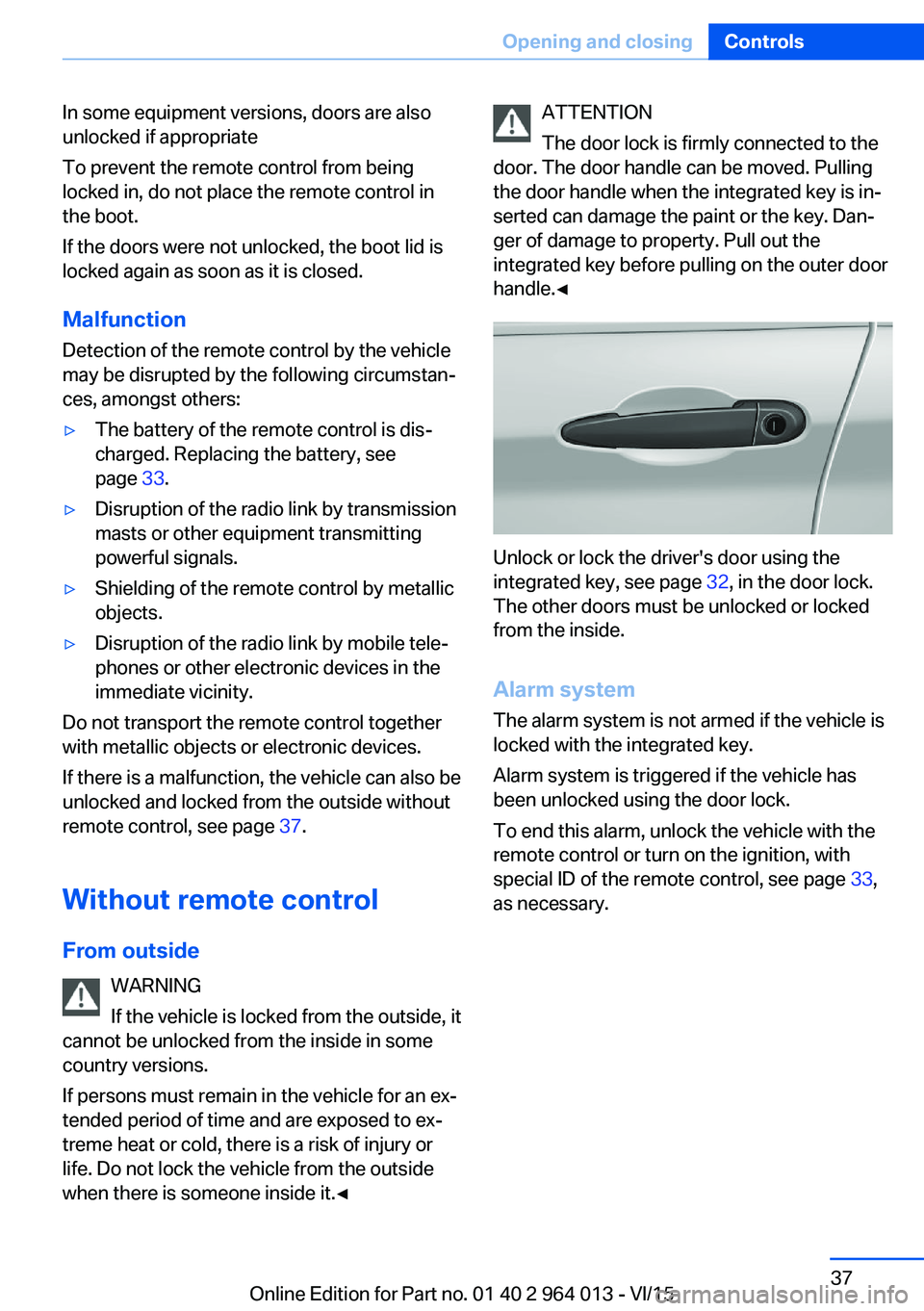
Unlock or lock the driver's door using the
integrated key, see page 32, in the door lock.
The other doors must be unlocked or locked
from the inside.
Alarm system
The alarm system is not armed if the vehicle is
locked with the integrated key.
Alarm system is triggered if the vehicle has
been unlocked using the door lock.
To end this alarm, unlock the vehicle with the
remote control or turn on the ignition, with
special ID of the remote control, see page 33,
as necessary.
Seite 37Opening and closingControls37
Online Edition for Part no. 01 40 2 964 013 - VI/15
Page 41 of 228
The boot lid opens, regardless of whether it
was locked or unlocked.
The hazard warning lights flash before open‐
ing.
If the remote control is within the sensor range,
the boot lid can be accidentally opened by an
unintentional or supposedly recognized foot
movement.
The sensor range extends to approx. 1.50 m,
5 ft behind the rear area.
WARNING
Operating the boot lid can lead to parts
of the body becoming trapped. Danger of in‐
jury. When opening and closing, make sure
that the area of movement of the boot lid is
free.◀
ATTENTION
The boot lids swings rearwards and up‐
wards when opened. Danger of damage to
property. When opening and closing, make
sure that the area of movement of the boot lid
is free.◀
Malfunction
Detection of the remote control by the vehicle
may be disrupted by the following circumstan‐
ces, amongst others:▷The battery of the remote control is dis‐
charged. Replacing the battery, see
page 33.▷Disruption of the radio link by transmission
masts or other equipment transmitting
powerful signals.▷Shielding of the remote control by metallic
objects.▷Disruption of the radio link by mobile tele‐
phones or other electronic devices in the
immediate vicinity.
Do not transport the remote control together
with metallic objects or electronic devices.
In case of a fault, unlock and lock the vehicle
with the buttons on the remote control or with
the integrated key, see page 37.
Settings UnlockingSettings are saved in active profile, see
page 33.
Doors1."Settings"2."Doors/key"3. Select the symbol.4.Select the desired function:▷"Driver's door only"
Only the driver's door and fuel filler flap
are unlocked. Pressing again unlocks
the entire vehicle.▷"All doors"
The entire vehicle is unlocked.▷"Comfort entry"
The entire vehicle is unlocked.
Pressing the button on the remote
control twice in direct succession cau‐
ses the window to be lowered further
when the door is subsequently opened.
Boot lid
Depending on the equipment and country ver‐
sion, these settings are not provided.
1."Settings"2."Doors/key"3. Select the symbol.4.Select the desired function:▷"Tailgate"
Boot lid is opened.▷"Tailgate + door(s)"Seite 41Opening and closingControls41
Online Edition for Part no. 01 40 2 964 013 - VI/15
Page 90 of 228
System limits
The function may be disabled or inaccurate
under certain conditions, for example:▷In thick fog and heavy rain or snow.▷If road signs are obscured by objects.▷If the vehicle is moving too close to the ve‐
hicle ahead.▷With bright oncoming light.▷When the windscreen in front of the rear-
view mirror is covered with condensation,
dirt, stickers, etc.▷Due to possible wrong detections of the
camera.▷If the speed limits saved in the navigation
system are wrong.▷In areas not covered by the navigation sys‐
tem.▷If there are deviations in relation to the nav‐
igation, for example due to changes in the
road routing.▷On overtaking buses or trucks with speed
stickers.▷If traffic signs do not correspond to the
standard.▷During the calibration process of the cam‐
era immediately after the vehicle is sup‐
plied.
Selection lists in the
instrument cluster
Principle Depending on equipment, the following can be
displayed or operated via the buttons and the
knurled wheel on the steering wheel and using
the displays in the instrument cluster and
Head-Up Display:
▷Current audio source.▷Repeat dialling for telephone.▷Activating the voice control system.Display
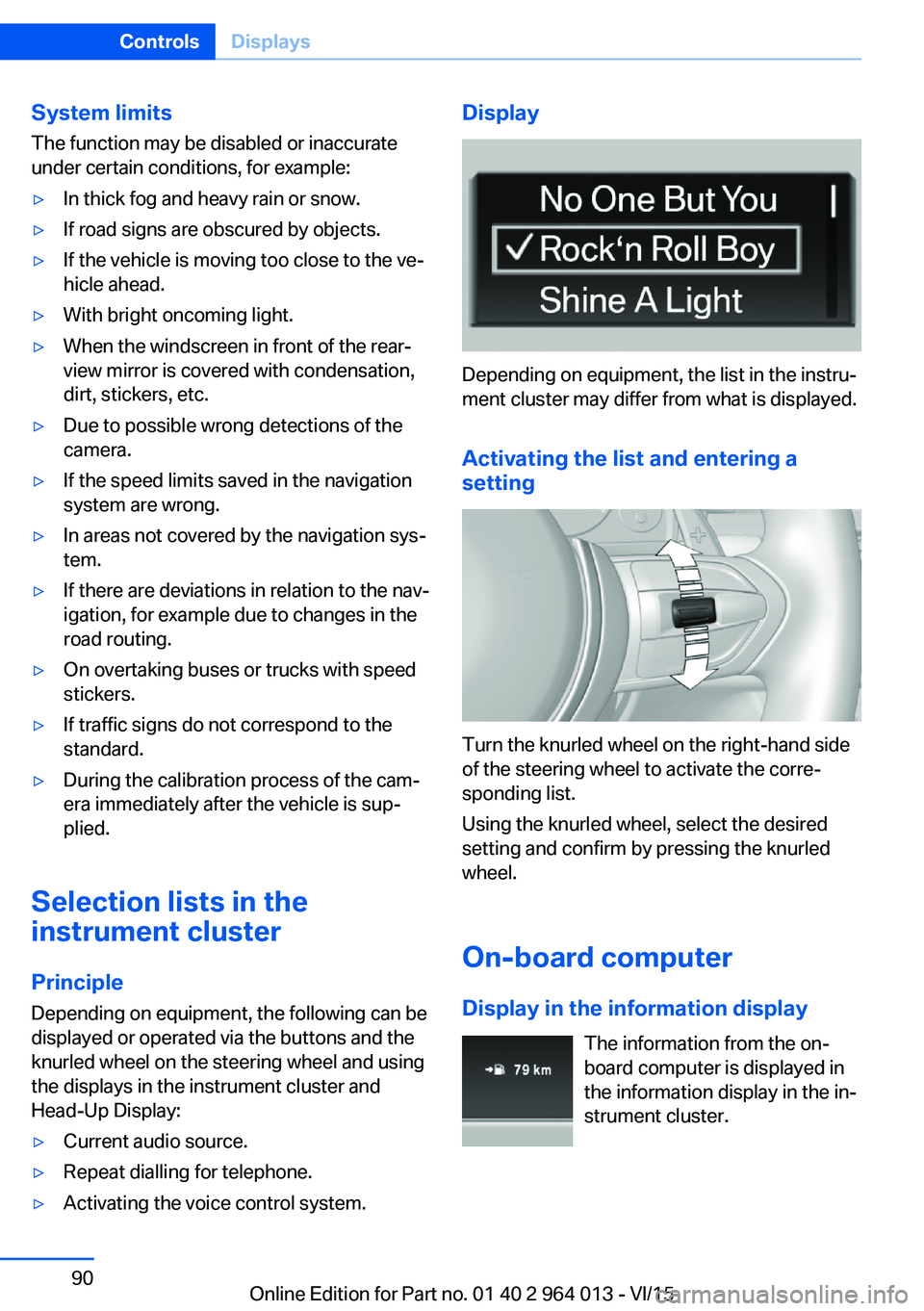
Depending on equipment, the list in the instru‐
ment cluster may differ from what is displayed.
Activating the list and entering a
setting
Turn the knurled wheel on the right-hand side
of the steering wheel to activate the corre‐
sponding list.
Using the knurled wheel, select the desired
setting and confirm by pressing the knurled
wheel.
On-board computer
Display in the information display The information from the on-
board computer is displayed in
the information display in the in‐
strument cluster.
Seite 90ControlsDisplays90
Online Edition for Part no. 01 40 2 964 013 - VI/15