scr BMW X5 3.0Si 2010 E70 Owner's Guide
[x] Cancel search | Manufacturer: BMW, Model Year: 2010, Model line: X5 3.0Si, Model: BMW X5 3.0Si 2010 E70Pages: 300, PDF Size: 12.41 MB
Page 177 of 300
Navigation
Entertainment
Driving tips
175Reference
At a glance
Controls
Communications
Mobility
4."Brightness", "Contrast" or "Color"
5.Turn the controller until the desired setting
is displayed and then press the controller.
Zoom
Display the video image on the full screen.
1.Turn the controller during playback.
2.Open "Options".
3."Additional options"
4."Zoom mode"
Selecting title
DVD video:
1.Turn the controller during playback.
2.Open "Options".
3."Additional options"
4."Select title"
5.Select the desired track.
VCD/SVCD:
1. "Select track"
2.Select the desired track.
Camera angle*
The camera angle depends on the DVD.1.Turn the controller during playback.
2.Open "Options".
3."Additional options"
4."Viewing angle"
5.Select the desired camera angle.
Opening the main menu, back
These functions are not contained on every
DVD. Therefore, they may not be available for
use.
CD/DVD changer*
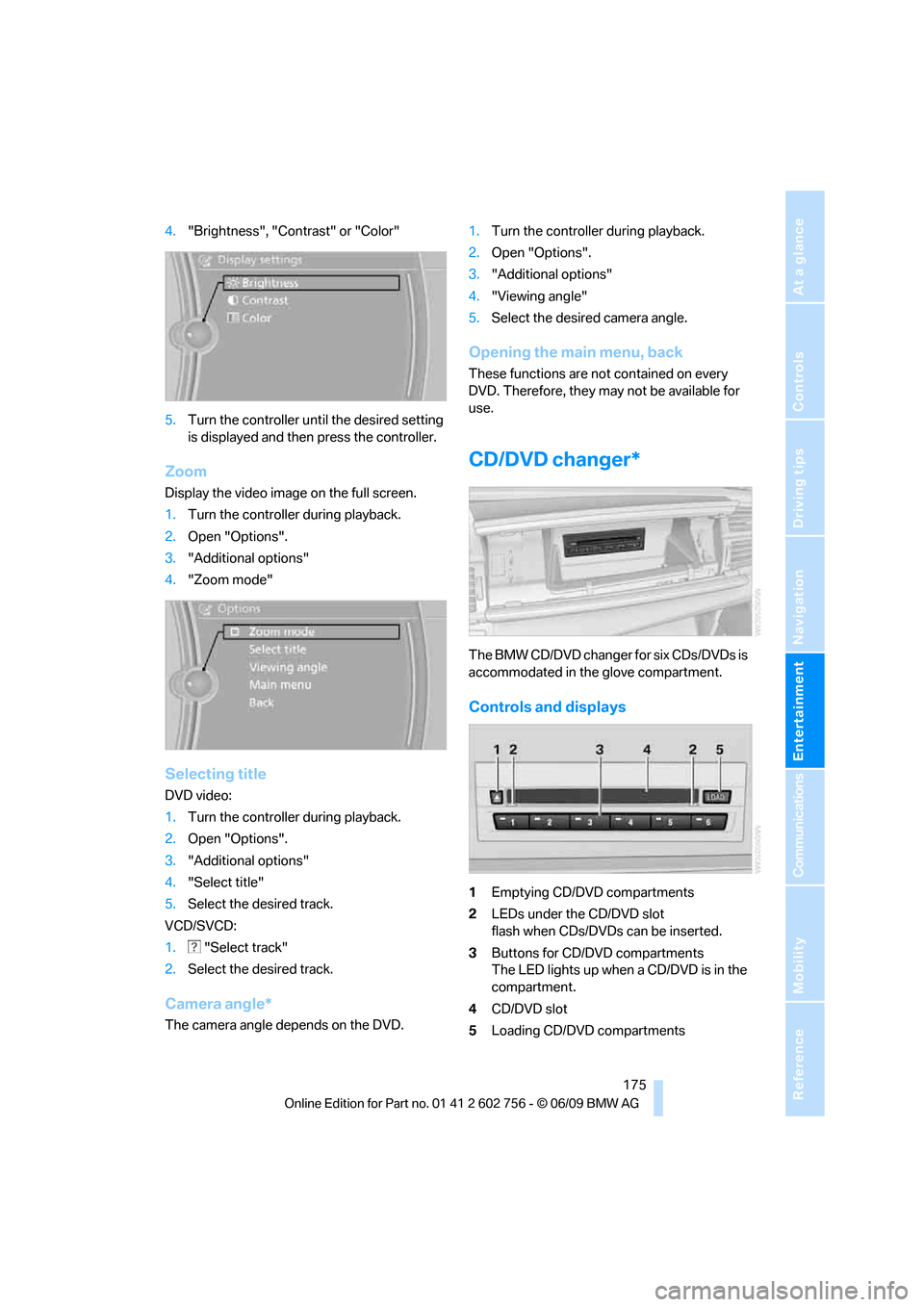
The BMW CD/DVD changer for six CDs/DVDs is
accommodated in the glove compartment.
Controls and displays
1Emptying CD/DVD compartments
2LEDs under the CD/DVD slot
flash when CDs/DVDs can be inserted.
3Buttons for CD/DVD compartments
The LED lights up when a CD/DVD is in the
compartment.
4CD/DVD slot
5Loading CD/DVD compartments
ba8_e70ag.book Seite 175 Freitag, 5. Juni 2009 11:42 11
Page 179 of 300
Navigation
Entertainment
Driving tips
177Reference
At a glance
Controls
Communications
Mobility
Humidity
High levels of humidity can lead to condensa-
tion on the CD/DVD or the laser's scan lens and
temporarily prevent playback.
Malfunctions with individual CDs/DVDs
If malfunctions occur only with particular CDs/
DVDs, this can be due to one of the following
causes:
Self-recorded CDs/DVDs
Possible reasons for malfunctions with self-
recorded CDs/DVDs are, e.g., inconsistent
data-creation or recording processes, or poor
quality or high age of the CD/DVD blank.
Only label CDs/DVDs on the upper side with a
pen intended for this purpose.
Damage
Avoid fingerprints, dust, scratches and mois-
ture.
Store CDs/DVDs in a sleeve.
Do not subject CDs/DVDs to temperatures
above 1227/506, nor to high humidity levels
or direct sunlight.
CDs/DVDs with copy protection
CDs/DVDs are often provided with a copy pro-
tection feature by the manufacturer. This can
m e a n t h a t s o m e C D s / D V D s c a n n o t b e p l a y e d o r
can only be played to a limited extent.
MACROVISION
This product contains copyrighted technology
that is based on multiple registered U.S. pat-
ents and the intellectual property of the Macro-
vision Corporation and other manufacturers.
Use of this copyrighted material must be
approved by Macrovision. Unless otherwise
agreed with Macrovision, media with this pro-
tection may only be used for private purposes.
The copying of this technology is strictly forbid-
den.
ba8_e70ag.book Seite 177 Freitag, 5. Juni 2009 11:42 11
Page 189 of 300
Navigation
Entertainment
Driving tips
187Reference
At a glance
Controls
Communications
Mobility
DVD system in rear
With the DVD system in the rear you can play
CDs and DVDs with audio, video and image
data. The DVD system can also play data from
attached external audio and video devices.
Audio output is possible both via headphones
and via the vehicle speakers.
You can control the DVD system using the but-
tons on the CD-/DVD player or using the remote
control.
You operate some functions using the
remote control.<
Enabling DVD system
The DVD system can be enabled via iDrive.
1."Settings"
2."Allow rear control"
3."Rear DVD system active"
DVD-System is enabled.
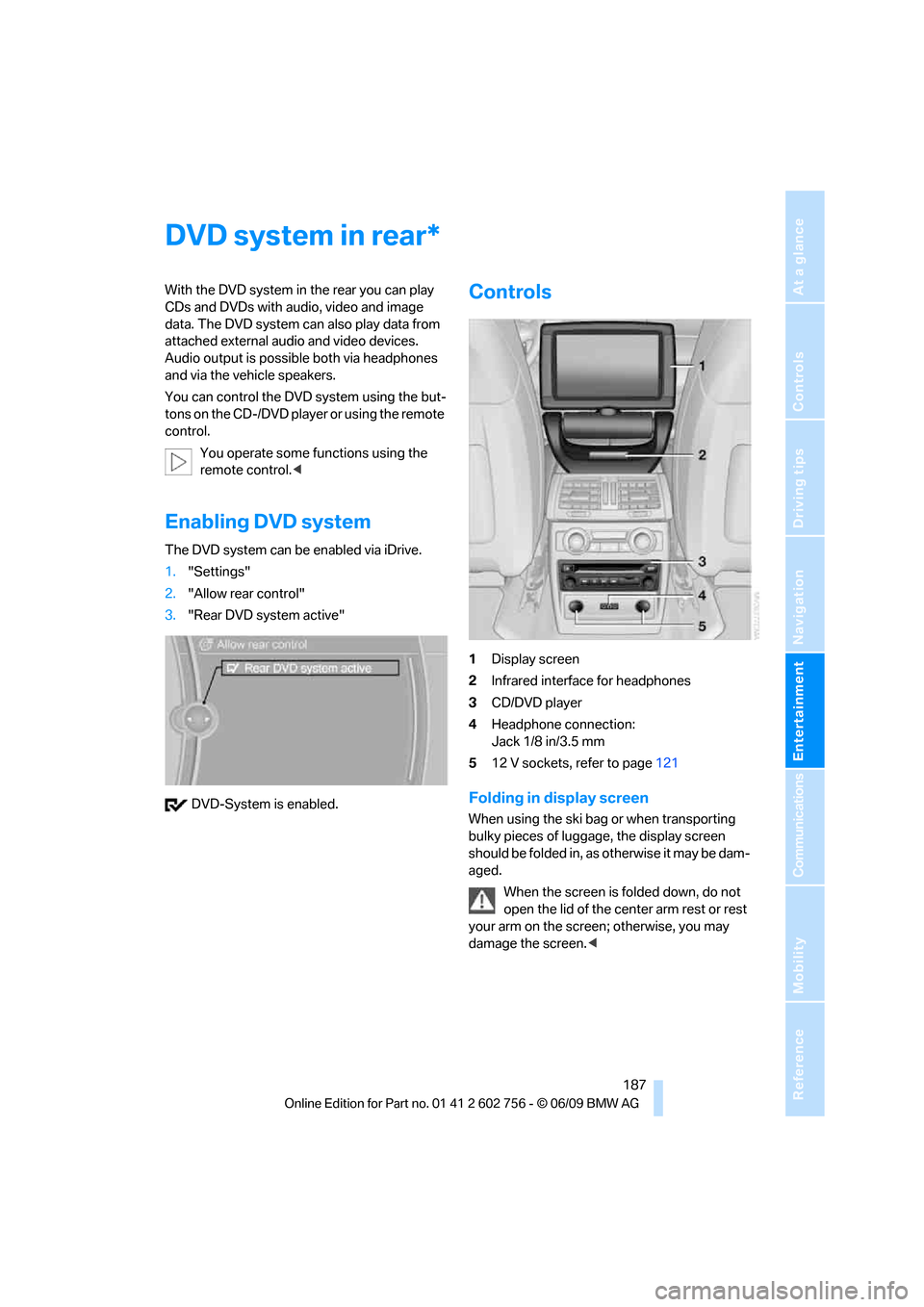
Controls
1Display screen
2Infrared interface for headphones
3CD/DVD player
4Headphone connection:
Jack 1/8 in/3.5 mm
512 V sockets, refer to page121
Folding in display screen
When using the ski bag or when transporting
bulky pieces of luggage, the display screen
should be folded in, as otherwise it may be dam-
aged.
When the screen is folded down, do not
open the lid of the center arm rest or rest
your arm on the screen; otherwise, you may
damage the screen.<
*
ba8_e70ag.book Seite 187 Freitag, 5. Juni 2009 11:42 11
Page 190 of 300
DVD system in rear
188 1.Turn display screen, arrow1.
The display screen switches off.
2.Fold in display screen, arrow2.
The display screen is folded out in the reverse
order.
CD/DVD player
Controls
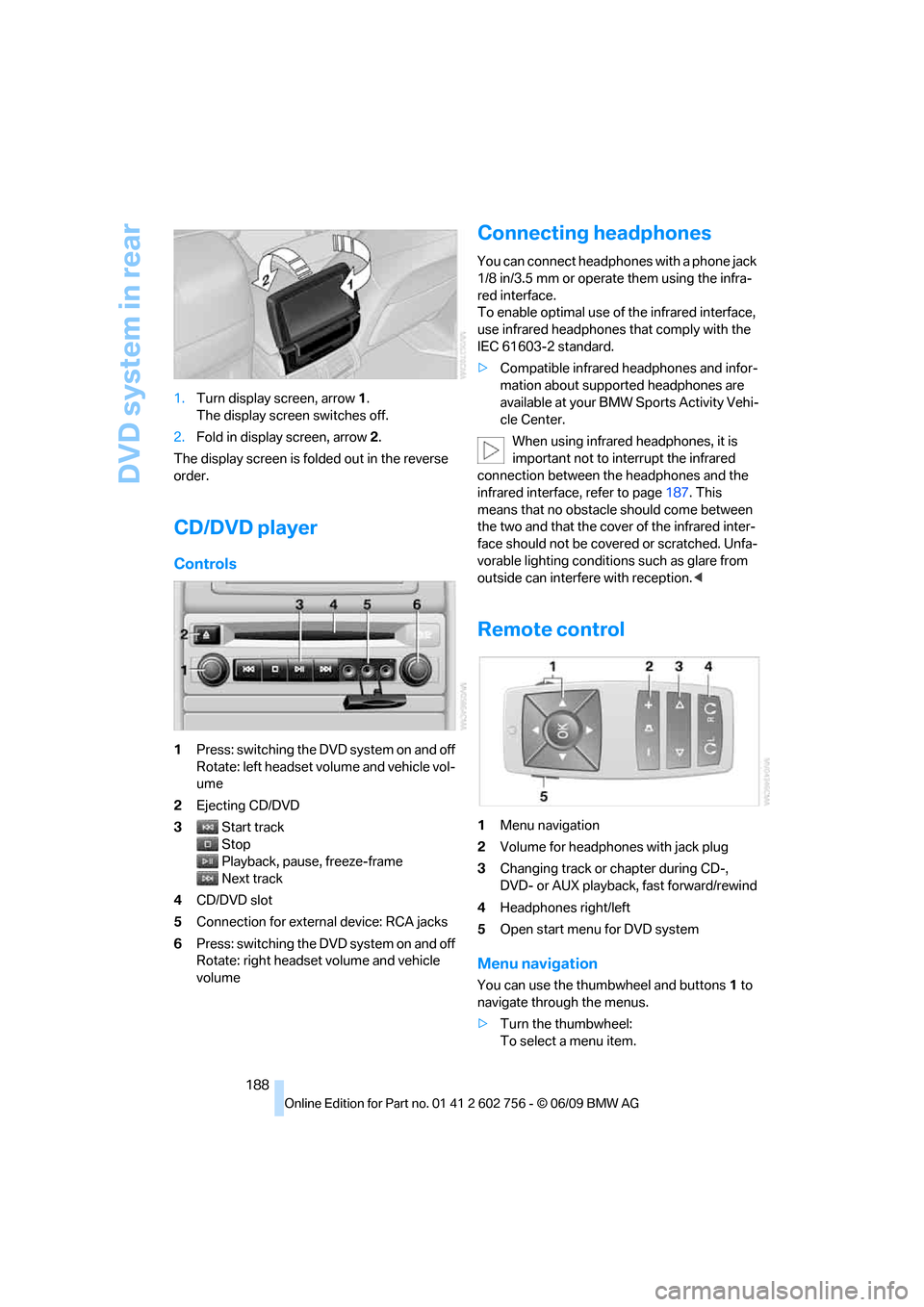
1Press: switching the DVD system on and off
Rotate: left headset volume and vehicle vol-
ume
2Ejecting CD/DVD
3Start track
Stop
Playback, pause, freeze-frame
Next track
4CD/DVD slot
5Connection for external device: RCA jacks
6Press: switching the DVD system on and off
Rotate: right headset volume and vehicle
volume
Connecting headphones
You can connect headphones with a phone jack
1/8 in/3.5 mm or operate them using the infra-
red interface.
To enable optimal use of the infrared interface,
use infrared headphones that comply with the
IEC 61603-2 standard.
>Compatible infrared headphones and infor-
mation about supported headphones are
available at your BMW Sports Activity Vehi-
cle Center.
When using infrared headphones, it is
important not to interrupt the infrared
connection between the headphones and the
infrared interface, refer to page187. This
means that no obstacle should come between
the two and that the cover of the infrared inter-
face should not be covered or scratched. Unfa-
vorable lighting conditions such as glare from
outside can interfere with reception.<
Remote control
1Menu navigation
2Volume for headphones with jack plug
3Changing track or chapter during CD-,
DVD- or AUX playback, fast forward/rewind
4Headphones right/left
5Open start menu for DVD system
Menu navigation
You can use the thumbwheel and buttons1 to
navigate through the menus.
>Turn the thumbwheel:
To select a menu item.
ba8_e70ag.book Seite 188 Freitag, 5. Juni 2009 11:42 11
Page 191 of 300
Navigation
Entertainment
Driving tips
189Reference
At a glance
Controls
Communications
Mobility
>Press the arrow buttons:
To switch between windows.
>Press the button:
To activate the menu item.
The transmission time of the remote control is
limited in accordance with legal guidelines. A
function can be repeated by pressing or turning
the appropriate button or knob.
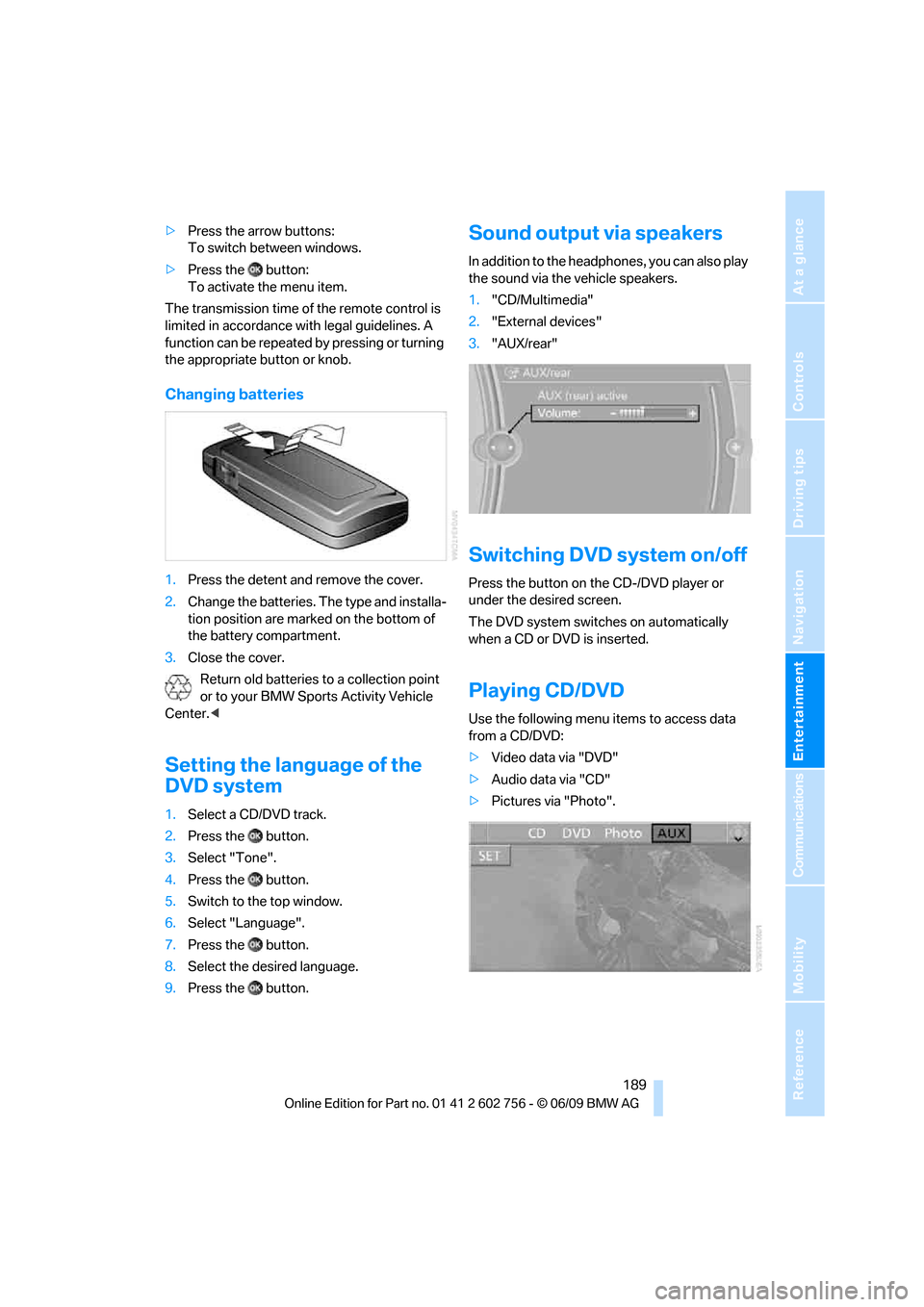
Changing batteries
1.Press the detent and remove the cover.
2.Change the batteries. The type and installa-
tion position are marked on the bottom of
the battery compartment.
3.Close the cover.
Return old batteries to a collection point
or to your BMW Sports Activity Vehicle
Center.<
Setting the language of the
DVD system
1.Select a CD/DVD track.
2.Press the button.
3.Select "Tone".
4.Press the button.
5.Switch to the top window.
6.Select "Language".
7.Press the button.
8.Select the desired language.
9.Press the button.
Sound output via speakers
In addition to the headphones, you can also play
the sound via the vehicle speakers.
1."CD/Multimedia"
2."External devices"
3."AUX/rear"
Switching DVD system on/off
Press the button on the CD-/DVD player or
under the desired screen.
The DVD system switches on automatically
when a CD or DVD is inserted.
Playing CD/DVD
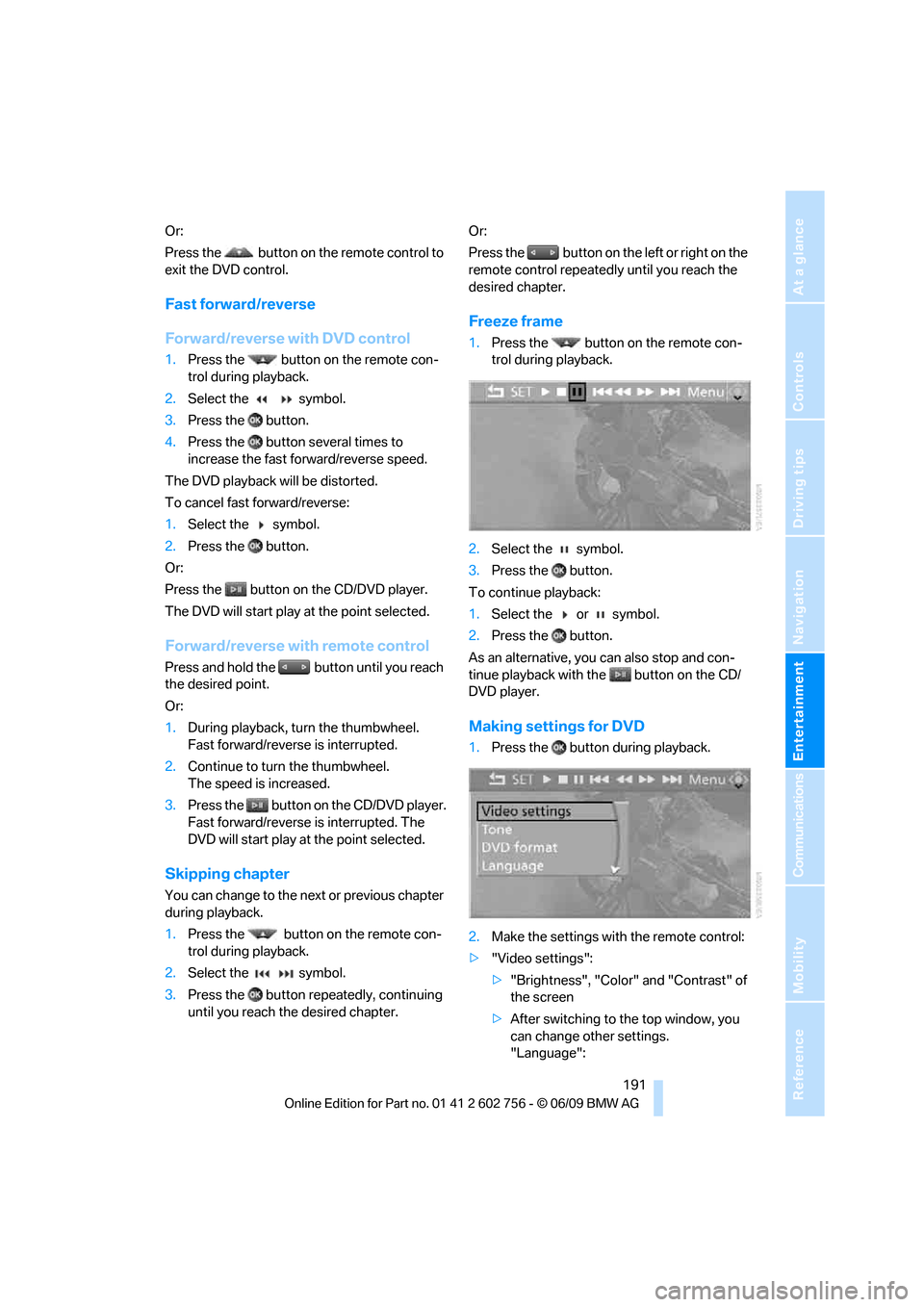
Use the following menu items to access data
from a CD/DVD:
>Video data via "DVD"
>Audio data via "CD"
>Pictures via "Photo".
ba8_e70ag.book Seite 189 Freitag, 5. Juni 2009 11:42 11
Page 193 of 300
Navigation
Entertainment
Driving tips
191Reference
At a glance
Controls
Communications
Mobility
Or:
Press the button on the remote control to
exit the DVD control.
Fast forward/reverse
Forward/reverse with DVD control
1.Press the button on the remote con-
trol during playback.
2.Select the symbol.
3.Press the button.
4.Press the button several times to
increase the fast forward/reverse speed.
The DVD playback will be distorted.
To cancel fast forward/reverse:
1.Select the symbol.
2.Press the button.
Or:
Press the button on the CD/DVD player.
The DVD will start play at the point selected.
Forward/reverse with remote control
Press and hold the button until you reach
the desired point.
Or:
1.During playback, turn the thumbwheel.
Fast forward/reverse is interrupted.
2.Continue to turn the thumbwheel.
The speed is increased.
3.Press the button on the CD/DVD player.
Fast forward/reverse is interrupted. The
DVD will start play at the point selected.
Skipping chapter
You can change to the next or previous chapter
during playback.
1.Press the button on the remote con-
trol during playback.
2.Select the symbol.
3.Press the button repeatedly, continuing
until you reach the desired chapter.Or:
Press the button on the left or right on the
remote control repeatedly until you reach the
desired chapter.
Freeze frame
1.Press the button on the remote con-
trol during playback.
2.Select the symbol.
3.Press the button.
To continue playback:
1.Select the or symbol.
2.Press the button.
As an alternative, you can also stop and con-
tinue playback with the button on the CD/
DVD player.
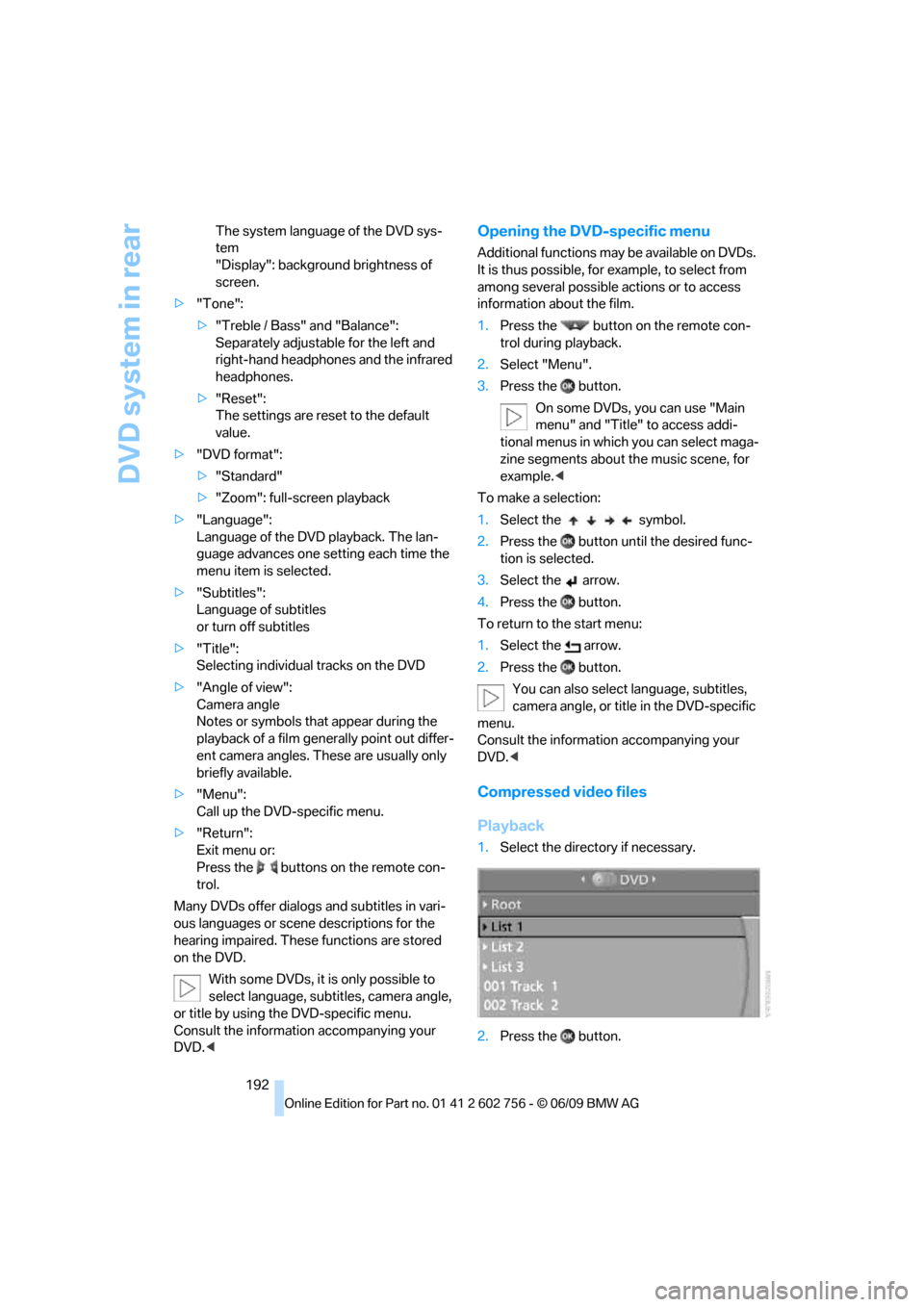
Making settings for DVD
1.Press the button during playback.
2.Make the settings with the remote control:
>"Video settings":
>"Brightness", "Color" and "Contrast" of
the screen
>After switching to the top window, you
can change other settings.
"Language":
ba8_e70ag.book Seite 191 Freitag, 5. Juni 2009 11:42 11
Page 194 of 300
DVD system in rear
192 The system language of the DVD sys-
tem
"Display": background brightness of
screen.
>"Tone":
>"Treble / Bass" and "Balance":
Separately adjustable for the left and
right-hand headphones and the infrared
headphones.
>"Reset":
The settings are reset to the default
value.
>"DVD format":
>"Standard"
>"Zoom": full-screen playback
>"Language":
Language of the DVD playback. The lan-
guage advances one setting each time the
menu item is selected.
>"Subtitles":
Language of subtitles
or turn off subtitles
>"Title":
Selecting individual tracks on the DVD
>"Angle of view":
Camera angle
Notes or symbols that appear during the
playback of a film generally point out differ-
ent camera angles. These are usually only
briefly available.
>"Menu":
Call up the DVD-specific menu.
>"Return":
Exit menu or:
Press the buttons on the remote con-
trol.
Many DVDs offer dialogs and subtitles in vari-
ous languages or scene descriptions for the
hearing impaired. These functions are stored
on the DVD.
With some DVDs, it is only possible to
select language, subtitles, camera angle,
or title by using the DVD-specific menu.
Consult the information accompanying your
DVD.<
Opening the DVD-specific menu
Additional functions may be available on DVDs.
It is thus possible, for example, to select from
among several possible actions or to access
information about the film.
1.Press the button on the remote con-
trol during playback.
2.Select "Menu".
3.Press the button.
On some DVDs, you can use "Main
menu" and "Title" to access addi-
tional menus in which you can select maga-
zine segments about the music scene, for
example.<
To make a selection:
1.Select the symbol.
2.Press the button until the desired func-
tion is selected.
3.Select the arrow.
4.Press the button.
To return to the start menu:
1.Select the arrow.
2.Press the button.
You can also select language, subtitles,
camera angle, or title in the DVD-specific
menu.
Consult the information accompanying your
DVD.<
Compressed video files
Playback
1.Select the directory if necessary.
2.Press the button.
ba8_e70ag.book Seite 192 Freitag, 5. Juni 2009 11:42 11
Page 198 of 300
DVD system in rear
196
Displaying images
1.Use the buttons or the thumbwheel of the
remote control to select an image.
2.Press the button.
3.Displaying images:
>Scroll using the menu navigation but-
tons of the remote control
>Show slide show:
Turn the thumbwheel to adjust how long
each image is displayed.
Stop slide show:
Select "Stop
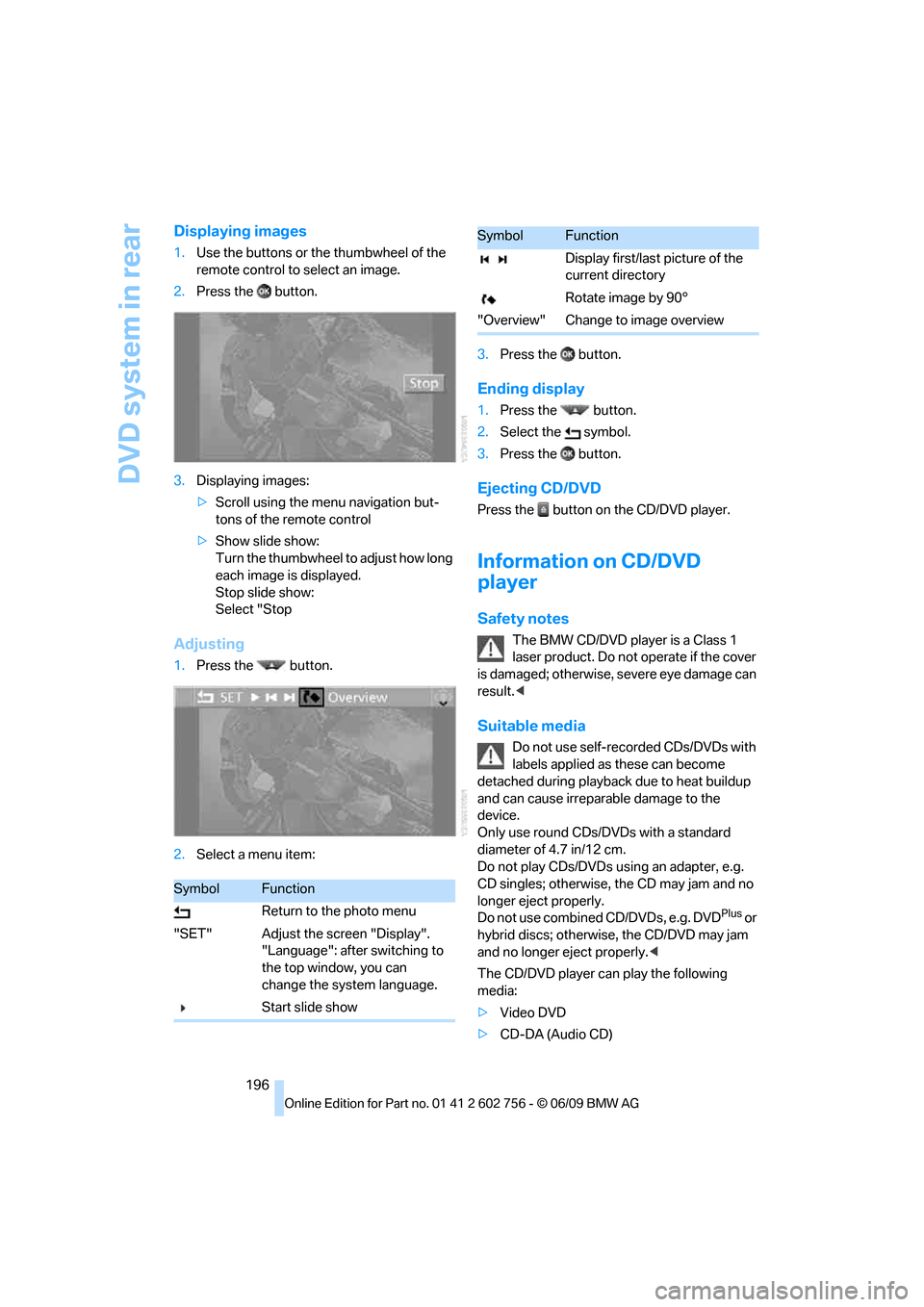
Adjusting
1.Press the button.
2.Select a menu item:3.Press the button.
Ending display
1.Press the button.
2.Select the symbol.
3.Press the button.
Ejecting CD/DVD
Press the button on the CD/DVD player.
Information on CD/DVD
player
Safety notes
The BMW CD/DVD player is a Class 1
laser product. Do not operate if the cover
is dam age d; othe rwise , se ver e e y e da mag e c a n
result.<
Suitable media
Do not use self-recorded CDs/DVDs with
labels applied as these can become
detached during playback due to heat buildup
and can cause irreparable damage to the
device.
Only use round CDs/DVDs with a standard
diameter of 4.7 in/12 cm.
Do not play CDs/DVDs using an adapter, e.g.
CD singles; otherwise, the CD may jam and no
longer eject properly.
Do not use combined CD/DVDs, e.g. DVD
Plus or
hybrid discs; otherwise, the CD/DVD may jam
and no longer eject properly.<
The CD/DVD player can play the following
media:
>Video DVD
>CD-DA (Audio CD)
SymbolFunction
Return to the photo menu
"SET" Adjust the screen "Display".
"Language": after switching to
the top window, you can
change the system language.
Start slide show
Display first/last picture of the
current directory
Rotate image by 90°
"Overview" Change to image overview
SymbolFunction
ba8_e70ag.book Seite 196 Freitag, 5. Juni 2009 11:42 11
Page 199 of 300
Navigation
Entertainment
Driving tips
197Reference
At a glance
Controls
Communications
Mobility
>CDs/DVDs with compressed image data
>CDs/DVDs with compressed audio data
>CDs/DVDs with compressed video data
The DVD player does not support DVD audio.
However, many audio DVDs available in stores
also contain a video track in the DVD Video for-
mat in addition to the audio track. These DVDs
can be played back by the DVD player. Refer to
the information on your DVD to determine
whether your audio DVD contains an additional
video track. Depending on the authoring used, it
is possible that not all functions are available
during playback.
Dual-sided DVDs available from retail suppliers
are coated on both sides and bear no markings.
This means both sides are information carriers.
To play the information on the other side, turn
over the DVD.
Supported formats
Depending on the compression method used,
not all files of the specified formats can be
opened.
Images
JPEG/JPG
With very large image files, it can take longer for
the images to be displayed.
Compressed audio files
>MP3
>WMA
>OGG
>AAC
Compressed video files
>SVCD
>MPEG1
>MPEG2
>MPEG4/DivX
Digital Rights Management (DRM)
In some cases, it may not be possible to play
CDs/DVDs with integrated Digital Rights Man-
agement (DRM).
General malfunctions
The BMW CD/DVD player is optimized for oper-
ation in the vehicle. It may react more sensi-
tively to defective CDs/DVDs than devices
intended for stationary use.
If a CD/DVD cannot be played, first check
whether it has been inserted correctly.
Make sure that no foreign objects or liq-
uids get into the CD/DVD slot; otherwise,
the CD/DVD player will be damaged.<
Humidity
High levels of humidity can lead to condensa-
tion on the CD/DVD or the laser's scan lens and
temporarily prevent playback.
Malfunctions with individual CDs/DVDs
If malfunctions occur only with particular CDs/
DVDs, this can be due to one of the following
causes.
Copied or self-recorded CDs/DVDs
Possible reasons for malfunctions with copied
or self-recorded CDs/DVDs may include incon-
sistent data-creation or recording processes, or
poor quality or significant aging of the CD/DVD
blank.
Only label CDs/DVDs on the upper side with a
pen intended for this purpose.
Damaged CDs/DVDs
Avoid fingerprints, dust, scratches and mois-
ture.
Store CDs/DVDs in a sleeve.
Do not subject CDs/DVDs to temperatures
above 1227/506 o r t o h i g h h u m i d i t y l e v e l s o r
direct sunlight.
CDs/DVDs with copy protection
CDs/DVDs are often provided with a copy pro-
tection feature by the manufacturer. As a result,
ba8_e70ag.book Seite 197 Freitag, 5. Juni 2009 11:42 11
Page 201 of 300
Navigation
Entertainment
Driving tips
199Reference
At a glance
Controls
Communications
Mobility
>"Tone":
>"Treble / Bass" and "Balance":
Separately adjustable for the left and
right-hand headphones and the infrared
headphones.
>"Reset":
Your settings are reset.
>After switching to the top window, you
can change other settings.
"Audio": adjust the volume of the exter-
nal device to the volume of the CD/DVD
player.
"Language":
the system language of the DVD system
"Display":
background brightness of screen.
>"Video Format":
>"Standard"
>"Zoom": full-screen playback
To exit from the menu:
Press the buttons on the remote control.
ba8_e70ag.book Seite 199 Freitag, 5. Juni 2009 11:42 11