head BUICK ENCLAVE 2010 Service Manual
[x] Cancel search | Manufacturer: BUICK, Model Year: 2010, Model line: ENCLAVE, Model: BUICK ENCLAVE 2010Pages: 438, PDF Size: 2.47 MB
Page 174 of 438
6-4 Lighting
Adaptive Forward
Lighting (AFL)
Vehicles with the Adaptive Forward
Lighting System (AFS) have
headlamps that swivel to the left or
right when making a turn to provide
better lighting. To enable AFS, set
the exterior lamp switch to the
AUTO position. Move the switch out
of the AUTO position to turn off the
system. SeeExterior Lamp Controls
on page 6‑1.
AFS operates when the vehicle
speed is greater than 2 mph
(3 km/h). AFS does not operate
when the transmission is in
R (Reverse). AFS is not immediately
operable after starting the vehicle;
driving a short distance is required
to calibrate the AFS.
Hazard Warning Flashers
|
Hazard Warning Flasher:
Press this button located on the
instrument panel below the audio
system, to make the front and rear turn signal lamps flash on and off.
This warns others that you are
having trouble. Press again to turn
the flashers off.
The turn signals do not work while
the hazard warning flashers are on.
Turn and Lane-Change
Signals
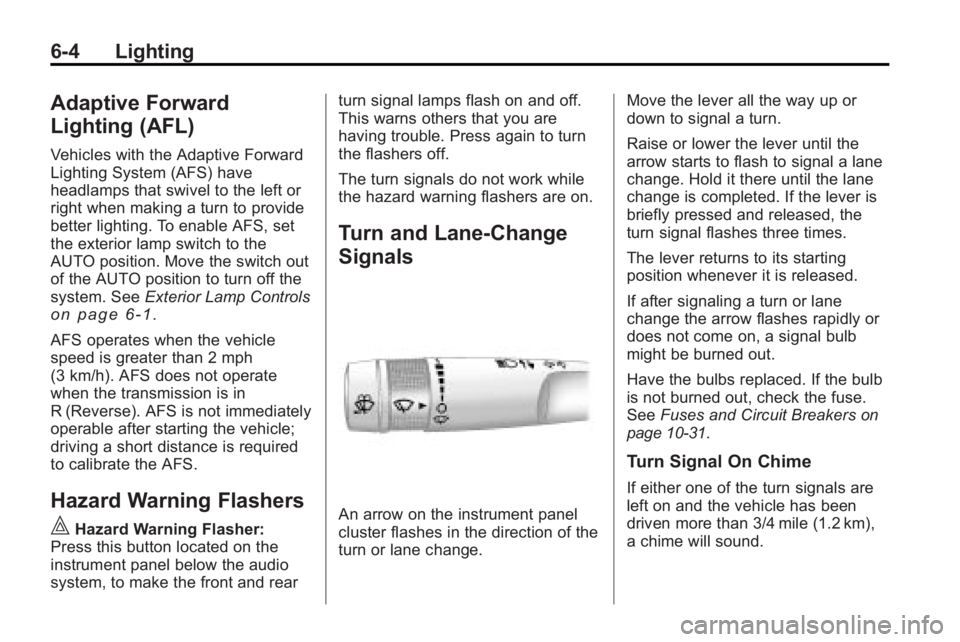
An arrow on the instrument panel
cluster flashes in the direction of the
turn or lane change.
Move the lever all the way up or
down to signal a turn.
Raise or lower the lever until the
arrow starts to flash to signal a lane
change. Hold it there until the lane
change is completed. If the lever is
briefly pressed and released, the
turn signal flashes three times.
The lever returns to its starting
position whenever it is released.
If after signaling a turn or lane
change the arrow flashes rapidly or
does not come on, a signal bulb
might be burned out.
Have the bulbs replaced. If the bulb
is not burned out, check the fuse.
See
Fuses and Circuit Breakers
on
page 10‑31.
Turn Signal On Chime
If either one of the turn signals are
left on and the vehicle has been
driven more than 3/4 mile (1.2 km),
a chime will sound.
Page 175 of 438
Lighting 6-5
Fog Lamps
Use the fog lamps for better vision
in foggy or misty conditions.
The fog lamps button is on the
exterior lamps control to the left of
the steering column.
#(Fog Lamps):Press the exterior
lamps button to turn the fog lamps
on or off. A light comes on in the
instrument panel cluster when the
fog lamps are in use. The ignition
must be on for the fog lamps
to work.
When the headlamps are changed
to high-beam, the fog lamps turn off.
The fog lamps come back on again
when the high-beam headlamps are
turned off.
Some localities have laws that
require the headlamps to be on
along with the fog lamps.
Interior Lighting
Instrument Panel
Illumination Control
D
(Instrument Panel
Brightness): The knob with this
symbol on it is next to the exterior
lamps control to the left of the
steering wheel. Push the knob in
all the way until it extends out and
then turn the knob clockwise or
counterclockwise to brighten or dim
the lights. Push the knob back in
when finished.
Dome Lamps
The dome lamps are located in the
overhead console and above the
rear seat passengers.
The dome lamps automatically
come on when a door is opened,
unless the dome lamp override
button is pressed in. The lamps can also be turned on
and off by turning the instrument
panel brightness control clockwise
to the farthest position.
Dome Lamp Override
The dome lamp override button is
next to the exterior lamps control.
E
(Dome Lamp Override): Press
the button in and the dome lamps
remain off when a door is opened.
Press the button again to return it to
the extended position so that the
dome lamps come on when a door
is opened.
Reading Lamps
Press the button near each lamp to
turn them on or off.
Page 177 of 438
Lighting 6-7
Parade Dimming
This feature automatically prohibits
the dimming of the instrument panel
displays in daylight while the
headlamps are on so that the
displays are still able to be seen.
Battery Load
Management
The vehicle has Electric Power
Management (EPM) that estimates
the battery's temperature and state
of charge. It then adjusts the voltage
for best performance and extended
life of the battery.
When the battery's state of charge
is low, the voltage is raised slightly
to quickly bring the charge back up.
When the state of charge is high,
the voltage is lowered slightly to
prevent overcharging. If the vehicle
has a voltmeter gage or a voltage
display on the Driver Information
Center (DIC), you may see thevoltage move up or down. This is
normal. If there is a problem, an
alert will be displayed.
The battery can be discharged at
idle if the electrical loads are very
high. This is true for all vehicles.
This is because the generator
(alternator) may not be spinning fast
enough at idle to produce all the
power that is needed for very high
electrical loads.
A high electrical load occurs when
several of the following are on, such
as: headlamps, high beams, fog
lamps, rear window defogger,
climate control fan at high speed,
heated seats, engine cooling fans,
trailer loads, and loads plugged into
accessory power outlets.
EPM works to prevent excessive
discharge of the battery. It does this
by balancing the generator's output
and the vehicle's electrical needs.
It can increase engine idle speed to
generate more power, whenever
needed. It can temporarily reduce
the power demands of some
accessories.
Normally, these actions occur in
steps or levels, without being
noticeable. In rare cases at the
highest levels of corrective action,
this action may be noticeable to the
driver. If so, a Driver Information
Center (DIC) message might be
displayed, such as BATTERY
SAVER ACTIVE, BATTERY
VOLTAGE LOW, or LOW BATTERY.
If one of these messages displays,
it is recommended that the driver
reduce the electrical loads as much
as possible. See
Driver Information
Center (DIC) on page 5‑25.
Page 178 of 438
6-8 Lighting
Battery Power Protection
This feature helps prevent the
battery from being drained, if the
interior courtesy lamps, reading/map
lamps, visor vanity lamps or trunk
lamp are accidentally left on. If any
of these lamps are left on, they
automatically turn off after
10 minutes, if the ignition is off. The
lamps will not come back on again
until one of the following occurs:
.The ignition is turned on.
.The exterior lamps control is
turned off, then on again.
The headlamps will timeout after
10 minutes, if they are manually
turned on while the ignition is on
or off.
Page 198 of 438
7-20 Infotainment System
Inserting a Disc
To play a disc, gently insert the disc,
with the label side up, into the
loading slot. The DVD player might
not accept some paper labeled
media. The player starts loading the
disc into the system and shows
“Loading Disc”on the radio display.
At the same time, the radio displays
a softkey menu of option(s). Some
discs automatically play the movie
while others default to the softkey
menu display, which requires the
Play, Enter, or Navigation softkeys
to be pressed; either by the softkey
on the radio or by the rear seat
passenger using the remote control.
It may take up to 30 seconds for a
DVD to begin playing. Stopping and Resuming Playback
To stop playing a DVD without
turning off the system, do one of
the following:
.Presscon the remote control.
.Press the softkey under the
stop or the play/pause icons
displayed on the radio.
.If the radio head is sourced to
something other than DVD-V,
press the DVD/CD AUX button
to make DVD-V the active
source.
To resume DVD playback, do one of
the following:
.Pressr/jon the remote
control.
.Press the softkey under the play/
pause icon displayed on the
radio.
The DVD should resume play from
where it last stopped if the disc has
not been ejected and the stop
button has not been pressed twice
on the remote control. If the disc has been ejected or the stop button
has been pressed twice on the
remote control, the disc resumes
playing at the beginning of the disc.
Ejecting a Disc
Press
ZDVD on the radio to eject
the disc. If a disc is ejected from the
radio, but not removed, the radio
reloads the disc after a short period
of time. The disc is stored in the
radio. The radio does not resume
play of the disc automatically. If the
movie is reloaded and the RSA
system is sourced to the DVD, the
player begins to play again.
If loading and reading a DVD or CD
cannot be completed, and the disc
fails to eject, press and hold
Z
DVD for more than five seconds to
force the disc to eject.
DVD Error Messages
Player Error: This message
displays when there are disc load or
eject problems.
Page 210 of 438
7-32 Infotainment System
4. Turnfto scroll through the
folders or files in the
selected menu.
5. Press
fto select the file to be
played.
To skip through large lists, the five
softkeys can be used to navigate in
the following order:
.First softkey, first item in the list.
.Second softkey, 1% through the
list each time the softkey is
pressed.
.Third softkey, 5% through the list
each time the softkey is pressed.
.Fourth softkey, 10% through the
list each time the softkey is
pressed.
.Fifth softkey, end of the list.
Repeat Functionality
To use Repeat:
Press the softkey below
"or'
to select between Repeat All and
Repeat Track.
"(Repeat All): Press the softkey
below
"to repeat all tracks. The
tab appears lowered when Repeat
All is being used. This is the default
mode when a USB storage device
or iPod is first connected.
'(Repeat Track): Press the
softkey below
'to repeat one
track. The tab appears raised when
Repeat Track is being used.
Shuffle Functionality
To use Shuffle:
Press the softkey below
>,2,
Shuffle Songs, Shuffle Album,
or Shuffle Folder.
>(Shuffle Off): This is the
default mode when a USB storage
device or iPod is first connected.
2(Shuffle All Songs / Shuffle
Songs): Shuffles all songs on the
USB storage device or iPod.
<(Shuffle Album): Shuffles all
songs in the current album on
an iPod.
=(Shuffle Folder): Shuffles all
songs in the current folder on a USB
storage device.
Auxiliary Devices
The vehicle may have a 3.5 mm
(1/8 in) auxiliary input jack located
on the lower right side of the
faceplate and for vehicles with a
USB port, it is located in the center
console.
Using the 3.5 mm (1/8 in)
Auxiliary Input Jack
The auxiliary input jack is located on
the lower right side of the faceplate.
This is not an audio output; do not
plug a headphone set into the front
auxiliary input jack. Connect an
auxiliary input device such as an
iPod
®, laptop computer, MP3 player,
CD player, or cassette tape player,
Page 212 of 438
7-34 Infotainment System
page 7‑26for information about
how to connect and control a USB
storage device or an iPod.
USB Supported Devices
.USB Flash Drives
.Portable USB Hard Drives
.Fifth generation or later iPod
.iPod nanos
.iPod touch
.iPod classic
Not all iPods and USB Drives are
compatible with the USB port.
Make sure the iPod has the latest
firmware from Apple
®for proper
operation. iPod firmware can be
updated using the latest iTunes
®
application. See www.apple.com/
itunes.
For help with identifying your iPod,
go to www.apple.com/support.
Rear Seat
Infotainment
Rear Seat Entertainment
(RSE) System
The vehicle may have a DVD Rear
Seat Entertainment (RSE) system.
The RSE system works with the
vehicle's audio system. The DVD
player is part of the front radio. The
RSE system includes a radio with a
DVD player, a video display screen,
audio/video jacks, two wireless
headphones, and a remote control.
See Operation
on page 7‑2for
more information on the vehicle's
audio/DVD system.
Before Driving
The RSE is designed for rear seat
passengers only. The driver cannot
safely view the video screen while
driving and should not try to do so. In severe or extreme weather
conditions the RSE system might or
might not work until the temperature
is within the operating range. The
operating range for the RSE system
is above
−4°F (−20°C) or below
140°F (60°C). If the temperature of
the vehicle is outside of this range,
heat or cool the vehicle until the
temperature is within the operating
range of the RSE system.
Parental Control
The RSE system may have a
Parental Control feature, depending
on the radio. To enable Parental
Control, press and hold the radio
power button for more than
two seconds to stop all system
features such as: radio, video
screen, RSA, DVD and/or CD. While
Parental Control is on,
Qdisplays.
When the radio is turned back on,
Parental Control is unlocked.
Page 213 of 438
Infotainment System 7-35
Headphones
The RSE includes two 2-channel
wireless headphones that are
dedicated to this system. Channel 1
is dedicated to the video screen,
while Channel 2 is dedicated to RSA
selections. These headphones are
used to listen to media such as
CDs, DVDs, MP3/WMAs, DVD-As,
radio, any auxiliary source
connected to A/V jacks, or the
auxiliary input jack, if the vehicle
has this feature. The wireless
headphones have an On/Off button,
channel 1/2 switch, and a volume
control. Switch the headphones to
Off when not in use.
Push the power button to turn on
the headphones. An indicator light
located on the headphones comes
on. If the light does not come on,
the batteries might need to be
replaced. Intermittent sound or static
on the headphones can also be an
indication of weak batteries. See
“Battery Replacement”later in this
section for more information. The headphones may automatically
turn off after four hours of
continuous use.
To adjust the volume on the
headphones, use the volume control
located on the right side.
Infrared transmitters are located at
the rear of the RSE overhead
console. The headphones shut off
automatically to save the battery
power if the RSE system and RSA
are shut off or if the headphones are
out of range of the transmitters for
more than three minutes. Moving too
far forward or stepping out of the
vehicle, can cause the headphones
to lose the audio signal.
For optimal audio performance, the
headphones must be worn correctly.
Headphones should be worn with
the headband over the top of the
head for best audio reception. The
symbol L (Left) appears on the
upper left side, above the ear pad
and should be positioned on the left
ear. The symbol R (Right) appears
on the upper right side, above the
ear pad and should be positioned
on the right ear.
Notice:
Do not store the
headphones in heat or direct
sunlight. This could damage the
headphones and repairs will not
be covered by the warranty.
Storage in extreme cold can
weaken the batteries. Keep the
headphones stored in a cool, dry
place.
If the foam ear pads attached to the
headphones become worn or
damaged, the pads can be replaced
separately from the headphone set.
See your dealer/retailer for more
information.
Headphones should be stored in the
front floor console and not in the
front seat back pocket. Headphone
damage can occur when the second
row seats are folded forward.
Page 214 of 438
7-36 Infotainment System
Battery Replacement
To change the batteries on the
headphones:
1. Turn the screw to loosen thebattery door located on the left
side of the headphones. Slide
the battery door open.
2. Replace the two batteries in the compartment. Make sure that
they are installed correctly, using
the diagram on the inside of the
battery compartment.
3. Replace the battery door and tighten the door screw.
If the headphones are to be stored
for a long period of time, remove the
batteries and keep them in a cool,
dry place.Audio/Video (A/V) Jacks
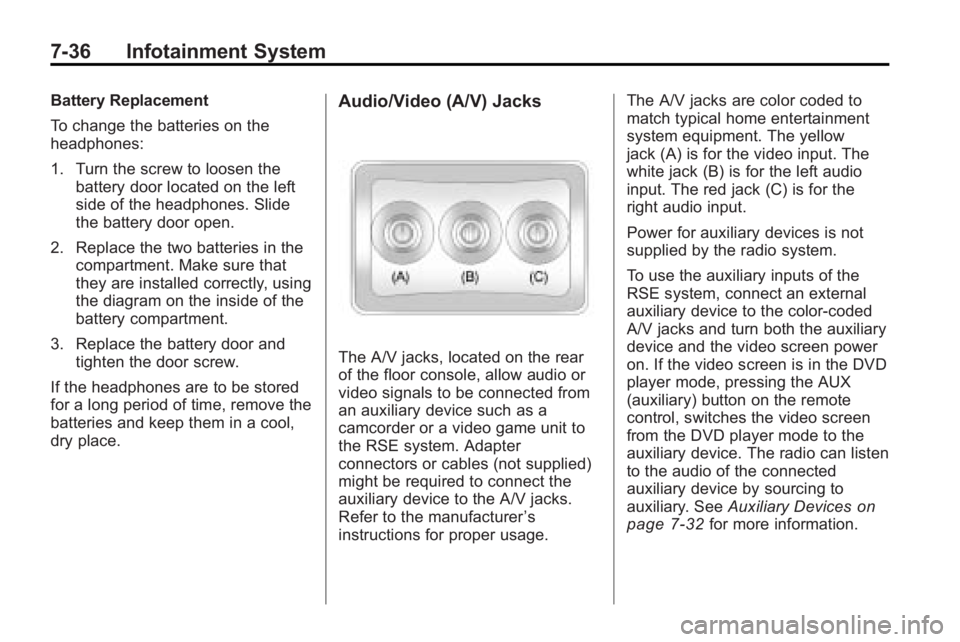
The A/V jacks, located on the rear
of the floor console, allow audio or
video signals to be connected from
an auxiliary device such as a
camcorder or a video game unit to
the RSE system. Adapter
connectors or cables (not supplied)
might be required to connect the
auxiliary device to the A/V jacks.
Refer to the manufacturer ’s
instructions for proper usage. The A/V jacks are color coded to
match typical home entertainment
system equipment. The yellow
jack (A) is for the video input. The
white jack (B) is for the left audio
input. The red jack (C) is for the
right audio input.
Power for auxiliary devices is not
supplied by the radio system.
To use the auxiliary inputs of the
RSE system, connect an external
auxiliary device to the color-coded
A/V jacks and turn both the auxiliary
device and the video screen power
on. If the video screen is in the DVD
player mode, pressing the AUX
(auxiliary) button on the remote
control, switches the video screen
from the DVD player mode to the
auxiliary device. The radio can listen
to the audio of the connected
auxiliary device by sourcing to
auxiliary. See
Auxiliary Devices
on
page 7‑32for more information.
Page 215 of 438
Infotainment System 7-37
How to Change the RSE Video
Screen Settings
The screen display mode (normal,
full, and zoom), screen brightness,
and setup menu language can be
changed from the on screen setup
menu by using the remote control.
To change a setting:
1. Press
z.
2. Use
n,q,p,oandrto
navigate and use the
setup menu.
3. Press
zagain to remove the
setup menu from the screen.
Audio Output
Audio from the DVD player or
auxiliary inputs can be heard
through the following sources:
.Wireless Headphones
.Vehicle Speakers
.Vehicle wired headphone jacks
on the rear seat audio system,
if the vehicle has this feature. The RSE system always transmits
the audio signal to the wireless
headphones, if there is audio
available. See
“Headphones” earlier
in this section for more information.
The DVD player is capable of
outputting audio to the wired
headphone jacks on the RSA
system, if the vehicle has this
feature. The DVD player can be
selected as an audio source on the
RSA system. See Rear Seat Audio
(RSA) System
on page 7‑42for
more information.
When a device is connected to the
A/V jacks, or the radio's auxiliary
input jack, if the vehicle has this
feature, the rear seat passengers
are able to hear audio from the
auxiliary device through the wireless
or wired headphones. The front seat
passengers are able to listen to
playback from this device through
the vehicle speakers by selecting
AUX as the source on the radio.
Video Screen
The video screen is located in the
overhead console. When the video
screen is not in use, push it up into
its locked position.
To use the video screen:
1. Push the release button located on the overhead console.
2. Move the screen to the desired position.
If a DVD is playing and the screen
is raised to its locked position, the
screen remains on; this is normal,
and the DVD continues to play
through the previous audio source.
Press
Pon the remote control or
eject the disc to turn off the screen.