RKE BUICK ENCORE 2021 Owner's Guide
[x] Cancel search | Manufacturer: BUICK, Model Year: 2021, Model line: ENCORE, Model: BUICK ENCORE 2021Pages: 313, PDF Size: 11.21 MB
Page 97 of 313

Buick Encore Owner Manual (GMNA-Localizing-U.S./Canada-14607636) -
2021 - CRC - 8/18/20
96 Instruments and Controls
Remote Left in Vehicle Alert
This feature sounds an alert when the RKE
transmitter is left in the vehicle. This menu
also enables the Remote No Longer In
Vehicle Alert.
Touch Off or On.
Valet Mode
This will lock the infotainment system and
steering wheel controls. It may also limit
access to vehicle storage locations,
if equipped.
To enable valet mode:1. Enter a four-digit code on the keypad.
2. Select Enter to go to the confirmation screen.
3. Re-enter the four-digit code.
Touch Lock or Unlock to lock or unlock the
system. Touch Back to go back to the
previous menu.
Page 99 of 313

Buick Encore Owner Manual (GMNA-Localizing-U.S./Canada-14607636) -
2021 - CRC - 8/18/20
98 Lighting
This indicator light turns on in the
instrument cluster when the high-beam
headlamps are on.
Flash-to-Pass
To flash the high beams, pull the turn signal
lever all the way toward you. Then
release it.
Daytime Running Lamps (DRL)
Daytime Running Lamps can make it easier
for others to see the front of your vehicle
during the day. Fully functional DRL are
required on all vehicles first sold in Canada.
A light sensor on top of the instrument
panel makes the DRL work, so be sure it is
not covered.The DRL system makes the low-beam
headlamps come on at a reduced brightness
when the following conditions are met:
.The ignition is on.
.The exterior lamp control is in AUTO.
.The engine is running.
When the DRL are on, the taillamps,
sidemarker, instrument panel, and other
lamps will not be on.
The headlamps automatically change from
DRL to the regular headlamps depending on
the darkness of the surroundings. The other
lamps that come on with the headlamps will
also come on.
When it is bright enough outside, the
headlamps go off and the DRL come on.
The DRL turn off when the headlamps are
turned to
Oor the ignition is off. For
vehicles first sold in Canada, this control
only works when the vehicle is parked.
Automatic Headlamp System
When it is dark enough outside and the
exterior lamp control is in the automatic
position, the headlamps come on
automatically. See Exterior Lamp Controls
0 97.
The vehicle has a light sensor on top of the
instrument panel. Make sure it is not
covered, or the headlamps will be on when
they are not needed.
The system may also turn on the headlamps
when driving through a parking garage or
tunnel.
Page 102 of 313
Buick Encore Owner Manual (GMNA-Localizing-U.S./Canada-14607636) -
2021 - CRC - 8/18/20
Lighting 101
Reading Lamps
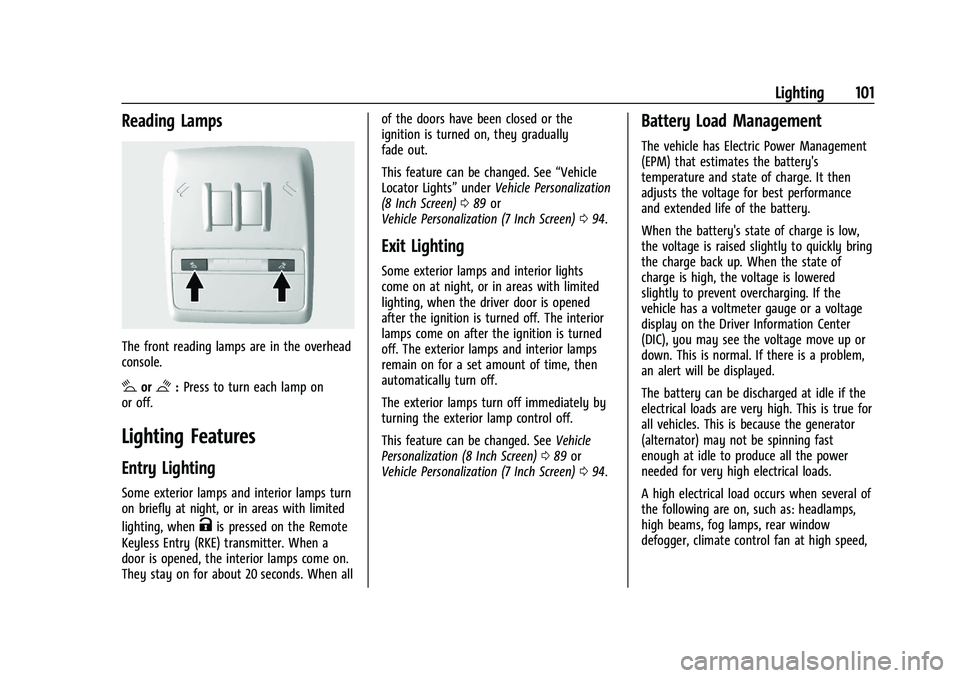
The front reading lamps are in the overhead
console.
#or$:Press to turn each lamp on
or off.
Lighting Features
Entry Lighting
Some exterior lamps and interior lamps turn
on briefly at night, or in areas with limited
lighting, when
Kis pressed on the Remote
Keyless Entry (RKE) transmitter. When a
door is opened, the interior lamps come on.
They stay on for about 20 seconds. When all of the doors have been closed or the
ignition is turned on, they gradually
fade out.
This feature can be changed. See
“Vehicle
Locator Lights” underVehicle Personalization
(8 Inch Screen) 089 or
Vehicle Personalization (7 Inch Screen) 094.
Exit Lighting
Some exterior lamps and interior lights
come on at night, or in areas with limited
lighting, when the driver door is opened
after the ignition is turned off. The interior
lamps come on after the ignition is turned
off. The exterior lamps and interior lamps
remain on for a set amount of time, then
automatically turn off.
The exterior lamps turn off immediately by
turning the exterior lamp control off.
This feature can be changed. See Vehicle
Personalization (8 Inch Screen) 089 or
Vehicle Personalization (7 Inch Screen) 094.
Battery Load Management
The vehicle has Electric Power Management
(EPM) that estimates the battery's
temperature and state of charge. It then
adjusts the voltage for best performance
and extended life of the battery.
When the battery's state of charge is low,
the voltage is raised slightly to quickly bring
the charge back up. When the state of
charge is high, the voltage is lowered
slightly to prevent overcharging. If the
vehicle has a voltmeter gauge or a voltage
display on the Driver Information Center
(DIC), you may see the voltage move up or
down. This is normal. If there is a problem,
an alert will be displayed.
The battery can be discharged at idle if the
electrical loads are very high. This is true for
all vehicles. This is because the generator
(alternator) may not be spinning fast
enough at idle to produce all the power
needed for very high electrical loads.
A high electrical load occurs when several of
the following are on, such as: headlamps,
high beams, fog lamps, rear window
defogger, climate control fan at high speed,
Page 119 of 313
Buick Encore Owner Manual (GMNA-Localizing-U.S./Canada-14607636) -
2021 - CRC - 8/18/20
118 Infotainment System
OnStar System
OnStar System (8 Inch Screen)
4G LTE
If equipped with 4G LTE, up to seven
devices, such as smartphones, tablets, and
laptops, can be connected to high-speed
Internet through the vehicle’s built-in Wi-Fi
hotspot.
Call 1-888-4ONSTAR (1-888-466-7827) to
connect to an OnStar Advisor for assistance.
See www.onstar.com for vehicle availability,
details, and system limitations. Service and
connectivity may vary by make, model,
year, carrier, availability, and conditions. 4G
LTE service is available in select markets. 4G
LTE performance is based on industry
averages and vehicle systems design. Some
services require a data plan.
The OnStar App
If equipped, the infotainment system has
OnStar controls in the embedded OnStar app
on the Home Page. All OnStar functions that
can be performed with the buttons can be
done using the app. To open the app, select
the OnStar icon on the Home Page. Featuresvary by region and model. Features are
subject to change. For more information on
this feature, see my.buick.com/learn
Voice Recognition
Voice Recognition (8 Inch Screen)
If equipped, voice recognition allows for
hands-free operation within the navigation,
audio, phone, and weather applications. This
feature can be started by pressing
gon the
steering wheel controls or by touching
gon
the infotainment display.
However, not all features within these areas
are supported by voice commands.
Generally, only complex tasks that require
multiple manual interactions to complete
are supported by voice commands.
For example, tasks that take more than one
or two touches such as selecting a song or
artist to play from a media device would be
supported by voice commands. Other tasks,
like adjusting the volume or seeking up or
down, are audio features that are easily
performed by pressing one or two controls,
and are not supported by voice commands. In general there are flexible ways to speak
commands for completing the tasks. Most of
them, except voice keypad, can be
completed in a single command. If the task
takes more than one command to complete,
the first command should be to indicate the
kind of task to be performed. The system
replies with prompts that lead you through
a dialog to enter the necessary information.
Voice recognition can be used when the
ignition is on or when Retained Accessory
Power (RAP) is active.Using Voice Recognition
Voice recognition becomes available once
the system has been initialized. This begins
when the ignition is turned on. Initialization
may take a few moments.
1. Press
gon the steering wheel controls
to activate voice recognition, or touch
g
on the infotainment display.
2. The audio system mutes and the system plays a prompt followed by a beep.
3. Wait until after the beep completes, then clearly speak one of the commands
described in this section.
Page 124 of 313
Buick Encore Owner Manual (GMNA-Localizing-U.S./Canada-14607636) -
2021 - CRC - 8/18/20
Infotainment System 123
activate the phone voice recognition system,
press and hold
gon the steering wheel
controls for a few seconds.
Phone
Bluetooth (Overview for 8 Inch
Screen)
The Bluetooth-capable system can interact
with many cell phones, allowing:
.Placement and receipt of calls in a
hands-free mode.
.Sharing of the cell phone’s address book
or contact list with the vehicle.
To minimize driver distraction, before
driving, and with the vehicle parked:
.Become familiar with the features of the
cell phone. Organize the phone book and
contact lists clearly and delete duplicate
or rarely used entries. If possible,
program speed dial or other shortcuts.
.Review the controls and operation of the
infotainment system.
.Pair cell phone(s) to the vehicle. The
system may not work with all cell
phones. See “Pairing”in this section. Vehicles with a Bluetooth system can use a
Bluetooth-capable cell phone with a
Hands-Free Profile to make and receive
phone calls. The infotainment system and
voice recognition are used to control the
system. The system can be used with the
ignition on or in ACC/ACCESSORY. The range
of the Bluetooth system can be up to 9.1 m
(30 ft). Not all phones support all functions
and not all phones work with the Bluetooth
system. See www.gm.com/bluetooth for
more information about compatible phones.
Bluetooth Controls
Use the infotainment display features on
the infotainment system or press the
steering wheel icon to operate the Bluetooth
system.
Steering Wheel Controls
g:
Press to answer incoming calls, confirm
system information, and start voice
recognition.
c: Press to end a call, decline a call,
or cancel an operation. Press to mute or
unmute the infotainment system when not
on a call. Infotainment System Features
For information about how to navigate the
menu system using the infotainment
features, see
Overview (8 Inch Screen) 0105.
Phone : Touch the Home Page to enter the
phone main menu.
Audio System
When using the Bluetooth system, sound
comes through the vehicle's front audio
system speakers and overrides the audio
system. Press
Oduring a call to change the
volume level. The adjusted volume level
remains in memory for later calls. The
system maintains a minimum volume level.
Bluetooth (Pairing and Using the
Phone for 8 Inch Screen)
Pairing
A Bluetooth-enabled cell phone must be
paired to the Bluetooth system and then
connected to the vehicle before it can be
used. See the cell phone manufacturer's user
guide for Bluetooth functions before pairing
the cell phone.
Page 129 of 313
Buick Encore Owner Manual (GMNA-Localizing-U.S./Canada-14607636) -
2021 - CRC - 8/18/20
128 Infotainment System
Viewing Sender Information
If equipped, touch the name of the sender
to view sender information if this
information matches contact information
already stored.
Select a Predefined Message :Touch to
select from a set of quick messages. Touch
the message to send.
Predefined Messages
These are short text messages that can be
used to send so responses will not have to
be typed.
The messages can be deleted or a new
message can be added.
To add a new message:
1. Touch Text Settings, then touch Manage Predefined Messages.
2. While in the predefined messages list view, select Add New Predefined
Message and a keyboard displays.
3. Type a new message and touch NEW MSG when done to add the message.
Press
SBACK on the center stack or
touch the Back icon on the infotainment display to go back to the predefined
messages list. Touch
zto delete one
character at a time.
Memory Full
This message may display if there is no
more room on the phone to store messages.
Text Settings
Text Alerts : When on, this feature will
display an alert when a new text message
has been received. Touch to turn on or off.
Manage Predefined Messages : Touch to
add, change, or delete predefined messages.
Apple CarPlay and Android Auto
(8 Inch Screen)
If equipped, Android Auto and/or Apple
CarPlay capability may be available through
a compatible smartphone. If available,
PROJECTION will appear on the Home Page
of the infotainment display.
To use Android Auto and/or Apple CarPlay:
1. Download the Android Auto app to your phone from the Google Play store. No
app is required for Apple CarPlay. 2. Connect an Android phone or iPhone by
using the compatible phone USB cable
and plugging into a USB data port. For
best performance, use the device’s
factory-provided USB cable. Aftermarket
or third-party cables may not work.
3. When the phone is first connected to activate Apple CarPlay or Android Auto,
the message “Device Projection Privacy
Consent” will appear.
.Touch Continue to launch Apple
CarPlay or Android Auto.
.Touch Disable to remove Apple
CarPlay and Android Auto capability
from the vehicle Settings menu.
Other functions may still work.
PROJECTION on the Home Page will change
to Android Auto or Apple CarPlay depending
on the phone. Android Auto and/or Apple
CarPlay may automatically launch upon USB
connection. If not, touch the ANDROID AUTO
and/or APPLE CARPLAY icon on the Home
Page to launch.
Press Home on the center stack to return to
the Home Page.
Page 134 of 313
Buick Encore Owner Manual (GMNA-Localizing-U.S./Canada-14607636) -
2021 - CRC - 8/18/20
Infotainment System 133
of its content. Furthermore, the AMBER voice
compression software included in this
product is protected by intellectual property
rights including patent rights, copyrights,
and trade secrets of Digital Voice
Systems, Inc.
General Requirements:1. A License Agreement from SiriusXM is required for any product that
incorporates SiriusXM Technology and/or
for use of any of the SiriusXM marks to
be manufactured, distributed,
or marketed in the SiriusXM
Service Area.
2. For products to be distributed, marketed, and/or sold in Canada, a separate
agreement is required with Canadian
Satellite Radio Inc. (operating as SiriusXM
Canada).
Bose
Bose, AudioPilot and Bose Centerpoint
surround are registered trademarks of Bose
Corporation in the U.S. and other countries.
DTS
Manufactured under license under U.S.Patent
Nos: 5,956,674; 5,974,380; 6,487,535 & other
U.S. and worldwide patents issued &
pending. For DTS patents, see http://patents.dts.com.
Manufactured under license from DTS
Licensing Limited. DTS, the Symbol, & DTS,
and the Symbol together are registered
trademarks, and DTS 2.0 Channel is a
trademark of DTS, Inc. ©DTS, Inc. All Rights
Reserved.
Dolby
Manufactured under license from Dolby
Laboratories. Dolby and the double-D symbol
are trademarks of Dolby Laboratories.
Java
Java is a registered trademark of Oracle
and/or its affiliates.
Cinavia
Cinavia Notice: This product uses Cinavia
technology to limit the use of unauthorized
copies of some commercially-produced film
and videos and their soundtracks. When a
prohibited use of an unauthorized copy is
detected, a message will be displayed or
copying will be interrupted.
More information about Cinavia technology
is provided at the Cinavia Online Consumer
Information Center at http://
www.cinavia.com. To request additional
information about Cinavia by mail, send a
postcard with your mailing address to:
Cinavia Consumer Information Center, P.O.
Box 86851, San Diego, CA, 92138, USA.
This product incorporates proprietary
technology under license from Verance
Corporation and is protected by U.S. Patent
7,369,677 and other U.S. and worldwide
patents issued and pending as well as
copyright and trade secret protection for
certain aspects of such technology. Cinavia is
a trademark of Verance Corporation.
Copyright 2004-2015 Verance Corporation. All
rights reserved by Verance. Reverse
engineering or disassembly is prohibited.
RMVB
Portions of this software are included under
license from RealNetworks, Inc. Copyright
1995-2015, RealNetworks, Inc. All rights
reserved
Page 138 of 313
Buick Encore Owner Manual (GMNA-Localizing-U.S./Canada-14607636) -
2021 - CRC - 8/18/20
Infotainment System 137
{Warning
Taking your eyes off the road for too
long or too often while using any
infotainment feature can cause a crash.
You or others could be injured or killed.
Do not give extended attention to
infotainment tasks while driving. Limit
your glances at the vehicle displays and
focus your attention on driving. Use voice
commands whenever possible.
The infotainment system has built-in
features intended to help avoid distraction
by disabling some features when driving.
These features may gray out when they are
unavailable. Many infotainment features are
also available through the instrument cluster
and steering wheel controls. Before driving:.Become familiar with the operation,
center stack controls, steering wheel
controls, and infotainment display.
.Set up the audio by presetting favorite
stations, setting the tone, and adjusting
the speakers.
.Set up phone numbers in advance so they
can be called easily by pressing a single
control or by using a single voice
command.
See Distracted Driving 0164.
Active Noise Cancellation (ANC)
If equipped, ANC reduces engine noise in the
vehicle’s interior. ANC requires the
factory-installed audio system, radio,
speakers, amplifier (if equipped), induction
system, and exhaust system to work
properly. Deactivation is required by your
dealer if related aftermarket equipment is
installed.
Page 142 of 313
Buick Encore Owner Manual (GMNA-Localizing-U.S./Canada-14607636) -
2021 - CRC - 8/18/20
Infotainment System 141
done up, down, right, or left. This feature is
only available when vehicle is parked and
not in motion.
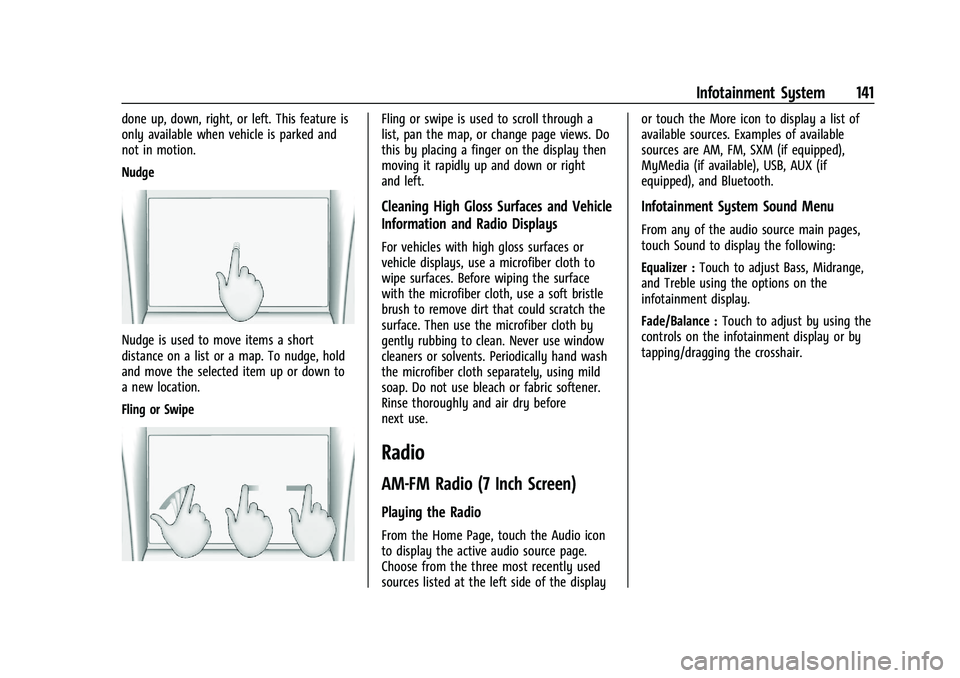
Nudge
Nudge is used to move items a short
distance on a list or a map. To nudge, hold
and move the selected item up or down to
a new location.
Fling or Swipe
Fling or swipe is used to scroll through a
list, pan the map, or change page views. Do
this by placing a finger on the display then
moving it rapidly up and down or right
and left.
Cleaning High Gloss Surfaces and Vehicle
Information and Radio Displays
For vehicles with high gloss surfaces or
vehicle displays, use a microfiber cloth to
wipe surfaces. Before wiping the surface
with the microfiber cloth, use a soft bristle
brush to remove dirt that could scratch the
surface. Then use the microfiber cloth by
gently rubbing to clean. Never use window
cleaners or solvents. Periodically hand wash
the microfiber cloth separately, using mild
soap. Do not use bleach or fabric softener.
Rinse thoroughly and air dry before
next use.
Radio
AM-FM Radio (7 Inch Screen)
Playing the Radio
From the Home Page, touch the Audio icon
to display the active audio source page.
Choose from the three most recently used
sources listed at the left side of the displayor touch the More icon to display a list of
available sources. Examples of available
sources are AM, FM, SXM (if equipped),
MyMedia (if available), USB, AUX (if
equipped), and Bluetooth.
Infotainment System Sound Menu
From any of the audio source main pages,
touch Sound to display the following:
Equalizer :
Touch to adjust Bass, Midrange,
and Treble using the options on the
infotainment display.
Fade/Balance : Touch to adjust by using the
controls on the infotainment display or by
tapping/dragging the crosshair.
Page 149 of 313
Buick Encore Owner Manual (GMNA-Localizing-U.S./Canada-14607636) -
2021 - CRC - 8/18/20
148 Infotainment System
Browse functionality will be provided where
supported by the Bluetooth device. This
media content will not be part of the
MyMedia source mode.
Some smartphones support sending
Bluetooth music information to display on
the radio. When the radio receives this
information, it will check to see if any is
available and display it. For more
information about supported Bluetooth
features, see my.buick.com/learn.
OnStar System
OnStar System (7 Inch Screen)
4G LTE
If equipped with 4G LTE, up to seven
devices, such as smartphones, tablets, and
laptops, can be connected to high-speed
Internet through the vehicle’s built-in Wi-Fi
hotspot.
Call 1-888-4ONSTAR (1-888-466-7827) to
connect to an OnStar Advisor for assistance.
See www.onstar.com for vehicle availability,
details, and system limitations. Service and
connectivity may vary by make, model,
year, carrier, availability, and conditions. 4G
LTE service is available in select markets. 4GLTE performance is based on industry
averages and vehicle systems design. Some
services require a data plan.
The OnStar App
If equipped, the infotainment system has
OnStar controls in the embedded OnStar app
on the Home Page. Most OnStar functions
that can be performed with the buttons can
be done using the app. To open the app,
touch the OnStar icon on the Home Page.
App updates require a corresponding service
plan. Features vary by region and model.
Features are subject to change. For more
information, see my.buick.com/learn or
press
Q.
Services
The Services tab displays the default view
for the app. Use this page to launch the
available OnStar services. Touch a service to
open its display. Touch Wi-Fi to launch the
connections manager. Turn-by-Turn and
Advisor Call are the other tiled options. Account
The Account tab displays a snapshot of the
account linked with the vehicle. If there is
no such account, this tab will show all
values as
——. The call advisor call icon will
be active even if there is no active account.
Advisor Call
Selecting Advisor Call is the same as
pressing
Qor calling 1-888-4ONSTAR
(1-888-466-7827). The X option in the upper
right corner of the screen does not end the
call, but returns to the previous screen.
Turn-by-Turn Directions
With a connected plan, an OnStar Advisor
can download a destination to the vehicle or
its embedded navigation system,
if equipped. Select Turn-by-Turn Directions
from the Services tab of the OnStar app to
call an Advisor or select a recent or favorite
destination. Touch the navigation icons to
select home, address or place. A destination
transfer from OnStar will show the detail
view of the destination when it is
transferred from OnStar to the Navigation
application. See www.onstar.com for a
coverage map. Services vary by model. Map
coverage is available in the United States,
Puerto Rico, and Canada.