Acc BUICK ENVISION 2019 Workshop Manual
[x] Cancel search | Manufacturer: BUICK, Model Year: 2019, Model line: ENVISION, Model: BUICK ENVISION 2019Pages: 377, PDF Size: 6.03 MB
Page 141 of 377
Buick Envision Owner Manual (GMNA-Localizing-U.S./Canada/Mexico-
12032235) - 2019 - CRC - 6/27/18
140 Instruments and Controls
SeeCruise Control 0205.
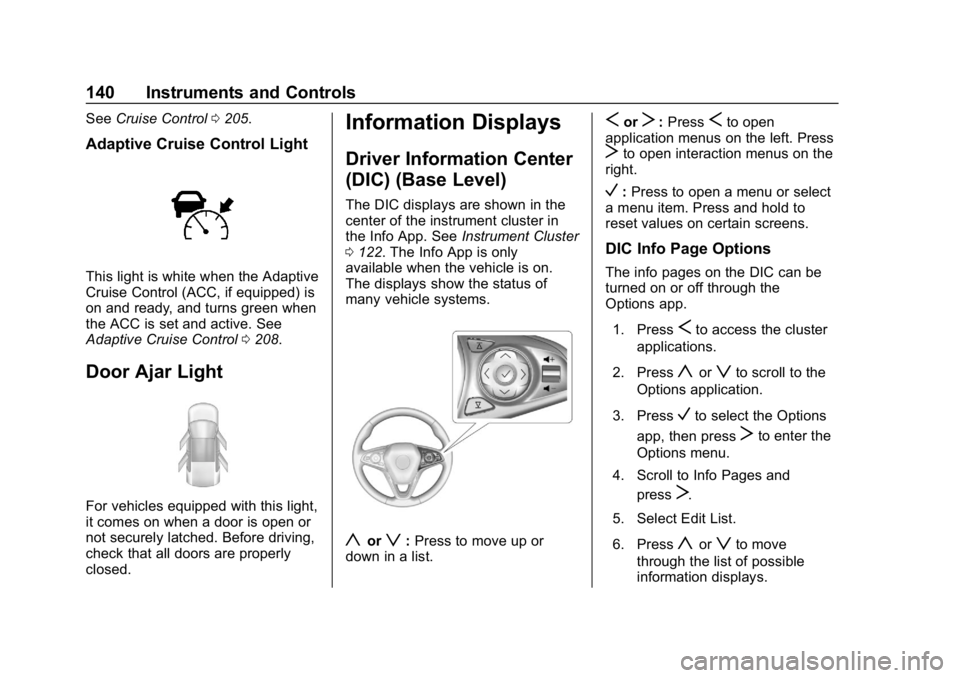
Adaptive Cruise Control Light
This light is white when the Adaptive
Cruise Control (ACC, if equipped) is
on and ready, and turns green when
the ACC is set and active. See
Adaptive Cruise Control 0208.
Door Ajar Light
For vehicles equipped with this light,
it comes on when a door is open or
not securely latched. Before driving,
check that all doors are properly
closed.
Information Displays
Driver Information Center
(DIC) (Base Level)
The DIC displays are shown in the
center of the instrument cluster in
the Info App. See Instrument Cluster
0 122. The Info App is only
available when the vehicle is on.
The displays show the status of
many vehicle systems.
yorz: Press to move up or
down in a list.
SorT: PressSto open
application menus on the left. Press
Tto open interaction menus on the
right.
V: Press to open a menu or select
a menu item. Press and hold to
reset values on certain screens.
DIC Info Page Options
The info pages on the DIC can be
turned on or off through the
Options app.
1. Press
Sto access the cluster
applications.
2. Press
yorzto scroll to the
Options application.
3. Press
Vto select the Options
app, then press
Tto enter the
Options menu.
4. Scroll to Info Pages and press
T.
5. Select Edit List.
6. Press
yorzto move
through the list of possible
information displays.
Page 143 of 377
Buick Envision Owner Manual (GMNA-Localizing-U.S./Canada/Mexico-
12032235) - 2019 - CRC - 6/27/18
142 Instruments and Controls
Oil Life :Displays an estimate of
the oil's remaining useful life.
If REMAINING OIL LIFE 99% is
displayed, that means 99% of the
current oil life remains.
When the remaining oil life is low,
the CHANGE ENGINE OIL SOON
message will appear on the display.
The oil should be changed as soon
as possible. See Engine Oil0250.
In addition to the engine oil life
system monitoring the oil life,
additional maintenance is
recommended. See Maintenance
Schedule 0323.
The Oil Life display must be reset
after each oil change. It will not
reset itself. Do not reset the Oil Life
display accidentally at any time
other than when the oil has just
been changed. It cannot be reset
accurately until the next oil change.
To reset the engine oil life system,
press and hold
Vfor several
seconds while the Oil Life display is
active. See Engine Oil Life System
0 252. Coolant Temperature :
Displays
the coolant temperature in degrees
Celsius (°C) or degrees
Fahrenheit (°F).
Tire Pressure : Displays the
approximate pressures of all four
tires. Tire pressure is displayed in
kilopascal (kPa) or pounds per
square inch (psi). If the pressure is
low, the value for that tire is shown
in amber. See Tire Pressure Monitor
System 0286 andTire Pressure
Monitor Operation 0287.
Battery Voltage : Displays the
current battery voltage. The battery
voltage can fluctuate while viewing
this information on the DIC. This is
normal.
Follow Distance Indicator/Gap
Setting : The current follow time to
the vehicle ahead is displayed as a
time value on this page when ACC
is not engaged. When ACC has
been engaged, the Follow Distance
Indicator page switches to the Gap
Setting page. This page shows the
current gap setting along with the
vehicle ahead indicator. Best Average Fuel Economy :
The
right side displays the best average
fuel economy (AFE) that is achieved
for a selected distance. The left side
displays a running average of fuel
economy for the most recently
traveled selected distance. The
center bar graph displays the
instantaneous fuel economy.
Quickly press
Vto display a page
for selecting one of the distance
options. Move the up/down arrow to
choose the selection, and
Vto
change the setting. When viewing
best AFE, a several second press
and hold of
Vwill reset the best
value. The best value will show
“- - -” until the selected distance has
been traveled. The display provides
feedback on how current driving
behavior in the bar graph affects the
running average in the left display
and how well recent driving
compares to the best that has been
achieved.
Speed Signs : Displays sign
information, which comes from a
roadway database in the onboard
navigation.
Page 144 of 377

Buick Envision Owner Manual (GMNA-Localizing-U.S./Canada/Mexico-
12032235) - 2019 - CRC - 6/27/18
Instruments and Controls 143
Driver Information Center
(DIC) (Uplevel)
The DIC displays are shown in the
center of the instrument cluster in
the Info App. SeeInstrument Cluster
0 122. The Info App is only
available when the vehicle is on.
The displays show the status of
many vehicle systems.
yorz: Press to move up or
down in a list.
SorT: PressSto open
application menus on the left. Press
Tto open interaction menus on the
right.
V: Press to open a menu or select
a menu item. Press and hold to
reset values on certain screens.
DIC Info Page Options
The info pages on the DIC can be
turned on or off through the
Options app.
1. Press
Sto access the cluster
applications.
2. Press
yorzto scroll to the
Options application.
3. Press
Vto select the Options
app, then press
Tto enter the
Options menu.
4. Scroll to Info Pages and press
T.
5. Press
yorzto move
through the list of possible
information displays. 6. Press
Vwhile an item is
highlighted to select or
deselect that item.
DIC Info Pages
The following is the list of all
possible DIC info page displays.
Some may not be available for your
particular vehicle. Some items may
not be turned on by default but can
be turned on through the Options
app. See “DIC Info Page Options”
earlier in this section.
Trip A or Trip B with Average Fuel
Economy and Average Speed :
Shows the current distance traveled,
in kilometers (km) or miles (mi),
since the trip odometer was last
reset. The trip odometer can be
reset by pressing and holding
V
while this display is active.
The Average Fuel Economy display
shows the approximate average
liters per 100 kilometers (L/100 km)
or miles per gallon (mpg). This
number is calculated based on the
number of L/100 km (mpg) recorded
since the last time this menu item
Page 145 of 377
Buick Envision Owner Manual (GMNA-Localizing-U.S./Canada/Mexico-
12032235) - 2019 - CRC - 6/27/18
144 Instruments and Controls
was reset. This number reflects only
the approximate average fuel
economy that the vehicle has right
now, and will change as driving
conditions change. The Average
Fuel Economy can be reset by
pressing and holding
Vwhile this
display is active.
The Average Speed display shows
the average speed of the vehicle in
kilometers per hour (km/h) or miles
per hour (mph). This average is
calculated based on the various
vehicle speeds recorded since the
last reset of this value. The average
speed can be reset by pressing and
holding
Vwhile this display is
active.
Fuel Range and Instantaneous
Fuel Economy : Displays the
approximate distance the vehicle
can be driven without refueling.
LOW will be displayed when the
vehicle is low on fuel. The fuel
range estimate is based on an
average of the vehicle's fuel
economy over recent driving history
and the amount of fuel remaining in
the fuel tank. Displays the current fuel economy in
liters per 100 kilometers (L/100 km)
or miles per gallon (mpg). This
number reflects only the
approximate fuel economy that the
vehicle has right now and changes
frequently as driving conditions
change.
Oil Life :
Displays an estimate of
the oil's remaining useful life.
If REMAINING OIL LIFE 99% is
displayed, that means 99% of the
current oil life remains.
When the remaining oil life is low,
the CHANGE ENGINE OIL SOON
message will appear on the display.
The oil should be changed as soon
as possible. See Engine Oil0250.
In addition to the engine oil life
system monitoring the oil life,
additional maintenance is
recommended. See Maintenance
Schedule 0323.
The Oil Life display must be reset
after each oil change. It will not
reset itself. Do not reset the Oil Life
display accidentally at any time
other than when the oil has just
been changed. It cannot be reset accurately until the next oil change.
To reset the engine oil life system,
press and hold
Vfor several
seconds while the Oil Life display is
active. See Engine Oil Life System
0 252.
Tire Pressure : Displays the
approximate pressures of all four
tires. Tire pressure is displayed in
kilopascal (kPa) or pounds per
square inch (psi). If the pressure is
low, the value for that tire is shown
in amber. See Tire Pressure Monitor
System 0286 andTire Pressure
Monitor Operation 0287.
Fuel Economy : The right side
displays the best average fuel
economy (AFE) that is achieved for
a selected distance. The left side
displays a running average of fuel
economy for the most recently
traveled selected distance. The
center bar graph displays the
instantaneous fuel economy.
Quickly press
Vto display a page
for selecting one of the distance
options. Move the up/down arrow to
choose the selection, and
Vto
Page 146 of 377
Buick Envision Owner Manual (GMNA-Localizing-U.S./Canada/Mexico-
12032235) - 2019 - CRC - 6/27/18
Instruments and Controls 145
change the setting. When viewing
best AFE, a several second press
and hold of
Vwill reset the best
value. The best value will show
“- - -” until the selected distance has
been traveled. The display provides
feedback on how current driving
behavior in the bar graph affects the
running average in the left display
and how well recent driving
compares to the best that has been
achieved.
Speed Limit : Displays sign
information, which comes from a
roadway database in the onboard
navigation.
Follow Distance Indicator/Gap
Setting : The current follow time to
the vehicle ahead is displayed as a
time value on this page when ACC
is not engaged. When ACC has
been engaged, the Follow Distance
Indicator page switches to the Gap
Setting page. This page shows the
current gap setting along with the
vehicle ahead indicator. ECO Index :
The bar graph on the
left side provides feedback on the
efficiency of current driving
behavior. The graph shows
a percentage value that is based on
current fuel consumption compared
to what is expected from the vehicle
with good and bad driving habits.
Each box represents 10%, with all
boxes filled being 100%. More
economical driving will result in
being in the ECO box.
Instantaneous Fuel Economy is also
shown on the right side. This display
cannot be reset.
Blank Page : This page shows no
information.
Head-Up Display (HUD)
{Warning
If the HUD image is too bright or
too high in your field of view, it
may take you more time to see
things you need to see when it is
(Continued)
Warning (Continued)
dark outside. Be sure to keep the
HUD image dim and placed low in
your field of view.
If equipped with HUD, some
information concerning the
operation of the vehicle is projected
onto the windshield. The information
is projected through the HUD lens
on the driver side of the instrument
panel and focused out toward the
front of the vehicle.
Caution
If you try to use the HUD image
as a parking aid, you may
misjudge the distance and
damage your vehicle. Do not use
the HUD image as a parking aid.
The HUD information can be
displayed in various languages. The
speedometer reading and other
numerical values can be displayed
in either English or metric units.
Page 150 of 377
Buick Envision Owner Manual (GMNA-Localizing-U.S./Canada/Mexico-
12032235) - 2019 - CRC - 6/27/18
Instruments and Controls 149
Vehicle Messages
Messages displayed on the DIC
indicate the status of the vehicle or
some action that may be needed to
correct a condition. Multiple
messages may appear one after
another.
The messages that do not require
immediate action can be
acknowledged and cleared by
pressing
V. The messages that
require immediate action cannot be
cleared until that action is
performed.
All messages should be taken
seriously; clearing the message
does not correct the problem.
If a SERVICE message appears,
see your dealer.
Follow the instructions given in the
messages. The system displays
messages regarding the following
topics:
. Service Messages
. Fluid Levels
. Vehicle Security .
Brakes
. Steering
. Ride Control Systems
. Driver Assistance Systems
. Cruise Control
. Lighting and Bulb Replacement
. Wiper/Washer Systems
. Doors and Windows
. Seat Belts
. Airbag Systems
. Engine and Transmission
. Tire Pressure
. Battery
Engine Power Messages
ENGINE POWER IS REDUCED
This message displays when the
vehicle's propulsion power is
reduced. A reduction in propulsion
power can affect the vehicle's ability
to accelerate. If this message is on, but there is no observed reduction
in performance, proceed to your
destination. The performance may
be reduced the next time the vehicle
is driven. The vehicle may be driven
while this message is on, but
maximum acceleration and speed
may be reduced. Anytime this
message stays on, or displays
repeatedly, the vehicle should be
taken to your dealer for service as
soon as possible.
Vehicle Speed Messages
SPEED LIMITED TO
XXX KM/H (MPH)
This message shows that the
vehicle speed has been limited to
the speed displayed. The limited
speed is a protection for various
propulsion and vehicle systems,
such as lubrication, thermal,
suspension, Teen Driver if
equipped, or tires.
Page 151 of 377
Buick Envision Owner Manual (GMNA-Localizing-U.S./Canada/Mexico-
12032235) - 2019 - CRC - 6/27/18
150 Instruments and Controls
Vehicle
Personalization
The audio system controls are used
to access the personalization
menus for customizing vehicle
features. See“Using the System” in
the infotainment manual.
The following are all possible
personalization features. Depending
on the vehicle, some may not be
available.
To access the personalization
menus:
1. Select SETTINGS on the Home Page of the infotainment
system display.
2. Select the desired feature to display a list of available
options.
3. Select the desired option.
4. Select the desired option setting.
5. Press
SBACK to return to the
previous menu.
Personalization Menus
The following list of features may be
available:
. Time and Date
. Rear Seat Reminder
. Language
. Valet Mode
. Teen Driver
. Radio
. Vehicle
. Bluetooth
. Apple CarPlay
. Android Auto
. Voice
. Display
. Rear Camera
. Return to Factory Settings
. Software Information
. Wi-Fi
Each menu is detailed in the
following information.
Time and Date
Manually set the time and date. See
Clock 0116.
Rear Seat Reminder
This allows for a chime and a
message when the rear door has
been opened before or during
operation of the vehicle.
Select Off or On.
Language
Select Language, then select from
the available language(s).
Valet Mode
To turn Valet Mode on and off, see
“Valet Mode” under“Settings” in the
infotainment manual.
Teen Driver
See “Teen Driver” under“Settings”
in the infotainment manual.
Radio
To manage the radio features, see
“Radio” under“Settings” in the
infotainment manual.
Page 153 of 377
Buick Envision Owner Manual (GMNA-Localizing-U.S./Canada/Mexico-
12032235) - 2019 - CRC - 6/27/18
152 Instruments and Controls
are available. The Alert setting
disables FAB. SeeForward
Automatic Braking (FAB) 0224.
Select Off, Alert, or Alert and Brake.
Rear Cross Traffic Alert
This allows the feature to be turned
on or off.
Select Off or On.
Adaptive Cruise Go Notifier
This feature will give a reminder that
Adaptive Cruise Control provides
when it has brought the vehicle to a
complete stop behind another
stopping vehicle, and then that
vehicle drives on.
Select Off or On.
Lane Change Alert
This allows the feature to be turned
on or off.
When Lane Change Alert is
disabled, Side Blind Zone Alert is
also disabled.
Select Off or On.Comfort and Convenience
Select and the following may
display:
. Auto Memory Recall
. Easy Exit Options
. Chime Volume
. Hands Free Liftgate Control
. Reverse Tilt Mirror
. Rainsense Wipers
. Auto Wipe in Reverse Gear
. Extended Hill Start Assist
Auto Memory Recall
This feature automatically recalls
the current driver ’s previously stored
1 or 2 button positions when the
ignition is changed from off to on or
ACC/ACCESSORY. See Memory
Seats 058.
Select Off or On.
Easy Exit Options
This feature automatically recalls
the previously stored exit button
position when exiting the vehicle.
See Memory Seats 058. Select Off or On.
Chime Volume
This allows the selection of the
chime volume level.
Touch + or
−to adjust the volume.
Hands Free Liftgate Control
The liftgate may be operated with a
kicking motion under the rear
bumper. See Liftgate039.
Select Off, On-Open and Close,
or On-Open Only.
Reverse Tilt Mirror
When on, the driver, passenger,
or both driver and passenger mirrors
will tilt downward when the vehicle
is shifted to R (Reverse). See
Reverse Tilt Mirrors 048.
Select Off, On-Driver and
Passenger, On-Driver,
or On-Passenger.
Rainsense Wipers
This allows the Rainsense Wipers
feature to be disabled or enabled.
Select On or Off.
Page 156 of 377
Buick Envision Owner Manual (GMNA-Localizing-U.S./Canada/Mexico-
12032235) - 2019 - CRC - 6/27/18
Instruments and Controls 155
Text Message Alerts
This feature allows text messages
to be received. See“Text
Messaging” under“Phone” in the
infotainment manual.
Select Off or On.
Apple CarPlay
Select and the following may
display:
. Apple CarPlay
. Manage Apple CarPlay Devices
Apple CarPlay
This feature allows Apple devices to
be connected to the infotainment
system through a USB port. See
“Apple CarPlay and Android Auto” in
the infotainment manual.
Select Off or On.
Manage Apple CarPlay Devices
Select to manage Apple devices.
Apple CarPlay must be on for this
feature to be accessed. See “Apple
CarPlay and Android Auto” in the
infotainment manual.
Android Auto
Select and the following may
display:
. Android Auto
. Manage Android Auto Devices
Android Auto
This feature allows Android devices
to be connected to the infotainment
system through a USB port. See
“Apple CarPlay and Android Auto” in
the infotainment manual.
Select Off or On.
Manage Android Auto Devices
Select to manage Android devices.
Android Auto must be on for this
feature to be accessed. See “Apple
CarPlay and Android Auto” in the
infotainment manual.
Voice
See “Voice” under“Settings” in the
infotainment manual.
Display
Select and the following may
display:
. Theme
. Calibrate Touchscreen
. Turn Display Off
Theme
Select to change the color, font, and
art of the display.
Select Contemporary, Mainstreet,
Edge, or Velocity.
Calibrate Touchscreen
Select to calibrate the touchscreen,
then follow the prompts.
Turn Display Off
Select to turn the display off. Touch
anywhere on the infotainment
display or press any button on the
center stack to turn the infotainment
display on.
Page 157 of 377
Buick Envision Owner Manual (GMNA-Localizing-U.S./Canada/Mexico-
12032235) - 2019 - CRC - 6/27/18
156 Instruments and Controls
Rear Camera
Select and the following may
display:
.Guidance Lines
. Rear Park Assist Symbols
Guidance Lines
Select to turn Off or On. See
Assistance Systems for Parking or
Backing 0217.
Rear Park Assist Symbols
Select to turn Off or On. See
Assistance Systems for Parking or
Backing 0217.
Return to Factory Settings
Select and the following may
display:
.
Restore Vehicle Settings
. Clear All Private Data
. Restore Radio Settings Restore Vehicle Settings
This allows vehicle settings to be
restored.
Select Restore or Cancel.
Clear All Private Data
This allows all private information to
be cleared from the vehicle.
Select Delete or Cancel.
Restore Radio Settings
This allows radio settings to be
restored.
Select Restore or Cancel.
Software Information
Select to view or update the
infotainment system current
software information.
Wi-Fi
Select and the following may
display:
.
Wi-Fi
. Manage Wi-Fi Networks
Wi-Fi
This feature allows Wi-Fi networks
to be turned off or on.
Select Off or On.
Manage Wi-Fi Networks
Select to manage Wi-Fi networks.
Wi-Fi must be on for this feature to
be accessed.