manual radio set BUICK ENVISION 2020 Owners Manual
[x] Cancel search | Manufacturer: BUICK, Model Year: 2020, Model line: ENVISION, Model: BUICK ENVISION 2020Pages: 363, PDF Size: 7.26 MB
Page 27 of 363

Buick Envision Owner Manual (GMNA-Localizing-U.S./Canada/Mexico-
13555857) - 2020 - CRC - 3/26/19
26 Keys, Doors, and Windows .
Unlock the vehicle using the
Keyless Access system.
.
Start the vehicle.
To avoid setting off the alarm by
accident:
.
Lock the vehicle after all
occupants have exited.
.
Always unlock the vehicle with
the RKE transmitter, or use the
Keyless Access system.
Unlocking the driver door with the
key will not disarm the system or
turn off the alarm.
How to Detect a Tamper
Condition If
K is pressed on the RKE
transmitter and the horn chirps and
the lights flash three times, an alarm
occurred previously while the alarm
system was armed.
If the alarm has been activated, a
message will appear on the Driver
Information Center (DIC). Immobilizer See Radio Frequency Statement
0 335 .
Immobilizer Operation This vehicle has a passive
theft-deterrent system.
The system does not have to be
manually armed or disarmed.
The vehicle is automatically
immobilized when the transmitter
leaves the vehicle.
The immobilization system is
disarmed when the ignition button is
pushed in and a valid transmitter is
found in the vehicle.
The security light in the instrument
cluster comes on when there is a
problem with arming or disarming
the theft-deterrent system. The system has one or more
transmitters matched to an
immobilizer control unit in your
vehicle. Only a correctly matched
transmitter will start the vehicle.
If the transmitter is ever damaged,
you may not be able to start your
vehicle.
When trying to start the vehicle, the
security light comes on briefly when
the ignition is turned on.
If the engine does not start and the
security light stays on, there is a
problem with the system. Turn the
vehicle off and try again.
If the RKE transmitter appears to be
undamaged, try another transmitter.
Or, you may try placing the
transmitter in the front cupholder.
See “ Starting the Vehicle with a Low
Transmitter Battery ” under Remote
Keyless Entry (RKE) System
Operation 0 8 .
If the engine does not start with the
other transmitter or when the
transmitter is in the front cupholder,
the vehicle needs service. See your
dealer who can service the
Page 102 of 363
Buick Envision Owner Manual (GMNA-Localizing-U.S./Canada/Mexico-
13555857) - 2020 - CRC - 2/25/19
Instruments and Controls 101indicator light turns off. To reset the
circuit, unplug the item and plug it
back in or turn the Retained
Accessory Power (RAP) off and
then back on. See Retained
Accessory Power (RAP) 0 179 . The
power restarts when equipment
using 400 watts or less is plugged
into the outlet and a system fault is
not detected.
The power outlet is not designed for
the following and may not work
properly if they are plugged in:
.
Equipment with high initial peak
wattage, such as
compressor-driven refrigerators
and electric power tools
.
Other equipment requiring an
extremely stable power supply,
such as
microcomputer-controlled
electric blankets and touch
sensor lamps
.
Medical equipment Wireless Charging If equipped, the vehicle has a
wireless charging pocket outside the
armrest of the center console. The
system operates at 145 kHz and
wirelessly charges one Qi
compatible smartphone. The power
output of the system is capable of
charging at a rate up to 3 amp
(15W), as requested by the
compatible smartphone. See Radio
Frequency Statement 0 335 .
{ WarningWireless charging can affect the
operation of an implanted
pacemaker or other medical
devices. If you have one, it is
recommended to consult with
your doctor before using the
wireless charging system.
The vehicle must be on, in ACC/
ACCESSORY, or in Retained
Accessory Power (RAP). The
wireless charging feature may not correctly indicate charging when the
vehicle is in RAP. See Retained
Accessory Power (RAP) 0 179 .
The operating temperature is − 20 °C
( − 4 °F) to 60 °C (140 °F) for the
charging system and 0 °C (32 °F) to
35 °C (95 °F) for the compatible
smartphone.
{ WarningRemove all objects from the
charging pocket before charging
your compatible smartphone.
Objects, such as coins, keys,
rings, paper clips, or cards,
between the smartphone and the
charger will become very hot. On
the rare occasion that the
charging system does not detect
an object, and the object gets
wedged between the smartphone
and the charger, remove the
smartphone and allow the object
to cool before removing it from
the charging pocket, to prevent
burns.
Page 130 of 363
Buick Envision Owner Manual (GMNA-Localizing-U.S./Canada/Mexico-
13555857) - 2020 - CRC - 2/25/19
Instruments and Controls 129current fuel consumption compared
to what is expected from the vehicle
with good and bad driving habits.
Each box represents 10%, with all
boxes filled being 100%. More
economical driving will result in
being in the ECO box.
Instantaneous Fuel Economy is also
shown on the right side. This display
cannot be reset.
Blank Page : This page shows no
information.
Head-Up Display (HUD)
{ WarningIf the HUD image is too bright or
too high in your field of view, it
may take you more time to see
things you need to see when it is
dark outside. Be sure to keep the
HUD image dim and placed low in
your field of view.
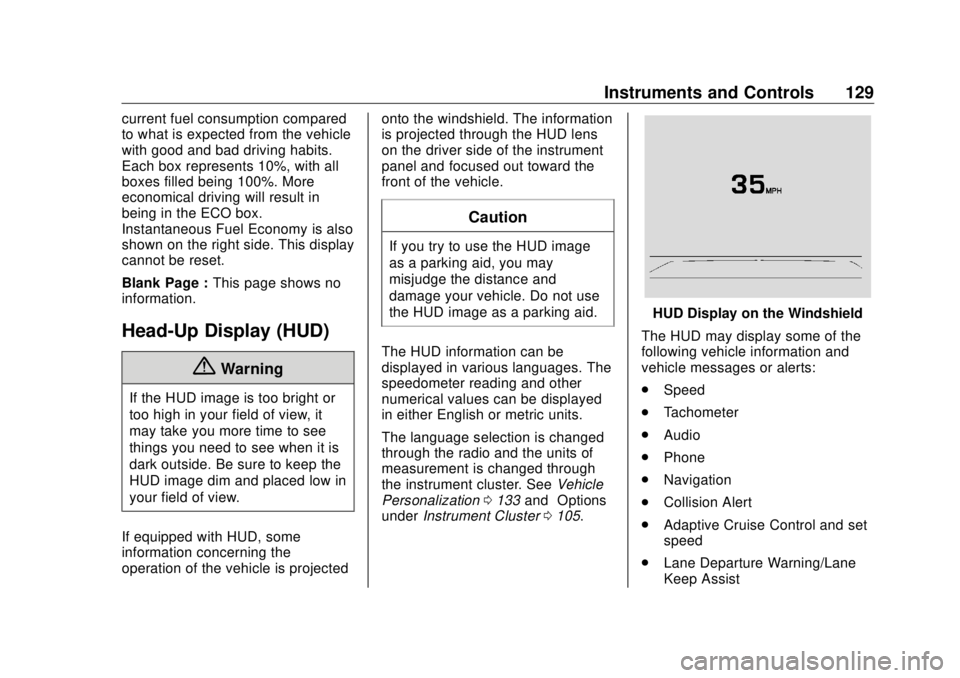
If equipped with HUD, some
information concerning the
operation of the vehicle is projected onto the windshield. The information
is projected through the HUD lens
on the driver side of the instrument
panel and focused out toward the
front of the vehicle.
CautionIf you try to use the HUD image
as a parking aid, you may
misjudge the distance and
damage your vehicle. Do not use
the HUD image as a parking aid.
The HUD information can be
displayed in various languages. The
speedometer reading and other
numerical values can be displayed
in either English or metric units.
The language selection is changed
through the radio and the units of
measurement is changed through
the instrument cluster. See Vehicle
Personalization 0 133 and “ Options ”
under Instrument Cluster 0 105 . HUD Display on the Windshield
The HUD may display some of the
following vehicle information and
vehicle messages or alerts:
.
Speed
.
Tachometer
.
Audio
.
Phone
.
Navigation
.
Collision Alert
.
Adaptive Cruise Control and set
speed
.
Lane Departure Warning/Lane
Keep Assist
Page 132 of 363
Buick Envision Owner Manual (GMNA-Localizing-U.S./Canada/Mexico-
13555857) - 2020 - CRC - 2/25/19
Instruments and Controls 131
English
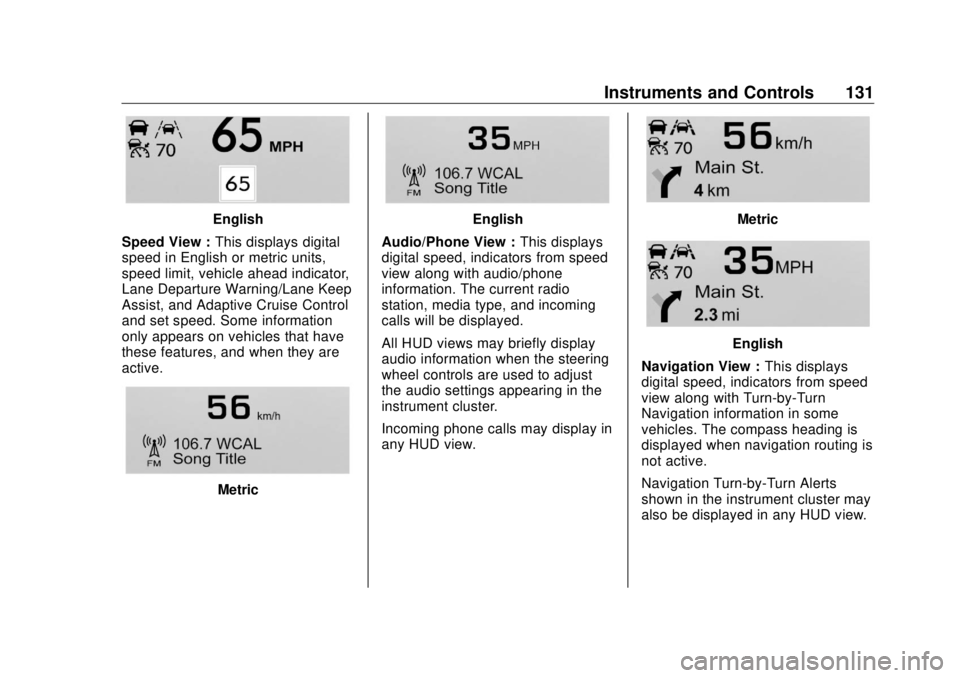
Speed View : This displays digital
speed in English or metric units,
speed limit, vehicle ahead indicator,
Lane Departure Warning/Lane Keep
Assist, and Adaptive Cruise Control
and set speed. Some information
only appears on vehicles that have
these features, and when they are
active.
Metric English
Audio/Phone View : This displays
digital speed, indicators from speed
view along with audio/phone
information. The current radio
station, media type, and incoming
calls will be displayed.
All HUD views may briefly display
audio information when the steering
wheel controls are used to adjust
the audio settings appearing in the
instrument cluster.
Incoming phone calls may display in
any HUD view. Metric
English
Navigation View : This displays
digital speed, indicators from speed
view along with Turn-by-Turn
Navigation information in some
vehicles. The compass heading is
displayed when navigation routing is
not active.
Navigation Turn-by-Turn Alerts
shown in the instrument cluster may
also be displayed in any HUD view.
Page 135 of 363
Buick Envision Owner Manual (GMNA-Localizing-U.S./Canada/Mexico-
13555857) - 2020 - CRC - 2/25/19
134 Instruments and Controls Personalization Menus The following list of features may be
available:
.
Time and Date
.
Rear Seat Reminder
.
Language
.
Valet Mode
.
Teen Driver
.
Radio
.
Vehicle
.
Bluetooth
.
Apple CarPlay
.
Android Auto
.
Voice
.
Display
.
Rear Camera
.
Return to Factory Settings
.
Software Information
.
Wi-Fi
Each menu is detailed in the
following information. Time and Date Manually set the time and date. See
Clock 0 99 .
Rear Seat Reminder This allows for a chime and a
message when the rear door has
been opened before or during
operation of the vehicle.
Select Off or On.
Language Select Language, then select from
the available language(s).
Valet Mode To turn Valet Mode on and off, see
“ Valet Mode ” under “ Settings ” in the
infotainment manual.
Teen Driver
See “ Teen Driver ” under “ Settings ”
in the infotainment manual.
Radio
To manage the radio features, see
“ Radio ” under “ Settings ” in the
infotainment manual. Vehicle Select and the following may
display:
.
Climate and Air Quality
.
Collision/Detection Systems
.
Comfort and Convenience
.
Lighting
.
Power Door Locks
.
Remote Lock, Unlock, Start
Climate and Air Quality Select and the following may
display:
.
Auto Fan Speed
.
Auto Heated Seats
.
Auto Defog
.
Auto Rear Defog
.
Ionizer
Auto Fan Speed
This feature will set the auto fan
speed.
Select Low, Medium, or High.
Page 140 of 363
Buick Envision Owner Manual (GMNA-Localizing-U.S./Canada/Mexico-
13555857) - 2020 - CRC - 2/25/19
Instruments and Controls 139Android Auto Select and the following may
display:
.
Android Auto
.
Manage Android Auto Devices
Android Auto
This feature allows Android devices
to be connected to the infotainment
system through a USB port. See
“ Apple CarPlay and Android Auto ” in
the infotainment manual.
Select Off or On.
Manage Android Auto Devices
Select to manage Android devices.
Android Auto must be on for this
feature to be accessed. See “ Apple
CarPlay and Android Auto ” in the
infotainment manual.
Voice
See “ Voice ” under “ Settings ” in the
infotainment manual.
Display
Select and the following may
display: .
Theme
.
Calibrate Touchscreen
.
Turn Display Off
Theme
Select to change the color, font, and
art of the display.
Select Contemporary, Mainstreet,
Edge, or Velocity.
Calibrate Touchscreen
Select to calibrate the touchscreen,
then follow the prompts.
Turn Display Off
Select to turn the display off. Touch
anywhere on the infotainment
display or press any button on the
center stack to turn the infotainment
display on.
Rear Camera
Select and the following may
display:
.
Guidance Lines
.
Rear Park Assist Symbols Guidance Lines
Select to turn Off or On. See
Assistance Systems for Parking or
Backing 0 202 .
Rear Park Assist Symbols
Select to turn Off or On. See
Assistance Systems for Parking or
Backing 0 202 .
Return to Factory Settings Select and the following may
display:
.
Restore Vehicle Settings
.
Clear All Private Data
.
Restore Radio Settings
Restore Vehicle Settings
This allows vehicle settings to be
restored.
Select Restore or Cancel.
Clear All Private Data
This allows all private information to
be cleared from the vehicle.
Select Delete or Cancel.
Page 141 of 363

Buick Envision Owner Manual (GMNA-Localizing-U.S./Canada/Mexico-
13555857) - 2020 - CRC - 2/25/19
140 Instruments and Controls Restore Radio Settings
This allows radio settings to be
restored.
Select Restore or Cancel.
Software Information Select to view or update the
infotainment system current
software information.
Wi-Fi Select and the following may
display:
.
Wi-Fi
.
Manage Wi-Fi Networks
Wi-Fi
This feature allows Wi-Fi networks
to be turned off or on.
Select Off or On.
Manage Wi-Fi Networks
Select to manage Wi-Fi networks.
Wi-Fi must be on for this feature to
be accessed. Universal Remote
System See Radio Frequency Statement
0 335 .
Universal Remote System
Programming
If equipped, these buttons are in the
overhead console.
This system can replace up to three
remote control transmitters used to
activate devices such as garage
door openers, security systems, and
home automation devices. These instructions refer to a garage door
opener, but can be used for other
devices.
Do not use the Universal Remote
system with any garage door opener
that does not have the stop and
reverse feature. This includes any
garage door opener model
manufactured before April 1, 1982.
Read these instructions completely
before programming the Universal
Remote system. It may help to have
another person assist with the
programming process.
Keep the original hand-held
transmitter for use in other vehicles
as well as for future programming.
Erase the programming when
vehicle ownership is terminated.
See “ Erasing Universal Remote
System Buttons ” later in this
section.
To program a garage door opener,
park outside directly in line with and
facing the garage door opener
receiver. Clear all people and
objects near the garage door.
Page 153 of 363
Buick Envision Owner Manual (GMNA-Localizing-U.S./Canada/Mexico-
13555857) - 2020 - CRC - 2/25/19
152 Infotainment System
Infotainment
System Introduction Infotainment . . . . . . . . . . . . . . . . . . 152
Introduction Infotainment See the infotainment manual for
information on the radio, audio
players, phone, navigation system,
and voice or speech recognition.
It also includes information on
settings.
Active Noise Cancellation (ANC)
If equipped, ANC reduces engine
noise in the vehicle ’ s interior. ANC
requires the factory-installed audio
system, radio, speakers, amplifier (if
equipped), induction system, and
exhaust system to work properly.
Deactivation is required by your
dealer if related aftermarket
equipment is installed.
Page 157 of 363

Buick Envision Owner Manual (GMNA-Localizing-U.S./Canada/Mexico-
13555857) - 2020 - CRC - 2/25/19
156 Climate Controls automatically when the interior
temperature is cold and the outside
temperature is about 7 °C (44 °F)
and below. The auto rear defogger
turns off automatically.
If equipped, the heated outside
mirrors turn on when the rear
window defogger button is on and
help to clear fog or frost from the
surface of the mirror. See Heated
Mirrors 0 28 .
CautionDo not try to clear frost or other
material from the inside of the
front windshield and rear window
with a razor blade or anything
else that is sharp. This may
damage the rear window
defogger grid and affect the
radio's ability to pick up stations
clearly. The repairs would not be
covered by the vehicle warranty.
J or
z : Press
J or
z ,
if equipped, to heat the driver or
passenger seat. Press
C or
{ , if equipped, to
ventilate the driver or passenger
seat. See Heated and Ventilated
Front Seats 0 41 .
Sensor The solar sensor, on top of the
instrument panel near the
windshield, monitors the solar heat.
The climate control system uses the
sensor information to adjust the
temperature, fan speed,
recirculation, and air delivery mode
for best comfort.
Do not cover the sensor; otherwise
the automatic climate control system
may not work properly.
Rear Climate Control
System If equipped, the rear climate control
system is on the rear of the center
console storage. The rear climate
settings can be adjusted with this
system. 1. Fan Control
2. AUTO (Automatic Operation)
3. MODE (Air Delivery Mode
Control)
4. TEMP (Temperature Control)
5. Heated Rear Seats
Page 163 of 363
Buick Envision Owner Manual (GMNA-Localizing-U.S./Canada/Mexico-
13555857) - 2020 - CRC - 2/25/19
162 Driving and Operating Safe driver behavior and
understanding of the environment
can help avoid a rollover crash in
any type of vehicle, including utility
vehicles.
Driving for Better Fuel
Economy Driving habits can affect fuel
mileage. Here are some driving tips
to get the best fuel economy
possible:
.
Set the climate controls to the
desired temperature after the
engine is started, or turn them
off when not required.
.
Avoid fast starts and accelerate
smoothly.
.
Brake gradually and avoid
abrupt stops.
.
Avoid idling the engine for long
periods of time.
.
When road and weather
conditions are appropriate, use
cruise control. .
Always follow posted speed
limits or drive more slowly when
conditions require.
.
Keep vehicle tires properly
inflated.
.
Combine several trips into a
single trip.
.
Replace the vehicle's tires with
the same TPC Spec number
molded into the tire's sidewall
near the size.
.
Follow recommended scheduled
maintenance.
Distracted Driving Distraction comes in many forms
and can take your focus from the
task of driving. Exercise good
judgment and do not let other
activities divert your attention away
from the road. Many local
governments have enacted laws
regarding driver distraction. Become
familiar with the local laws in
your area. To avoid distracted driving, keep
your eyes on the road, keep your
hands on the steering wheel, and
focus your attention on driving.
.
Do not use a phone in
demanding driving situations.
Use a hands-free method to
place or receive necessary
phone calls.
.
Watch the road. Do not read,
take notes, or look up
information on phones or other
electronic devices.
.
Designate a front seat
passenger to handle potential
distractions.
.
Become familiar with vehicle
features before driving, such as
programming favorite radio
stations and adjusting climate
control and seat settings.
Program all trip information into
any navigation device prior to
driving.
.
Wait until the vehicle is parked
to retrieve items that have fallen
to the floor.