steering BUICK PARK AVENUE 1997 User Guide
[x] Cancel search | Manufacturer: BUICK, Model Year: 1997, Model line: PARK AVENUE, Model: BUICK PARK AVENUE 1997Pages: 420, PDF Size: 21.93 MB
Page 129 of 420
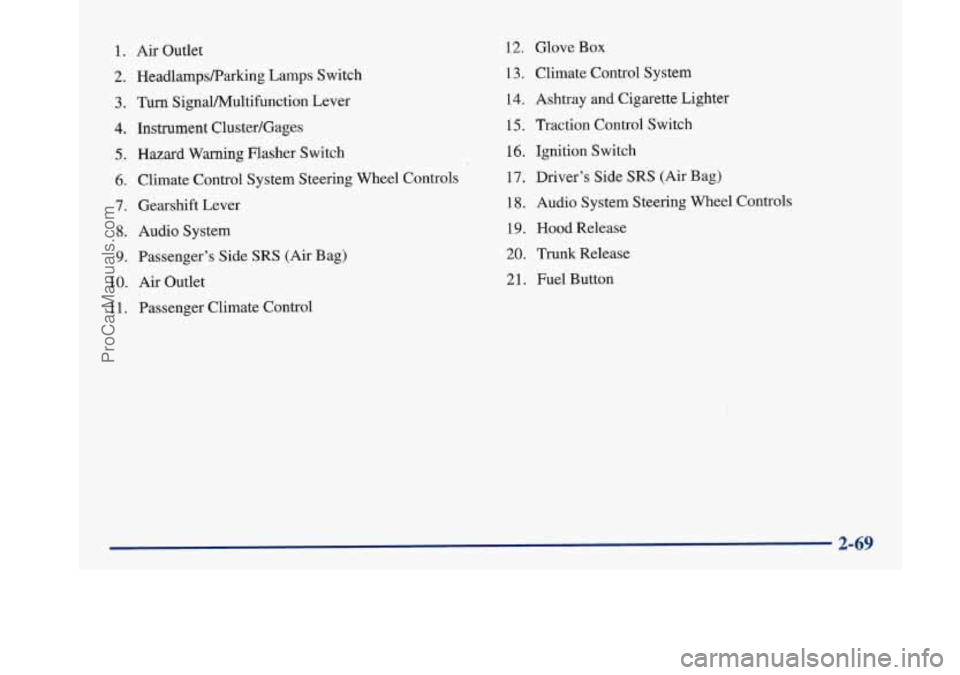
1. Air Outlet
2. HeadlampsRarking Lamps Switch
3. Turn SignaVPv4ultifunction Lever
4. Instrument Cluster/Gages
5. Hazard Warning Flasher Switch
6. Climate Control System Steering Wheel Controls
7. Gearshift Lever
8. Audio System
9. Passenger’s Side SRS (Air Bag)
10.
Air Outlet
1 1. Passenger Climate Control
12. Glove Box
13. Climate Control System
14. Ashtray
and Cigarette Lighter
15, Traction Control Switch
16. Ignition Switch
17. Driver’s Side
SRS (Air Bag)
18. Audio System Steering Wheel Controls
19. Hood Release
20. Trunk Release
21. Fuel Button
ProCarManuals.com
Page 143 of 420
I NOTICE:
Although the HUD image appears to be near the
front
of the vehicle, do not use it as a parking aid.
The
HUD was not designed for that purpose. If
you try to use the display as a marker for the
front of your vehicle, such as in a parking
lot, you
may misjudge distance and hit an obstacle or
another vehicle.
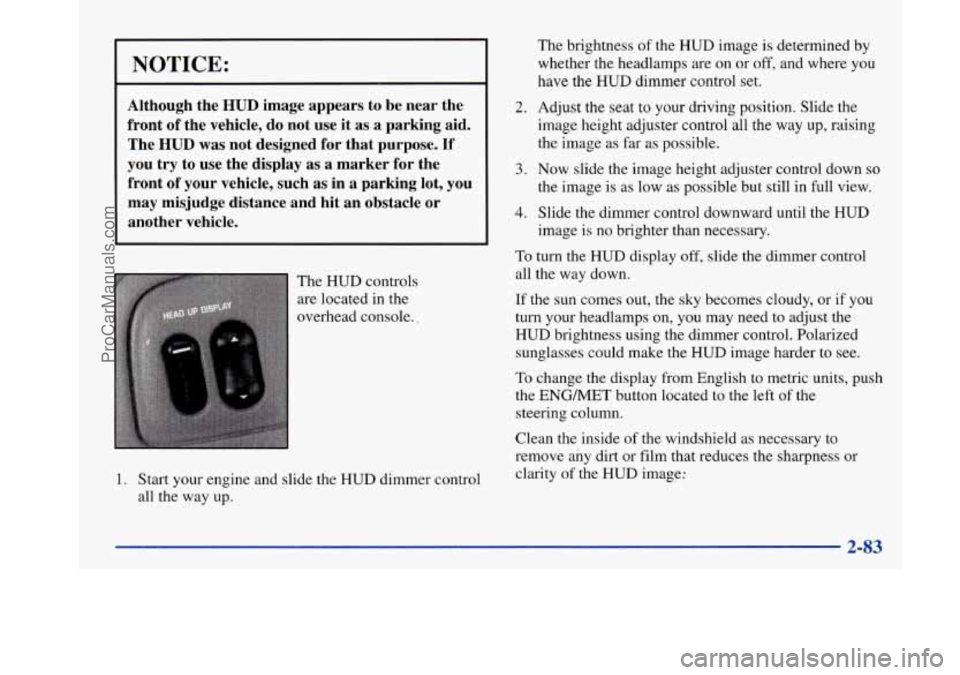
The HUD controls
are located in the
overhead console..
1. Start your engine and slide the HUD dimmer control
all the way up.
2.
3.
4.
The brightness of the HUD image is determined by
whether the headlamps are on or
off, and where you
have the
HUD dimmer control set.
Adjust the seat
to your driving position. Slide the
image height adjuster control all the way
up, raising
the image
as far as possible.
Now slide the image height adjuster control down so
the image is as low as possible but still in full view.
Slide the dimmer control downward until the HUD
image is no brighter than necessary.
To turn the HUD display off, slide the dimmer control
all the way down.
If the sun comes out, the sky becomes cloudy, or if you
turn your headlamps
on, you may need to adjust the
HUD brightness using the dimmer control. Polarized
sunglasses could make the HUD image harder to see.
To change the display from English to metric units, push
the ENGMET button located to the left of the
steering column.
Clean the inside of the windshield as necessary to
remove any dirt or film that reduces the sharpness or
clarity of the
HUD image:
2-83
ProCarManuals.com
Page 144 of 420
To clean the HUD lens, spray household glass cleaner
on a soft, clean cloth. Gently wipe
and dry the HUD
lens. Do not spray cleaner directly on the lens to avoid
cleaner leaking inside the unit.
If the ignition is on and you can’t see the HUD image,
check to see
if
The headlamps are on.
Something is covering the HUD unit.
The HUD dimmer control is adjusted properly.
The HUD image is adjusted to the proper height.
A fuse is blown. See “Fuses and Circuit Breakers” in
the Index.
Keep in mind that your windshield is part of the HUD
system. If you ever have to have your windshield
replaced, be sure to get one that is designed for HUD or
your HUD image may look blurred or out of focus.
Driver Information Center (DIC)
(If Equipped)
Your Park Avenue may be equipped with a Driver
Information Center (DIC). The DIC will display
information about how your vehicle is functioning,
as well as warning messages if a system problem
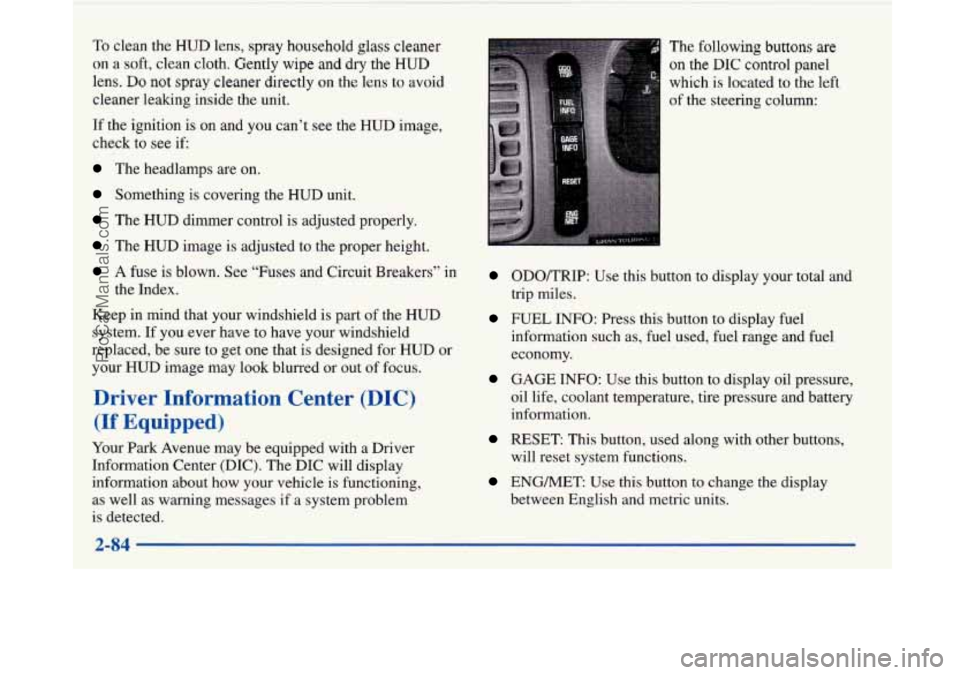
is detected. The
following buttons
are
on the DIC control panel
which
is located to the left
of the steering column:
ODOKRIP: Use this button to display your total and
trip miles.
FUEL INFO: Press this button to display fuel
information such as, fuel used, fuel range and fuel
economy.
GAGE INFO: Use this button to display oil pressure,
oil life, coolant temperature, tire pressure and battery
information.
RESET: This button, used along with other buttons,
will reset system functions.
ENGMET: Use this button to change the display
between English and metric units.
ProCarManuals.com
Page 153 of 420
Section 3 Comfort Controls and Audio Systems
In this section, you’ll find out how to operate the comfort control and audio systems offered with your Buick. Be sure
to read about the particular systems supplied with your vehicle.
3-2
3-2
3-5
3-5
3-6
3-7 3-8
3-8
3-9
3-9
3-10
3-10
3- 14 Comfort Controls
Personal Choice Comfort Controls
Air Conditioning
Heating
Ventilation System
Passenger Compartment Air Filter
Defogging and Defrosting
Rear Window Defogger
Passenger Climate Control Steering Wheel Controls for Climate Control
Setting the Clock
AM-FM Stereo with Cassette Tape Player
AM-FM Stereo with Cassette Tape Player
and Tone Control 3-18
3-21
3 -27
3-30
3-32
3-33
3-33
3-34 3-35
3-35 AM-FM Stereo
with Compact Disc Player
and Tone Control
AM-FM Stereo with Cassette, CD Player
and Tone Control
Trunk Mounted CD Changer
Theft-Deterrent Feature
Steering Wheel Controls
Understanding Radio Reception
Tips About Your Audio System
Care of Your Cassette Tape Player
Care
of Your Compact Discs
Heated Backlite Antenna
ProCarManuals.com
Page 161 of 420
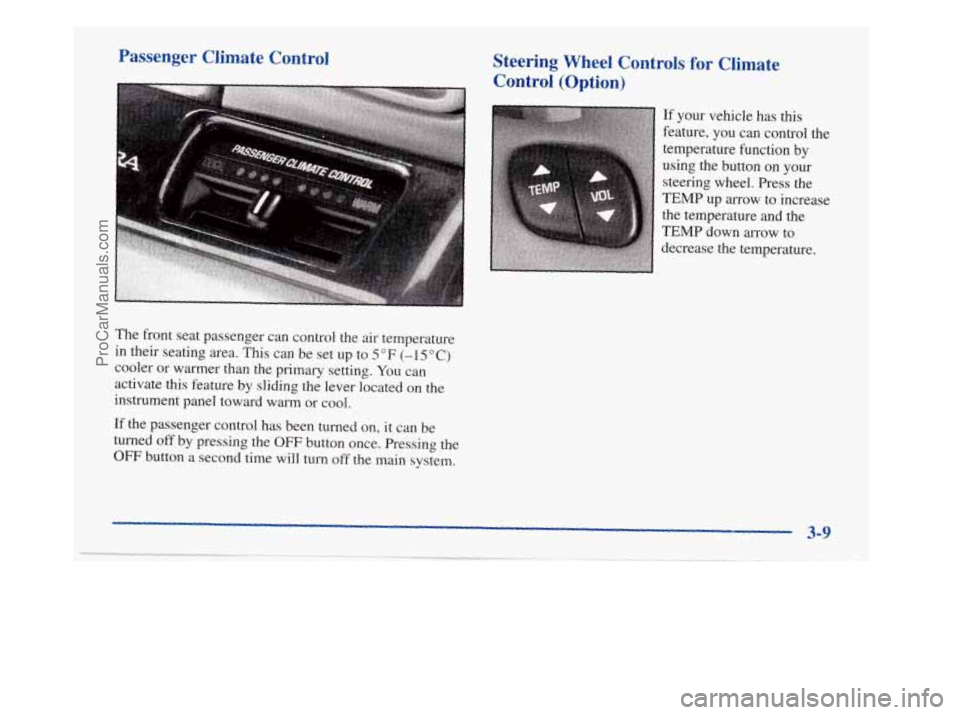
Passenger Climate Control Steering Wheel Controls for Climate
Control
(Option)
If your vehicle has this
feature, you can control the
temperature function by
using the button
on your
steering wheel. Press the
TEMP up arrow to increase
the temperature and the
TEMP down arrow to
, decrease the temperature.
The front seat passenger can control the air temperature
in their seating area.
Tlus can be set up to 5 OF (-1 5 O C)
cooler or warmer than the primary setting. You can
activate this feature
by sliding the lever located on the
instrument panel toward warm
or cool.
If the passenger control has been turned on, it can be
turned
off by pressing the OFF button once. Pressing the
OFF button a second time will turn off the main system.
3-9
ProCarManuals.com
Page 184 of 420
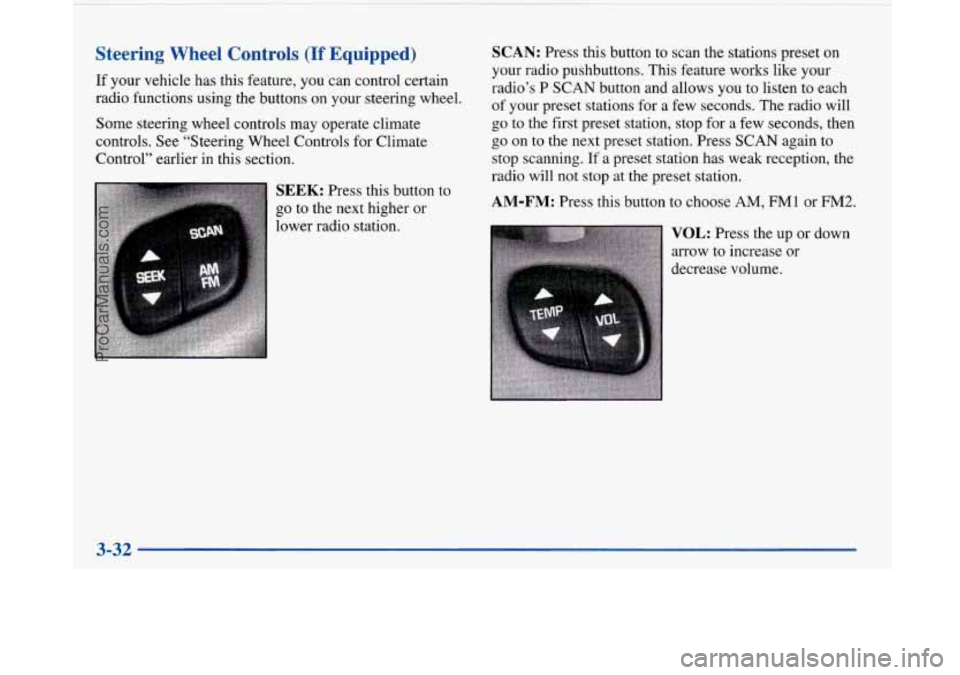
Steering Wheel Controls (If Equipped)
If your vehicle has this feature, you ‘can control certain
radio functions using the buttons on your steering wheel.
Some steering wheel controls may operate climate
controls. See “Steering Wheel Controls for Climate
Control” earlier in this section.
SEEK: Press this button to
go to the next higher or
lower radio station.
SCAN: Press this button to scan the stations preset on
your radio pushbuttons. This feature works like your
radio’s P SCAN button and allows you to listen to each
of your preset stations for a few seconds. The radio will
go to the first preset station, stop for a few seconds, then
go on
to the next preset station. Press SCAN again to
stop scanning.
If a preset station has weak reception, the
radio will not stop at the preset station.
AM-FM: Press this button to choose AM, FMl or FM2.
VOL: Press the up or down
arrow to increase or
decrease volume.
3-32
ProCarManuals.com
Page 189 of 420
Section 4 Your Driving and the Road
Here you’ll find information about driving on different kinds of roads and in varying weather conditions. We’ve also
included many other useful tips on driving.
4-2
4-2
4-6
4-6
4- 10
4- 13
4-13
4-
15
4- 16 Defensive Driving
Drunken Driving Control of a Vehicle
Braking
Steering
Off-Road Recovery
Passing
Loss of Control
Driving at Night 4-18
4-2
1
4-22
4-23
4-24
4-24
4-26
4-30 4-3 2 Driving in Rain
and on Wet Roads
City Driving
Freeway Driving
Before Leaving on a Long Trip
Highway Hypnosis
Hill and Mountain Roads
Winter Driving
Loading Your Vehicle
Towing a Trailer
ProCarManuals.com
Page 194 of 420
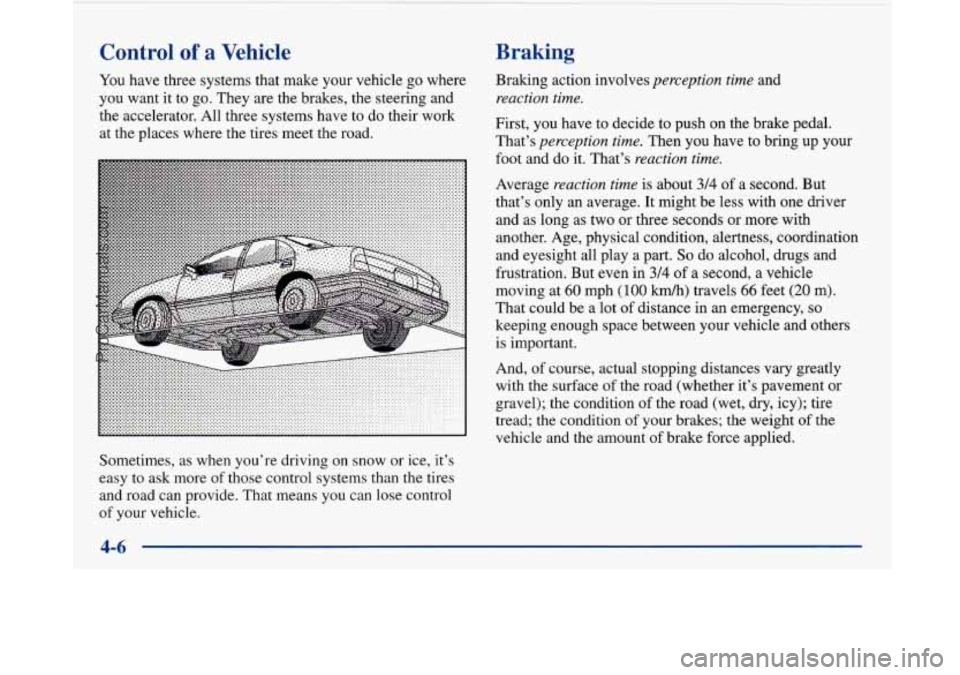
Control of a Vehicle
You have three systems that make your vehicle go where
you want it to go. They are the brakes, the steering and
the accelerator. All three systems have to do their work
at the places where the tires meet the road.
Sometimes, as when you’re driving on snow
or ice, it’s
easy to ask more of those control systems than the tires
and road can provide. That means you can lose control
of your vehicle.
Braking
Bralung action involves perception time and
reaction time.
First, you have to decide to push on the brake pedal.
That’s
perception time. Then you have to bring up your
foot and do it. That’s
reaction time.
Average reaction time is about 314 of a second. But
that’s only an average. It might be less with one driver
and as long as two or three seconds or more with
another. Age, physical condition, alertness, coordination
and eyesight all play a part.
So do alcohol, drugs and
frustration. But even in
3/4 of a second, a vehicle
moving at
60 mph (1 00 km/h) travels 66 feet (20 m).
That could be a lot
of distance in an emergency, so
keeping enough space between your vehicle and others
is important.
And, of course, actual stopping distances vary greatly
with the surface
of the road (whether it’s pavement or
gravel); the condition
of the road (wet, dry, icy); tire
tread; the condition of your brakes; the weight of the
vehicle and the amount
of brake force applied.
ProCarManuals.com
Page 198 of 420
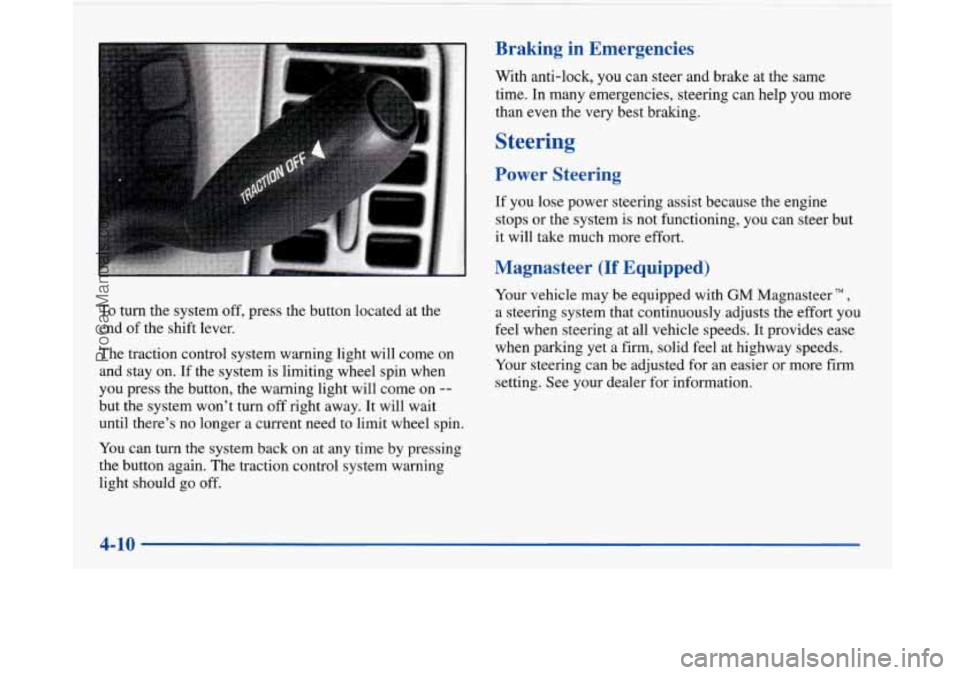
To turn the system off, press the button located at the
end of the shift lever.
The traction control system warning light will come on
and stay on. If the system is limiting wheel spin when
you press the button, the warning light will come on
--
but the system won’t turn off right away. It will wait
until there’s no longer a current need to limit wheel spin.
You can turn the system back on at any time by pressing
the button again. The traction control system warning
light should go off.
Braking in Emergencies
With anti-lock, you can steer and brake at the same
time. In many emergencies, steering can help you
more
than even the very best braking.
Steering
Power Steering
If you lose power steering assist because the engine
stops or the system
is not functioning, you can steer but
it will take much more effort.
Magnasteer (If Equipped)
Your vehicle may be equipped with GM Magnasteer TM,
a steering system that continuously adjusts the effort you
feel when steering at all vehicle speeds. It provides ease
when parking yet a firm, solid feel at highway speeds.
Your steering can be adjusted for an easier or more firm
setting. See your dealer for information.
4-10
ProCarManuals.com
Page 199 of 420
Steering Tips
Driving on Curves
It’s important to take curves at a reasonable speed.
A lot of the “driver lost control” accidents mentioned on
the news happen on curves. Here’s why:
Experienced driver or beginner, each of us is subject to
the same laws of physics when driving on curves. The
traction of the tires against the road surface makes it
possible for the vehicle to change its path when you turn
the front wheels.
If there’s no traction, inertia will keep
the vehicle going in the same direction. If you’ve ever
tried to steer a vehicle on wet ice, you’ll understand this.
The traction you can get in a curve depends on the
condition of your tires and the road surface, the angle at
which the curve is banked, and your speed. While you’re
in a curve, speed is the one factor you can control. Suppose you’re steering
through a sharp curve. Then you
suddenly accelerate. Both control systems
-- steering and
acceleration -- have to do their work where the tires meet
the road. Adding the sudden acceleration can demand too
much of those places. You can lose control. Refer to
“Traction Control” in the Index.
What should you do
if this ever happens? Ease up on the
accelerator pedal, steer the vehicle the way you want it
to go, and slow down.
Speed limit signs near curves warn that you should
adjust your speed. Of course, the posted speeds are
based on good weather and road conditions. Under less
favorable conditions you’ll want to go slower.
If you need to reduce your speed as you approach a
curve, do it before you enter the curve, while your front
wheels are straight ahead.
Try to adjust your speed
so you can “drive” through the
curve. Maintain a reasonable, steady speed. Wait to
accelerate until you are out of the curve, and then
accelerate gently into the straightaway.
4-11
ProCarManuals.com