display BUICK REGAL 2013 Workshop Manual
[x] Cancel search | Manufacturer: BUICK, Model Year: 2013, Model line: REGAL, Model: BUICK REGAL 2013Pages: 412, PDF Size: 6.06 MB
Page 169 of 412
Black plate (17,1)Buick Regal Owner Manual - 2013 - crc - 11/5/12
Infotainment System 7-17
.Bit rates supported: 8, 16, 24,
32, 40, 48, 56, 64, 80, 96, 112,
128, 144, 160, 192, 224, 256,
and 320 kbps.
.Maximum number of folders:
eight folders with 255 files per
folder.
.Maximum of 1,000 files on
a disc.
.Recorded on a CD-R or CD-RW
with a maximum capacity of
700 MB.
.The Artist/Album/Song Titles/
Genre information requires a CD
to be fully scanned before the
music navigator works with
these menus.
MP3 Music Menu
Press the Menu screen button while
that source is active to access
the menu. Press any of the following buttons
on the MP3 Menu:
Shuffle Songs:
Press to play the
tracks randomly. Press again to stop
shuffle.
Playlists: Press to view the
playlists stored on the disc. Select a
playlist to view the list of all songs in
that playlist. There might be a delay
before the list displays. Select a
song from the list to begin playback.
Artists: Press to view the list of
artists stored on the disc. Select an
artist name to view a list of all songs
by the artist. There might be a delay
before the list displays. Select a
song from the list to begin playback.
Albums: Press to view the albums
on the disc. Select the album to
view a list of all songs on the album.
There might be a delay before the
list displays. Select a song from the
list to begin playback.
Song Titles: Press to display a list
of all songs on the disc. Songs are
displayed as stored on the disc. There might be a delay before the
list displays. To begin playback,
select a song from the list.
Genres:
Press to view the genres.
Select a genre to view a list of all
songs of that genre. Select a song
from the list to begin playback.
Folders: Press to open a folder list
to access the files within the folder
structure.
Root Directory
The root directory is treated as a
folder. All files contained directly
under the root directory are
accessed prior to any root directory
folders.
Empty Folders
If a root directory or folder is empty
or contains only folders, the player
advances to the next folder in the
file structure that contains a
compressed audio file. The empty
folder(s) are not displayed or
numbered.
Page 170 of 412
Black plate (18,1)Buick Regal Owner Manual - 2013 - crc - 11/5/12
7-18 Infotainment System
No Folder
When the CD only contains
compressed audio files without any
folders or playlists, all files are
under the root folder.
File System and Naming
The song titles, artists, albums, and
genres are taken from the file's ID3
tag and are only displayed if present
in the tag. If a song title is not
present in the ID3 tag, the radio
displays the file name as the
track name.
Preprogrammed Playlists
The radio recognizes
preprogrammed playlists; however,
there is no editing capability. These
playlists are treated as special
folders containing compressed
audio song files.Auxiliary Devices
This vehicle has an auxiliary input
jack in the center console. Possible
auxiliary audio sources include:
.Laptop computer
.MP3 player
This jack is not an audio output. Do
not plug headphones into the
auxiliary input jack. Drivers are
encouraged to set up any auxiliary
device while the vehicle is in
P (Park).
Connect a 3.5 mm (1/8 in) cable
from the auxiliary device to the
auxiliary input jack. When a device
is connected, the system
automatically begins playing audio
from the device over the vehicle
speakers.
If an auxiliary device has already
been connected, but a different
source is currently active, press the
Now Playing screen button on the
Home Page, then press Source repeatedly to cycle through all of the
available audio source screens, until
the AUX source screen is selected.
Portable devices are controlled by
using the menu system described in
Overview on page 7‑2.Using the 3.5 mm (1/8 in)
Auxiliary Input Jack
Connect a 3.5 mm (1/8 in) cable to
the 3.5 mm (1/8 in) auxiliary input
jack to use a portable audio player.
Playback of an audio device that is
connected to the 3.5 mm (1/8 in)
auxiliary input jack can only be
controlled using the controls on the
device.
Adjusting the Volume
Turn the
3/Oknob to adjust the
volume of the infotainment system
after the volume level has been set
on the portable audio device.
Page 171 of 412
Black plate (19,1)Buick Regal Owner Manual - 2013 - crc - 11/5/12
Infotainment System 7-19
USB Port
For vehicles with a USB port, the
following devices may be connected
and controlled by the infotainment
system:
.iPods
.PlaysForSure Devices (PFDs)
.USB Drives
.Zunes®
Not all iPods, PFDs, USB Drives,
and Zunes are compatible with the
infotainment system.
Playing from a USB
A USB mass storage device or
Microsoft Transfer Protocol (MTP)
device can be connected to the
USB port.
The USB port is in the center
console.
The USB icon displays when the
USB device is connected.USB MP3 Player and USB Drives
.The USB MP3 players and USB
drives connected must comply
with the USB Mass Storage
Class specification (USB MSC).
.Only USB MP3 players and USB
drives with a sector size or
512 bytes and a cluster size
smaller or equal to 32 kbytes in
the FAT32 file system are
supported.
.Hard disk drives are not
supported.
.The following restrictions apply
for the data stored on a USB
MP3 player or USB device:
‐
Maximum folder structure
depth: 11 levels.
‐ Maximum number of MP3/
WMA files that can be
displayed: 1,000
.WMA with Digital Rights
Management (DRM) from online
music shops cannot be played.
WMA files can only be played back safely if they were created
with Windows Media Player
version 8 or later.
‐
Applicable playlist extensions
are: .m3u, .pls.
‐ Playlist entries must be in the
form of relative paths.
‐ The system attribute for
folders/files that contain audio
data must not be set.
To play a USB device, do one of the
following:
.Connect the USB and it begins
to play.
.Press the Now Playing screen
button on the Home Page, then
press the SRCE button on the
faceplate repeatedly to cycle
through all of the available audio
source screens, until the USB
source screen is selected.
Page 172 of 412
Black plate (20,1)Buick Regal Owner Manual - 2013 - crc - 11/5/12
7-20 Infotainment System
While the USB source is active, use
the following to operate USB
function:
w/j(Play/Pause):Press to start,
pause, or resume play of the current
media source.
s ©(Seek/Previous):
1. Press to seek to the beginning of the current or previous track.
If the track has been playing for
less than five seconds, the
previous track plays. If playing
longer than five seconds, the
current track restarts.
2. Press and hold to reverse quickly through playback.
3. Release to return to playing speed. Elapsed time displays.
\¨(Seek/Next):
1. Press to seek to the next track.
2. Press and hold to advance quickly through playback.
Release to return to playing
speed. Elapsed time displays. USB Menu
Press any of the following buttons
on the USB Menu:
Shuffle Songs:
Press to play the
tracks randomly. Press again to stop
shuffle.
Playlists: Press to view the
playlists stored on the USB. Select
a playlist to view the list of all songs
in that playlist. There might be a
delay before the list displays. Select
a song from the list to begin
playback.
Artists: Press to view the list of
artists stored on the USB. Select an
artist name to view a list of all
albums by the artist. There might be
a delay before the list displays. To
select a song, touch All Songs then
select a song or touch an album
then select a song from the list to
begin playback.
Albums: Press to view the albums
on the USB. Select the album to
view a list of all songs on the album. There might be a delay before the
list displays. Select a song from the
list to begin playback.
Song Titles:
Press to display a list
of all songs on the USB. Songs are
displayed as stored on the disc.
There might be a delay before the
list displays. To begin playback,
select a song from the list.
Genres: Press to view the genres
on the USB. Select a genre to view
a list of all songs of that genre.
Select a song from the list to begin
playback.
Folders: Press to open a folder list
to access the files within the folder
structure.
File System and Naming
The song titles, artists, albums, and
genres are taken from the file's ID3
tag and are only displayed if present
in the tag. If a song title is not
present in the ID3 tag, the radio
displays the file name as the
track name.
Page 173 of 412
Black plate (21,1)Buick Regal Owner Manual - 2013 - crc - 11/5/12
Infotainment System 7-21
Playing from an iPod®
This feature supports the following
iPod models:
.iPod nano®(1st, 2nd, 3rd, and
4th generation)
.iPod®with video (5.0 and 5.5
generation). Video is not shown;
only audio is supported.
.iPod classic®(6th generation)
.iPod touch®(1st and 2nd
generation)
There may be problems with
operation and function in the
following situations:
.When connecting an iPod on
which a more recent version of
the firmware is installed than is
supported by the infotainment
system.
.When connecting an iPod on
which firmware from other
providers is installed. To connect and control an iPod,
connect one end of the standard
iPod USB cable to the iPod's dock
connector. Connect the other end to
the USB port in the center console.
iPod music information displays on
the radio’s display and begins
playing through the vehicle’s audio
system.
The iPod battery recharges
automatically while the vehicle is on.
When the vehicle is off while an
iPod is connected using the iPod
USB cable, the iPod battery stops
charging and the iPod automatically
turns off.
If the iPod is an unsupported model,
it can still be listened to in the
vehicle by connecting to the
auxiliary input jack using a standard
3.5 mm (1/8 in) stereo cable.
iPod Menu
Shuffle Songs:
Press to play the
tracks randomly. Press again to stop
shuffle. Press any of the following buttons
on the iPod Menu:
Playlists:
1. Press to view the playlists stored
on the iPod.
2. Select a playlist name to view a list of all songs in the playlist.
3. Select the desired song from the list to begin playback.
Artists:
1. Press to view the artists stored on the iPod.
2. Select an artist name to view a list of all songs by the artist.
3. Select the desired song from the list to begin playback.
Albums:
1. Press to view the albums stored on the iPod.
2. Select an album name to view a list of all songs on the album or
select All Songs to view all
songs by the artist.
Page 175 of 412
Black plate (23,1)Buick Regal Owner Manual - 2013 - crc - 11/5/12
Infotainment System 7-23
.Pair cell phone(s) to the vehicle.
The system may not work with
all cell phones. See“Pairing”in
this section for more information.
.If the cell phone has voice
dialing capability, learn to use
that feature to access the
address book or contact list. See
“Voice Pass-Thru” in this section
for more information.
.See “Storing and Deleting Phone
Numbers” in this section for
more information.
{WARNING
When using a cell phone, it can
be distracting to look too long or
too often at the screen of the
phone or the infotainment
(navigation) system. Taking your
eyes off the road too long or too
often could cause a crash
resulting in injury or death. Focus
your attention on driving. Vehicles with a Bluetooth system
can use a Bluetooth-capable cell
phone with a Hands-Free Profile to
make and receive phone calls. The
infotainment system and voice
recognition are used to control the
system. The system can be used
while in ON/RUN or ACC/
ACCESSORY. The range of the
Bluetooth system can be up to 9.1 m
(30 ft). Not all phones support all
functions and not all phones work
with the Bluetooth system. See
www.gm.com/bluetooth for more
information about compatible
phones.Bluetooth Controls
Use the buttons located on the
infotainment system and the
steering wheel to operate the
Bluetooth system.
Steering Wheel Controls
b/g(Push To Talk):
Press to
answer incoming calls, confirm
system information, and start voice
recognition.
$/i(End Call/Mute): Press to
end a call, reject a call, or cancel an
operation.
Infotainment System Controls
If equipped, the infotainment system
allows certain controls to be
selected on the infotainment display.
For information about how to
navigate the menu system using the
infotainment controls, see Overview
on page 7‑2.
V/$(Phone/Mute): Press to
enter the Phone main menu. Press
to mute audio.
Voice Recognition
The voice recognition system uses
commands to control the system
and dial phone numbers.
Noise: The system may not
recognize voice commands if there
is too much background noise.
When to Speak: A tone sounds to
indicate that the system is ready for
a voice command. Wait for the tone
and then speak.
Page 177 of 412
Black plate (25,1)Buick Regal Owner Manual - 2013 - crc - 11/5/12
Infotainment System 7-25
4. Select Pair Device (Phone).A four-digit Personal
Identification Number (PIN)
appears on the display. The PIN
is used in Step 6.
5. Start the pairing process on the cell phone to be paired to the
vehicle. See the cell phone
manufacturer's user guide for
information on this process.
6. Locate the device named “Your
Vehicle” in the list on the cell
phone. Follow the instructions
on the cell phone to enter the
PIN provided in Step 4. After the
PIN is successfully entered, the
system prompts you to provide a
name for the paired cell phone.
This name will be used to
indicate which phones are
paired and connected to the
vehicle. The system responds
with “
successfully paired” after the
pairing process is complete.
7. Repeat Steps 1– 6 to pair
additional phones. Listing All Paired and Connected
Phones
1. Press the CONFIG button.
2. Select Phone Settings or
Bluetooth Settings.
3. Select Bluetooth.
4. Select Device List.
Deleting a Paired Phone
1. Press the CONFIG button.
2. Select Phone Settings or Bluetooth Settings.
3. Select Bluetooth.
4. Select Device List.
5. Select the phone to delete and follow the on-screen prompts.
Linking to a Different Phone
To link to a different phone, the new
phone must be in the vehicle and
available to be connected to the
Bluetooth system before the
process is started.
1. Press the CONFIG button. 2. Select Phone Settings or
Bluetooth Settings.
3. Select Bluetooth.
4. Select Device List.
5. Select the new phone to link to and follow the on-screen
prompts.
If delete is selected, the
highlighted phone will be
deleted.
Making a Call Using
Phone Book
For cell phones that support the
phone book feature, the Bluetooth
system can use the contacts stored
on your cell phone to make calls.
See your cell phone manufacturer
user's guide or contact your wireless
provider to find out if this feature is
supported by your phone.
When a cell phone supports the
phone book feature, the Phone
Book and Call Lists menus are
automatically available.
Page 191 of 412
Black plate (1,1)Buick Regal Owner Manual - 2013 - crc - 11/5/12
Climate Controls 8-1
Climate Controls
Climate Control Systems
Dual Automatic Climate ControlSystem . . . . . . . . . . . . . . . . . . . . . . 8-1
Air Vents
Air Vents . . . . . . . . . . . . . . . . . . . . . . 8-6
Maintenance
Air Intake . . . . . . . . . . . . . . . . . . . . . 8-6
Passenger Compartment AirFilter . . . . . . . . . . . . . . . . . . . . . . . . . 8-6
Service . . . . . . . . . . . . . . . . . . . . . . . 8-6
Climate Control Systems
Dual Automatic Climate Control System
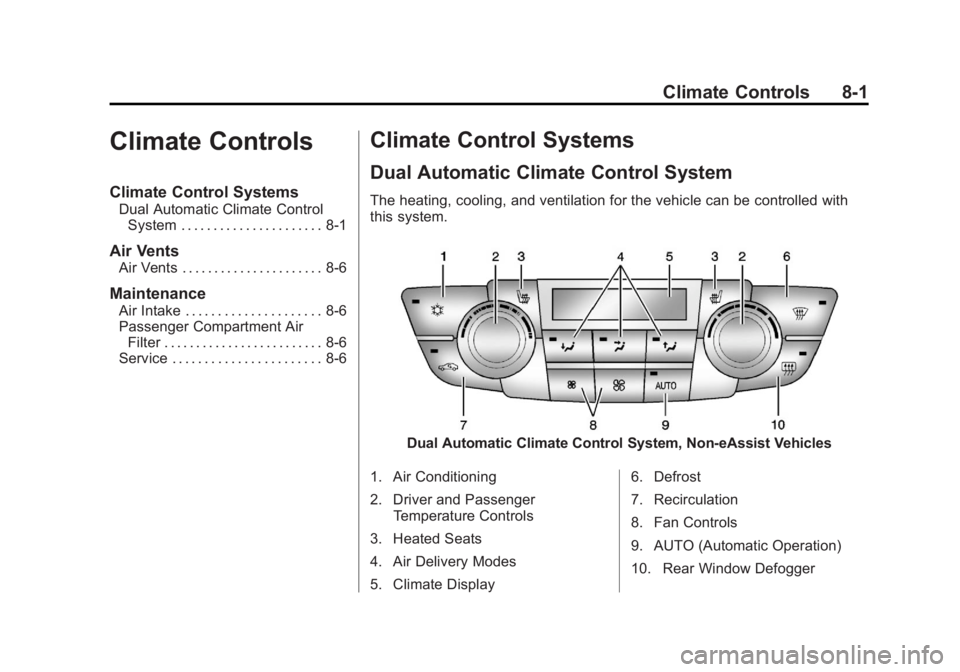
The heating, cooling, and ventilation for the vehicle can be controlled with
this system.
Dual Automatic Climate Control System, Non-eAssist Vehicles
1. Air Conditioning
2. Driver and Passenger Temperature Controls
3. Heated Seats
4. Air Delivery Modes
5. Climate Display 6. Defrost
7. Recirculation
8. Fan Controls
9. AUTO (Automatic Operation)
10. Rear Window Defogger
Page 192 of 412
Black plate (2,1)Buick Regal Owner Manual - 2013 - crc - 11/5/12
8-2 Climate Controls
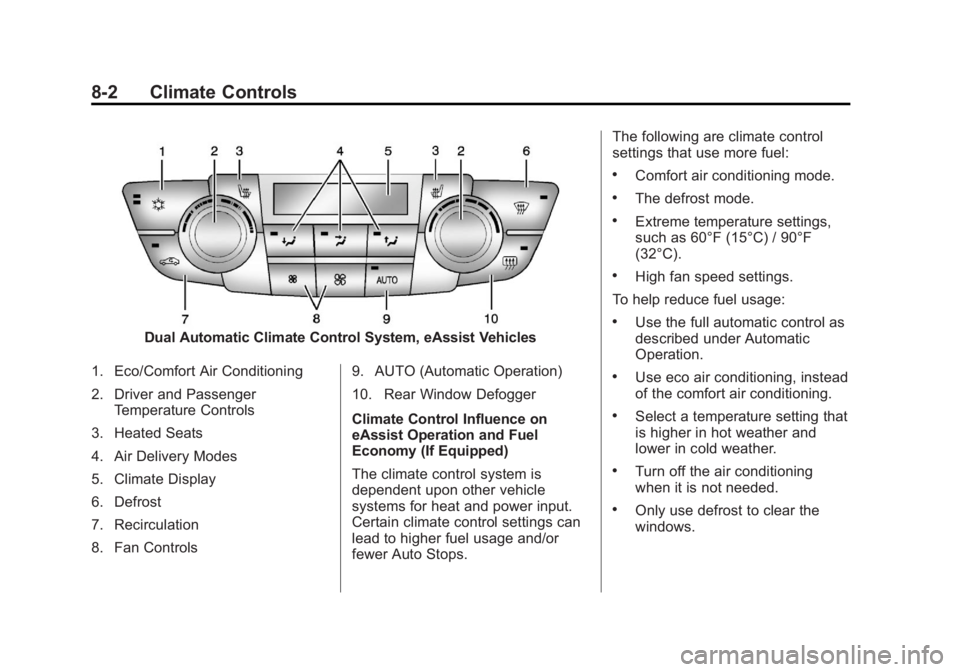
Dual Automatic Climate Control System, eAssist Vehicles
1. Eco/Comfort Air Conditioning
2. Driver and Passenger Temperature Controls
3. Heated Seats
4. Air Delivery Modes
5. Climate Display
6. Defrost
7. Recirculation
8. Fan Controls 9. AUTO (Automatic Operation)
10. Rear Window Defogger
Climate Control Influence on
eAssist Operation and Fuel
Economy (If Equipped)
The climate control system is
dependent upon other vehicle
systems for heat and power input.
Certain climate control settings can
lead to higher fuel usage and/or
fewer Auto Stops.The following are climate control
settings that use more fuel:
.Comfort air conditioning mode.
.The defrost mode.
.Extreme temperature settings,
such as 60°F (15°C) / 90°F
(32°C).
.High fan speed settings.
To help reduce fuel usage:
.Use the full automatic control as
described under Automatic
Operation.
.Use eco air conditioning, instead
of the comfort air conditioning.
.Select a temperature setting that
is higher in hot weather and
lower in cold weather.
.Turn off the air conditioning
when it is not needed.
.Only use defrost to clear the
windows.
Page 193 of 412
Black plate (3,1)Buick Regal Owner Manual - 2013 - crc - 11/5/12
Climate Controls 8-3
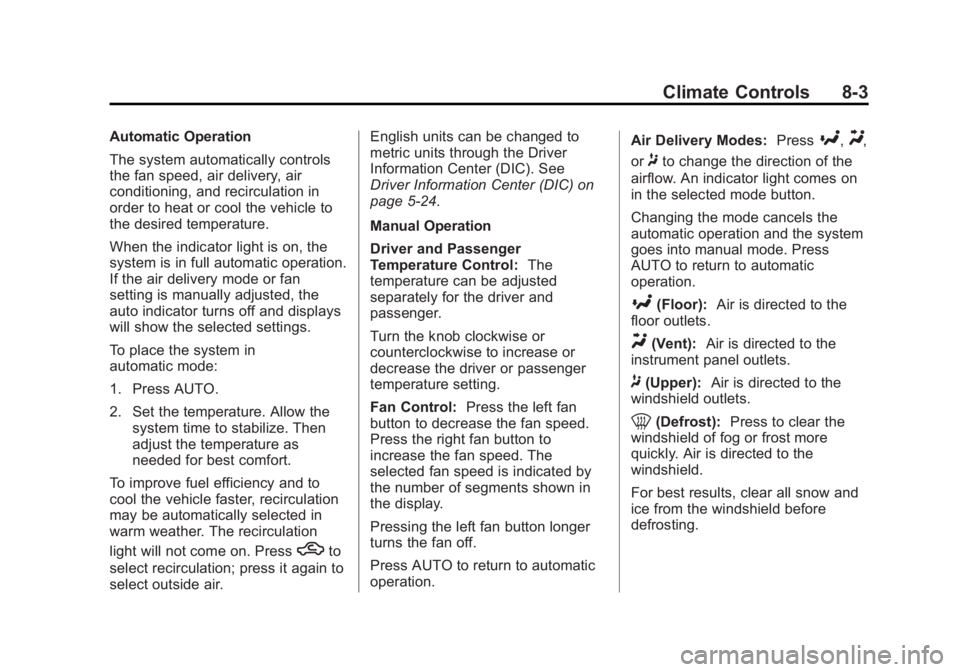
Automatic Operation
The system automatically controls
the fan speed, air delivery, air
conditioning, and recirculation in
order to heat or cool the vehicle to
the desired temperature.
When the indicator light is on, the
system is in full automatic operation.
If the air delivery mode or fan
setting is manually adjusted, the
auto indicator turns off and displays
will show the selected settings.
To place the system in
automatic mode:
1. Press AUTO.
2. Set the temperature. Allow thesystem time to stabilize. Then
adjust the temperature as
needed for best comfort.
To improve fuel efficiency and to
cool the vehicle faster, recirculation
may be automatically selected in
warm weather. The recirculation
light will not come on. Press
hto
select recirculation; press it again to
select outside air. English units can be changed to
metric units through the Driver
Information Center (DIC). See
Driver Information Center (DIC) on
page 5‑24.
Manual Operation
Driver and Passenger
Temperature Control:
The
temperature can be adjusted
separately for the driver and
passenger.
Turn the knob clockwise or
counterclockwise to increase or
decrease the driver or passenger
temperature setting.
Fan Control: Press the left fan
button to decrease the fan speed.
Press the right fan button to
increase the fan speed. The
selected fan speed is indicated by
the number of segments shown in
the display.
Pressing the left fan button longer
turns the fan off.
Press AUTO to return to automatic
operation. Air Delivery Modes:
Press
[,Y,
or
8to change the direction of the
airflow. An indicator light comes on
in the selected mode button.
Changing the mode cancels the
automatic operation and the system
goes into manual mode. Press
AUTO to return to automatic
operation.
[(Floor): Air is directed to the
floor outlets.
Y(Vent): Air is directed to the
instrument panel outlets.
8(Upper): Air is directed to the
windshield outlets.
0(Defrost): Press to clear the
windshield of fog or frost more
quickly. Air is directed to the
windshield.
For best results, clear all snow and
ice from the windshield before
defrosting.