language BUICK REGAL 2013 Owner's Manual
[x] Cancel search | Manufacturer: BUICK, Model Year: 2013, Model line: REGAL, Model: BUICK REGAL 2013Pages: 412, PDF Size: 6.06 MB
Page 3 of 412
Black plate (3,1)Buick Regal Owner Manual - 2013 - crc - 11/5/12
Introduction iii
The names, logos, emblems,
slogans, vehicle model names, and
vehicle body designs appearing in
this manual including, but not limited
to, GM, the GM logo, BUICK, the
BUICK Emblem, and REGAL are
trademarks and/or service marks of
General Motors LLC, its
subsidiaries, affiliates, or licensors.This manual describes features that
may or may not be on your specific
vehicle either because they are
options that you did not purchase or
due to changes subsequent to the
printing of this owner manual.
Please refer to the purchase
documentation relating to your
specific vehicle to confirm each of
the features found on your vehicle.
For vehicles first sold in Canada,
substitute the name
“General
Motors of Canada Limited” for Buick
Motor Division wherever it appears
in this manual.
Keep this manual in the vehicle for
quick reference.
Canadian Vehicle Owners
Propriétaires Canadiens
A French language manual can be
obtained from your dealer, at
www.helminc.com, or from:
On peut obtenir un exemplaire de
ce guide en français auprès du
concessionnaire ou à l'adresse
savant:
Helm, Incorporated
Attention: Customer Service
47911 Halyard Drive
Plymouth, MI 48170
Litho in U.S.A.
Part No. 22771250 B Second Printing©2012 General Motors LLC. All Rights Reserved.
Page 23 of 412
Black plate (17,1)Buick Regal Owner Manual - 2013 - crc - 11/5/12
In Brief 1-17
5:Press to turn the cruise control
system on and off.
*: Press to disengage cruise
control without erasing the set
speed from memory.
RES/+: Move the thumbwheel up to
make the vehicle resume to a
previously set speed or to
accelerate.
SET/−: Move the thumbwheel down
toward SET/- to set a speed and
activate cruise control, or to make
the vehicle decelerate.
See Cruise Control on page 9‑41.
Infotainment System
See the infotainment manual for
information on the radio, audio
players, phone, navigation system,
and voice or speech recognition.
There is also information on settings
and downloadable applications (if
equipped).
Driver Information
Center (DIC)
The DIC display is in the center of
the instrument cluster. It shows the
status of many vehicle systems. The
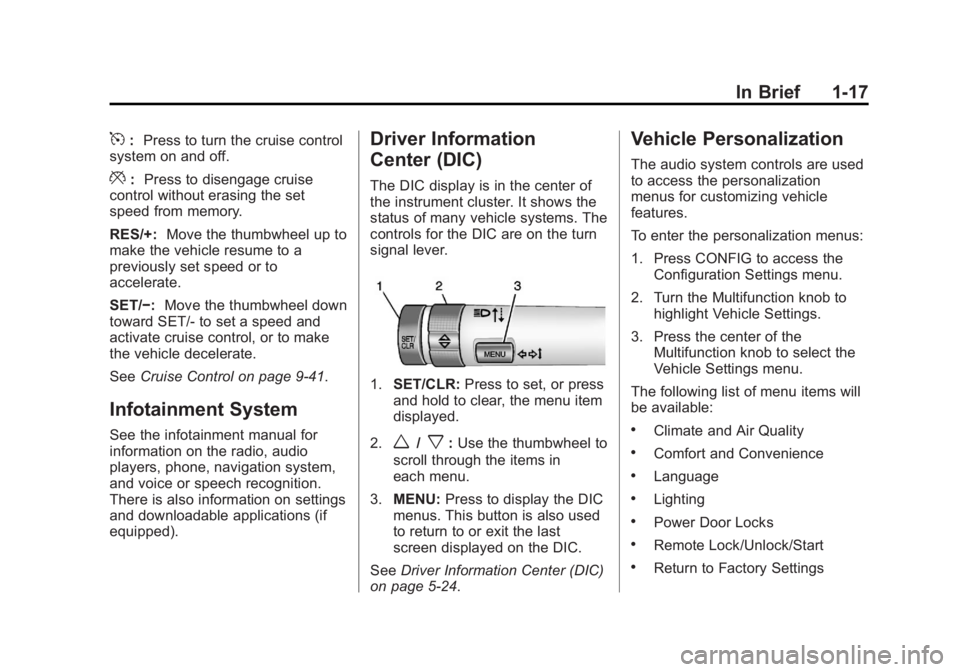
controls for the DIC are on the turn
signal lever.
1.SET/CLR: Press to set, or press
and hold to clear, the menu item
displayed.
2.
w/x: Use the thumbwheel to
scroll through the items in
each menu.
3. MENU: Press to display the DIC
menus. This button is also used
to return to or exit the last
screen displayed on the DIC.
See Driver Information Center (DIC)
on page 5‑24.
Vehicle Personalization
The audio system controls are used
to access the personalization
menus for customizing vehicle
features.
To enter the personalization menus:
1. Press CONFIG to access the Configuration Settings menu.
2. Turn the Multifunction knob to highlight Vehicle Settings.
3. Press the center of the Multifunction knob to select the
Vehicle Settings menu.
The following list of menu items will
be available:
.Climate and Air Quality
.Comfort and Convenience
.Language
.Lighting
.Power Door Locks
.Remote Lock/Unlock/Start
.Return to Factory Settings
Page 139 of 412
Black plate (35,1)Buick Regal Owner Manual - 2013 - crc - 11/5/12
Instruments and Controls 5-35
3. Press the center of theMultifunction knob to select the
Vehicle Settings menu.
The following list of menu items will
be available:
.Climate and Air Quality
.Comfort and Convenience
.Languages
.Lighting
.Power Door Locks
.Remote Lock/Unlock/Start
.Return to Factory Settings
Turn the Multifunction knob to
highlight the menu. Press the knob
to select it. Each of the menus is
detailed in the following information.
Climate and Air Quality
Select the Climate and Air Quality
menu and the following may be
displayed:
.Auto Fan Speed
.Auto Compartment Zone Temp
.Remote Start Auto Heat Seats
.Auto Defog
.Auto Rear Defog
Auto Fan Speed
This allows selection of the
automatic fan speed to run lower or
higher than normal.
Press the Multifunction knob when
Auto Fan Speed is highlighted to
open the menu. Turn the knob to
highlight High, Medium, or Low.
Press the knob to confirm the
selection and move back to the
last menu.
Auto Compartment Zone Temp
This allows the selection of how the
climate control system will operate
upon vehicle start. Selecting Single
Zone automatically resets the
passenger temperature setting the
same as the driver's for every
vehicle start. The climate control
system will operate using only the
driver's setting until the passenger
temperature setting is changed. Selecting Dual Zone or Last Setting
will keep the passenger temperature
adjustment separate from the
driver's setting all the time.
Press the Multifunction knob when
Auto Compartment Zone Temp is
highlighted. Turn the knob to
highlight Single Zone, Dual Zone,
or Last Setting. Press the knob to
confirm the selection and go back to
the last menu.
Remote Start Auto Heat Seats
When on, this feature will turn the
heated seats on when using remote
start on cold days.
Press the Multifunction knob when
Remote Start Auto Heat Seats is
highlighted. Turn the knob to
highlight On or Off. Press the knob
to confirm the selection and go back
to the last menu.
Auto Defog
This allows the auto defog function
to be turned on or off.
Page 140 of 412
Black plate (36,1)Buick Regal Owner Manual - 2013 - crc - 11/5/12
5-36 Instruments and Controls
Press the Multifunction knob when
Auto Defog is highlighted to select
On or Off. Turn the knob to confirm
the selection and move back to the
last menu.
Auto Rear Defog
This allows the auto rear defog to
be turned on or off. This feature will
automatically turn on the rear
defogger when it is cold outside.
Press the Multifunction knob when
Auto Rear Defog is highlighted to
select On or Off. Turn the knob to
confirm the selection and move
back to the last menu.
Comfort and Convenience
Select the Comfort and
Convenience menu and the
following will be displayed:
.Chime Volume
.Button Chime
Chime Volume
This allows the selection of the
chime volume level. Press the Multifunction knob when
Chime Volume is highlighted. Turn
the knob to select Normal or High.
Press the knob to confirm and go
back to the last menu.
Button Chime
This allows Button Chime to be
turned on or off.
Press the Multifunction knob when
Button Chime is highlighted to
select On or Off. Turn the knob to
confirm the selection and move
back to the last menu.
Language
Select the Language menu and the
following will be displayed:
.English
.Francais Canadien
.Espanol Mexicano
Turn the Multifunction knob to select
the language. Press BACK to return
to the last menu.
Lighting
Select the Lighting menu and the
following will be displayed:
.Vehicle Locator Lights
.Exit Lighting
Vehicle Locator Lights
This allows the vehicle locator lights
to be turned on or off.
Press the Multifunction knob when
Vehicle Locator Lights is highlighted
to select On or Off. Turn the knob to
confirm and go back to the
last menu.
Exit Lighting
This allows the selection of how
long the exterior lamps stay on
when leaving the vehicle when it is
dark outside.
Press the Multifunction knob when
Exit Lighting is highlighted. Turn the
knob to select Off, 30 Seconds,
1 Minute, or 2 Minutes. Press the
knob to confirm and go back to the
last menu.
Page 156 of 412
Black plate (4,1)Buick Regal Owner Manual - 2013 - crc - 11/5/12
7-4 Infotainment System
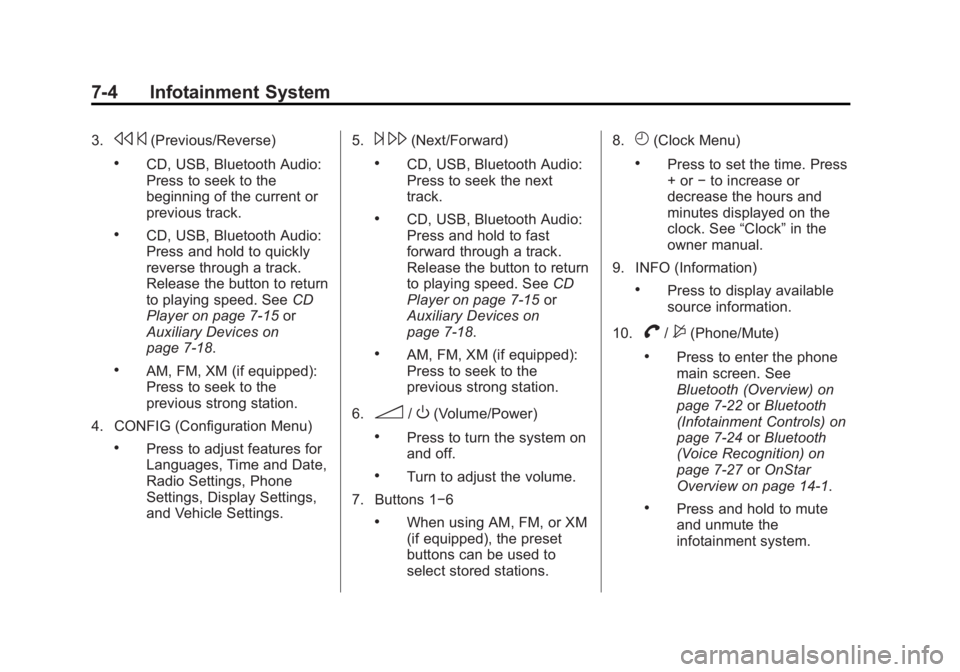
3.s©(Previous/Reverse)
.CD, USB, Bluetooth Audio:
Press to seek to the
beginning of the current or
previous track.
.CD, USB, Bluetooth Audio:
Press and hold to quickly
reverse through a track.
Release the button to return
to playing speed. See CD
Player on page 7‑15 or
Auxiliary Devices on
page 7‑18.
.AM, FM, XM (if equipped):
Press to seek to the
previous strong station.
4. CONFIG (Configuration Menu)
.Press to adjust features for
Languages, Time and Date,
Radio Settings, Phone
Settings, Display Settings,
and Vehicle Settings. 5.
¨
\(Next/Forward)
.CD, USB, Bluetooth Audio:
Press to seek the next
track.
.CD, USB, Bluetooth Audio:
Press and hold to fast
forward through a track.
Release the button to return
to playing speed. See CD
Player on page 7‑15 or
Auxiliary Devices on
page 7‑18.
.AM, FM, XM (if equipped):
Press to seek to the
previous strong station.
6.
3/O(Volume/Power)
.Press to turn the system on
and off.
.Turn to adjust the volume.
7. Buttons 1−6
.When using AM, FM, or XM
(if equipped), the preset
buttons can be used to
select stored stations. 8.
H(Clock Menu)
.Press to set the time. Press
+ or
−to increase or
decrease the hours and
minutes displayed on the
clock. See “Clock”in the
owner manual.
9. INFO (Information)
.Press to display available
source information.
10.
V/$(Phone/Mute)
.Press to enter the phone
main screen. See
Bluetooth (Overview) on
page 7‑22 orBluetooth
(Infotainment Controls) on
page 7‑24 orBluetooth
(Voice Recognition) on
page 7‑27 orOnStar
Overview on page 14‑1.
.Press and hold to mute
and unmute the
infotainment system.
Page 159 of 412
Black plate (7,1)Buick Regal Owner Manual - 2013 - crc - 11/5/12
Infotainment System 7-7
the screen buttons to change the
levels of sound for treble, midrange,
bass, fade, and balance. See
AM-FM Radio on page 7‑9.
Press the FM screen button to
display the FM main page and play
the current or last tuned FM station.
SeeAM-FM Radio on page 7‑9.
Press the AM screen button to
display the AM main page and play
the current or last tuned AM station.
See AM-FM Radio on page 7‑9.
Press the XM screen button (if
equipped) to display the XM main
page and play the current or last
tuned XM channel. See Satellite
Radio on page 7‑11.
Press the CD screen button to
display the CD main page and play
the current or last CD track
selected. See CD Player on
page 7‑15.
Press the USB screen button to
display the USB main page and play
the current or last track selected.
See Auxiliary Devices on page 7‑18. Press the AUX screen button to
access any connected auxiliary
device. See
Auxiliary Devices on
page 7‑18.
For eAssist vehicles, press the
Energy screen button to display the
Power Flow display. The Power
Flow display indicates the energy
flow direction, the high voltage
battery charge level, and the current
eAssist operating mode.
Press the Energy screen button to
display the Power Flow display
indicates the energy flow direction,
the high voltage battery charge
level, and the current eAssist
operating mode.
The Configuration Menu is used to
adjust features and preferences,
such as Sound, Radio, Nav
(Navigation), Display, or Clock
Settings.
1. Press the Config screen button on the Home Page or the
CONFIG button on the faceplate. 2. Touch-tap the scroll bar until the
desired option displays. Select
the desired settings to change.
Languages
The vehicle supports English,
French (Canadian), and Spanish.
The default language is English.
To change the display language,
see Vehicle Personalization on
page 5‑34 for more information.
Time and Date Settings
From the Time and Date Settings
screen button, press to display the
Time and Date Settings menu.
Set Time: Press + or−to increase
or decrease the Hours and Minutes
displayed on the clock.
Set Date: Press + or−to increase
or decrease the day.
Set Time Format: Press the 12 HR
screen button for standard time;
press the 24 HR screen button for
military time.
Page 164 of 412
Black plate (12,1)Buick Regal Owner Manual - 2013 - crc - 11/5/12
7-12 Infotainment System
Control Buttons
The buttons used to control the
SiriusXM radio are:
SRCE:Press to choose between
AM, FM, XM, if equipped, and CD.
Multifunction Knob: Turn to
search for channels and press to
navigate the available menus.
INFO: Press to display additional
information that may be available
about the current song.
s ©or¨\:Press to go to the
previous or next channel.
FAV 1/2/3: Press to open the
favorites list and select favorite
pages.
Buttons 1 to 6: Press to select
preset stations.
Adding or Removing Categories
1. From the Home Page press the Config screen button or the
CONFIG button on the faceplate.
2. Select Radio Settings from the Config Menu list. 3. Select Add/Remove XM
Categories.
4. From the Add/Remove XM Categories screen, select or
deselect any category to be
used in SiriusXM mode.
A checkmark will indicate that
the category is selected.
Turning SiriusXM Album Art On
or Off
1. From the Home Page press the Config screen button or the
CONFIG button on the faceplate.
2. Select Radio Settings from the Config Menu list.
3. Select XM Album Art to turn on or off.
SiriusXM Messages
XL (Explicit Language
Channels): These channels, or any
others, can be blocked by request,
by calling 1-800-929-2100 in the
U.S. and 1-877-438-9677 in
Canada. XM Updating:
The encryption code
in the receiver is being updated. No
action is required. This process
should take no longer than
30 seconds.
Loading XM: The audio system is
acquiring and processing audio and
text data. No action is needed. This
message should disappear shortly.
Channel Off Air: This channel is
not currently in service. Tune in to
another channel.
Channel Unauth: This channel is
blocked or cannot be received with
your SiriusXM subscription package.
Channel Unavailable: This
previously assigned channel is no
longer assigned. Tune to another
station.
No Artist Info: The system is
working properly. No artist
information is available at this time
on this channel.
Page 186 of 412
Black plate (34,1)Buick Regal Owner Manual - 2013 - crc - 11/5/12
7-34 Infotainment System
Trademarks and
License Agreements
Manufactured under license under
U.S. Patent #'s: 5,451,942;
5,956,674; 5,974,380; 5,978,762;
6,487,535 & other U.S. and
worldwide patents issued &
pending. DTS and the Symbol are
registered trademarks and DTS
Digital Surround and the DTS logos
are trademarks of DTS, Inc. Product
includes software. © DTS, Inc. All
Rights Reserved.
Manufactured under license from
Dolby Laboratories. Dolby and the
double-D symbol are trademarks of
Dolby Laboratories.
“Made for iPod”means that an
electronic accessory has been
designed to connect specifically to
iPod and has been certified by the
developer to meet Apple
performance standards.
iPod is a trademark of Apple
Computer, Inc., registered in the
U.S. and other countries.
Fees and Taxes: Subscription fee,
taxes, one time activation fee, and
other fees may apply. Subscription
fee is consumer only. All fees and
programming subject to change.
Subscriptions subject to Customer
Agreement available at
www.xmradio.com. XM™ service
only available in the 48 contiguous
United States and Canada.
In Canada: Some deterioration of
service may occur in extreme
northern latitudes. This is beyond
the control of XM™ Satellite Radio.
Explicit Language Notice: Channels
with frequent explicit language are
indicated with an “XL”preceding the
channel name. Channel blocking is
available for XM Satellite Radio
receivers by notifying XM at:
.USA Customers —Visit
www.xmradio.com or call
1-800-929-2100.
.Canadian Customers —Visit
www.xmradio.ca or call
1-877-438-9677.
Page 397 of 412
Black plate (7,1)Buick Regal Owner Manual - 2013 - crc - 11/5/12
OnStar 14-7
OnStar Personal Identification
Number (PIN)
A PIN is needed to access some of
the OnStar services, like Remote
Door Unlock and Stolen Vehicle
Assistance. You will be prompted to
change the PIN the first time when
speaking with an Advisor. To
change the OnStar PIN, call OnStar
and provide the Advisor with the
current number.
Warranty
OnStar equipment may be
warranted as part of the New
Vehicle Limited Warranty. The
manufacturer of the vehicle
furnishes detailed warranty
information.
Languages
The vehicle can be programmed to
respond in English, French or
Spanish. Press
Qand ask an
Advisor. Advisors can speak
English, French or Spanish.
Potential Issues
OnStar cannot perform Remote
Door Unlock or Stolen Vehicle
Assistance after the vehicle has
been off continuously for five days.
After five days, OnStar can contact
Roadside Assistance and a
locksmith to help gain access to the
vehicle.
Global Positioning
System (GPS)
.Obstruction of the GPS can
occur in a large city with tall
buildings; in parking garages;
around airports; in tunnels,
underpasses, or parking
garages; or in an area with very
dense trees. If GPS signals are
not available, the OnStar system
should still operate to call
OnStar. However, OnStar could
have difficulty identifying the
exact location.
.In emergency situations, OnStar
can use the last stored GPS
location to send to emergency
responders.
.A temporary loss of GPS can
cause loss of the ability to send
a Turn-by-Turn Navigation route.
The Advisor may give a verbal
route or may ask for a call back
after the vehicle is driven into an
open area.
Cellular and GPS Antennas
Avoid placing items over or near the
antenna to prevent blocking cellular
and GPS signal reception. Cellular
reception is required for OnStar to
send remote signals to the vehicle.
Unable to Connect to OnStar
Message
If there is limited cellular coverage
or the cellular network has reached
maximum capacity, this message
may come on. Press
Qto try the
call again or try again after driving a
few miles into another cellular area.