automatic CADILLAC CT5 2021 Service Manual
[x] Cancel search | Manufacturer: CADILLAC, Model Year: 2021, Model line: CT5, Model: CADILLAC CT5 2021Pages: 435, PDF Size: 8.9 MB
Page 138 of 435
Cadillac CT5 Owner Manual (GMNA-Localizing-U.S./Canada-14584312) -
2021 - CRC - 11/23/20
LIGHTING 137
jOFF :Press to turn off the dome
lamps when any door is opened,
Kon
the remote key is pressed, or when the
ignition is switched off. An indicator
light on the button will turn on when
the dome lamp override is activated.
Press
jOFF again to deactivate
this feature and the indicator light will
turn off. The dome lamps will come
on when doors are opened,
Kon the
remote key is pressed, or the ignition
is switched off.
+ON/OFF : Press to turn the dome
lamps on and off manually.
Reading Lamps
There are front and rear reading
lamps on the overhead console and
over the rear passenger doors. These
lamps come on when any door is
opened,
Kon the remote key is
pressed, or when the ignition is
switched off.
To operate, the ignition must be on,
or in ACC/ACCESSORY, or using
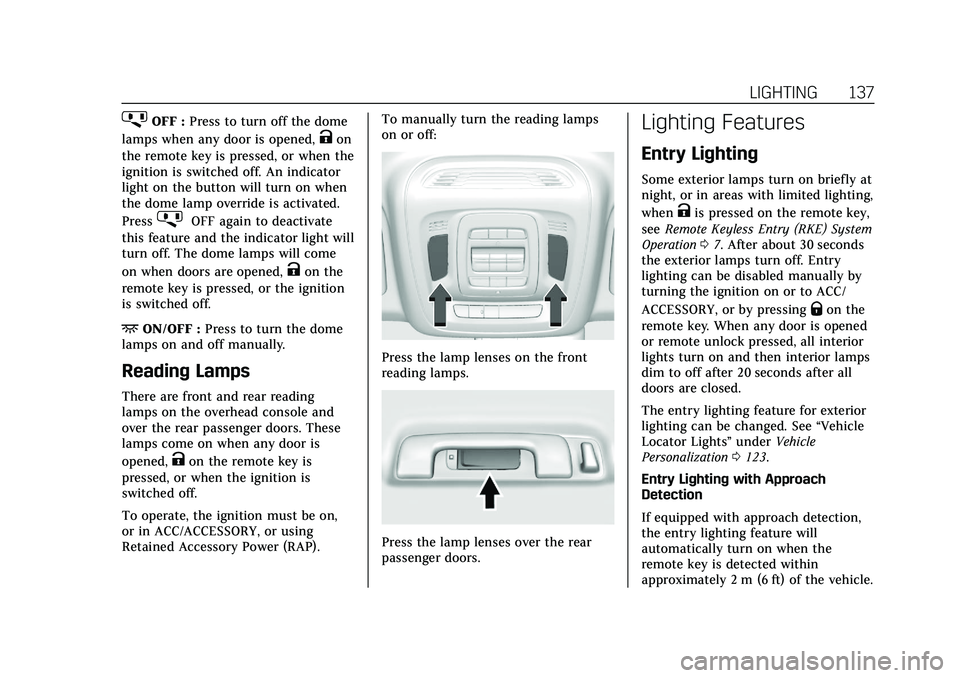
Retained Accessory Power (RAP). To manually turn the reading lamps
on or off:
Press the lamp lenses on the front
reading lamps.
Press the lamp lenses over the rear
passenger doors.
Lighting Features
Entry Lighting
Some exterior lamps turn on briefly at
night, or in areas with limited lighting,
when
Kis pressed on the remote key,
see Remote Keyless Entry (RKE) System
Operation 07. After about 30 seconds
the exterior lamps turn off. Entry
lighting can be disabled manually by
turning the ignition on or to ACC/
ACCESSORY, or by pressing
Qon the
remote key. When any door is opened
or remote unlock pressed, all interior
lights turn on and then interior lamps
dim to off after 20 seconds after all
doors are closed.
The entry lighting feature for exterior
lighting can be changed. See “Vehicle
Locator Lights” underVehicle
Personalization 0123.
Entry Lighting with Approach
Detection
If equipped with approach detection,
the entry lighting feature will
automatically turn on when the
remote key is detected within
approximately 2 m (6 ft) of the vehicle.
Page 139 of 435
Cadillac CT5 Owner Manual (GMNA-Localizing-U.S./Canada-14584312) -
2021 - CRC - 11/23/20
138 LIGHTING
If the vehicle has remained parked for
an extended period of time with no
remote key use or Keyless Access
operation, approach detection will be
disabled. To reactivate, press any
button on the remote key or open and
close all vehicle doors to re-enable the
entry lighting feature on approach.
Approach detection will not work if:
.The vehicle battery is low.
.The ignition is on or in ACC/
ACCESSORY.
.Entry lighting is set to Off. See
“Vehicle Locator Lights”under
Vehicle Personalization 0123.
Approach detection will not work with
a single remote key if:
.The remote key is left within a 5 m
(16 ft) range of the vehicle for
several minutes
.The remote key is left inside the
vehicle and all the doors are closed
To help maximize remote key battery
life, do not store the remote key
within 5 m (16 ft) of the vehicle.
Exit Lighting
Some exterior lamps come on at night,
or in areas with limited lighting, when
the driver door is opened after the
ignition is turned off.
The dome lamp comes on after the
ignition is turned off or any door is
opened. The exterior lamps and dome
lamp remain on after the door is
closed for a set amount of time, then
automatically turn off.
The exterior lamps turn off
immediately by turning the exterior
lamp control off.
The exit lighting for exterior lights can
be changed. See Vehicle Personalization
0 123.
Battery Load Management
The vehicle has Electric Power
Management (EPM), which estimates
the battery's temperature and state of
charge. It then adjusts the voltage for
best performance and extended life of
the battery. When the battery's state of charge is
low, the voltage is raised slightly to
quickly bring the charge back up.
When the state of charge is high, the
voltage is lowered slightly to prevent
overcharging. If the vehicle has a
voltmeter gauge or a voltage display
on the Driver Information Center
(DIC), you may see the voltage move
up or down. This is normal. If there is
a problem, an alert will be displayed.
The battery can be discharged at idle
if the electrical loads are very high.
This is true for all vehicles. This is
because the generator (alternator)
may not be spinning fast enough at
idle to produce all the power that is
needed for very high electrical loads.
A high electrical load occurs when
several of the following are on, such
as: headlamps, high beams, fog lamps,
rear window defogger, climate control
fan at high speed, heated seats, engine
cooling fans, and loads plugged into
accessory power outlets.
EPM works to prevent excessive
discharge of the battery. It does this
by balancing the generator's output
and the vehicle's electrical needs.
Page 140 of 435
Cadillac CT5 Owner Manual (GMNA-Localizing-U.S./Canada-14584312) -
2021 - CRC - 11/23/20
LIGHTING 139
It can increase engine idle speed to
generate more power, whenever
needed. It can temporarily reduce the
power demands of some accessories.
Normally, these actions occur in steps
or levels, without being noticeable. In
rare cases at the highest levels of
corrective action, this action may be
noticeable to the driver. If so, a DIC
message might be displayed. If a
battery message is displayed, it is
recommended that the driver reduce
the electrical loads as much as
possible. SeeDriver Information Center
(DIC) (Base Level) 0113 or
Driver Information Center (DIC)
(Uplevel) 0116.
Battery Power Protection
The battery saver feature is designed
to protect the vehicle's battery.
If some interior lamps are left on and
the ignition is turned off, the battery
rundown protection system
automatically turns the lamp off after
some time.
Exterior Lighting Battery
Saver
The exterior lamps turn off about
10 minutes after the ignition is turned
off, if the parking lamps or headlamps
have been manually left on. This
protects against draining the battery.
To restart the 10-minute timer, turn
the exterior lamp control to the
O
position and then back to the;or
2position.
To keep the lamps on for more than
10 minutes, the ignition must be on or
in ACC/ACCESSORY.
Page 145 of 435
Cadillac CT5 Owner Manual (GMNA-Localizing-U.S./Canada-14584312) -
2021 - CRC - 11/23/20
144 INFOTAINMENT SYSTEM
Phone
Touch the Phone icon to display the
Phone main page. SeeBluetooth
(Overview) 0175 or
Bluetooth (Pairing and Using a Phone)
0 176.
Nav
If equipped, touch the Nav icon to
display the navigation map. See Using
the Navigation System 0156.
Wi-Fi Hotspot
Touch the Wi-Fi Hotspot icon to
display the Wi-Fi Hotspot information.
See Settings 0182.
Climate
Touch the Climate icon to display the
Climate main page. See Dual
Automatic Climate Control System
0 202.
Users
If equipped, touch the Users icon to
sign in or create a new user profile,
and follow the on-screen instructions. Only four user profiles can be active at
one time in the vehicle. It may be
necessary to remove a profile from the
menu before creating or signing into
an existing profile. The removed
profile can be logged into at a
later time.
Settings
Touch the Settings icon to display the
Settings menu. See
Settings0182.
Apple CarPlay
Touch the Apple CarPlay icon to
activate Apple CarPlay if equipped
after a supported device is connected.
See Apple CarPlay and Android Auto
0 180.
Android Auto
Touch the Android Auto icon to
activate Android Auto, if equipped,
after a supported device is connected.
See Apple CarPlay and Android Auto
0 180.
Apps
If equipped, in-vehicle apps are
available for download. Touch the
Apps icon on the Home Page to begin. Downloading and using in-vehicle
apps requires Internet connectivity
which can be accessed with a data
plan through the vehicle’s built-in 4G
LTE Wi-Fi hotspot, if equipped, or a
compatible mobile device hotspot. On
most mobile devices, activation of the
Wi-Fi hotspot is in the device’s
Settings menu under Mobile Network
Sharing, Personal Hotspot, Mobile
Hotspot, or similar.
Availability of apps and connectivity
varies by vehicle, conditions, and
location. Data plan rates apply.
Features are subject to change. For
more information, see
www.my.cadillac.com/learn.
OnStar Services
If equipped, touch the OnStar Services
icon to display the OnStar Services
and Account pages. See
OnStar
Overview 0414 and
OnStar System 0155.
Camera
If equipped, touch the Camera icon to
access the camera application. See
Assistance Systems for Parking or
Backing 0277.
Page 149 of 435
Cadillac CT5 Owner Manual (GMNA-Localizing-U.S./Canada-14584312) -
2021 - CRC - 11/23/20
148 INFOTAINMENT SYSTEM
If equipped, touch Update Station List
to update the active stations or
channels in your area.
Direct Tune
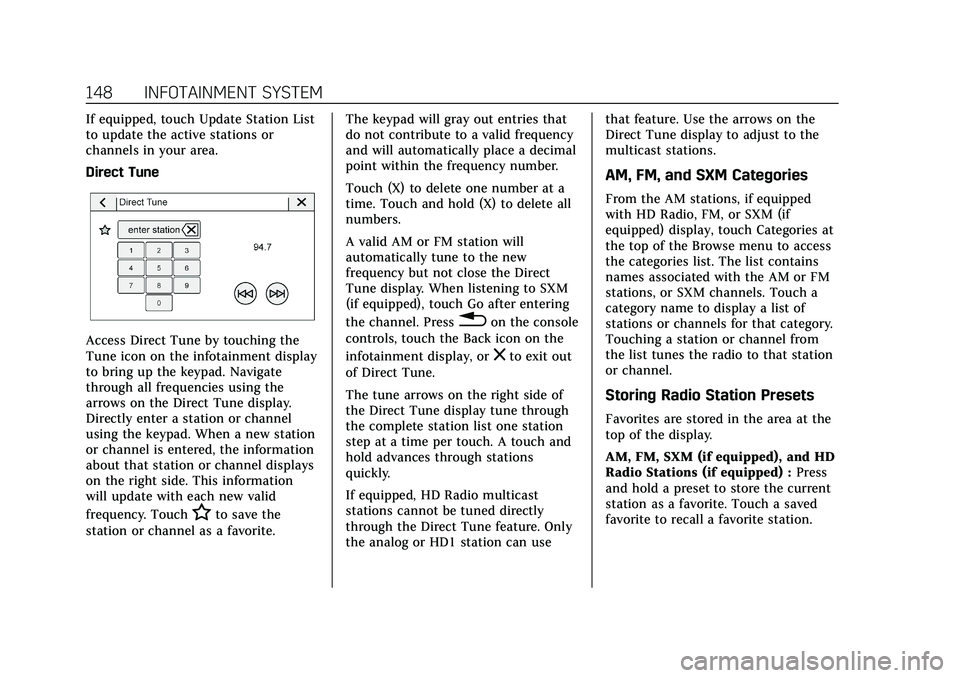
Access Direct Tune by touching the
Tune icon on the infotainment display
to bring up the keypad. Navigate
through all frequencies using the
arrows on the Direct Tune display.
Directly enter a station or channel
using the keypad. When a new station
or channel is entered, the information
about that station or channel displays
on the right side. This information
will update with each new valid
frequency. Touch
Hto save the
station or channel as a favorite. The keypad will gray out entries that
do not contribute to a valid frequency
and will automatically place a decimal
point within the frequency number.
Touch (X) to delete one number at a
time. Touch and hold (X) to delete all
numbers.
A valid AM or FM station will
automatically tune to the new
frequency but not close the Direct
Tune display. When listening to SXM
(if equipped), touch Go after entering
the channel. Press
0on the console
controls, touch the Back icon on the
infotainment display, or
zto exit out
of Direct Tune.
The tune arrows on the right side of
the Direct Tune display tune through
the complete station list one station
step at a time per touch. A touch and
hold advances through stations
quickly.
If equipped, HD Radio multicast
stations cannot be tuned directly
through the Direct Tune feature. Only
the analog or HD1 station can use that feature. Use the arrows on the
Direct Tune display to adjust to the
multicast stations.
AM, FM, and SXM Categories
From the AM stations, if equipped
with HD Radio, FM, or SXM (if
equipped) display, touch Categories at
the top of the Browse menu to access
the categories list. The list contains
names associated with the AM or FM
stations, or SXM channels. Touch a
category name to display a list of
stations or channels for that category.
Touching a station or channel from
the list tunes the radio to that station
or channel.
Storing Radio Station Presets
Favorites are stored in the area at the
top of the display.
AM, FM, SXM (if equipped), and HD
Radio Stations (if equipped) :
Press
and hold a preset to store the current
station as a favorite. Touch a saved
favorite to recall a favorite station.
Page 150 of 435
Cadillac CT5 Owner Manual (GMNA-Localizing-U.S./Canada-14584312) -
2021 - CRC - 11/23/20
INFOTAINMENT SYSTEM 149
Favorites can also be stored by
touching
Hin a station or channel
list. This will highlight indicating that
it is now saved as a favorite.
The number of favorites displayed is
automatically adjusted by default, but
can be manually adjusted in Settings
in the System tab under Favorites and
then Set Number of Audio Favorites.
It can also be adjusted in Settings in
the Apps tab under Audio and then
Set Number of Audio Favorites.
HD Radio Technology
If equipped, HD Radio is a free service
with features such as digital quality
sound, more stations available on a
single frequency such as HD2 and
HD3, and display information such as
artist and song title.
From the Now Playing display, touch
the HD Radio icon to turn HD on
or off.
Station Access
To access HD Radio stations:
1. Tune the radio to the station. If HD Radio is turned on and the station
is broadcasting in HD Radio, the radio will automatically tune to the
HD version of the current channel
(HD1) after several seconds. The
radio will also display icons
representing additional channels
(HD2, ...HD8), that may be
available. When the radio
successfully tunes to a HD station,
the HD logo will display and digital
audio will play.
2. Touch the display arrows to tune to the previous or next HD Radio
station.
There may be a delay before the
station starts playing.
The HD Radio station number is
indicated next to the HD logo.
HD Radio stations can be saved as
favorites.
For a list of all stations, see
www.hdradio.com.
HD Radio Troubleshooting
Digital Audio Delay : Wait for the
signal to process. This can take
several seconds. Volume Change, Audio Skip, Echo,
Digital Audio Lost :
Station signal
strength may be weak, the station is
out of range, or the station may be
out of alignment. Verify proper
reception on another station.
If the HD Radio signal weakens while
listening to HD1, the radio will
automatically switch to the analog
version of the radio station.
If the HD Radio signal loses reception
while listening to stations HD2 to
HD8, the radio mutes until the signal
can be recovered or until the station is
changed.
HD Radio can be disabled if driving in
a weak signal area. Touch HD Radio
On/Off to toggle HD Radio reception
on and off.
Radio Data System (RDS)
If equipped, RDS features are available
for use only on FM stations that
broadcast RDS information. With RDS,
the radio can:
.Group stations by Category (i.e.,
Program Type) such as Rock, Jazz,
Classical, etc.
Page 151 of 435
Cadillac CT5 Owner Manual (GMNA-Localizing-U.S./Canada-14584312) -
2021 - CRC - 11/23/20
150 INFOTAINMENT SYSTEM
.Display messages from radio
stations.
This system relies on receiving
specific information from these
stations and only works when the
information is available. It is possible
that a radio station could broadcast
incorrect information that causes the
radio features to work improperly.
If this happens, contact the radio
station.
When information is broadcast from a
RDS station, the station name or call
letters display on the audio screen.
Radio text supporting the currently
playing broadcast may also appear.
Satellite Radio
SiriusXM Radio Service
If equipped, vehicles with a valid
SiriusXM radio subscription can
receive SiriusXM programming.
SiriusXM radio has a wide variety of
programming and commercial-free
music, coast to coast, in digital-quality
sound. In the U.S., see
www.siriusxm.com or call 1-888-601-6296. In Canada, see
www.siriusxm.ca or call
1-877-438-9677.
When SiriusXM is active, the channel
name, number, song title, and artist
appear on the display.
SiriusXM with 360L
SiriusXM with 360L interface has
enhanced in-vehicle listening
experience for subscribers. The
experience now offers more categories
and system learned recommendations
toward discovering more personalized
content.
To use the full SiriusXM 360L
program, including streaming content
and listening recommendations,
OnStar Connected Access is required.
Connected vehicle services vary by
model and require a complete working
electrical system, cell reception, and
GPS signal. An active connected plan
is required.
Reference the SiriusXM user guide for
use and subscription information.
Radio Reception
Unplug electronic devices from the
accessory power outlets if there is
interference or static in the radio.
FM
FM signals only reach about 16 to
65 km (10 to 40 mi). Although the
radio has a built-in electronic circuit
that automatically works to reduce
interference, some static can occur,
especially around tall buildings or
hills, causing the sound to fade in
and out.
AM
The range for most AM stations is
greater than for FM, especially at
night. The longer range can cause
station frequencies to interfere with
each other. Static can also occur when
things like storms and power lines
interfere with radio reception. When
this happens, try reducing the treble
on the radio.
Page 159 of 435
Cadillac CT5 Owner Manual (GMNA-Localizing-U.S./Canada-14584312) -
2021 - CRC - 11/23/20
158 INFOTAINMENT SYSTEM
Map Colors
.Auto–Touch to automatically
change modes based on lighting
conditions.
.Day (Light)
.Night (Dark)
3D Landmark (Default is On) :
Touch On or Off. When turned on, the
system will display all 3D Landmarks
on the map depending on the zoom
level.
3D Building (Default is Off ) : Touch
On or Off. When turned on, the
system will display all of the possible
3D building shapes on the map
depending on the zoom level.
Show Terrain in 3D (Default is
Off ) : If equipped, touch On or Off.
When turned on, the system will
display terrain information on the
map in 3D view.
Auto-Zoom (Default is On) : Touch
On or Off. When turned on, the
system will automatically adjust the
zoom level when the vehicle is
approaching a turn. After the turn is
completed, the system automatically
brings the zoom back to the originally set level. If the vehicle is approaching
a turn with the next turn occurring
shortly after, the Auto-Zoom will
remain on until both turns are
completed.
Route Preferences
Touch to access the Route
Preferences. The choices are:
.Preferred Route
–Choose from two
different route options: Fastest or
Eco-Friendly.
‐ Fastest would be the route with
the shortest drive time.
‐ Eco-Friendly would be the most
fuel-efficient route.
.Avoid on Current Route –Choose
any of the road features to avoid
while on route:
‐ Highways
‐ Unpaved Roads
‐ Ferries
‐ Carpool Lanes
‐ Toll Roads
‐ Tunnels
‐ Country Borders Navigation Voice Control
Touch to access the voice control
setting display.
.Navigation Volume
–To adjust the
volume level, touch the up and
down arrows. If the voice guidance
prompt is being heard, volume can
also be adjusted using the knob on
the center stack or the volume
switch on the steering wheel.
.Navigation Voice Prompt Level
during a Call. Options available are:
‐ Full Prompt (Selected by default)
‐ Tone Only
‐ None
Traffic Events (If Equipped)
This feature provides a list of events
that are on the route or nearby. Touch
Aand then select Traffic Events. An
OnStar connected Navigation service
plan is required.
Traffic Preferences (If Equipped)
While in Map View, touch
A, then
Settings and then Map and Navigation
Settings to access Traffic Preferences.
When Show Traffic on Map is turned
Page 160 of 435
Cadillac CT5 Owner Manual (GMNA-Localizing-U.S./Canada-14584312) -
2021 - CRC - 11/23/20
INFOTAINMENT SYSTEM 159
on, the feature provides an overview
of the traffic flow using different
coded colors. The following options
are available for rerouting:
.Auto Reroute to Better Route–The
system will automatically reroute if
the system detects there is a traffic
issue ahead.
.Ask Before Rerouting (Default) –If
the system detects there is a traffic
issue ahead, it will display a pop-up
with details about the issue. Choose
to reroute or cancel the alert.
.Never Search for Better Route –The
system will not check for a better
route until one of the above options
is selected.
Alert Preferences
Set alerts on or off during both
inactive and active guidance views.
The following alerts may be available:
.Road Safety Alerts –Touch to
display upcoming School Zones.
.Traffic Camera Alerts
Manage History
Touch Manage History to access the
History options:
.Clear Recent Destinations –Touch
\to clear the recent destinations.
.Clear Search History –Touch\to
clear the search history.
About
Touch to display software information,
such as:
.Telenav Terms and Conditions
.Telenav Privacy Statement
.Navigation Version
Maps
The Nav application requires a map
database to run. It is stored on an SD
card that is connected to the
infotainment system. If the map
database is not available, a missing SD
card error message will be displayed.
SD Card Error Messages
The SD card only works for one
unique vehicle. The SD card must pass
authentication verification to be used
for that specific vehicle. Potential
error scenarios and messages include:
.The SD card has initialized for the
first time: “Once initialized, this SD
card can only be used for navigation
in this vehicle.”
.The SD card is not working
properly: “SD card is not functioning
properly. (Error Code).”
.The SD card is not paired with the
existing system: “This SD card is not
valid in this vehicle for navigation.
See Owner’s Manual for more detail
or visit your dealer. (Error Code).”
.The SD card has been removed from
the slot: “SD card has been removed.
(Error Code).”
Touch Continue to resume after the
initialization error message. For the
other messages, touch OK to return to
the Home Page.
Navigation Symbols
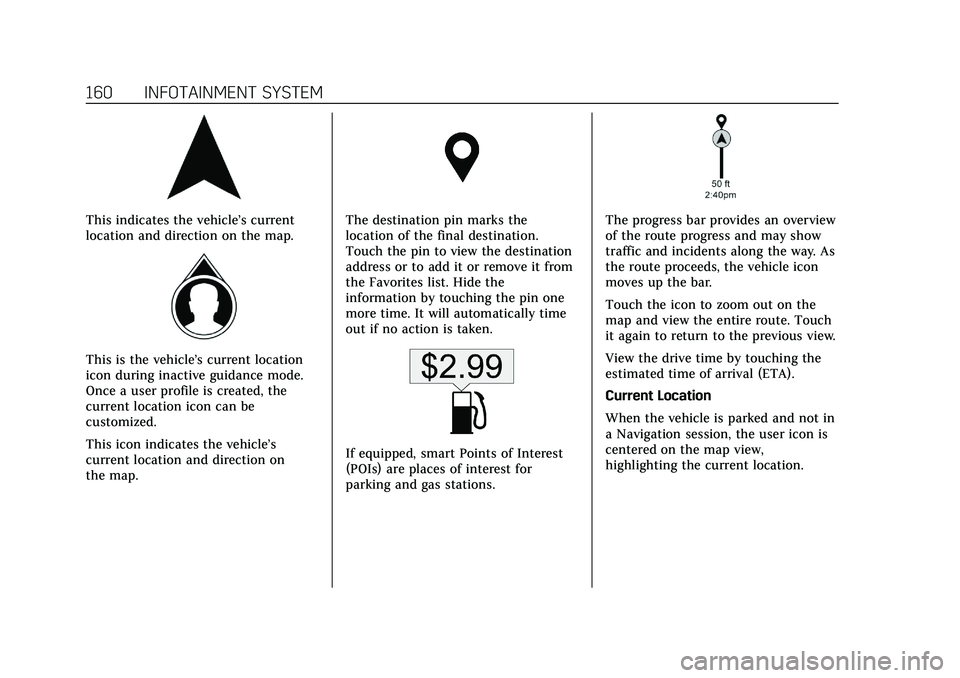
Following are the most common
symbols that may appear in the Nav
application.
Page 161 of 435
Cadillac CT5 Owner Manual (GMNA-Localizing-U.S./Canada-14584312) -
2021 - CRC - 11/23/20
160 INFOTAINMENT SYSTEM
This indicates the vehicle’s current
location and direction on the map.
This is the vehicle’s current location
icon during inactive guidance mode.
Once a user profile is created, the
current location icon can be
customized.
This icon indicates the vehicle’s
current location and direction on
the map.
The destination pin marks the
location of the final destination.
Touch the pin to view the destination
address or to add it or remove it from
the Favorites list. Hide the
information by touching the pin one
more time. It will automatically time
out if no action is taken.
If equipped, smart Points of Interest
(POIs) are places of interest for
parking and gas stations.
The progress bar provides an overview
of the route progress and may show
traffic and incidents along the way. As
the route proceeds, the vehicle icon
moves up the bar.
Touch the icon to zoom out on the
map and view the entire route. Touch
it again to return to the previous view.
View the drive time by touching the
estimated time of arrival (ETA).
Current Location
When the vehicle is parked and not in
a Navigation session, the user icon is
centered on the map view,
highlighting the current location.