ABS CADILLAC CTS 2011 2.G Owners Manual
[x] Cancel search | Manufacturer: CADILLAC, Model Year: 2011, Model line: CTS, Model: CADILLAC CTS 2011 2.GPages: 496, PDF Size: 7.71 MB
Page 5 of 496
Black plate (5,1)Cadillac CTS/CTS-V Owner Manual - 2011
Introduction v
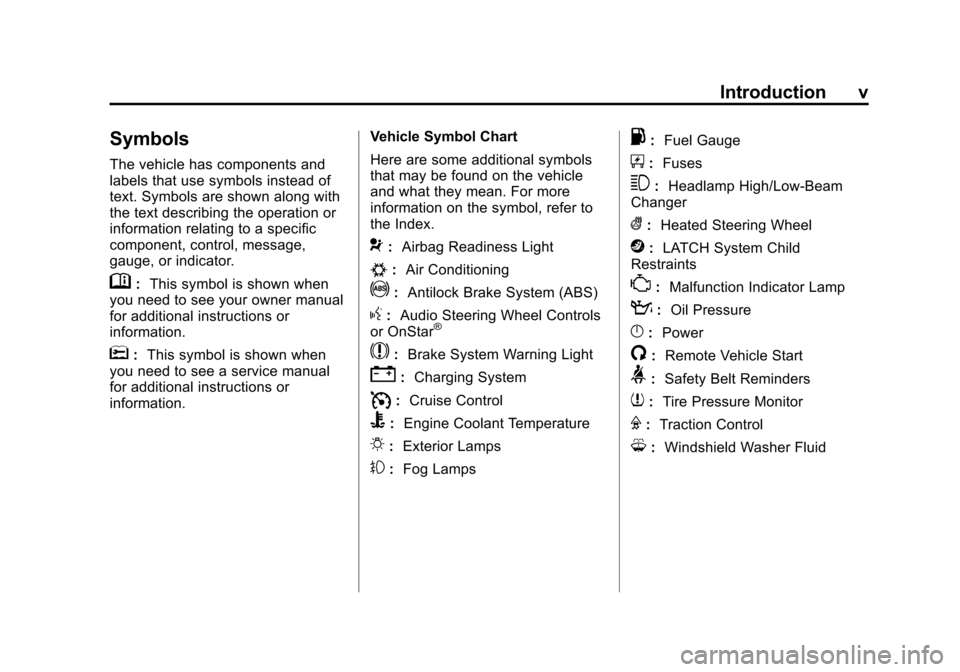
Symbols
The vehicle has components and
labels that use symbols instead of
text. Symbols are shown along with
the text describing the operation or
information relating to a specific
component, control, message,
gauge, or indicator.
M:This symbol is shown when
you need to see your owner manual
for additional instructions or
information.
*: This symbol is shown when
you need to see a service manual
for additional instructions or
information. Vehicle Symbol Chart
Here are some additional symbols
that may be found on the vehicle
and what they mean. For more
information on the symbol, refer to
the Index.
9:
Airbag Readiness Light
#:Air Conditioning
!:Antilock Brake System (ABS)
g:Audio Steering Wheel Controls
or OnStar®
$: Brake System Warning Light
":Charging System
I:Cruise Control
B: Engine Coolant Temperature
O:Exterior Lamps
#:Fog Lamps
.: Fuel Gauge
+:Fuses
3: Headlamp High/Low-Beam
Changer
(: Heated Steering Wheel
j:LATCH System Child
Restraints
*: Malfunction Indicator Lamp
::Oil Pressure
}:Power
/:Remote Vehicle Start
>:Safety Belt Reminders
7:Tire Pressure Monitor
F:Traction Control
M:Windshield Washer Fluid
Page 21 of 496
Black plate (15,1)Cadillac CTS/CTS-V Owner Manual - 2011
In Brief 1-15
Transmission
Automatic Transmission
Driver Shift Control (DSC) or Tap
Shift
Driver Shift Control (DSC) allows
shifting an automatic transmission
similar to a manual transmission.
DSC can be enabled through the
shift lever or the Tap Shift controls,
located on the back of the steering
wheel (if equipped). SeeManual
Mode on page 9‑28.
Manual Transmission
Skip Shift (CTS‐V)
Under light acceleration, the
transmission will only allow shifting
from 1 (First) to 4 (Fourth). This
helps improve fuel mileage. Under
harder acceleration, Skip Shift is
disabled, and all gears are
available. See Manual Transmission
on page 9‑30.
Vehicle Features
Radio(s)
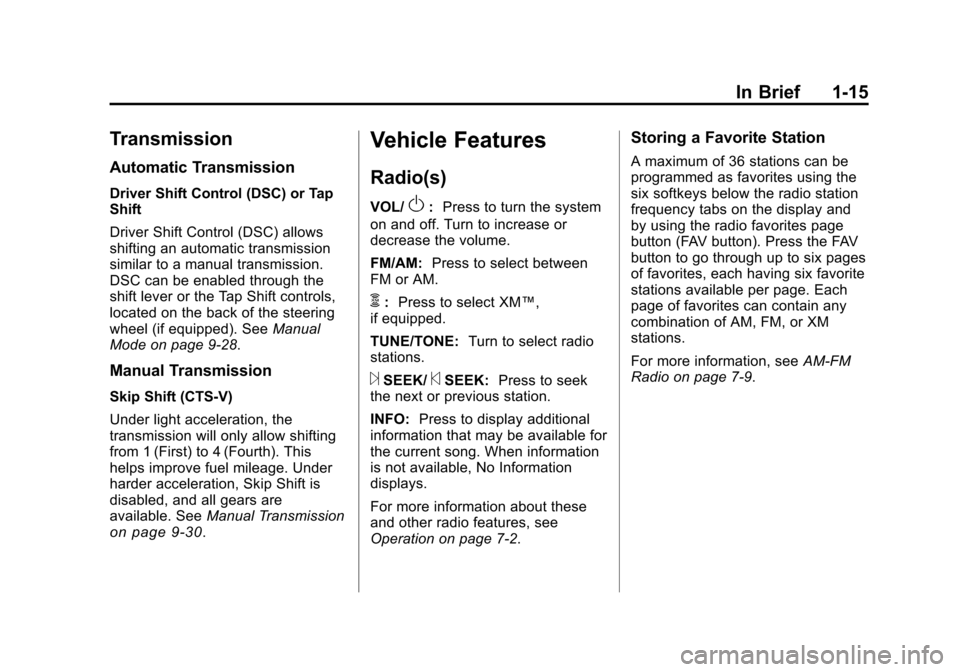
VOL/O:Press to turn the system
on and off. Turn to increase or
decrease the volume.
FM/AM: Press to select between
FM or AM.
m: Press to select XM™,
if equipped.
TUNE/TONE: Turn to select radio
stations.
¨SEEK/©SEEK: Press to seek
the next or previous station.
INFO: Press to display additional
information that may be available for
the current song. When information
is not available, No Information
displays.
For more information about these
and other radio features, see
Operation on page 7‑2.
Storing a Favorite Station
A maximum of 36 stations can be
programmed as favorites using the
six softkeys below the radio station
frequency tabs on the display and
by using the radio favorites page
button (FAV button). Press the FAV
button to go through up to six pages
of favorites, each having six favorite
stations available per page. Each
page of favorites can contain any
combination of AM, FM, or XM
stations.
For more information, see AM-FM
Radio on page 7‑9.
Page 141 of 496
Black plate (1,1)Cadillac CTS/CTS-V Owner Manual - 2011
Instruments and Controls 5-1
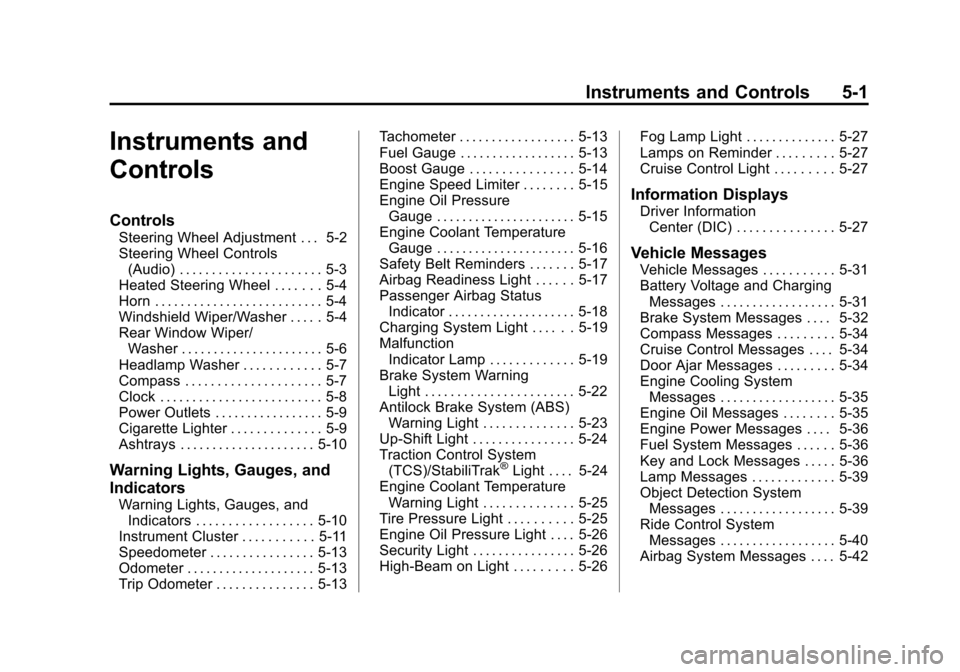
Instruments and
Controls
Controls
Steering Wheel Adjustment . . . 5-2
Steering Wheel Controls(Audio) . . . . . . . . . . . . . . . . . . . . . . 5-3
Heated Steering Wheel . . . . . . . 5-4
Horn . . . . . . . . . . . . . . . . . . . . . . . . . . 5-4
Windshield Wiper/Washer . . . . . 5-4
Rear Window Wiper/ Washer . . . . . . . . . . . . . . . . . . . . . . 5-6
Headlamp Washer . . . . . . . . . . . . 5-7
Compass . . . . . . . . . . . . . . . . . . . . . 5-7
Clock . . . . . . . . . . . . . . . . . . . . . . . . . 5-8
Power Outlets . . . . . . . . . . . . . . . . . 5-9
Cigarette Lighter . . . . . . . . . . . . . . 5-9
Ashtrays . . . . . . . . . . . . . . . . . . . . . 5-10
Warning Lights, Gauges, and
Indicators
Warning Lights, Gauges, and Indicators . . . . . . . . . . . . . . . . . . 5-10
Instrument Cluster . . . . . . . . . . . 5-11
Speedometer . . . . . . . . . . . . . . . . 5-13
Odometer . . . . . . . . . . . . . . . . . . . . 5-13
Trip Odometer . . . . . . . . . . . . . . . 5-13 Tachometer . . . . . . . . . . . . . . . . . . 5-13
Fuel Gauge . . . . . . . . . . . . . . . . . . 5-13
Boost Gauge . . . . . . . . . . . . . . . . 5-14
Engine Speed Limiter . . . . . . . . 5-15
Engine Oil Pressure
Gauge . . . . . . . . . . . . . . . . . . . . . . 5-15
Engine Coolant Temperature Gauge . . . . . . . . . . . . . . . . . . . . . . 5-16
Safety Belt Reminders . . . . . . . 5-17
Airbag Readiness Light . . . . . . 5-17
Passenger Airbag Status Indicator . . . . . . . . . . . . . . . . . . . . 5-18
Charging System Light . . . . . . 5-19
Malfunction Indicator Lamp . . . . . . . . . . . . . 5-19
Brake System Warning Light . . . . . . . . . . . . . . . . . . . . . . . 5-22
Antilock Brake System (ABS) Warning Light . . . . . . . . . . . . . . 5-23
Up-Shift Light . . . . . . . . . . . . . . . . 5-24
Traction Control System (TCS)/StabiliTrak
®Light . . . . 5-24
Engine Coolant Temperature Warning Light . . . . . . . . . . . . . . 5-25
Tire Pressure Light . . . . . . . . . . 5-25
Engine Oil Pressure Light . . . . 5-26
Security Light . . . . . . . . . . . . . . . . 5-26
High-Beam on Light . . . . . . . . . 5-26 Fog Lamp Light . . . . . . . . . . . . . . 5-27
Lamps on Reminder . . . . . . . . . 5-27
Cruise Control Light . . . . . . . . . 5-27
Information Displays
Driver Information
Center (DIC) . . . . . . . . . . . . . . . 5-27
Vehicle Messages
Vehicle Messages . . . . . . . . . . . 5-31
Battery Voltage and ChargingMessages . . . . . . . . . . . . . . . . . . 5-31
Brake System Messages . . . . 5-32
Compass Messages . . . . . . . . . 5-34
Cruise Control Messages . . . . 5-34
Door Ajar Messages . . . . . . . . . 5-34
Engine Cooling System Messages . . . . . . . . . . . . . . . . . . 5-35
Engine Oil Messages . . . . . . . . 5-35
Engine Power Messages . . . . 5-36
Fuel System Messages . . . . . . 5-36
Key and Lock Messages . . . . . 5-36
Lamp Messages . . . . . . . . . . . . . 5-39
Object Detection System Messages . . . . . . . . . . . . . . . . . . 5-39
Ride Control System Messages . . . . . . . . . . . . . . . . . . 5-40
Airbag System Messages . . . . 5-42
Page 163 of 496
Black plate (23,1)Cadillac CTS/CTS-V Owner Manual - 2011
Instruments and Controls 5-23
{CAUTION
The brake system might not be
working properly if the brake
system warning light is on.
Driving with the brake system
warning light on can lead to a
crash. If the light is still on after
the vehicle has been pulled off
the road and carefully stopped,
have the vehicle towed for
service.
For vehicles with the Electric Park
Brake (EPB), this red brake warning
light comes on when the park brake
is applied. If the light continues
flashing after the park brake is
released, or while driving, there is a
problem with the Electric Parking
Brake system.
If the light does not come on,
or remains flashing, see your dealer.
For vehicles with the Electric Park
Brake (EPB), this park brake status
light should come on briefly when
ignition is placed in ON/RUN. If it
does not come on then, have it fixed
so it will be ready to warn if there is
a problem.
If this park brake light comes on,
there is a problem with a system on
the vehicle that is causing the park
brake system to work at a reduced
level. The vehicle can still be driven,
but should be taken to a dealer
See Brake Assist (Except CTS-V)
on page 9‑36for more information.
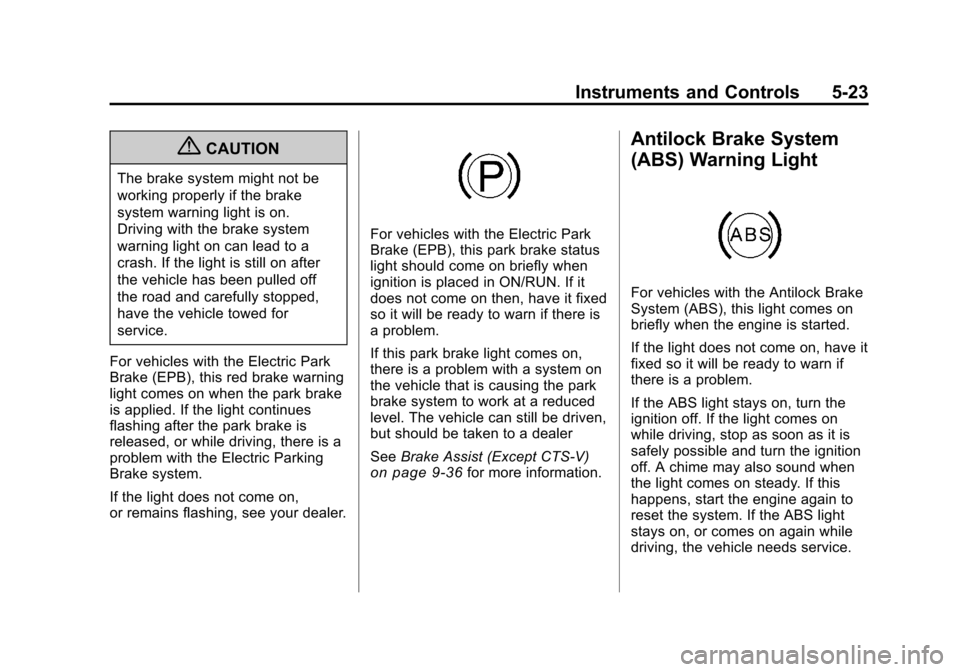
Antilock Brake System
(ABS) Warning Light
For vehicles with the Antilock Brake
System (ABS), this light comes on
briefly when the engine is started.
If the light does not come on, have it
fixed so it will be ready to warn if
there is a problem.
If the ABS light stays on, turn the
ignition off. If the light comes on
while driving, stop as soon as it is
safely possible and turn the ignition
off. A chime may also sound when
the light comes on steady. If this
happens, start the engine again to
reset the system. If the ABS light
stays on, or comes on again while
driving, the vehicle needs service.
Page 173 of 496
Black plate (33,1)Cadillac CTS/CTS-V Owner Manual - 2011
Instruments and Controls 5-33
Press Brake To Start Engine
(Automatic Transmission Only)
If the vehicle has the keyless
access system, this message
displays if you try to start the engine
without having the brake pressed.
The brake needs to be pressed
when starting the engine. See
Ignition Positions (Key Access)
on
page 9‑16or Ignition Positions
(Keyless Access)on page 9‑18for
more information.
Release Park Brake Switch
For vehicles with the Electric
Parking Brake, this message
displays if the Park Brake switch is
pulled while the vehicle is moving.
See the Electric Parking Brake
information under Parking Brake
(Manual)
on page 9‑33or Parking
Brake (Electric)on page 9‑34for
more information.
Service Brake Assist
This message displays if there is a
problem with the brake system. The
brake system warning light and the
antilock brake system (ABS)
warning light may also display on
the instrument panel cluster. See
Brake System Warning Light
on
page 5‑22and Antilock Brake
System (ABS) Warning Lighton
page 5‑23for more information.
Stop as soon as possible and turn
off the vehicle. Restart the vehicle
and check for the message on the
DIC display. If the message displays
immediately or again after you begin
driving, the brake system needs
service. See your dealer as soon as
possible. See Antilock Brake
System (ABS)
on page 9‑32for
more information.
Service Brake System
This message displays, while the
ignition is on, when the brake fluid
level is low. The brake system
warning light on the instrument
panel cluster also comes on. See Brake System Warning Light
on
page 5‑22for more information.
This message may also be
displayed for other brake system
problems. Have the brake system
serviced by your dealer as soon as
possible.
Service Park Brake
For vehicles with the Electric
Parking Brake, this message
displays if a problem is detected
with the electric parking brake
system. See your dealer for service.
Step On Brake To Release
Park Brake
For vehicles with the Electric
Parking Brake, this message
displays if you try to release the
park brake system without first
pressing the brake pedal. See the
Electric Parking Brake information
under Parking Brake (Manual)
on
page 9‑33or Parking Brake
(Electric)on page 9‑34for more
information.
Page 209 of 496
Black plate (3,1)Cadillac CTS/CTS-V Owner Manual - 2011
Infotainment System 7-3
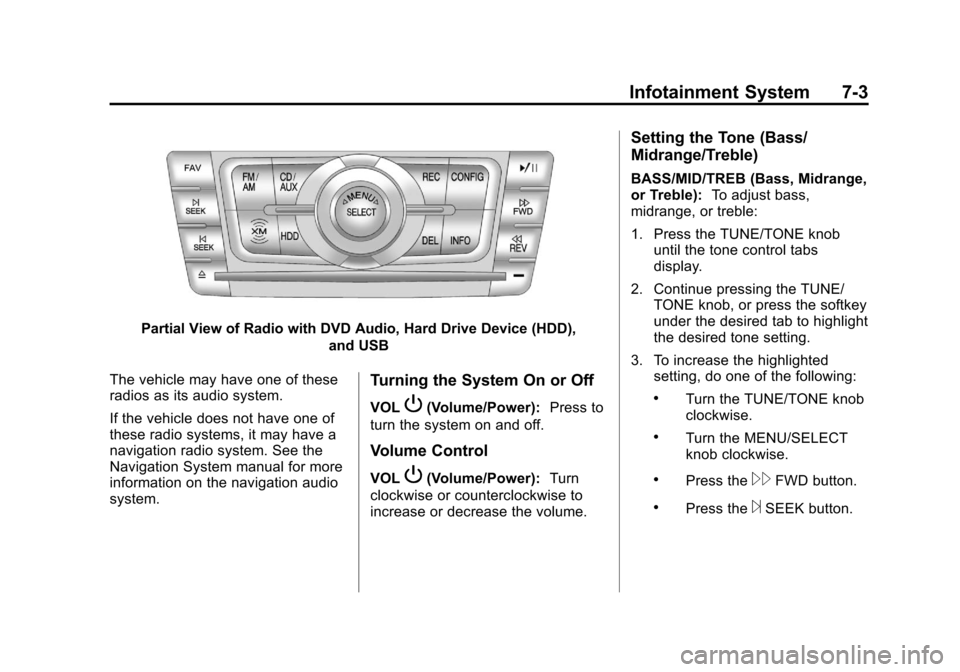
Partial View of Radio with DVD Audio, Hard Drive Device (HDD),and USB
The vehicle may have one of these
radios as its audio system.
If the vehicle does not have one of
these radio systems, it may have a
navigation radio system. See the
Navigation System manual for more
information on the navigation audio
system.
Turning the System On or Off
VOLP(Volume/Power): Press to
turn the system on and off.
Volume Control
VOLP(Volume/Power): Turn
clockwise or counterclockwise to
increase or decrease the volume.
Setting the Tone (Bass/
Midrange/Treble)
BASS/MID/TREB (Bass, Midrange,
or Treble): To adjust bass,
midrange, or treble:
1. Press the TUNE/TONE knob until the tone control tabs
display.
2. Continue pressing the TUNE/ TONE knob, or press the softkey
under the desired tab to highlight
the desired tone setting.
3. To increase the highlighted setting, do one of the following:
.Turn the TUNE/TONE knob
clockwise.
.Turn the MENU/SELECT
knob clockwise.
.Press the\FWD button.
.Press the¨SEEK button.
Page 210 of 496
Black plate (4,1)Cadillac CTS/CTS-V Owner Manual - 2011
7-4 Infotainment System
4. To decrease the highlightedsetting, do one of the following:
.Turn the TUNE/TONE knob
counterclockwise.
.Turn the MENU/SELECT
knob counterclockwise.
.Press thesREV button.
.Press the©SEEK button.
To quickly adjust bass, midrange,
or treble to the middle position,
press the softkey under the BASS,
MID, or TREB tab for more than
two seconds.
To quickly adjust all tone and
speaker controls to the middle
position, press the TUNE/TONE
knob for more than two seconds.
Adjusting the Speakers
(Balance/Fade)
BAL/FADE (Balance/Fade): To
adjust balance or fade:
1. Press the TUNE/TONE knob until the speaker control tabs
display. 2. Continue pressing the TUNE/
TONE knob, or press the softkey
under the desired tab to highlight
the desired tone setting.
3. To increase the highlighted setting, do one of the following:
.Turn the TUNE/TONE knob
clockwise.
.Turn the MENU/SELECT
knob clockwise.
.Press the\FWD button.
.Press the¨SEEK button.
4. To decrease the highlighted setting, do one of the following:
.Turn the TUNE/TONE knob
counterclockwise.
.Turn the MENU/SELECT
knob counterclockwise.
.Press thesREV button.
.Press the©SEEK button. To quickly adjust balance or fade to
the middle position, press the
softkey under the BAL or FADE tab
for more than two seconds.
To quickly adjust all speaker and
tone controls to the middle position,
press the TUNE/TONE knob for
more than two seconds.
Adjusting the Equalizer (EQ)
If the radio has this feature, the EQ
can be adjusted between talk and
manual.
To choose an EQ setting:
1. Press the TUNE/TONE knob.
2. Select EQ.
3. Select Talk or Manual.
4. Press the Back button to go
back to the Tone Settings menu.
Page 211 of 496
Black plate (5,1)Cadillac CTS/CTS-V Owner Manual - 2011
Infotainment System 7-5
Digital Signal
Processing (DSP)
If the radio has this feature, it has
either a Bose®sound system or a
Bose®5.1 Cabin Surround®sound
system. DSP is used to provide a
choice of different listening
experiences.
To choose a DSP setting:
1. Press the TUNE/TONE knob to
display the tone/speaker and
DSP tabs.
2. Press the softkey under the DSP tab.
3. Press the softkey below the Back tab to return to the original
tone/speaker display, or wait for
the display to time out. The DSP settings available are:
.Normal: Select for normal mode;
this provides the best sound
quality for all seating positions.
.Driver: Select to adjust the
audio for the driver to receive
the best possible sound quality.
.Rear: Select to adjust the audio
for the rear seat passengers to
receive the best possible sound
quality.
.Centerpoint®: Select to enable
Bose®Centerpoint signal
processing circuitry. Centerpoint
creates a Bose
®surround sound
listening experience from stereo
CDs, MP3s, and satellite radio.
As a result, vehicle owners enjoy
a surround sound listening
experience from many audio
sources. Simply turn it on, and it
operates automatically.
This feature is not available in
AM/FM radio mode. If the vehicle is equipped with
the Bose 5.1 Cabin Surround
sound system, the radio can
support the playback of 5.1
surround sound DVD-A discs or
DTS 5.1 surround sound CD
discs. When a 5.1 surround
sound formatted disc is playing,
DSP options available are:
‐
5.1 Surround + Normal: Best
for all seating positions.
‐ 5.1 Surround + Rear: Best for
the rear seating positions.
System Settings
CONFIG: Press to adjust the
number of favorites pages, auto
volume, XM (if equipped), and HDD
(if available) settings. The FAV,
AUTO VOL, XM (if equipped), and
HDD (if available) tabs display. The
display will time out after
approximately ten seconds.
Page 212 of 496
Black plate (6,1)Cadillac CTS/CTS-V Owner Manual - 2011
7-6 Infotainment System
Configuring the Number of
Favorite Pages
The number of favorite pages can
be set up using the CONFIG button.
To setup the number of favorite
pages:
1. Press the CONFIG button todisplay the radio setup menu.
2. Press the softkey located below the FAV tab.
3. Select the desired number of favorites pages by pressing the
softkey located below the
displayed page numbers.
4. Press the FAV button, or let the menu time out, to return to the
original main radio screen
showing the radio station
frequency tabs and to begin the
process of programming
favorites for the chosen number
of pages. Speed Compensated
Volume (SCV)
A radio with SCV automatically
adjusts the sound to compensate for
road and wind noise as the vehicle
speeds up or slows down, so that
the volume is consistent while
driving. To activate SCV:
1. Set the radio volume to the
desired level.
2. Press the CONFIG button to display the radio setup menu.
3. Press the softkey under the AUTO VOL tab on the radio
display.
4. Press the softkey under the desired Speed Compensated
Volume setting (OFF, Low, Med,
or High) to select the level of
radio volume compensation. The
display times out after
approximately 10 seconds. Each
higher setting allows for more
radio volume compensation at
faster vehicle speeds. Noise Compensation Technology
If the vehicle has the radio with DVD
Audio, HDD, and USB, it has Bose
AudioPilot
®noise compensation
technology.
When turned on, AudioPilot
continuously adjusts the audio
system equalization, to compensate
for background noise.
To activate AudioPilot:
1. Press the CONFIG button to display the radio setup menu.
2. Press the softkey under the AUTO VOL tab on the radio
display.
3. Press the softkey below the On or Off tab located under the
AUTO VOL display to turn this
feature on or off. The display
times out after approximately
10 seconds.
This feature is most effective at
lower radio volume settings where
background noise can affect how
the music being played through the
vehicle's audio system is heard. At
Page 216 of 496
Black plate (10,1)Cadillac CTS/CTS-V Owner Manual - 2011
7-10 Infotainment System
Selecting a Station
Seek Tuning
If the radio station is not known:
Briefly press
¨SEEK or©SEEK.
The radio will search for the next
receivable station. If the radio does
not find a station, it switches
automatically to a more sensitive
search level. If it still does not find a
station, the frequency that was last
active begins to play and “None
Found” displays.
If the radio station is known:
Press and hold
¨SEEK or©SEEK
until the desired station on the
pop‐up frequency display is almost
reached, then release the button.
Manual Tuning
Turn the TUNE knob to select the
frequency on the pop‐up display. Station List
Turn the MENU/SELECT knob to
display the station list. To create a
list of available stations, select
“Refresh AM Station List”
or
“Refresh FM Station List”,
depending on which band is
being used.
In FM, RDS information may be
utilized to categorize the stations by
genre.
In both AM and FM, the stations are
arranged in frequency order.Storing a Radio Station as a
Favorite
Drivers are encouraged to set up
their radio station favorites while the
vehicle is stopped. Tune to favorite
stations using the presets, favorites
button, and steering wheel controls,
if the vehicle has this feature.
FAV (Favorites): A maximum of
36 stations can be programmed as
favorites using the six softkeys
below the radio station frequency
tabs on the display and by using the radio favorites page button
(FAV button). Press the FAV button
to go through up to six pages of
favorites, each having six favorite
stations available per page. Each
page of favorites can contain any
combination of AM, FM, or XM
stations.
To store a station as a favorite,
perform the following steps:
1. Tune to the desired radio station.
2. Press the FAV button to display
the page where the station is to
be stored.
3. Press and hold one of the six softkeys until a beep sounds
and “Favorite Saved” displays.
When that softkey is pressed
and released, the radio recalls
the station that was set.
4. Repeat the steps for each radio station to be stored as a favorite.