buttons CADILLAC CTS 2012 2.G Owner's Manual
[x] Cancel search | Manufacturer: CADILLAC, Model Year: 2012, Model line: CTS, Model: CADILLAC CTS 2012 2.GPages: 496, PDF Size: 6.36 MB
Page 184 of 496
Black plate (56,1)Cadillac CTS/CTS-V Owner Manual (Include Mex) - 2012
5-56 Instruments and Controls
8. Immediately return to thevehicle. Firmly press and hold
the Universal Home Remote
button, selected in Step 3 to
control the garage door, for
two seconds, and then release
it. If the garage door does not
move, press and hold the same
button a second time for
two seconds, and then release
it. Again, if the door does not
move, press and hold the same
button a third time for
two seconds, and then release.
The Universal Home Remote
should now activate the
garage door.
To program the remaining two
Universal Home Remote buttons,
begin with Step 2 of “Programming
the Universal Home Remote
System.” Do not repeat Step 1, as
this will erase all previous
programming from the Universal
Home Remote buttons.Gate Operator and Canadian
Programming
If you have questions or need help
programming the Universal Home
Remote System, call
1-800-355-3515 or go to
www.homelink.com.
Canadian radio-frequency laws
require transmitter signals to time
out or quit after several seconds of
transmission. This may not be long
enough for Universal Home Remote
to pick up the signal during
programming. Similarly, some U.S.
gate operators are manufactured to
time out in the same manner.
If you live in Canada, or you are
having difficulty programming a gate
operator or garage door opener by
using the “Programming the Universal Home Remote System”
procedures, regardless of where
you live, replace Step 3 under
“Programming the Universal Home
Remote System”
with the following:
Continue to press and hold the
Universal Home Remote button
while you press and release every
two seconds (cycle) the hand-held
transmitter button until the
frequency signal has been
successfully accepted by the
Universal Home Remote. The
Universal Home Remote indicator
light will flash slowly at first and then
rapidly. Proceed with Step 4 under
“Programming the Universal Home
Remote System” to complete the
training procedure.
Page 185 of 496
Black plate (57,1)Cadillac CTS/CTS-V Owner Manual (Include Mex) - 2012
Instruments and Controls 5-57
Universal Remote System
Operation
Using Universal Remote
Press and hold the appropriate
Universal Remote button for at least
half of a second. The indicator light
will come on while the signal is
being transmitted.
Erasing Universal Remote
Buttons
All programmed buttons should be
erased when the vehicle is sold or
the lease ends.
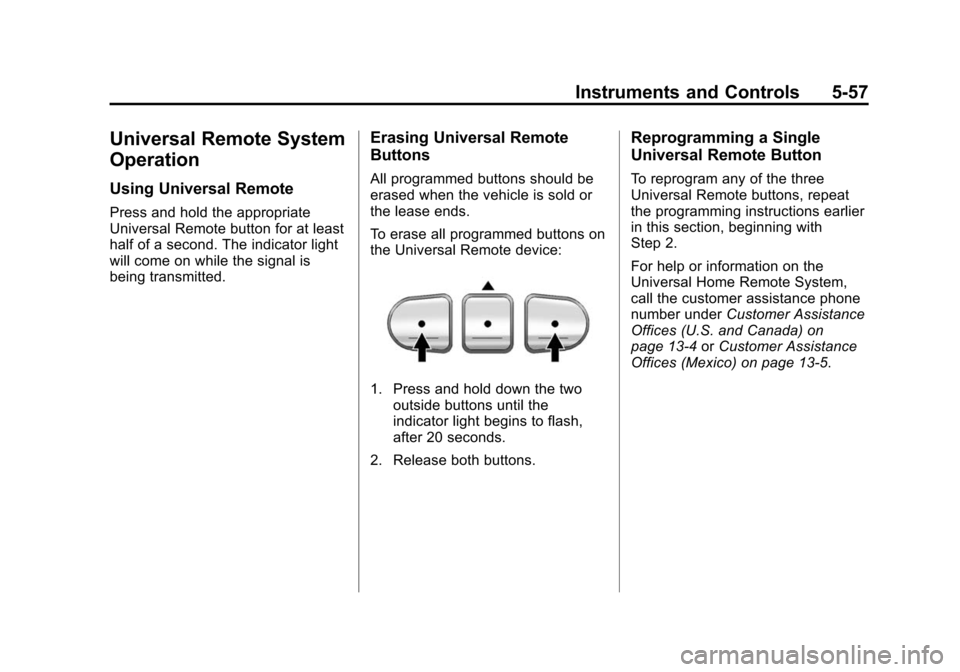
To erase all programmed buttons on
the Universal Remote device:
1. Press and hold down the twooutside buttons until the
indicator light begins to flash,
after 20 seconds.
2. Release both buttons.
Reprogramming a Single
Universal Remote Button
To reprogram any of the three
Universal Remote buttons, repeat
the programming instructions earlier
in this section, beginning with
Step 2.
For help or information on the
Universal Home Remote System,
call the customer assistance phone
number under Customer Assistance
Offices (U.S. and Canada) on
page 13‑4 orCustomer Assistance
Offices (Mexico) on page 13‑5.
Page 204 of 496

Black plate (8,1)Cadillac CTS/CTS-V Owner Manual (Include Mex) - 2012
7-8 Infotainment System
This feature is most effective at
lower radio volume settings where
background noise can affect how
the music being played through
the vehicle's audio system is heard.
At higher volume settings, where
the music is much louder than
the background noise, there may
be little or no adjustments by
AudioPilot. For additional
information on AudioPilot, visit
www.bose.com/audiopilot.
Radio Message
Locked:Displays when the
TheftLock®system has locked up
the infotainment system. Take the
vehicle to your dealer for service.
If any error occurs repeatedly or if
an error cannot be corrected,
contact your dealer.
Radio
AM-FM Radio
Control Buttons
The knobs and buttons used to
control the radio are:
FM/AM: Press to choose between
FM and AM.
TUNE/TONE: Turn to search for
stations.Press to enter the
Tone menu.
MENU/SELECT: Turn clockwise or
counterclockwise to scroll through
the station list. Press the MENU/
SELECT knob to select the desired
station.
INFO: Press to display additional
information that may be available for
the current song. When information
is not available, No Information
displays.
¨SEEK or©SEEK: Press to go to
the previous or to the next radio
station and stay there. The radio only tunes to stations with
a strong signal that are in the
selected band.
FAV:
Press to change the
favorites page.
Softkeys: Press to select preset
stations.
Radio Data System (RDS)
The audio system has a Radio Data
System (RDS) feature. RDS is
available for use only on FM
stations that broadcast RDS
information. This system relies upon
receiving specific information from
these stations and only works when
the information is available. While
the radio is tuned to an FM-RDS
station, the station name or call
letters display. In rare cases, a radio
station can broadcast incorrect
information that causes the radio
features to work improperly. If this
happens, contact the radio station.
Page 206 of 496

Black plate (10,1)Cadillac CTS/CTS-V Owner Manual (Include Mex) - 2012
7-10 Infotainment System
To set up the number of favorites
pages:
1. Press the CONFIG button todisplay the radio setup menu.
2. Press the softkey located below the FAV label.
3. Select the desired number of favorites pages by pressing
the softkey located below the
displayed page numbers.
4. Press the FAV button, or let the menu time out, to return to the
original main radio screen
showing the radio station
frequency labels and to begin
the process of programming
favorites for the chosen number
of pages.
Time Shifting —Pause and
Rewind Live FM and AM
The Radio with DVD Audio, HDD,
and USB has the ability to rewind
60 minutes of FM and AM content.
While listening to the radio, the
content from the current station is
always being buffered to the HDD. Press
r/j(play/pause) to pause
the radio. The radio display will
show the Time Shift buffer status
bar. The status bar shows the
amount of content stored in the
buffer and the current pause point.
To resume playback from the
current pause point, press
r/j
again. The radio will no longer be
playing “live”radio. Instead, time
shifted content is being played from
the buffer. When the radio is playing
time shifted content from the buffer,
a buffer status bar shows below the
station number on the left side of
the screen.
Press and hold the
sREV or\
FWD buttons to rewind or fast
forward through the time shift buffer.
Hold FWD until the end of the
currently recorded buffer to resume
“live” radio playback. With “live”
radio playing, the radio display will
no longer show the buffer bar below
the station number. On FM or AM, press the
sREV or
\FWD button multiple times to
rewind or fast forward. Each press
will rewind or fast forward
30 seconds of content.
When the radio station is changed,
the buffer is cleared and
automatically restarted for the
current station. You cannot rewind
to content from a previously tuned
station.
Time shifting of FM or AM is not
available while recording or while
other sources of playback are
selected.
Pausing FM or AM with the
Vehicle Turned Off
If FM or AM is paused before the
vehicle is turned off, the radio will
continue to buffer the current radio
station for up to one hour. If the
vehicle is turned back on within
one hour, the radio will automatically
resume playback from the pause
point.
Page 207 of 496

Black plate (11,1)Cadillac CTS/CTS-V Owner Manual (Include Mex) - 2012
Infotainment System 7-11
Satellite Radio
Vehicles with an XM™Satellite
Radio tuner and a valid XM Satellite
Radio subscription can receive XM
programming.
XM Satellite Radio Service
XM is a satellite radio service based
in the 48 contiguous United States
and 10 Canadian provinces. XM
Satellite Radio has a wide variety of
programming and commercial-free
music, coast to coast, and in
digital-quality sound. A service fee
is required to receive the XM
service. Renew on channel XM1.”
For more information, contact XM
at www.xmradio.com or
1-800-929-2100 in the U.S., and
www.xmradio.ca or
1-877-438-9677 in Canada.
Control Buttons
The knobs and buttons used to
control the radio are:
m(XM): Press to choose the XM
band (if equipped).
TUNE/TONE: Turn to search for
stations. Press to enter the
Tone menu.
MENU/SELECT: Turn clockwise or
counterclockwise to scroll through
the category list. Press to select the
desired category.
INFO: Press to display additional
information that may be available for
the current song. When information
is not available, No Information
displays.
¨SEEK or©SEEK: Press to go to
the next or to the previous radio
station.
FAV: Press to change the
favorites page.
Softkeys: Press to select preset
stations.
XM Categories
XM stations are organized in
categories.
Removing or Adding Categories
(Radio with CD and Radio with
Six-Disc CD Only)
1. Press the CONFIG button.
2. Press the softkey below the XM tab.
3. Turn the TUNE/TONE knob or the MENU/SELECT knob to
scroll through the available
categories.
4. Press any softkey below the Remove or Add tab to add or
remove the displayed category.
5. Press any softkey below the Restore All tab to restore all
removed categories.
Page 209 of 496

Black plate (13,1)Cadillac CTS/CTS-V Owner Manual (Include Mex) - 2012
Infotainment System 7-13
To set up the number of favorites
pages:
1. Press the CONFIG button todisplay the radio setup menu.
2. Press the softkey located below the FAV label.
3. Select the desired number of favorites pages by pressing the
softkey located below the
displayed page numbers.
4. Press the FAV button, or let the menu time out, to return to the
original main radio screen
showing the radio station
frequency labels and to begin
the process of programming
favorites for the chosen number
of pages.
Time Shifting —Pause and
Rewind Live XM
The Radio with DVD Audio, HDD,
and USB has the ability to rewind
60 minutes of XM content. While
listening to the radio, the content
from the current station is always
being buffered to the HDD. Press
r/jto pause the radio. The
radio display will show the Time
Shift buffer status bar. The status
bar shows the amount of content
stored in the buffer and the current
pause point.
To resume playback from the
current pause point, press
r/j
again. The radio will no longer be
playing “live”radio. Instead, time
shifted content is being played from
the buffer. When the radio is playing
time shifted content from the buffer,
a buffer status bar shows below the
station number on the left side of
the screen.
Press and hold the
sREV or\
FWD buttons to rewind or fast
forward through the time shift buffer.
Hold
\FWD until the end of the
currently recorded buffer to resume
“live” radio playback. With “live”
radio playing, the radio display will
no longer show the buffer bar below
the station number. Press the
sREV or\FWD
button multiple times to jump to the
previous or next song or
commercial.
When the radio station is changed,
the buffer is cleared and
automatically restarted for the
current station. You cannot rewind
to content from a previously tuned
station.
Time shifting of XM is not available
while recording or while other
sources of playback are selected.
Pausing XM with the Vehicle
Turned Off
If XM is paused before the vehicle is
turned off, the radio will continue to
buffer the current radio station for
up to one hour. If the vehicle is
turned back on within one hour, the
radio will automatically resume
playback from the pause point.
Page 213 of 496

Black plate (17,1)Cadillac CTS/CTS-V Owner Manual (Include Mex) - 2012
Infotainment System 7-17
the surface. Pick up discs by
grasping the outer edges or the
edge of the hole and the outer edge.
If the surface of a disc is soiled,
take a soft, lint‐free cloth or dampen
a clean, soft cloth in a mild, neutral
detergent solution mixed with water,
and clean it. Make sure the wiping
process starts from the center to
the edge.
Care of the CD Player
Do not add a label to a disc; it could
get caught in the CD player. If a
label is needed, label the top of the
recorded disc with a marking pen.
The use of disc lens cleaners for
discs is not advised, due to the risk
of contaminating the lens of the disc
optics with lubricants internal to the
CD player mechanism.
Notice:If a label is added to a
CD, more than one CD is inserted
into the slot at a time, or an
attempt is made to play scratched
or damaged CDs, the CD player
could be damaged. While using the CD player, use only CDs in
good condition without any label,
load one CD at a time, and keep
the CD player and the loading slot
free of foreign materials, liquids,
and debris.
Control Buttons
The knobs and buttons used to
control the CD player are:
CD:
Press to play a CD when
listening to the radio. The disc and/
or track number display when a CD
is in the player.
¨SEEK or©SEEK: Press to
select tracks.
TUNE/TONE: Turn and then press
to select tracks.
MENU/SELECT: Turn and then
press to select.
r/j(Play/Pause): Press to pause
and restart CD playback.
sREV (Fast Reverse): Press
and hold to reverse playback quickly
within a track.
\FWD (Fast Forward): Press
and hold to advance playback
quickly within a track.
^(Load): Press to load CDs into
the Six-Disc CD player.
Z(Eject): Press to eject the disc.
For the Six-Disc CD player, press
and hold for two seconds to eject all
discs.
Inserting a CD (Single Disc
Player)
With the printed side facing up,
insert a CD into the audio CD slot
until it is drawn in. The CD track
number and a Shuffle tab display
and playback begins.
If the ignition or radio is turned off
while a CD is in the player, it stays
in the player. When the ignition or
radio is turned on, the CD starts
playing where it stopped, if it was
the last selected audio source.
Page 214 of 496

Black plate (18,1)Cadillac CTS/CTS-V Owner Manual (Include Mex) - 2012
7-18 Infotainment System
Inserting a CD (Six-Disc CD
Player)
^(Load):Press to load CDs into
the CD player. This CD player holds
up to six CDs.
To insert one CD:
1. Press and release
^.
2. Wait for the message to insert the disc.
3. Load a CD. Insert the CD partway into the slot, label side
up. The player pulls the CD in.
A Shuffle tab and the DISC icon
display.
4. Press the softkey located below the Shuffle tab to play the tracks
of a current disc in random
order. Press the softkey again to
turn Shuffle off. Shuffle Off
displays.
5. The CD resumes normal playback. To insert multiple CDs:
1. Press and hold
^for
five seconds. A beep sounds
and Load All Discs displays.
2. Follow the displayed instruction on when to insert the discs. The
CD player takes up to six CDs.
3. Press
^again to cancel
loading more CDs.
If the ignition or radio is turned off
while a CD is in the player, it stays
in the player. When the ignition or
radio is turned on, the CD starts
playing where it stopped, if it was
the last selected audio source.
When a CD is inserted, the disc
number displays on the upper right
side of the screen and the track
number displays at the left and
center of the screen. The Shuffle
and Disc labels appear below. Press
the softkeys located under the Disc tab to change to another disc. The
CD begins playback of the first track
on the selected disc. As each new
track starts to play, the track number
displays in the left and center of the
screen.
Playing a CD
Selecting a CD Track
Tracks can be selected using the
seek buttons, TUNE/TONE knob,
or MENU/SELECT knob.
To use the seek buttons:
Press
©SEEK to go to the start of
the current track, if more than
five seconds have played. Press
¨
SEEK to go to the next track. If©
SEEK or¨SEEK is held,
or pressed multiple times, the player
continues moving backward or
forward through the tracks on
the CD.
Page 216 of 496

Black plate (20,1)Cadillac CTS/CTS-V Owner Manual (Include Mex) - 2012
7-20 Infotainment System
The CD/DVD player does not
support the playback of DVD video
discs. If a DVD video disc is
inserted into the player, the radio
displays“Read Error Please Check
Disc” and ejects the disc.
Care of CDs and DVDs
If playing a CD/DVD, the sound
quality can be reduced due to disc
quality, the method of recording, the
quality of the music that has been
recorded, and the way the disc
has been handled. Handle discs
carefully. Store CDs and DVDs
in their original cases or other
protective cases and away from
direct sunlight and dust. The CD/
DVD player scans the bottom
surface of the disc. If the surface of
a disc is damaged, such as cracked,
broken, or scratched, the disc may
not play properly or not at all. Do
not touch the bottom side of a disc
while handling it; this could damage
the surface. Pick up discs by
grasping the outer edges or the
edge of the hole and the outer edge. If the surface of a disc is soiled,
take a soft, lint‐free cloth or dampen
a clean, soft cloth in a mild, neutral
detergent solution mixed with water,
and clean it. Make sure the wiping
process starts from the center to
the edge.
Care of the CD/DVD Player
Do not add a label to a disc; it could
get caught in the CD/DVD player.
If a label is needed, label the top of
the recorded disc with a
marking pen.
The use of disc lens cleaners for
discs is not advised, due to the risk
of contaminating the lens of the disc
optics with lubricants internal to the
CD/DVD player mechanism.
Notice:
If a label is added to a
disc, or more than one disc is
inserted into the slot at a time,
or an attempt is made to play
scratched or damaged discs,
the CD/DVD player could be
damaged. While using the CD/
DVD player, use only discs in
good condition without any label, load one dosc at a time, and keep
the CD/DVD player and the
loading slot free of foreign
materials, liquids, and debris.
Control Buttons
The knobs and buttons used to
control the CD/DVD player are:
CD/AUX (CD/Auxiliary):
Press to
switch between CD/DVD, auxiliary
input, and USB devices.
¨SEEK or©SEEK: Press to
select tracks.
TUNE/TONE: Turn and then press
to select tracks.
MENU/SELECT: Turn and then
press to select.
r/j(Play/Pause): Press to pause
and restart CD or DVD playback.
sREV (Fast Reverse): In CD or
MP3 playback mode, press and
hold to reverse playback quickly
within a track. Sound is heard at a
reduced volume. When released,
normal playback resumes and the
elapsed time of the track displays.
Page 217 of 496

Black plate (21,1)Cadillac CTS/CTS-V Owner Manual (Include Mex) - 2012
Infotainment System 7-21
In DVD‐Audio playback mode, press
once to change playback to a speed
of 2X. Each successive press
changes playback to a speed of 4X,
10X, or 21X. Press
r/jto resume
normal playback.
\FWD (Fast Forward): In CD or
MP3 playback mode, press and
hold to advance playback quickly
within a track. Sound is heard at a
reduced volume. When released,
normal playback resumes and the
elapsed time of the track displays.
In DVD‐Audio playback mode, press
once to change playback to a speed
of 2X. Each successive press
changes playback to a speed of 4X,
10X, or 21X. Press
r/jto resume
normal playback.
Z(Eject): Press to eject the disc.
Inserting a Disc
With the printed side facing up,
insert a disc into the audio CD/DVD
slot until it is drawn in. The disc
track number and a Shuffle tab
display and playback begins.
If the ignition or radio is turned off
while a disc is in the player, it stays
in the player. When the ignition or
radio is turned on, the disc starts
playing where it stopped, if it was
the last selected audio source.
Playing a CD
Selecting a CD Track
Tracks can be selected using the
seek buttons, TUNE/TONE knob,
or MENU/SELECT knob.
To use the seek buttons:
Press
©SEEK to go to the start of
the current track, if more than
five seconds have played. Press
¨
SEEK to go to the next track. If©
SEEK or¨SEEK is held, or
pressed multiple times, the player
continues moving backward or
forward through the tracks on
the CD.
To use the TUNE/TONE knob:
Turn the TUNE/TONE knob to
highlight the desired track, then
press the TUNE/TONE knob to
select the track.
To use the MENU/SELECT knob:
Turn the MENU/SELECT knob to
highlight the desired track, then
press the MENU/SELECT knob to
select the track.
Fast Forward and Rewind
sREV (Fast Reverse): Press
and hold to reverse playback quickly
within a track. Sound is heard at a
reduced volume and the elapsed
time of the track displays. Release
to resume playing the track.