reset CADILLAC DTS 2010 1.G User Guide
[x] Cancel search | Manufacturer: CADILLAC, Model Year: 2010, Model line: DTS, Model: CADILLAC DTS 2010 1.GPages: 480, PDF Size: 17.56 MB
Page 208 of 480

Rear Climate Control System
For vehicles with a rear climate control system, therear seat passengers can adjust the direction ofthe airflow, fan speed and temperature for the rearseating area. This system also works with the mainclimate control system in the vehicle.
The rear climate control system is located on the backof the center console.
A. Display
B. Fan Control
C. Temperature Control
D. Air Delivery Mode Control
AUX (Auxiliary):Press the AUX button located on thefront climate control panel to turn the rear climatecontrol system on or off. When turned on the rearsystem operates in automatic mode and the temperaturesettings selected for the front climate control panelwill also be selected for the rear passengers.
To adjust the rear climate control system, the rearpassenger can select a different temperature, mode orfan speed. Whenever the rear passengers haveadjusted settings on the rear climate control system, theAUX light is lit on the front climate control system.
When the front climate control system is turned off or indefrost mode, the rear climate control system isturned off. The rear system will turn back on onceanother front mode is selected.
For more information on how to use the front climatecontrol system, seeDual Climate Control Systemon page 4-36. For more information on the air outlets,seeOutlet Adjustment on page 4-41.
4-42
Page 209 of 480

Automatic Operation
« A ª(Fan Control):Press until AUTO appears on
the display to place the system in automatic mode.When automatic operation is active, the systemautomatically controls the fan speed. If in auto fanmode, pressing the up arrow button will cancelautomatic operation and places the system in manualmode. If in auto mode, pressing the down arrow will turnthe rear climate control system off.
«Nª(Air Delivery Mode Control):Press until
AUTO appears on the display to place the systemin automatic mode. When automatic operation is active,the system controls the air delivery mode.
Manual Operation
« A ª(Fan Control):Press to increase or decrease
the fan speed.
«bª(Temperature Control):Press to increase or
decrease the temperature for the rear seat passengers.Once the rear temperature setting is changed fromfollowing the front temperature setting, it will no longerfollow changes to the front temperature setting untilthe front climate control AUX button resets it.
«Nª(Air Delivery Mode Control):Press these
buttons to change the air delivery mode. If in AUTOair delivery mode, pressing the up arrow buttonwill cancel automatic operation and place the system inmanual mode.
Y(Vent):Air is directed to the upper outlets.
%(Bi-Level):Air is divided between the upper outlets
and the floor outlets.
[(Floor):Air is directed to the floor outlets.
4-43
Page 219 of 480
If the light comes on while driving, pull off the road andstop carefully.The pedal may be harder to push, orthe pedal may go closer to the floor. It may take longerto stop. If the light is still on, have the vehicle towedfor service. SeeTowing Your Vehicle on page 5-24.
{WARNING:
The brake system might not be working properly if
the brake system warning light is on. Driving with
the brake system warning light on can lead to a
crash. If the light is still on after the vehicle has
been pulled off the road and carefully stopped,
have the vehicle towed for service.
Antilock Brake System (ABS)
Warning Light
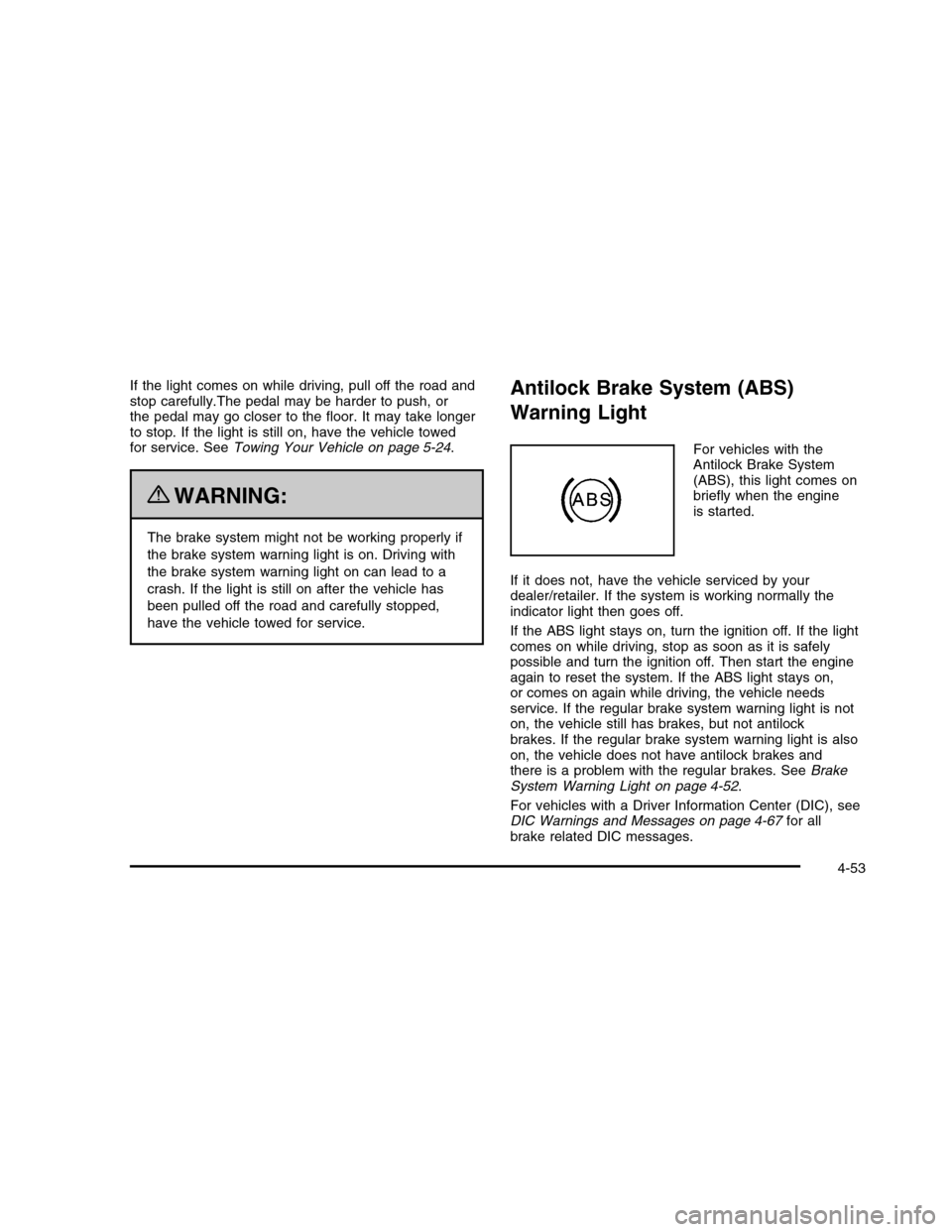
For vehicles with theAntilock Brake System(ABS), this light comes onbriefly when the engineis started.
If it does not, have the vehicle serviced by yourdealer/retailer. If the system is working normally theindicator light then goes off.
If the ABS light stays on, turn the ignition off. If the lightcomes on while driving, stop as soon as it is safelypossible and turn the ignition off. Then start the engineagain to reset the system. If the ABS light stays on,or comes on again while driving, the vehicle needsservice. If the regular brake system warning light is noton, the vehicle still has brakes, but not antilockbrakes. If the regular brake system warning light is alsoon, the vehicle does not have antilock brakes andthere is a problem with the regular brakes. SeeBrakeSystem Warning Light on page 4-52.
For vehicles with a Driver Information Center (DIC), seeDIC Warnings and Messages on page 4-67for allbrake related DIC messages.
4-53
Page 228 of 480

The DIC comes on when the ignition is on. After a shortdelay, the DIC will display the information that waslast displayed before the engine was turned off.
The top line of the DIC display shows the vehicle systeminformation and the warning/status messages. Thebottom line of the DIC display shows the odometer onthe left side. The bottom line of the DIC display alsoshows a digital speedometer on the right side.
If a problem is detected, a warning message will appearon the display. Be sure to take any message thatappears on the display seriously and remember thatclearing the message will only make the messagedisappear, not correct the problem.
DIC Operation and Displays
The Driver InformationCenter (DIC) has differentdisplays which can beaccessed by pressing theDIC buttons located onthe instrument panel, to theleft of the steering wheel.
3Trip/Fuel:Press this button to scroll through the
trip and fuel displays. See “Trip/Fuel Display MenuItems” following for more information on these displays.
TVehicle Information:Press this button to scroll
through the vehicle information displays. See “VehicleInformation Display Menu Items” following for moreinformation on these displays.
UCustomization:Press this button to scroll through
each of the customization features. SeeDIC VehicleCustomization on page 4-80for more information on thecustomization features.
VSet/Reset:Press this button to reset certain DIC
features and to acknowledge DIC warning messagesand clear them from the DIC display.
yzMenu Up/Down:Press this button to scroll up
and down the menu items.
4-62
Page 229 of 480

Trip/Fuel Display Menu Items
3(Trip/Fuel):The following display menu items
can be displayed by pressing the trip/fuel button:
TRIP A or TRIP B
These displays show the current distance traveled sincethe last reset for each trip odometer in eitherkilometers (km) or miles (mi). Both odometers can beused at the same time. Each trip odometer can be resetto zero separately by pressing and holding theset/reset button for a few seconds while the desired tripodometer is displayed.
FUEL RANGE
This display shows the approximate number ofremaining kilometers (km) or miles (mi) you can drivewithout refilling the fuel tank. This estimate is based onthe current driving conditions and will change if thedriving conditions change. For example, if you aredriving in traffic and making frequent stops, the displaymay read one number, but if you enter the freeway,the number may change even though you still have thesame amount of fuel in the fuel tank. This is becausedifferent driving conditions produce different fueleconomies. Generally, freeway driving produces betterfuel economy than city driving.
Once the range drops below an estimated 64 km(40 miles) remaining, the display will show FUELRANGE LOW.
If your vehicle is low on fuel, the FUEL LEVEL LOWmessage will be displayed. See “FUEL LEVELLOW” underDIC Warnings and Messages on page 4-67for more information.
AVERAGE ECONOMY (AFE)
This display shows the approximate average liters per100 kilometers (L/100 km) or miles per gallon (mpg).This number is calculated based on the numberof L/100 km (mpg) recorded since the last time thisdisplay was reset. To reset this display, press theset/reset button. The display will return to zero.
INST (Instantaneous) ECONOMY (IFE)
This display shows the current fuel economy in eitherliters per 100 kilometers (L/100 km) or miles pergallon (mpg). This number reflects only the fuel economythat the vehicle has right now and will change frequentlyas driving conditions change. Unlike average economy,this display cannot be reset.
FUEL USED
This display shows the number of liters (L) orgallons (gal) of fuel used since the last reset of thisdisplay. To reset this display, press the set/reset button.The display will return to zero.
4-63
Page 230 of 480

TIMER ON/OFF
This display can be used like a stopwatch. You canrecord the time it takes to travel from one point toanother. To access the timer, press the trip/fuel buttonuntil 00:00:00 TIMER OFF displays.
To turn on the timer, press the set/reset button untilTIMER ON displays. The timer will then start.
To turn off the timer, press the set/reset button againuntil TIMER OFF displays. The timer will stop anddisplay the end timing value.
To reset the timer, press and hold the set/reset buttonafter the timer has been stopped. The display will returnto zero.
AVERAGE SPEED
This display shows the average speed of the vehicle ineither kilometers per hour (km/h) or miles perhour (mph). This average is calculated based on thevarious vehicle speeds recorded since the last reset ofthis display. To reset this display, press the set/resetbutton. The display will return to zero.
BATTERY VOLTAGE
This display shows the current battery voltage. If thevoltage is in the normal range, the value will display. Forexample, the display may read BATTERY VOLTAGE13.2 VOLTS. If the voltage is low, the display will showLOW. If the voltage is high, the display will showHIGH. Your vehicle’s charging system regulates voltagebased on the state of the battery. The battery voltagemay fluctuate when viewing this information on the DIC.This is normal. SeeCharging System Light onpage 4-52for more information.
If there is a problem with the battery charging system,the DIC will display a message. SeeDIC Warningsand Messages on page 4-67andElectric PowerManagement on page 4-33for more information.
Blank Display
This display shows no information.
4-64
Page 231 of 480

Vehicle Information Display Menu
Items
T(Vehicle Information):The following display menu
items can be displayed by pressing the vehicleinformation button:
OIL LIFE REMAINING
If the vehicle has this display, it shows the estimated oillife remaining. If you see 99% OIL LIFE REMAININGon the display, that means that 99% of the current oil liferemains.
When the oil life is depleted, the CHANGE ENGINE OILSOON message will appear on the display. Youshould change the oil as soon as possible. In additionto the engine oil life system monitoring the oil life,additional maintenance is recommended in theMaintenance Schedule in this manual. SeeScheduledMaintenance on page 7-3andEngine Oil on page 6-13.
Remember, you must reset the OIL LIFE yourself aftereach oil change. It will not reset itself. Also, be careful notto reset the OIL LIFE accidentally at any time other thanwhen the oil has just been changed. It cannot be resetaccurately until the next oil change. To reset the engineoil life system, SeeEngine Oil Life System on page 6-16.The display will show 100% when the system is reset.
UNITS
This display allows you to select between English orMetric units of measurement. Once in this display, pressthe set/reset button to select between ENGLISH orMETRIC units.
PARKING ASSIST
If your vehicle has the Ultrasonic Front and RearParking Assist (UFRPA) system, this display allows thesystem to be turned on or off. Once in this display,press the set/reset button to select between ON or OFF.If you choose ON, the system will be turned on. If youchoose OFF, the system will be turned off. TheUFRPA system automatically turns back on after eachvehicle start. When the UFRPA system is turned off andthe vehicle is shifted out of P (Park), the DIC willdisplay the PARKING ASSIST OFF message as areminder that the system has been turned off. SeeDICWarnings and Messages on page 4-67andUltrasonicFront and Rear Parking Assist (UFRPA) on page 3-40for more information.
4-65
Page 232 of 480

SIDE BLIND ZONE ALERT
If your vehicle has the Side Blind Zone Alert (SBZA)system, this display allows the system to be turned on oroff. Once in this display, press the set/reset button toselect between ON or OFF. If you choose ON, thesystem will be turned on. If you choose OFF, the systemwill be turned off. When the SBZA system is turnedoff, the DIC will display the SIDE BLIND ZONE ALERTSYSTEM OFF message as a reminder that thesystem has been turned off. SeeDIC Warnings andMessages on page 4-67andSide Blind Zone Alert(SBZA) on page 3-43for more information.
FRONT TIRES or REAR TIRES
On vehicles with the Tire Pressure Monitor System(TPMS), the pressure for each tire can be viewed in theDIC. The tire pressure will be shown in either poundsper square inch (psi) or kilopascals (kPa). Pressthe vehicle information button until the DIC displaysFRONT TIRES PSI (kPa) LEFT ## RIGHT ##. Press thevehicle information button again until the DIC displaysREAR TIRES PSI (kPa) LEFT ## RIGHT ##.
If a low tire pressure condition is detected by thesystem while driving, a message advising you to addair to a specific tire will appear in the display. SeeInflation - Tire Pressure on page 6-54andDIC Warningsand Messages on page 4-67for more information.
If the tire pressure display shows dashes instead of avalue, there may be a problem with your vehicle. If thisconsistently occurs, see your dealer/retailer for service.
SPEED LIMIT: XXX MPH (SPEED LIMIT:
XXX Km/h) or ADVISORY: XXX MPH
(ADVISORY: XXX Km/h)
This display will show the speed limit or the advisedspeed as determined by the information on the map discin the navigation system. If there is no map disc inthe navigation system, this display will not be available.
The speed limit and speed advisory displays on theDIC are for reference only. There may be segments ofroad where speed data has not been captured ortimes where incorrect speed data, or no speed data, willbe displayed by the DIC due to the navigation systemnot correctly matching the vehicle’s position to the actualroad. Be aware of this and obey posted speed limitswherever you drive.
SPEED ALERT
This display will allow you to customize the speed alertwarning. You can choose to have no warning display,or to have it display at the limit, at 5 km/h (mph) over thelimit, or at 10 km/h (mph) over the limit. The DIC willtoggle between OFF, AT LIMIT, +5, +10 (Km/h or MPH).Press the reset button to make your selection.
4-66
Page 233 of 480

RELEARN REMOTE KEY
This display allows you to match Remote KeylessEntry (RKE) transmitters to your vehicle. This procedurewill erase all previously learned transmitters. Therefore,they must be relearned as additional transmitters.
To match an RKE transmitter to your vehicle:
1. Press the vehicle information button until
PRESSVTO RELEARN REMOTE KEY displays.
2. Press the set/reset button until REMOTE KEYLEARNING ACTIVE is displayed.
3. Press and hold the lock and unlock buttons on thefirst transmitter at the same time for about15 seconds.
On vehicles with memory recall seats, the firsttransmitter learned will match driver 1 andthe second will match driver 2.
A chime will sound indicating that the transmitter ismatched.
4. To match additional transmitters at this time, repeatStep 3.
Each vehicle can have a maximum of eighttransmitters matched to it.
5. To exit the programming mode, you must cycle thekey to LOCK/OFF.
Blank Display
This display shows no information.
DIC Warnings and Messages
These messages appear if there is a problem detectedin one of your vehicle’s systems.
You must acknowledge a message to clear it from thescreen for further use. To clear a message, pressthe set/reset button.
Be sure to take any message that appears on thescreen seriously and remember that clearing themessage will only make the message disappear, notthe problem.
ADVISORY XXX MPH (km/h)
This message displays when the Speed Alert has beenturned on through the DIC Information Menu and thevehicle is at or above the advised speed. SeeDICOperation and Displays on page 4-62.
AUTOMATIC LIGHT CONTROL OFF
This message displays when the automatic headlampsare turned off. SeeExterior Lamps on page 4-25formore information.
4-67
Page 234 of 480

AUTOMATIC LIGHT CONTROL ON
This message displays when the automatic headlampsare turned on. SeeExterior Lamps on page 4-25formore information.
BATTERY SAVER ACTIVE
This message displays when the system detects thatthe battery voltage is dropping beyond a reasonablelevel. The battery saver system starts reducing certainfeatures of the vehicle that you may be able to notice.At the point that the features are disabled, this messageis displayed. It means that the vehicle is trying tosave the charge in the battery.
Turn off all unnecessary accessories to allow the batteryto recharge.
The normal battery voltage range is 11.5 to 15.5 volts.You can monitor battery voltage on the DriverInformation Center (DIC) by pressing the trip/fuel buttonuntil BATTERY VOLTAGE is displayed.
CHANGE ENGINE OIL SOON
This message displays when service is required for yourvehicle. See your dealer/retailer. SeeEngine Oil onpage 6-13andScheduled Maintenance on page 7-3formore information.
When you reset the CHANGE ENGINE OIL SOONmessage by clearing it from the display, you still mustreset the engine oil life system separately. For moreinformation on resetting the engine oil life system, seeEngine Oil Life System on page 6-16.
CHECK TIRE PRESSURE or ADD AIR
TO TIRE
On vehicles with the Tire Pressure Monitor System(TPMS), this message displays when the pressure inone or more of the vehicle’s tires is low. This messagealso displays LEFT FRONT, RIGHT FRONT, LEFTREAR, or RIGHT REAR to indicate which tire needs tobe checked. The low tire pressure warning light willalso come on. SeeTire Pressure Light on page 4-56.If a tire pressure message appears on the DIC, stop assoon as you can. Have the tire pressures checkedand set to those shown on the Tire Loading Informationlabel. SeeTires on page 6-46,Loading the Vehicleon page 5-18, andInflation - Tire Pressure onpage 6-54. You can receive more than one tire pressuremessage at a time. To read the other messages thatmay have been sent at the same time, press theset/reset button. The DIC also shows the tire pressurevalues. SeeDIC Operation and Displays on page 4-62.
4-68