light CADILLAC ESCALADE 2007 3.G Owners Manual
[x] Cancel search | Manufacturer: CADILLAC, Model Year: 2007, Model line: ESCALADE, Model: CADILLAC ESCALADE 2007 3.GPages: 574, PDF Size: 2.89 MB
Page 264 of 574
NO CHANGE:No change will be made to this
feature. The current setting will remain.
Choose one of the available settings and press
the set/reset button while it is displayed on the DIC
to select it.
EXIT LIGHTING
If it is dark enough outside, this feature allows
you to select the amount of time you want
the exterior lamps to remain on. This happens
after the vehicle is unlocked using the remote
keyless entry transmitter or if the vehicle key is
turned to LOCK from RUN.
Press the customization button until EXIT
LIGHTING appears on the DIC display. Press the
set/reset button once to access the settings for
this feature. Then press the customization button
to scroll through the following settings:
OFF:The exterior lamps will not turn on.
30 SECONDS (default):The exterior lamps will
stay on for 30 seconds.
1 MINUTE:The exterior lamps will stay on for
one minute.
2 MINUTES:The exterior lamps will stay on for
two minutes.NO CHANGE:No change will be made to this
feature. The current setting will remain.
Choose one of the available settings and press
the set/reset button while it is displayed on the DIC
to select it.
APPROACH LIGHTING
This feature allows you to select whether or not
to have the exterior lights turn on briey during low
light periods after unlocking the vehicle using
the remote keyless entry transmitter.
Press the customization button until APPROACH
LIGHTING appears on the DIC display. Press
the set/reset button once to access the settings
for this feature. Then press the customization
button to scroll through the following settings:
OFF:The exterior lights will not turn on when you
unlock the vehicle with the remote keyless entry
transmitter.
ON (default):If it is dark enough outside, the
exterior lights will turn on briey when you unlock
the vehicle with the remote keyless entry
transmitter.
264
Page 265 of 574
The lights will remain on for 20 seconds or until
the lock button on the remote keyless entry
transmitter is pressed, or the vehicle is no longer
off. SeeRemote Keyless Entry System Operation
on page 115for more information.
NO CHANGE:No change will be made to this
feature. The current setting will remain.
Choose one of the available settings and press
the set/reset button while it is displayed on the DIC
to select it.
AUTO HIGH BEAMS
If your vehicle has this feature, it allows you to
select to have the Intellibeam™ system turned
off or on. SeeExterior Lamps on page 205
for more information.
Press the customization button until AUTO HIGH
BEAMS appears on the DIC display. Press
the set/reset button once to access the settings
for this feature. Then press the customization
button to scroll through the following settings:
OFF (default):The Intellibeam™ system will be
turned off.
ON:The Intellibeam™ system will be turned on.NO CHANGE:No change will be made to this
feature. The current setting will remain.
Choose one of the available settings and press
the set/reset button while it is displayed on the DIC
to select it.
CHIME VOLUME
This feature allows you to select the volume level
of the chime.
Press the customization button until CHIME
VOLUME appears on the DIC display. Press the
set/reset button once to access the settings for this
feature. Then press the customization button to
scroll through the following settings:
NORMAL (default):The chime volume will be set
to a normal level.
LOUD:The chime volume will be set to a
loud level.
NO CHANGE:No change will be made to this
feature. The current setting will remain.
Choose one of the available settings and press
the set/reset button while it is displayed on the DIC
to select it.
265
Page 305 of 574
Push the power button to turn on the headphones.
An indicator light located on the headphones
will come on. If the light does not come on, the
batteries may need to be replaced. See “Battery
Replacement” later in this section for more
information. Switch the headphones to Off when
not in use. Channel 1 is dedicated to the video
screen, while Channel 2 is dedicated to RSA
selections.
The infrared transmitters are located at the rear of
the RSE overhead console. The headphones
will shut off automatically to save the battery power
if the RSE system and the RSA are shut off
or if the headphones are out of range of the
transmitters for more than 3 minutes. If you move
too far forward or step out of the vehicle, the
headphones will lose the audio signal.
The headphones will automatically turn off after
four hours of continuous use.
To adjust the volume on the headphones, use the
volume control located on the right side.For optimal audio performance, the headphones
must be worn correctly. The symbol L (Left)
will appear on the upper left side, above the ear
pad and should be positioned on the left ear.
The symbol R (Right) will appear on the upper
right side, above the ear pad and should be
positioned on the right ear.
Notice:Do not store the headphones in heat
or direct sunlight. This could damage the
headphones and repairs will not be covered by
your warranty. Keep the headphones stored
in a cool, dry place.
The foam ear pads attached to the headphones
may become worn or damaged if they are
not handled or stored properly. If the foam ear
pads do become damaged or worn out, the pads
can be replaced separately from the headphone
set. It is not necessary to replace the complete
headphone set. The headphone replacement foam
ear pads can be ordered in pairs. See your
dealer for more information.
305
Page 309 of 574
Remote Control
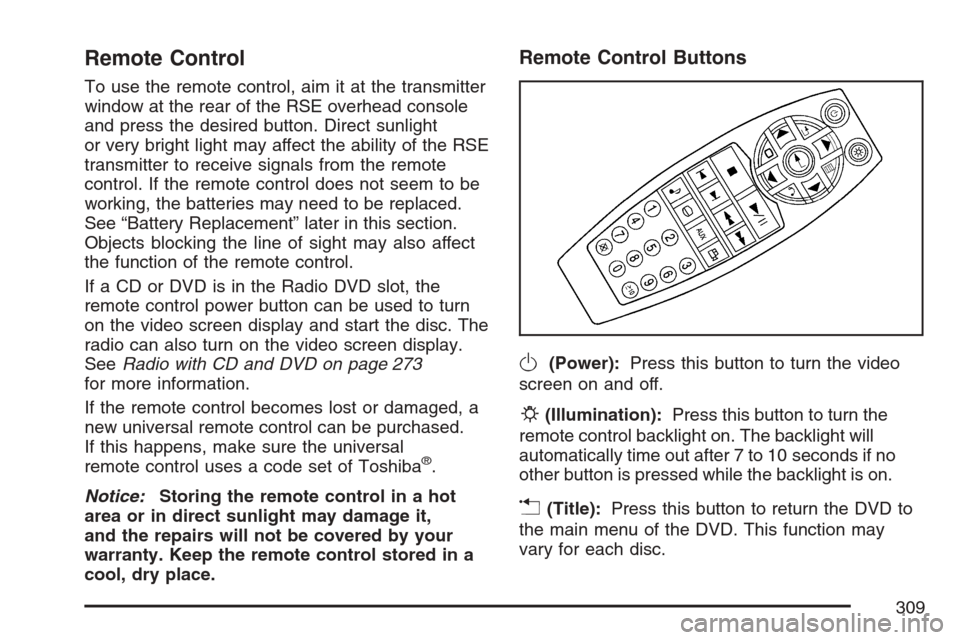
To use the remote control, aim it at the transmitter
window at the rear of the RSE overhead console
and press the desired button. Direct sunlight
or very bright light may affect the ability of the RSE
transmitter to receive signals from the remote
control. If the remote control does not seem to be
working, the batteries may need to be replaced.
See “Battery Replacement” later in this section.
Objects blocking the line of sight may also affect
the function of the remote control.
If a CD or DVD is in the Radio DVD slot, the
remote control power button can be used to turn
on the video screen display and start the disc. The
radio can also turn on the video screen display.
SeeRadio with CD and DVD on page 273
for more information.
If the remote control becomes lost or damaged, a
new universal remote control can be purchased.
If this happens, make sure the universal
remote control uses a code set of Toshiba
®.
Notice:Storing the remote control in a hot
area or in direct sunlight may damage it,
and the repairs will not be covered by your
warranty. Keep the remote control stored in a
cool, dry place.
Remote Control Buttons
O(Power):Press this button to turn the video
screen on and off.
P(Illumination):Press this button to turn the
remote control backlight on. The backlight will
automatically time out after 7 to 10 seconds if no
other button is pressed while the backlight is on.
v(Title):Press this button to return the DVD to
the main menu of the DVD. This function may
vary for each disc.
309
Page 310 of 574
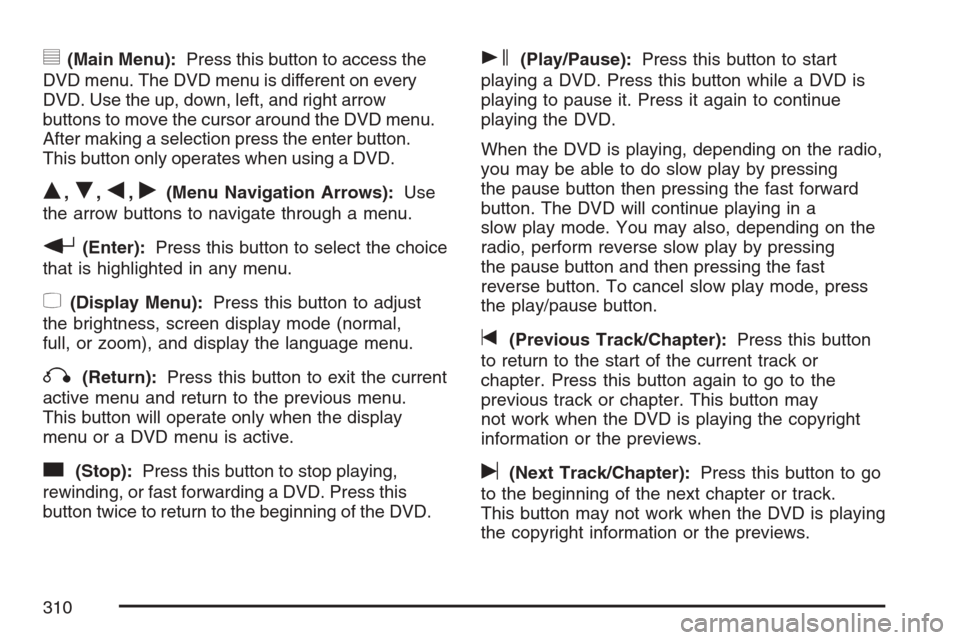
y(Main Menu):Press this button to access the
DVD menu. The DVD menu is different on every
DVD. Use the up, down, left, and right arrow
buttons to move the cursor around the DVD menu.
After making a selection press the enter button.
This button only operates when using a DVD.
Q,R,q,r(Menu Navigation Arrows):Use
the arrow buttons to navigate through a menu.
r(Enter):Press this button to select the choice
that is highlighted in any menu.
z(Display Menu):Press this button to adjust
the brightness, screen display mode (normal,
full, or zoom), and display the language menu.
q(Return):Press this button to exit the current
active menu and return to the previous menu.
This button will operate only when the display
menu or a DVD menu is active.
c(Stop):Press this button to stop playing,
rewinding, or fast forwarding a DVD. Press this
button twice to return to the beginning of the DVD.
s(Play/Pause):Press this button to start
playing a DVD. Press this button while a DVD is
playing to pause it. Press it again to continue
playing the DVD.
When the DVD is playing, depending on the radio,
you may be able to do slow play by pressing
the pause button then pressing the fast forward
button. The DVD will continue playing in a
slow play mode. You may also, depending on the
radio, perform reverse slow play by pressing
the pause button and then pressing the fast
reverse button. To cancel slow play mode, press
the play/pause button.
t(Previous Track/Chapter):Press this button
to return to the start of the current track or
chapter. Press this button again to go to the
previous track or chapter. This button may
not work when the DVD is playing the copyright
information or the previews.
u(Next Track/Chapter):Press this button to go
to the beginning of the next chapter or track.
This button may not work when the DVD is playing
the copyright information or the previews.
310
Page 319 of 574
Care of Your CDs and DVDs
Handle CDs carefully. Store them in their original
cases or other protective cases and away from
direct sunlight and dust. The CD player scans the
bottom surface of the disc. If the surface of a
CD is damaged, such as cracked, broken,
or scratched, the CD will not play properly or not
at all. If the surface of a CD is soiled, take a
soft, lint free cloth or dampen a clean, soft cloth in
a mild, neutral detergent solution mixed with
water, and clean it. Make sure the wiping process
starts from the center to the edge.
Do not touch the bottom side of a CD while
handling it; this could damage the surface. Pick up
CDs by grasping the outer edges or the edge of
the hole and the outer edge.
Care of the CD and DVD Player
The use of CD lens cleaners for CDs is not
advised, due to the risk of contaminating the lens
of the CD optics with lubricants internal to the
CD mechanism.
Rear Side Window Antenna
Your AM-FM antenna is located in the passenger
rear side window. Be sure that the inside
surfaces of the rear side window is not scratched
and that the lines on the glass are not damaged.
If the inside surfaces are damaged, they could
interfere with radio reception.
Notice:Using a razor blade or sharp object
to clear the inside of the rear side windows
may affect radio reception or damage the
antenna. Repairs would not be covered by your
warranty. Do not clear the inside of the rear
side windows with sharp objects.
Notice:Do not apply aftermarket glass tinting
with metallic lm. The metallic lm in some
tinting materials will interfere with or distort
the incoming radio reception. Any damage
caused to your antenna due to metallic tinting
materials will not be covered by your
warranty.
Because this antenna is built into your rear side
window, there is a reduced risk of damage caused
by car washes and vandals.
319
Page 326 of 574
Control of a Vehicle
You have three systems that make your vehicle
go where you want it to go. They are the brakes,
the steering, and the accelerator. All three
systems have to do their work at the places where
the tires meet the road.
Sometimes, as when you are driving on snow or
ice, it is easy to ask more of those control systems
than the tires and road can provide. That means
you can lose control of your vehicle. See
StabiliTrak
®System on page 330.
Adding non-GM accessories can affect your
vehicle’s performance. SeeAccessories and
Modications on page 396.
Braking
SeeBrake System Warning Light on page 235.
Braking action involves perception time and
reaction time.
First, you have to decide to push on the brake
pedal. That is perception time. Then you have to
bring up your foot and do it. That is reaction time.
Average reaction time is about three-fourths of a
second. But that is only an average. It might
be less with one driver and as long as two or
three seconds or more with another. Age, physical
condition, alertness, coordination, and eyesight
all play a part. So do alcohol, drugs, and
frustration. But even in three-fourths of a second,
a vehicle moving at 60 mph (100 km/h) travels
66 feet (20 m). That could be a lot of distance in an
emergency, so keeping enough space between
your vehicle and others is important.
And, of course, actual stopping distances vary
greatly with the surface of the road, whether it is
pavement or gravel; the condition of the road,
whether it is wet, dry, or icy; tire tread; the
condition of your brakes; the weight of the vehicle;
and the amount of brake force applied.
326
Page 327 of 574
Avoid needless heavy braking. Some people drive
in spurts — heavy acceleration followed by
heavy braking — rather than keeping pace with
traffic. This is a mistake. Your brakes may
not have time to cool between hard stops. Your
brakes will wear out much faster if you do a lot of
heavy braking. If you keep pace with the traffic
and allow realistic following distances, you
will eliminate a lot of unnecessary braking. That
means better braking and longer brake life.
If your engine ever stops while you are driving,
brake normally but do not pump your brakes.
If you do, the pedal may get harder to push down.
If your engine stops, you will still have some
power brake assist. But you will use it when you
brake. Once the power assist is used up, it
may take longer to stop and the brake pedal
will be harder to push.
Adding non-GM accessories can affect your
vehicle’s performance. SeeAccessories and
Modications on page 396.Anti-Lock Brake System (ABS)
Your vehicle has the Anti-Lock Brake System
(ABS), an advanced electronic braking system
that will help prevent a braking skid.
When you start your engine and begin to drive
away, ABS will check itself. You may hear a
momentary motor or clicking noise while this test
is going on. This is normal.
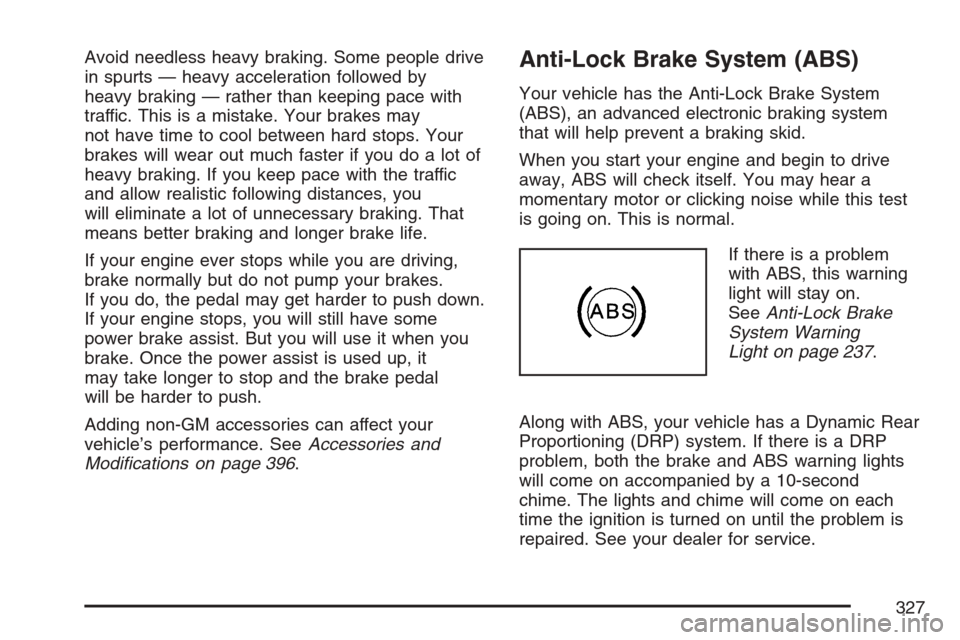
If there is a problem
with ABS, this warning
light will stay on.
SeeAnti-Lock Brake
System Warning
Light on page 237.
Along with ABS, your vehicle has a Dynamic Rear
Proportioning (DRP) system. If there is a DRP
problem, both the brake and ABS warning lights
will come on accompanied by a 10-second
chime. The lights and chime will come on each
time the ignition is turned on until the problem is
repaired. See your dealer for service.
327
Page 331 of 574
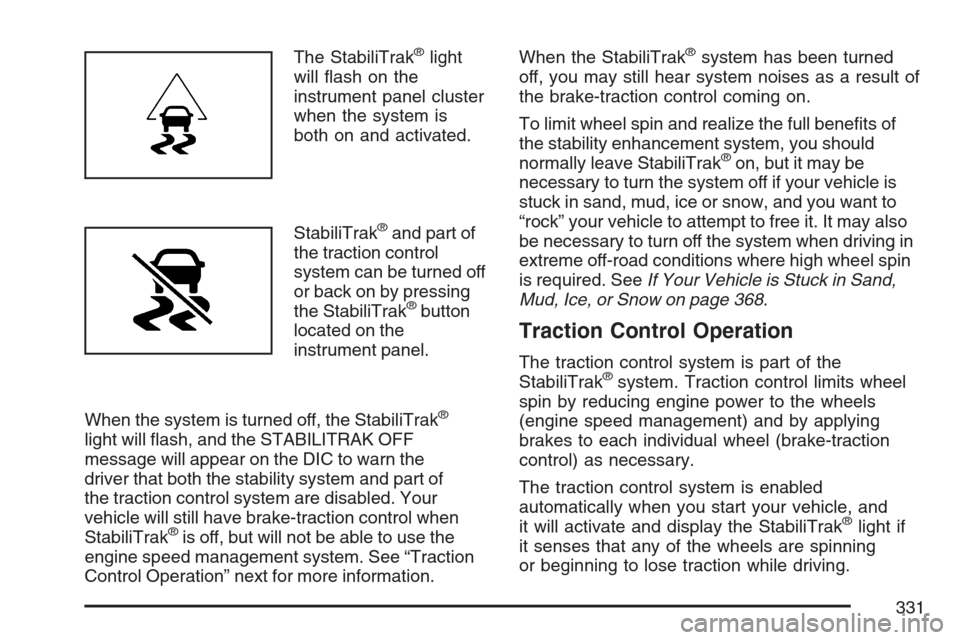
The StabiliTrak®light
will ash on the
instrument panel cluster
when the system is
both on and activated.
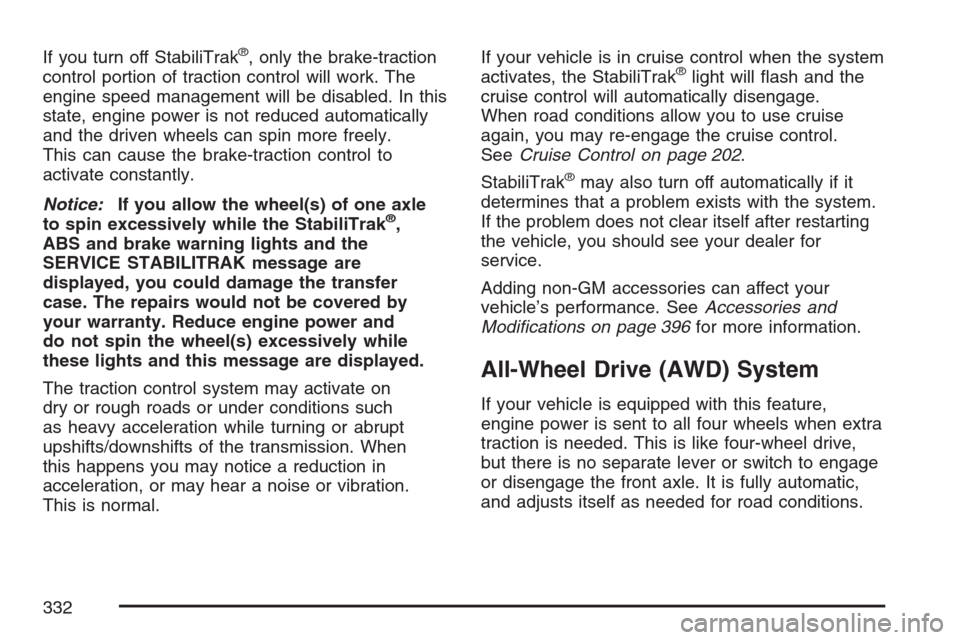
StabiliTrak
®and part of
the traction control
system can be turned off
or back on by pressing
the StabiliTrak
®button
located on the
instrument panel.
When the system is turned off, the StabiliTrak
®
light will ash, and the STABILITRAK OFF
message will appear on the DIC to warn the
driver that both the stability system and part of
the traction control system are disabled. Your
vehicle will still have brake-traction control when
StabiliTrak
®is off, but will not be able to use the
engine speed management system. See “Traction
Control Operation” next for more information.When the StabiliTrak
®system has been turned
off, you may still hear system noises as a result of
the brake-traction control coming on.
To limit wheel spin and realize the full benets of
the stability enhancement system, you should
normally leave StabiliTrak
®on, but it may be
necessary to turn the system off if your vehicle is
stuck in sand, mud, ice or snow, and you want to
“rock” your vehicle to attempt to free it. It may also
be necessary to turn off the system when driving in
extreme off-road conditions where high wheel spin
is required. SeeIf Your Vehicle is Stuck in Sand,
Mud, Ice, or Snow on page 368.
Traction Control Operation
The traction control system is part of the
StabiliTrak®system. Traction control limits wheel
spin by reducing engine power to the wheels
(engine speed management) and by applying
brakes to each individual wheel (brake-traction
control) as necessary.
The traction control system is enabled
automatically when you start your vehicle, and
it will activate and display the StabiliTrak
®light if
it senses that any of the wheels are spinning
or beginning to lose traction while driving.
331
Page 332 of 574
If you turn off StabiliTrak®, only the brake-traction
control portion of traction control will work. The
engine speed management will be disabled. In this
state, engine power is not reduced automatically
and the driven wheels can spin more freely.
This can cause the brake-traction control to
activate constantly.
Notice:If you allow the wheel(s) of one axle
to spin excessively while the StabiliTrak
®,
ABS and brake warning lights and the
SERVICE STABILITRAK message are
displayed, you could damage the transfer
case. The repairs would not be covered by
your warranty. Reduce engine power and
do not spin the wheel(s) excessively while
these lights and this message are displayed.
The traction control system may activate on
dry or rough roads or under conditions such
as heavy acceleration while turning or abrupt
upshifts/downshifts of the transmission. When
this happens you may notice a reduction in
acceleration, or may hear a noise or vibration.
This is normal.If your vehicle is in cruise control when the system
activates, the StabiliTrak
®light will ash and the
cruise control will automatically disengage.
When road conditions allow you to use cruise
again, you may re-engage the cruise control.
SeeCruise Control on page 202.
StabiliTrak
®may also turn off automatically if it
determines that a problem exists with the system.
If the problem does not clear itself after restarting
the vehicle, you should see your dealer for
service.
Adding non-GM accessories can affect your
vehicle’s performance. SeeAccessories and
Modications on page 396for more information.
All-Wheel Drive (AWD) System
If your vehicle is equipped with this feature,
engine power is sent to all four wheels when extra
traction is needed. This is like four-wheel drive,
but there is no separate lever or switch to engage
or disengage the front axle. It is fully automatic,
and adjusts itself as needed for road conditions.
332