audio CADILLAC ESCALADE 2010 3.G Workshop Manual
[x] Cancel search | Manufacturer: CADILLAC, Model Year: 2010, Model line: ESCALADE, Model: CADILLAC ESCALADE 2010 3.GPages: 616, PDF Size: 39.41 MB
Page 363 of 616
Storing Radio Station Presets
This feature stores a mix of up to 30 AM, FM, andXM (if equipped) preset stations. To store presets:
1. PressOto turn the system on.
2. If viewing a map screen, touch the sourcescreen button, press the AUDIO key, or pressthe FAV (favorite) key.
3. Select the band.
4. Seek, scan, or tune to the desired station, to selectthe station.
5. Press and hold one of the preset screen buttonsfor more than two seconds or until a beep is heard.
6. Repeat the steps for each preset.
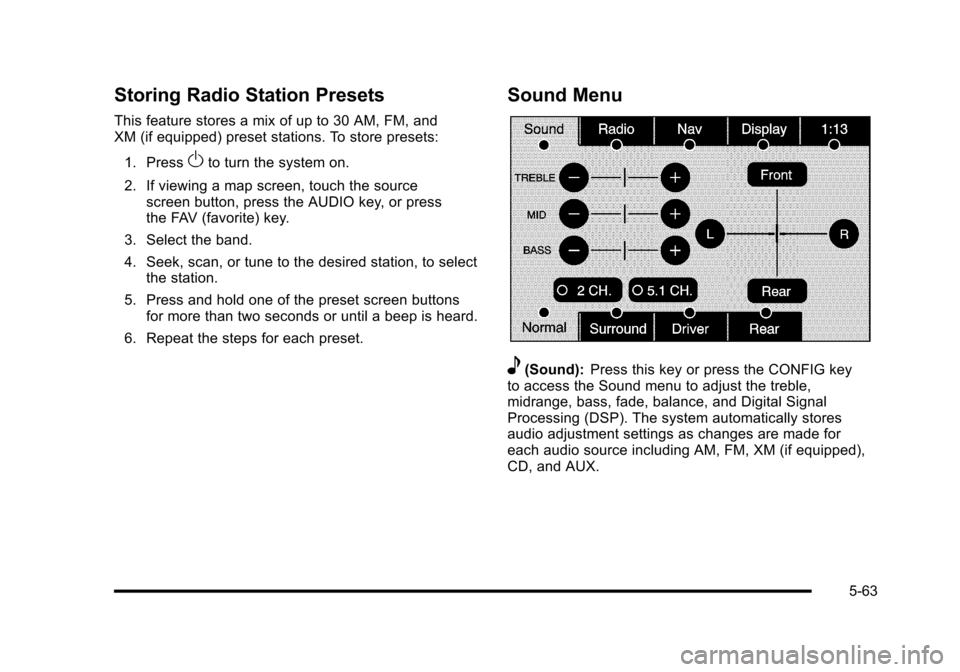
Sound Menu
e(Sound):Press this key or press the CONFIG keyto access the Sound menu to adjust the treble,midrange, bass, fade, balance, and Digital SignalProcessing (DSP). The system automatically storesaudio adjustment settings as changes are made foreach audio source including AM, FM, XM (if equipped),CD, and AUX.
5-63
Page 364 of 616
Setting the Tone
TREBLE :Touch the plus (+) or minus (!) sign toincrease or decrease the treble. If a station is weak orhas static, decrease the treble.
MID (Midrange) :Touch the plus (+) or minus (!) signto increase or decrease the midrange.
BASS :Touch the plus (+) or minus (!) sign to increaseor decrease the bass.
Adjusting the Speakers
L/R (Left/Right) (Balance) :To adjust the balancebetween the left and the right speakers, touch and holdthe L or R screen buttons.
Front/Rear (Fade) :To adjust the fade between thefront and the rear speakers, touch and hold the Front orRear screen buttons.
Digital Signal Processing (DSP)
The system has Digital Signal Processing (DSP).DSP provides a choice of four different listeningexperiences. DSP can be used while listening to theaudio system. Not all DSP modes are available for allsource types. The type of DSP selected is displayed onthe status line.
Select from the following DSP settings:
Normal :Adjusts the audio for normal mode. Thisprovides the best sound quality for all seating positions.
Surround (Centerpoint®):Enables Bose Centerpointsignal processing that produces a surround soundlistening experience from a CD or XM stereo digitalaudio source. Centerpoint delivers five independentaudio channels from conventional two channel stereorecordings (not available for AM or FM).
Driver :Adjusts the audio to give the driver the bestpossible sound quality.
Rear :Adjusts the audio to give the rear seat occupantsthe best possible sound quality.
2 CH. (Channel) :Enhances surround sound.
5.1 CH. (Channel) :Gives a full affect of surroundsound listening. This button is only available whenplaying DVD video and DVD audio discs that support5.1 audio and the RSA is off.
5-64
Page 365 of 616
Radio Menu
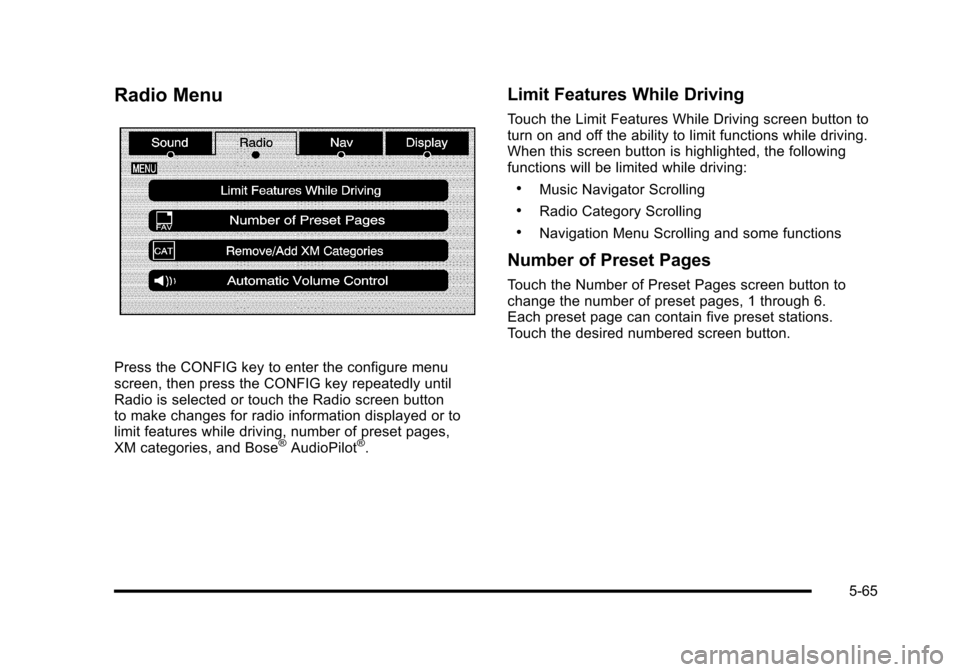
Press the CONFIG key to enter the configure menuscreen, then press the CONFIG key repeatedly untilRadio is selected or touch the Radio screen buttonto make changes for radio information displayed or tolimit features while driving, number of preset pages,XM categories, and Bose®AudioPilot®.
Limit Features While Driving
Touch the Limit Features While Driving screen button toturn on and off the ability to limit functions while driving.When this screen button is highlighted, the followingfunctions will be limited while driving:
.Music Navigator Scrolling
.Radio Category Scrolling
.Navigation Menu Scrolling and some functions
Number of Preset Pages
Touch the Number of Preset Pages screen button tochange the number of preset pages, 1 through 6.Each preset page can contain five preset stations.Touch the desired numbered screen button.
5-65
Page 366 of 616
Bose®AudioPilot®
AudioPilot :The Bose®AudioPilot®noisecompensation technology.
To use AudioPilot®:
1. Press the CONFIG key to enter the menu screen,then press the CONFIG key repeatedly until Radiois selected or touch the Radio screen button
2. Press the Automatic Volume Control screen buttonto access the AudioPilot menu.
3. Press the ON screen button.
To turn it off, touch the OFF screen button. When on,AudioPilot®continuously adjusts the audio systemequalization, to compensate for background noise,so that the music sound is consistent at the setvolume level.
This feature is most effective at lower volume settingswhere background noise can affect how well the musicbeing played is heard through the vehicle's audiosystem. At higher volume settings, where the music ismuch louder than the background noise, there may belittle or no adjustments by AudioPilot®. For moreinformation on AudioPilot®, visit bose.com/audiopilot.
Remove/Add XM Categories
Touch the Remove/Add XM Categories screen buttonto remove or add XM categories when selectingXM categories from the category list screen. The listof XM categories appear on the screen. Use the up anddown arrow screen buttons to scroll through the list. Thecategories to remove are highlighted and the categoriesto add are dark in color. Touch the category to be addedor removed. Touch the Restore All Categories screenbutton to add all categories that have been removed.
Radio Data System (RDS)
The audio system has a Radio Data System (RDS).RDS features are available for use only on FM stationsthat broadcast RDS information. With RDS, the radiocan do the following:
.Receive announcements concerning local andnational emergencies
.Display messages from radio stations
This system relies on receiving specific informationfrom these stations and only works when theinformation is available. In rare cases, a radio stationmay broadcast incorrect information that causes theradio features to work improperly. If this happens,contact the radio station.
5-66
Page 367 of 616
The RDS system is always on. When information isbroadcast from the FM station that is playing, the stationname or call letters displays on the audio screen.
XM™Satellite Radio Service
XM™is a satellite radio service that is based inthe 48 contiguous United States and 10 Canadianprovinces. XM Satellite Radio has a wide varietyof programming and commercial-free music,coast-to-coast, and in digital-quality sound. Duringyour trial or when you subscribe, you will get unlimitedaccess to XM Radio Online while not in the vehicle.A service fee is required to receive the XM service.For more information, contact XM at xmradio.com orcall 1-800-929-2100 in the U.S. and xmradio.ca orcall 1-877-438-9677 in Canada.
When XM™is active, the channel name and number,song title, and artist displays on the screen.
XM™Radio Messages
XL (Explicit Language Channels) :XL on the radiodisplay, after the channel name, indicates contentwith explicit language. These channels, or anyothers, can be blocked at a customer's request bycalling 1!800!852!XMXM (9696).
XM Updating :The encryption code in the receiver isbeing updated and no action is required.
No XM signal :The vehicle is in a location that isblocking the XM™signal. When the vehicle is movedinto an open area, the signal should return.
Loading XM :The audio system is processing audioand text data received. No action is needed.
Channel Off Air :This channel is not currently inservice.
Channel Unauth :This channel is blocked or cannotbe received with your XM Subscription package.
Channel Unavail :This previously assigned channel isno longer assigned.
5-67
Page 368 of 616

No Artist Info :No artist information is available.The system is working properly.
No Title Info :No song title information is available.The system is working properly.
No CAT Info :No category information is available.The system is working properly.
CAT Not Found :There are no channels available forthe selected category. The system is working properly.
No Information :No text or informational messages areavailable. The system is working properly.
XM Theftlocked :The XM™receiver may havepreviously been in another vehicle. For securitypurposes, XM™receivers cannot be swapped betweenvehicles. If this message is received after having yourvehicle serviced, check with your dealer/retailer.
XM Radio ID :If tuned to channel 0, this message willalternate with the XM™Radio eight digit radio ID label.This label is needed to activate the service.
Unknown :If this message is received when tuned tochannel 0, there may be a receiver fault. Consult withyour dealer/retailer.
Check XM Receiver :If this message does not clearwithin a short period of time, the receiver may have afault. Consult with your dealer/retailer.
CD Player
The player can be used for CD, MP3, DVD audio, andas a DVD video player. SeeDVD Playeron page 5!75for more information about DVD audio and video.
Six-Disc CD Player
While playing a CD, the navigation system is available.
When you insert a CD, the CD tab displays. If a DSPsetting is selected for the CD, it activates each time youplay a CD.
If the ignition or radio is turned off with a CD in theplayer, it stays in the player. When the ignition or radiois turned on, the CD starts playing where it stopped, if itwas the last selected audio source.
As each new track starts to play, the track numberdisplays.
If an error appears on the display, see“CD Messages”later in this section.
If viewing a map screen, touch the CD screen button.The display will split between the audio screen and themap screen. If you do not want to view a split screen oryou are not on a map screen, press the AUDIO keythen press the AUDIO key repeatedly until CD isselected or touch the CD screen button.
5-68
Page 370 of 616

Playing an Audio CD
j/r(Pause/Play):Touch this button to pause theCD. This button will then change to the play button.Touch the play button to play the CD.
Random :Touch this button to hear the tracks inrandom, rather than sequential, order. Touch Randomagain to turn off random play.
DISC :Touch this screen button to view the list ofloaded disc(s). Select the disc to play.
r(Rewind):Touch and hold this button to rewindquickly through a track selection. You will hear soundat a reduced volume. Release this button to stoprewinding. The display will show the elapsed timeof the track.
[(Forward):Touch and hold this button to fastforward quickly through a track selection. You will hearsound at a reduced volume. Release this button to stopfast forwarding. The display will show the elapsed timeof the track.
y © ¨ z(Seek):To seek tracks, press theup arrow to go to the next track. Press the down arrowto go to the start of the current track, if more thaneight seconds have played. If either arrow is pressedmore than once, the player continues moving backwardor forward through the CD. The sound mutes whileseeking.
w(Tuning Knob):Turn this knob counterclockwiseone notch to go to the start of the current track, turn itagain to go to the previous track. Turn this knobclockwise to go to the next track.
When playing an audio CD the rear seat operator canpower on the RSE video screen and use the remotecontrol to navigate through the tracks on the CD.
5-70
Page 371 of 616
Using an MP3 CD
MP3 Format
There are guidelines that must be met, when creatingan MP3 disc. If the guidelines are not met whenrecording a CD-R(W), the CD may not play.The guidelines are:
.Sampling rate: 16 kHz, 22.05 kHz, 24 kHz, 32 kHz,and 44.1 kHz.
.Bit rates supported: 32, 40, 48, 56, 64, 80, 96, 112,128, 160, 192, 224, 256, and 320 kbps.
.ID3 tag information is displayed by the radio if it isavailable. The radio supports ID3 tag informationv1.0, v1.1, or v2.0. The radio will display afilename, song name, artist name, album name,and directory name.
.Maximum 32 characters, including spaces, in a fileor folder name.
.Maximum number of folders is 100 with amaximum hierarchy of eight folders.
.Create a folder structure that makes it easy to findsongs while driving. Organize songs by albumsusing one folder for each album. Each folder oralbum should contain 18 songs or less.
.It is recommended that there is a maximum of192 files on a disc.
.The files can be recorded on a CD-R or CD-RWwith a maximum capacity of 700MB.
.DVD with MP3 are not playable on this system.
Root Directory
The root directory will be treated as a folder. If the rootdirectory has compressed audio files, the directory willbe displayed as No Folder or ALL.
Empty Directory or Folder
If a root directory or a folder exists somewhere in thefile structure that contains only folders/subfolders andno compressed files directly beneath them, the playerwill advance to the next folder in the file structure thatcontains compressed audio files and the empty folderwill not be displayed or numbered.
No Folder
When the CD contains only compressed files, the fileswill be located under the root folder. The next andprevious folder functions will have no function on aCD that was recorded without folders or playlists.When displaying the name of the folder the radio willdisplay No Folder.
5-71
Page 372 of 616

Order of Play
Play will begin from the first track under the rootdirectory. When all tracks from the root directory havebeen played, play will continue from files according totheir numerical listing. After playing the last track fromthe last folder, play will begin again at the first track ofthe first folder or root directory.
When play enters a new folder, the display will notautomatically show the new folder name. The new trackname will appear on the display.
File System and Naming
The song name that will display will be the song namethat is contained in the ID3 tag. If the song name is notpresent in the ID3 tag, then the radio will display the filename without the extension (such as .mp3) as thetrack name.
Track names longer than 32 characters or four pageswill be shortened. The display will not show parts ofwords on the last page of text and the extension of thefilename will not display.
Playing an MP3
While playing a CD, the navigation system is available.
When you insert a CD, the CD tab will display. If youselect a DSP setting for the CD, it will be activated eachtime you play a CD.
If you turn off the ignition or radio with a CD in theplayer, it will stay in the player. When you turn on theignition or radio, the CD will start playing where itstopped, if it was the last selected audio source.
As each new track starts to play, the track number willappear on the display.
If an error appears on the display, see“CD Messages”later in this section.
If viewing a map screen, touch the CD screen button.The display will split between the audio screen and themap screen. If you do not want to view a split screen oryou are not on a map screen, press the AUDIO keythen press the AUDIO key repeatedly until CD isselected or touch the CD screen button.
M(Load):To load one disc, do the following:
1. Press the load hard key and follow the screenmessage displayed.
2. When the system displays“Insert Disc (number)”,insert the disc partway into the slot, label side up.The system will pull it into the first available slotand start playing. The system will display the typeof disc inserted.
5-72
Page 375 of 616

DVD Player
The player can be used for DVD audio and DVD video.
DVD video will not display on the navigation screenunless the vehicle is in PARK (P). It will operate on therear seat entertainment screens while the vehicle ismoving. The Rear Seat Entertainment (RSE) videoscreen will start play of the DVD when a DVD videohas been inserted into the navigation system. TheDVD player can be controlled by the buttons on thenavigation system, the Rear Seat Audio (RSA) system,and the remote control. The DVD player can also beused for the rear seat passengers with the radio off.The rear seat passengers can power on the videoscreen and use the remote control to navigate the disc.See“Rear Seat Entertainment System”in the Index ofyour vehicle's owner manual for more information.
The DVD player is only compatible with DVDs of theappropriate region code that is printed on the jacket ofmost DVDs.
The DVD slot is compatible with most audio CDs,CD-R, CD-RW, DVD-Video, DVD-Audio, DVD-R/RW,DVD+R/RW media along with MP3 and WMA formats.
If an error appears on the display, see“DVD Messages”later in this section.
M(Load):To load one disc, do the following:
1. Press the load hard key and follow the screenmessage displayed.
2. When the system displays“Insert Disc (number)”,insert the disc partway into the slot, label side up.The system will pull it into the first available slotand start playing. The system will display the typeof disc inserted.
To load multiple discs, do the following:
1. Press and hold the load hard key and follow thescreen message displayed.
2. When the system displays“Insert Disc (number)”,insert the disc partway into the slot, label side up.The system will pull it in.
3. Once a disc is loaded, the system will display“Insert Disc (number)”again. Load the next disc.Repeat this procedure for each disc. The playertakes up to six discs, do not try to load more thansix. The system will not display the disc typeswhen loading all, until the discs have been read bythe system.
Once all discs have been inserted, the system willstart playing the last loaded disc.
5-75