audio CADILLAC ESCALADE 2010 3.G Repair Manual
[x] Cancel search | Manufacturer: CADILLAC, Model Year: 2010, Model line: ESCALADE, Model: CADILLAC ESCALADE 2010 3.GPages: 616, PDF Size: 39.41 MB
Page 376 of 616

Z(Eject):To eject a disc, do the following:
1. Press the eject hard key.
2. The system will display“Ejecting Disc”.
Press the DISC screen button to display the DiscChanger screen. Select the disc to eject. If aselection is not made, the system will eject the discfrom the current slot. If the disc is not removedfrom the slot, the system will pull it back in after10 seconds and start playing it.
To eject all discs at once, press and hold the eject hardkey. The system will display the disc number beingejected.
Playing a DVD
There are three ways to play a DVD:
.Once a DVD is inserted, the system willautomatically start play of the DVD.
.If you are on a map screen, touch theDVD screen button.
.Press the AUDIO hard key, then touchthe DVD screen button.
When a DVD is loaded, the rear seat passengers canpower on the RSE video screen and use the remotecontrol to navigate through the DVD.
O/3(Power/Volume):Press this knob to turn thesystem on and off. Turn the knob to increase ordecrease the volume of the audio system.
Press and hold this knob for more than two seconds toturn off the navigation system, RSE video screen, andRSA. If the vehicle has not been tuned off, the RSE andthe RSA can be turned back on by pressing this knoband will continue play of the last active source.
DVD Menu Options
Once a DVD starts to play, the menu options and cursorscreen buttons will automatically appear. To display themenu Options screen button while a DVD is playing,touch anywhere on the screen.
Options :Select this screen button to view the menuoption screen buttons. Menu options are available whenthey are highlighted. Some menu options are onlyavailable when the DVD is not playing.
Cursor :Touch this button to access the cursor menu.The arrows and other cursor options allow you tonavigate the DVD menu options. The cursor menuoptions are only available if a DVD has a menu.Use the cursor menu to start a DVD video from thedisc main menu.
q,Q,r,R(Arrow Buttons):Use these arrowbuttons to move around the DVD menu.
5-76
Page 378 of 616

Menu :Touch this button to display the DVD menu ofthe current area of the DVD that is playing. This buttonis not available for DVD audio.
Audio :Press this button to display the audio options.Select the audio options that best improve soundquality. This is not available on all DVDs or whenthe DVD is stopped. This button is not available forDVD audio.
Subtitle :Touch this button to playback the videowith subtitles. This is not available on all DVDs or whenthe DVD is stopped. This button is not available forDVD audio.
Angle :Touch this button to adjust the viewing angle ofthe DVD. Repeatedly press this button to toggle throughthe angles. This is not available on all DVDs or whenthe DVD is stopped. This button is not available forDVD audio.
q(Previous Scene):Press this button to go tothe previous scene. This button does not work whenthe DVD is stopped. This button is not available forDVD video.
r(Next Scene):Press this button to go to the nextscene. This button does not work when the DVD isstopped. This button is not available for DVD video.
Search :Touch this button to display the search screen.Select Title or Chapter Search for DVD video andGroup or Track for DVD audio. The keyboard allowsyou to type in the title/chapter/group/track number thatyou would like to watch or listen to. This button doesnot work when the DVD is stopped.
Setup :Touch this button to display the DVD Setupscreen. This button is only available when the DVD isnot playing. The DVD Setup screen allows you tochange the brightness, contrast, and mode, changethe viewing on the monitor and to change the initialsettings; language, parental level, and aspect.
!(Brightness):Touch the up or down screen arrowsto increase or decrease the brightness of the navigationscreen.
_(Contrast):Touch the up or down screen arrows toincrease or decrease the contrast of the navigationscreen.
Auto (Automatic) :Touch this screen button for thesystem to automatically adjust the navigation screenbackground depending on exterior lighting conditions.
Night :Touch this screen button and the system willmake the navigation screen background brighten.
5-78
Page 379 of 616

Day :Touch this screen button and the system willmake the navigation screen background darken.
Monitor :From the DVD Setup screen, touch thisbutton to adjust the viewing angle of the DVD on thenavigation screen. This is not available on all DVDs.This button is not available for DVD audio
Touch theebutton to close the screen in from the left
and right sides.
Touch theJbutton to fill the screen on the left and
right sides.
Touch thedbutton to fill the screen on the top and
bottom.
Settings :From the DVD Setup screen, touch thisbutton to change the default audio, subtitle, and menulanguages, parental level, audio, and to view the aspectof the DVD. These settings are not available on allDVDs. This button is not available for DVD audio.
Audio Language :Touch English, Francais, Espanol,Italiano, or Deutsch to change the default language thatthe DVD player uses for each disc. The audio languagemust be available on the disc. The audio language mayvary for each DVD.
Subtitle Language :Touch English, Francais, Espanol,Italiano, or Deutsch to change the default language ofthe subtitles that the DVD player uses for each disc.The subtitle language must be available on the disc.The subtitle language may vary for each DVD.
5-79
Page 380 of 616
Menu Language :Touch English, Francais, Espanol,Italiano, or Deutsch to change the default language ofthe DVD video menus. The menu language must beavailable on the disc. The menu language may vary foreach DVD.
Parental Level :Touch this button to change the ratinglevel to only allow the play of DVDs with a certainrating. The rating selection is 1 through 8, with 1 KidsSafe being a G rating. If the 1 is selected, any DVD witha rating above G will not be able to be viewed withoutentering a password.
When the parental level is first entered a keyboard willappear on the display and a four-digit password willneed to be created. Type in a password that you will beable to remember. Once the password is created, youcan then select a rating level.
If you would like to change the rating level, press theParental Level button, then press the Password button.Type in the password and then change the rating level.
If the password has been forgotten, contact yourdealer/retailer.
This may not be available on all DVDs.
Aspect :Touch this button to change the aspect ratioof the DVD. This may not be available on all DVDs.
y(Next Track/Chapter):Press this hard key to go tothe next track or chapter. This button may not workwhen the DVD is playing the copyright information orthe previews.
z(Previous Track/Chapter):Press this hard key toreturn to the start of the current track or chapter. Pressthis button again to go to the previous track or chapter.This button may not work when the DVD is playing thecopyright information or the previews.
w(Tuning Knob):Turn this knob counterclockwiseone notch to go to the start of the current chapter/track,turn it again to go to the previous chapter/track. Turnthis knob clockwise to go to the next chapter/track.
DVD Messages
If Disc Read Error appears on the display and/or theDVD comes out, it could be for one of the followingreasons:
.If a disc was inserted with an invalid or unknownformat.
.If the disc is not from a correct region.
.If the map DVD disc was installed into the DVDaudio/video slot. See“Installing the Map DVD”underMapson page 5!14for more information.
.It is very hot. When the temperature returns tonormal, the DVD should play.
5-80
Page 382 of 616

Using the Navigation Audio System to
Control a USB Storage Device or iPod®
The navigation audio system can control a USB storagedevice or an iPod by using the radio touch screens andsteering wheel controls.
1. Touch the AUX buttton and then the USB button.
2. Press center screen button to enter the musicnavigator main screen.
3. Touch or tap the left or right arrow to selectdesired Category such as: Artist, Album,Genre, etc. A list of that category will display.
4. Select an Artist, Album, or Track from that list.
5. Touch the up or down arrows located on theside of the screen to select one item at a time,or touch the top or bottom arrow to jump10 percent up or down the list.
6. Touch the Back button to go back to theprevious screen.
7. Touch the Exit button to go back to the mainaudio screen.
5-82
Page 385 of 616
Do not add any label to a CD or DVD, it could getcaught in the player. If a CD or DVD is recorded on apersonal computer and a description label is needed,try labeling the top of the recorded CD or DVD with asoft marker.
Auxiliary Devices
The vehicle may have a rear entertainmentsystem (RSE) with a second and third row screen.The RSE has audio adapters to allow you to connectauxiliary devices. The audio can be heard through thespeakers or through the wireless or wired headphones.See“Audio/Video Jacks”under,Rear SeatEntertainment (RSE) System (Overhead)on page 4!77orRear Seat Entertainment (RSE) System (HeadrestDVD)on page 4!86for more information.
Drivers are encouraged to set up any auxiliary devicewhile the vehicle is in P (Park). SeeDefensive Drivingo n p a g e 6!2for more information on driver distraction.
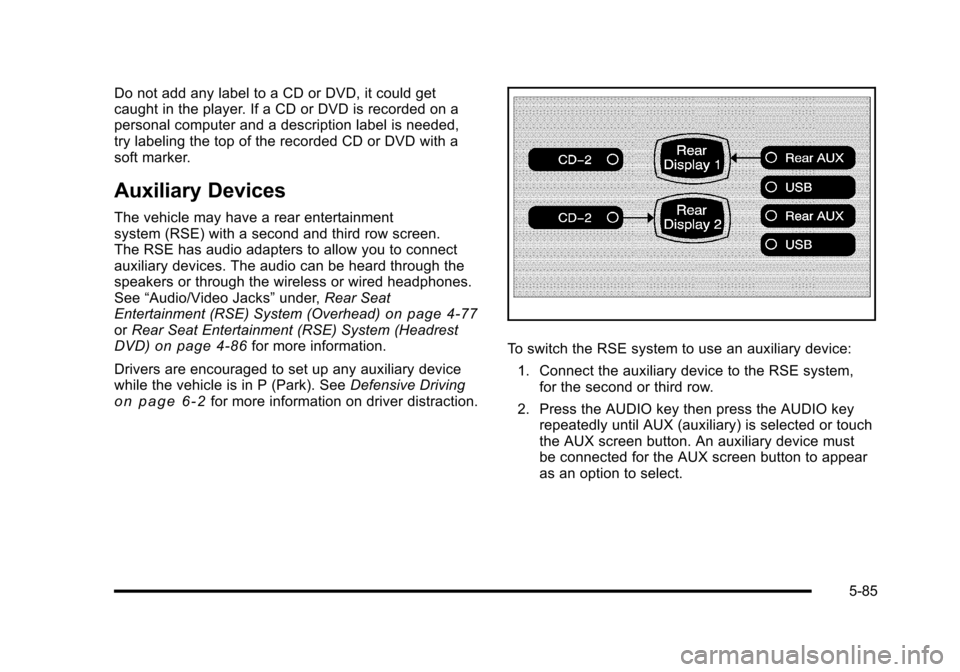
To switch the RSE system to use an auxiliary device:
1. Connect the auxiliary device to the RSE system,for the second or third row.
2. Press the AUDIO key then press the AUDIO keyrepeatedly until AUX (auxiliary) is selected or touchthe AUX screen button. An auxiliary device mustbe connected for the AUX screen button to appearas an option to select.
5-85
Page 386 of 616

3. For the second row display select the Rear AUXscreen button next to Rear Display 1 and for thethird row display select the Rear AUX screenbutton next to Rear Display 2. Each screen worksindependently of the other. The second row screencan watch a DVD while the third row screen canuse the auxiliary device.
The rear seat passengers can also use the remotecontrol to change the functions of the RSE. SeeRearSeat Entertainment (RSE) System (Overhead)onpage 4!77orRear Seat Entertainment (RSE) System(Headrest DVD)on page 4!86for more information.
Voice Recognition
The navigation system's voice recognition allowsfor hands-free operation of the navigation system,audio system, and OnStar®features. The DVD mapdisc must be installed in the navigation system for voicerecognition to work. See“Installing the DVD Map Disc”underMapson page 5!14for more information.
Voice recognition can be used when the ignition is onor when Retained Accessory Power (RAP) is active.See“Retained Accessory Power (RAP)”in the Index ofyour vehicle's owner manual for more information.
To use voice recognition, do the following:
1. Push and hold theSRCE button on thesteering wheel untilyou hear a beep. Theaudio system mutes.
2. Clearly state one of the commands listed on thefollowing pages.
Helpful Hints for Stating Commands
.When a multiple command is available, choose thecommand that works best.
.Words that are in brackets are optional. Forexample, for the command Radio [band] [select]FM, stating Radio FM or Radio select FM are bothvalid commands.
5-86
Page 389 of 616
CD Commands
The following are CD, MP3, and DVD commands thatcan be accessed by clearly stating the commandsexactly as they are written.
CD, DVD, Disc :Use this command to select a CD,DVD, or disc that is currently loaded.
CD, DVD, Disc, [select] track (one, two, three, etc.) :Instructs the system to select a specific track number.
CD, DVD, Disc select next folder :Use this commandto select the next folder on the MP3 or audio DVD.
CD, DVD, Disc select previous folder :Use thiscommand to select the previous folder on the MP3 oraudio DVD.
CD help, DVD help, Disc help :Instructs the system toassist with CD and DVD commands.
Auxiliary Commands
The following auxiliary commands can be accessedby clearly stating the commands exactly as they arewritten. The commands are available when the auxiliarysource is available.
Aux, Auxiliary :Use this command to select theauxiliary device, when a device is connected.
Voice Help
Voice help :Provides a description of help commandsthat can be used.
5-89
Page 559 of 616
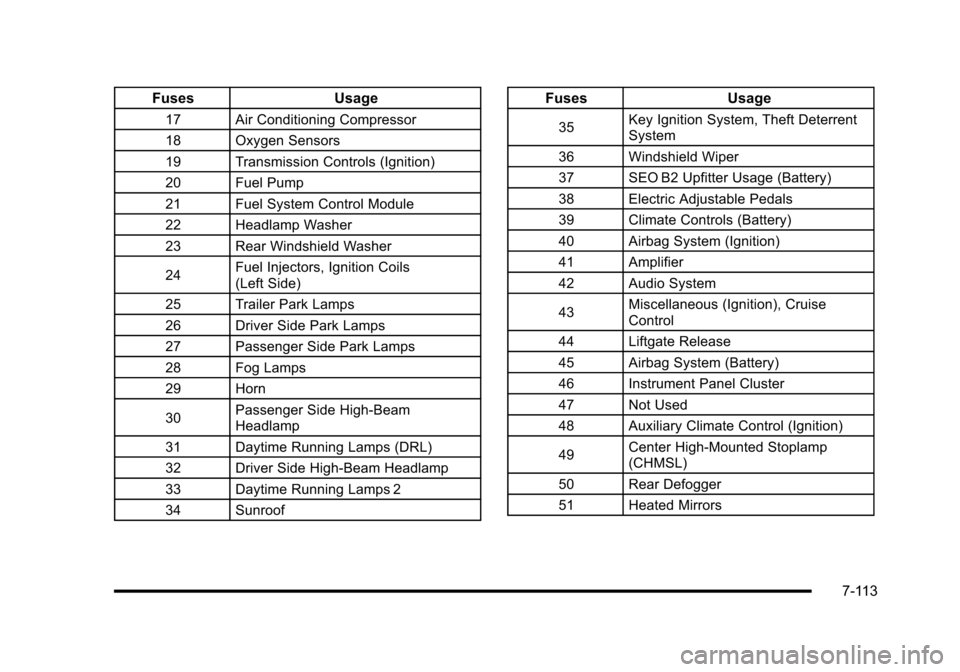
FusesUsage
17Air Conditioning Compressor
18Oxygen Sensors
19Transmission Controls (Ignition)
20Fuel Pump
21Fuel System Control Module
22Headlamp Washer
23Rear Windshield Washer
24Fuel Injectors, Ignition Coils(Left Side)
25Trailer Park Lamps
26Driver Side Park Lamps
27Passenger Side Park Lamps
28Fog Lamps
29Horn
30Passenger Side High-BeamHeadlamp
31Daytime Running Lamps (DRL)
32Driver Side High-Beam Headlamp
33Daytime Running Lamps 2
34Sunroof
FusesUsage
35Key Ignition System, Theft DeterrentSystem
36Windshield Wiper
37SEO B2 Upfitter Usage (Battery)
38Electric Adjustable Pedals
39Climate Controls (Battery)
40Airbag System (Ignition)
41Amplifier
42Audio System
43Miscellaneous (Ignition), CruiseControl
44Liftgate Release
45Airbag System (Battery)
46Instrument Panel Cluster
47Not Used
48Auxiliary Climate Control (Ignition)
49Center High-Mounted Stoplamp(CHMSL)
50Rear Defogger
51Heated Mirrors
7-113
Page 600 of 616

Appearance Care (cont.)
Underbody Maintenance . . . . . . . . . . . . . . . . . . . . . . . . .7-106
Washing Your Vehicle . . . . . . . . . . . . . . . . . . . . . . . . . . .7-102
Weatherstrips . . . . . . . . . . . . . . . . . . . . . . . . . . . . . . . . . . . .7-102
Windshield, Backglass, and Wiper Blades . . . . . . .7-104
Wood Panels . . . . . . . . . . . . . . . . . . . . . . . . . . . . . . . . . . . .7-101
Ashtray . . . . . . . . . . . . . . . . . . . . . . . . . . . . . . . . . . . . . . . . . . . . 4-20
Assist Handles . . . . . . . . . . . . . . . . . . . . . . . . . . . . . . . . . . . . 3-64
Audio System . . . . . . . . . . . . . . . . . . . . . . . . . . . . . . . . . . . . . . 4-67
Audio Steering Wheel Controls . . . . . . . . . . . . . . . . . .4-105
Radio . . . . . . . . . . . . . . . . . . . . . . . . . . . . . . . . . . . . . . . . . . . . . 5-60
Radio Reception . . . . . . . . . . . . . . . . . . . . . . . . . . . . . . . . .4-107
Rear Seat (RSA) . . . . . . . . . . . . . . . . . . . . . . . . . . . . . . . .4-103
Theft-Deterrent Feature . . . . . . . . . . . . . . . . . . . . . . . . . .4-105
XM™Satellite Radio Antenna System . . . . . . . . . . .4-108
Automatic Headlamp System . . . . . . . . . . . . . . . . . . . . . . 4-15
Automatic Transmission
Fluid . . . . . . . . . . . . . . . . . . . . . . . . . . . . . . . . . . . . . . . . . . . . . . 7-24
Operation . . . . . . . . . . . . . . . . . . . . . . . . . . . . . . . . . . . . . . . . . 3-32
Autoride®. . . . . . . . . . . . . . . . . . . . . . . . . . . . . . . . . . . . . . . . . . 6-42
Axle, Rear . . . . . . . . . . . . . . . . . . . . . . . . . . . . . . . . . . . . . . . . . 7-50
B
Back-Up Lamps - Ambulance Body
Bulb Replacement . . . . . . . . . . . . . . . . . . . . . . . . . . . . . . . . 7-55
Battery . . . . . . . . . . . . . . . . . . . . . . . . . . . . . . . . . . . . . . . . . . . . 7-43
Electric Power Management . . . . . . . . . . . . . . . . . . . . . . 4-18
Run-Down Protection . . . . . . . . . . . . . . . . . . . . . . . . . . . . . 4-18
Belt Routing, Engine . . . . . . . . . . . . . . . . . . . . . . . . . . . . . . . 8-13
Bench Seat, Split (60/40) . . . . . . . . . . . . . . . . . . . . . . . . . . 2-10
Bluetooth®. . . . . . . . . . . . . . . . . . . . . . . . . . . . . . . . . . . . . . . . . 4-67
Brake
Emergencies . . . . . . . . . . . . . . . . . . . . . . . . . . . . . . . . . . . . . . 6-6
Pedal and Adjustable Throttle . . . . . . . . . . . . . . . . . . . . 3-30
Brakes . . . . . . . . . . . . . . . . . . . . . . . . . . . . . . . . . . . . . . . . . . . . . 7-40
Antilock . . . . . . . . . . . . . . . . . . . . . . . . . . . . . . . . . . . . . . . . . . . . 6-5
Parking . . . . . . . . . . . . . . . . . . . . . . . . . . . . . . . . . . . . . . . . . . . 3-38
System Warning Light . . . . . . . . . . . . . . . . . . . . . . . . . . . . 4-33
Braking . . . . . . . . . . . . . . . . . . . . . . . . . . . . . . . . . . . . . . . . . . . . . .6-4
Braking in Emergencies . . . . . . . . . . . . . . . . . . . . . . . . . . . . .6-6
Break-In, New Vehicle . . . . . . . . . . . . . . . . . . . . . . . . . . . . . 3-26
Bucket Seats, Rear . . . . . . . . . . . . . . . . . . . . . . . . . . . . . . . . 2-15
Bulb Replacement . . . . . . . . . . . . . . . . . . . . . . . . . . . . . . . . . 7-56
Back-Up Lamps - Ambulance Body . . . . . . . . . . . . . . . 7-55
Fog Lamps . . . . . . . . . . . . . . . . . . . . . . . . . . . . . . . . . . . . . . . 4-16
Headlamp Aiming . . . . . . . . . . . . . . . . . . . . . . . . . . . . . . . . . 7-52
i - 2