ad blue CADILLAC ESCALADE 2023 Owner's Manual
[x] Cancel search | Manufacturer: CADILLAC, Model Year: 2023, Model line: ESCALADE, Model: CADILLAC ESCALADE 2023Pages: 461, PDF Size: 7.99 MB
Page 185 of 461
Cadillac Escalade Owner Manual (GMNA-Localizing-U.S./Canada/Mexico-
16417396) - 2023 - CRC - 5/9/22
Infotainment System 183
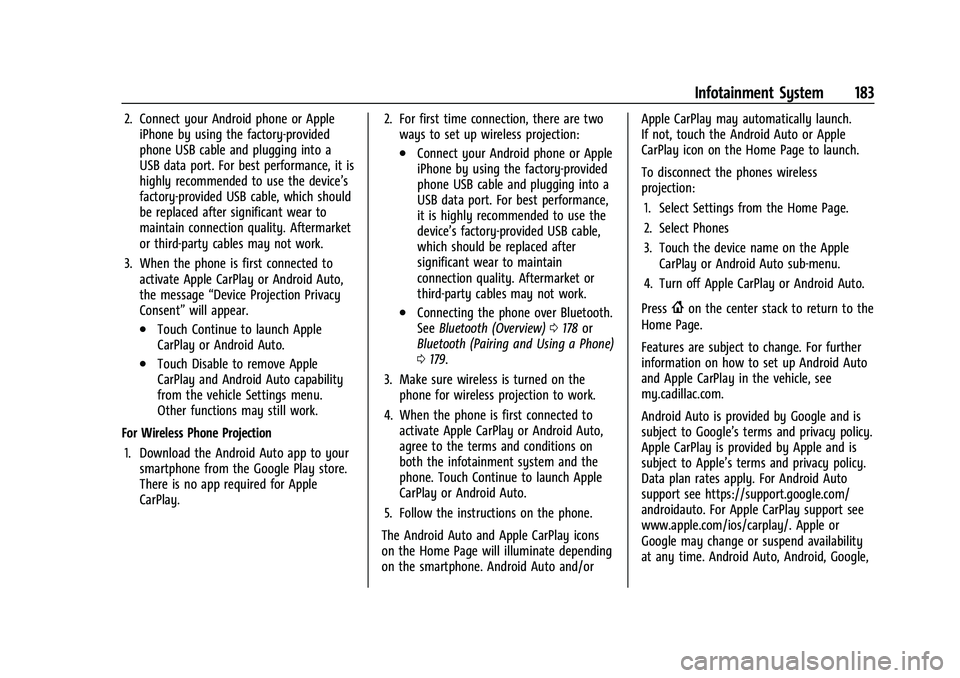
2. Connect your Android phone or AppleiPhone by using the factory-provided
phone USB cable and plugging into a
USB data port. For best performance, it is
highly recommended to use the device’s
factory-provided USB cable, which should
be replaced after significant wear to
maintain connection quality. Aftermarket
or third-party cables may not work.
3. When the phone is first connected to activate Apple CarPlay or Android Auto,
the message “Device Projection Privacy
Consent” will appear.
.Touch Continue to launch Apple
CarPlay or Android Auto.
.Touch Disable to remove Apple
CarPlay and Android Auto capability
from the vehicle Settings menu.
Other functions may still work.
For Wireless Phone Projection 1. Download the Android Auto app to your smartphone from the Google Play store.
There is no app required for Apple
CarPlay. 2. For first time connection, there are two
ways to set up wireless projection:
.Connect your Android phone or Apple
iPhone by using the factory-provided
phone USB cable and plugging into a
USB data port. For best performance,
it is highly recommended to use the
device’s factory-provided USB cable,
which should be replaced after
significant wear to maintain
connection quality. Aftermarket or
third-party cables may not work.
.Connecting the phone over Bluetooth.
See Bluetooth (Overview) 0178 or
Bluetooth (Pairing and Using a Phone)
0 179.
3. Make sure wireless is turned on the phone for wireless projection to work.
4. When the phone is first connected to activate Apple CarPlay or Android Auto,
agree to the terms and conditions on
both the infotainment system and the
phone. Touch Continue to launch Apple
CarPlay or Android Auto.
5. Follow the instructions on the phone.
The Android Auto and Apple CarPlay icons
on the Home Page will illuminate depending
on the smartphone. Android Auto and/or Apple CarPlay may automatically launch.
If not, touch the Android Auto or Apple
CarPlay icon on the Home Page to launch.
To disconnect the phones wireless
projection:
1. Select Settings from the Home Page.
2. Select Phones
3. Touch the device name on the Apple CarPlay or Android Auto sub-menu.
4. Turn off Apple CarPlay or Android Auto.
Press{on the center stack to return to the
Home Page.
Features are subject to change. For further
information on how to set up Android Auto
and Apple CarPlay in the vehicle, see
my.cadillac.com.
Android Auto is provided by Google and is
subject to Google’s terms and privacy policy.
Apple CarPlay is provided by Apple and is
subject to Apple’s terms and privacy policy.
Data plan rates apply. For Android Auto
support see https://support.google.com/
androidauto. For Apple CarPlay support see
www.apple.com/ios/carplay/. Apple or
Google may change or suspend availability
at any time. Android Auto, Android, Google,
Page 193 of 461

Cadillac Escalade Owner Manual (GMNA-Localizing-U.S./Canada/Mexico-
16417396) - 2023 - CRC - 5/9/22
Infotainment System 191
be manufactured, distributed,
or marketed in the SiriusXM
Service Area.
2. For products to be distributed, marketed, and/or sold in Canada, a separate
agreement is required with Canadian
Satellite Radio Inc. (operating as SiriusXM
Canada).
TouchSense Technology and TouchSense
System 1000 Series Licensed from
Immersion Corporation. TouchSense System
1000 protected under one or more of the
U.S. Patents at the following address
www.immersion.com/patent-marking.html
and other patents pending. HD Radio Technology
HD Radio Technology manufactured under
license from iBiquity Digital Corporation. U.S.
and Foreign Patents. For patents see
https://dts.com/patents. HD Radio and the
HD, HD Radio, and
“ARC”logos are
registered trademarks or trademarks of
iBiquity Digital Corporation in the United
States and/or other countries.
Bluetooth
The Bluetooth word mark and logos are
owned by the Bluetooth SIG, Inc. and any
use of such marks by General Motors is
under license. Other trademarks and trade
names are those of their respective owners.
Java
Java is a registered trademark of Oracle
and/or its affiliates. MPEG4–AVC (H.264)
THIS PRODUCT IS LICENSED UNDER THE AVC
PATENT PORTFOLIO LICENSE FOR THE
PERSONAL AND NON-COMMERCIAL USE OF A
CONSUMER TO (i) ENCODE VIDEO IN
COMPLIANCE WITH THE AVC STANDARD
(“AVC VIDEO”) AND/OR (ii) DECODE AVC
VIDEO THAT WAS ENCODED BY A
CONSUMER ENGAGED IN A PERSONAL AND
NON-COMMERCIAL ACTIVITY AND/OR WAS
OBTAINED FROM A VIDEO PROVIDER
LICENSED TO PROVIDE AVC VIDEO. NO
LICENSE IS GRANTED OR SHALL BE IMPLIED
FOR ANY OTHER USE. ADDITIONAL
INFORMATION MAY BE OBTAINED FROM
MPEG LA, LLC. SEE
HTTPS://WWW.MPEGLA.COM.
VC-1
THIS PRODUCT IS LICENSED UNDER THE VC-1
PATENT PORTFOLIO LICENSE FOR THE
PERSONAL AND NON-COMMERCIAL USE OF A
CONSUMER TO (i) ENCODE VIDEO IN
COMPLIANCE WITH THE VC-1 STANDARD
(“VC-1 VIDEO”) AND/OR (ii) DECODE VC-1
VIDEO THAT WAS ENCODED BY A
CONSUMER ENGAGED IN A PERSONAL AND
NON-COMMERCIAL ACTIVITY AND/OR WAS
OBTAINED FROM A VIDEO PROVIDER
LICENSED TO PROVIDE VC-1 VIDEO. NO
Page 253 of 461

Cadillac Escalade Owner Manual (GMNA-Localizing-U.S./Canada/Mexico-
16417396) - 2023 - CRC - 5/11/22
Driving and Operating 251
ACC can also be set while the vehicle is
stopped if ACC is on and the brake pedal is
applied.
ACC Indicator (BaseLevel)ACC Indicator (Uplevel)
oor\displays on the instrument
cluster and Head-Up Display (HUD),
if equipped. When ACC is turned on, the
indicator will be lit white. When ACC is
active, the indicator will turn green.
Be mindful of speed limits, surrounding
traffic speeds, and weather conditions when
selecting the set speed.
Resuming a Set Speed
If ACC is set at a desired speed and then the
brakes are applied, ACC is disengaged
without erasing the set speed from memory.
To begin using ACC again, press RES+ up
briefly.
.If the vehicle is moving more than 5 km/h
(3 mph), it returns to the previous set
speed.
.If the vehicle is stopped with the brake
pedal applied, press RES+ and release the
brake pedal. ACC will hold the vehicle
until RES+ or the accelerator pedal is
pressed.
A green ACC indicator and the set speed
display on the instrument cluster. The
vehicle ahead indicator may be flashing if a
vehicle ahead was present and moved. See
“Approaching and Following a Vehicle” later
in this section.
Once ACC has resumed, the vehicle speed
will increase to the set speed under the
following conditions:
.There is no vehicle ahead.
.The vehicle ahead is beyond the selected
following gap.
.The vehicle speed is not being limited
because of a sharp turn. Increasing Speed While ACC is at a Set Speed
If ACC is already activated, do one of the
following:
.Use the accelerator pedal to get to the
higher speed. Briefly press and release
SET–
and release the accelerator pedal.
The vehicle will now cruise at the higher
speed.
When the accelerator pedal is pressed,
ACC will not brake because it is
overridden. While overridden, the ACC
indicator will turn blue on the instrument
cluster and HUD, if equipped.
.Press and hold RES+ until the desired set
speed is displayed, then release it.
.To increase speed in small increments,
press RES+. to the first detent. For each
press, the vehicle goes 1 km/h (1 mph)
faster.
.To increase speed in larger increments,
press RES+ to the second detent. For each
press, the vehicle speed increases to the
next 5 km/h (5 mph) mark on the
speedometer.
The set speed can also be increased while
the vehicle is stopped.
Page 258 of 461

Cadillac Escalade Owner Manual (GMNA-Localizing-U.S./Canada/Mexico-
16417396) - 2023 - CRC - 5/11/22
256 Driving and Operating
Warning (Continued)
The vehicle can move. When ACC is
holding the vehicle at a stop, always be
prepared to manually apply the brakes.
{Warning
Leaving the vehicle without placing it in
P (Park) can be dangerous. Do not leave
the vehicle while it is being held at a
stop by ACC. Always place the vehicle in
P (Park) and turn off the ignition before
leaving the vehicle.
ACC Override
If using the accelerator pedal while ACC is
active, the ACC indicator turns blue on the
instrument cluster and in the HUD (if
equipped) indicating ACC braking will not
occur. ACC will resume operation when the
accelerator pedal is not being pressed.
{Warning
The ACC will not automatically apply the
brakes if your foot is resting on the
accelerator pedal. You could crash into a
vehicle ahead of you. Curves in the Road
{Warning
On curves, ACC may not detect a vehicle
ahead in your lane. You could be startled
if the vehicle accelerates up to the set
speed, especially when following a vehicle
exiting or entering exit ramps. You could
lose control of the vehicle or crash. Do
not use ACC while driving on an entrance
or exit ramp. Always be ready to use the
brakes if necessary.
{Warning
On curves, ACC may respond to a vehicle
in another lane, or may not have time to
react to a vehicle in your lane. You could
crash into a vehicle ahead of you, or lose
control of your vehicle. Give extra
attention in curves and be ready to use
the brakes if necessary. Select an
appropriate speed while driving in curves.
ACC may operate differently in a sharp
curve. It may reduce the vehicle speed if the
curve is too sharp. The curve speed control indicator
nmay
illuminate green when ACC is actively
controlling the vehicle speed and detects a
sharp curve on the road ahead.
ACC automatically slows the vehicle down
while navigating the curve and may increase
speed out of the curve, but will not exceed
the set speed.
When following a vehicle and entering a
curve, ACC may not detect the vehicle ahead
and accelerate to the set speed. When this
happens, the vehicle ahead indicator will not
appear.
Page 263 of 461

Cadillac Escalade Owner Manual (GMNA-Localizing-U.S./Canada/Mexico-
16417396) - 2023 - CRC - 5/11/22
Driving and Operating 261
Poor Conditions
Poor Conditions
Using Super Cruise
{Warning
To prevent serious injury or death:
.Always check that Super Cruise is
available
^before pressing].
(Continued)
Warning (Continued)
.Only remove your hands from the
steering wheel if the steering wheel
light bar,
^, and\are green.
Super Cruise may not begin steering
immediately, even when Super Cruise
is available and
]has been pressed.
To engage:
1. Press
Jto turn on ACC. Make sure the
white
\indicator displays in the
instrument cluster. See Adaptive Cruise
Control (Advanced) 0248. When Super
Cruise is available, the white
^will
display in the instrument cluster. 2. Press
].
3. ACC will set the speed to the current vehicle speed or resume to the higher
previously stored ACC set speed.
When engaged and not steering the vehicle,
the steering wheel light bar flashes blue,
and
^will be blue. The driver is in control
of steering and Super Cruise is not steering
the vehicle.
When the vehicle is positioned in the center
of the lane, the steering wheel light bar and
^display will turn green, indicating Super
Cruise is steering the vehicle.
When Super Cruise controls the steering,
traffic and other conditions and laws permit,
and it is safe to do so, your hands can be
taken off the steering wheel.
Always pay attention to the road and the
operation of the vehicle. Always monitor
and be attentive of surrounding traffic,
including vehicles that may cross the road in
front of your vehicle.
Super Cruise steering can be overridden with
manual steering at any time. When Super
Cruise is engaged, always be prepared to
Page 264 of 461

Cadillac Escalade Owner Manual (GMNA-Localizing-U.S./Canada/Mexico-
16417396) - 2023 - CRC - 5/11/22
262 Driving and Operating
take immediate action—including steering,
accelerating, and braking quickly,
if necessary.
Super Cruise, when engaged, will enable the
Forward Collision System to alert and brake.
Steering Manually and Changing Lanes
The vehicle can always be manually steered,
even with Super Cruise engaged; for
example, when manually changing lanes.
When the steering wheel is moved
manually, the steering wheel light bar
flashes blue and
^on the instrument
cluster turns blue to indicate Super Cruise is
not steering the vehicle.
When ready to allow Super Cruise to
resume steering again, position the vehicle
in the center of the lane, hold the steering
wheel until the steering wheel light bar
turns green, and then release the steering
wheel when it is safe to do so.
{Warning
To help prevent crashes before making a
lane change:
.Always check mirrors. (Continued)
Warning (Continued)
.Glance over your shoulder.
.Use the turn signals.
Super Cruise Lane Change
Super Cruise can steer to perform a single
lane change under certain conditions when
requested by the driver or initiated by the
Super Cruise System.
To request a lane change:
On Demand Lane Changes 1. Verify the lane next to your vehicle is clear and conditions are safe to make a
lane change.
2. Use the turn signal lever to activate the turn signal in the direction of the desired
lane change.
3. Return the turn signal lever to the neutral position after the lane change.
See Turn and Lane-Change Signals 0140.
4. To cancel a lane change, return the turn signal lever to the neutral position, move
the lever in the opposite direction of the
lane change, or steer manually at
any time. Automatic Lane Changes
Super Cruise System may initiate a single
lane change when enabled through vehicle
settings under following conditions:.The Super Cruise System may initiate a
lane change to the left to pass a slower
moving vehicle ahead and a subsequent
lane change to right to return to your
original lane.
.Super Cruise System may initiate a lane
change to left or right when current lane
is ending ahead.
.To cancel a Super Cruise lane change,
return the turn signal lever to the neutral
position or move the turn signal lever.
.Super Cruise steering can be overridden
with manual steering at any time to
cancel a Super Cruise lane change.
If Super Cruise detects that traffic is clear,
Super Cruise will steer the vehicle to
perform the lane change. A message appears
on the Driver Information Center (DIC)
during the lane change to provide more
information on the status of the lane
change.
The Super Cruise Lane Change feature can
be enabled or disabled through the vehicle
personalization menu. The Super Cruise Lane
Page 270 of 461

Cadillac Escalade Owner Manual (GMNA-Localizing-U.S./Canada/Mexico-
16417396) - 2023 - CRC - 5/11/22
268 Driving and Operating
Steering Wheel Light Bar Instrument Cluster LightSuper Cruise Description
Off OffSuper Cruise is off. There is no automatic steering. Operate the vehicle
manually.
Off WhiteSuper Cruise is available and can be engaged.
Solid Green Solid Green Super Cruise is steering. Pay attention to the road and vehicle operation.
Flashing Blue Solid BlueSuper Cruise is not steering. Operate the vehicle manually. See
“Steering
Manually and Changing Lanes” previously in this section.
Flashing Green Solid GreenSuper Cruise has detected you are not paying sufficiently close attention to
the road. Pay attention to the road. See
“Attention to the Road”previously in
this section.
Flashing Red Solid RedTake over steering immediately. Super Cruise will disengage. See
“Take Over
Alert” previously in this section.
Disengaging Super Cruise
There are two ways to disengage Super
Cruise:
.Press]while your hands are on the
steering wheel. The Super Cruise steering
will disengage.
.Press the brake pedal while your hands
are on the steering wheel. Both Super
Cruise steering and Adaptive Cruise
Control will disengage.
Super Cruise Messages
If
^does not appear,]can be pressed
to display a DIC message as to why the
system is unavailable. Immediately after a disengagement,
pressing the
]within 10 seconds will
display a DIC message with the reason for
Super Cruise disengagement.
Page 271 of 461
Cadillac Escalade Owner Manual (GMNA-Localizing-U.S./Canada/Mexico-
16417396) - 2023 - CRC - 5/11/22
Driving and Operating 269
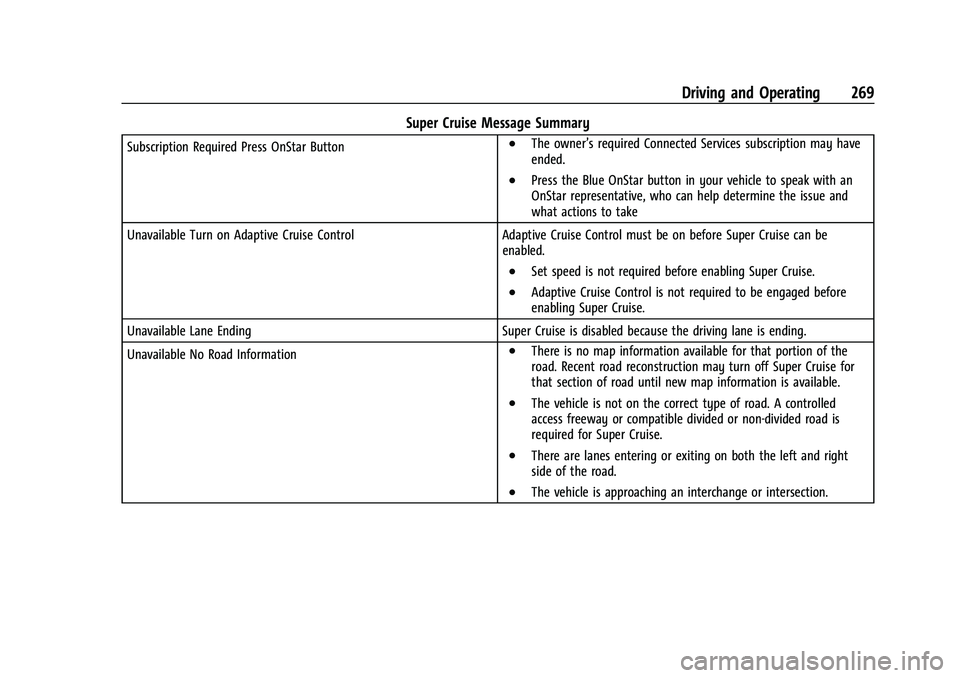
Super Cruise Message Summary
Subscription Required Press OnStar Button.The owner’s required Connected Services subscription may have
ended.
.Press the Blue OnStar button in your vehicle to speak with an
OnStar representative, who can help determine the issue and
what actions to take
Unavailable Turn on Adaptive Cruise Control Adaptive Cruise Control must be on before Super Cruise can be
enabled.
.Set speed is not required before enabling Super Cruise.
.Adaptive Cruise Control is not required to be engaged before
enabling Super Cruise.
Unavailable Lane Ending Super Cruise is disabled because the driving lane is ending.
Unavailable No Road Information
.There is no map information available for that portion of the
road. Recent road reconstruction may turn off Super Cruise for
that section of road until new map information is available.
.The vehicle is not on the correct type of road. A controlled
access freeway or compatible divided or non-divided road is
required for Super Cruise.
.There are lanes entering or exiting on both the left and right
side of the road.
.The vehicle is approaching an interchange or intersection.
Page 279 of 461
Cadillac Escalade Owner Manual (GMNA-Localizing-U.S./Canada/Mexico-
16417396) - 2023 - CRC - 5/11/22
Driving and Operating 277
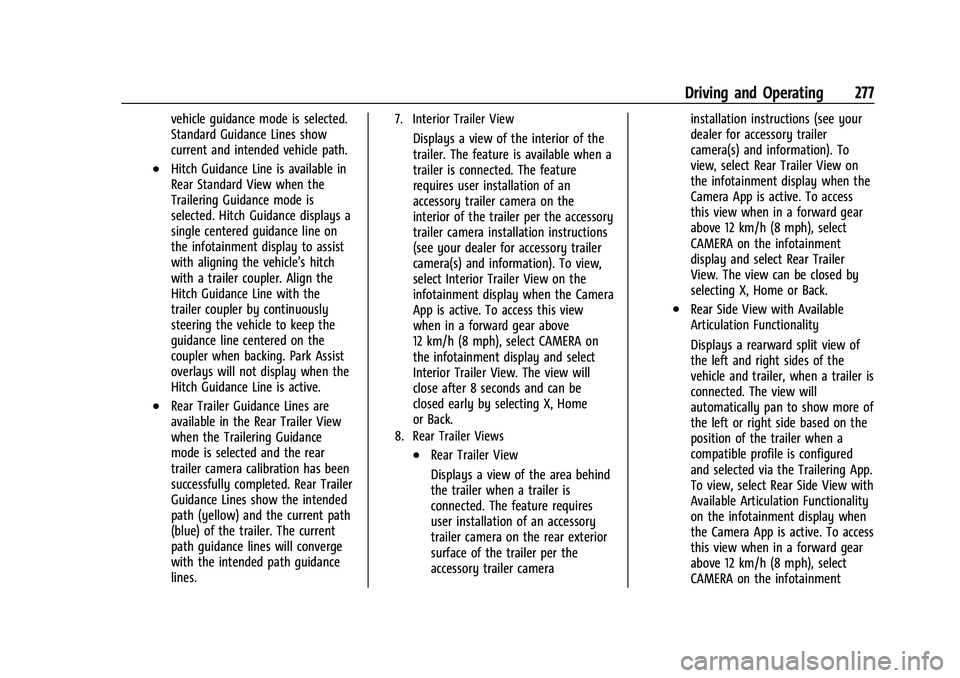
vehicle guidance mode is selected.
Standard Guidance Lines show
current and intended vehicle path.
.Hitch Guidance Line is available in
Rear Standard View when the
Trailering Guidance mode is
selected. Hitch Guidance displays a
single centered guidance line on
the infotainment display to assist
with aligning the vehicle’s hitch
with a trailer coupler. Align the
Hitch Guidance Line with the
trailer coupler by continuously
steering the vehicle to keep the
guidance line centered on the
coupler when backing. Park Assist
overlays will not display when the
Hitch Guidance Line is active.
.Rear Trailer Guidance Lines are
available in the Rear Trailer View
when the Trailering Guidance
mode is selected and the rear
trailer camera calibration has been
successfully completed. Rear Trailer
Guidance Lines show the intended
path (yellow) and the current path
(blue) of the trailer. The current
path guidance lines will converge
with the intended path guidance
lines.
7. Interior Trailer View
Displays a view of the interior of the
trailer. The feature is available when a
trailer is connected. The feature
requires user installation of an
accessory trailer camera on the
interior of the trailer per the accessory
trailer camera installation instructions
(see your dealer for accessory trailer
camera(s) and information). To view,
select Interior Trailer View on the
infotainment display when the Camera
App is active. To access this view
when in a forward gear above
12 km/h (8 mph), select CAMERA on
the infotainment display and select
Interior Trailer View. The view will
close after 8 seconds and can be
closed early by selecting X, Home
or Back.
8. Rear Trailer Views
.Rear Trailer View
Displays a view of the area behind
the trailer when a trailer is
connected. The feature requires
user installation of an accessory
trailer camera on the rear exterior
surface of the trailer per the
accessory trailer camerainstallation instructions (see your
dealer for accessory trailer
camera(s) and information). To
view, select Rear Trailer View on
the infotainment display when the
Camera App is active. To access
this view when in a forward gear
above 12 km/h (8 mph), select
CAMERA on the infotainment
display and select Rear Trailer
View. The view can be closed by
selecting X, Home or Back.
.Rear Side View with Available
Articulation Functionality
Displays a rearward split view of
the left and right sides of the
vehicle and trailer, when a trailer is
connected. The view will
automatically pan to show more of
the left or right side based on the
position of the trailer when a
compatible profile is configured
and selected via the Trailering App.
To view, select Rear Side View with
Available Articulation Functionality
on the infotainment display when
the Camera App is active. To access
this view when in a forward gear
above 12 km/h (8 mph), select
CAMERA on the infotainment
Page 320 of 461

Cadillac Escalade Owner Manual (GMNA-Localizing-U.S./Canada/Mexico-
16417396) - 2023 - CRC - 5/11/22
318 Driving and Operating
Use only a round, seven-wire connector with
flat blade terminals meeting SAE J2863
specifications for proper electrical
connectivity.
The seven-wire harness contains the
following trailer circuits:
.Yellow/Grey: Left Stop/Turn Signal
.Green/Violet: Right Stop/Turn Signal
.Grey/Brown: Taillamps
.White: Ground
.White/Green: Back-up Lamps
.Red/Green: Battery Feed
.Dark Blue: Trailer Brake
To help charge a remote (non-vehicle)
battery, change drive mode to Tow Haul.
If the trailer is too light for Tow/Haul Mode,
turn on the headlamps to help charge the
battery.
Electric Brake Control Wiring Provisions
These wiring provisions are included with
the vehicle as part of the trailer wiring
package. These provisions are for an electric
brake controller.
The harness should be installed by your
dealer or a qualified service center. Refer to the aftermarket electric trailer brake
controller owner's manual to determine wire
color coding of the electric trailer brake
controller. The wire colors on the brake
controller may be different from the vehicle.
Trailer Lamps
Always check that all trailer lamps are
working at the beginning of each trip, and
periodically on longer trips.
If equipped, the Trailering App will monitor
the right turn/brake circuit, left turn/brake
circuit, running lamp circuit, and reverse
lamp circuits on the trailer. Driver
Information Center (DIC) messages and
Trailering App alerts display if lighting circuit
issues are detected on the trailer.
When trailers cannot be detected, the
trailer-related DIC messages and/or
Trailering App alerts will not be displayed.
Pressing START LIGHT TEST in the Trailering
App automatically activates trailer lamps.
The Trailering App is not a substitute for
manually inspecting your trailer lamps. See
Trailering App
0324.
Trailer Connection and Lamp Messages
When a trailer is properly connected and
working, no trailer connection or lamp
messages appear on the DIC. However; if
the vehicle detects an issue with a trailer
connection or lamp, you may see the
following DIC message(s):
.TRAILER DISCONNECTED CHECK
CONNECTION appears when a connected
trailer is disconnected. It appears
immediately when the vehicle is on,
or upon the next start-up if the trailer
was disconnected while the vehicle was
off. Check the trailer connection as
appropriate.
.CHECK TRAILER XXX LAMP appears when
there is a detected lamp or wiring fault
on the trailer. Check the trailer wiring and
lamps.
Turn Signals When Towing a Trailer
When properly connected, the trailer turn
signals should will illuminate to indicate the
vehicle is turning, changing lanes,
or stopping. When towing a trailer, the
arrows on the instrument cluster will
illuminate even if the trailer is not properly
connected or the bulbs are burned out.