phone CADILLAC ESCALADE EXT 2009 3.G Owner's Guide
[x] Cancel search | Manufacturer: CADILLAC, Model Year: 2009, Model line: ESCALADE EXT, Model: CADILLAC ESCALADE EXT 2009 3.GPages: 546, PDF Size: 4.43 MB
Page 292 of 546
Edit Address Book — Edit/View
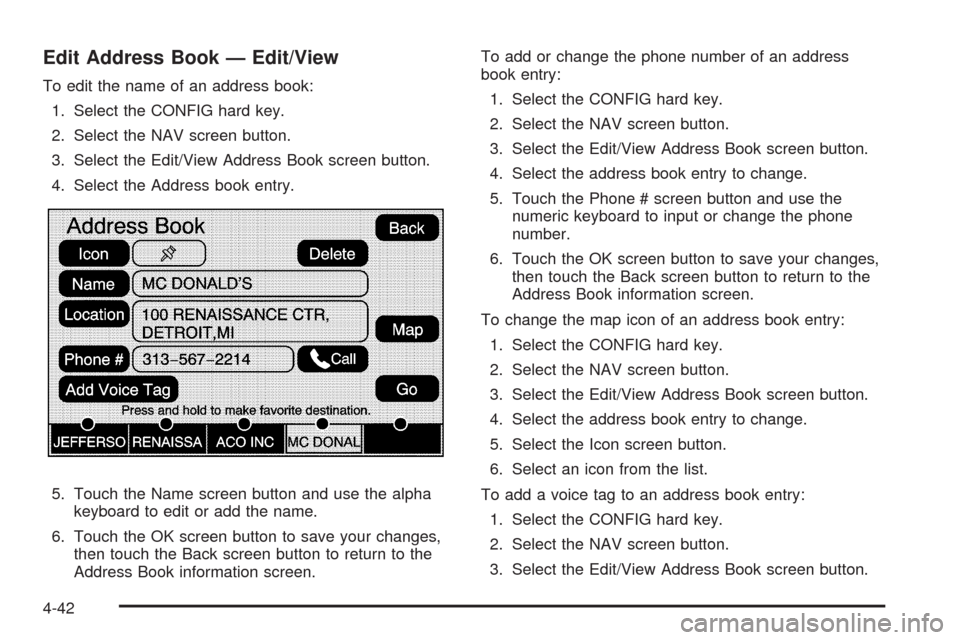
To edit the name of an address book:
1. Select the CONFIG hard key.
2. Select the NAV screen button.
3. Select the Edit/View Address Book screen button.
4. Select the Address book entry.
5. Touch the Name screen button and use the alpha
keyboard to edit or add the name.
6. Touch the OK screen button to save your changes,
then touch the Back screen button to return to the
Address Book information screen.To add or change the phone number of an address
book entry:
1. Select the CONFIG hard key.
2. Select the NAV screen button.
3. Select the Edit/View Address Book screen button.
4. Select the address book entry to change.
5. Touch the Phone # screen button and use the
numeric keyboard to input or change the phone
number.
6. Touch the OK screen button to save your changes,
then touch the Back screen button to return to the
Address Book information screen.
To change the map icon of an address book entry:
1. Select the CONFIG hard key.
2. Select the NAV screen button.
3. Select the Edit/View Address Book screen button.
4. Select the address book entry to change.
5. Select the Icon screen button.
6. Select an icon from the list.
To add a voice tag to an address book entry:
1. Select the CONFIG hard key.
2. Select the NAV screen button.
3. Select the Edit/View Address Book screen button.
4-42
Page 306 of 546
Some routes may not be searched.
The route to the destination may not be shown if
there are new roads, if roads have recently
changed, or if certain roads are not listed on the
map DVD. SeeOrdering Map DVDs on page 4-56.
To recalibrate the vehicle’s position on the map, see
your dealer/retailer.
If the System Needs Service
If your system needs service and you have followed the
steps listed here and still are experiencing problems,
see your dealer/retailer for assistance.
Ordering Map DVDs
The map DVD in your vehicle is the most up-to-date
information available when your vehicle was produced.
The map DVD is updated periodically, provided that
the map information has changed.
If you have any questions about the operation of the
navigation system or the update process, contact
the GM Nav Disc Center toll-free phone number,
1-877-NAV-DISC (1-877-628-3472) or go to the center’swebsite, gmnavdisc.com. If you need any updates or a
replacement disc, because the current disc is lost,
damaged, or needs to be updated, call the GM Nav Disc
Center or order a new disc online. To order a disc,
have your Vehicle Identication Number (VIN) available.
This helps the center make sure you receive the
correct and most up-to-date DVD map disc for your
vehicle. See “Vehicle Identication Number (VIN)” in the
Index of your vehicle’s owner manual for more
information.
After receiving the updated disc, replace the old disc in
the navigation system. See “Installing the DVD Map
Disc” and “Ejecting the DVD Map Disc” underMaps on
page 4-14. Dispose of the old disc to avoid confusion
about which disc is the most current.Database Coverage Explanations
Coverage area depends upon the map detail available.
Some areas have greater map detail than others.
The navigation system works only as well as the
information provided on the map disc. SeeOrdering
Map DVDs on page 4-56on how to obtain updated map
information.
4-56
Page 307 of 546

Navigation Audio System
Notice:Before adding any sound equipment to the
vehicle, such as an audio system, CD player, CB
radio, mobile telephone, or two-way radio, make
sure that it can be added by checking with your
dealer/retailer. Also, check federal rules covering
mobile radio and telephone units. If sound
equipment can be added, it is very important to do
it properly. Added sound equipment can interfere
with the operation of the vehicle’s engine, radio, or
other systems, and even damage them. The
vehicle’s systems can interfere with the operation of
sound equipment that has been added.
Notice:The chime signals related to safety belts,
parking brake, and other functions of the vehicle
operate through the navigation system. If that
equipment is replaced or additional equipment is
added to the vehicle, the chimes may not work.
Make sure that replacement or additional equipment
is compatible with the vehicle before installing it.
See “Accessories and Modications” in the Index of
the vehicle’s owner manual.
Playing the Radio
O
/n(Power/Volume):Press to turn the audio
system on and off. Turn to increase or to decrease
the volume.
Press and hold for more than two seconds to turn off
the navigation system, the Rear Seat Entertainment
(RSE) video screen, and Rear Seat Audio (RSA). If the
vehicle has not been turned off, press this knob to
turn RSE and RSA back on and to continue playback of
the last active source.
w(Tuning Knob):Turn to go to the next or
previous frequency or disc track or chapter. SeeCD
Player on page 4-64orDVD Player on page 4-71
for more information.
AUDIO:Press to display the audio screen. Press to
switch between AM, FM, or XM, if equipped, DISC, or
AUX (Auxiliary), or touch the screen button. SeeCD
Player on page 4-64,DVD Player on page 4-71,
andAuxiliary Devices on page 4-78for more
information.
4-57
Page 328 of 546

Auxiliary Devices
The vehicle may have a rear entertainment system
(RSE) with a second and third row screen. The RSE has
audio adapters to allow you to connect auxiliary
devices. The audio can be heard through the speakers
or through the wireless or wired headphones. See
“Audio/Video Jacks” under,Rear Seat Entertainment
(RSE) System on page 3-77for more information.
Drivers are encouraged to set up any auxiliary device
while the vehicle is in P (Park). SeeDefensive
Driving on page 5-2for more information on driver
distraction.To switch the RSE system to use an auxiliary device:
1. Connect the auxiliary device to the RSE system, for
the second or third row.
2. Press the AUDIO key then press the AUDIO key
repeatedly until AUX (auxiliary) is selected or
touch the AUX screen button. An auxiliary device
must be connected for the AUX screen button
to appear as an option to select.
3. For the second row display select the Rear AUX
screen button next to Rear Display 1 and for the
third row display select the Rear AUX screen button
next to Rear Display 2. Each screen works
independently of the other. The second row screen
can watch a DVD while the third row screen can
use the auxiliary device.
The rear seat passengers can also use the remote
control to change the functions of the RSE. SeeRear
Seat Entertainment (RSE) System on page 3-77
for more information.
Voice Recognition
The navigation system’s voice recognition allows for
hands-free operation of the navigation system,
audio system, and OnStar
®features. The DVD map
disc must be installed in the navigation system for voice
recognition to work. See “Installing the DVD Map
Disc” underMaps on page 4-14for more information.
4-78
Page 393 of 546
Fuels in Foreign Countries
If you plan on driving in another country outside the
United States or Canada, the proper fuel might be hard
to nd. Never use leaded gasoline or any other fuel
not recommended in the previous text on fuel. Costly
repairs caused by use of improper fuel would not
be covered by the vehicle warranty.
To check the fuel availability, ask an auto club, or
contact a major oil company that does business in the
country where you will be driving.
Filling the Tank
{CAUTION:
Fuel vapor burns violently and a fuel re can
cause bad injuries. To help avoid injuries to you
and others, read and follow all the instructions on
the pump island. Turn off the engine when you are
refueling. Do not smoke if you are near fuel or
refueling the vehicle. Do not use cellular phones.
Keep sparks, ames, and smoking materials away
from fuel. Do not leave the fuel pump unattended
when refueling the vehicle. This is against the law
in some places. Do not re-enter the vehicle while
pumping fuel. Keep children away from the fuel
pump; never let children pump fuel.
6-9
Page 395 of 546
The TIGHTEN GAS CAP message displays on the
Driver Information Center (DIC) if the fuel cap is
not properly installed. SeeDIC Warnings and Messages
on page 3-48for more information.
{CAUTION:
If a re starts while you are refueling, do not
remove the nozzle. Shut off the ow of fuel by
shutting off the pump or by notifying the station
attendant. Leave the area immediately.
Notice:If you need a new fuel cap, be sure to get
the right type. Your dealer/retailer can get one
for you. If you get the wrong type, it may not t
properly. This may cause the malfunction indicator
lamp to light and may damage the fuel tank and
emissions system. SeeMalfunction Indicator Lamp
on page 3-36.
Filling a Portable Fuel Container
{CAUTION:
Never ll a portable fuel container while it is in the
vehicle. Static electricity discharge from the
container can ignite the fuel vapor. You can be
badly burned and the vehicle damaged if this
occurs. To help avoid injury to you and others:
Dispense fuel only into approved containers.
Do not ll a container while it is inside a
vehicle, in a vehicle’s trunk, pickup bed, or on
any surface other than the ground.
Bring the ll nozzle in contact with the inside
of the ll opening before operating the nozzle.
Contact should be maintained until the lling
is complete.
Do not smoke while pumping fuel.
Do not use a cellular phone while
pumping fuel.
6-11
Page 515 of 546
Customer Assistance and Information...............8-2
Customer Satisfaction Procedure......................8-2
Online Owner Center......................................8-4
Customer Assistance for Text
Telephone (TTY) Users................................8-5
Customer Assistance Offices............................8-5
GM Mobility Reimbursement Program................8-6
Roadside Service...........................................8-7
Scheduling Service Appointments.....................8-9
Courtesy Transportation...................................8-9
Collision Damage Repair................................8-11Reporting Safety Defects................................8-14
Reporting Safety Defects to the United States
Government..............................................8-14
Reporting Safety Defects to the Canadian
Government..............................................8-14
Reporting Safety Defects to General Motors.....8-15
Service Publications Ordering Information.........8-15
Vehicle Data Recording and Privacy................8-16
Event Data Recorders...................................8-16
OnStar
®......................................................8-17
Navigation System........................................8-17
Radio Frequency Identication (RFID)..............8-17
Section 8 Customer Assistance Information
8-1
Page 517 of 546
charge and your case will generally be heard within
40 days. If you do not agree with the decision given in
your case, you may reject it and proceed with any other
venue for relief available to you.
You may contact the BBB Auto Line Program using the
toll-free telephone number or write them at the
following address:
BBB Auto Line Program
Council of Better Business Bureaus, Inc.
4200 Wilson Boulevard
Suite 800
Arlington, VA 22203-1838
Telephone: 1-800-955-5100
dr.bbb.org/goauto
This program is available in all 50 states and the District
of Columbia. Eligibility is limited by vehicle age,
mileage and other factors. General Motors reserves the
right to change eligibility limitations and/or discontinue
its participation in this program.
STEP THREE (Canadian Owners):
General Motors Participation in the
Mediation/Arbitration Program
In the event that you do not feel your concerns have
been addressed after the following the procedure outlined
in Steps One and Two. General Motors of Canada
Limited wants you to be aware of its participation in a
no-charge mediation/Arbitration program. General Motorsof Canada Limited has committed to binding arbitration of
owner disputes involving factory-related vehicle service
claims. The program provides for the review of the facts
involved by an impartial third party arbiter, and may
include an informal hearing before the arbiter. The
program is designed so that the entire dispute settlement
process, from the time you le your complaint to the nal
decision, should be completed in approximately 70 days.
We believe our impartial program offers advantages over
courts in most jurisdictions because it is informal, quick,
and free of charge.
For further information concerning eligibility in the
Canadian Motor Vehicle Arbitration Plan (CAMVAP), call
toll-free 1-800-207-0685, or call the General Motors
Customer Communication Centre, 1-800-263-3777
(English), 1-800-263-7854 (French), or write to
the Mediation/Arbitration Program at the following
address:
Mediation/Arbitration Program
c/o Customer Communication Centre
General Motors of Canada Limited
Mail Code: CA1–163–005
1908 Colonel Sam Drive
Oshawa, Ontario L1H 8P7
Your inquiry should be accompanied by the Vehicle
Identication Number (VIN).
8-3
Page 518 of 546
Online Owner Center
Online Owner Center (U.S.) —
www.gmownercenter.com/cadillac
Information and services customized for your specic
vehicle — all in one convenient place.
Digital owner manual, warranty information,
and more
Online service and maintenance records
Find Cadillac dealers for service nationwide
Exclusive privileges and offers
Recall notices for your specic vehicle
OnStar®and GM Cardmember Services Earnings
summaries
Other Helpful Links:
Cadillac−www.cadillac.com
Cadillac Merchandise — www.cadillaccollection.com
Help Center — www.cadillac.com/helpcenter
FAQ
Contact Us
My GM Canada (Canada) — www.gm.ca
My GM Canada is a password-protected section of
www.gm.ca where you can save information on
GM vehicles, get personalized offers, and use handy
tools and forms with greater ease.
Here are a few of the valuable tools and services you
will have access to:
My Showroom: Find and save information on
vehicles and current offers in your area.
My Dealers/Retailers: Save details such as address
and phone number for each of your preferred GM
dealers/retailers.
My Driveway: Access quick links to parts and
service estimates, check trade-in values, or
schedule a service appointment by adding the
vehicles you own to your driveway prole.
My Preferences: Manage your prole and use tools
and forms with greater ease.
To sign up, visit the My GM Canada section within
www.gm.ca.
8-4
Page 519 of 546
Customer Assistance for Text
Telephone (TTY) Users
To assist customers who are deaf, hard of hearing, or
speech-impaired and who use Text Telephones (TTYs),
Cadillac has TTY equipment available at its Customer
Assistance Center. Any TTY user can communicate with
Cadillac by dialing: 1-800-833-CMCC (2622). (TTY
users in Canada can dial 1-800-263-3830.)
Customer Assistance Offices
Cadillac encourages customers to call the toll-free
number for assistance. However, if a customer wishes
to write or e-mail Cadillac, the letter should be
addressed to:
United States — Customer Assistance
Cadillac Customer Assistance Center
Cadillac Motor Car Division
P.O. Box 33169
Detroit, MI 48232-5169
www.Cadillac.com
1-800-458-8006
1-800-833-2622 (For Text Telephone
devices (TTYs))
Roadside Assistance: 1-800-882-1112From Puerto Rico:
1-800-496-9992 (English)
1-800-496-9993 (Spanish)
From U.S. Virgin Islands:
1-800-496-9994
Canada — Customer Assistance
General Motors of Canada Limited
Canadian Cadillac Customer Communication Centre,
CA1-163-005
1908 Colonel Sam Drive
Oshawa, Ontario L1H 8P7
www.gmcanada.com
1-888-446-2000
1-800-263-3830 (For Text Telephone
devices (TTYs))
Roadside Assistance: 1-800-882-1112
Overseas — Customer Assistance
Please contact the local General Motors Business Unit.
8-5