radio CADILLAC ESCALADE EXT 2010 3.G Workshop Manual
[x] Cancel search | Manufacturer: CADILLAC, Model Year: 2010, Model line: ESCALADE EXT, Model: CADILLAC ESCALADE EXT 2010 3.GPages: 580, PDF Size: 6.23 MB
Page 341 of 580
.It is recommended that there is a maximum of
192 files on a disc.
.The files can be recorded on a CD-R or CD-RW
with a maximum capacity of 700MB.
.DVD with MP3 are not playable on this system.
Root Directory
The root directory will be treated as a folder. If the root
directory has compressed audio files, the directory will
be displayed as No Folder or ALL.
Empty Directory or Folder
If a root directory or a folder exists somewhere in the
file structure that contains only folders/subfolders and
no compressed files directly beneath them, the player
will advance to the next folder in the file structure that
contains compressed audio files and the empty folder
will not be displayed or numbered.
No Folder
When the CD contains only compressed files, the files
will be located under the root folder. The next and
previous folder functions will have no function on a CD
that was recorded without folders or playlists. When
displaying the name of the folder the radio will display
No Folder.
Order of Play
Play will begin from the first track under the root
directory. When all tracks from the root directory have
been played, play will continue from files according to
their numerical listing. After playing the last track from
the last folder, play will begin again at the first track of
the first folder or root directory.
When play enters a new folder, the display will not
automatically show the new folder name. The new track
name will appear on the display.
File System and Naming
The song name that will display will be the song name
that is contained in the ID3 tag. If the song name is not
present in the ID3 tag, then the radio will display the
file name without the extension (such as .mp3) as the
track name.
Track names longer than 32 characters or four pages
will be shortened. The display will not show parts of
words on the last page of text and the extension of the
filename will not display.
5-71
Page 342 of 580
Playing an MP3
While playing a CD, the navigation system is available.
When you insert a CD, the CD tab will display. If you
select a DSP setting for the CD, it will be activated each
time you play a CD.
If you turn off the ignition or radio with a CD in the
player, it will stay in the player. When you turn on the
ignition or radio, the CD will start playing where it
stopped, if it was the last selected audio source.
As each new track starts to play, the track number will
appear on the display.
If an error appears on the display, see“CD Messages”
later in this section.
If viewing a map screen, touch the CD screen button.
The display will split between the audio screen and the
map screen. If you do not want to view a split screen or
you are not on a map screen, press the AUDIO key
then press the AUDIO key repeatedly until CD is
selected or touch the CD screen button.
M(Load): To load one disc, do the following:
1. Press the load hard key and follow the screen message displayed.
2. When the system displays “Insert Disc (number)”,
insert the disc partway into the slot, label side up.
The system will pull it into the first available slot
and start playing. The system will display the type
of disc inserted.
To load multiple discs, do the following: 1. Press and hold the load hard key and follow the screen message displayed.
2. When the system displays “Insert Disc (number)”,
insert the disc partway into the slot, label side up.
The system will pull it in.
3. Once a disc is loaded, the system will display “Insert Disc (number)” again. Load the next disc.
Repeat this procedure for each disc. The player
takes up to six discs, do not try to load more
than six. The system will not display the disc types
when loading all, until the discs have been read
by the system.
Once all discs have been inserted, the system
will start playing the last loaded disc.
5-72
Page 345 of 580
DVD Player
The player can be used for DVD audio and DVD video.
DVD video will not display on the navigation screen
unless the vehicle is in PARK (P). It will operate on the
rear seat entertainment screens while the vehicle is
moving. The Rear Seat Entertainment (RSE) video
screen will start play of the DVD when a DVD video has
been inserted into the navigation system. The DVD
player can be controlled by the buttons on the
navigation system, the Rear Seat Audio (RSA) system,
and the remote control. The DVD player can also be
used for the rear seat passengers with the radio off.
The rear seat passengers can power on the video
screen and use the remote control to navigate the disc.
See“Rear Seat Entertainment System” in the Index of
your vehicle's owner manual for more information.
The DVD player is only compatible with DVDs of the
appropriate region code that is printed on the jacket of
most DVDs.
The DVD slot is compatible with most audio CDs,
CD-R, CD-RW, DVD-Video, DVD-Audio, DVD-R/RW,
DVD+R/RW media along with MP3 and WMA formats. If an error appears on the display, see
“DVD Messages”
later in this section.M(Load): To load one disc, do the following:
1. Press the load hard key and follow the screen message displayed.
2. When the system displays “Insert Disc (number)”,
insert the disc partway into the slot, label side up.
The system will pull it into the first available slot
and start playing. The system will display the type
of disc inserted.
To load multiple discs, do the following: 1. Press and hold the load hard key and follow the screen message displayed.
2. When the system displays “Insert Disc (number)”,
insert the disc partway into the slot, label side up.
The system will pull it in.
3. Once a disc is loaded, the system will display “Insert Disc (number)” again. Load the next disc.
Repeat this procedure for each disc. The player
takes up to six discs, do not try to load more than
six. The system will not display the disc types
when loading all, until the discs have been read by
the system.
Once all discs have been inserted, the system will
start playing the last loaded disc.
5-75
Page 351 of 580
DVD Messages
If Disc Read Error appears on the display and/or the
DVD comes out, it could be for one of the following
reasons:
.If a disc was inserted with an invalid or unknown
format.
.If the disc is not from a correct region.
.If the map DVD disc was installed into the DVD
audio/video slot. See“Installing the Map DVD”
under Maps
on page 5‑14for more information.
.It is very hot. When the temperature returns to
normal, the DVD should play.
.You are driving on a very rough road. When the
road becomes smoother, the DVD should play.
.The DVD is dirty, scratched, wet, or upside down.
.The air is very humid. If so, wait about an hour and
try again.
.There may have been a problem while burning
the DVD.
.The label may be caught in the DVD player.
If the DVD is not playing correctly, for any other reason,
try a known good DVD.
If any error occurs repeatedly or if an error cannot be
corrected, contact your dealer/retailer.
Connecting a USB Storage Device
or iPod®
The USB Port, located in the center console, can be
used to control an iPod®or a USB storage device.
To avoid connection problems, extension cords are not
recommended. Use only the cable that came with the
device.
To connect a USB storage device, connect the device to
the USB port located in the center console.
To connect an iPod
®, connect one end of the USB cable
that came with the iPod to the iPod’ s dock connector
and connect the other end to the USB port. If the
vehicle is on and the USB connection works, “OK to
disconnect” and a GM logo may appear on the iPod and
iPod appears on the radio's display. The iPod music
appears on the radio’s display and begins playing.
The iPod charges while it is connected to the vehicle if
the vehicle is in the ACC/ACCESSORY or ON/RUN
position. When the vehicle is turned off, the iPod
automatically powers off and will not charge or draw
power from the vehicle's battery.
5-81
Page 352 of 580
USB Supported File and Folder Structure
The guidelines that must be met while using USB
supported files and folders are:
.Up to 700 folders.
.Up to 8 folders in depth.
.Up to 65,535 files.
.Folder and file names up to 64 bytes.
.Files with an .mp3 or .wma file extension.
.AAC files stored on an iPod.
.FAT16
.FAT32
Using the Navigation Audio System to
Control a USB Storage Device or iPod®
The navigation audio system can control a USB storage
device or an iPod by using the radio touch screens and
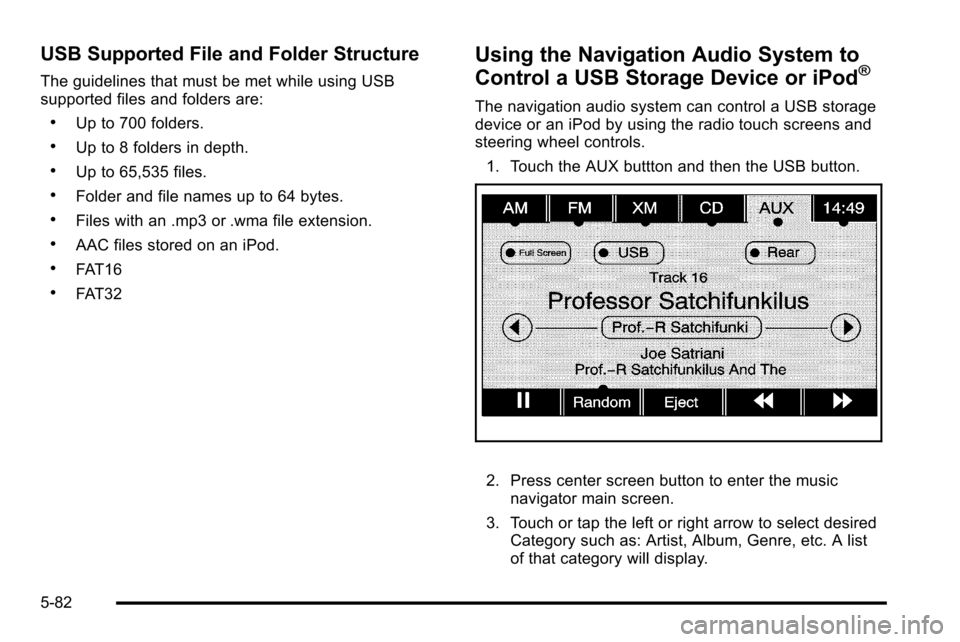
steering wheel controls.1. Touch the AUX buttton and then the USB button.
2. Press center screen button to enter the music navigator main screen.
3. Touch or tap the left or right arrow to select desired Category such as: Artist, Album, Genre, etc. A list
of that category will display.
5-82
Page 358 of 580
![CADILLAC ESCALADE EXT 2010 3.G Workshop Manual Helpful Hints for Stating Commands
.When a multiple command is available, choose the
command that works best.
.Words that are in brackets are optional. For
example, for the command Radio [band] [selec](/img/23/7932/w960_7932-357.png "CADILLAC ESCALADE EXT 2010 3.G Workshop Manual Helpful Hints for Stating Commands
.When a multiple command is available, choose the
command that works best.
.Words that are in brackets are optional. For
example, for the command Radio [band] [selec")
Helpful Hints for Stating Commands
.When a multiple command is available, choose the
command that works best.
.Words that are in brackets are optional. For
example, for the command Radio [band] [select]
FM, stating Radio FM or Radio select FM are both
valid commands.
.When the system recognizes the command the
system does one of the following:
‐Perform the function.
‐ Ask you to confirm your choice.
‐ Issue an error message “Did not recognize.
Voice Recognition Canceled.”
.If you experience difficulty with the system
recognizing a command, try saying it more softly,
and wait for a few seconds after the beep,
or repeat the command.
.Background noise may cause voice commands
to be misunderstood, including airflow noise
from wind.
.To use the voice recognition system, the map DVD
must be loaded and the navigation system must
be on. This system is able to recognize commands in three
different languages. The system only recognizes
commands based on the language selected from the
Driver Information Center (DIC). See
DIC Vehicle
Customization
on page 4‑56for more information.
Voice Recognition Commands
The following list shows all of the voice commands
available for the navigation system with a brief
description of each. The commands are listed with the
optional words in brackets. To use the voice commands,
refer to the instructions listed previously.
Voice Tag Commands
The following are voice tag commands that can be
accessed by clearly stating the commands exactly as
they are written. There are up to 40 voice tag entries for
destinations.
Navigation go to [destination], navigation select :
These commands instruct the system to select a
destination saved under the voice tag you have stored.
The system prompts for a destination name then waits
for you to state the name.
5-88
Page 359 of 580
If not currently driving on a route, the system
automatically creates the voice tag destination as the
final destination. If driving on a route, the system
automatically creates the voice tag destination as a
stopover. Up to three stopovers can be created.
Storing Voice Tags
From the address book entry information page, press
the Add Voice tag screen button. The system responds
“Name Please?”and you will have four seconds to
record a name. The system asks for confirmation of the
name before saving it as a voice tag.
Navigation Help
Navigation Help : This command instructs the system
to assist with navigation commands.
Display Commands
Use the following display commands to set the
display mode.
Display [set] day [mode] : Sets the display to
daytime mode.
Display [set] night [mode] : Sets the display to
night mode. Display [set] auto [mode] :
Sets the display to
automatic mode. The system changes between day
and night mode automatically.
System help : Instructs the system to assist with
display commands.
Radio Commands
The following are radio commands that can be
accessed by clearly stating the commands exactly as
they are written.
Radio [band] [select] AM, radio [band] [select] FM,
radio [band] [select] XM, radio [band] [select]
satellite : Instructs the system to go to either the AM,
FM, or XM (if equipped).
Radio [select] (frequency) AM, radio [select]
(frequency) FM : Instructs the system to go to a
specific frequency on either AM or FM.
Radio [select] (channel) XM, radio [select] (channel)
satellite : Instructs the system to go to a specific
channel on the XM™ band (if equipped).
Radio help : Instructs the system to assist with radio
commands.
5-89
Page 457 of 580
Notice:If you leave the radio or other accessories
on during the jump starting procedure, they could
be damaged. The repairs would not be covered by
the warranty. Always turn off the radio and other
accessories when jump starting the vehicle.
3. Turn off the ignition on both vehicles. Unplug unnecessary accessories plugged into the
cigarette lighter or the accessory power outlets.
Turn off the radio and all the lamps that are not
needed. This avoids sparks and helps save both
batteries. And it could save the radio!
4. Open the hood on the other vehicle and locate the positive (+) and negative (−) terminal locations on
that vehicle.
Your vehicle has a remote positive (+) jump starting
terminal and a remote negative (−) jump starting
terminal. You should always use these remote
terminals instead of the terminals on the battery.
If the vehicle has a remote positive (+) terminal, it
is located under a red plastic cover at the positive
battery post. To uncover the remote positive (+)
terminal, open the red plastic cover.
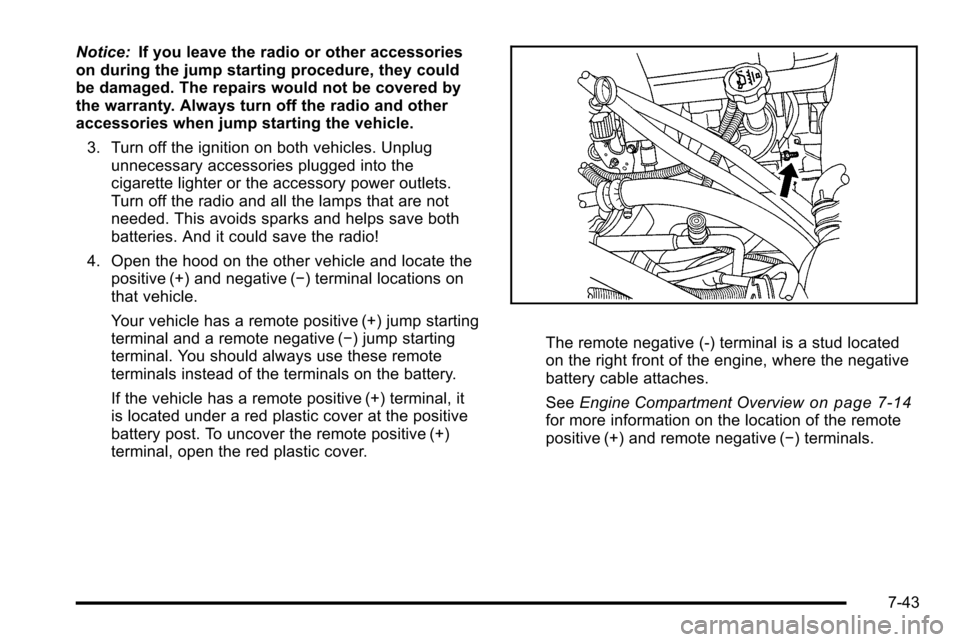
The remote negative (-) terminal is a stud located
on the right front of the engine, where the negative
battery cable attaches.
See Engine Compartment Overview
on page 7‑14for more information on the location of the remote
positive (+) and remote negative (−) terminals.
7-43
Page 480 of 580
Tire Pressure Monitor System
The Tire Pressure Monitor System (TPMS) uses radio
and sensor technology to check tire pressure levels.
The TPMS sensors monitor the air pressure in your
vehicle's tires and transmit tire pressure readings to a
receiver located in the vehicle.
Each tire, including the spare (if provided), should be
checked monthly when cold and inflated to the inflation
pressure recommended by the vehicle manufacturer
on the vehicle placard or tire inflation pressure label.
(If your vehicle has tires of a different size than the size
indicated on the vehicle placard or tire inflation pressure
label, you should determine the proper tire inflation
pressure for those tires.)
As an added safety feature, your vehicle has been
equipped with a tire pressure monitoring system
(TPMS) that illuminates a low tire pressure telltale when
one or more of your tires is significantly under‐inflated.
Accordingly, when the low tire pressure telltale
illuminates, you should stop and check your tires as
soon as possible, and inflate them to the proper
pressure. Driving on a significantly under‐inflated tire
causes the tire to overheat and can lead to tire failure.
Under‐inflation also reduces fuel efficiency and tire
tread life, and may affect the vehicle's handling and
stopping ability.Please note that the TPMS is not a substitute for proper
tire maintenance, and it is the driver's responsibility to
maintain correct tire pressure, even if under‐inflation
has not reached the level to trigger illumination of the
TPMS low tire pressure telltale.
Your vehicle has also been equipped with a TPMS
malfunction indicator to indicate when the system is not
operating properly. The TPMS malfunction indicator is
combined with the low tire pressure telltale. When the
system detects a malfunction, the telltale will flash for
approximately one minute and then remain continuously
illuminated. This sequence will continue upon
subsequent vehicle start‐ups as long as the malfunction
exists.
When the malfunction indicator is illuminated, the
system may not be able to detect or signal low tire
pressure as intended. TPMS malfunctions may occur
for a variety of reasons, including the installation of
replacement or alternate tires or wheels on the vehicle
that prevent the TPMS from functioning properly.
Always check the TPMS malfunction telltale after
replacing one or more tires or wheels on your vehicle to
ensure that the replacement or alternate tires and
wheels allow the TPMS to continue to function properly.
See
Tire Pressure Monitor Operation
on page 7‑67for
additional information.
7-66
Page 481 of 580
Federal Communications Commission
(FCC) and Industry and Science Canada
SeeRadio Frequency Statementon page 9‑20for
information regarding Part 15 of the Federal
Communications Commission (FCC) Rules and
RSS-210/211 of Industry and Science Canada.
Tire Pressure Monitor Operation
This vehicle may have a Tire Pressure Monitor System
(TPMS). The TPMS is designed to warn the driver when
a low tire pressure condition exists. TPMS sensors are
mounted onto each tire and wheel assembly, excluding
the spare tire and wheel assembly. The TPMS sensors
monitor the air pressure in the vehicle's tires and
transmits the tire pressure readings to a receiver
located in the vehicle.
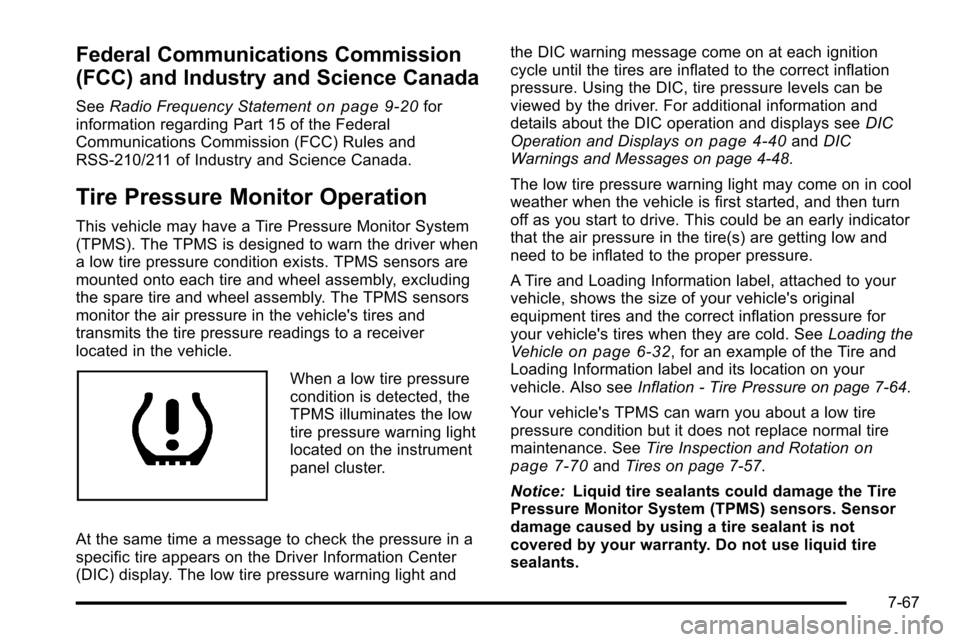
When a low tire pressure
condition is detected, the
TPMS illuminates the low
tire pressure warning light
located on the instrument
panel cluster.
At the same time a message to check the pressure in a
specific tire appears on the Driver Information Center
(DIC) display. The low tire pressure warning light and the DIC warning message come on at each ignition
cycle until the tires are inflated to the correct inflation
pressure. Using the DIC, tire pressure levels can be
viewed by the driver. For additional information and
details about the DIC operation and displays see
DIC
Operation and Displays
on page 4‑40and DIC
Warnings and Messages on page 4‑48.
The low tire pressure warning light may come on in cool
weather when the vehicle is first started, and then turn
off as you start to drive. This could be an early indicator
that the air pressure in the tire(s) are getting low and
need to be inflated to the proper pressure.
A Tire and Loading Information label, attached to your
vehicle, shows the size of your vehicle's original
equipment tires and the correct inflation pressure for
your vehicle's tires when they are cold. See Loading the
Vehicle
on page 6‑32, for an example of the Tire and
Loading Information label and its location on your
vehicle. Also see Inflation - Tire Pressure on page 7‑64.
Your vehicle's TPMS can warn you about a low tire
pressure condition but it does not replace normal tire
maintenance. See Tire Inspection and Rotation
on
page 7‑70and Tires on page 7‑57.
Notice: Liquid tire sealants could damage the Tire
Pressure Monitor System (TPMS) sensors. Sensor
damage caused by using a tire sealant is not
covered by your warranty. Do not use liquid tire
sealants.
7-67