change time CADILLAC ESCALADE EXT 2011 3.G User Guide
[x] Cancel search | Manufacturer: CADILLAC, Model Year: 2011, Model line: ESCALADE EXT, Model: CADILLAC ESCALADE EXT 2011 3.GPages: 508, PDF Size: 7.6 MB
Page 187 of 508

Black plate (7,1)Cadillac Escalade EXT Owner Manual - 2011
Lighting 6-7
Once the vehicle leaves the garage,
it takes approximately one minute
for the automatic headlamp system
to change to DRL if it is light
outside. During that delay, the
instrument panel cluster may not be
as bright as usual. Make sure the
instrument panel brightness control
is in the full bright position. See
Instrument Panel Illumination
Control on page 6‑8.
Hazard Warning Flashers
|
(Hazard Warning Flashers):
Press this button located on top of
the steering column, to make the
front and rear turn signal lamps
flash on and off. This warns others
that you are having trouble. Press
again to turn the flashers off.
When the hazard warning flashers
are on, the vehicle's turn signals will
not work.
Turn and Lane-Change
Signals
An arrow on the instrument panel
cluster flashes in the direction of the
turn or lane change.
Move the lever all the way up or
down to signal a turn.
Raise or lower the lever until the
arrow starts to flash to signal a
lane change. The turn signals
automatically flash three times.
It will flash six times if the tow-haul
mode is active. Holding the
turn signal lever for more than
one second causes the turn signals
to flash until the lever is released.
The lever returns to its starting
position when it is released. If after signaling a turn or a lane
change the arrows flash rapidly or
do not come on, a signal bulb may
be burned out.
Have the bulbs replaced. If the bulb
is not burned out, check the fuse.
See
Instrument Panel Fuse Block
on page 10‑46 andEngine
Compartment Fuse Block on
page 10‑41.
Turn Signal On Chime
If the turn signal is left on for more
than 1.2 km (3/4 of a mile), a chime
sounds at each flash of the turn
signal and the message TURN
SIGNAL ON also appears in the
DIC. See Lamp Messages on
page 5‑31. To turn the chime and
message off, move the turn signal
lever to the off position.
Page 196 of 508

Black plate (6,1)Cadillac Escalade EXT Owner Manual - 2011
7-6 Infotainment System
Setting the Clock
The navigation system time and the
analog clock operate independently.
Changing the time through the
navigation system does not change
the time on the analog clock. See
Clock on page 5‑7to change the
analog clock time.
To set the time for the navigation
system:
1. Press the CONFIG control
button to enter the configure
menu options, then press
CONFIG again, repeatedly until
the time is selected or touch the
time screen button.
2. Press the Hours and Minutes −(minus) and
+ (plus) signs to decrease
or to increase the time.
See “Setting the Clock” under
Configure Menu on page 7‑64 for
more information.
Entering an Address and Point
of Interest, and Storing Preset
Destinations
Entering an Address
Enter a destination by inputting the
city name first:
1. Press
Oto turn the system on.
2. A caution may appear. Press OK to proceed.
3. Press the DEST control button.
4. Press
2(Address Entry).
5. Select the state/province screen button, if needed, to change the
current state or province. A list
of all of the available states and
provinces appear. Select the
state or province.
6. Once a state or province has been selected the City name
category is automatically
selected for entry. If five or less names are
available, a list displays. If more
than five are available, the
List screen button displays a
number. This number represents
the number of available cities.
Select this button to view the list
and select a city.
7. Once a city has been selected the Street name category is
automatically selected for entry.
If five or less streets are
available for the selected city,
the system displays the list of
streets. If more than five streets
are available the system
displays the alpha keyboard.
Start entering the street name.
If five or less names are
available, a list displays. If more
than five are available, the
List screen button displays a
number. This button represents
the number of available streets.
Select this button to view the list
and select a street.
Page 208 of 508
Black plate (18,1)Cadillac Escalade EXT Owner Manual - 2011
7-18 Infotainment System
As each new track starts to play, the
track number displays.
If an error appears on the display,
see“CD/DVD Messages” in this
section.
If viewing a map screen, press the
CD screen button. The display splits
between the audio screen and the
map screen. If you do not want to
view a split screen or you are not on
a map screen, press the AUDIO
control button then press AUDIO
again, repeatedly until CD is
selected or press the CD screen
button.
Z(Eject): To eject a disc:
1. Press
Z.
2. The system displays “Ejecting Disc”. Playing an Audio CD
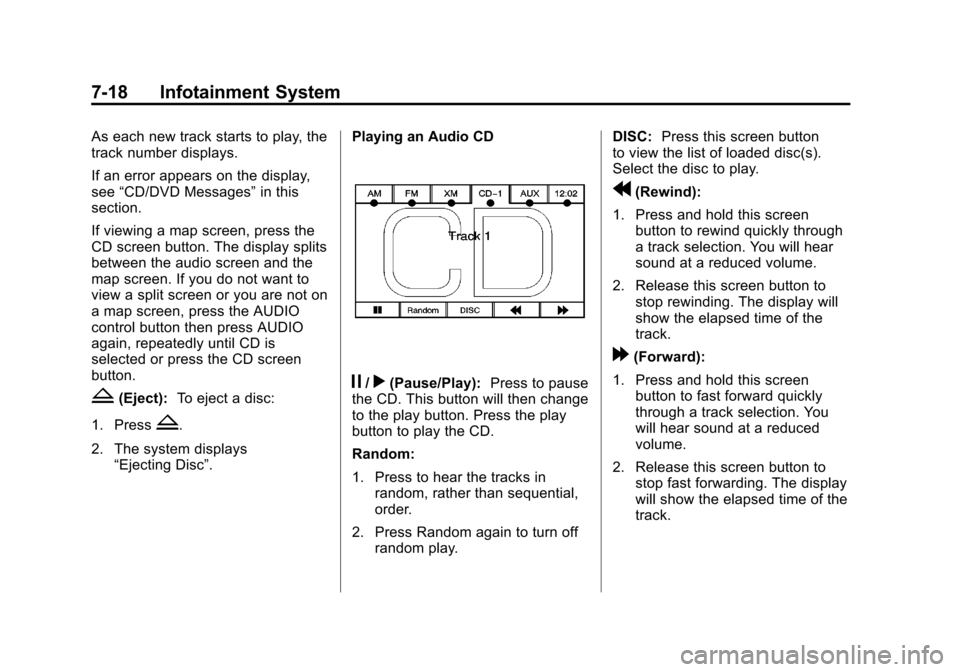
j/r(Pause/Play):
Press to pause
the CD. This button will then change
to the play button. Press the play
button to play the CD.
Random:
1. Press to hear the tracks in
random, rather than sequential,
order.
2. Press Random again to turn off random play. DISC:
Press this screen button
to view the list of loaded disc(s).
Select the disc to play.
r(Rewind):
1. Press and hold this screen button to rewind quickly through
a track selection. You will hear
sound at a reduced volume.
2. Release this screen button to stop rewinding. The display will
show the elapsed time of the
track.
[(Forward):
1. Press and hold this screen button to fast forward quickly
through a track selection. You
will hear sound at a reduced
volume.
2. Release this screen button to stop fast forwarding. The display
will show the elapsed time of the
track.
Page 218 of 508

Black plate (28,1)Cadillac Escalade EXT Owner Manual - 2011
7-28 Infotainment System
Playing an MP3
While playing a CD, the navigation
system is available.
When you insert a CD, the CD
tab displays. If a DSP setting is
selected for the CD, it will be
activated each time you play a CD.
If you turn off the ignition or radio
with a CD in the player, it stays in
the player. When you turn on the
ignition or radio, the CD starts
playing where it stopped, if it was
the last selected audio source.
As each new track starts to play,
the track number appears on the
display.
If an error appears on the display,
see“CD/DVD Messages” in this
section.
If viewing a map screen, press the
CD screen button. The display splits
between the audio screen and the
map screen. If you do not want to
view a split screen or you are not
on a map screen, press AUDIO, then press AUDIO again, repeatedly
until CD is selected or press the CD
screen button.
j/r(Pause/Play):
Press to pause
the CD. This button will then change
to the play button. Press the play
button to play the CD. Random:
1. Press to hear the tracks in
random, rather than sequential,
order.
2. Press Random again to turn off random play.
r(Rewind):
1. Press and hold to rewind quickly through a track selection. You
will hear sound at a reduced
volume.
2. Release to stop rewinding. The display will show the elapsed
time of the track.
[(Forward):
1. Press and hold to fast forward quickly through a track selection.
You will hear sound at a reduced
volume.
2. Release to stop fast forwarding. The display shows the elapsed
time of the track.
Page 223 of 508

Black plate (33,1)Cadillac Escalade EXT Owner Manual - 2011
Infotainment System 7-33
If the foam ear pads attached to
the headphones become worn or
damaged, the pads can be replaced
separately from the headphone set.
To purchase replacement ear pads,
call 1‐888‐293‐3332, then prompt
zero (0), or contact your dealer.
Battery Replacement
To change the batteries on the
headphones:
1. Turn the screw to loosen thebattery door located on the left
side of the headphones. Slide
the battery door open.
2. Replace the two batteries in the compartment. Make sure that
they are installed correctly, using
the diagram on the inside of the
battery compartment.
3. Replace the battery door and tighten the door screw.
If the headphones are to be stored
for a long period of time, remove the
batteries and keep them in a cool,
dry place.Audio/Video (A/V) Jacks
The A/V jacks, located on the rear
of the floor console, allow audio
or video signals to be connected
from an auxiliary device such as
a camcorder or a video game
unit to the RSE system. Adapter
connectors or cables (not included)
may be required to connect the
auxiliary device to the A/V jacks.
Refer to the manufacturer ’s
instructions for proper usage. The A/V jacks are color coded to
match typical home entertainment
system equipment. The yellow
jack (A) is for the video input. The
white jack (B) is for the left audio
input. The red jack (C) is for the
right audio input.
Power for auxiliary devices is not
supplied by the radio system.
To use the auxiliary inputs of the
RSE system, connect an external
auxiliary device to the color-coded
A/V jacks and turn both the auxiliary
device and the video screen power
on. If the video screen is in the DVD
player mode, pressing the AUX
(auxiliary) button on the remote
control switches the video screen
from the DVD player mode to the
auxiliary device. The audio of the
connected source can be listened to
over the speakers by sourcing the
radio to the auxiliary device or by
sourcing the RSA to the Rear Aux
and listening with the wireless
headphones on Channel 2 or
with the wired headphones.
Page 228 of 508
Black plate (38,1)Cadillac Escalade EXT Owner Manual - 2011
7-38 Infotainment System
Battery Replacement
To change the remote control
batteries:
1. Slide the rear cover back on theremote control.
2. Replace the two batteries in the compartment. Make sure they
are installed correctly using the
diagram on the inside of the
remote control.
3. Replace the battery cover.
If the remote control is to be stored
for a long period of time, remove the
batteries and keep them in a cool,
dry place.Tips and Troubleshooting Chart
Problem Recommended Action
There is no power. The ignition might not be turned to
ON/RUN or ACC/ACCESSORY.
The picture does not fill the
screen. There are black borders
on the top and bottom or on
both sides, or the picture looks
stretched out. Check the display mode settings in
the setup menu by pressing the
display menu button on the remote
control.
In auxiliary mode, the picture moves
or scrolls. Check the auxiliary input
connections at both devices.
The remote control does not work. Check to make sure there is no obstruction between the remote
control and the transmitter window.
Check the batteries to make sure
they are not dead or installed
incorrectly.
After stopping the player, and
pushing Play, sometimes the
DVD starts where it left off and
sometimes at the beginning. If the stop button was pressed
one time, the DVD player resumes
playing where the DVD was
stopped. If the stop button was
pressed two times, the DVD player
begins to play from the beginning of
the DVD.
Page 230 of 508
Black plate (40,1)Cadillac Escalade EXT Owner Manual - 2011
7-40 Infotainment System
DVD Distortion
Video distortion can occur when
operating cellular phones, scanners,
CB radios, Global Position Systems
(GPS)*, two-way radios, mobile fax
machines, or walkie talkies.
It might be necessary to turn off the
DVD player when operating one of
these devices in or near the vehicle.
*Excludes the OnStar
®System.
Cleaning the RSE Overhead
Console
When cleaning the RSE overhead
console surface, use only a clean
cloth dampened with clean water.
Cleaning the Video Screen
When cleaning the video screen,
use only a clean cloth dampened
with clean water. Use care when
directly touching or cleaning the
screen, as damage could result.
Rear Seat Audio (RSA)
System
Vehicles with this feature allow the
rear seat passengers to listen to
and control any of the music
sources: radio, CD, DVD, or other
auxiliary sources. The rear seat
passengers can control the same
music sources the front seat
passengers are listening to
(dual control) or a different source.
For example, rear seat passengers
can control and listen to a CD
through the headphones, while the
driver listens to the radio through
the speakers. The rear seat
passengers have control of the
volume for each set of headphones.The radio functionality is controlled
by both the RSA and the front radio.
Only one band can be tuned to at
one time. Changing the band on the
RSA or the front radio will change
the band on the other system,
if they are both sourced to the radio.
The RSA functions can be used
even when the main radio is off.
Audio can be heard through wired
headphones (not included) plugged
into the jacks on the RSA. If your
vehicle has this feature, audio can
also be heard on Channel 2 of the
wireless headphones.
The front audio system allows the
rear speakers to continue playing
even when the RSA audio is active
through the headphones.
Page 256 of 508
Black plate (66,1)Cadillac Escalade EXT Owner Manual - 2011
7-66 Infotainment System
Allow time and seasonal
restricted road:This feature
allows the system to use time
restricted and seasonal roads when
calculating a planned route.
Edit Address Book —How to Add
To add an address to the address
book, see “Adding Destinations
to the Address Book” under
Destination on page 7‑51.
Edit Address Book —Edit/View
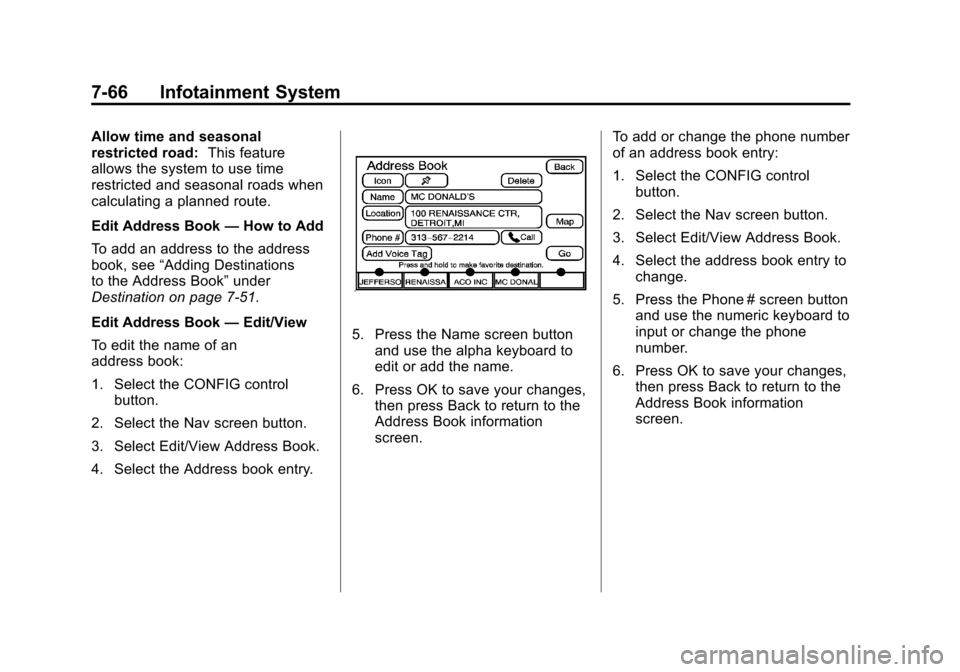
To edit the name of an
address book:
1. Select the CONFIG control button.
2. Select the Nav screen button.
3. Select Edit/View Address Book.
4. Select the Address book entry.
5. Press the Name screen button and use the alpha keyboard to
edit or add the name.
6. Press OK to save your changes, then press Back to return to the
Address Book information
screen. To add or change the phone number
of an address book entry:
1. Select the CONFIG control
button.
2. Select the Nav screen button.
3. Select Edit/View Address Book.
4. Select the address book entry to change.
5. Press the Phone # screen button and use the numeric keyboard to
input or change the phone
number.
6. Press OK to save your changes, then press Back to return to the
Address Book information
screen.
Page 266 of 508

Black plate (76,1)Cadillac Escalade EXT Owner Manual - 2011
7-76 Infotainment System
Display Off
Press this screen button to turn the
display off. Press any control button
to view the display.
Brightness/Contrast/Mode
Press this screen button to change
the brightness, contrast, and mode
of the display.
](Brightness):Press + (plus)
or −(minus) to increase or decrease
the brightness of the screen.
_(Contrast): Press + (plus)
or −(minus) to increase or decrease
the contrast of the screen.
Auto (Automatic): Press so the
system can automatically adjust the
screen background depending on
exterior lighting conditions.
Night: Press to make the map
background darker.
Day: Press to make the map
background brighter.
Setting the Clock
The navigation system time and the
analog clock operate independently.
Changing the time through the
navigation system does not change
the time on the analog clock. See
Clock on page 5‑7 to change the
analog clock time.
Press the CONFIG control button to
enter the configure menu options,
then press CONFIG again,
repeatedly until the time is selected
or press the time screen button. Hours:
Press−(minus) or + (plus)
to decrease or increase the hours.
Minutes: Press−(minus)
or + (plus) to decrease or increase
the minutes.
12/24 Format: Select the
12 screen button for standard time;
select the 24 screen button for
military time.
Global Positioning
System (GPS)
The navigation system determines
the position of the vehicle by using
satellite signals, various vehicle
signals, and map data.
At times, other interferences such
as the satellite condition, road
configuration, the condition of the
vehicle and/or other circumstances
can interfere with the navigation
system's ability to determine the
accurate position of the vehicle.
Page 267 of 508
Black plate (77,1)Cadillac Escalade EXT Owner Manual - 2011
Infotainment System 7-77
The GPS shows the current position
of the vehicle using signals sent by
the GPS Satellites of the United
States Department of Defense.
When the vehicle is not receiving
signals from the satellites, a symbol
appears on the map screen. Refer
toGlobal Positioning System (GPS)
on page 7‑76.
This system may not be available or
interferences may occur if any of the
following are true:
.Signals are obstructed by tall
buildings, trees, large trucks,
or a tunnel.
.Objects are located on the front
dash of the vehicle.
.Satellites are being repaired or
improved.
.After-market glass tinting has
been applied to the vehicle's
windshield. Notice:
Do not apply after-market
glass tinting to the vehicle's
windows. Glass tinting interferes
with the system's ability to
receive GPS signals and causes
the system to malfunction.
The window might have to be
replaced to correct the problem.
This would not be covered by the
warranty.
For more information if the GPS is
not functioning properly, see Vehicle
Positioning on page 7‑77 and
Problems with Route Guidance on
page 7‑78.
Vehicle Positioning
At times, the position of the vehicle
on the map may be inaccurate due
to one or more of the following
reasons:
.Road system has changed.
.Vehicle is driving on slippery
road surfaces such as in sand,
gravel, and/or snow.
.Vehicle is traveling on winding
roads.
.Vehicle is on a long
straight road.
.Vehicle is approaching a tall
building or a large vehicle.
.Surface streets run parallel to a
freeway.
.Vehicle has just been transferred
by a vehicle carrier or a ferry.
.Current position calibration is set
incorrectly.
.Vehicle is traveling at high
speed.
.Vehicle changes directions more
than once, or when the vehicle is
turning on a turn table in a
parking lot.
.Vehicle is entering and/or exiting
a parking lot or a garage.
.GPS signal is not received.
.Roof carrier is installed on the
vehicle.