infotainment CADILLAC LYRIC 2023 User Guide
[x] Cancel search | Manufacturer: CADILLAC, Model Year: 2023, Model line: LYRIC, Model: CADILLAC LYRIC 2023Pages: 424, PDF Size: 4.76 MB
Page 35 of 424

Cadillac Lyriq Owner Manual (GMNA-Localizing-U.S./Canada-15644413) -
2023 - CRC - 2/23/22
34 Keys, Doors, and Windows
Express Window
Operation
The windows have an express
feature which allows the
windows to be lowered or
raised without holding the
switch. To automatically raise
or lower the window, pull a
window switch up or press it
down all the way and release.
Stop the window by pressing
or pulling the switch in the
same direction a second time,
or by briefly operating the
switch to the first position in
either direction.
Remote Window
Operation
If equipped, this feature allows
all the windows to be opened
remotely. If enabled in vehicle
personalization, press and
hold
Kon the remote key. To
view available settings for this
feature, touch the Settings
icon on the infotainment home
page. Select “Vehicle”to display the list of available
options and select
“Remote
Lock, Unlock, Start”.
Safety Function
This is for vehicles with the
express-up feature. If any
object is in the path of the
window when the express-up
feature is active, the window
will stop and auto-reverse to a
preset position. Weather
conditions may cause the
window to auto-reverse. The
window switch may be held up
to the second position to close
the window. The window will
return to normal operation
once the obstruction or
condition is removed.
Safety Function Override
This is for vehicles with the
express-up feature. If the
battery on the vehicle has
been recharged or
disconnected, or is not
working, the windows will need
to be reprogrammed for the
express-up feature to work. Before reprogramming,
replace or recharge the
vehicle's battery.
To program the driver window:
1. Close all doors with the vehicle on or in
Service Mode.
2. Press and hold the power window switch until the
window is fully open.
3. Pull the power window switch up until the window
is fully closed.
4. Continue holding the switch up for approximately
two seconds after the
window is completely
closed.
Window Lockout
This feature prevents the rear
passenger windows from
operating, except from the
driver position.
There is a button on the
infotainment display used to
enable or disable this feature.
Page 42 of 424
Cadillac Lyriq Owner Manual (GMNA-Localizing-U.S./Canada-15644413) -
2023 - CRC - 2/23/22
Seats and Restraints 41
.Move the control back to
recline.
.Move the control forward to
raise.
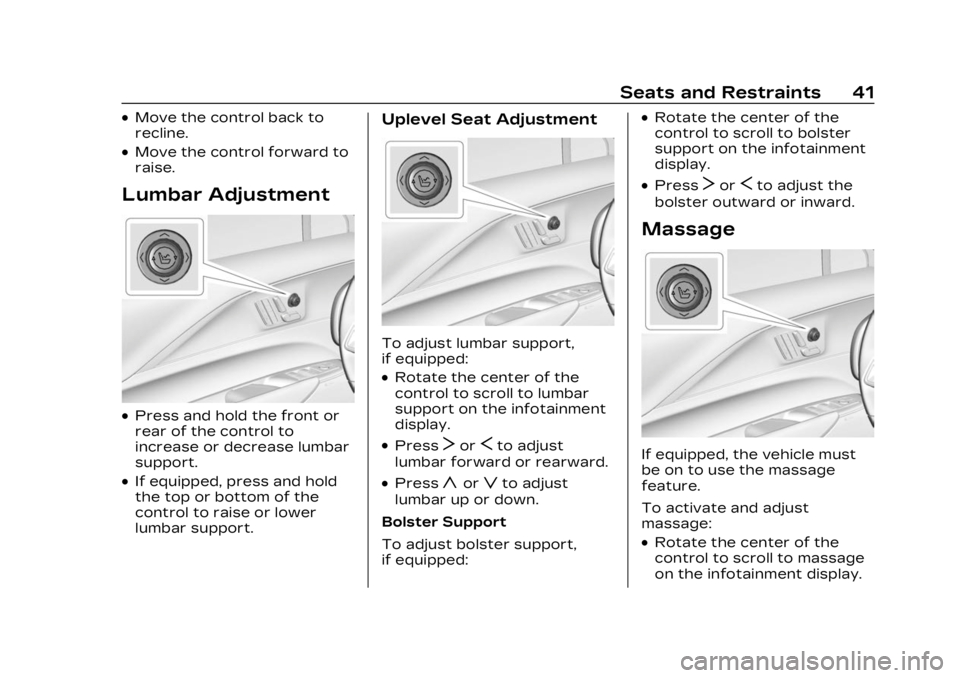
Lumbar Adjustment
.Press and hold the front or
rear of the control to
increase or decrease lumbar
support.
.If equipped, press and hold
the top or bottom of the
control to raise or lower
lumbar support.
Uplevel Seat Adjustment
To adjust lumbar support,
if equipped:
.Rotate the center of the
control to scroll to lumbar
support on the infotainment
display.
.PressTorSto adjust
lumbar forward or rearward.
.Pressyorzto adjust
lumbar up or down.
Bolster Support
To adjust bolster support,
if equipped:
.Rotate the center of the
control to scroll to bolster
support on the infotainment
display.
.PressTorSto adjust the
bolster outward or inward.
Massage
If equipped, the vehicle must
be on to use the massage
feature.
To activate and adjust
massage:
.Rotate the center of the
control to scroll to massage
on the infotainment display.
Page 52 of 424
Cadillac Lyriq Owner Manual (GMNA-Localizing-U.S./Canada-15644413) -
2023 - CRC - 2/23/22
Seats and Restraints 51
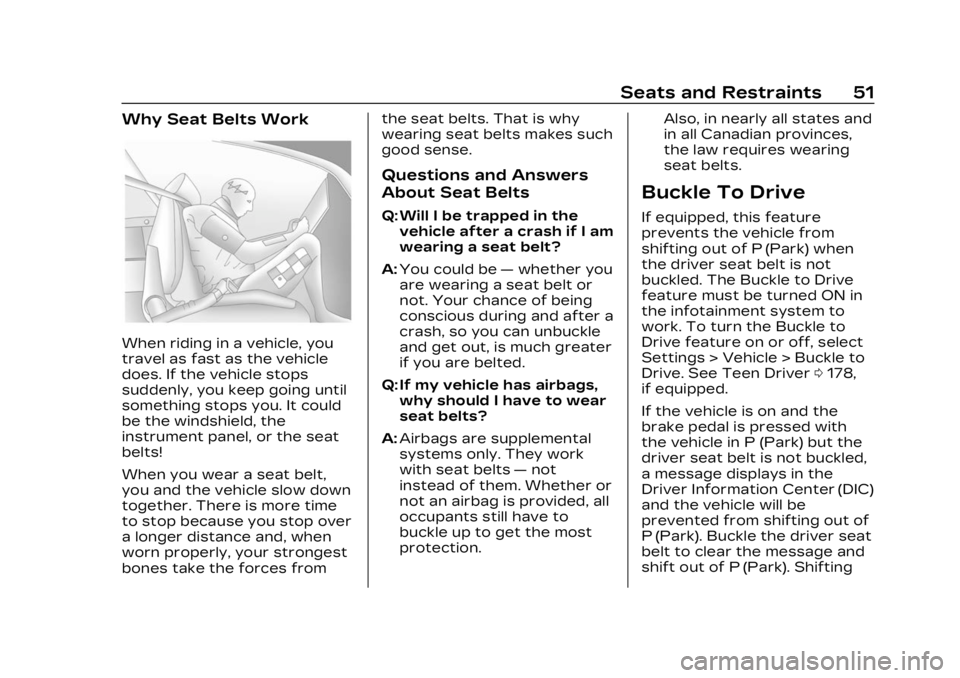
Why Seat Belts Work
When riding in a vehicle, you
travel as fast as the vehicle
does. If the vehicle stops
suddenly, you keep going until
something stops you. It could
be the windshield, the
instrument panel, or the seat
belts!
When you wear a seat belt,
you and the vehicle slow down
together. There is more time
to stop because you stop over
a longer distance and, when
worn properly, your strongest
bones take the forces fromthe seat belts. That is why
wearing seat belts makes such
good sense.
Questions and Answers
About Seat Belts
Q: Will I be trapped in the
vehicle after a crash if I am
wearing a seat belt?
A: You could be —whether you
are wearing a seat belt or
not. Your chance of being
conscious during and after a
crash, so you can unbuckle
and get out, is much greater
if you are belted.
Q: If my vehicle has airbags, why should I have to wear
seat belts?
A: Airbags are supplemental
systems only. They work
with seat belts —not
instead of them. Whether or
not an airbag is provided, all
occupants still have to
buckle up to get the most
protection. Also, in nearly all states and
in all Canadian provinces,
the law requires wearing
seat belts.
Buckle To Drive
If equipped, this feature
prevents the vehicle from
shifting out of P (Park) when
the driver seat belt is not
buckled. The Buckle to Drive
feature must be turned ON in
the infotainment system to
work. To turn the Buckle to
Drive feature on or off, select
Settings > Vehicle > Buckle to
Drive. See Teen Driver
0178,
if equipped.
If the vehicle is on and the
brake pedal is pressed with
the vehicle in P (Park) but the
driver seat belt is not buckled,
a message displays in the
Driver Information Center (DIC)
and the vehicle will be
prevented from shifting out of
P (Park). Buckle the driver seat
belt to clear the message and
shift out of P (Park). Shifting
Page 95 of 424
Cadillac Lyriq Owner Manual (GMNA-Localizing-U.S./Canada-15644413) -
2023 - CRC - 2/23/22
94 Storage
Storage
Storage Compartments
Storage Compartments . . . 94
Instrument PanelStorage . . . . . . . . . . . . . . . . . . . . . . . 94
Glove Box . . . . . . . . . . . . . . . . . . . . . . 94
Cupholders . . . . . . . . . . . . . . . . . . . . 95
Center Console Storage . . . . . . . . . . . . . . . . . . . . . . . 95
Additional Storage
Features
Cargo Cover . . . . . . . . . . . . . . . . . . 95
Cargo Tie-Downs . . . . . . . . . . . . 97
Cargo ManagementSystem . . . . . . . . . . . . . . . . . . . . . . . . 97
Storage
Compartments
{
Warning
Do not store heavy or sharp
objects in storage
compartments. In a crash,
these objects may cause the
cover to open and could
result in injury.
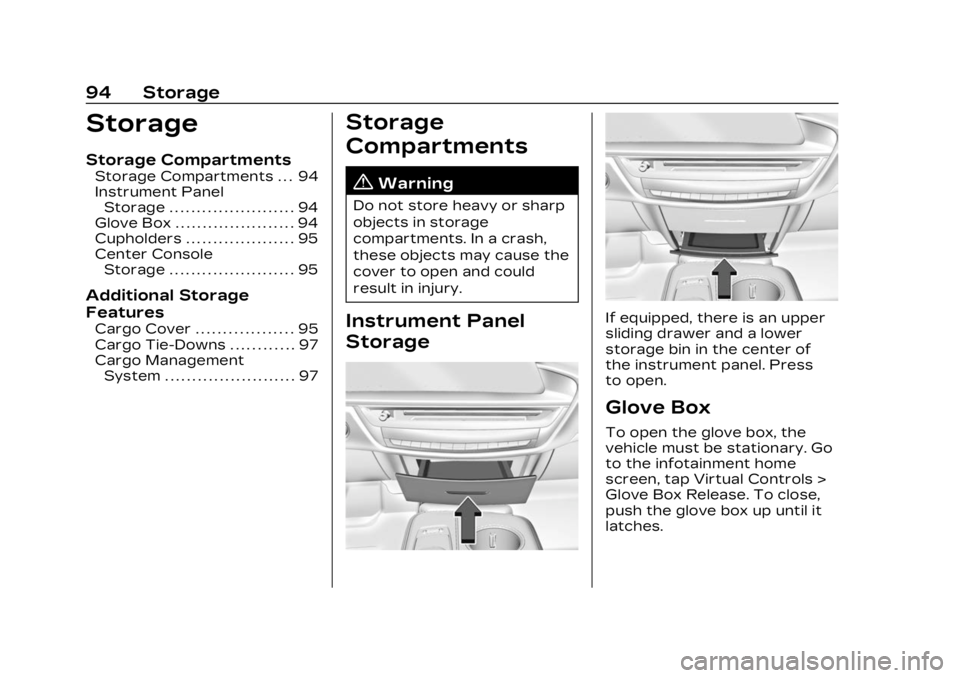
Instrument Panel
StorageIf equipped, there is an upper
sliding drawer and a lower
storage bin in the center of
the instrument panel. Press
to open.
Glove Box
To open the glove box, the
vehicle must be stationary. Go
to the infotainment home
screen, tap Virtual Controls >
Glove Box Release. To close,
push the glove box up until it
latches.
Page 103 of 424
Cadillac Lyriq Owner Manual (GMNA-Localizing-U.S./Canada-15644413) -
2023 - CRC - 2/23/22
102 Instruments and Controls
Wiper Parking
If the vehicle is off while the
wipers are on LO or HI, they
will immediately stop.
LL
If the windshield wiper lever is
then moved to OFF before the
driver door is opened or within
10 minutes, the wipers will
restart and move to the base
of the windshield.
If the vehicle is off while the
wipers are performing wipes
due to windshield washing or
Rainsense, the wipers
continue to run until they
reach the base of the
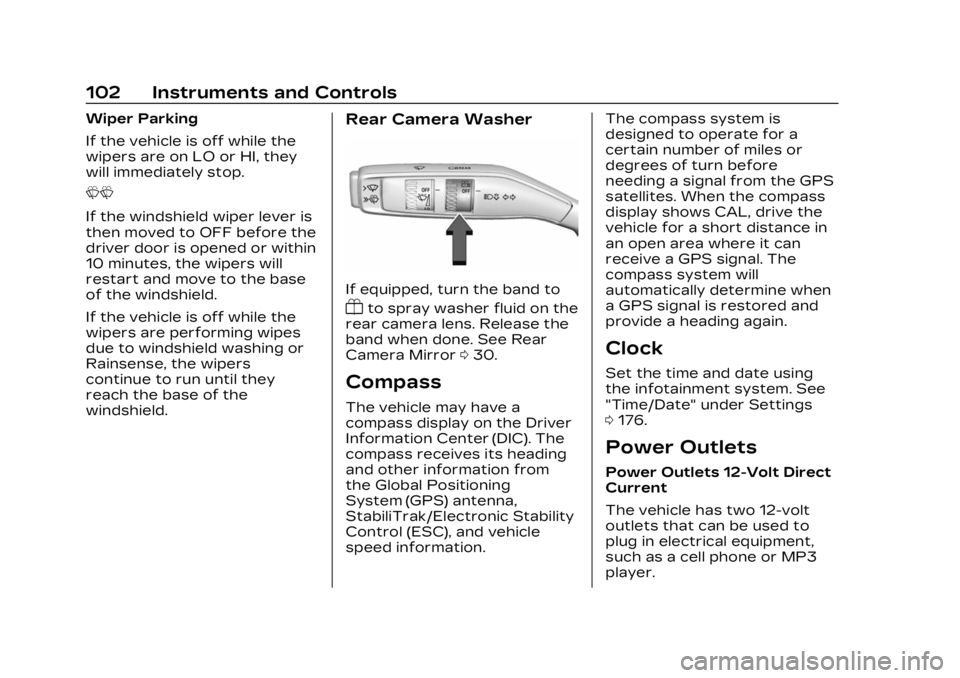
windshield.Rear Camera Washer
If equipped, turn the band to
Yto spray washer fluid on the
rear camera lens. Release the
band when done. See Rear
Camera Mirror 030.
Compass
The vehicle may have a
compass display on the Driver
Information Center (DIC). The
compass receives its heading
and other information from
the Global Positioning
System (GPS) antenna,
StabiliTrak/Electronic Stability
Control (ESC), and vehicle
speed information. The compass system is
designed to operate for a
certain number of miles or
degrees of turn before
needing a signal from the GPS
satellites. When the compass
display shows CAL, drive the
vehicle for a short distance in
an open area where it can
receive a GPS signal. The
compass system will
automatically determine when
a GPS signal is restored and
provide a heading again.
Clock
Set the time and date using
the infotainment system. See
"Time/Date" under Settings
0
176.
Power Outlets
Power Outlets 12-Volt Direct
Current
The vehicle has two 12-volt
outlets that can be used to
plug in electrical equipment,
such as a cell phone or MP3
player.
Page 106 of 424
Cadillac Lyriq Owner Manual (GMNA-Localizing-U.S./Canada-15644413) -
2023 - CRC - 2/23/22
Instruments and Controls 105
Warning (Continued)
have one, it is recommended
to consult with your doctor
before using the wireless
charging system.
The vehicle must be on, in
accessory mode, or Retained
Accessory Power (RAP) must
be active. The wireless
charging feature may not
correctly indicate charging
when the vehicle is in RAP,
during a Bluetooth phone call,
or when phone projection (e.g.
Apple CarPlay / Android Auto)
is active. See Retained
Accessory Power (RAP) 0209.
The operating temperature is
−40 °C (−40 °F) to 85 °C
(185 °F) for the charging
system and 0 °C (32 °F) to
35 °C (95 °F) for the phone.
A charging stopped alert may
be displayed on the
infotainment screen, if the
wireless charger or
smartphone are outside of
normal operating temperature. Charging will automatically
resume when a normal
operating temperature is
reached.
{Warning
Remove all objects from the
charger before charging
your compatible
smartphone. Objects, such
as coins, keys, rings, paper
clips, or cards, between the
smartphone and charger
may become very hot.
On the rare occasion that
the charging system does
not detect an object, and
the object gets wedged
between the smartphone
and charger, remove the
smartphone and allow the
object to cool before
removing it from the
charger, to prevent burns.
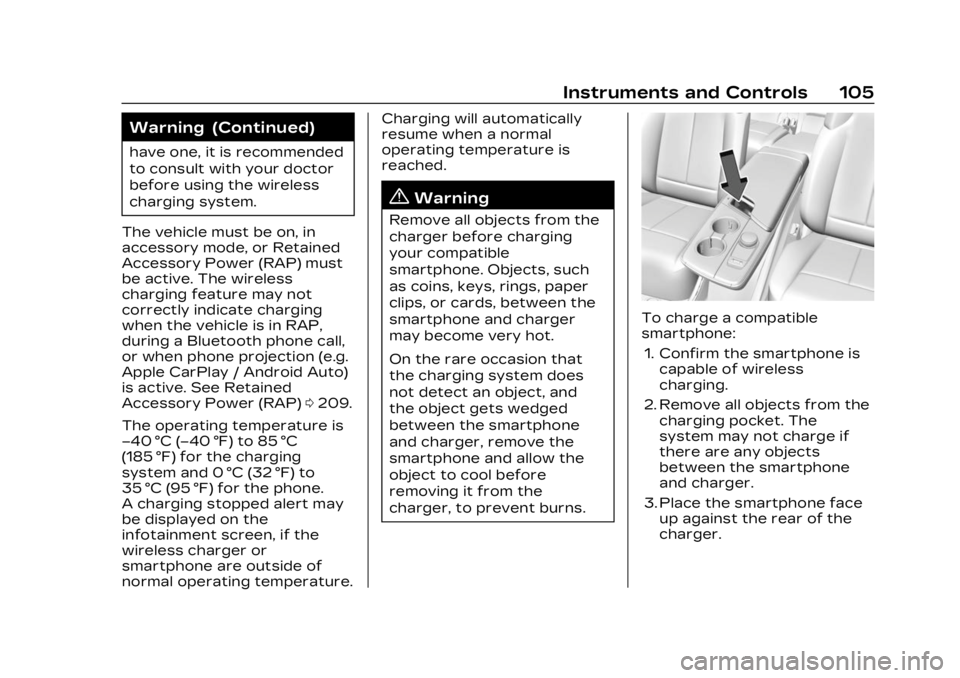
To charge a compatible
smartphone:
1. Confirm the smartphone is capable of wireless
charging.
2. Remove all objects from the charging pocket. The
system may not charge if
there are any objects
between the smartphone
and charger.
3. Place the smartphone face up against the rear of the
charger.
Page 107 of 424
Cadillac Lyriq Owner Manual (GMNA-Localizing-U.S./Canada-15644413) -
2023 - CRC - 2/23/22
106 Instruments and Controls
To maximize the charge
rate, ensure the
smartphone is fully seated
and centered in the holder
with nothing under it.
A thick smartphone case
may prevent the charger
from working, or reduce the
charging performance. See
your dealer for additional
information.
4. A green
]will appear on
the infotainment display,
next to the phone icon. This
indicates that the
smartphone is detected.
5. If a smartphone is placed on the charger and
]turns off
or a yellow triangle appears,
remove the smartphone and
any objects from the pocket.
Turn the smartphone
180 degrees and wait a few
seconds before placing/
aligning it on the pocket
again.
6. If a smartphone is placed on the charger and a red circle
appears, the charger and/or the smartphone is
overheated. Remove the
smartphone and any objects
from the charger in order to
cool the system.
The smartphone may become
warm during charging. This is
normal. In warmer
temperatures, the speed of
charging may be reduced.
For vehicles with wireless
phone projection, the
smartphone may overheat
during wireless charging. The
smartphone may slow down,
stop charging, or shut down to
protect the battery. The
phone may need to be
removed from its case to
prevent overheating. The
]
may flash while the phone is
cooling down enough for
wireless charging to
automatically resume. This is
normal. Individual phone
performance may vary. Software Acknowledgements
Certain Wireless Charging
Module product from LG
Electronics, Inc. ("LGE")
contains the open source
software detailed below. Refer
to the indicated open source
licenses (as are included
following this notice) for the
terms and conditions of
their use.
OSS Notice Information
To obtain the source code
that is contained in this
product, please visit
https://opensource.lge.com. In
addition to the source code, all
referred license terms,
warranty disclaimers and
copyright notices are available
for download. LG Electronics
will also provide open source
code to you on CD-ROM for a
charge covering the cost of
performing such distribution
(such as the cost of media,
shipping, and handling) upon
email request to
[email protected]. This
Page 111 of 424
Cadillac Lyriq Owner Manual (GMNA-Localizing-U.S./Canada-15644413) -
2023 - CRC - 2/23/22
110 Instruments and Controls
Instrument Cluster Layout
Touch
Bto view and select
the available instrument
cluster layouts.
Display Settings
The following options can be
turned on or off using the
infotainment display. See
Settings 0176.
Speed Information
Choose which speed-related
information is shown in the
instrument cluster:
Digital Speedometer : The
speedometer shows how fast
the vehicle is moving in either
kilometers per hour (km/h) or
miles per hour (mph). The
speedometer cannot be reset.
Speed Sign : Shows sign
information, which comes from
a roadway database in the
onboard navigation,
if equipped. The sign will show
“− −” when there is no
detected speed limit or the
system is unavailable. Speed Warning Color :
The
overspeeding area within the
analog gauge is shown red. In
digital speedometer, the digital
number is shown red.
Turn-by-Turn Graphics
When on, you will see
turn-by-turn navigation
graphics in the instrument
cluster when a route is active.
These graphics provide visual
directions for upcoming
maneuvers.
Speedometer
The speedometer shows the
vehicle speed in either
kilometers per hour (km/h) or
miles per hour (mph).
Odometer
The odometer shows how far
the vehicle has been driven, in
either kilometers or miles.
Trip Odometer
The trip odometer shows how
far the vehicle has been driven
since the trip odometer was
last reset.
The trip odometer is accessed
and reset through the Driver
Information Center (DIC). See
Driver Information Center
(DIC) 0132.
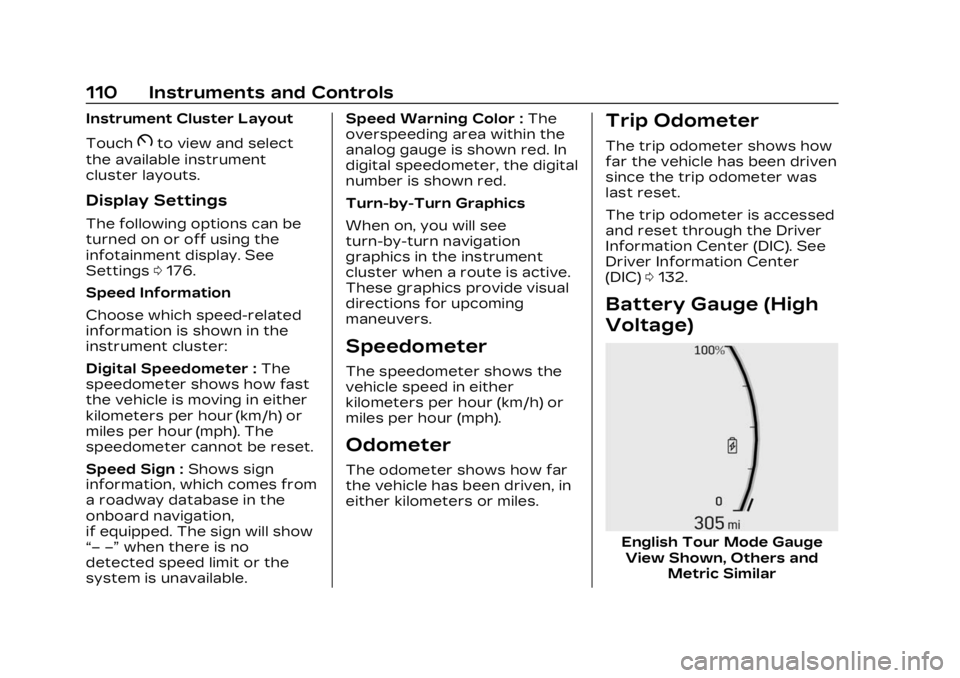
Battery Gauge (High
Voltage)
English Tour Mode Gauge
View Shown, Others and Metric Similar
Page 125 of 424
Cadillac Lyriq Owner Manual (GMNA-Localizing-U.S./Canada-15644413) -
2023 - CRC - 2/23/22
124 Instruments and Controls
Charging App
The Charging app gives you
access to features that will
help you better understand
and control how the vehicle
manages energy. Along with
providing a central location to
determine and review your
charging preferences, the
Charging app offers live
information on how the vehicle
is using energy.
To launch the Charging app
from the infotainment home
screen, touch the Charging
icon. There are four selections
to choose from: Charging,
Charge Assist, Schedule, and
Settings. When you launch
Charging for the first time, the
Next Charge screen will
display.
Next Charge
To view the current charging
status in the infotainment
display, touch
C.On the Next Charge screen,
there is a range of information
associated with the next
Charging session, as well as
the ability to specify when you
would like to charge the
vehicle. The choices available
to charge are Charge Now or
Charge Later.
To create a charge schedule
See
“Creating a Charge
Schedule” under“Schedule”
below. The Charging screen
shows and allows you to
determine how the vehicle
charges the next time it is
plugged in.
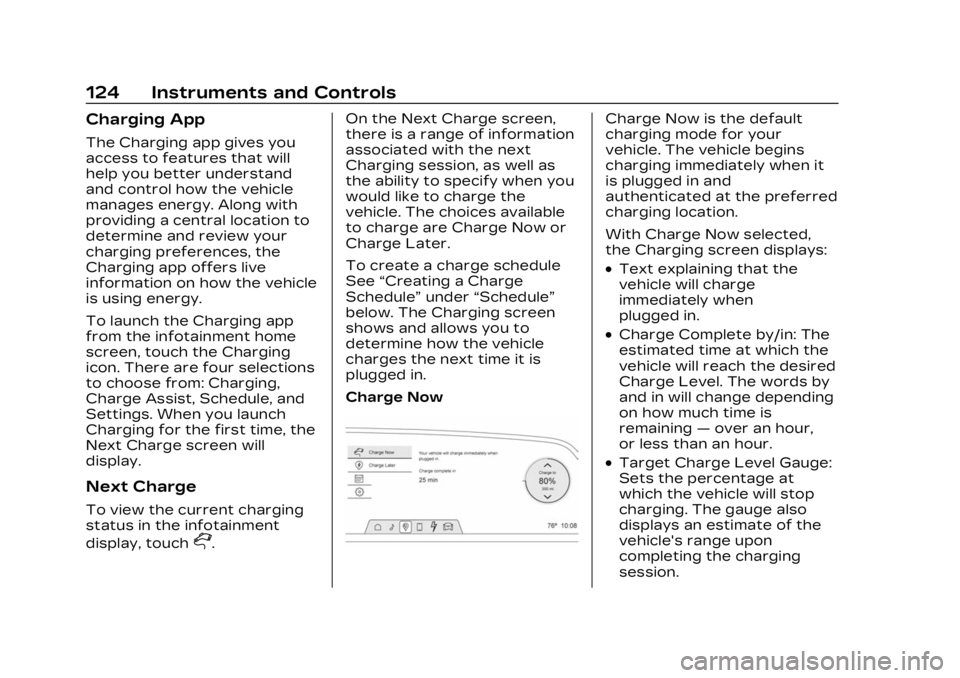
Charge Now
Charge Now is the default
charging mode for your
vehicle. The vehicle begins
charging immediately when it
is plugged in and
authenticated at the preferred
charging location.
With Charge Now selected,
the Charging screen displays:
.Text explaining that the
vehicle will charge
immediately when
plugged in.
.Charge Complete by/in: The
estimated time at which the
vehicle will reach the desired
Charge Level. The words by
and in will change depending
on how much time is
remaining —over an hour,
or less than an hour.
.Target Charge Level Gauge:
Sets the percentage at
which the vehicle will stop
charging. The gauge also
displays an estimate of the
vehicle's range upon
completing the charging
session.
Page 129 of 424
Cadillac Lyriq Owner Manual (GMNA-Localizing-U.S./Canada-15644413) -
2023 - CRC - 2/23/22
128 Instruments and Controls
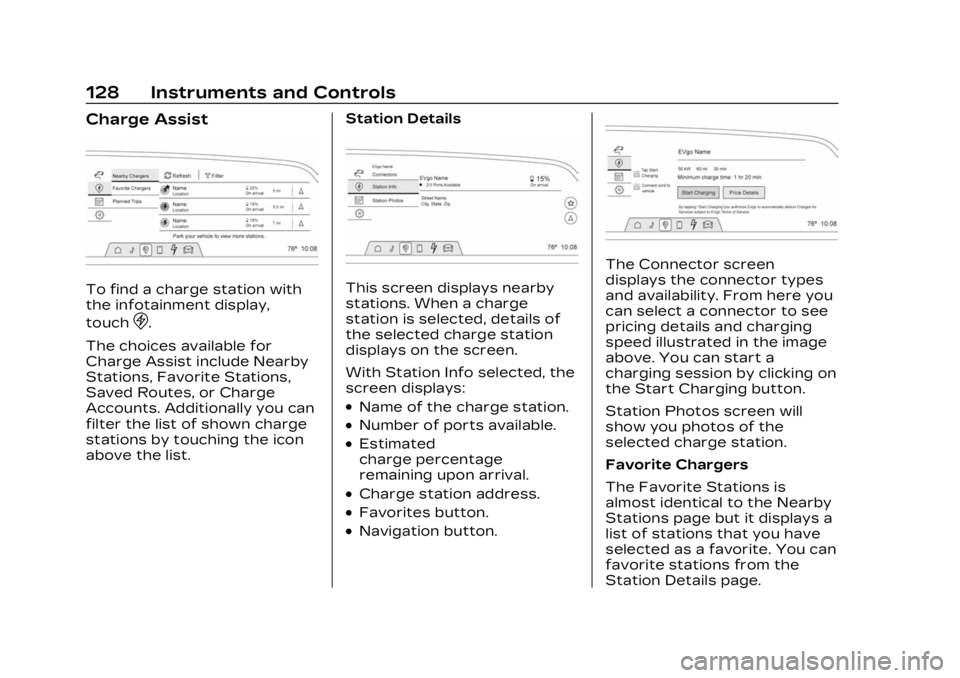
Charge Assist
To find a charge station with
the infotainment display,
touch
D.
The choices available for
Charge Assist include Nearby
Stations, Favorite Stations,
Saved Routes, or Charge
Accounts. Additionally you can
filter the list of shown charge
stations by touching the icon
above the list. Station Details
This screen displays nearby
stations. When a charge
station is selected, details of
the selected charge station
displays on the screen.
With Station Info selected, the
screen displays:
.Name of the charge station.
.Number of ports available.
.Estimated
charge percentage
remaining upon arrival.
.Charge station address.
.Favorites button.
.Navigation button.
The Connector screen
displays the connector types
and availability. From here you
can select a connector to see
pricing details and charging
speed illustrated in the image
above. You can start a
charging session by clicking on
the Start Charging button.
Station Photos screen will
show you photos of the
selected charge station.
Favorite Chargers
The Favorite Stations is
almost identical to the Nearby
Stations page but it displays a
list of stations that you have
selected as a favorite. You can
favorite stations from the
Station Details page.