ignition CADILLAC SRX 2007 1.G Workshop Manual
[x] Cancel search | Manufacturer: CADILLAC, Model Year: 2007, Model line: SRX, Model: CADILLAC SRX 2007 1.GPages: 522, PDF Size: 2.71 MB
Page 240 of 522
Exiting the Feature Settings Menu
The feature settings menu will be exited when any
of the following occurs:
The vehicle is shifted out of PARK (P).
The ignition is no longer in ON.
The trip/fuel or vehicle information DIC buttons
are pressed.
The end of the feature settings menu is
reached.
A 40 second time period has elapsed with no
selection made.
Audio System(s)
Determine which radio your vehicle has and then
read the pages following to familiarize yourself
with its features.
Driving without distraction is a necessity for a
safer driving experience. SeeDefensive Driving on
page 274. By taking a few moments to read this
manual and get familiar with your vehicle’s
audio system, you can use it with less effort, as
well as take advantage of its features. While your
vehicle is parked, set up your audio system by
presetting your favorite radio stations, setting the
tone and adjusting the speakers. Then, when
driving conditions permit, you can tune to
your favorite stations using the presets and
steering wheel controls if the vehicle has them.
240
Page 241 of 522
{CAUTION:
This system provides you with a far greater
access to audio stations and song listings.
Giving extended attention to entertainment
tasks while driving can cause a crash and
you or others can be injured or killed.
Always keep your eyes on the road and
your mind on the drive — avoid engaging
in extended searching while driving.
Keeping your mind on the drive is important for
safe driving. Here are some ways in which you can
help avoid distraction while driving.
While your vehicle is parked:
Familiarize yourself with all of its controls.
Familiarize yourself with its operation.
Set up your audio system by presetting your
favorite radio stations, setting the tone, and
adjusting the speakers. Then, when driving
conditions permit, you can tune to your favorite
radio stations using the presets and steering
wheel controls if the vehicle has them.
Notice:Before adding any sound equipment
to your vehicle, such as an audio system,
CD player, CB radio, mobile telephone,
or two-way radio, make sure that it can be
added by checking with your dealer. Also,
check federal rules covering mobile radio and
telephone units. If sound equipment can be
added, it is very important to do it properly.
Added sound equipment can interfere with the
operation of your vehicle’s engine, radio, or
other systems, and even damage them.
Your vehicle’s systems can interfere with the
operation of sound equipment that has
been added.
Your vehicle has a feature called Retained
Accessory Power (RAP). With RAP, the audio
system can be played even after the ignition
is turned off. SeeRetained Accessory Power
(RAP) on page 118for more information.
241
Page 251 of 522
Radio Message
Locked:This message displays when the
THEFTLOCK®system has locked up the radio.
Take the vehicle to your dealer for service.
If any error occurs repeatedly or if an error cannot
be corrected, contact your dealer.
Radio Messages for XM™ Only
SeeXM Radio Messages on page 264later in this
section for further detail.
Playing a CD (Single CD Player)
Insert a CD partway into the slot, label side up.
The player pulls it in and the CD should begin
playing.
If the ignition or radio is turned off with a CD in the
player, it stays in the player. When the ignition or
radio is turned on, the CD starts playing where it
stopped, if it was the last selected audio source.
When a CD is inserted, the CD symbol displays on
the CD. As each new track starts to play the track
number displays.
If playing a CD-R, the sound quality can be reduced
due to CD-R quality, the method of recording, the
quality of the music that has been recorded, and theway the CD-R has been handled. There can be an
increase in skipping, difficulty in nding tracks,
and/or difficulty in loading and ejecting. If these
problems occur, check the bottom surface of the
CD. If the surface of the CD is damaged, such as
cracked, broken, or scratched, the CD will not play
properly. If the surface of the CD is soiled, seeCare
of Your CDs on page 271for more information.
If there is no apparent damage, try a known
good CD.
Do not add any label to a CD, it could get caught in
the CD player. If a CD is recorded on a personal
computer and a description label is needed, try
labeling the top of the recorded CD with a
marking pen.
Notice:If a label is added to a CD, or more than
one CD is inserted into the slot at a time, or an
attempt is made to play scratched or damaged
CDs, the CD player could be damaged. While
using the CD player, use only CDs in good
condition without any label, load one CD at a
time, and keep the CD player and the loading
slot free of foreign materials, liquids, and
debris.
If an error displays, see “CD Messages” later in
this section.
251
Page 252 of 522
Z(Eject):Press the CD eject button to
eject the CD. If the CD is not removed, after
several seconds, the CD automatically pulls back
into the player.
a(Tune):Turn this knob to select tracks on the
CD currently playing.
©SEEK¨:Press the left SEEK arrow to
go to the start of the current track, if more than
ten seconds have played. Press the right
SEEK arrow to go to the next track. If either SEEK
arrow is held or pressed multiple times, the
player continues moving backward or forward
through the CD.
sREV (Reverse):Press and hold this button
to reverse playback quickly within a track. Sound is
heard at a reduced volume. Release this button
to resume playing the track. The elapsed time
of the track displays.
\FWD (Fast Forward):Press and hold this
button to advance playback quickly within a track.
Sound is heard at a reduced volume. Release
this button to resume playing the track. The
elapsed time of the track displays.RDM (Random):With the random setting, CD
tracks can be listened to in random, rather
than sequential order. This feature is not available
in playlist mode. To use random, do the following:
1. To play tracks from the CD you are listening
to in random order, press the pushbutton
positioned under the RDM label. The random
icon displays.
2. Press the same pushbutton again to turn off
random play. The random icon disappears
from the display.
4(Information):Press this button to switch the
display between the track number, elapsed time of
the track, and the time. When the ignition is off,
press this button to display the time (if the
clock display is enabled).
BAND:Press this button to listen to the radio
when a CD is playing. The CD remains inside the
radio for future listening.
252
Page 253 of 522
CD/AUX (CD/Auxiliary):Press this button to play
a CD when listening to the radio. The CD icon and
track number displays when a CD is in the player.
Press this button again and the system
automatically searches for an auxiliary input device,
such as a portable audio player. If a portable audio
player is not connected, No Aux Input Device
displays.
Playing a CD(s) (Six-Disc CD Player)
LOAD^:Press this button to load CDs into the
CD player. This CD player holds up to six CDs.
To insert one CD, do the following:
1. Press and release the load button.
2. Wait for the message to insert the disc.
3. Load a CD. Insert the CD partway into the slot,
label side up. The player pulls the CD in.
To insert multiple CDs, do the following:
1. Press and hold the load button for
ve seconds. A beep sounds and Load All
Discs displays.2. Follow the displayed instruction on when to
insert the discs. The CD player takes up to
six CDs.
3. Press the Load button again to cancel loading
more CDs.
If the ignition or radio is turned off, with a CD in the
player, it stays in the player. When the ignition or
radio is turned on, the CD starts playing where it
stopped, if it was the last selected audio source.
When a CD is inserted, the CD symbol appears on
the CD. As each new track starts to play, the track
number displays.
If playing a CD-R, the sound quality can be reduced
due to CD-R quality, the method of recording, the
quality of the music that has been recorded, and the
way the CD-R has been handled. There can be an
increase in skipping, difficulty in nding tracks,
and/or difficulty in loading and ejecting. If these
problems occur, check the bottom surface of the
CD. If the surface of the CD is damaged, such as
cracked, broken, or scratched, the CD will not play
properly. If the surface of the CD is soiled, seeCare
of Your CDs on page 271for more information.
If there is no apparent damage, try a known
good CD.
253
Page 260 of 522
Preprogrammed Playlists
Preprogrammed playlists that were created using
WinAmp™, MusicMatch™, or Windows Media
Player™ software can be accessed, however, they
cannot be edited using the radio. These playlists
are treated as special folders containing
compressed audio song les. Playlists must have
a le extension of M3U or WPL.
Playlists can be changed by using the previous
and next folder buttons, the seek buttons, or
turning the tuner knob. Tracks cannot be changed.
Songs are played sequentially; press the REV
or FWD to reverse or advance through the
currently playing song.
Playing an MP3
Insert a CD-R partway into the slot (Single CD
Player), or press the load button and wait for the
message to insert disc (Six-Disc CD Player),
label side up. The player pulls it in, and the CD-R
should begin playing.
If the ignition or radio is turned off while a CD-R is
in the player, it stays in the player. When the
ignition or radio is turned on, the CD-R starts to
play where it stopped, if it was the last selected
audio source.As each new track starts to play, the track number
and song title displays.
If playing a CD-R, the sound quality can be reduced
due to CD-R quality, the method of recording, the
quality of the music that has been recorded, and the
way the CD-R has been handled. There can be an
increase in skipping, difficulty in nding tracks,
and/or difficulty in loading and ejecting. If these
problems occur, check the bottom surface of the
CD. If the surface of the CD is damaged, such as
cracked, broken, or scratched, the CD will not play
properly. If the surface of the CD is soiled, seeCare
of Your CDs on page 271for more information.
If there is no apparent damage, try a known
good CD.
Do not add any label to a CD, it could get caught
in the CD player. If a CD is recorded on a
personal computer and a description label is
needed, try labeling the top of the recorded CD
with a marking pen.
260
Page 305 of 522
Driving in Water
Heavy rain can mean ash ooding, and ood
waters demand extreme caution.
Find out how deep the water is before you drive
through it. If it is deep enough to cover your wheel
hubs, axles, or exhaust pipe, do not try it — you
probably will not get through. Also, water that deep
can damage the axle and other vehicle parts.
If the water is not too deep, drive slowly through it.
At faster speeds, water splashes on your
vehicle’s ignition system and your vehicle can
stall. Stalling can also occur if you get the tailpipe
under water. And, as long as the tailpipe is
under water, you will never be able to start the
engine. When you go through water, remember
that when the brakes get wet, it may take you
longer to stop.{CAUTION:
Driving through rushing water can be
dangerous. Deep water can sweep your
vehicle downstream and you and your
passengers could drown. If it is only
shallow water, it can still wash away the
ground from under your tires, and you
could lose traction and roll the vehicle
over. Do not drive through rushing water.
SeeDriving in Rain and on Wet Roads on
page 308for more information on driving through
water.
305
Page 316 of 522
{CAUTION:
Coasting downhill in NEUTRAL (N) or with
the ignition off is dangerous. The brakes
will have to do all the work of slowing
down. They could get so hot that they
would not work well. You would then have
poor braking or even none going down a
hill. You could crash. Always have the
engine running and your vehicle in gear
when you go downhill.
Know how to go down hills. The most important
thing to know is this: let your engine do some of
the slowing down. Shift to a lower gear when
you go down a steep or long hill.
Know how to go uphill. You may want to shift
down to a lower gear. The lower gears help
cool your engine and transmission, and you can
climb the hill better.
Stay in your own lane when driving on two-lane
roads in hills or mountains. Do not swing wide
or cut across the center of the road. Drive at
speeds that let you stay in your own lane.
As you go over the top of a hill, be alert. There
could be something in your lane, like a stalled
car or an accident.
You may see highway signs on mountains that
warn of special problems. Examples are long
grades, passing or no-passing zones, a falling
rocks area, or winding roads. Be alert to these
and take appropriate action.
316
Page 387 of 522
Notice:Ignoring these steps could result in
costly damage to your vehicle that would
not be covered by your warranty.
Trying to start your vehicle by pushing or
pulling it will not work, and it could damage
your vehicle.
1. Check the other vehicle. It must have a
12-volt battery with a negative ground system.
Notice:If the other vehicle’s system is not a
12-volt system with a negative ground,
both vehicles can be damaged. Only use
vehicles with 12-volt systems with negative
grounds to jump start your vehicle.
2. Get the vehicles close enough so the jumper
cables can reach, but be sure the vehicles are
not touching each other. If they are, it could
cause a ground connection you do not
want. You would not be able to start your
vehicle and the bad grounding could damage
the electrical systems.To avoid the possibility of the vehicles rolling,
set the parking brake rmly on both vehicles
involved in the jump start procedure. Put
an automatic transmission in PARK (P) or a
manual transmission in NEUTRAL before
setting the parking brake.
Notice:If you leave your radio or other
accessories on during the jump starting
procedure, they could be damaged. The repairs
would not be covered by your warranty.
Always turn off your radio and other
accessories when jump starting your vehicle.
3. Turn off the ignition on both vehicles.
Unplug unnecessary accessories plugged into
the cigarette lighter or the accessory power
outlets. Turn off the radio and all lamps
that are not needed. This will avoid sparks
and help save both batteries. And it could
save the radio.
387
Page 397 of 522
Windshield Wiper Blade
Replacement
Windshield wiper blades should be inspected for
wear or cracking. SeeScheduled Maintenance
on page 471for more information.
It’s a good idea to clean or replace the wiper
blade assembly on a regular basis or when worn.
For proper windshield wiper blade length and
type, seeNormal Maintenance Replacement Parts
on page 482.
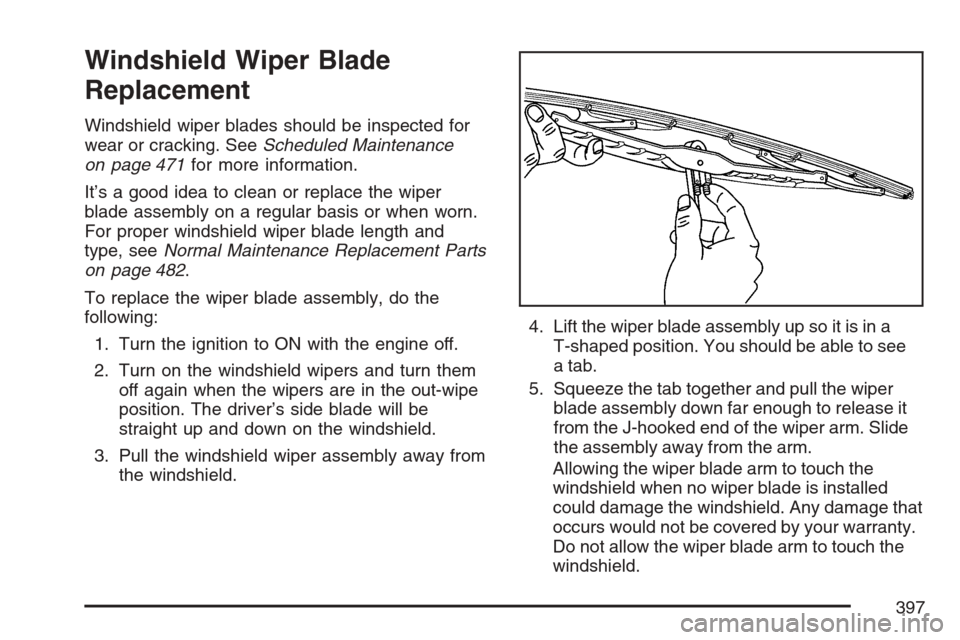
To replace the wiper blade assembly, do the
following:
1. Turn the ignition to ON with the engine off.
2. Turn on the windshield wipers and turn them
off again when the wipers are in the out-wipe
position. The driver’s side blade will be
straight up and down on the windshield.
3. Pull the windshield wiper assembly away from
the windshield.4. Lift the wiper blade assembly up so it is in a
T-shaped position. You should be able to see
a tab.
5. Squeeze the tab together and pull the wiper
blade assembly down far enough to release it
from the J-hooked end of the wiper arm. Slide
the assembly away from the arm.
Allowing the wiper blade arm to touch the
windshield when no wiper blade is installed
could damage the windshield. Any damage that
occurs would not be covered by your warranty.
Do not allow the wiper blade arm to touch the
windshield.
397