lock CADILLAC XLR 2005 1.G Workshop Manual
[x] Cancel search | Manufacturer: CADILLAC, Model Year: 2005, Model line: XLR, Model: CADILLAC XLR 2005 1.GPages: 438, PDF Size: 3.69 MB
Page 241 of 438
Display Presets on the Map:With this feature on,
your audio system presets for the current audio source
will be displayed on the left of the map screen.
Touch ON to turn this feature on. You may also choose
to turn this feature off.
With this feature on, you can recall your preset radio
stations from the map screen. You cannot store preset
stations from the map screen. You must do this from
the audio screen. See “Preset Station Menu” later in this
section for more information on storing presets.
Automatic Volume Control (AVC):To use AVC,
touch the ON button. Your vehicle is equipped with
Bose AudioPilot
®noise compensation technology.
AudioPilot®automatically adjusts the volume level of
the audio so that it always sounds the same to you.
This feature is most effective at lower volume settings
where background noise may be louder than the
audio. At high volume settings there may be little or no
change in the audio level. In some cases where the
noise level changes quickly, you may hear the audio
level changing. This is normal. For additional information
on AudioPilot
®please visit www.bose.com.
8(Clock):Touch this screen button to get to the
CLOCK ADJUST menu. See “Clock Adjust Menu” later
in this section for more information.
SCREEN ADJUST:To adjust the brightness or contrast
of the screen, touch SCREEN ADJUST to display the
screen adjust menu. See “Screen Adjust Menu” later in
this section for more information.
SOUND:Touch this screen button to access the Sound
menu. See “Sound Menu” later in this section for
more information.
DSP (Digital Signal Processing):Touch this screen
button to access the DSP menu. See “Adjusting
the Speakers” later in this section for more information.
4-47
Page 242 of 438
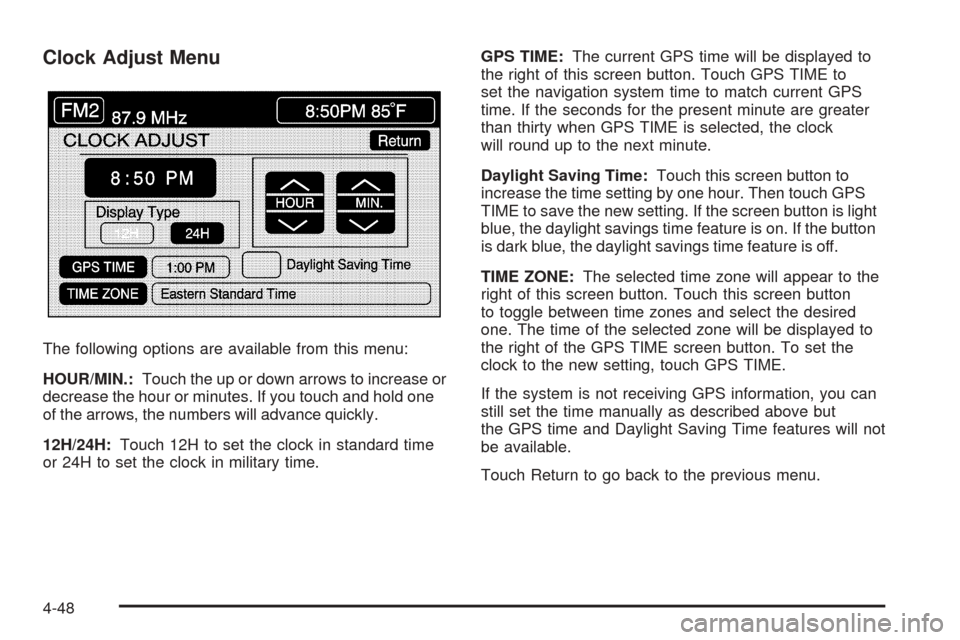
Clock Adjust Menu
The following options are available from this menu:
HOUR/MIN.:Touch the up or down arrows to increase or
decrease the hour or minutes. If you touch and hold one
of the arrows, the numbers will advance quickly.
12H/24H:Touch 12H to set the clock in standard time
or 24H to set the clock in military time.GPS TIME:The current GPS time will be displayed to
the right of this screen button. Touch GPS TIME to
set the navigation system time to match current GPS
time. If the seconds for the present minute are greater
than thirty when GPS TIME is selected, the clock
will round up to the next minute.
Daylight Saving Time:Touch this screen button to
increase the time setting by one hour. Then touch GPS
TIME to save the new setting. If the screen button is light
blue, the daylight savings time feature is on. If the button
is dark blue, the daylight savings time feature is off.
TIME ZONE:The selected time zone will appear to the
right of this screen button. Touch this screen button
to toggle between time zones and select the desired
one. The time of the selected zone will be displayed to
the right of the GPS TIME screen button. To set the
clock to the new setting, touch GPS TIME.
If the system is not receiving GPS information, you can
still set the time manually as described above but
the GPS time and Daylight Saving Time features will not
be available.
Touch Return to go back to the previous menu.
4-48
Page 243 of 438
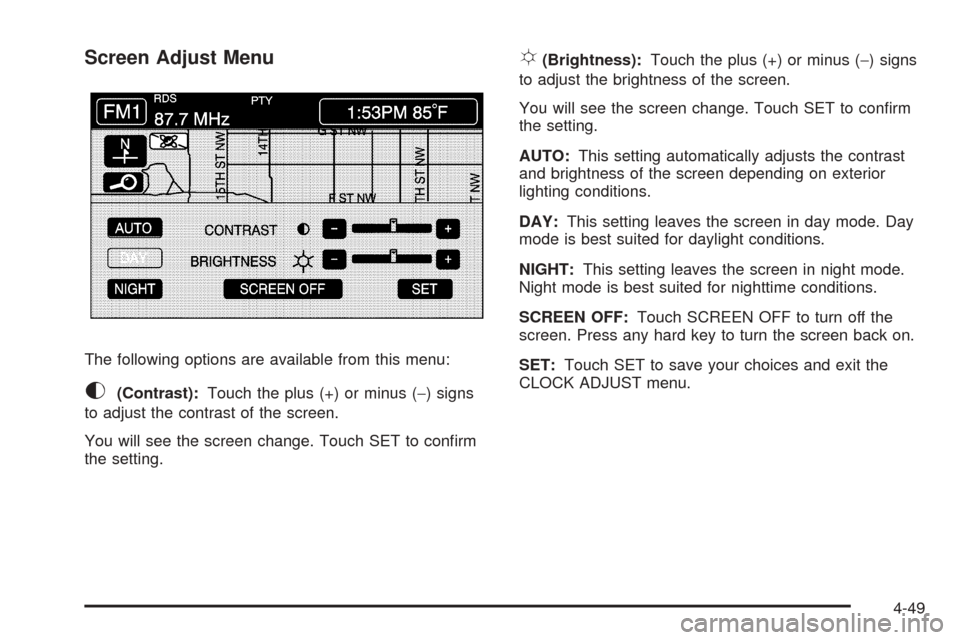
Screen Adjust Menu
The following options are available from this menu:
K(Contrast):Touch the plus (+) or minus (−) signs
to adjust the contrast of the screen.
You will see the screen change. Touch SET to conrm
the setting.
!(Brightness):Touch the plus (+) or minus (−) signs
to adjust the brightness of the screen.
You will see the screen change. Touch SET to conrm
the setting.
AUTO:This setting automatically adjusts the contrast
and brightness of the screen depending on exterior
lighting conditions.
DAY:This setting leaves the screen in day mode. Day
mode is best suited for daylight conditions.
NIGHT:This setting leaves the screen in night mode.
Night mode is best suited for nighttime conditions.
SCREEN OFF:Touch SCREEN OFF to turn off the
screen. Press any hard key to turn the screen back on.
SET:Touch SET to save your choices and exit the
CLOCK ADJUST menu.
4-49
Page 252 of 438

INFO (Information):Touch INFO while in XM™ mode
to retrieve various pieces of information related to
the current song or channel. By touching INFO, you may
retrieve four different categories of information: Artist
Name/Feature, Song/Program Title, Channel Category,
and other Additional Information that may be broadcast
on that channel. Additional Information messages
may only be available at certain times or on certain
programs. If an Additional Information message is being
broadcast on the tuned channel, INFO will appear on
the display.
Each of the four information types may have multiple
pages of text. To reach a category, touch INFO
repeatedly until the desired type is displayed. If there
are multiple pages of text for the information selected
type, the radio will automatically display all the pages for
that type at a rate of about one page every three
seconds before timing out and returning to the default
display. You may override this feature by touching INFO
to review all of the pages at your own pace.
XL (Explicit Language Channels):XL on the radio
display, after the channel name, indicates content with
explicit language. These channels, or any others,
can be blocked at a customer’s request, by calling
1-800-852-XMXM (9696).Setting Program Type (PTY) Preset
Stations
S
CATT(Category):Press the arrows to select a
category.
Once the desired category is displayed, press
TUNE/SEEK to select the category and take you to the
category’s rst station. If you want to go to another
station within that category, press TUNE/SEEK once.
Touch and hold one of the desired P1-P6 presets
to store the selected station as a preset. If PTY times
out and is no longer on the display, start again.
SCAN:Use this button to scan through the channels
within a category or scan through the preset stations. To
scan through the channels in a category, do the following:
1. Select a category by using the category arrows.
2. Once the desired category is displayed, touch
SCAN. The radio will begin scanning within the
chosen category.
3. Touch SCAN again to stop scanning.
To scan through your preset stations, touch and hold
SCAN. Touch SCAN again to stop scanning.
4-58
Page 253 of 438
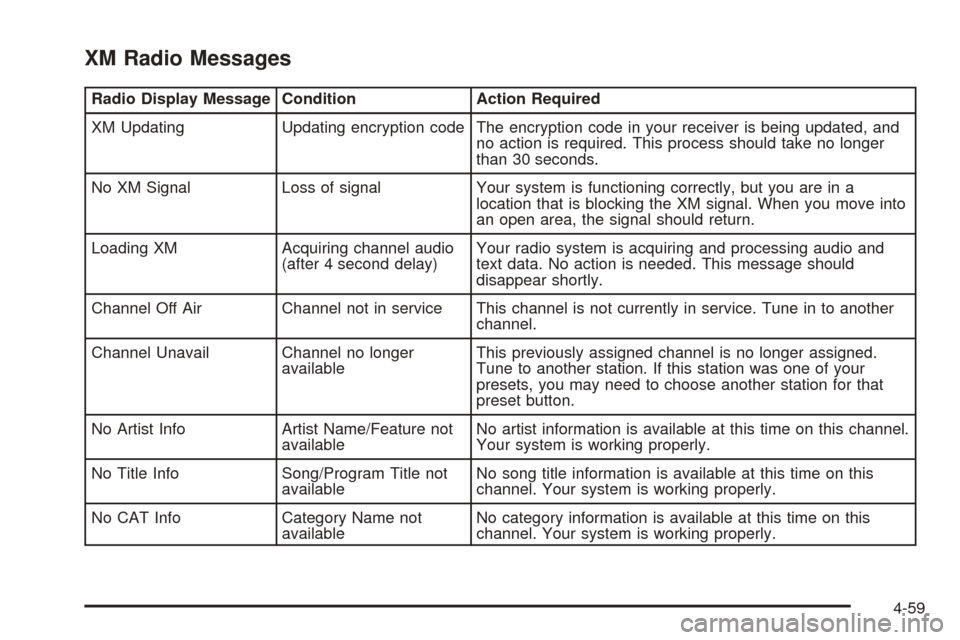
XM Radio Messages
Radio Display Message Condition Action Required
XM Updating Updating encryption code The encryption code in your receiver is being updated, and
no action is required. This process should take no longer
than 30 seconds.
No XM Signal Loss of signal Your system is functioning correctly, but you are in a
location that is blocking the XM signal. When you move into
an open area, the signal should return.
Loading XM Acquiring channel audio
(after 4 second delay)Your radio system is acquiring and processing audio and
text data. No action is needed. This message should
disappear shortly.
Channel Off Air Channel not in service This channel is not currently in service. Tune in to another
channel.
Channel Unavail Channel no longer
availableThis previously assigned channel is no longer assigned.
Tune to another station. If this station was one of your
presets, you may need to choose another station for that
preset button.
No Artist Info Artist Name/Feature not
availableNo artist information is available at this time on this channel.
Your system is working properly.
No Title Info Song/Program Title not
availableNo song title information is available at this time on this
channel. Your system is working properly.
No CAT Info Category Name not
availableNo category information is available at this time on this
channel. Your system is working properly.
4-59
Page 254 of 438
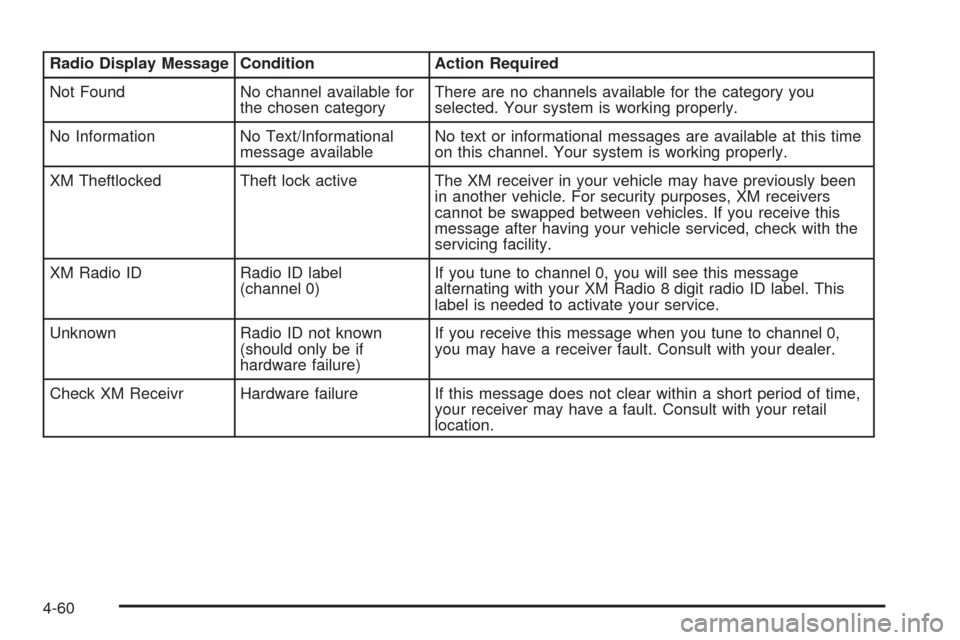
Radio Display Message Condition Action Required
Not Found No channel available for
the chosen categoryThere are no channels available for the category you
selected. Your system is working properly.
No Information No Text/Informational
message availableNo text or informational messages are available at this time
on this channel. Your system is working properly.
XM Theftlocked Theft lock active The XM receiver in your vehicle may have previously been
in another vehicle. For security purposes, XM receivers
cannot be swapped between vehicles. If you receive this
message after having your vehicle serviced, check with the
servicing facility.
XM Radio ID Radio ID label
(channel 0)If you tune to channel 0, you will see this message
alternating with your XM Radio 8 digit radio ID label. This
label is needed to activate your service.
Unknown Radio ID not known
(should only be if
hardware failure)If you receive this message when you tune to channel 0,
you may have a receiver fault. Consult with your dealer.
Check XM Receivr Hardware failure If this message does not clear within a short period of time,
your receiver may have a fault. Consult with your retail
location.
4-60
Page 262 of 438
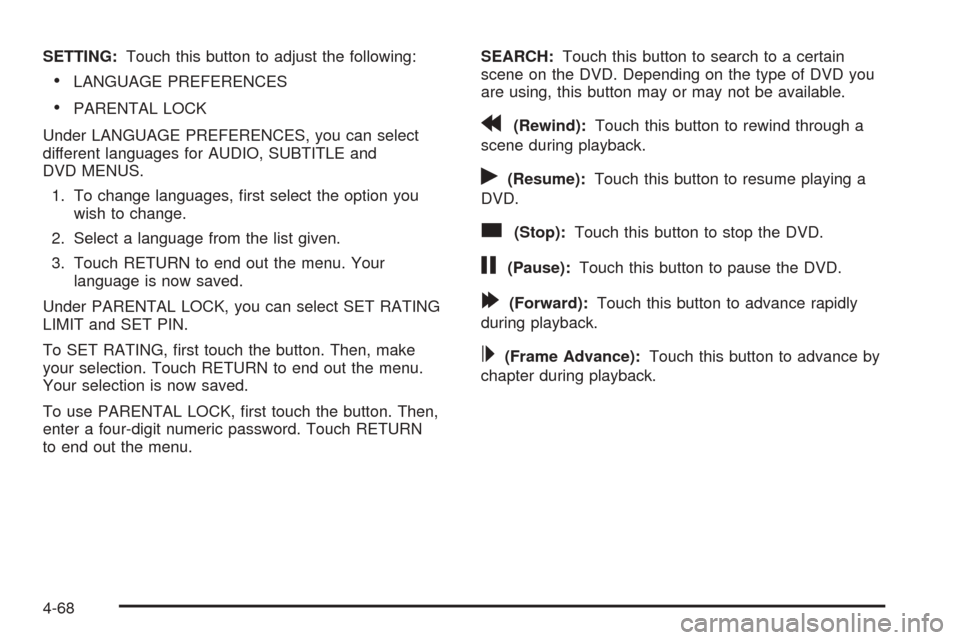
SETTING:Touch this button to adjust the following:
LANGUAGE PREFERENCES
PARENTAL LOCK
Under LANGUAGE PREFERENCES, you can select
different languages for AUDIO, SUBTITLE and
DVD MENUS.
1. To change languages, rst select the option you
wish to change.
2. Select a language from the list given.
3. Touch RETURN to end out the menu. Your
language is now saved.
Under PARENTAL LOCK, you can select SET RATING
LIMIT and SET PIN.
To SET RATING, rst touch the button. Then, make
your selection. Touch RETURN to end out the menu.
Your selection is now saved.
To use PARENTAL LOCK, rst touch the button. Then,
enter a four-digit numeric password. Touch RETURN
to end out the menu.SEARCH:Touch this button to search to a certain
scene on the DVD. Depending on the type of DVD you
are using, this button may or may not be available.r(Rewind):Touch this button to rewind through a
scene during playback.
r(Resume):Touch this button to resume playing a
DVD.
c(Stop):Touch this button to stop the DVD.
j(Pause):Touch this button to pause the DVD.
[(Forward):Touch this button to advance rapidly
during playback.
L(Frame Advance):Touch this button to advance by
chapter during playback.
4-68
Page 273 of 438
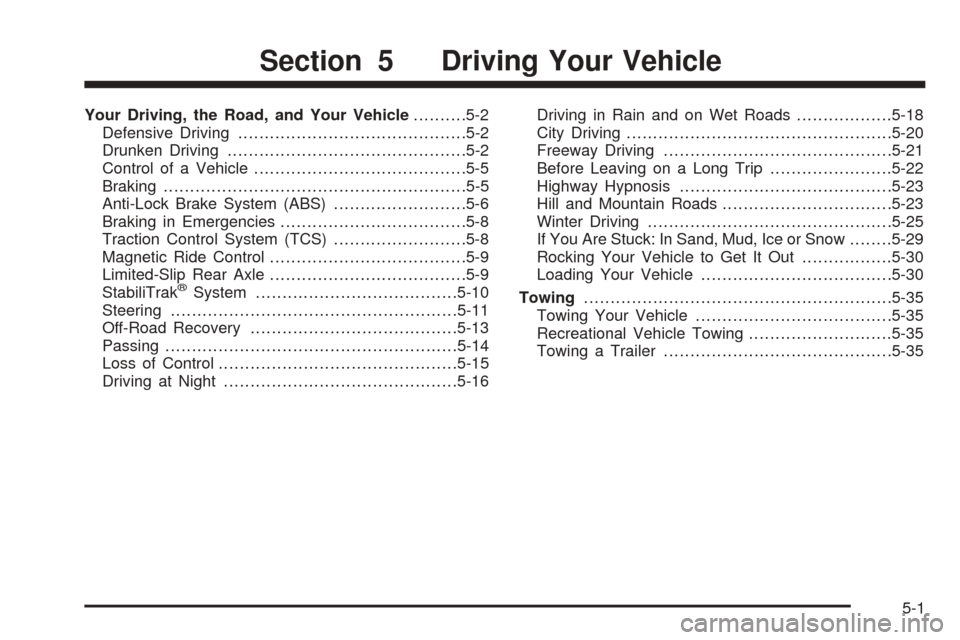
Your Driving, the Road, and Your Vehicle..........5-2
Defensive Driving...........................................5-2
Drunken Driving.............................................5-2
Control of a Vehicle........................................5-5
Braking.........................................................5-5
Anti-Lock Brake System (ABS).........................5-6
Braking in Emergencies...................................5-8
Traction Control System (TCS).........................5-8
Magnetic Ride Control.....................................5-9
Limited-Slip Rear Axle.....................................5-9
StabiliTrak
®System......................................5-10
Steering......................................................5-11
Off-Road Recovery.......................................5-13
Passing.......................................................5-14
Loss of Control.............................................5-15
Driving at Night............................................5-16Driving in Rain and on Wet Roads..................5-18
City Driving..................................................5-20
Freeway Driving...........................................5-21
Before Leaving on a Long Trip.......................5-22
Highway Hypnosis........................................5-23
Hill and Mountain Roads................................5-23
Winter Driving..............................................5-25
If You Are Stuck: In Sand, Mud, Ice or Snow........5-29
Rocking Your Vehicle to Get It Out.................5-30
Loading Your Vehicle....................................5-30
Towing..........................................................5-35
Towing Your Vehicle.....................................5-35
Recreational Vehicle Towing...........................5-35
Towing a Trailer...........................................5-35
Section 5 Driving Your Vehicle
5-1
Page 278 of 438
Avoid needless heavy braking. Some people drive in
spurts — heavy acceleration followed by heavy
braking — rather than keeping pace with traffic. This is
a mistake. Your brakes may not have time to cool
between hard stops. Your brakes will wear out much
faster if you do a lot of heavy braking. If you keep pace
with the traffic and allow realistic following distances,
you will eliminate a lot of unnecessary braking.
That means better braking and longer brake life.
If your engine ever stops while you are driving, brake
normally but do not pump your brakes. If you do,
the pedal may get harder to push down. If your engine
stops, you will still have some power brake assist.
But you will use it when you brake. Once the power
assist is used up, it may take longer to stop and
the brake pedal will be harder to push.Anti-Lock Brake System (ABS)
Your vehicle has anti-lock brakes. ABS is an advanced
electronic braking system that will help prevent a
braking skid.
When you start your engine and begin to drive away,
your anti-lock brake system will check itself. You
may hear a momentary motor or clicking noise while
this test is going on, and you may even notice that your
brake pedal moves a little. This is normal.
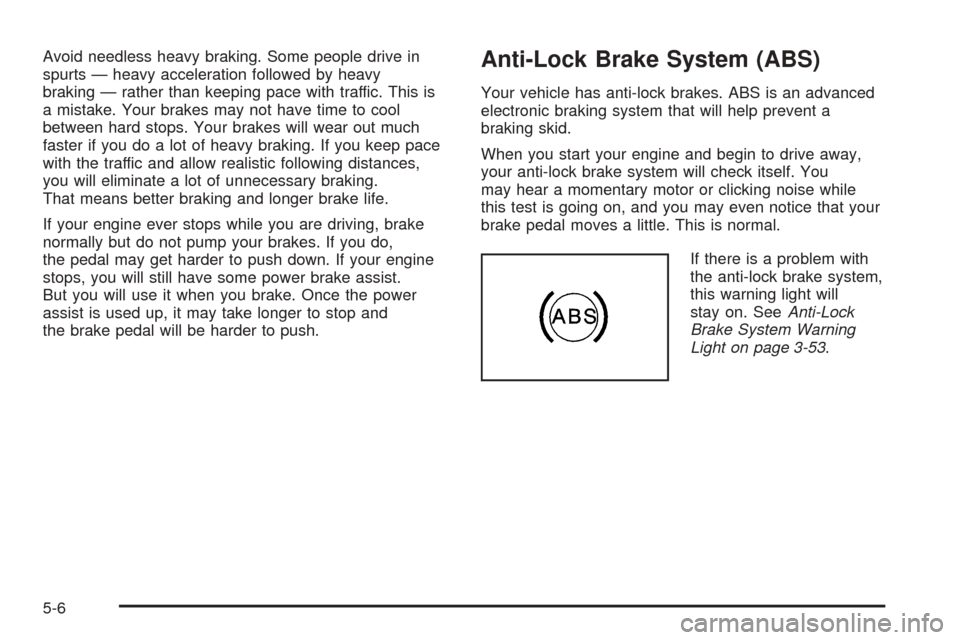
If there is a problem with
the anti-lock brake system,
this warning light will
stay on. SeeAnti-Lock
Brake System Warning
Light on page 3-53.
5-6
Page 279 of 438
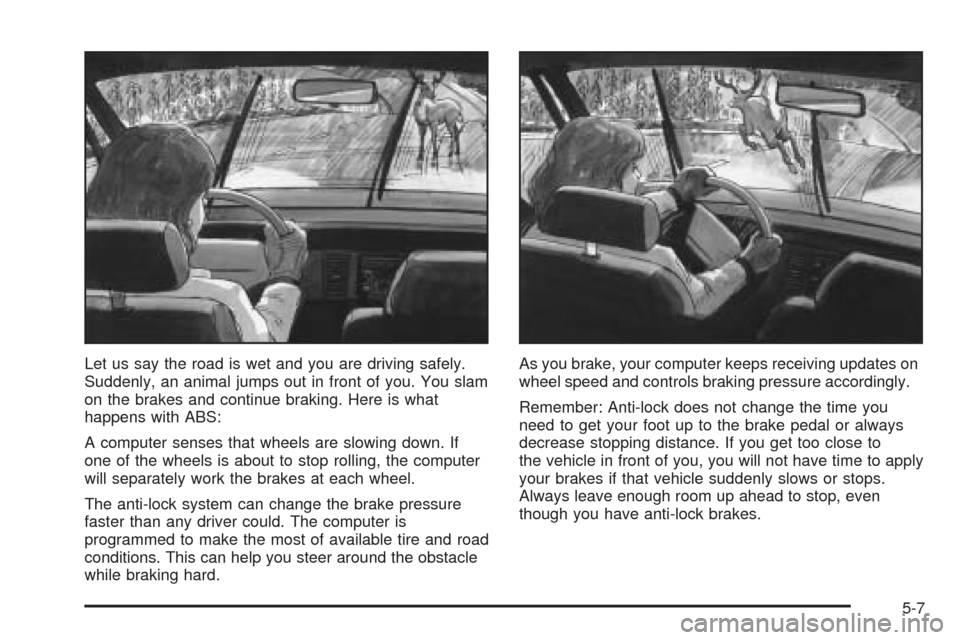
Let us say the road is wet and you are driving safely.
Suddenly, an animal jumps out in front of you. You slam
on the brakes and continue braking. Here is what
happens with ABS:
A computer senses that wheels are slowing down. If
one of the wheels is about to stop rolling, the computer
will separately work the brakes at each wheel.
The anti-lock system can change the brake pressure
faster than any driver could. The computer is
programmed to make the most of available tire and road
conditions. This can help you steer around the obstacle
while braking hard.As you brake, your computer keeps receiving updates on
wheel speed and controls braking pressure accordingly.
Remember: Anti-lock does not change the time you
need to get your foot up to the brake pedal or always
decrease stopping distance. If you get too close to
the vehicle in front of you, you will not have time to apply
your brakes if that vehicle suddenly slows or stops.
Always leave enough room up ahead to stop, even
though you have anti-lock brakes.
5-7