key CADILLAC XLR 2008 1.G Manual PDF
[x] Cancel search | Manufacturer: CADILLAC, Model Year: 2008, Model line: XLR, Model: CADILLAC XLR 2008 1.GPages: 470, PDF Size: 8.39 MB
Page 268 of 470
Sound Menu
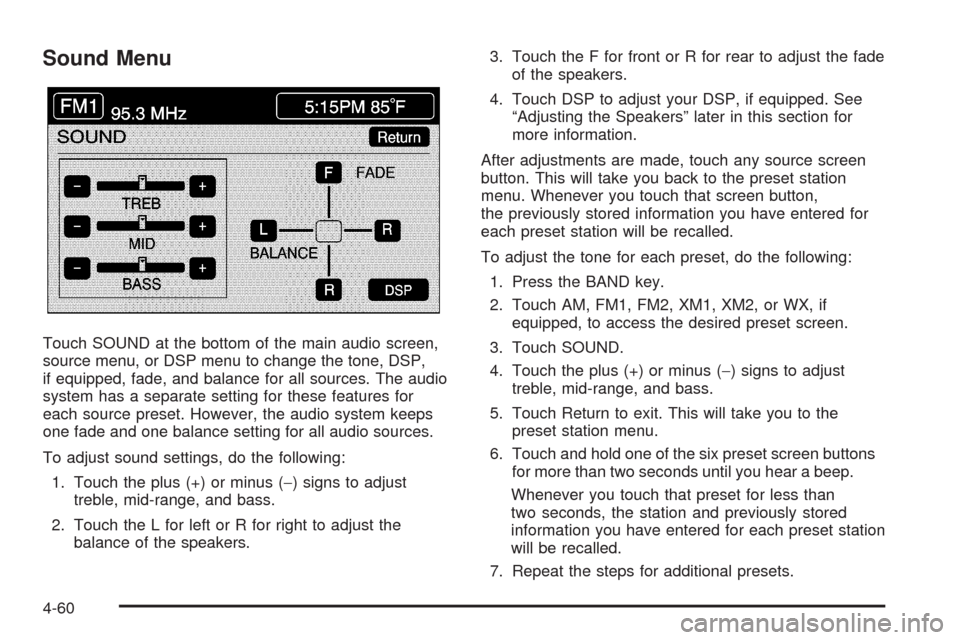
Touch SOUND at the bottom of the main audio screen,
source menu, or DSP menu to change the tone, DSP,
if equipped, fade, and balance for all sources. The audio
system has a separate setting for these features for
each source preset. However, the audio system keeps
one fade and one balance setting for all audio sources.
To adjust sound settings, do the following:
1. Touch the plus (+) or minus (−) signs to adjust
treble, mid-range, and bass.
2. Touch the L for left or R for right to adjust the
balance of the speakers.3. Touch the F for front or R for rear to adjust the fade
of the speakers.
4. Touch DSP to adjust your DSP, if equipped. See
“Adjusting the Speakers” later in this section for
more information.
After adjustments are made, touch any source screen
button. This will take you back to the preset station
menu. Whenever you touch that screen button,
the previously stored information you have entered for
each preset station will be recalled.
To adjust the tone for each preset, do the following:
1. Press the BAND key.
2. Touch AM, FM1, FM2, XM1, XM2, or WX, if
equipped, to access the desired preset screen.
3. Touch SOUND.
4. Touch the plus (+) or minus (−) signs to adjust
treble, mid-range, and bass.
5. Touch Return to exit. This will take you to the
preset station menu.
6. Touch and hold one of the six preset screen buttons
for more than two seconds until you hear a beep.
Whenever you touch that preset for less than
two seconds, the station and previously stored
information you have entered for each preset station
will be recalled.
7. Repeat the steps for additional presets.
4-60
Page 275 of 470
No CAT Info:No category information is available.
The system is working properly.
CAT Not Found:There are no channels available for
the selected category. The system is working properly.
No Information:No text or informational messages
are available. The system is working properly.
XM Theftlocked:The XM™ receiver may have
previously been in another vehicle. For security
purposes, XM™ receivers cannot be swapped between
vehicles. If this message is received after having
your vehicle serviced, check with your dealer/retailer.
XM Radio ID:If tuned to channel 0, this message
will alternate with the XM™ Radio eight digit radio
ID label. This label is needed to activate the service.
Unknown:If this message is received when tuned
to channel 0, there may be a receiver fault. Consult with
your dealer/retailer.
Check XM Receiver:If this message does not clear
within a short period of time, the receiver may have
a fault. Consult with your dealer/retailer.Six-Disc CD Changer
With the compact disc changer, you can play up to
six normal size discs continuously.
When the radio is turned on, the changer will begin
checking for discs. This will continue for up to one and
a half minutes, depending on the number of discs
loaded. You may hear noise, but this is normal.
The CD changer is initializing.
Press the CD hard key to access the six-disc CD
changer screen. You can also use the system’s DVD
player for single CD play once the map DVD is removed.
SeeCD/DVD Player on page 4-70for more information.
If no CD is loaded in the CD/DVD Player and you
press the CD hard key, the message “No CD Loaded”
will appear on the display.
4-67
Page 276 of 470

Once you access the CD changer screen, you can
select one of the numbered buttons to go from
one compact disc to another among those loaded in
the CD changer and use the arrows to rewind or
fast forward through the disc selected.
The following features are also available from this
screen:
LOAD
EJECT
SCAN THE DISCS or SCAN THE TRACKS
and RANDOM ALL or RANDOM DISC.The numbered buttons (1 through 6) represent the order
of the discs loaded in the changer. If there are only
two CDs loaded, buttons 1 and 2 will only be available
to choose from.
LOAD:Touch this button once each time you wish to
load a CD into the changer. It may take up to
10 seconds for the changer to accept the CD into the
slot depending on the changer initializing. Repeat
this procedure for loading up to six discs. Press and
hold the LOAD button until a beep is heard to put
the changer in LOAD ALL mode. Once the Insert CD
message is displayed, you can load all six discs,
one after the other.
r(Play):Touch this button to begin playing a CD.
RANDOM DISC:Touch this button to hear the tracks in
random, rather than sequential, order on the disc
selected. Press the TUNE/SEEK hard key to randomly
seek through the tracks on this disc. Touch RANDOM
DISC again to turn off random play mode.
SCAN TRACKS:Touch this button to hear the rst
10 seconds of each track on the selected disc. Touch
this button again to stop scanning. The CD will mute
while scanning.
r(Rewind):Touch this button to rewind quickly
through a track selection. CD Changer Screen
4-68
Page 277 of 470
EJECT:Touch this button once to eject the chosen CD.
The chosen CD may be selected by rst touching one
of the numbered buttons from 1 to 6. Repeat this
procedure for ejecting up to six discs from the changer.
If you press and hold the EJECT button until a beep
is heard, The system will begin to eject all of the discs
from the player. Once the CD is removed the next
will come out until they are all ejected.
j(Pause):Touch this button to pause CD play.
Touch it again to resume play or touch the play button.
RANDOM ALL:Touch this button to hear the tracks on
all of the discs in the CD changer in random, rather than
sequential, order. Press the TUNE/SEEK hard key while
RANDOM ALL is on to randomly seek within that disc.
Touch RANDOM ALL again to turn off random mode.
SCAN DISCS:Touch this button to hear the rst
10 seconds of rst track on each disc. Touch this button
again to stop scanning. The CD will mute while scanning.
[(Forward):Touch this button to fast forward quickly
through a track selection.
«TUNE SEEKª:Press the up arrow on the
TUNE/SEEK switch to seek to the next selection on the
compact disc. If playing last track of disc, pressing
the up arrow will seek to the rst track of the next disc.Press the down arrow to seek to the previous selection
on the compact disc. If playing the rst track of disc,
pressing the down arrow will seek to the last track on the
selected disc. The sound will mute while seeking.
RDS (Radio Data Systems):See “Radio Data Systems
(RDS)” listed previously for information on this button.
SOUND:See “Sound Menu (Tone, DSP, Fade and
Balance)” for information on this button.
DSP (Digital Signal Processing):See “Adjusting the
Speakers” listed previously for information on this button.
CD Changer Errors
CDX ERROR could be displayed for the following:
The road is too rough. The disc should play when
the road is smoother.
The disc is dirty, scratched, wet or not loaded label
side up.
The air is very humid. If so, wait about an hour and
try again.
If any error occurs repeatedly or if an error cannot be
corrected, please contact your dealer/retailer. If your
audio system displays an error number, write it down
and provide this information to your dealer/retailer when
reporting the error.
4-69
Page 278 of 470

CD/DVD Player
The player that is used for the navigation map DVD can
also be used as a single music CD player or a video
DVD player.
CD Player
To use the player as a single music CD player, you
must rst remove the navigation map DVD. While
playing a CD in the CD/DVD Player, the navigation
system is not available. The message “The disc installed
is not a map DVD” will appear on the display if any of
the navigation hard keys are pressed.
To remove the navigation map DVD and load a music
CD, use the following steps:
1. Start the vehicle.
2. Press the TILT hard key until you hear a beep.
This will open the faceplate of the system.3. If one is loaded, the navigation map DVD will eject
from the slot.
4. Gently remove the navigation map DVD from the
slot and return it to its case.
5. Insert the music CD into the slot. The system will
pull the CD into the player.
6. Press and release the TILT hard key to close the
faceplate.
Notice:Shifting out of PARK (P) with the system’s
faceplate open will cause the faceplate to close
automatically. This could cause damage to a CD,
DVD or the system if it is partially loaded. Before
shifting out of PARK (P), make sure that the DVD or
CD is loaded properly. The vehicle must be shifted
back into PARK (P) to close the faceplate.
4-70
Page 279 of 470
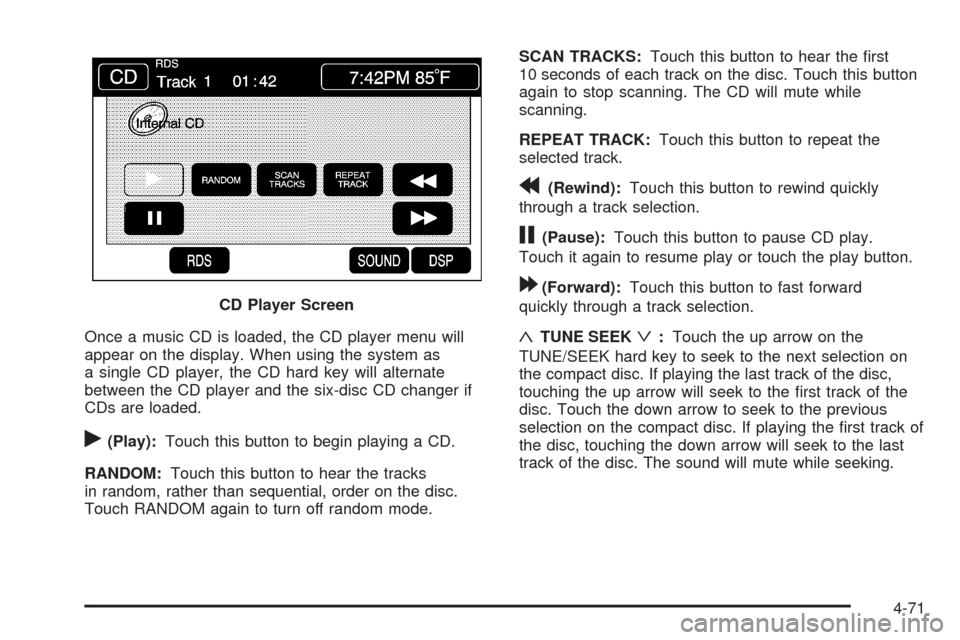
Once a music CD is loaded, the CD player menu will
appear on the display. When using the system as
a single CD player, the CD hard key will alternate
between the CD player and the six-disc CD changer if
CDs are loaded.
r(Play):Touch this button to begin playing a CD.
RANDOM:Touch this button to hear the tracks
in random, rather than sequential, order on the disc.
Touch RANDOM again to turn off random mode.SCAN TRACKS:Touch this button to hear the rst
10 seconds of each track on the disc. Touch this button
again to stop scanning. The CD will mute while
scanning.
REPEAT TRACK:Touch this button to repeat the
selected track.
r(Rewind):Touch this button to rewind quickly
through a track selection.
j(Pause):Touch this button to pause CD play.
Touch it again to resume play or touch the play button.
[(Forward):Touch this button to fast forward
quickly through a track selection.
«TUNE SEEKª:Touch the up arrow on the
TUNE/SEEK hard key to seek to the next selection on
the compact disc. If playing the last track of the disc,
touching the up arrow will seek to the rst track of the
disc. Touch the down arrow to seek to the previous
selection on the compact disc. If playing the rst track of
the disc, touching the down arrow will seek to the last
track of the disc. The sound will mute while seeking. CD Player Screen
4-71
Page 280 of 470

DVD Player
To use the player as a video DVD player, you must
rst remove the navigation map DVD or music CD.
While playing a video DVD, the navigation system is
not available. The message “The disc installed is not a
map DVD” will appear on the display if any of the
navigation hard keys are pressed.
This feature will not operate unless the vehicle is in
PARK (P).
To remove the navigation map DVD and load a video
DVD, use the following steps:
1. With the vehicle in PARK (P) and the vehicle
running, press the TILT hard key until a beep
is heard. The faceplate of the system will open.
2. If a map DVD or a music CD is loaded, the system
will automatically eject it. Gently remove it from the
slot and return it to its case.
3. Load the video DVD into the slot. The system will
pull the DVD into the player.
4. Press and release the TILT hard key to close the
faceplate.Notice:Shifting out of PARK (P) with the system’s
faceplate open will cause the faceplate to close
automatically. This could cause damage to a
CD, DVD or the system if it is partially loaded. Before
shifting out of PARK (P), make sure that the DVD
or CD is loaded properly. The vehicle must be
shifted back into PARK (P) to close the faceplate.
Once the faceplate is closed and a video DVD is loaded,
the system will automatically play the DVD.
Playing a DVD
There are three ways to play a DVD depending on
which screen you are on. They are the following:
Once a DVD is inserted, the system will
automatically play the DVD.
If you are on a map screen, touch the DVD source
button.
From the audio screen, press the DVD hard key.
4-72
Page 283 of 470
c(Stop):Touch this button to stop the DVD.
j(Pause):Touch this button to pause the DVD.
[(Forward):Touch this button to advance rapidly
during playback.
L(Frame Advance):Touch this button to advance by
chapter during playback.
Radio Personalization with Home
and Away Feature
With this feature, you can recall the latest audio system
settings as adjusted the last time your vehicle was
operated. This feature allows two different drivers to
store and recall their own audio system settings.
The settings recalled by the audio system are
determined by which transmitter (1 or 2) was used to
enter the vehicle. The number on the back of the
transmitter corresponds to driver 1 or to driver 2.
The audio system settings will automatically adjust
to where they were last set by the identied driver.
The settings can also be recalled by briey pressing
the MEMORY seat switches 1 or 2 located on the
driver’s door.Your audio system can store HOME and AWAY preset
stations. HOME and AWAY preset stations allow
you to use one set of preset radio settings in the area
where you live, and another set when you go out of
town. That way, you will not need to reprogram
your preset stations every time you travel.
To select HOME and AWAY preset stations, do the
following:
1. With the audio system on, touch the Audio hard key
and turn the audio system off.
2. Touch the HOME or AWAY button from the main
audio screen.
The next time the audio system is turned on, the
system will recall the last active preset selection.
When battery power is removed and later applied, you
will not have to reset your home audio system preset
stations because the audio system remembers them.
However, you will have to reset your away radio preset
stations.
4-75
Page 324 of 470
California Perchlorate Materials
Requirements
Certain types of automotive applications, such as airbag
initiators, seat belt pretensioners, and lithium batteries
contained in remote keyless entry transmitters, may
contain perchlorate materials. Special handling
may be necessary. For additional information, see
www.dtsc.ca.gov/hazardouswaste/perchlorate.
Doing Your Own Service Work
{CAUTION:
You can be injured and your vehicle could be
damaged if you try to do service work on a
vehicle without knowing enough about it.
Be sure you have sufficient knowledge,
experience, the proper replacement parts,
and tools before you attempt any vehicle
maintenance task.
Be sure to use the proper nuts, bolts, and
other fasteners. English and metric
fasteners can be easily confused. If you
use the wrong fasteners, parts can later
break or fall off. You could be hurt.If you want to do some of your own service work, you
should use the proper service manual. It tells you much
more about how to service your vehicle than this manual
can. To order the proper service manual, seeService
Publications Ordering Information on page 8-16.
Your vehicle has an airbag system. Before attempting
to do your own service work, seeServicing Your
Airbag-Equipped Vehicle on page 1-50.
You should keep a record with all parts receipts and list
the mileage and the date of any service work you
perform. SeeMaintenance Record on page 7-15.
Adding Equipment to the Outside
of Your Vehicle
Things you might add to the outside of your vehicle can
affect the airow around it. This can cause wind noise
and can affect fuel economy and windshield washer
performance. Check with your dealer/retailer before
adding equipment to the outside of your vehicle.
6-4
Page 360 of 470

Battery
Your vehicle has a maintenance free battery. When it is
time for a new battery, see your dealer/retailer for
one that has the replacement number shown on the
original battery’s label.
For battery replacement, see your dealer/retailer or the
service manual. To purchase a service manual, see
Service Publications Ordering Information on page 8-16.
Warning:Battery posts, terminals, and related
accessories contain lead and lead compounds,
chemicals known to the State of California to cause
cancer and reproductive harm. Wash hands after
handling.
Vehicle Storage
{CAUTION:
Batteries have acid that can burn you and gas
that can explode. You can be badly hurt if
you are not careful. SeeJump Starting on
page 6-41for tips on working around a battery
without getting hurt.Infrequent Usage: If you drive your vehicle infrequently,
remove the black, negative (−) cable from the battery.
This will help keep the battery from running down.
See “Power Window Initialization” inPower Windows
on page 2-17.
Extended Storage: For extended storage of your vehicle,
remove the black, negative (−) cable from the battery or
use a battery trickle charger. This will help maintain the
charge of the battery over an extended period of time.
You must close all doors and the trunk before
reconnecting the battery. After reconnecting the battery,
you must press the unlock button on the keyless
access transmitter. Failure to follow this procedure could
result in the alarm sounding. Pressing unlock on the
keyless access transmitter will stop the alarm.
6-40