key CADILLAC XLR 2008 1.G Repair Manual
[x] Cancel search | Manufacturer: CADILLAC, Model Year: 2008, Model line: XLR, Model: CADILLAC XLR 2008 1.GPages: 470, PDF Size: 8.39 MB
Page 245 of 470
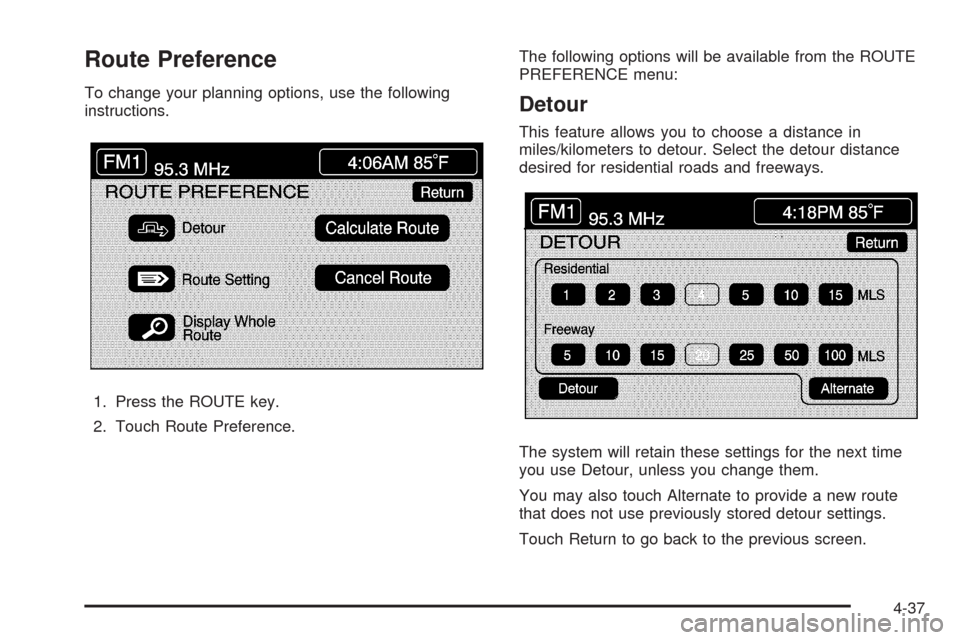
Route Preference
To change your planning options, use the following
instructions.
1. Press the ROUTE key.
2. Touch Route Preference.The following options will be available from the ROUTE
PREFERENCE menu:Detour
This feature allows you to choose a distance in
miles/kilometers to detour. Select the detour distance
desired for residential roads and freeways.
The system will retain these settings for the next time
you use Detour, unless you change them.
You may also touch Alternate to provide a new route
that does not use previously stored detour settings.
Touch Return to go back to the previous screen.
4-37
Page 248 of 470
Detailed Areas
Road network attributes are contained in the map
database for detailed areas. Attributes include
information such as street names, street address, turn
restrictions, etc. A detailed area will include all major
highways, service roads, and residential roads.
The detailed areas include points of interest (POI)
such as: restaurants, airports, banks, hospitals, police
stations, gas stations, tourist attractions, historical
monuments, etc. The map database may not include
data for newly constructed areas or map database
corrections that are completed after the production of
the disc. The navigation system will provide full route
guidance in the detailed map areas.
Limited Guidance Areas
Any area that is not classied as detailed is a limited
guidance area. Limited guidance streets will be
displayed on the map display but route guidance may
not be given on these streets. Some POI categories,
such as the city center POI category, and some street
addresses are included in the limited guidance areas.
The navigation system will inform you by voice prompts
when you are traveling into a limited guidance area
where route guidance will not be available. The street
maps and the directional arrow displayed on the
navigation system can then be used to determine the
remaining route to your destination.
Installing the DVD Map Disc
Your dealer/retailer may have installed the map DVD.
If the map DVD was not installed, do the following
to load it:
1. Turn the ignition on.
2. With the vehicle in PARK (P), press and hold the
TILT key until a beep is heard. The system’s
faceplate will open.
3. If already loaded, the map DVD or a CD will eject
from the slot.
4. Load the map DVD into the slot by inserting it
partway. The system will pull it in.
5. Press and release the TILT key to close the
faceplate.
Notice:Shifting out of PARK (P) with the system’s
faceplate open will cause the faceplate to close
automatically. This could cause damage to a
CD, DVD or the system if it is partially loaded. Before
shifting out of PARK (P), make sure that the DVD
or CD is loaded properly. The vehicle must be
shifted back into PARK (P) to close the faceplate.
4-40
Page 249 of 470
Once the map DVD is inserted correctly, you will have
the following two choices:
LANGUAGE
I AGREE
You can change the language at this time.
See “Language” underNavigation Audio System on
page 4-54for more information on choosing a language.
Once a language has been selected, touch I AGREE
to plan a route. The map will appear showing your
current vehicle position.
DVD Map Disc Messages
If an error appears on the display and/or the map disc
comes out, it could be for one of the following reasons:
If the map disc was installed into the CD slot.
See “Installing the DVD Map Disc” previously.
It is very hot, when the temperature returns to
normal, the map disc should play.
You are driving on a very rough road. When
the road becomes smoother, the map disc
should play.
The map disc is dirty, scratched, wet, or
upside down.
If any error occurs repeatedly or if an error cannot be
corrected, contact your dealer/retailer.
Ejecting the DVD Map Disc
When the DVD map disc is not loaded, you will not be
able to use the navigation portion of the system.
1. Turn the ignition on.
2. With the vehicle in PARK (P), press and hold the
TILT key until a beep is heard. The system’s
faceplate will open.
3. The map DVD will eject from the slot. Pull the
disc out.
4. Press and release the TILT key to close the
faceplate.
Notice:Shifting out of PARK (P) with the system’s
faceplate open will cause the faceplate to close
automatically. This could cause damage to a
CD, DVD or the system if it is partially loaded. Before
shifting out of PARK (P), make sure that the DVD
or CD is loaded properly. The vehicle must be
shifted back into PARK (P) to close the faceplate.
4-41
Page 250 of 470
Handling the DVD Map Disc
When handling the DVD map disc, be careful of the
following:
Handle the disc very carefully to avoid
contamination or aws. Signals may not read out
properly if the disc gets contaminated or awed.
If the disc gets soiled, use a soft cloth to gently wipe
it out from the center of the disc to the outside.
Do not use photographic record cleaner, solvents,
or other cleaners.
Do not use the disc to rest on while writing or
drawing using any writing utensil or attach a seal
to any of the sides or the disc.
Do not keep the disc in direct sunlight, high
temperatures, or humidity.
After using the disc, place it back into the
original case.
Setting the Search Area
To determine or change the system’s search area,
do the following:
1. Press the ROUTE key.
2. Touch the Enter Destination screen button.
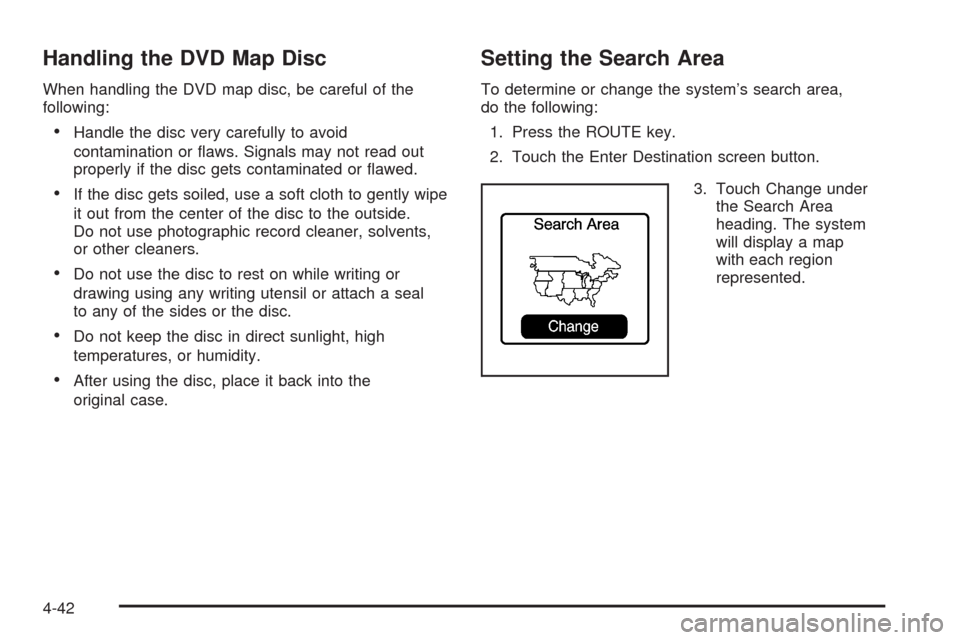
3. Touch Change under
the Search Area
heading. The system
will display a map
with each region
represented.
4-42
Page 252 of 470

Scrolling the Map
Touch anywhere on the
map screen twice to
display the scroll symbol.
Place your nger on the map screen in any direction
outside of the scroll symbol to scroll in that direction.
The map will continue to scroll until you remove
your nger.
If your vehicle is in PARK (P), the system will initially
scroll at a slower rate. The rate will increase if you
continue to touch the map screen.
If your vehicle is in motion, there is one scroll speed
and a limited distance to scroll. You must keep touching
the map screen to scroll a longer distance.
If your vehicle icon becomes lost while scrolling, press
the MAP key to show the vehicle’s current location.
You may also use the scroll feature to set a destination.
See “Set by Map” underEnter Destination on page 4-28.
Symbols
The following symbols are the most common that
appear on a map screen.
Your vehicle is shown as
this symbol. It indicates
the current position
and heading direction of
your vehicle on the map.
This symbol will appear on
the map to show your
destination after a route
has been planned.
SeeEnter Destination on page 4-28for more information
on planning a route.
4-44
Page 257 of 470

Touching the up arrow will give you upcoming streets.
At times, there may not be names available for entrance
or exit ramps.
To avoid a turn, touch AVOID next to the turn you want
to avoid. You can use REDUCE or ENLARGE to edit
the avoided point. Touch Reroute or press the MAP key
to calculate your new route.
Touch Return to view your current position and to turn
the turn list screen off.
Touch REROUTE or press the MAP key to calculate a
new route.
Auto Reroute
When your destination is set and you travel off of the
planned route, the system will automatically begin
to reroute you. You will see the new route highlighted
on the screen.
Traveling Across Regions
If you plan to drive across several states, you may have
to change the selected region to represent the area
you are traveling to.
There are two ways you can plan a destination when
traveling across regions.The following method is suggested and provides the
most route guidance and map display functions:
1. Change the selected search area region when
you get closer to the area you are traveling to.
See “Setting the Search Area” underMaps on
page 4-39.
2. Enter your destination and route settings.
SeeEnter Destination on page 4-28for more
information.
If you do not want to use the rst method, keep your
currently selected search area region and enter your
destination. This method allows you only to select a
destination from the easy planning route method or
from the All Points of Interest (POI) categories with the
“All Search Areas” comment for US Only. For example,
Tourist is a category that features this comment. See
Enter Destination on page 4-28for more information.
If you are traveling in or to Canada and you cross the
regional border, the only map scale views available
are 4 mi, 8 mi, 31 mi, and 128 mi (8 km, 16 km, 64 km
and 256 km). Change the selected search area region
when you get closer to the area you are traveling to.
See “Setting the Search Area” underMaps on page 4-39
for more information.
4-49
Page 258 of 470

Keyless Access System
When the engine is started, Driver 1 or Driver 2 will
display on the screen. A message will not appear on the
screen if the driver is unknown. The number on the
back of the transmitter corresponds to driver 1 or
driver 2. The navigation system can store memory points
for drivers 1 and 2 individually. SeeKeyless Access
System on page 2-5for more information.
OnStar®System
When using the OnStar®system, the audio system will
be muted and the navigation voice prompts will be
disabled during the call. The volume of the OnStar
®call
can be adjusted by using the steering wheel volume
controls. SeeOnStar
®System on page 2-41for
more information.
Global Positioning System (GPS)
The navigation system determines the position of your
vehicle by using satellite signals, various vehicle signals,
and map data.
At times, other interferences such as the satellite
condition, road conguration, the condition of the vehicle
and/or other circumstances can interfere with the
navigation system’s ability to determine the accurate
position of the vehicle.The GPS shows the current position of your vehicle using
signals sent by the GPS Satellites of the United States
Department of Defense. When your vehicle is not
receiving signals from the satellites, a symbol will appear
on the map screen. Refer toSymbols on page 4-44.
This system may not be available or interferences may
occur if any of the following are true:
Signals are obstructed by tall buildings, trees, large
trucks, or a tunnel.
Objects are located on the rear shelf.
Satellites are being repaired or improved.
After-market glass tinting has been applied to the
vehicle’s rear windshield.
Notice:Do not apply after-market glass tinting to
the vehicle’s windows. Glass tinting will interfere
with the system’s ability to receive GPS signals and
cause the system to malfunction. You might have
to replace the window to correct the problem.
This would not be covered by your warranty.
For more information if you are experiencing a problem,
seeIf the System Needs Service on page 4-52and
Problems with Route Guidance on page 4-52.
4-50
Page 262 of 470
Navigation Audio System
Notice:Before adding any sound equipment to
your vehicle, such as an audio system, CD player,
CB radio, mobile telephone, or two-way radio, make
sure that it can be added by checking with your
dealer/retailer. Also, check federal rules covering
mobile radio and telephone units. If sound
equipment can be added, it is very important to do
it properly. Added sound equipment can interfere
with the operation of your vehicle’s engine, radio,
or other systems, and even damage them.
Your vehicle’s systems can interfere with the
operation of sound equipment that has been added.
Your vehicle has a feature called Retained Accessory
Power (RAP). With RAP, the audio system can be
played even after the ignition is turned off. SeeRetained
Accessory Power (RAP) on page 2-24for more
information.
The audio system is operated using navigation system
menus. The audio menus are explained in this section.
Main Audio Menu
e
/z(Audio/Adjust):Press this key to view the main
audio screen.
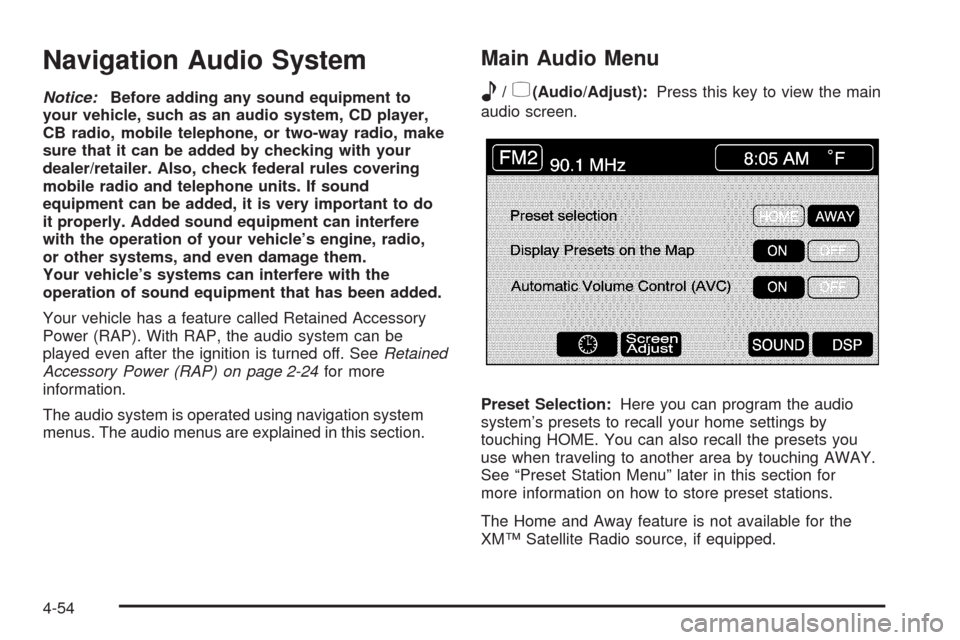
Preset Selection:Here you can program the audio
system’s presets to recall your home settings by
touching HOME. You can also recall the presets you
use when traveling to another area by touching AWAY.
See “Preset Station Menu” later in this section for
more information on how to store preset stations.
The Home and Away feature is not available for the
XM™ Satellite Radio source, if equipped.
4-54
Page 265 of 470
Screen Adjust Menu
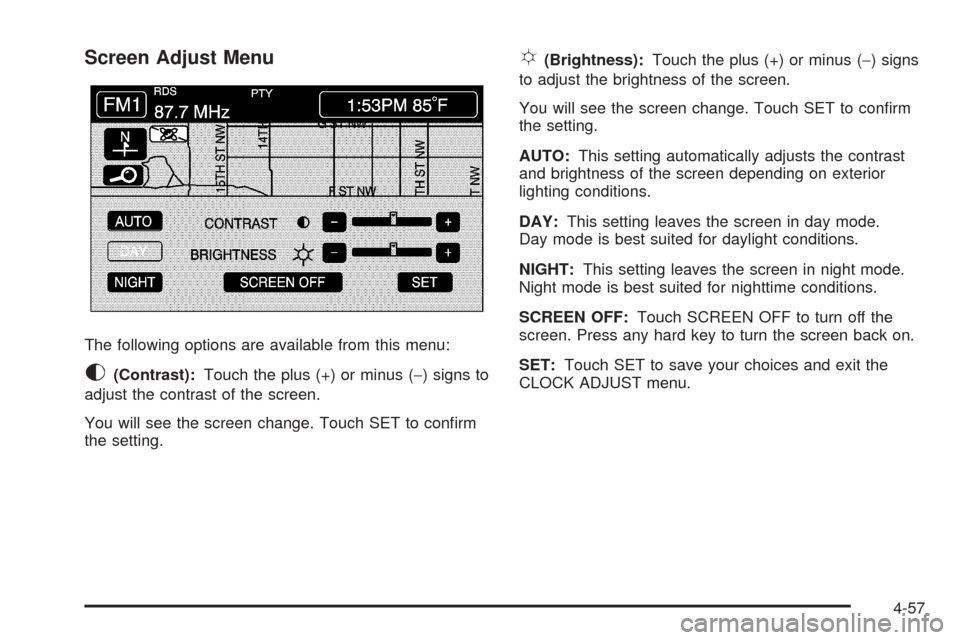
The following options are available from this menu:
K(Contrast):Touch the plus (+) or minus (−) signs to
adjust the contrast of the screen.
You will see the screen change. Touch SET to conrm
the setting.
!(Brightness):Touch the plus (+) or minus (−) signs
to adjust the brightness of the screen.
You will see the screen change. Touch SET to conrm
the setting.
AUTO:This setting automatically adjusts the contrast
and brightness of the screen depending on exterior
lighting conditions.
DAY:This setting leaves the screen in day mode.
Day mode is best suited for daylight conditions.
NIGHT:This setting leaves the screen in night mode.
Night mode is best suited for nighttime conditions.
SCREEN OFF:Touch SCREEN OFF to turn off the
screen. Press any hard key to turn the screen back on.
SET:Touch SET to save your choices and exit the
CLOCK ADJUST menu.
4-57
Page 266 of 470
Language
Your vehicle has been set for the English language.
If you wish to change the language, you must do
so through the Driver Information Center (DIC).
SeeDriver Information Center (DIC) on page 3-60
for more information.
If the language is changed from English, a majority of the
voice guidance prompts and screen text will change to
the selected language. Remember, the menu screens will
not match word-for-word as they appear in this manual.
Playing the Radio
PWR-VOL (Power-Volume):Press this knob to turn
the audio and navigation systems on and off. Turn the
knob to increase or decrease the volume to the
audio system.
«TUNE/SEEKª:Press the up or down arrow to go
to the next or previous station and stay there.
BAND:Press this key to switch between AM, FM1,
FM2, XM1, XM 2, or WX, if equipped. If you are on a
map screen and press this key, the screen will not
change but the audio source will.
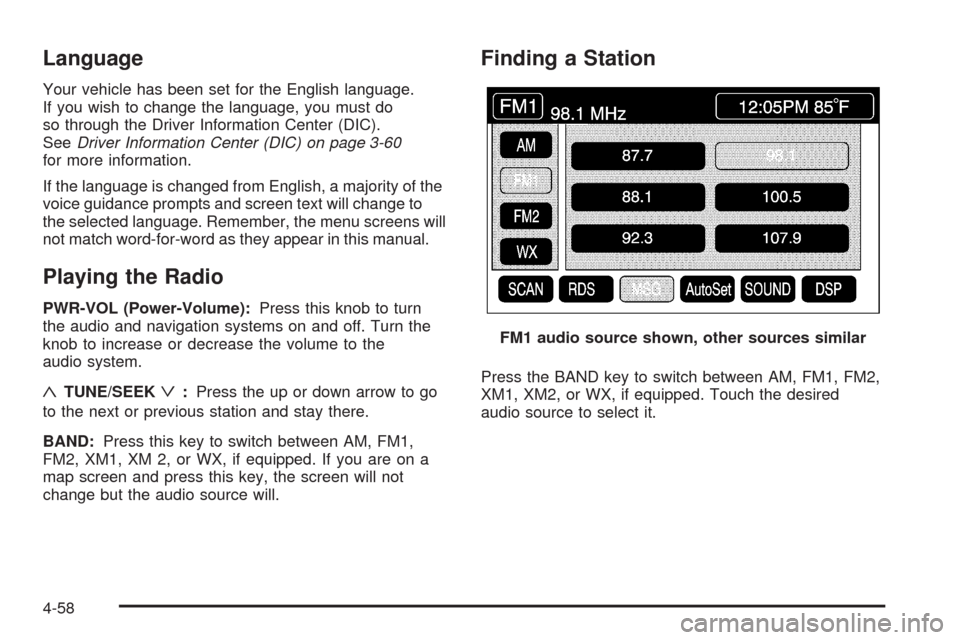
Finding a Station
Press the BAND key to switch between AM, FM1, FM2,
XM1, XM2, or WX, if equipped. Touch the desired
audio source to select it.FM1 audio source shown, other sources similar
4-58