Remove CADILLAC XT4 2021 Owner's Guide
[x] Cancel search | Manufacturer: CADILLAC, Model Year: 2021, Model line: XT4, Model: CADILLAC XT4 2021Pages: 408, PDF Size: 8.33 MB
Page 141 of 408
Cadillac XT4 Owner Manual (GMNA-Localizing-U.S./Canada/Mexico-
14584367) - 2021 - CRC - 10/14/20
140 INFOTAINMENT SYSTEM
menu before creating or signing into
an existing profile. The removed
profile can be logged into at a
later time.
Settings
Touch the Settings icon to display the
Settings menu. SeeSettings0177.
Apple CarPlay
Touch the Apple CarPlay icon to
activate Apple CarPlay if equipped
after a supported device is connected.
See Apple CarPlay and Android Auto
0 175.
Android Auto
Touch the Android Auto icon to
activate Android Auto, if equipped,
after a supported device is connected.
See Apple CarPlay and Android Auto
0 175.
Apps
If equipped, in-vehicle apps are
available for download. Touch the
Apps icon on the Home Page to begin. Downloading and using in-vehicle
apps requires Internet connectivity
which can be accessed with a data
plan through the vehicle’s built-in 4G
LTE Wi-Fi hotspot, if equipped, or a
compatible mobile device hotspot. On
most mobile devices, activation of the
Wi-Fi hotspot is in the device’s
Settings menu under Mobile Network
Sharing, Personal Hotspot, Mobile
Hotspot, or similar.
Availability of apps and connectivity
varies by vehicle, conditions, and
location. Data plan rates apply.
Features are subject to change. For
more information, see
www.my.cadillac.com/learn.
OnStar Services
If equipped, touch the OnStar Services
icon to display the OnStar Services
and Account pages. See
OnStar
Overview 0387 and
OnStar System 0150.
Camera
If equipped, touch the Camera icon to
access the camera application. See
Assistance Systems for Parking or
Backing 0250.
Shortcut Tray
The shortcut menu is on the left side
of the display. It shows the Home
application and four other
applications.
Infotainment Display Features
Infotainment display features show on
the display when available. When a
feature is unavailable, it may gray out.
When a feature is touched, it may
highlight.
Haptic Feedback
If equipped, haptic feedback is a pulse
that occurs when an icon or option is
touched on the display or when
controls below the display are pressed.
Infotainment Gestures
Use the following finger gestures to
control the infotainment system.
Page 143 of 408
Cadillac XT4 Owner Manual (GMNA-Localizing-U.S./Canada/Mexico-
14584367) - 2021 - CRC - 10/14/20
142 INFOTAINMENT SYSTEM
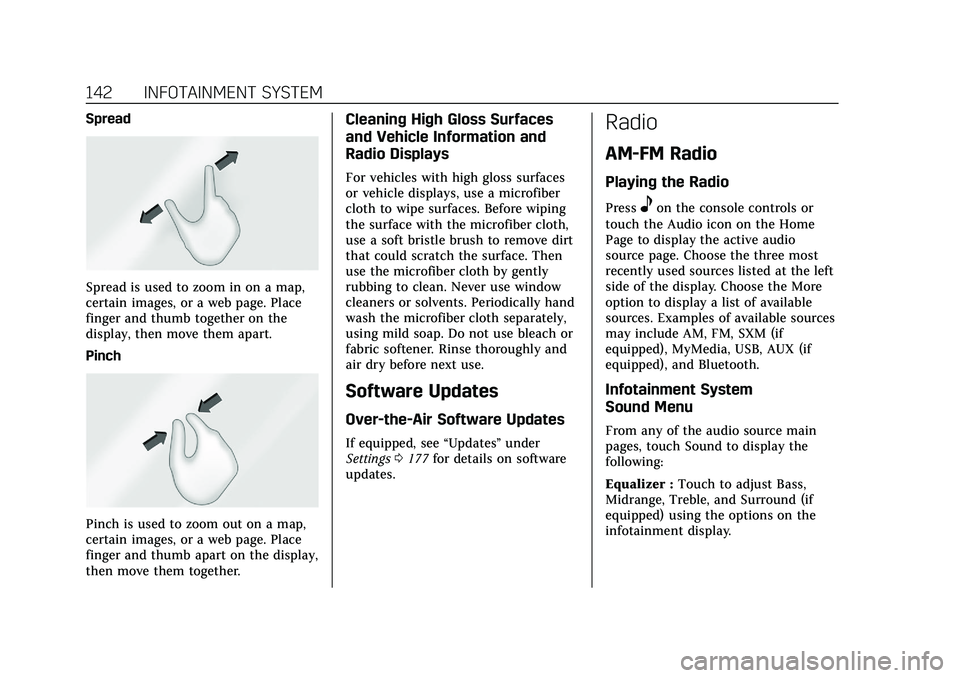
Spread
Spread is used to zoom in on a map,
certain images, or a web page. Place
finger and thumb together on the
display, then move them apart.
Pinch
Pinch is used to zoom out on a map,
certain images, or a web page. Place
finger and thumb apart on the display,
then move them together.
Cleaning High Gloss Surfaces
and Vehicle Information and
Radio Displays
For vehicles with high gloss surfaces
or vehicle displays, use a microfiber
cloth to wipe surfaces. Before wiping
the surface with the microfiber cloth,
use a soft bristle brush to remove dirt
that could scratch the surface. Then
use the microfiber cloth by gently
rubbing to clean. Never use window
cleaners or solvents. Periodically hand
wash the microfiber cloth separately,
using mild soap. Do not use bleach or
fabric softener. Rinse thoroughly and
air dry before next use.
Software Updates
Over-the-Air Software Updates
If equipped, see“Updates”under
Settings 0177 for details on software
updates.
Radio
AM-FM Radio
Playing the Radio
Presseon the console controls or
touch the Audio icon on the Home
Page to display the active audio
source page. Choose the three most
recently used sources listed at the left
side of the display. Choose the More
option to display a list of available
sources. Examples of available sources
may include AM, FM, SXM (if
equipped), MyMedia, USB, AUX (if
equipped), and Bluetooth.
Infotainment System
Sound Menu
From any of the audio source main
pages, touch Sound to display the
following:
Equalizer : Touch to adjust Bass,
Midrange, Treble, and Surround (if
equipped) using the options on the
infotainment display.
Page 156 of 408
Cadillac XT4 Owner Manual (GMNA-Localizing-U.S./Canada/Mexico-
14584367) - 2021 - CRC - 10/14/20
INFOTAINMENT SYSTEM 155
SD Card Error Messages
The SD card only works for one
unique vehicle. The SD card must pass
authentication verification to be used
for that specific vehicle. Potential
error scenarios and messages include:
.The SD card has initialized for the
first time:“Once initialized, this SD
card can only be used for navigation
in this vehicle.”
.The SD card is not working
properly: “SD card is not functioning
properly. (Error Code).”
.The SD card is not paired with the
existing system: “This SD card is not
valid in this vehicle for navigation.
See Owner’s Manual for more detail
or visit your dealer. (Error Code).”
.The SD card has been removed from
the slot: “SD card has been removed.
(Error Code).”
Touch Continue to resume after the
initialization error message. For the
other messages, touch OK to return to
the Home Page.
Navigation Symbols
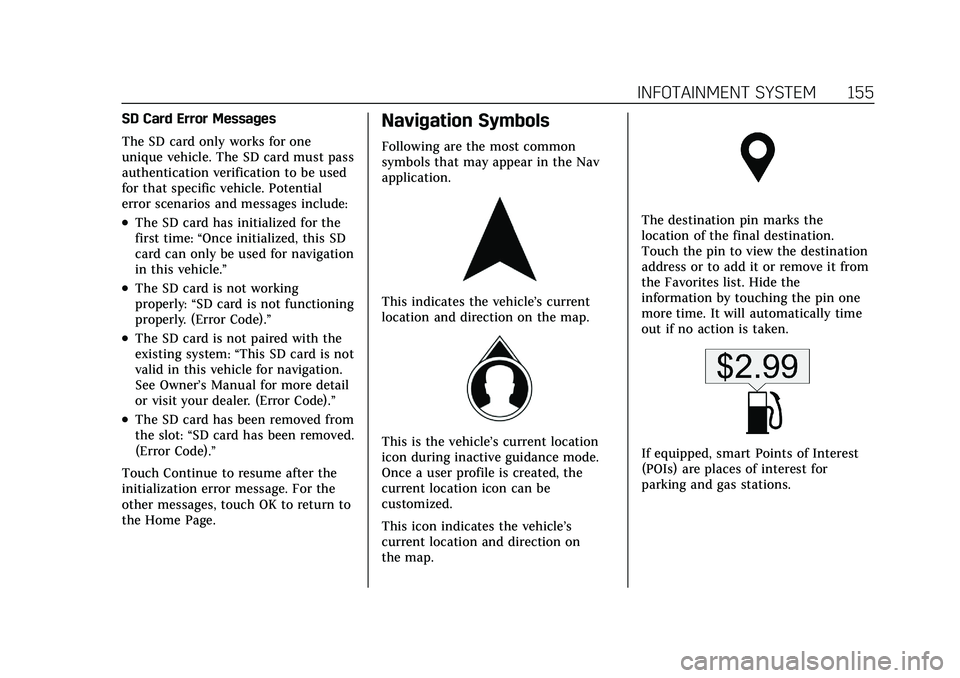
Following are the most common
symbols that may appear in the Nav
application.
This indicates the vehicle’s current
location and direction on the map.
This is the vehicle’s current location
icon during inactive guidance mode.
Once a user profile is created, the
current location icon can be
customized.
This icon indicates the vehicle’s
current location and direction on
the map.
The destination pin marks the
location of the final destination.
Touch the pin to view the destination
address or to add it or remove it from
the Favorites list. Hide the
information by touching the pin one
more time. It will automatically time
out if no action is taken.
If equipped, smart Points of Interest
(POIs) are places of interest for
parking and gas stations.
Page 158 of 408

Cadillac XT4 Owner Manual (GMNA-Localizing-U.S./Canada/Mexico-
14584367) - 2021 - CRC - 10/14/20
INFOTAINMENT SYSTEM 157
Editing a Waypoint
When waypoints are added during
active guidance, the system allows a
stop to be deleted or the order to be
changed. To edit a waypoint:1. Touch
A.
2. Touch Edit Destinations.
.Modify destination order by
touching and holding the arrow
until it is highlighted. Drag to
move the waypoint up or down
the list.
.Delete a waypoint by touching
Y. A pop-up will appear to
confirm waypoint removal. Once
the request is confirmed, the
system will remove the address
from the destinations list. Touch
zon the top right corner so the
system can recalculate the
route.
If there is only one address in
the destinations list, the system
will disable the move and delete
functions. The system will not
allow the final destination to be
deleted.
Map Information
Road network attributes are contained
in the map database for map
information. Attributes include
information such as street names,
street addresses, and turn restrictions.
A detailed area includes all major
highways, service roads, and
residential roads. The detailed areas
include Places of Interest (POIs) such
as restaurants, airports, banks,
hospitals, police stations, gas stations,
tourist attractions, and historical
monuments.
If the vehicle does not have an
applicable service plan, the map
database may not include data for
newly constructed areas or map
database corrections that are
completed after production. The
navigation system provides full route
guidance in the detailed map areas.
Zoom Control
The zoom control display is shown on
the map view. A few ways to zoom in
or out are:
.Touch + or –to zoom in or out on
the map.
.Double tap with one finger to zoom
in or single tap with two fingers to
zoom out on the map.
.Use the index finger and thumb to
zoom out by pinching and then
zoom in by spreading those two
fingers on the map.
Map Gestures and Map Scale
Use the following gestures on the
infotainment display to adjust the
map scale and display options.
.Pinch to zoom in or out.
.Pan the map.
.Use two fingers to tilt down and
change from 2D to 3D. Tilt up to
change back to 2D.
.Rotate the map.
See Using the System 0139.
Mute
When in active guidance, the audio
prompts while using navigation can be
muted. Touch the speaker icon on the
right side of the upper bar. A slash
will appear on the speaker to indicate
voice guidance is muted.
Page 160 of 408

Cadillac XT4 Owner Manual (GMNA-Localizing-U.S./Canada/Mexico-
14584367) - 2021 - CRC - 10/14/20
INFOTAINMENT SYSTEM 159
Directions
Touch the menu option next to the
next turn street name to display
Directions.
Directions displays the turns and
directions from the current location to
the final destination.
Editing Directions
Directions can be edited by choosing
y, which expands the list to fill the
display and enters the Edit Mode.
While in Edit Mode, an unwanted
route segment can be removed from
the route by touching
Ynext to the
segment. A pop-up appears to confirm
segment removal.
When the route segment has been
removed, all segments are replaced by
an activity indicator while the new
route is recalculated. When the
recalculation is complete, the activity
indicator is replaced with the new
route segments. Highway Exits List
TouchCto open the Exit list. This
icon displays next to the current
street name near the bottom of the
display. The icon only appears when
on a highway with defined exits.
While traveling on roads with
designated exits, an Exit list may be
available. The Exit list displays the
exit number, distance to the exit from
the current vehicle position, and
convenience stops that may be
available, such as gas, coffee, food,
and lodging.
Next Maneuver Menu
When in Active Guidance, the Next
Maneuver Turn Arrow, Street Name,
and Maneuver Distance are shown in
the Next Maneuver at the top of the display overlaying the map. ETA,
Distance to Destination, and Traffic
Indicator are displayed in a panel
pinned on the right of the display.
Navigation Next Turn Maneuver
Alert
If the Navigation application is not
open when a near maneuver prompt is
given, it is shown as an alert. Touch
the alert to go to the main navigation
view or touchzto dismiss the alert.
Repeat Voice Guidance
This symbol indicates the next
guidance maneuver. Touch it to repeat
the last spoken guidance instruction.
Incident Alert (If Equipped)
During active guidance, if the system
determines that there is an incident
ahead but there is not a better route,
Page 171 of 408
Cadillac XT4 Owner Manual (GMNA-Localizing-U.S./Canada/Mexico-
14584367) - 2021 - CRC - 10/14/20
170 INFOTAINMENT SYSTEM
Voice Recognition for the Phone
“Call
to a stored contact. The command
may include location if the contact
has location numbers stored.
“Call
Work,” “On Mobile,” or“On
Other” :Initiate a call to a stored
contact and location at home, at work,
on mobile device, or on another
phone.
“Call
a call to a cell phone number of seven
digits, 10 digits, or three digit
emergency numbers.
“Pair Phone ”:Begin the Bluetooth
pairing process. Follow the
instructions on the infotainment
display.
“Redial” :Initiate a call to the last
dialed number.
“Switch Phone ”:Select a different
connected cell phone for outgoing
calls.
“Voice Keypad” :Begin a dialog to
enter special numbers like
international numbers. The numbers can be entered in groups of digits with
each group of digits being repeated
back by the system. If the group of
digits is not correct, the command
“Delete
”will remove the last group of
digits and allow them to be re-entered.
Once the entire number has been
entered, the command “Call”will start
dialing the number.
Phone Assistant Voice
Recognition
Press and holdgon the steering
wheel controls to pass through and
launch Google phone assistant or Siri.
For the low radio, whether connected
by Bluetooth or phone projection, the
only available voice recognition is
either Siri (iPhone) or the Google
Assistant (Android).
Phone
Bluetooth (Overview)
The Bluetooth-capable system can
interact with many mobile devices,
allowing:
.Placement and receipt of calls in a
hands-free mode.
.Sharing of the device’s address book
or contact list with the vehicle.
To minimize driver distraction, before
driving, and with the vehicle parked:
.Become familiar with the features of
the mobile device. Organize the
phone book and contact lists clearly
and delete duplicate or rarely used
entries. If possible, program speed
dial or other shortcuts.
.Review the controls and operation
of the infotainment system.
.Pair mobile device(s) to the vehicle.
The system may not work with all
mobile devices. See “Pairing”later in
this section.
Vehicles with a Bluetooth system can
use a Bluetooth-capable mobile device
with a Hands-Free Profile to make and
receive phone calls. The infotainment
system and voice recognition are used
to control the system. The system can
be used while the ignition is on or in
ACC/ACCESSORY. The range of the
Bluetooth system can be up to 9.1 m
(30 ft). Not all mobile devices support
all functions and not all mobile
Page 173 of 408
Cadillac XT4 Owner Manual (GMNA-Localizing-U.S./Canada/Mexico-
14584367) - 2021 - CRC - 10/14/20
172 INFOTAINMENT SYSTEM
2. Touch the Phone icon on the HomePage or the phone icon on the
shortcut tray near the bottom of
the display.
3. Touch Phones at the top of the infotainment display. There is also
a Connect Phones option in the
middle of the Phone display which
will shortcut to the Phone
List menu.
4. Touch Add Phone.
5. Select the vehicle name shown on the infotainment display from your
cell phone’s Bluetooth Settings list.
6. Follow the instructions on the cell phone to confirm the six-digit code
showing on the infotainment
display and touch Pair. The code on
the cell phone and infotainment
display will need to be
acknowledged for a successful pair.
7. Start the pairing process on the cell phone to be paired to the vehicle.
See the cell phone manufacturer's
user guide for information on this
process. Once the cell phone is
paired, it will show under
Connected. 8. If the vehicle name does not
appear on your cell phone, there
are a few ways to start the pairing
process over:
.Turn the cell phone off and then
back on.
.Go back to the beginning of the
Phone menus on the
infotainment display and restart
the pairing process.
.Reset the cell phone, but this
step should be done as a last
effort.
9. If the cell phone prompts to accept connection or allow phone book
download, touch Always Accept
and Allow. The phone book may
not be available if not accepted.
10. Repeat Steps 1−8 to pair additional cell phones.
First to Connect Paired Phones
If multiple paired cell phones are
within range of the system, the
system connects to the paired cell
phone that is set as First to Connect.
To enable a paired cell phone as the
First to Connect phone: 1. Make sure the cell phone is
turned on.
2. Touch Settings, then touch System.
3. Touch Phones to access all paired and all connected cell phones and
mobile devices.
4. Touch the information icon to the right of the cell phone to open the
cell phone’s settings menu.
5. Touch the First to Connect option, to enable the setting for that
device.
Cell phones and mobile devices can be
added, removed, connected, and
disconnected. A sub-menu will display
whenever a request is made to add or
manage cell phones and mobile
devices.
Secondary Phone
A cell phone can be enabled as a
Secondary Phone by touching the
information icon to the right of the
paired cell phone name to open the
phone settings menu. If a cell phone
is enabled as a Secondary Phone, it
can connect simultaneously alongside
another Bluetooth mobile device. In
doing so, the Secondary Phone will be
Page 185 of 408
Cadillac XT4 Owner Manual (GMNA-Localizing-U.S./Canada/Mexico-
14584367) - 2021 - CRC - 10/14/20
184 INFOTAINMENT SYSTEM
Vehicle
This menu allows adjustment of
different vehicle features. SeeVehicle
Personalization 0120.
Personal
If equipped, this menu allows
adjustment of different user profile
settings. See “Users”in Using the
System 0139 for information on
setting up user profiles.
The menu may contain the following:
Name
Touch to edit your user name that will
be displayed in the vehicle.
Vehicle Account Information
Touch to view the vehicle account
information and to change the
account password.
An “unverified user account ”pop-up
will display until the account
information verification process has
been completed on the Internet.
Check your registered e-mail account
for an activation e-mail to complete
the verification process. Profile Picture
Touch to choose or change your
profile picture.
Profile Identifiers
Touch to have the vehicle recognize
the identifier you choose.
Touch Vehicle Key 1 and/or
Vehicle Key 2.
If the Remote Keyless Entry (RKE)
transmitter is lost or stolen, see your
dealer.
Security
Touch to have your profile secured
with a Personal Identification
Number (PIN).
Touch No or Yes.
Vehicle Name
Touch to edit your vehicle name.
Vehicle Account
Touch to view the vehicle account
information and to change the
account password.
Delete Profile
Touch to remove the profile from the
vehicle.
Touch Remove or Cancel.Teen Driver
If equipped, this allows multiple keys
to be registered for beginner drivers to
encourage safe driving habits. When
the vehicle is started with a Teen
Driver key, it will automatically
activate certain safety systems, allow
setting of some features, and limit the
use of others. The Report Card will
record vehicle data about driving
behavior that can be viewed later.
When the vehicle is started with a
registered key, the Driver Information
Center (DIC) displays a message that
Teen Driver is active.
To access:
1. Touch Settings on the Home Page, then touch Vehicle, and then Teen
Driver.
Page 186 of 408
Cadillac XT4 Owner Manual (GMNA-Localizing-U.S./Canada/Mexico-
14584367) - 2021 - CRC - 10/14/20
INFOTAINMENT SYSTEM 185
2. Create a Personal IdentificationNumber (PIN) by choosing a
four-digit PIN. Re-enter the PIN to
confirm. To change the PIN, touch
Change PIN.
The PIN is required to:
.Register or unregister keys.
.Change Teen Driver settings.
.Change or clear the Teen
Driver PIN.
.Access or delete Report Card data.
Register keys to activate Teen
Driver and assign restrictions to
the key:
Any vehicle key can be registered, up
to a maximum of eight keys. Label the
key to tell it apart from the
other keys.
For a pushbutton start system: 1. Start the engine.
2. For automatic transmissions, the vehicle must be in P (Park). For
manual transmissions, the vehicle
must be stopped with the parking
brake set.
3. From the Settings menu, touch Vehicle and then Teen Driver. 4. Enter the PIN.
5. Place the Remote Keyless Entry
(RKE) transmitter key you wish to
register in the transmitter pocket.
The key does not need to be the
one that started the vehicle. See
Remote Keyless Entry (RKE) System
Operation 07for transmitter
pocket location.
6. From the Teen Driver menu, touch Setup Keys..If the transmitter key has not
previously been registered, the
option to add the key displays.
Touch Setup and a confirmation
message displays. Teen Driver
restrictions will be applied
whenever this key is used to
operate the vehicle.
.If the transmitter key has
already been registered, the
option to remove the key
displays. If Remove is touched,
the transmitter key is no longer
registered. A confirmation
message displays, and Teen
Driver restrictions will not be
applied if this transmitter key is
used to operate the vehicle. In vehicles with a pushbutton start
system, if a Teen Driver and a
non-Teen Driver key are both present
at start up, the vehicle will recognize
the non-Teen Driver key to start the
vehicle. The Teen Driver settings will
not be active.
For a keyed ignition system:
1. Start the engine.
2. For automatic transmissions, the vehicle must be in P (Park). For
manual transmissions, the vehicle
must be stopped with the parking
brake set.
3. From the Settings menu, touch Vehicle and then Teen Driver.
4. Enter the PIN.
5. Touch Setup Keys. The system displays instructions for registering
or unregistering a key.
A confirmation message displays.
Manage Settings
Audio Volume Limit : Allows the
audio volume limit to be turned on or
off. Touch Set Audio Volume Limit to
choose the maximum allowable audio
volume level.
Page 187 of 408
Cadillac XT4 Owner Manual (GMNA-Localizing-U.S./Canada/Mexico-
14584367) - 2021 - CRC - 10/14/20
186 INFOTAINMENT SYSTEM
Set Audio Volume Limit :Allows a
maximum radio volume to be set. Use
the arrows to choose the maximum
allowable level for the audio volume.
Teen Driver Speed Limiter : Limits
the maximum speed of the vehicle.
When the speed limiter is turned on
and the vehicle is started with a Teen
Driver key, the DIC displays a message
that the top speed is limited.
On certain vehicles, when the Speed
Limiter is turned ON, the vehicle’s
maximum acceleration will be limited.
The DIC will display a message that
the acceleration is limited.
Teen Driver Speed Warning : Allows
the speed warning to be turned on or
off. Touch Set Teen Driver Speed
Warning to set the warning speed.
Set Teen Driver Speed Warning :
Displays a warning in the DIC when
exceeding a selectable speed. Choose
the desired speed warning level. The
speed warning does not limit the
speed of the vehicle.
SiriusXM Explicit Content Filter (if
equipped) : Allows the SiriusXM
Explicit Content Filter to be turned ON or OFF. When ON, the teen driver
will not be able to listen to SiriusXM
stations that contain explicit content,
and the Explicit Content Filter
selection in the Audio Settings will be
unavailable for change.
When Teen Driver is Active:
.If equipped with Buckle to Drive,
shifting out of P (Park) will be
prevented if the driver seat belt, and
in some vehicles the front passenger
seat belt, is not buckled.
.The radio will mute when the driver
seat belt, and in some vehicles the
front passenger seat belt, is not
buckled. The audio from any device
paired to the vehicle will also be
muted.
.An object placed on the front
passenger seat, such as a briefcase,
handbag, grocery bag, laptop,
or other electronic device, could
cause the passenger sensing system
to falsely sense an unbuckled front
passenger and mute the radio.
If this happens, remove the object
from the seat. See
Passenger Sensing
System 060.
.Some safety systems, such as
Forward Collision Alert, if equipped,
cannot be turned off.
.The gap setting for the Forward
Collision Alert and Adaptive Cruise
Control, if equipped, cannot be
changed.
.When trying to change a safety
feature that is not configurable in
Teen Driver, the DIC displays a
message indicating that Teen Driver
is active and the action is not
available.
.Super Cruise, if equipped, is not
available.
.Enhanced Low Fuel Warning (if
equipped) –When the vehicle is low
on fuel, the low fuel light on the
instrument cluster flashes and the
DIC low fuel warning cannot be
dismissed.
.Do not tow a trailer.
Report Card
The vehicle owner must secure the
driver’s consent to record certain
vehicle data when the vehicle is driven
with a registered Teen Driver key.
There is one Report Card per vehicle.