radio CHEVROLET CAVALIER 2003 3.G Owner's Manual
[x] Cancel search | Manufacturer: CHEVROLET, Model Year: 2003, Model line: CAVALIER, Model: CHEVROLET CAVALIER 2003 3.GPages: 364, PDF Size: 2.44 MB
Page 152 of 364

Playing the Radio
PWR (Power):Press this knob to turn the system on
and off.
VOL (Volume):Turn the knob to increase or to
decrease volume.
AUTO VOL (Automatic Volume):With automatic
volume, your audio system adjusts automatically
to make up for road and wind noise as you drive.
Set the volume at the desired level. Press this button to
select LOW, MEDIUM or HIGH. AVOL will appear on
the display. Each higher setting will allow for more
volume compensation at faster vehicle speeds. Then as
you drive, automatic volume increases the volume as
necessary to overcome noise at any speed. The volume
level should always sound the same to you as you
drive. NONE will appear on the display if the radio
cannot determine the vehicle speed. If you don't want to
use automatic volume, select OFF.DISPL (Display):Press this button to switch the
display between radio station frequency and time. Time
display is available with the ignition turned off.
For RDS, press this button to change what appears on
the display while using RDS. The display options
are station name, RDS station frequency, PTY and the
name of the program (if available).
For XMŸ (USA only, if equipped), press this button
while in XMŸ mode to retrieve four different categories
of information related to the current song or channel:
Artist, Song Title, Category or PTY, Channel
Number/Channel Name.
To change the default on the display, press this button
until you see the display you want, then hold this
button for two seconds. The radio will produce one beep
and the selected display will now be the default.
3-50
Page 153 of 364

Finding a Station
BAND:Press this button to switch between FM1, FM2,
AM or XM1, XM2 (USA only, if equipped). The display
will show your selection.
TUNE:Turn this knob to choose radio stations.
qSEEKr:Press the right or the left arrow to seek
to the next or to the previous station and stay there.
The radio will seek only to stations that are in the
selected band and only to those with a strong signal.
qPSCAN (Preset Scan)r:Press and hold one of
the arrows for more than two seconds and the radio
will produce one beep. The radio will scan to the
®rst preset station stored on the pushbuttons, play for a
few seconds and ¯ash the station frequency, then go
on to the next preset station. SCAN will be displayed.
Press one of the arrows again or one of the pushbuttons
to stop scanning presets.
The radio will scan only to the preset stations that are in
the selected band and only to those with a strong
signal.
Setting Preset Stations
The six numbered pushbuttons let you return to your
favorite stations. You can set up to 30 stations (six FM1,
six FM2, and six AM, six XM1 and six XM2 (USA
only, if equipped), by performing the following steps:
1. Turn the radio on.
2. Press BAND to select FM1, FM2, AM or XM1,
or XM2.
3. Tune in the desired station.
4. Press AUTO TONE to choose the bass and treble
equalization that best suits the type of station you
are listening to.
5. Press and hold one of the six numbered
pushbuttons. The radio will produce one beep.
Whenever you press that numbered pushbutton, the
station you set will return and the bass and treble
equalization that you selected will also be
automatically selected for that pushbutton.
6. Repeat the steps for each pushbutton.
3-51
Page 154 of 364

Setting the Tone (Bass/Treble)
AUDIO:Push and release the AUDIO knob until BASS
or TREB appears on the display. Turn the knob to
increase or to decrease. The display will show the bass
or the treble level. If a station is weak or noisy, you
may want to decrease the treble.
To adjust the bass and the treble to the middle position,
push and hold the AUDIO knob. The radio will produce
one beep and adjust the display level to the middle
position.
To adjust all tone and speaker controls to the middle
position, push and hold the AUDIO knob when no tone
or speaker control is displayed. You will hear one
beep and the radio will display ALL. The bass and the
treble will be adjusted to the middle position.
AUTO TONE (Automatic Tone):Press this button to
choose bass and treble equalization settings designed
for country/western, jazz, talk, pop, rock and classical
stations.
To return the bass and treble to the manual mode, push
and release the AUDIO knob until MANUAL is
displayed.
Adjusting the Speakers (Balance/Fade)
AUDIO:To adjust the balance between the right
and the left speakers, push and release the AUDIO
knob until BAL appears on the display. Turn the knob to
move the sound toward the right or the left speakers.
To adjust the fade, push and release the AUDIO
knob until FADE appears on the display. Turn the knob
to move the sound toward the front or the rear
speakers.
To adjust the balance and the fade to the middle
position, push the AUDIO knob, then push it again and
hold it until you hear one beep. The balance and the
fade will be adjusted to the middle position and the
display will show the speaker balance.
To adjust all tone and speaker controls to the middle
position, push and hold the AUDIO knob when no tone
or speaker control is displayed. The radio will produce
one beep and display ALL with the level display in
the middle position.
3-52
Page 155 of 364

Finding a PTY Station (RDS and XMŸ)
To select and ®nd a desired PTY perform the following:
1. Press the P-TYPE knob. TYPE and a PTY will
appear on the display.
2. Select a category by turning the P-TYPE knob.
3. Once the desired category is displayed, press the
SEEK TYPE button to take you to the category's
®rst station.
4. If you want to go to another station within that
category and the category is displayed, press the
SEEK TYPE button once. If the category is not
displayed, press the SEEK TYPE button twice to
display the category and then to go to another
station.
If the radio cannot ®nd the desired program type, NONE
will appear on the display and the radio will return to
the last station you were listening to.
BAND (Alternate Frequency):Alternate frequency
allows the radio to switch to a stronger station with the
same program type. Press and hold BAND for two
seconds to turn alternate frequency on. AF ON
will appear on the display. The radio may switch to
stronger stations. Press and hold BAND again for two
seconds to turn alternate frequency off. AF OFF
will appear on the display. The radio will not switch to
other stations.
This function does not apply for XMŸ.
RDS Messages
ALERT!:Alert warns of local or national emergencies.
When an alert announcement comes on the current
radio station, ALERT! will appear on the display. You will
hear the announcement, even if the volume is muted
or a compact disc is playing. If the compact disc player
is playing, play will stop during the announcement.
You will not be able to turn off alert announcements.
ALERT! will not be affected by tests of the emergency
broadcast system. This feature is not supported by
all RDS stations.
INFO (Information):If the current station has a
message, the information symbol will appear on the
display. Press this button to see the message. The
message may display the artist and song title, call in
phone numbers, etc.
3-53
Page 156 of 364

If the whole message is not displayed, parts of it will
appear every three seconds. To scroll through the
message at your own speed, press the INFO button
repeatedly. A new group of words will appear on
the display with each press. Once the complete
message has been displayed, the information symbol
will disappear from the display until another new
message is received. The old message can be displayed
by pressing the INFO button until a new message is
received or a different station is tuned to.
When a message is not available from a station, NO
INFO will be displayed.
TRAF (Traffic):If TRAF appears on the display, the
tuned station broadcasts traffic announcements
and when a traffic announcement comes on the tuned
radio station you will hear it.
If the current tuned station does not broadcast traffic
announcements, press this button and the radio
will seek to a station that does. When the radio ®nds a
station that broadcasts tra®ic announcements, it will
stop and TRAF will be displayed. When a traffic
announcement comes on the tuned radio station you
will hear it. If no station is found, NO TRAF will appear
on the display.If TRAF is on the display you can press the TRAF
button to turn of the traffic announcements.
Your radio will play the traffic announcement even if the
volume is muted or interrupt the play of a CD if the
last tuned station broadcasts traffic announcements.
This function does not apply to XMŸ Satellite Radio
Service.
Radio Messages
CAL ERR (Calibration Error):This message is
displayed when the radio has not been calibrated
properly for the vehicle. You must return to the
dealership for service.
LOCKED:This message is displayed when the
THEFTLOCK
žsystem has locked up. You must return
to the dealership for service.
If any error occurs repeatedly or if an error can't be
corrected, contact your dealer.
3-54
Page 157 of 364
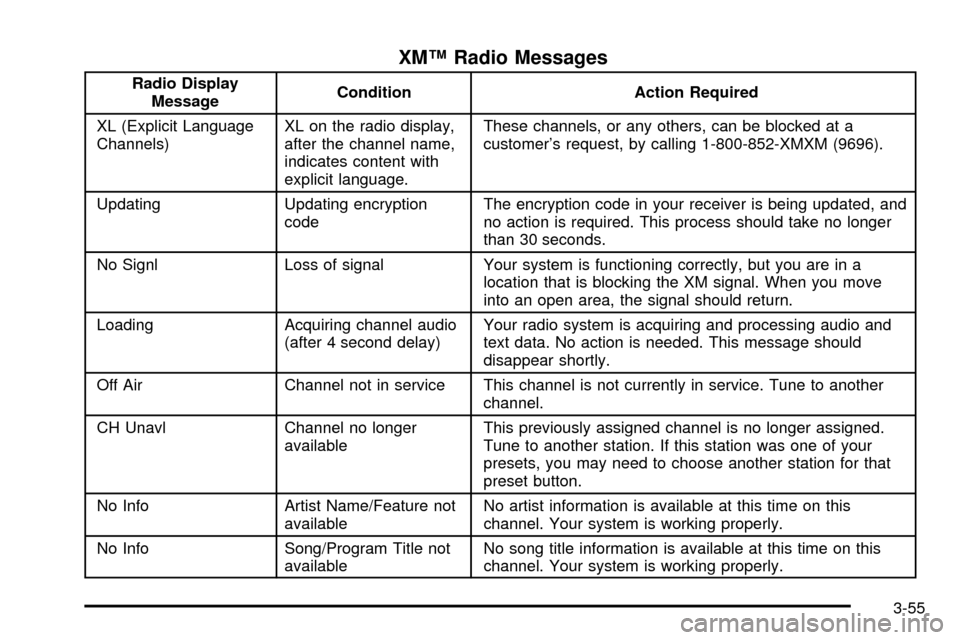
XMŸ Radio Messages
Radio Display
MessageCondition Action Required
XL (Explicit Language
Channels)XL on the radio display,
after the channel name,
indicates content with
explicit language.These channels, or any others, can be blocked at a
customer's request, by calling 1-800-852-XMXM (9696).
Updating Updating encryption
codeThe encryption code in your receiver is being updated, and
no action is required. This process should take no longer
than 30 seconds.
No Signl Loss of signal Your system is functioning correctly, but you are in a
location that is blocking the XM signal. When you move
into an open area, the signal should return.
Loading Acquiring channel audio
(after 4 second delay)Your radio system is acquiring and processing audio and
text data. No action is needed. This message should
disappear shortly.
Off Air Channel not in service This channel is not currently in service. Tune to another
channel.
CH Unavl Channel no longer
availableThis previously assigned channel is no longer assigned.
Tune to another station. If this station was one of your
presets, you may need to choose another station for that
preset button.
No Info Artist Name/Feature not
availableNo artist information is available at this time on this
channel. Your system is working properly.
No Info Song/Program Title not
availableNo song title information is available at this time on this
channel. Your system is working properly.
3-55
Page 158 of 364
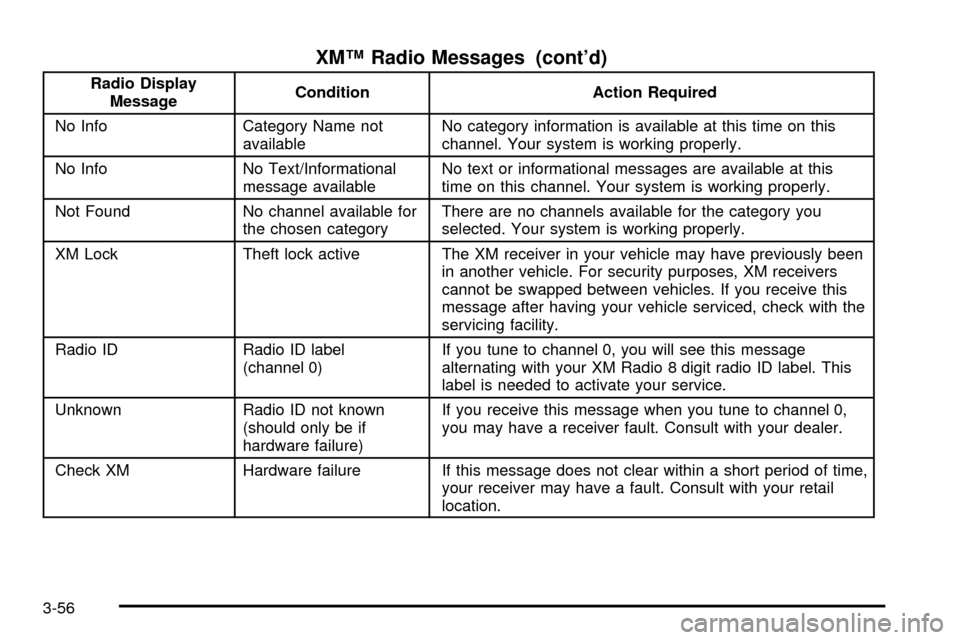
XMŸ Radio Messages (cont'd)
Radio Display
MessageCondition Action Required
No Info Category Name not
availableNo category information is available at this time on this
channel. Your system is working properly.
No Info No Text/Informational
message availableNo text or informational messages are available at this
time on this channel. Your system is working properly.
Not Found No channel available for
the chosen categoryThere are no channels available for the category you
selected. Your system is working properly.
XM Lock Theft lock active The XM receiver in your vehicle may have previously been
in another vehicle. For security purposes, XM receivers
cannot be swapped between vehicles. If you receive this
message after having your vehicle serviced, check with the
servicing facility.
Radio ID Radio ID label
(channel 0)If you tune to channel 0, you will see this message
alternating with your XM Radio 8 digit radio ID label. This
label is needed to activate your service.
Unknown Radio ID not known
(should only be if
hardware failure)If you receive this message when you tune to channel 0,
you may have a receiver fault. Consult with your dealer.
Check XM Hardware failure If this message does not clear within a short period of time,
your receiver may have a fault. Consult with your retail
location.
3-56
Page 160 of 364

4 FWD (Forward):Press and hold this pushbutton to
advance quickly within a track. Press and hold this
pushbutton for less than two seconds to advance at six
times the normal playing speed. Press and hold it for
more than two seconds to advance at 17 times the
normal playing speed. Release it to play the track. The
display will show ET and the elapsed time.
6 RDM (Random):Press this pushbutton to hear the
tracks in random, rather than sequential, order. RDM ON
will appear on the display. RDM T and the track
number will appear on the display when each track
starts to play. Press RDM again to turn off random play.
RDM OFF will appear on the display.
oSEEKp:Press the left arrow to go to the start of
the current or of the previous track. Press the right
arrow to go to the start of the next track. If either of the
arrows is held or pressed more than once, the player
will continue moving backward or forward through
the CD.TUNE:Turning the TUNE knob will fast track reverse or
advance through tracks. The track number will be
shown for each track.
DISPL (Display):Press this button to see how long the
current track has been playing. ET and the elapsed
time will appear on the display. To change the default
on the display (track or elapsed time), press this
button until you see the display you want, then hold the
button for two seconds. The radio will produce one
beep and the selected display will now be the default.
BAND:Press this button to listen to the radio when
a CD is playing. The CD will stop but remain in
the player.
CD AUX (Auxiliary):Press this button to play a CD
when listening to the radio.
ZEJT (Eject):Press this button to eject a CD. Eject
may be activated with either the ignition or radio off.
CDs may be loaded with the radio and ignition off if this
button is pressed ®rst.
3-58
Page 161 of 364

Using a MP3 Disc
MP3 Format
This MP3 player will accept MP3 ®les that were recorded
on an up to 700 MB CD-R disc. The ®les can be
recorded with the following ®xed bit rates: 32 kbps,
40 kpbs, 56 kpbs, 64 kpbs, 80 kpbs, 96 kpbs, 112 kpbs,
128 kpbs, 160 kpbs, 192 kpbs, 224 kpbs,
256 kpbs and 320 kpbs or a variable bit rate. Song title,
artist name and album will be available when recorded
using ID3 tags versions 1 and 2.
The player will be able to read and play a maximum of
50 folders, 50 playlists, 10 sessions and 255 ®les.
Long ®le, folder or playlist names or a combination of a
large number of ®les and folders or playlists may
cause the player to be unable to play up to the
maximum number of ®les, folders, playlists or sessions.
If you wish to play large numbers of ®les, folders,
playlists or sessions minimize the length of the ®le,
folder or playlist names. You can also play a MP3 disc
that was recorded using no ®le folders. The system
can support up to 11 folders in depth, though, keep the
depth of the folders to a minimum in order to keep
down the complexity and confusion in trying to locate a
particular folder during playback. If a disc contains
more than the maximum of 50 folders, 50 playlists,
10 sessions and 255 ®les the player will let you access
and navigate up to the maximum, but all items over
the maximum will be ignored.
Root Directory
The root directory will be treated as a folder. If the root
directory has compressed audio ®les, the directory
will be displayed as F1 ROOT. All ®les contained directly
under the root directory will be accessed prior to any
root directory folders. However, playlists (Px) will always
be accessed before root folders or ®les.
Empty Directory or Folder
If a root directory or a folder exists somewhere in the
®le structure that contains only folders/subfolders and no
compressed ®les directly beneath them, the player will
advance to the next folder in the ®le structure that
contains compressed audio ®les and the empty folder
will not be displayed or numbered.
No Folder
When the disc contains only compressed ®les, the ®les
will be located under the root folder. The next and
previous folder functions will have no function on a disc
that was recorded without folders or playlists. When
displaying the name of the folder the radio will display
ROOT.
When the disc contains only playlists and compressed
audio ®les, but no folders, all ®les will be located
under the root folder. The folder down and the folder up
buttons will search playlists (Px) ®rst and then go to
the root folder. When the radio displays the name of the
folder the radio will display ROOT.
3-59
Page 162 of 364

Order of Play
Tracks will be played in the following order:
·Play will begin from the ®rst track in the ®rst playlist
and will continue sequentially through all tracks in
each playlist. When the last track of the last playlist
has been played, play will continue from the ®rst
track of the ®rst playlist.
·If the disc does not contain any playlists, then play
will begin from the ®rst track under the root
directory. When all tracks from the root directory
have been played, play will continue from ®les
according to their numerical listing. After playing the
last track from the last folder, play will begin
again at the ®rst track of the ®rst folder or root
directory.
When play enters a new folder, the display will not
automatically show the new folder name unless
you have chosen the folder mode as the default display,
see DISPL later in this section. The new track name
will be displayed
File System and Naming
The song name that will be dislayed will be the song
name that is contained in the ID3 tag. If the song name
is not present in the ID3 tag, then the radio will
display the ®le name without the extension (such
as.mp3) as the track name.Track names longer than 32 characters or 4 pages will
be shortened. The display will not show parts of
words on the last page of text and the extension of the
®lename will not be displayed.
Preprogrammed Playlists
You can access preprogrammed playlists which were
created by WinAmpŸ, MusicMatchŸ or Real JukeboxŸ
software, however, you will not have editing capability.
These playlists will be treated as special folders
containing compressed audio song ®les.
Playing a MP3
Insert a disc partway into the slot, label side up. The
player will pull it in, READING will be displayed and the
disc will begin to play after the player has read the
table of contents and the ®le structure and determined
where the ®rst playable track is located. After the
MP3 has been read, the number of folders and tracks
will be displayed, then the radio will go back to the
default display. The display will show the CD symbol. If
you want to insert a MP3 with the ignition off, ®rst
press DISPL or EJT.
The integral CD player can play the smaller 8 cm single
discs with an adapter ring. Full-size compact discs
and the smaller discs are loaded in the same manner.
3-60