display CHEVROLET CITY EXPRESS 2018 User Guide
[x] Cancel search | Manufacturer: CHEVROLET, Model Year: 2018, Model line: CITY EXPRESS, Model: CHEVROLET CITY EXPRESS 2018Pages: 287, PDF Size: 4.19 MB
Page 111 of 287
Chevrolet City Express Owner Manual (GMNA-Localizing-U.S./Canada-
11683523) - 2018 - CRC - 7/10/17
110 Infotainment System
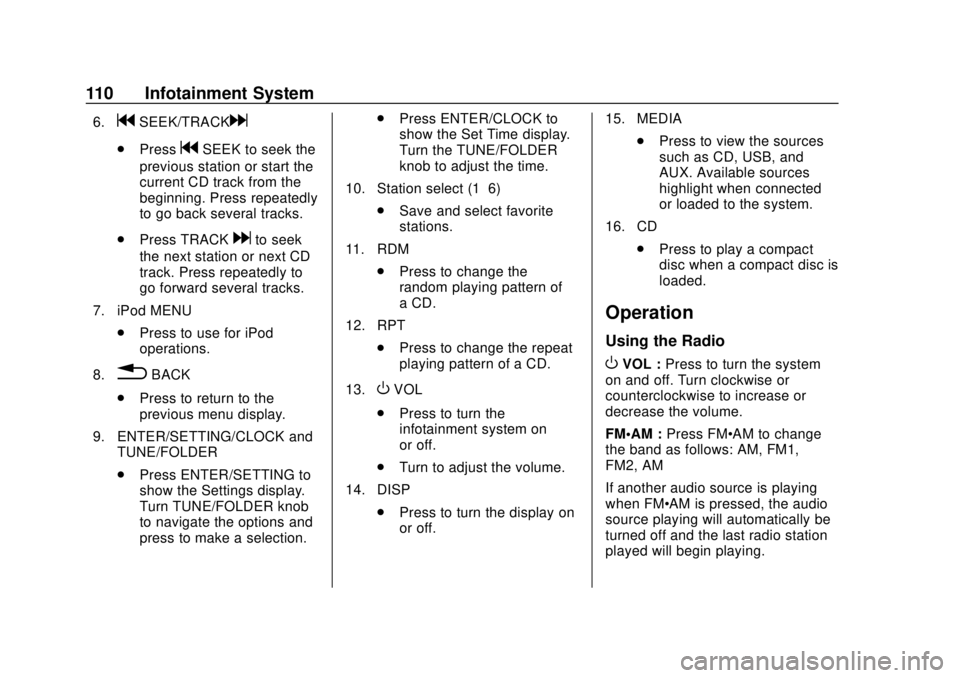
6.gSEEK/TRACKd
.PressgSEEK to seek the
previous station or start the
current CD track from the
beginning. Press repeatedly
to go back several tracks.
. Press TRACK
dto seek
the next station or next CD
track. Press repeatedly to
go forward several tracks.
7. iPod MENU .Press to use for iPod
operations.
8.
0BACK
. Press to return to the
previous menu display.
9. ENTER/SETTING/CLOCK and TUNE/FOLDER
.Press ENTER/SETTING to
show the Settings display.
Turn TUNE/FOLDER knob
to navigate the options and
press to make a selection. .
Press ENTER/CLOCK to
show the Set Time display.
Turn the TUNE/FOLDER
knob to adjust the time.
10. Station select (1–6) .Save and select favorite
stations.
11. RDM .Press to change the
random playing pattern of
a CD.
12. RPT .Press to change the repeat
playing pattern of a CD.
13.OVOL
. Press to turn the
infotainment system on
or off.
. Turn to adjust the volume.
14. DISP .Press to turn the display on
or off. 15. MEDIA
.Press to view the sources
such as CD, USB, and
AUX. Available sources
highlight when connected
or loaded to the system.
16. CD .Press to play a compact
disc when a compact disc is
loaded.
Operation
Using the Radio
OVOL : Press to turn the system
on and off. Turn clockwise or
counterclockwise to increase or
decrease the volume.
FM·AM : Press FM·AM to change
the band as follows: AM, FM1,
FM2, AM
If another audio source is playing
when FM·AM is pressed, the audio
source playing will automatically be
turned off and the last radio station
played will begin playing.
Page 112 of 287

Chevrolet City Express Owner Manual (GMNA-Localizing-U.S./Canada-
11683523) - 2018 - CRC - 7/10/17
Infotainment System 111
TUNE/FOLDER :Turn the TUNE/
FOLDER knob to the left or right for
manual tuning.
Radio Settings
To adjust the various radio settings:
ENTER/SETTING/CLOCK and
TUNE/FOLDER:
1. Press to show the SETTINGS display.
2. Turn the TUNE/FOLDER knob to navigate the options and
press ENTER/SETTING/
CLOCK to make a selection.
3. Press to show the CLOCK display. Turn the TUNE/
FOLDER knob to select Set
Time to adjust the time. Press
ENTER/SETTING/CLOCK to
confirm the adjustment.
4. Press
0BACK to go to the
previous display.
If ENTER/SETTING/CLOCK is not
pressed for approximately
10 seconds, the radio or CD display
will automatically reappear. Press ENTER/SETTING/CLOCK
and the following will appear on the
Setting display:
.
Bass: Adjusts the bass to the
desired level.
. Treble: Adjusts the treble to the
desired level.
. Balance: Adjusts the balance to
the desired level. Balance
adjusts the sound level between
the left and right speakers.
. Fade: Adjusts the fade to the
desired level. Fade adjusts the
sound level between the front
and rear speakers. The vehicle
is not equipped with rear
speakers. If fade is adjusted to
the rear no sound will be heard.
. Speed Sens Vol. (Speed
Sensitive Volume): Adjusts the
speed sensitive volume function,
which increases the volume of
the audio system as the speed
of the vehicle increases. Set to
“OFF” to disable the feature. The
higher the setting, the more the
volume increases in relation to
vehicle speed. .
AUX Vol.: Choose a setting from
0 to +3 to control the boost of
the incoming auxiliary device
volume. A setting of 0 provides
no additional boost in volume.
A setting of +3 provides the
greatest boost in volume.
. Brightness and Contrast: Adjusts
the brightness or contrast
appearance of the infotainment
display.
. Clock: Allows the user to set
time manually. See Clock083.
. On-Screen Clock: Select ON or
OFF to display the clock on the
upper right corner of the
infotainment display.
. RDS Display: Select ON or OFF
to display the RDS information
on the infotainment display while
the radio is playing.
. Language: Select the desired
language that will display on the
radio.
Page 113 of 287
Chevrolet City Express Owner Manual (GMNA-Localizing-U.S./Canada-
11683523) - 2018 - CRC - 7/10/17
112 Infotainment System
Radio
AM-FM Radio
Finding a Station
Manual Tuning
Turn the TUNE/FOLDER knob to
the left or right for manual tuning.
Seek Tuning
Press
gSEEK or TRACKdto
tune the radio stations and to stop
at the next broadcasting station.
Scan Tuning
Press SCAN to stop at each
broadcasting station for
five seconds. SCAN will appear on
the display while the radio is scan
tuning.
Pressing SCAN again during this
five second period will stop scan
tuning and the radio will remain
tuned to that station. If SCAN is not
pressed within five seconds, scan
tuning moves to the next station.
Storing a Favorite Station
Set up radio station favorites while
the vehicle is parked.
Up to 18 stations (six FM1, six FM2,
and six AM), can be programmed on
the six numbered presets.
To store a station as a favorite:
1. Select the desired radio band AM, FM1, or FM2.
2. Tune to the desired radio station.
3. Press and hold any of the preset numbers (1 –6) until the
preset is updated on the
infotainment display and the
sound is briefly muted.
4. The station indicator will then come on and the sound will
resume. Programming is now
complete.
5. Other controls can be set in the same manner.
Radio Reception
Frequency interference and static
can occur during normal radio
reception if items such as cell phone
chargers, vehicle convenience
accessories, and external electronic
devices are plugged into the
accessory power outlet. If there is
interference or static, unplug the
item from the accessory power
outlet.
AM
The range for most AM stations is
greater than for FM, especially at
night. The longer range can cause
station frequencies to interfere with
each other. For better radio
reception, most AM radio stations
boost the power levels during the
day, and then reduce these levels
during the night. Static can also
occur when things like storms and
power lines interfere with radio
reception. When this happens, try
reducing the treble on the radio.
Page 115 of 287
Chevrolet City Express Owner Manual (GMNA-Localizing-U.S./Canada-
11683523) - 2018 - CRC - 7/10/17
114 Infotainment System
sometimes cannot function when
the vehicles interior temperature is
extremely high or low. Decrease/
increase the temperature
before use.
Caution
Do not force a compact disc into
the CD insert slot. This could
damage the CD and/or CD player.
Trying to load a CD with the CD
door closed could damage the CD
and/or CD player. Only one CD
can be loaded into the CD player
at a time.
If an error displays, see “CD Player
Messages” later in this section.
Care of CDs
Handle them carefully. Store CDs in
their original cases or other
protective cases and away from
direct sunlight and dust. The CD
player scans the bottom surface of
the disc. Do not touch the bottom
side of a CD while handling it; this could damage the surface. Pick up
CDs by the outer edges or the edge
of the hole and the outer edge.
If the surface of a CD is soiled,
clean it with a soft, lint-free cloth or
dampen a clean, soft cloth in a mild,
neutral detergent solution mixed
with water. Make sure the wiping
process starts from the center to
the edge.
The following CDs may not work
properly: Copy control compact
discs (CCCD), Recordable compact
discs (CD-R), and Rewritable
compact discs (CD-RW).
Do not use the following CDs as
they may cause the CD player to
malfunction, 8 cm (3.1 in) discs with
an adapter, CDs that are not round,
CDs with a paper label, CD that are
damaged, such as cracked, broken,
scratched, or with abnormal edges.
Inserting a CD
Insert a CD partway into the slot,
label side up. The player pulls it in
and the CD should begin playing.
Ejecting a CD
X:
When pressed with a compact
disc loaded, the compact disc will
eject and the last source will be
played. When pressed twice with a
compact disc loaded, the compact
disc will be ejected further for easier
CD removal. If the disc is not
removed within 20 seconds, the disc
will reload.
Playing a CD
If the radio is already operating, it
automatically turns off and the
compact disc begins to play.
MEDIA : Press until the CD mode is
appears on the display when a CD
is loaded.
gSEEK/TRACKd: Press and
hold
gordfor 1.5 seconds while
the compact disc is playing to
reverse or fast forward the track
being played. The compact disc
plays at an increased speed while
reversing or fast forwarding. When
the control is released, the compact
disc returns to normal play speed.
Page 116 of 287
Chevrolet City Express Owner Manual (GMNA-Localizing-U.S./Canada-
11683523) - 2018 - CRC - 7/10/17
Infotainment System 115
Pressgwhile a CD or MP3/WMA
CD is playing to return to the
beginning of the current track.
Press
gseveral times to skip
backward several tracks. Press
d
while a CD or MP3/WMA CD is
playing to advance one track. Press
dseveral times to skip forward
several tracks. If the last track on a
CD is skipped, the first track on the
disc is played. If the last track in a
folder of an MP3/WMA CD is
skipped, the first track of the next
folder is played.
RDM : While a compact disc is
playing, the play pattern can be
changed as follows:
CD: Press to change the playing
pattern of the CD between Disc
Random and OFF.
CD with MP3 or WMA: Press to
change the playing pattern of the
CD between Disc Random, Folder
Random, and OFF.
The current play pattern of the CD is
displayed unless no pattern is
applied. RPT :
While a compact disc is
playing, the play pattern can be
changed as follows:
CD: Press to change the playing
pattern of the CD between Track
Repeat and OFF.
CD with MP3 or WMA: Press to
change the playing pattern of the
CD between Folder Repeat, Track
Repeat, and OFF.
The current play pattern of the CD is
displayed unless no pattern is
applied.
TUNE/FOLDER (MP3/WMA CD
only) : If a MP3/WMA CD with
multiple folders is playing, turn the
TUNE/FOLDER knob to change
folders. Turn the knob to the left to
skip back a folder. Turn the knob to
the right to skip ahead a folder.
CD/MP3 display mode : While
listening to an MP3/WMA CD,
certain text may be displayed if the
CD has been encoded with text
information. Depending on how the
MP3/WMA CD is encoded,
information such as Artist, Song and
Folder will be displayed. The track number and the total
number of tracks in the current
folder or on the current disc are
displayed as well.
MP3-Supported Files
Radios with CD/MP3 have the
capability of playing CD, CD-R,
or CD-RW disc.
Format
Radios that have the capability of
playing MP3s can play .mp3 or .wma
files that were recorded onto a
CD-R or CD-RW disc. The files can
be recorded with the following fixed
bit rates: 8 kbps, 48 kbps,192 kbps,
and 320 kbps or a variable bit rate.
CD-R- or CD-RW-Supported File
and Folder Structure
The radio supports:
.
Up to eight folders in depth.
. Up to 255 folders.
. Up to 512 files.
. Up to 255 files for one folder.
Page 117 of 287
Chevrolet City Express Owner Manual (GMNA-Localizing-U.S./Canada-
11683523) - 2018 - CRC - 7/10/17
116 Infotainment System
Root Folder
If there is a file in the top level of the
disc,“Root Folder” is displayed.
Empty Folder
Folders that do not contain files are
skipped, and the player advances to
the next folder that contains files.
Order of Play
The playback order is the order in
which the files were written by the
writing software. Therefore, the files
may not play in the desired order.
File System and Naming
The artist/song title that displays is
the artist/song title contained in the
ID3 tag. The ID3 tag information is
displayed on the artist/song title line
on the screen.
Text character limit is
128 characters.CD Player Messages
CHECK DISC : If this message
displays and/or the CD ejects, it
could be for one of the following
reasons:
. Confirm that the CD is inserted
correctly (the label side is facing
up, etc.).
. Confirm that the CD is not bent
or warped and it is free of
scratches.
PRESS EJECT : This is an error
due to excessive temperature inside
the player. Remove the CD by
pressing
X. After a short time,
reinsert the CD. The CD can be
played when the temperature of the
player returns to normal.
UNPLAYABLE : The file is
unplayable in this audio system
(only MP3 or WMA CD).
If the CD is not playing correctly, for
any other reason, try a known
good CD.
USB Port
USB Supported Devices
This vehicle has a USB port on the
center stack. If the USB supports
charging via a USB connection, its
battery will be charged while
connected to the vehicle with the
ignition on or in ACC/Accessory.
External devices such as iPhones/
iPods and USB storage devices
may be connected.
This system supports various USB
memory devices, USB hard drives
and iPod players. Some USB
devices may not be supported by
this system. Partitioned USB
devices may not play correctly.
USB Device Operation
When a compatible storage device
is plugged into the connection port,
compatible audio files on the
storage device can be played
through the vehicle’ s audio system.
Page 118 of 287
Chevrolet City Express Owner Manual (GMNA-Localizing-U.S./Canada-
11683523) - 2018 - CRC - 7/10/17
Infotainment System 117
MEDIA
Turn the ignition on or in ACC/
ACCESSORY and press MEDIA on
the center stack to switch to the
USB input mode. If a CD is playing
or another audio source is plugged
in through the AUX IN jack located
in the center stack, MEDIA toggles
between the three sources.
Play Information
Information about the audio files
being played can be displayed on
the display screen of the vehicle’s
audio system. Depending on how
the audio files are encoded,
information such as Folder, Song
and Artist will be displayed.
The track number and number of
total tracks in the folder are
displayed as well.
gSEEK/TRACKd(Reverse or
Fast Forward)
Press and hold
gordfor
1.5 seconds while an audio file on
the USB device is playing to reverse
or fast forward the track being
played. The track plays at an increased speed while reversing or
fast forwarding. When the control is
released, the audio file returns to
normal play speed.
gSEEK/TRACKd
Pressgwhile an audio file on the
USB device is playing to return to
the beginning of the current track.
Press
gseveral times to skip
backward several tracks.
Press
dwhile an audio file on the
USB device is playing to advance
one track. Press
dseveral times to
skip forward several tracks. If the
last track in a folder on the USB
device is skipped, the first track of
the next folder is played.
RDM (Random)
When RDM is pressed while an
audio file on the USB device is
playing, the play pattern can be
changed between All Random,
Folder Random, and OFF.
The current play pattern of the USB
device is displayed unless no
pattern is applied. RPT (Repeat)
When RPT is pressed while an
audio file on the USB device is
playing, the play pattern can be
changed between Folder Repeat,
Track Repeat, and OFF.
The current play pattern of the USB
device is displayed unless no
pattern is applied.
TUNE/FOLDER
If there are multiple folders with
audio files on the USB device, turn
TUNE/FOLDER to change folders.
Turn to the left to skip back a folder.
Turn to the right to skip ahead a
folder. If there is only one folder of
audio files on the USB device,
turning TUNE/FOLDER in either
direction will return to the first track
on the USB device.
iPod Player Operation
To connect an iPod to the vehicle so
that the iPod can be controlled with
the audio system controls and
display screen, use the USB
connection port located on the
center stack below the heater and
Page 120 of 287
Chevrolet City Express Owner Manual (GMNA-Localizing-U.S./Canada-
11683523) - 2018 - CRC - 7/10/17
Infotainment System 119
This input jack is not an audio
output; do not plug headphones into
the auxiliary input jack.
Drivers are encouraged to set up
any auxiliary device while the
vehicle is in P (Park). See
Defensive Driving0134 for more
information on driver distraction.
To use a portable audio player,
connect a 3.5 mm (1/8 in) cable to
the auxiliary input jack.
For optimal sound quality, increase
the portable audio device's volume
to the loudest level.
It is always best to power the
portable audio device through its
own battery while playing.
Bluetooth Audio
A compatible Bluetooth audio
device that is capable of playing
audio files can be connected to the
infotainment system so that the
audio files on the device play
through the vehicle’ s speakers. Connecting Bluetooth Audio
To connect a Bluetooth audio device
to the vehicle, follow the procedure
below:
1. Press ENTER/SETTING.
2. Select “Bluetooth”.
3. Select “Add Phone or Device”.
This same display can be
accessed to remove, replace or
select a different Bluetooth
device.
4. The system acknowledges the command and asks you to
initiate connecting from the
phone handset. The connecting
procedure of the cell phone
varies according to each cell
phone model. For additional
information, refer to the cell
phone Owner ’s Manual. Audio Main Operation
To switch to the Bluetooth audio
mode, press MEDIA repeatedly until
the Bluetooth audio mode is
displayed.
The controls for the Bluetooth audio
are showing on the display. Use the
Preset 3 control for play and the
Preset 4 control for pause.
Steering Wheel Controls
See
Steering Wheel Controls 082.
Page 129 of 287
Chevrolet City Express Owner Manual (GMNA-Localizing-U.S./Canada-
11683523) - 2018 - CRC - 7/10/17
128 Infotainment System
3. Browse the menu bypressing
QTUNE/FF-REW
FOLDER
Rup or down. The
system will speak the current
menu option. Depending on the
audio display, it will also show
the current menu option.
4. Press
g Vto select the menu
option.
5. Press
Vto go back to the
previous menu.
6. Press and hold
Vfor
five seconds to exit.
Trademarks and
License Agreements
FCC Information
See Radio Frequency Statement
0 273.
“Made for iPod” and“Made for
iPhone” mean that an electronic
accessory has been designed to
connect specifically to iPod or
iPhone and has been certified by
the developer to meet Apple
performance standards. iPod and iPhone are trademarks of
Apple Computer, Inc., registered in
the U.S. and other countries.
Bluetooth
The Bluetooth word mark and logos
are owned by the Bluetooth SIG,
Inc. and any use of such marks by
General Motors is under license.
Other trademarks and trade names
are those of their respective owners.
Page 131 of 287
Chevrolet City Express Owner Manual (GMNA-Localizing-U.S./Canada-
11683523) - 2018 - CRC - 7/10/17
130 Climate Controls
1:This mode clears the
windshield of fog or frost more
quickly. Air is directed to the
windshield and side window outlets.
Do not drive the vehicle until all
windows are clear.
In defrost or defog mode, excessive
air conditioning use can cause the
windows to fog. If this happens,
change the air delivery mode to
Y
and reduce the fan speed.
Move the air intake control to
%
orMto select the outside air or
recirculation modes.
%: This mode pulls outside air
inside the vehicle.
M: This mode recirculates and
helps to quickly cool the air inside
the vehicle. It can be used to reduce
the outside air and odors that may
enter the vehicle.
Using the recirculation mode for
extended periods may cause the
windows to fog. If this happens,
select the defrost mode. To allow outside air to enter in these
conditions, move the air intake
control to
%.
A/C : Turn the fan control to the
desired speed and press A/C . The
air conditioning does not operate
when the fan control knob is in the
off position. Press A/C to turn the air
conditioning on and off. When A/C
is pressed, an indicator light comes
on to show that the air conditioning
is on.
For quick cool down on hot days:
1. Open the windows to let hot air escape.
2. Move the air intake control to
M.
3. Press A/C .
4. Select the coolest temperature.
5. Select the highest
Aspeed.
Using these settings together for
long periods of time may cause the
air inside the vehicle to become too
dry. To prevent this from happening, after the air in the vehicle has
cooled, move the air intake control
to
%
Rear Window Defogger and
Heated Outside Mirrors
N:
If equipped, press to turn
the rear window defogger on or off.
An indicator light comes on in the
display to show that the feature is
on. This helps to clear frost from the
rear window and outside mirrors.
The ignition must be on for the
defogger to work.
The rear window defogger can be
turned off by pressing
1again or
by turning the ignition to ACC/
ACCESSORY or LOCK.
M: If equipped, press to turn on
or off. An indicator light comes on in
the display to show that the feature
is on. This helps to clear fog or frost
from the surface of the mirror. The
ignition must be in the ON position
for the heated outside mirrors
to work.