wheel CHEVROLET COLORADO 2017 2.G Owner's Guide
[x] Cancel search | Manufacturer: CHEVROLET, Model Year: 2017, Model line: COLORADO, Model: CHEVROLET COLORADO 2017 2.GPages: 419, PDF Size: 7.38 MB
Page 162 of 419
Chevrolet Colorado Owner Manual (GMNA-Localizing-U.S./Canada/Mexico-10122675) - 2017 - crc - 8/22/16
Infotainment System 161
Projection :To u c h t o a c c e s ssupported devices when connected.SeeUSB Port (Base Radio)0170orUSB Port (Base Radio withTo u c h s c r e e n )0173.
Settings :To u c h t o a c c e s s t h ePersonalization menu. SeeVehiclePersonalization0139.
Climate :To u c h t o a c c e s s t h eClimate menu. SeeClimate ControlSystems0208orAutomaticClimate Control System0210.
OnStar :If equipped, touch toaccess the OnStar menu. SeeOnStar Overview0397.
Software Updates
See the website for moreinformation.
Website Information
In the U.S., see www.chevrolet.com
In Canada, seewww.chevrolet.gm.ca
In Mexico, seewww.chevrolet.com.mx
Radio
AM-FM Radio (Base
Radio)
Playing the Radio
While on the audio main page,press the RADIO button repeatedlyto cycle through the availablesources AM, FM, and SXM (ifequipped) or press the MEDIAbutton repeatedly to cycle throughthe available sources Bluetooth®
Audio (if equipped), USB, and AUX.
The steering wheel controls canalso be used to adjust the volume.SeeSteering Wheel Controls0104.
AM, FM, or SXM (If Equipped)
To s e l e c t A M , F M , o r S X M ( i fequipped), press the RADIO buttonto toggle to the desired broadcastsource.
Press the MENU knob and thefollowing radio settings may display:
To n e S e t t i n g s :
.Bass, Midrange, and Treble:Turn the MENU knob andhighlight. Press the MENU knobto select. Turn the MENU knobto adjust.
.Balance:Turn the MENU knobto highlight. Press the MENUknob to select. Turn the MENUknob left for more sound fromthe left speakers or right formore sound from the rightspeakers. The middle positionbalances the sound between theleft and right speakers.
.Fade:Turn the MENU knob tohighlight. Press the MENU knobto select. Turn the MENU knobto the left for more sound fromthe front speakers and to theright for more sound from therear speakers. The middleposition balances the soundbetween the front and rearspeakers.
Page 182 of 419
Chevrolet Colorado Owner Manual (GMNA-Localizing-U.S./Canada/Mexico-10122675) - 2017 - crc - 8/22/16
Infotainment System 181
Voice Recognition
If equipped, voice recognition allowsfor hands-free operation within theaudio and phone applications. Thisfeature can be started by pressinggon the steering wheel or by
selectinggon the infotainment
display.
However, not all features withinthese areas are supported by voicecommands. Generally, only complextasks that require multiple manualinteractions to complete aresupported by voice commands.
For example, tasks that take morethan one or two button presses suchas selecting a song or artist to playfrom a media device would besupported by voice commands.Other tasks, like adjusting thevolume or seeking up or down areaudio features that are easilyperformed by pressing one or twobuttons, and are not supported byvoice commands.
In general there are flexible ways tospeak commands for completing thetasks. Most of them, except
destination entry and voice keypad,can be completed in a singlecommand. If the task takes morethan one command to complete, thefirst command would be to indicatethe kind of task that is to beperformed. The system replies withprompts that lead through a dialogto enter the necessary information.
Voice recognition can be used whenthe ignition is on or when RetainedAccessory Power (RAP) is active.SeeRetained Accessory Power(RAP)0237.
Using Voice Recognition
Voice recognition becomes availableonce the system has beeninitialized. This begins when theignition is turned on. Initializationmay take a few moments.
1. Pressgon the steering wheel
to activate voice recognition,
or selectgon the infotainment
display.
.If voice recognition isstarted from the steeringwheel control, the
instrument cluster displaysthe selections and visualdialog content.
.If voice recognition isstarted from theinfotainment display, theselections and visual dialogcontent appear on both theinfotainment display andthe instrument clusterdisplay.
2. The audio system mutes andthe system plays a promptfollowed by a beep.
3. Wait until after the beepcompletes, then clearly speakone of the commandsdescribed in this section.
Pressgto interrupt any voice
recognition system prompt. Forexample, if the prompt seemsto be taking too long to finish,
pressgagain and the beep
should happen right away.
There are two voice prompt modessupported:
Page 183 of 419
Chevrolet Colorado Owner Manual (GMNA-Localizing-U.S./Canada/Mexico-10122675) - 2017 - crc - 8/22/16
182 Infotainment System
.Long verbal prompts: The longerprompts provide moreinformation regarding thesupported actions.
.Short prompts: The shortprompts provide simpleinstructions about what can bestated.
If a command is not spoken, thevoice recognition system says ahelp prompt.
Prompts and Screen Displays
While a voice recognition session isactive, there will be correspondingbuttons on screens displayed.Manual interaction in the voicerecognition session is permitted.Interaction during a voice sessionmay be completed entirely usingvoice commands, or someselections may expedite a session.If a selection is made using amanual control, the dialog willprogress in the same way as if theselection was made through a voicecommand. Once the system is ableto complete the task, or the sessionis terminated, the voice recognitiondialog stops.
An example of this type of manualintervention is pressing displayednumber list entry instead ofspeaking the number associatedwith the entry desired.
Canceling Voice Recognition
.To u c h t h e H o m e s c r e e n b u t t o nto terminate the voicerecognition session which was
initiated by touchinggon the
infotainment display.
.To u c h o r s a y“Cancel”or“Exit”to terminate the voicerecognition session and displaythe screen from which voicerecognition was initiated.
.Pression the steering wheel
to terminate the voice sessionand display the screen fromwhich voice recognition wasinitiated.
Helpful Hints for Speaking
Commands
Voice recognition can understandcommands that are either naturallystated in sentence form (Englishonly), or direct commands that statethe application and the task.
For languages that do not supportnatural language commands insentence form, use the directcommands shown as examples onthe display screen.
For best results:
.Listen for the prompt and waitfor the beep before saying acommand or reply.
.Say“Help”or look at the screendisplay for commands.
.Voice recognition system promptcan be interrupted during a
prompt by pressinggagain.
For example, if the promptseems to be taking too long tofinish, or if what is beingprompted causes a need for an
immediate reply, pressgagain
and wait for the beep.
Page 187 of 419
Chevrolet Colorado Owner Manual (GMNA-Localizing-U.S./Canada/Mexico-10122675) - 2017 - crc - 8/22/16
186 Infotainment System
The access commands for playlists,artists, and genres are prohibitedafter the number of this type ofmedia exceeds 4,000.
The system will provide feedbackthe first time voice recognition isinitiated if it has become apparentthat any of these limits are reachedduring a device initializing process.
Voice Recognition for the
Phone
“Call
“Call
“Call
“Pair Phone”:Begins theBluetooth pairing process. Followinstructions on the radio display.
“Switch Phone”:Select a differentphone for outgoing calls.
“Vo i c e K e y p a d”:Begins a dialogto enter special numbers likeinternational numbers. The numberscan be entered in groups of digitswith each group of digits beingrepeated back by the system. If thegroup of digits is not correct, thecommand“Delete”will remove thelast group of digits and allow themto be re-entered. Once the entirenumber has been entered, thecommand“Call”will start dialing thenumber.
“Vo i c e M a i l”:Initiate a call to voicemail numbers.
Voice Recognition for OnStar
(If Equipped)
“OnStar”:Begin OnStar VoiceRecognition.
Bluetooth Speech Recognition
(If Equipped)
Voice Pass-Thru allows access tothe speech recognition commandson the cell phone. See your cellphone manufacturer’suserguidetosee if the cell phone supports thisfeature.
Activating this function will start theBluetooth Speech Recognition on aconnected phone.
The steering wheel controls areused to operate this function.
Press and holdgto activate.
Avoicesessionbeginssothatvoicecommands can be given to Siri®ormany other controls provided by thecell phone.
Press@to exit or pressito
close and return to the previousapplication prior to the start of VoicePass-Thru.
Page 188 of 419
Chevrolet Colorado Owner Manual (GMNA-Localizing-U.S./Canada/Mexico-10122675) - 2017 - crc - 8/22/16
Infotainment System 187
Phone
Bluetooth (Overview)
Instructions for using the cell phonemay differ between infotainmentsystems. The base radio and baseradio with touchscreen instructionsare included in this manual. See theinfotainment manual for instructionson the uplevel radios.
Bluetooth-capable systems caninteract with many cell phones,allowing:
.Placement and receipt of calls inahands-freemode.
.Sharing of the cell phone’saddress book or contact list withthe vehicle.
To m i n i m i z e d r i v e r d i s t r a c t i o n ,before driving, and with the vehicleparked:
.Become familiar with thefeatures of the cell phone.Organize the phone book andcontact lists clearly and delete
duplicate or rarely used entries.If possible, program speed dialor other shortcuts.
.Review the controls andoperation of the infotainmentsystem.
.Pair cell phone(s) to the vehicle.The system may not work withall cell phones. See“Pairing”inthis section.
.If the cell phone has voicedialing capability, learn to usethat feature to access theaddress book or contact list.
.See“Deleting a Paired Phone”and/or“Deleting a BluetoothDevice”in this section.
{Warning
When using a cell phone, it can
be distracting to look too long or
too often at the screen of the
phone or the infotainment system.
Ta k i n g y o u r e y e s o f f t h e r o a d t o o
long or too often could cause a
crash resulting in injury or death.
Focus your attention on driving.
Vehicles with a Bluetooth systemcan use a Bluetooth-capable cellphone with a Hands-Free Profile tomake and receive phone calls. Theinfotainment system and voicerecognition are used to control thesystem. The system can be usedwhile in ON/RUN or ACC/ACCESSORY. The range of theBluetooth system can be up to 9.1 m(30 ft). Not all phones support allfunctions and not all phones workwith the Bluetooth system. Seewww.gm.com/bluetooth or see yourdealer for more information aboutcompatible phones.
Bluetooth Controls
Use the controls on the infotainmentdisplay, center stack, and thesteering wheel to operate theBluetooth system.
Steering Wheel Controls
SeeSteering Wheel Controls0104.
Page 192 of 419
Chevrolet Colorado Owner Manual (GMNA-Localizing-U.S./Canada/Mexico-10122675) - 2017 - crc - 8/22/16
Infotainment System 191
To m a k e a c a l l u s i n g t h eContacts menu:
1. From the Home Page, turn theMENU knob, then press toselect the PHONE screenbutton.
2. Turn the MENU knob tohighlight Contacts and press toselect.
3. Turn the MENU knob tohighlight the letter group andpress to select.
4. Turn the MENU knob tohighlight the contact and pressto select.
5. Turn the MENU knob tohighlight the desired number,then press the MENU knob tocall the contact.
To m a k e a c a l l u s i n g t h e R e c e n tCalls menu:
1. From the Home Page, turn theMENU knob, then press toselect the PHONE screenbutton.
2. Turn the MENU knob tohighlight Recent Calls andpress to select.
If necessary, select betweenMissed, Recent, and Sent callsby pressing the button belowthe appropriate screen button.
3. Turn the MENU knob tohighlight the contact or thephone number.
4. Press the MENU knob to callthe contact.
Making a Call Using the
Keypad
To m a k e a c a l l :
1. From the Home Page, turn theMENU knob, then press toselect the PHONE screenbutton.
2. Turn the MENU knob andpress to select Keypad.
3. Turn the MENU knob tohighlight the first digit andpress to select. Continue thisprocess through the number.To c a l l , p r e s s t h e b u t t o n j u s tbelow the CALL screen button.
Accepting or Declining a Call
When an incoming call is received,the infotainment system mutes andaringtoneisheardinthevehicle.
Accepting a Call
To a c c e p t a c a l l , d o o n e o f t h efollowing:
.Press the button just below theANSWER screen button.
.Pressgon the steering wheel
controls.
Declining a Call
To d e c l i n e a c a l l , d o o n e o f t h efollowing:
.Press the button just below theIGNORE screen button.
.Pression the steering wheel
controls.
.Do nothing.
Call Waiting
Call waiting must be supported onthe Bluetooth phone and enabled bythe wireless service carrier to work.
Page 193 of 419
Chevrolet Colorado Owner Manual (GMNA-Localizing-U.S./Canada/Mexico-10122675) - 2017 - crc - 8/22/16
192 Infotainment System
Accepting a Call Waiting Call
To a c c e p t a c a l l w a i t i n g c a l l , d o o n eof the following:
.Press the button just below theSWITCH screen button.
.Pressgon the steering wheel
controls.
Declining a Call Waiting Call
To d e c l i n e a c a l l w a i t i n g c a l l , d o o n eof the following:
.Press the button just below theIGNORE screen button.
.Pression the steering wheel
controls.
.Do nothing.
Ending a Call
To e n d a c a l l , d o o n e o f t h efollowing:
.Press the button just below theEND screen button.
.Pression the steering wheel
controls.
Dual Tone Multi-Frequency
(DTMF) Tones
The in-vehicle Bluetooth system cansend numbers during a call. This isused when calling a menu-drivenphone system.
1. When a call is active, press thebutton just below the KEYPADscreen button.
2. Turn the MENU knob tohighlight the first digit andpress to select.
If not initially in the phoneapplication, from the Home Page,turn the MENU knob, then press toselect the PHONE screen button.From the PHONE main menu, turnthe MENU knob to highlight ActiveCall and press to select.
Bluetooth (Voice
Recognition)
Using Voice Recognition
To u s e v o i c e r e c o g n i t i o n , p r e s sg
on the steering wheel. Use thecommands below for the various
voice features. For additionalinformation, say“Help”while youare in a voice recognition menu.
Pairing
Pairing a Phone
1. Pressg.Thesystemresponds
“Ready,”followed by a tone.
2. Say“Bluetooth.”
3. Say“Pair.”The systemresponds with instructions andafour-digitPersonalIdentification Number (PIN).The PIN is used in Step 5.
4. Start the pairing process on thecell phone that you want topair. For help with this process,see your cell phonemanufacturer's user guide.
5. Locate the device named“Yo u rVehicle”in the list on the cellphone. Follow the instructionson the cell phone to enter thePIN provided in Step 3. Thesystem may respond with a sixdigit code to be confirmed onthe cell phone (instead ofentering a four digit code).
Page 198 of 419
Chevrolet Colorado Owner Manual (GMNA-Localizing-U.S./Canada/Mexico-10122675) - 2017 - crc - 8/22/16
Infotainment System 197
3. Say the number or name tagto send.
Clearing the System
Unless information is deleted out ofthe in-vehicle Bluetooth system, itwill be retained indefinitely. Thisincludes all phone pairinginformation. For information on howto delete this information, see“Deleting a Paired Phone.”
Bluetooth (Infotainment
Controls - Base Radio
with Touchscreen)
To u s e i n f o t a i n m e n t c o n t r o l s t oaccess the menu system, seeOverview (Base Radio)0155orOverview (Base Radio withTo u c h s c r e e n )0157.
Pairing
ABluetooth-enabledcellphonemust be paired to the Bluetoothsystem and then connected to thevehicle before it can be used. Seeyour cell phone manufacturer's userguide for Bluetooth functions beforepairing the cell phone. If a Bluetooth
phone is not connected, calls will bemade using OnStar Hands-FreeCalling, if available. SeeOnStarOverview0397.
Pairing Information
.ABluetoothphonewithMP3capability cannot be paired tothe vehicle as a phone and anMP3 player at the same time.
.Up to 10 cell phones can bepaired to the Bluetooth system.
.The pairing process is disabledwhen the vehicle is moving.
.Pairing only needs to becompleted once, unless thepairing information on the cellphone changes or the cell phoneis deleted from the system.
.Only one paired cell phone canbe connected to the Bluetoothsystem at a time.
.If multiple paired cell phones arewithin range of the system, thesystem connects to the firstavailable paired cell phone in theorder that they were first pairedto the system.
When the Bluetooth device andinfotainment system aresuccessfully paired, the phone bookis downloaded automatically. This isdependent on the type of the phonepaired. If the automatic downloaddoes not occur, proceed with thephone book download on thephone.
Pairing a Phone - SSP and NoPaired Device
When there is no paired device onthe infotainment system and SimpleSecure Pairing (SSP) is supported:
1. Press{.
2. Touch PHONE, press#on the
center stack, or pressgon the
steering wheel without OnStar.
3. Touch Search Device.
4. Touch the desired device topair on the searched listscreen.
5. Touch Yes on the pop-upscreen of the Bluetooth deviceand infotainment system.
Page 199 of 419
Chevrolet Colorado Owner Manual (GMNA-Localizing-U.S./Canada/Mexico-10122675) - 2017 - crc - 8/22/16
198 Infotainment System
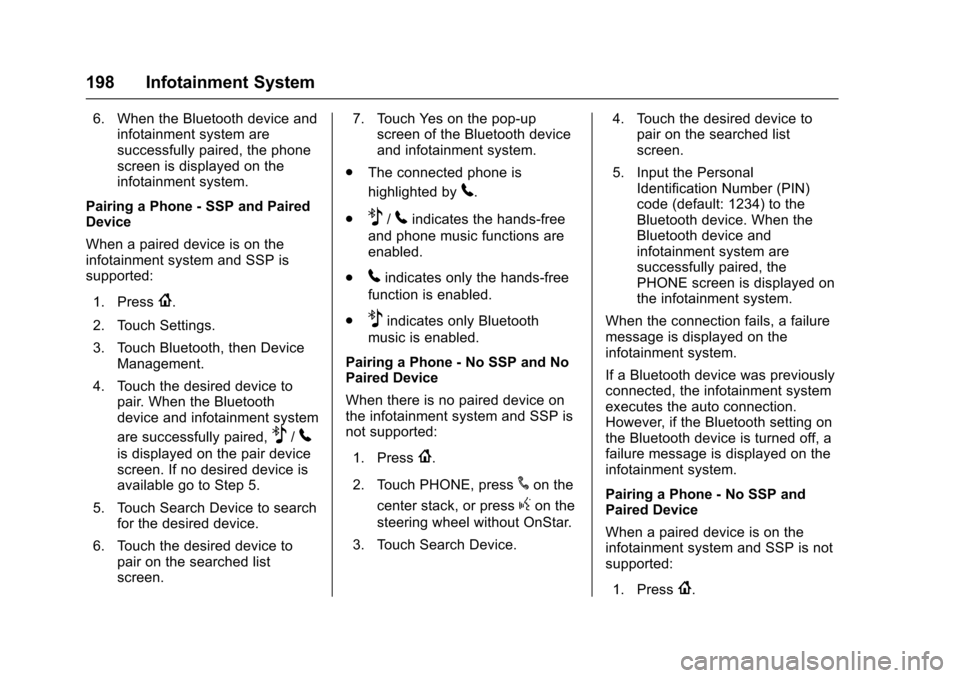
6. When the Bluetooth device andinfotainment system aresuccessfully paired, the phonescreen is displayed on theinfotainment system.
Pairing a Phone - SSP and PairedDevice
When a paired device is on theinfotainment system and SSP issupported:
1. Press{.
2. Touch Settings.
3. Touch Bluetooth, then DeviceManagement.
4. Touch the desired device topair. When the Bluetoothdevice and infotainment system
are successfully paired,Z/5
is displayed on the pair devicescreen. If no desired device isavailable go to Step 5.
5. Touch Search Device to searchfor the desired device.
6. Touch the desired device topair on the searched listscreen.
7. Touch Yes on the pop-upscreen of the Bluetooth deviceand infotainment system.
.The connected phone is
highlighted by5.
.Z/5indicates the hands-free
and phone music functions areenabled.
.5indicates only the hands-free
function is enabled.
.Zindicates only Bluetooth
music is enabled.
Pairing a Phone - No SSP and NoPaired Device
When there is no paired device onthe infotainment system and SSP isnot supported:
1. Press{.
2. Touch PHONE, press#on the
center stack, or pressgon the
steering wheel without OnStar.
3. Touch Search Device.
4. Touch the desired device topair on the searched listscreen.
5. Input the PersonalIdentification Number (PIN)code (default: 1234) to theBluetooth device. When theBluetooth device andinfotainment system aresuccessfully paired, thePHONE screen is displayed onthe infotainment system.
When the connection fails, a failuremessage is displayed on theinfotainment system.
If a Bluetooth device was previouslyconnected, the infotainment systemexecutes the auto connection.However, if the Bluetooth setting onthe Bluetooth device is turned off, afailure message is displayed on theinfotainment system.
Pairing a Phone - No SSP andPaired Device
When a paired device is on theinfotainment system and SSP is notsupported:
1. Press{.
Page 215 of 419
Chevrolet Colorado Owner Manual (GMNA-Localizing-U.S./Canada/Mexico-10122675) - 2017 - crc - 8/22/16
214 Driving and Operating
Driving and
Operating
Driving Information
Distracted Driving . . . . . . . . . . . . 215Defensive Driving . . . . . . . . . . . . . 215Drunk Driving . . . . . . . . . . . . . . . . . 215Control of a Vehicle . . . . . . . . . . . 216Braking . . . . . . . . . . . . . . . . . . . . . . . 216Steering . . . . . . . . . . . . . . . . . . . . . . 216Off-Road Recovery . . . . . . . . . . . 217Loss of Control . . . . . . . . . . . . . . . 217Off-Road Driving . . . . . . . . . . . . . 218Driving on Wet Roads . . . . . . . . 222Hill and Mountain Roads . . . . . 223Winter Driving . . . . . . . . . . . . . . . . 224If the Vehicle Is Stuck . . . . . . . . 225Vehicle Load Limits . . . . . . . . . . . 226Truck-Camper LoadingInformation . . . . . . . . . . . . . . . . . . 232
Starting and Operating
New Vehicle Break-In . . . . . . . . . 232Ignition Positions . . . . . . . . . . . . . 233Starting the Engine . . . . . . . . . . . 234Engine Heater . . . . . . . . . . . . . . . . 235Retained AccessoryPower (RAP) . . . . . . . . . . . . . . . . 237Shifting Into Park . . . . . . . . . . . . . 238
Shifting out of Park . . . . . . . . . . . 239Parking . . . . . . . . . . . . . . . . . . . . . . . 239Parking over ThingsThat Burn . . . . . . . . . . . . . . . . . . . 240
Engine Exhaust
Engine Exhaust . . . . . . . . . . . . . . 240Running the Vehicle WhileParked . . . . . . . . . . . . . . . . . . . . . . 241
Automatic Transmission
Automatic Transmission . . . . . . 241Manual Mode . . . . . . . . . . . . . . . . . 244To w / H a u l M o d e . . . . . . . . . . . . . . . 2 4 5
Manual Transmission
Manual Transmission . . . . . . . . . 246
Drive Systems
Four-Wheel Drive . . . . . . . . . . . . . 247
Brakes
Antilock BrakeSystem (ABS) . . . . . . . . . . . . . . . 254Parking Brake . . . . . . . . . . . . . . . . 254Brake Assist . . . . . . . . . . . . . . . . . . 255Hill Start Assist (HSA) . . . . . . . . 255
Ride Control Systems
Traction Control/ElectronicStability Control . . . . . . . . . . . . . 256Hill Descent Control (HDC) . . . 258
Cruise Control
Cruise Control . . . . . . . . . . . . . . . . 259
Driver Assistance Systems
Rear Vision Camera (RVC) . . . 261Forward Collision Alert (FCA)System . . . . . . . . . . . . . . . . . . . . . . 263Lane DepartureWarning (LDW) . . . . . . . . . . . . . 264
Fuel
Fuel . . . . . . . . . . . . . . . . . . . . . . . . . . 266California FuelRequirements . . . . . . . . . . . . . . . 267Fuels in Foreign Countries . . . 267Fuel Additives . . . . . . . . . . . . . . . . 267Filling the Tank . . . . . . . . . . . . . . . 267Filling a Portable FuelContainer . . . . . . . . . . . . . . . . . . . 269
Trailer Towing
General TowingInformation . . . . . . . . . . . . . . . . . . 270Driving Characteristics andTo w i n g T i p s . . . . . . . . . . . . . . . . . 2 7 0Trailer Towing . . . . . . . . . . . . . . . . 272To w i n g E q u i p m e n t . . . . . . . . . . . . 2 7 5Trailer Sway Control (TSC) . . . 277
Conversions and Add-Ons
Add-On ElectricalEquipment . . . . . . . . . . . . . . . . . . 278