lock CHEVROLET CORVETTE 2008 6.G Repair Manual
[x] Cancel search | Manufacturer: CHEVROLET, Model Year: 2008, Model line: CORVETTE, Model: CHEVROLET CORVETTE 2008 6.GPages: 432, PDF Size: 2.4 MB
Page 218 of 432
If you choose BOTH, on automatic transmission
vehicles, both doors will automatically unlock when the
shift lever is moved into PARK (P). On manual
transmission vehicles, both doors will automatically
unlock when the ignition is turned off or is in RAP.
When the mode you want is selected, press the OPTION
button to set your choice and advance to the next
personal option.
Language:This option allows you to select the
language the DIC, the Head-Up Display (HUD), if your
vehicle has this feature, and the radio uses to display
messages. Each language mode will be displayed in its
own language. For example, English will be displayed
as ENGLISH, Spanish as ESPANOL, etc. If your vehicle
has the navigation system, you will not have the
Japanese language mode.
Press the OPTION button until LANGUAGE appears on
the display, then press the RESET button to scroll
through the following modes:
ENGLISH (default)
DEUTSCH (German)
FRANCAIS (French)
ITALIANO (Italian)
ESPANOL (Spanish)If you choose a language that you do not understand,
press the OPTION and RESET buttons for ve seconds.
The DIC will begin displaying all of the various
languages one by one for as long as the buttons are
pressed. When the desired language is displayed,
release the buttons and the DIC will set to this language.
When the mode you want is selected, press the
OPTION button to set your choice and advance to the
next personal option.
Personalize Name:This option allows you to type in a
name or greeting that will appear on the DIC display
whenever the corresponding keyless access
transmitter (1 or 2) is used or one of the memory
buttons (1 or 2) located on the driver’s door is pressed.
Press the OPTION button until PERSONALIZE
NAME appears on the display, then press the RESET
button to scroll through the following modes:
YES
NO (default)
If you choose YES, you can type in a name that will
appear on the DIC display.
3-82
Page 221 of 432
Setting the Clock
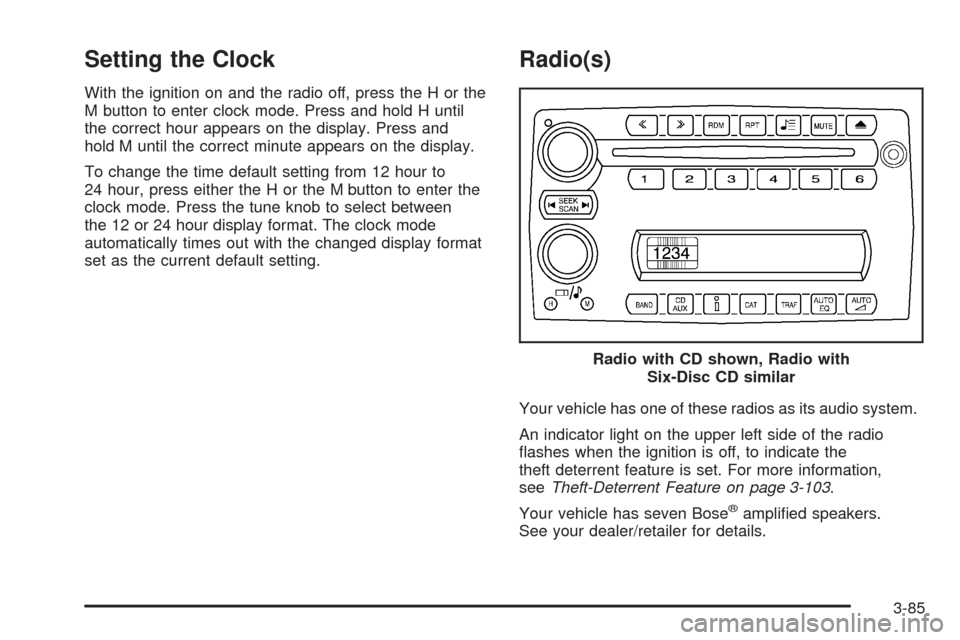
With the ignition on and the radio off, press the H or the
M button to enter clock mode. Press and hold H until
the correct hour appears on the display. Press and
hold M until the correct minute appears on the display.
To change the time default setting from 12 hour to
24 hour, press either the H or the M button to enter the
clock mode. Press the tune knob to select between
the 12 or 24 hour display format. The clock mode
automatically times out with the changed display format
set as the current default setting.
Radio(s)
Your vehicle has one of these radios as its audio system.
An indicator light on the upper left side of the radio
ashes when the ignition is off, to indicate the
theft deterrent feature is set. For more information,
seeTheft-Deterrent Feature on page 3-103.
Your vehicle has seven Bose
®amplied speakers.
See your dealer/retailer for details.Radio with CD shown, Radio with
Six-Disc CD similar
3-85
Page 222 of 432
Radio Data System (RDS)
The audio system has a Radio Data System (RDS).
RDS features are available for use only on FM stations
that broadcast RDS information.
With RDS, the radio can do the following:
Seek to stations broadcasting the selected type of
programming.
Receive announcements concerning local and
national emergencies.
Display messages from radio stations.
Seek to stations with traffic announcements.
This system relies upon receiving specic information
from these stations and works only when the information
is available. In rare cases, a radio station can broadcast
incorrect information that causes the radio features
to work improperly. If this happens, contact the radio
station.
While the radio is tuned to an RDS station, the station
name or call letters display. RDS stations can also
provide the time of day, a program type (PTY) for current
programming, and the name of the program being
broadcast.
Playing the Radio
Top Knob (Power/Volume):Press to turn the system
on and off. Turn clockwise or counterclockwise to
increase or decrease the volume.
4(Information):For RDS, press to change what
display while using RDS. The display options are station
name, RDS station frequency, PTY, and the name of
the program (if available).
For XM™ (if equipped), press while in XM™ mode to
retrieve four different categories of information related to
the current song or channel: Artist, Song Title,
Category or PTY, Channel Number/Channel Name.
To change the default on the display, press until you
see the desired display, then hold for two seconds.
The radio produces one beep and the selected display
is now the default.
AUTO
n(Automatic Volume):Automatic volume
automatically adjusts the audio system to make up
for road and wind noise as you drive, by increasing the
volume as vehicle speed increases.
Set the volume at the desired level. Press this button
to select AUTO VOLUME MIN (minimum), AUTO
VOLUME MED (medium), or AUTO VOLUME MAX
(maximum). Each higher setting provides more volume
compensation at faster vehicle speeds. To turn
automatic volume off, press this until AUTO VOLUME
OFF displays.
3-86
Page 227 of 432
If TA is on the display, press the TRAF button to turn off
the traffic announcements.
The radio plays the traffic announcement even if the
volume is low. The radio interrupts the play of a CD if
the last tuned station broadcasts traffic announcements.
This function does not apply to XM™ Satellite Radio
Service.
Radio Messages
CAL ERR (Calibration Error):The audio system
has been calibrated for your vehicle from the factory.
If CAL ERR displays, it means that the radio has
not been congured properly for your vehicle and
must be returned to your dealer/retailer for service.
LOCKED:This message displays when the
THEFTLOCK
®system has locked up. Take the vehicle
to your dealer/retailer for service.
If any error occurs repeatedly or if an error cannot be
corrected, contact your dealer/retailer. If the radio
displays an error message, write it down and provide it
to your dealer/retailer when reporting the problem.
XM™ Satellite Radio Service
XM™ is a satellite radio service that is based in the
48 contiguous United States and 10 Canadian
provinces. XM™ Satellite Radio has a wide variety
of programming and commercial-free music,
coast-to-coast, and in digital-quality sound. During your
trial or when you subscribe, you will get unlimited
access to XM™ Radio Online for when you are not in
your vehicle. A service fee is required to receive
the XM™ service. For more information, contact XM™
at www.xmradio.com or call 1-800-929-2100 in the
U.S. and www.xmradio.ca or call 1-877-438-9677
in Canada.
XM™ Radio Messages
With XM™ Satellite Radio Service, the radio can display
screen messages pertaining to the XM™ radio service,
software and hardware. SeeXM Radio Messages
on page 3-102later in this section for further detail.
3-91
Page 234 of 432
Using the Auxiliary Input Jack
The radio system has an auxiliary input jack located on
the right side of the faceplate. This is not an audio
output; do not plug the headphone set into the front
auxiliary input jack. An external audio device such as an
iPod, laptop computer, MP3 player, CD changer, etc.
can be connected to the auxiliary input jack for use
as another source for audio listening.
Drivers are encouraged to set up any auxiliary device
while the vehicle is in PARK (P). SeeDefensive
Driving on page 4-2.
To use a portable audio player, connect a 3.5 mm
(1/8 inch) cable to the radio’s front auxiliary input jack.
When a device is connected, the radio displays AUX
INPUT DEVICE and begins playing audio from that
device.
Top Knob (Power/Volume):Turn clockwise or
counterclockwise to increase or decrease the volume of
the portable player. Additional volume adjustments
might need to be made from the portable device.
BAND:Press to listen to the radio while a portable audio
device is playing. The portable audio device continues
playing, so you might want to stop it or turn it off.CD/AUX (CD/Auxiliary):Press to play a CD while a
portable audio device is playing. Press again and
the system begins playing audio from the connected
portable audio player. If a portable audio player is
connected, AUX INPUT DEVICE displays. If a portable
audio player is not connected, AUX INPUT DEVICE
does not display.
Using an MP3
MP3 CD-R Disc
MP3 Format
If you burn your own MP3 disc on a personal computer:
Make sure the MP3 les are recorded on a
CD-R disc.
Do not mix standard audio and MP3 les on
one disc.
Make sure playlists have a .mp3 or .wpl extension,
other le extensions might not work.
Files can be recorded with a variety of xed or
variable bit rates. Song title, artist name, and album
are available for display by the radio when
recorded using ID3 tags version 1 and 2.
3-98
Page 236 of 432
Order of Play
Tracks are played in the following order:
Play begins from the rst track in the rst playlist
and continues sequentially through all tracks in
each playlist. When the last track of the last playlist
has played, play continues from the rst track of
the rst playlist.
If the CD does not contain any playlists, then play
begins from the rst track under the root directory.
When all tracks from the root directory have
played, play continues from les according to their
numerical listing. After playing the last track
from the last folder, play begins again at the rst
track of the rst folder or root directory.
When play enters a new folder, the display does not
automatically show the new folder name unless
the folder mode has been chosen as the default display.
See the information button later in this section for
more information. The new track name displays.
File System and Naming
The song name that is displayed is the song name that
is contained in the ID3 tag. If the song name is not
present in the ID3 tag, then the radio displays the le
name without the extension (such as .mp3) as the
track name.Track names longer than 32 characters or four pages
are shortened. Parts of words on the last page of
text and the extension of the lename does not display.
Preprogrammed Playlists
Preprogrammed playlists that were created by
WinAmp™, MusicMatch™, or Real Jukebox™ software
can be accessed, however, they cannot be edited
using the radio. These playlists are treated as special
folders containing compressed audio song les.
Playing an MP3
Insert a CD partway into the slot, label side up.
The player pulls it in, and READING displays. The CD
should begin playing and the CD symbol displays.
If the ignition or radio is turned off with a CD-R in the
player, it stays in the player. When the ignition or radio is
turned on, the CD-R starts to play where it stopped, if
it was the last selected audio source.
As each new track starts to play, the track number
displays.
O/e(Tune):Turn clockwise or counterclockwise to
go to the next or previous track.
{(Previous Folder):Press to go to the rst track in
the previous folder. Press and hold to reverse
through the current track.
3-100
Page 238 of 432
XM Radio Messages
XL (Explicit Language Channels):These channels, or
any others, can be blocked at a customer’s request,
by calling 1-800-852-XMXM (9696).
Updating:The encryption code in the receiver is being
updated, and no action is required. This process
should take no longer than 30 seconds.
No Signal:The system is functioning correctly, but the
vehicle is in a location that is blocking the XM™
signal. When you move into an open area, the signal
should return.
Loading XM:The audio system is acquiring and
processing audio and text data. No action is needed.
This message should disappear shortly.
CH Off Air:This channel is not currently in service.
Tune to another channel.
CH Unavail:This previously assigned channel is no
longer assigned. Tune to another station. If this station
was one of the presets, choose another station for
that preset button.
No Info:No artist, song title, category, or text
information is available at this time on this channel.
The system is working properly.No Info:No text or informational messages are
available at this time on this channel. The system is
working properly.
Not Found:There are no channels available for the
selected category. The system is working properly.
XM Locked:The XM™ receiver in the vehicle could
have previously been in another vehicle. For security
purposes, XM™ receivers cannot be swapped between
vehicles. If this message is received after having
your vehicle serviced, check with your dealer/retailer.
Radio ID:If tuned to channel 0, this message
alternates with the XM™ Radio eight digit radio ID label.
This label is needed to activate the service.
Unknown:If this message is received when tuned to
channel 0, there could be a receiver fault. Consult
with your dealer/retailer.
Chk XMRcvr:If this message does not clear within a
short period of time, your receiver could have a
fault. Consult with your dealer/retailer. If this message
does not clear within a short period of time, your receiver
could have a fault. Consult with your dealer/retailer.
3-102
Page 239 of 432
Navigation/Radio System
Your vehicle may have a navigation radio system.
The navigation system has built-in features intended to
minimize driver distraction. Technology alone, no
matter how advanced, can never replace your own
judgment. See the Navigation System manual for some
tips to help you reduce distractions while driving.
Theft-Deterrent Feature
THEFTLOCK®is designed to discourage theft of your
vehicle’s radio. The feature works automatically by
learning a portion of the Vehicle Identication Number
(VIN). If the radio is moved to a different vehicle, it
will not operate and LOCKED will appear on the display.
With THEFTLOCK
®activated, the radio will not
operate if stolen.
Your radio has a blinking indicator light located on the
upper left side of the radio. The indicator light is used
to show that the theft-deterrent feature mode is set.
The blinking indicator light will only ash when the
ignition is in the off position.
Audio Steering Wheel Controls
If your vehicle has this
feature, some audio
controls can be adjusted
at the steering wheel.
They include the
following:
xw(Next/Previous):Press the down or up arrow to
go to the next or to the previous radio station and
stay there. The radio only seeks stations with a strong
signal that are in the selected band.
To scan stations, press and hold either the down or up
arrow for two seconds until SCAN displays and a
beep sounds. The radio goes to a station, plays for a
few seconds, then goes to the next station. Press either
the down or up arrow again to stop scanning.
3-103
Page 243 of 432
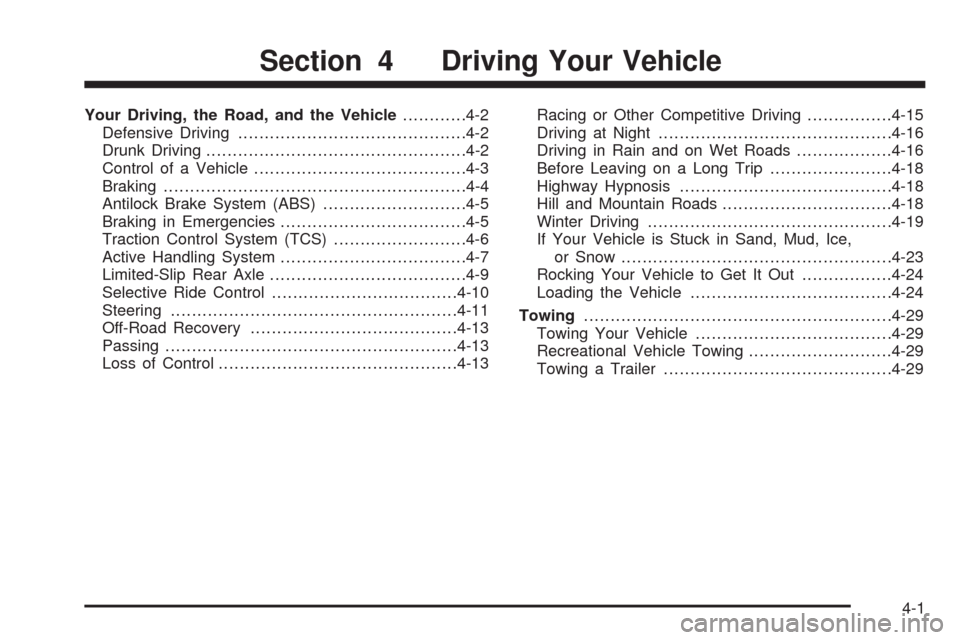
Your Driving, the Road, and the Vehicle............4-2
Defensive Driving...........................................4-2
Drunk Driving.................................................4-2
Control of a Vehicle........................................4-3
Braking.........................................................4-4
Antilock Brake System (ABS)...........................4-5
Braking in Emergencies...................................4-5
Traction Control System (TCS).........................4-6
Active Handling System...................................4-7
Limited-Slip Rear Axle.....................................4-9
Selective Ride Control...................................4-10
Steering......................................................4-11
Off-Road Recovery.......................................4-13
Passing.......................................................4-13
Loss of Control.............................................4-13Racing or Other Competitive Driving................4-15
Driving at Night............................................4-16
Driving in Rain and on Wet Roads..................4-16
Before Leaving on a Long Trip.......................4-18
Highway Hypnosis........................................4-18
Hill and Mountain Roads................................4-18
Winter Driving..............................................4-19
If Your Vehicle is Stuck in Sand, Mud, Ice,
or Snow...................................................4-23
Rocking Your Vehicle to Get It Out.................4-24
Loading the Vehicle......................................4-24
Towing..........................................................4-29
Towing Your Vehicle.....................................4-29
Recreational Vehicle Towing...........................4-29
Towing a Trailer...........................................4-29
Section 4 Driving Your Vehicle
4-1
Page 247 of 432
Antilock Brake System (ABS)
Your vehicle has the Antilock Brake System (ABS), an
advanced electronic braking system that will help
prevent a braking skid.
When you start the engine and begin to drive away,
ABS will check itself. You might hear a momentary
motor or clicking noise while this test is going on, and
you might even notice that the brake pedal moves
a little. This is normal.
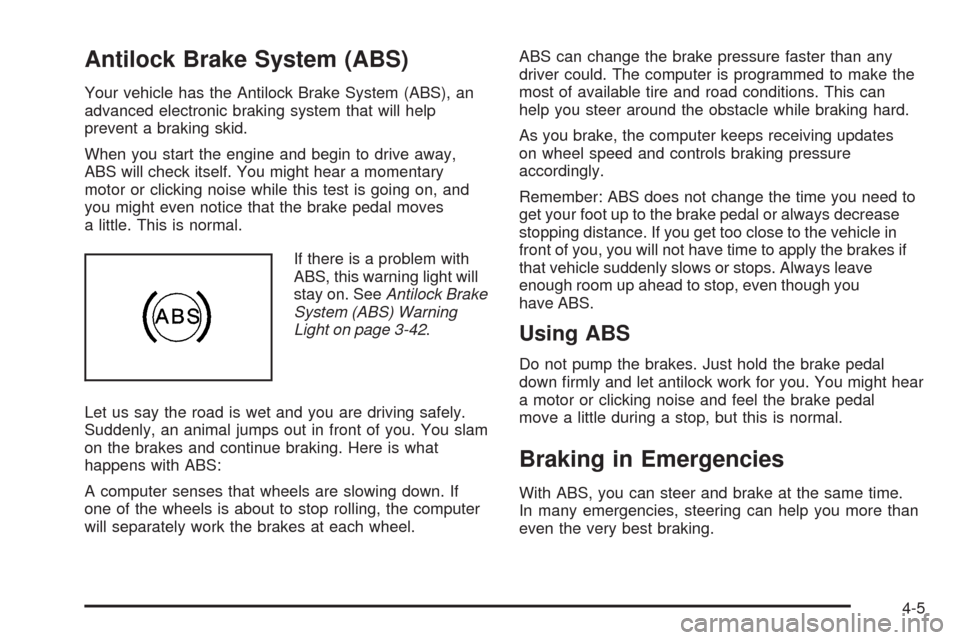
If there is a problem with
ABS, this warning light will
stay on. SeeAntilock Brake
System (ABS) Warning
Light on page 3-42.
Let us say the road is wet and you are driving safely.
Suddenly, an animal jumps out in front of you. You slam
on the brakes and continue braking. Here is what
happens with ABS:
A computer senses that wheels are slowing down. If
one of the wheels is about to stop rolling, the computer
will separately work the brakes at each wheel.ABS can change the brake pressure faster than any
driver could. The computer is programmed to make the
most of available tire and road conditions. This can
help you steer around the obstacle while braking hard.
As you brake, the computer keeps receiving updates
on wheel speed and controls braking pressure
accordingly.
Remember: ABS does not change the time you need to
get your foot up to the brake pedal or always decrease
stopping distance. If you get too close to the vehicle in
front of you, you will not have time to apply the brakes if
that vehicle suddenly slows or stops. Always leave
enough room up ahead to stop, even though you
have ABS.
Using ABS
Do not pump the brakes. Just hold the brake pedal
down rmly and let antilock work for you. You might hear
a motor or clicking noise and feel the brake pedal
move a little during a stop, but this is normal.
Braking in Emergencies
With ABS, you can steer and brake at the same time.
In many emergencies, steering can help you more than
even the very best braking.
4-5