light CHEVROLET HHR 2009 1.G Manual PDF
[x] Cancel search | Manufacturer: CHEVROLET, Model Year: 2009, Model line: HHR, Model: CHEVROLET HHR 2009 1.GPages: 450, PDF Size: 2.49 MB
Page 200 of 450
EXT (Exterior) LIGHTS
This feature, which allows the vehicle’s exterior perimeter
lighting to turn on each time the unlock button on the
Remote Keyless Entry (RKE) transmitter is pressed, can
be enabled or disabled. When EXT LIGHTS appears on
the display, press and hold the reset button for at least
one second to scroll through the available settings:
OFF:The exterior perimeter lighting will not turn on
when the unlock button on the RKE transmitter is
pressed.
ON (default):The exterior perimeter lighting will turn
on when the unlock button on the RKE transmitter
is pressed.
SeeRemote Keyless Entry (RKE) System Operation on
page 2-4for more information.
To select a setting and move on to the next feature,
press the information button while the desired setting is
displayed on the DIC.
LANGUAGE
This feature allows you to select the language in which
the DIC will display. When LANGUAGE appears on
the display, press and hold the reset button for at least
one second to scroll through the available settings:
ENGLISH (default):All messages will appear in
English.
FRENCH:All messages will appear in French.
SPANISH:All messages will appear in Spanish.
GERMAN:All messages will appear in German.
To select a setting and exit out of the personalization
menu mode, press the information button while the
desired setting is displayed on the DIC.
Exiting Personalization Menu
The personalization menu will be exited when any of the
following conditions occur:
A ten second time period has elapsed.
The ignition is turned off.
The end of the personalization menu list is reached.
3-60
Page 209 of 450
EQ (Equalization):Press this button to select preset
equalization settings.
To return to the manual mode, press EQ until Manual
displays or start to manually adjust the bass, midrange,
or treble by pressing
f.
Adjusting the Speakers (Balance/Fade)
Depending on which radio the vehicle has, the
Balance/Fade can be adjusted using
for`.
To adjust balance or fade using
f:
1. Press
funtil the speaker control tabs display.
2. Press the softkey under the desired tab, or continue
pressing
fto highlight the desired tab.
3. Turn
fto adjust the highlighted setting.
The highlighted setting can also be adjusted
by pressing either SEEK arrow.
On some radios,
\FWD andsREV can also
be used to adjust the highlighted level.To adjust balance or fade using
`:
1. Press
`until the speaker control labels display.
2. Continue pressing
`until the desired speaker
control label displays.
3. Turn
fto adjust the setting. The setting can also be
adjusted by pressing either SEEK arrow,
\FWD,
or
sREV.
The radio may be capable of adjusting balance or fade to
the middle position by pressing the softkey below the BAL
or FADE tab for more than two seconds. The radio beeps
once and the level adjusts to the middle position.
The radio may also be capable of adjusting all tone and
speaker controls to the middle position by pressing
ffor
more than two seconds until the radio beeps once.
3-69
Page 213 of 450
Care of CDs
Store CD(s) in their original cases or other protective
cases and away from direct sunlight and dust. The
CD player scans the bottom of the disc. If the bottom
of a CD is damaged it may not play properly or at all.
Do not touch the bottom of a CD while handling it.
Pick up CDs by grasping the outer edges or the edge
of the hole and the outer edge.
If the surface of a CD is dirty, take a soft, lint free cloth or
dampen a clean, soft cloth in a mild, neutral detergent
solution mixed with water, and clean it. Make sure the
wiping process starts from the center to the edge.
Care of the CD Player
Do not add labels to a CD, it could get caught in the
CD player. Use a marking pen to write on the top of the
CD if a description is needed.
Do not use CD lens cleaners, they could damage the
CD player.
Notice:If a label is added to a CD, or more than
one CD is inserted into the slot at a time, or an
attempt is made to play scratched or damaged CDs,
the CD player could be damaged. While using the CD
player, use only CDs in good condition without any
label, load one CD at a time, and keep the CD player
and the loading slot free of foreign materials, liquids,
and debris.
If an error displays, see “CD Messages” earlier in this
section.
Using the Auxiliary Input Jack
The radio system may have an auxiliary input jack
located on the lower right side of the faceplate. This is
not an audio output; do not plug the headphone set into
the front auxiliary input jack. An external audio device
such as an iPod
®, laptop computer, MP3 player, CD
changer, etc. can be connected to the auxiliary input
jack for use as another audio source.
Drivers are encouraged to set up any auxiliary device
while the vehicle is in P (Park). SeeDefensive Driving on
page 4-2for more information on driver distraction.
To use a portable audio player, connect a 3.5 mm
(1/8 inch) cable to the radio’s front auxiliary input jack.
When a device is connected, press the radio CD/AUX
button to begin playing audio from the device over
the vehicle speakers.
O(Power/Volume):Turn to adjust the volume.
Additional volume adjustments may have to be made
from the portable device if the volume is too quiet or
not loud.
BAND:Press to listen to the radio while a portable audio
device is connected to the auxiliary input. The portable
audio device continues playing until it is stopped or
turned off.
3-73
Page 234 of 450
Theft-Deterrent Feature
THEFTLOCK®is designed to discourage theft of the
vehicle’s radio by learning a portion of the Vehicle
Identication Number (VIN). The radio does not operate
if it is stolen or moved to a different vehicle.
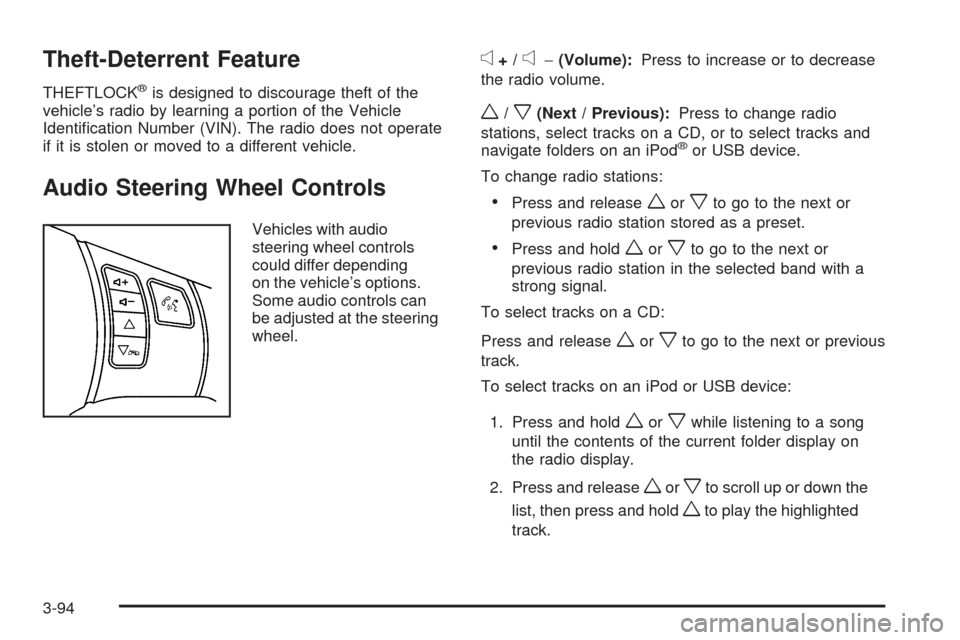
Audio Steering Wheel Controls
Vehicles with audio
steering wheel controls
could differ depending
on the vehicle’s options.
Some audio controls can
be adjusted at the steering
wheel.
e+/e−(Volume):Press to increase or to decrease
the radio volume.
w/x(Next / Previous):Press to change radio
stations, select tracks on a CD, or to select tracks and
navigate folders on an iPod
®or USB device.
To change radio stations:
Press and releaseworxto go to the next or
previous radio station stored as a preset.
Press and holdworxto go to the next or
previous radio station in the selected band with a
strong signal.
To select tracks on a CD:
Press and release
worxto go to the next or previous
track.
To select tracks on an iPod or USB device:
1. Press and hold
worxwhile listening to a song
until the contents of the current folder display on
the radio display.
2. Press and release
worxto scroll up or down the
list, then press and hold
wto play the highlighted
track.
3-94
Page 235 of 450
To navigate folders on an iPod or USB device:
1. Press and hold
worxwhile listening to a song
until the contents of the current folder display on
the radio display.
2. Press and hold
xto go back to the previous
folder list.
3. Press and release
worxto scroll up or down
the list.
To select a folder, press and holdwwhen the
folder is highlighted.
To go back further in the folder list, press
and hold
x.
c(End):Press to reject an incoming call, or end a
current call.
bg(Mute / Voice Recognition):Press to silence the
vehicle speakers only. Press again to turn the sound on.
For vehicles with OnStar
®or Bluetooth systems press
and hold
bgfor longer than two seconds to interact
with those systems. SeeOnStar®System on page 2-47
andBluetooth®on page 3-82for more information.
Radio Reception
Frequency interference and static can occur during
normal radio reception if items such as cell phone
chargers, vehicle convenience accessories, and external
electronic devices are plugged into the accessory power
outlet. If there is interference or static, unplug the item
from the accessory power outlet.
AM
The range for most AM stations is greater than for FM,
especially at night. The longer range can cause station
frequencies to interfere with each other. For better radio
reception, most AM radio stations boost the power levels
during the day, and then reduce these levels during the
night. Static can also occur when things like storms and
power lines interfere with radio reception. When this
happens, try reducing the treble on the radio.
FM Stereo
FM signals only reach about 10 to 40 miles (16 to 65 km).
Although the radio has a built-in electronic circuit that
automatically works to reduce interference, some static
can occur, especially around tall buildings or hills,
causing the sound to fade in and out.
3-95
Page 236 of 450
XM™ Satellite Radio Service
XM Satellite Radio Service gives digital radio reception
from coast-to-coast in the 48 contiguous United States,
and in Canada. Just as with FM, tall buildings or hills can
interfere with satellite radio signals, causing the sound to
fade in and out. In addition, traveling or standing under
heavy foliage, bridges, garages, or tunnels may cause
loss of the XM signal for a period of time.
Cellular Phone Usage
Cellular phone usage may cause interference with the
vehicle’s radio. This interference may occur when making
or receiving phone calls, charging the phone’s battery,
or simply having the phone on. This interference causes
an increased level of static while listening to the radio.
If static is received while listening to the radio, unplug
the cellular phone and turn it off.
Fixed Mast Antenna
The xed mast antenna can withstand most car washes
without being damaged as long as it is securely attached
to the base. If the mast becomes slightly bent, straighten
it out by hand. If the mast is badly bent, replace it.Occasionally check to make sure the antenna is
tightened to its base. If tightening is required, tighten by
hand until fully seated plus one quarter turn.
XM™ Satellite Radio Antenna
System
The XM Satellite Radio antenna is located on the roof of
the vehicle. Keep the antenna clear of obstructions for
clear radio reception.
If the vehicle has a sunroof, the performance of the XM
system may be affected if the sunroof is open.
Chime Level Adjustment
The radio may be used to adjust the vehicle’s chime
level. If the radio can be used to change the volume
level of the chime, press and hold the sixth numbered
pushbutton or the sixth FAV pushbutton with the ignition
on and the radio power off. The volume level changes
between Normal and Loud. The selected volume
level appears on the radio display.
Removing the radio and not replacing it with a factory
radio or chime module will disable vehicle chimes.
3-96
Page 240 of 450
Braking
SeeBrake System Warning Light on page 3-33.
Braking action involves perception time and reaction
time. Deciding to push the brake pedal is perception
time. Actually doing it is reaction time.
Average reaction time is about three-fourths of a second.
But that is only an average. It might be less with one
driver and as long as two or three seconds or more with
another. Age, physical condition, alertness, coordination,
and eyesight all play a part. So do alcohol, drugs, and
frustration. But even in three-fourths of a second, a
vehicle moving at 60 mph (100 km/h) travels 66 feet
(20 m). That could be a lot of distance in an emergency,
so keeping enough space between the vehicle and others
is important.
And, of course, actual stopping distances vary greatly
with the surface of the road, whether it is pavement or
gravel; the condition of the road, whether it is wet, dry, or
icy; tire tread; the condition of the brakes; the weight of
the vehicle; and the amount of brake force applied.
Avoid needless heavy braking. Some people drive
in spurts — heavy acceleration followed by heavy
braking — rather than keeping pace with traffic.
This is a mistake.The brakes might not have time to cool between hard
stops. The brakes will wear out much faster with a lot
of heavy braking. Keeping pace with the traffic and
allowing realistic following distances eliminates a lot of
unnecessary braking. That means better braking and
longer brake life.
If the engine ever stops while the vehicle is being driven,
brake normally but do not pump the brakes. If the brakes
are pumped, the pedal could get harder to push down.
If the engine stops, there will still be some power brake
assist but it will be used when the brake is applied. Once
the power assist is used up, it can take longer to stop and
the brake pedal will be harder to push.
If the vehicle has Electronic Stability Control (ESC) and
the 2.0L turbocharged engine, it also has a hydraulic
brake boost feature which supplements the power brake
system to maintain consistent brake performance under
conditions of low brake booster vacuum. Low brake
booster vacuum conditions can include initial start up
after the vehicle has been parked for several hours, very
frequent brake stops, or high altitude driving. When
hydraulic brake boost is active, minor brake pulsation or
movement might be felt but this is normal. If brake pedal
feel changes or the brake pedal feels hard to push, the
system might not be receiving the intended brake boost
and the SVC BRAKE SYSTEM DIC message may be
displayed.
4-4
Page 241 of 450
Under certain weather or operating conditions, occasional
brake squeak, squeal, or other noise might be heard with
the vehicle’s performance braking system. The brake
system on SS models is designed for superior fade
resistance and consistent operation using high
performance brake pads. Brake noise and brake dust
are normal and do not affect system performance.
Adding non-dealer/non-retailer accessories can affect
vehicle performance. SeeAccessories and Modifications
on page 5-3.
Antilock Brake System (ABS)
The vehicle might have the Antilock Brake System
(ABS), an advanced electronic braking system that helps
prevent a braking skid.
If the vehicle has ABS,
this warning light on the
instrument panel comes on
briey when the vehicle is
started.When the engine is started, or when the vehicle begins
to drive away, ABS checks itself. A momentary motor
or clicking noise might be heard while this test is going
on, and it might even be noticed that the brake pedal
moves or pulses a little. This is normal.
Let us say the road is wet and you are driving safely.
Suddenly, an animal jumps out in front of you. You slam
on the brakes and continue braking. Here is what
happens with ABS:
A computer senses that the wheels are slowing down.
If one of the wheels is about to stop rolling, the computer
will separately work the brakes at each wheel.
ABS can change the brake pressure to each wheel, as
required, faster than any driver could. This can help
the driver steer around the obstacle while braking hard.
As the brakes are applied, the computer keeps
receiving updates on wheel speed and controls braking
pressure accordingly.
Remember: ABS does not change the time needed to get
a foot up to the brake pedal or always decrease stopping
distance. If you get too close to the vehicle in front of you,
there will not be enough time to apply the brakes if that
vehicle suddenly slows or stops. Always leave enough
room up ahead to stop, even with ABS.
4-5
Page 242 of 450
Using ABS
Do not pump the brakes. Just hold the brake pedal
down rmly and let antilock work. A slight brake pedal
pulsation might be felt or some noise noticed, but this is
normal.
Braking in Emergencies
At some time, nearly every driver gets into a situation
that requires hard braking.
If the vehicle has Electronic Stability Control (ESC) with
Antilock Brake System (ABS), it allows the driver to steer
and brake at the same time. However, if the vehicle does
not have ESC with ABS, the rst reaction — to hit the
brake pedal hard and hold it down — might be the wrong
thing to do. The wheels can stop rolling. Once they do,
the vehicle cannot respond to the driver’s steering.
Momentum will carry it in whatever direction it was
headed when the wheels stopped rolling. That could be
off the road, into the very thing the driver was trying to
avoid, or into traffic.
If the vehicle does not have ABS, use a “squeeze”
braking technique. This gives maximum braking while
maintaining steering control. Do this by pushing on
the brake pedal with steadily increasing pressure.In an emergency, you will probably want to squeeze the
brakes hard without locking the wheels. If you hear or feel
the wheels sliding, ease off the brake pedal. This helps
retain steering control. Without ABS, it is different.
SeeAntilock Brake System (ABS) on page 4-5.
In many emergencies, steering can help more than
even the very best braking.Brake Assist
If this vehicle has ESC with ABS, it also has a Brake
Assist feature designed to assist the driver in stopping
or decreasing vehicle speed in emergency driving
conditions. This feature uses the stability system
hydraulic brake control module to supplement the
power brake system under conditions where the driver
has quickly and forcefully applied the brake pedal in
an attempt to quickly stop or slow down the vehicle.
The stability system hydraulic brake control module
increases brake pressure at each corner of the vehicle
until the ABS activates. Minor brake pedal pulsations
or pedal movement during this time is normal and the
driver should continue to apply the brake pedal as the
driving situation dictates The Brake Assist feature will
automatically disengage when the brake pedal is
released or brake pedal pressure is quickly decreased.
4-6
Page 243 of 450
Electronic Stability Control (ESC)
The vehicle has an Electronic Stability Control (ESC)
system which combines antilock brake, and traction and
stability control systems that help the driver maintain
directional control of the vehicle in most driving
conditions.
When the vehicle is started and begins to move, the
system performs several diagnostic checks to ensure
there are no problems. The system may be heard or felt
while it is working. This is normal and does not mean
there is a problem with the vehicle. The system should
initialize before the vehicle reaches 20 mph (32 km/h).
If the system fails to turn on or activate, the ESC/TCS
light comes on, and the ESC OFF and/or SERVICE ESC
message displays.
For more information, seeDriver Information Center
(DIC) on page 3-48andElectronic Stability Control
(ESC)/Traction Control System (TCS) Indicator/Warning
Light on page 3-35.This light ashes on the
instrument panel cluster
when the ESC system is
on and activated.
ESC activates when the computer senses a discrepancy
between the intended path and the direction the
vehicle is actually traveling. ESC selectively applies
braking pressure at any one of the vehicle’s brakes to
help steer the vehicle in the intended direction.
When the system activates, an ESC ACTIVE message
displays on the Driver Information Center. SeeDIC
Warnings and Messages on page 3-50. This light also
ashes on the instrument panel cluster when the
ESC system is on and activated. Noise or vibration may
be felt in the brake pedal. This is normal. Continue to
steer the vehicle in the desired direction.
4-7