display CHEVROLET HHR 2010 1.G Owner's Guide
[x] Cancel search | Manufacturer: CHEVROLET, Model Year: 2010, Model line: HHR, Model: CHEVROLET HHR 2010 1.GPages: 480, PDF Size: 5.25 MB
Page 219 of 480
SERVICE TRACTION
If your vehicle has the Enhanced Traction System
(ETS) or Traction Control System (TCS), this message
displays and a chime sounds when the system is not
functioning properly. The ETS light or the ESC/TCS light
also appears on the instrument panel cluster. This light
stays on solid as long as the detected problem remains
present. When this message displays, the system is not
working. Adjust your driving accordingly. SeeEnhanced
Traction System (ETS)
on page 5‑11or Traction
Control System (TCS)on page 5‑9and Enhanced
Traction System (ETS) Indicator/Warning Lighton
page 4‑32or Electronic Stability Control (ESC)/Traction
Control System (TCS) Indicator/Warning Lighton
page 4‑33for more information. Have the system
serviced by your dealer/retailer as soon as possible.
SVC (Service) BRAKE SYSTEM
This message may display if you have a turbocharged
vehicle with Electronic Stability Control (ESC) and if the
hydraulic brake boost is not working or is working
improperly. Have the brake system serviced by your
dealer/retailer as soon as possible.
SVC (Service) TIRE MONITOR
If your vehicle has a Tire Pressure Monitor System
(TPMS), this message displays if a part on the TPMS is
not working properly. The tire pressure light also flashes
and then remains on during the same ignition cycle.
See Tire Pressure Light
on page 4‑35. Several
conditions may cause this message to appear. See
Tire Pressure Monitor Operation
on page 6‑65for
more information. If the warning comes on and stays
on, there may be a problem with the TPMS. See your
dealer/retailer.
TIRE LOW ADD AIR
If your vehicle has a Tire Pressure Monitor System
(TPMS), this message displays when the pressure in
one or more of the vehicle's tires is low. The low tire
pressure warning light will also come on. See Tire
Pressure Light
on page 4‑35. If a tire pressure
message appears on the DIC, stop as soon as you can.
Have the tire pressures checked and set to those
shown on the Tire Loading Information label. See Tires
on page 6‑54,Loading the Vehicleon page 5‑24, and
Inflation - Tire Pressureon page 6‑63. The DIC also
shows the tire pressure values. See DIC Operation and
Displays
on page 4‑46.
4-53
Page 220 of 480
TRACTION OFF
If your vehicle has the Enhanced Traction System
(ETS) or Traction Control System (TCS), this message
displays and the ETS light or the ESC/TCS light on the
instrument panel cluster comes on solid when the
system is turned off. Adjust your driving accordingly.
SeeEnhanced Traction System (ETS)
on page 5‑11or
Traction Control System (TCS)on page 5‑9and
Enhanced Traction System (ETS) Indicator/Warning
Light
on page 4‑32or Electronic Stability Control
(ESC)/Traction Control System (TCS) Indicator/Warning
Light
on page 4‑33for more information.
DIC Vehicle Personalization
Your vehicle has personalization capabilities that allow
you to program certain features to a preferred setting.
All of the features listed may not be available on your
vehicle. Only the features available will be displayed on
the DIC.
The default settings for the features were set when your
vehicle left the factory, but may have been changed
from their default state since that time. To change feature settings, use the following procedure:
Entering Personalization Menu
1. Turn the ignition on while the vehicle is stopped.
To avoid excessive drain on the battery, it is
recommended that the headlamps are turned off.
2. Press and hold the information and reset buttons at the same time for one second, then release to
enter the personalization menu.
If the vehicle speed is greater than 2 mph (3 km/h),
only the UNITS menu will be accessible.
3. Press the information button to scroll through the available personalization menu modes.
Press the reset button to scroll through the
available settings for each mode.
If you do not make a selection within ten seconds,
the display will go back to the previous information
displayed.
4-54
Page 221 of 480
Personalization Menu Modes
OIL LIFE RESET
When this feature is displayed, you can reset the
engine oil life system. To reset the system, seeEngine
Oil Life System
on page 6‑23. See “OIL LIFE” under
DIC Operation and Displayson page 4‑46for more
information.
UNITS
This feature allows you to select the units of
measurement in which the DIC will display the vehicle
information. When UNITS appears on the display, press
and hold the reset button for at least one second to
scroll through the available settings:
ENGLISH (default in United States): All information
will be displayed in English units.
METRIC (default in Canada): All information will be
displayed in metric units.
To select a setting and move on to the next feature,
press the information button while the desired setting is
displayed on the DIC.
REMOTE START
If your vehicle has remote start, this feature allows
remote start to be turned off or on. Remote start allows
you to start the engine from outside of the vehicle using
your Remote Keyless Entry (RKE) transmitter. When
REMOTE START appears on the display, press and
hold the reset button for at least one second to scroll
through the available settings:
OFF: The remote start feature will be disabled.
ON (default): The remote start feature will be enabled.
See Remote Vehicle Start
on page 3‑7for more
information.
To select a setting and move on to the next feature,
press the information button while the desired setting is
displayed on the DIC.
4-55
Page 222 of 480
LOCK HORN
This feature, which allows the vehicle's horn to chirp
every time the lock button on the Remote Keyless
Entry (RKE) transmitter is pressed, can be enabled or
disabled. When LOCK HORN appears on the display,
press and hold the reset button for at least one second
to scroll through the available settings:
OFF (default):The horn will not chirp on the first press
of the lock button on the RKE transmitter. The horn will
still chirp on the second press.
ON: The horn will chirp on the first press of the lock
button on the RKE transmitter.
See Remote Keyless Entry (RKE) System Operation
on
page 3‑4for more information.
To select a setting and move on to the next feature,
press the information button while the desired setting is
displayed on the DIC.
UNLOCK HORN
This feature, which allows the vehicle's horn to chirp
on the first press of the unlock button on the Remote
Keyless Entry (RKE) transmitter, can be enabled or
disabled. When UNLOCK HORN appears on the
display, press and hold the reset button for at least
one second to scroll through the available settings:
OFF (default): The horn will not chirp when the unlock
button on the RKE transmitter is pressed.
ON: The horn will chirp on the first press of the unlock
button on the RKE transmitter.
See Remote Keyless Entry (RKE) System Operation
on
page 3‑4for more information.
To select a setting and move on to the next feature,
press the information button while the desired setting is
displayed on the DIC.
4-56
Page 223 of 480
LIGHT FLASH
This feature, which allows the vehicle's exterior hazard/
turn signal lighting to flash every time the lock or unlock
button on the Remote Keyless Entry (RKE) transmitter
is pressed, can be enabled or disabled. When LIGHT
FLASH appears on the display, press and hold the reset
button for at least one second to scroll through the
available settings:
OFF:The exterior hazard/turn signal lighting will not
flash when the lock or unlock button on the RKE
transmitter is pressed.
ON (default): The exterior hazard/turn signal lighting
will flash when the lock or unlock button on the RKE
transmitter is pressed.
See Remote Keyless Entry (RKE) System Operation
on
page 3‑4for more information.
To select a setting and move on to the next feature,
press the information button while the desired setting is
displayed on the DIC.
DELAY LOCK
This feature, which delays the actual locking of the
vehicle, can be enabled or disabled. When DELAY
LOCK appears on the display, press and hold the
reset button for at least one second to scroll through
the available settings:
ON (default): The doors will not lock until five seconds
after the last door is closed. You can temporarily
override delayed locking by pressing the power lock
switch or the lock button on the Remote Keyless Entry
(RKE) transmitter a second time.
OFF: The doors will lock immediately when pressing
the power lock switch or the lock button on the RKE
transmitter.
See Power Door Locks
on page 3‑10,Delayed Lockingon page 3‑10, and Remote Keyless Entry (RKE)
System Operationon page 3‑4for more information.
To select a setting and move on to the next feature,
press the information button while the desired setting is
displayed on the DIC.
4-57
Page 224 of 480
AUTO UNLK (Unlock)
This feature, which allows the vehicle to automatically
unlock certain doors, can be enabled or disabled. When
AUTO UNLK appears on the display, press and hold the
reset button for at least one second to scroll through the
available settings:
ALL (default):All of the doors will automatically unlock.
DRIVER: The driver's door will automatically unlock.
NONE: None of the doors will automatically unlock.
You will need to manually unlock the doors.
If you have a manual transmission vehicle, the door(s)
will automatically unlock when the key is turned off.
If you have an automatic transmission vehicle, you can
select when the automatic unlocking will occur. See
“UNLK (Unlock) (Automatic Transmission Only)”
following.
See Programmable Automatic Door Unlock
on
page 3‑11for more information.
To select a setting and move on to the next feature,
press the information button while the desired setting is
displayed on the DIC.
UNLK (Unlock) (Automatic
Transmission Only)
This screen displays only if your vehicle has an
automatic transmission and DRIVER or ALL is selected
for the AUTO UNLK feature. This feature determines
when the automatic door unlocking will occur. When
UNLK appears on the display, press and hold the reset
button for at least one second to scroll through the
available settings:
KEY OFF: The door(s) will unlock when the key is
turned off.
SHIFT TO P (Park) (default): The door(s) will unlock
when the vehicle is shifted into P (Park).
See Programmable Automatic Door Unlock
on
page 3‑11for more information.
To select a setting and move on to the next feature,
press the information button while the desired setting is
displayed on the DIC.
4-58
Page 225 of 480
EXT (Exterior) LIGHTS
This feature, which allows the vehicle's exterior
perimeter lighting to turn on each time the unlock
button on the Remote Keyless Entry (RKE) transmitter
is pressed, can be enabled or disabled. When EXT
LIGHTS appears on the display, press and hold the
reset button for at least one second to scroll through the
available settings:
OFF:The exterior perimeter lighting will not turn on
when the unlock button on the RKE transmitter is
pressed.
ON (default): The exterior perimeter lighting will turn
on when the unlock button on the RKE transmitter is
pressed.
See Remote Keyless Entry (RKE) System Operation
on
page 3‑4for more information.
To select a setting and move on to the next feature,
press the information button while the desired setting
is displayed on the DIC.
LANGUAGE
This feature allows you to select the language in which
the DIC will display. When LANGUAGE appears on the
display, press and hold the reset button for at least
one second to scroll through the available settings:
ENGLISH (default): All messages will appear in
English.
FRENCH: All messages will appear in French.
SPANISH: All messages will appear in Spanish.
GERMAN: All messages will appear in German.
To select a setting and exit out of the personalization
menu mode, press the information button while the
desired setting is displayed on the DIC.
Exiting Personalization Menu
The personalization menu will be exited when any of
the following conditions occur:
.A ten second time period has elapsed.
.The ignition is turned off.
.The end of the personalization menu list is
reached.
4-59
Page 227 of 480
Setting the Clock
Without Date Display
AM/FM Base Radio with a Single CD Player
To set the time:1. Turn the ignition key to ACC/ACCESSORY or ON/RUN. Press
Oto turn the radio on.
2. Press
Huntil the hour begins flashing on the
display. Press
Ha second time and the minute
begins flashing on the display.
3. While either the hour or the minute numbers are flashing, turn
fto increase or decrease the time.
4. Press
Hagain until the clock display stops flashing
to set the currently displayed time; otherwise, the
flashing stops after five seconds and the current
time displayed is automatically set.
To change the time default setting from 12 hour to
24 hour, press the
Hbutton until 12H or 24H is
displayed. Once 12H or 24H is displayed, turn
the
fknob to the desired option to select the setting.
Press the
Hbutton again to apply the setting, or let the
screen time out.
With Date Display
Radio with CD (MP3) and USB Port, and
Radio with Single CD (MP3) Player
To set the time and date:
1. Turn the ignition key to ACC/ACCESSORY or ON/RUN. Press
Oto turn the radio on.
2. Press
Hand the HR, MIN, MM, DD, YYYY
(hour, minute, month, day, and year) displays.
3. Press the softkey located below any one of the tabs that you want to change.
4. To increase the time or date do one of the following:
.Press the softkey located below the
selected tab.
.Press¨SEEK, or\FWD.
.Turnfclockwise.
5. To decrease the time or date do one of the following:
.Press©SEEK orsREV.
.Turnfcounterclockwise.
4-61
Page 228 of 480
The date does not automatically display. To see the
date press
Hwhile the radio is on. The date with
display times out after a few seconds and goes back
to the normal radio and time display.
To change the time default setting from 12 hour to
24 hour or to change the date default setting from
month/day/year to day/month/year:
1. Press
Hand then the softkey located below the
forward arrow label. Once the time 12H and 24H,
and the date MM/DD/YYYY (month, day, and year)
and DD/MM/YYYY (day, month, and year) displays.
2. Press the softkey located below the desired option.
3. Press
Hagain to apply the selected default, or let
the screen time out.
Radio(s)
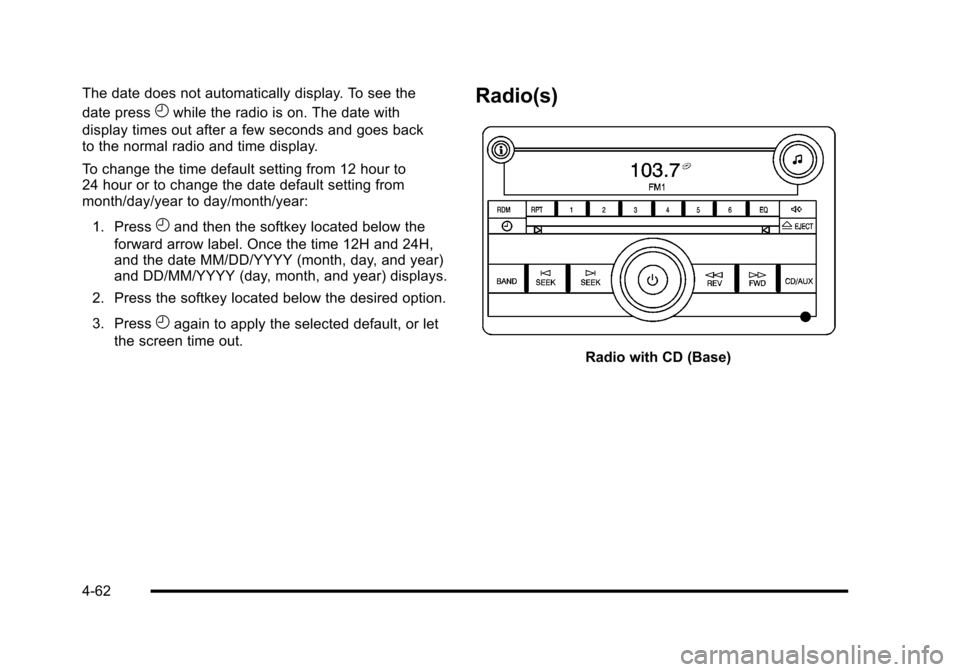
Radio with CD (Base)
4-62
Page 229 of 480
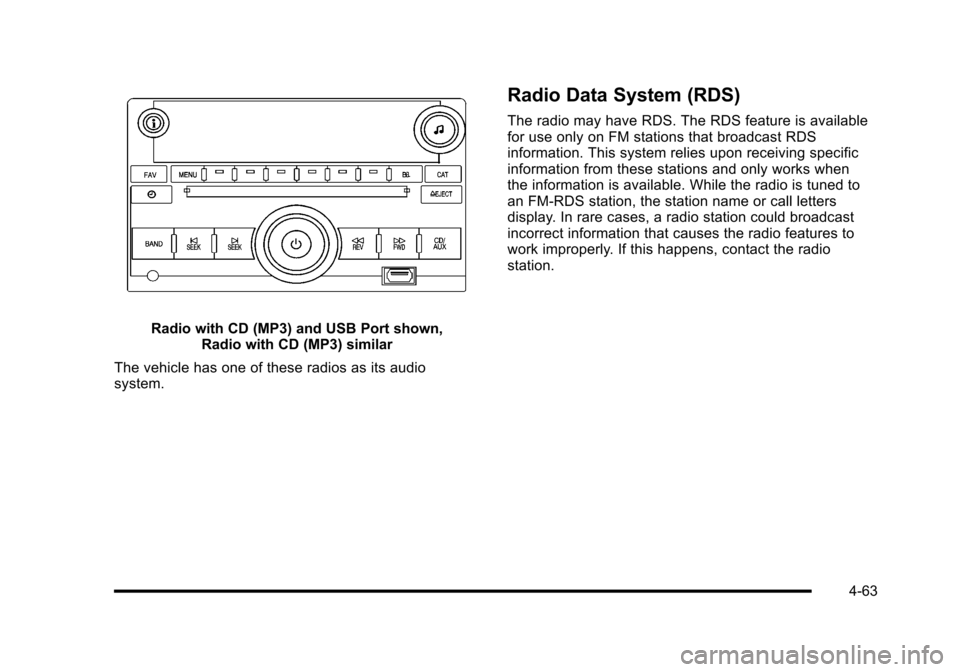
Radio with CD (MP3) and USB Port shown,Radio with CD (MP3) similar
The vehicle has one of these radios as its audio
system.
Radio Data System (RDS)
The radio may have RDS. The RDS feature is available
for use only on FM stations that broadcast RDS
information. This system relies upon receiving specific
information from these stations and only works when
the information is available. While the radio is tuned to
an FM-RDS station, the station name or call letters
display. In rare cases, a radio station could broadcast
incorrect information that causes the radio features to
work improperly. If this happens, contact the radio
station.
4-63