display CHEVROLET HHR 2010 1.G Workshop Manual
[x] Cancel search | Manufacturer: CHEVROLET, Model Year: 2010, Model line: HHR, Model: CHEVROLET HHR 2010 1.GPages: 480, PDF Size: 5.25 MB
Page 241 of 480
USB Supported File and Folder Structure
The radio supports:
.Up to 700 folders.
.Up to 8 folders in depth.
.Up to 65,535 files.
.Folder and file names up to 64 bytes.
.Files with an .mp3 or .wma file extension.
.AAC files stored on an iPod.
.FAT16
.FAT32
Root Directory
The root directory is treated as a folder. Files are stored
in the root directory when the disc or storage device
does not contain folders. Files accessed from the root
directory of a CD display as F1 ROOT.
Empty Folder
Folders that do not contain files are skipped, and the
player advances to the next folder that contains files.
Order of Play
Tracks are played in the following order:
.Play begins from the first track in the first playlist
and continues sequentially through all tracks in
each playlist. When the last track of the last playlist
has played, play continues from the first track of
the first playlist.
.Play begins from the first track in the first folder
and continues sequentially through all tracks in
each folder. When the last track of the last folder
has played, play continues from the first track of
the first folder.
When play enters a new folder, the display does not
automatically show the new folder name unless the
folder mode has been chosen as the default display.
The new track name displays.
File System and Naming
The song name that displays is the song name that is
contained in the ID3 tag. If the song name is not
present in the ID3 tag, then the radio displays the file
name without the extension (such as .mp3) as the
track name.
Track names longer than 32 characters or four pages
are shortened. The display does not show parts of
words on the last page of text and the extension of the
filename is not displayed.
4-75
Page 242 of 480
Preprogrammed Playlists
CDs that have preprogrammed playlists that were
created using WinAmp™, MusicMatch™, or Real
Jukebox™software can be accessed, however, there
is no playlist editing capability using the radio. These
playlists are treated as special folders containing
compressed audio song files.
Playlists that have an .m3u or .pls file extension and are
stored on a USB device may be supported by the radio
with a USB port.
Playing a CD-R or CD-RW MP3
f
(Tune): Turn to select MP3 files on the CD currently
playing.
©SEEK: Press to go to the start of the track, if more
than ten seconds have played. Press and hold or press
multiple times to continue moving backward through
tracks.
¨SEEK: Press to go to the next track. Press and
hold or press multiple times to continue moving forward
through tracks.
sREV (Reverse): Press and hold to reverse
playback quickly. Sound is heard at a reduced
volume and the elapsed time of the file displays.
Release
sREV to resume playing.
\FWD (Fast Forward): Press and hold to advance
playback quickly. Sound is heard at a reduced
volume and the elapsed time of the file displays.
Release
\FWD to resume playing. The elapsed
time of the file displays.
S c(Previous Folder): Press the softkey
below
S cto go to the first track in the previous
folder.
cT (Next Folder): Press the softkey belowcTto
go to the first track in the next folder.
RDM (Random): MP3 files can be listened to on a CD
in random, rather than sequential order. To use random,
press the softkey under the RDM tab until Random
Current Disc displays to play songs from the current CD
in random order. Press the same softkey again to turn
off random play.
h(Music Navigator): Press the softkey
below
hto have the files played in order by
artist or album. The player scans the disc to sort the
files by artist and album ID3 tag information. It can
take several minutes to scan the disc depending on the
number of files on the disc. The radio may begin playing
while it is scanning in the background.
4-76
Page 243 of 480
When the scan is finished, the disc begins playing files
in order by artist. The current artist playing is shown on
the second line of the display. Once all songs by that
artist are played, the player moves to the next artist in
alphabetical order and begins playing files by that artist.
To listen to files by another artist, press the softkey
located below either arrow tab. The disc goes to the
next or previous artist in alphabetical order. Continue
pressing either softkey below the arrow tab until the
desired artist displays.
To change from playback by artist to playback by
album:1. Press the softkey located below the Sort By tab.
2. Press one of the softkeys below the album tab from the sort screen.
3. Press the softkey below the back tab to return to the main music navigator screen.
The album name displays on the second line between
the arrows and songs from the current album begins to
play. Once all songs from that album have played, the
player moves to the next album in alphabetical order on
the CD and begins playing MP3 files from that album.
To exit music navigator mode, press the softkey below
the Back tab to return to normal MP3 playback.Connecting a USB Storage Device
or iPod®
The USB Port can be used to control an iPod or a USB
storage device.
To connect a USB storage device, connect the device to
the USB port located on the front of the radio.
To connect an iPod, connect one end of the USB cable
that came with the iPod to the iPod’ s dock connector
and connect the other end to the USB port located on
the front of the radio. If the vehicle is on and the USB
connection works, “OK to disconnect” and a GM logo
may appear on the iPod and iPod appears on the
radio's display. The iPod music appears on the radio’s
display and begins playing.
The iPod charges while it is connected to the vehicle if
the vehicle is in the ACC/ACCESSORY or ON/RUN
position. When the vehicle is turned off, the iPod
automatically powers off and will not charge or draw
power from the vehicle's battery.
If you have an older iPod model that is not supported, it
can still be used by connecting it to the Auxiliary Input
Jack using a standard 3.5 mm (1/8 in) stereo cable. See
“Using the Auxiliary Input Jack” earlier for more
information.
4-77
Page 244 of 480
Using the Radio to Control a USB
Storage Device or iPod
The radio can control a USB storage device or an iPod
using the radio buttons and knobs and display song
information on the radio’s display.
f(Tune):Turn to select files.
©SEEK:Press to go to the start of the track, if more
than ten seconds have played. Press and hold or press
multiple times to continue moving backward through
tracks.
¨SEEK: Press to go to the next track. Press and hold
or press multiple times to continue moving forward
through tracks.
sREV (Reverse): Press and hold to reverse
playback quickly. Sound is heard at a reduced volume.
Release
sREV to resume playing. The elapsed time
of the file displays.
\FWD (Fast Forward): Press and hold to advance
playback quickly. Sound is heard at a reduced volume.
Release
\FWD to resume playing. The elapsed time
of the file displays.
4(Information): Press to display additional information
about the selected track.
Using Softkeys to Control a USB
Storage Device or iPod
The five softkeys below the radio display are used to
control the functions listed below.
To use the softkeys:
1. Press the first or fifth softkey below the radio display to display the functions listed below,
or press the softkey below the function if it is
currently displayed.
2. Press the softkey below the tab with the function on it to use that function.
j(Pause): Press the softkey belowjto pause the
track. The tab appears raised when pause is being
used. Press the softkey below
jagain to resume
playback.
Back: Press the softkey below the back tab to go back
to the main display screen on an iPod, or the root
directory on a USB storage device.
c(Folder View): Press the softkey belowcto
view the contents of the current folder on the USB drive.
To browse and select files:
1. Press the softkey below
c.
2. Turn
fto scroll through the list of folders.
4-78
Page 259 of 480
To change radio stations:
.Press and releaseworxto go to the next or
previous radio station stored as a preset.
.Press and holdworxto go to the next or
previous radio station in the selected band with a
strong signal.
To select tracks on a CD:
Press and release
worxto go to the next or previous
track.
To select tracks on an iPod or USB device:
1. Press and hold
worxwhile listening to a song
until the contents of the current folder display on
the radio display.
2. Press and release
worxto scroll up or down the
list, then press and hold
wto play the highlighted
track. To navigate folders on an iPod or USB device:
1. Press and hold
worxwhile listening to a song
until the contents of the current folder display on
the radio display.
2. Press and hold
xto go back to the previous
folder list.
3. Press and release
worxto scroll up or down
the list.
.To select a folder, press and holdwwhen the
folder is highlighted.
.To go back further in the folder list, press and
hold
x.
c(End): Press to reject an incoming call, or end a
current call.
b g(Mute / Voice Recognition): Press to silence the
vehicle speakers only. Press again to turn the sound on.
For vehicles with Bluetooth
®or OnStar®systems press
and hold
b gfor longer than two seconds to interact
with those systems. See Bluetooth®on page 4‑82and
the OnStar Owner's Guide for more information.
4-93
Page 261 of 480
Cellular Phone Usage
Cellular phone usage may cause interference with the
vehicle's radio. This interference may occur when
making or receiving phone calls, charging the phone's
battery, or simply having the phone on. This
interference causes an increased level of static while
listening to the radio. If static is received while listening
to the radio, unplug the cellular phone and turn it off.
Fixed Mast Antenna
The fixed mast antenna can withstand most car washes
without being damaged as long as it is securely
attached to the base. If the mast becomes slightly bent,
straighten it out by hand. If the mast is badly bent,
replace it.
Occasionally check to make sure the antenna is
tightened to its base. If tightening is required, tighten by
hand until fully seated plus one quarter turn.
XM™Satellite Radio Antenna
System
The XM Satellite Radio antenna is located on the roof of
the vehicle. Keep the antenna clear of obstructions for
clear radio reception.
If the vehicle has a sunroof, the performance of the XM
system may be affected if the sunroof is open.
Chime Level Adjustment
The radio may be used to adjust the vehicle's chime
level. If the radio can be used to change the volume
level of the chime, press and hold the sixth numbered
pushbutton or the sixth FAV pushbutton with the ignition
on and the radio power off. The volume level changes
between Normal and Loud. The selected volume level
appears on the radio display.
Removing the radio and not replacing it with a factory
radio or chime module will disable vehicle chimes.
4-95
Page 266 of 480
Avoid needless heavy braking. Some people drive in
spurts, heavy acceleration followed by heavy braking,
rather than keeping pace with traffic. This is a mistake.
The brakes might not have time to cool between hard
stops. The brakes will wear out much faster with a
lot of heavy braking. Keeping pace with the traffic and
allowing realistic following distances eliminates a lot of
unnecessary braking. That means better braking and
longer brake life.
If the engine ever stops while the vehicle is being
driven, brake normally but do not pump the brakes.
If the brakes are pumped, the pedal could get harder
to push down. If the engine stops, there will still be
some power brake assist but it will be used when the
brake is applied. Once the power assist is used up, it
can take longer to stop and the brake pedal will be
harder to push.
If the vehicle has Electronic Stability Control (ESC) and
the 2.0L turbocharged engine, it also has a hydraulic
brake boost feature which supplements the power brake
system to maintain consistent brake performance under
conditions of low brake booster vacuum. Low brake
booster vacuum conditions can include initial start up
after the vehicle has been parked for several hours,
very frequent brake stops, or high altitude driving. When
hydraulic brake boost is active, minor brake pulsation or
movement might be felt but this is normal. If brake pedalfeel changes or the brake pedal feels hard to push, the
system might not be receiving the intended brake boost
and the SVC BRAKE SYSTEM DIC message may be
displayed.
Adding non‐dealer/non‐retailer accessories can affect
vehicle performance. See
Accessories and
Modifications on page 6‑3.
Antilock Brake System (ABS)
The vehicle might have the Antilock Brake System
(ABS), an advanced electronic braking system that
helps prevent a braking skid.
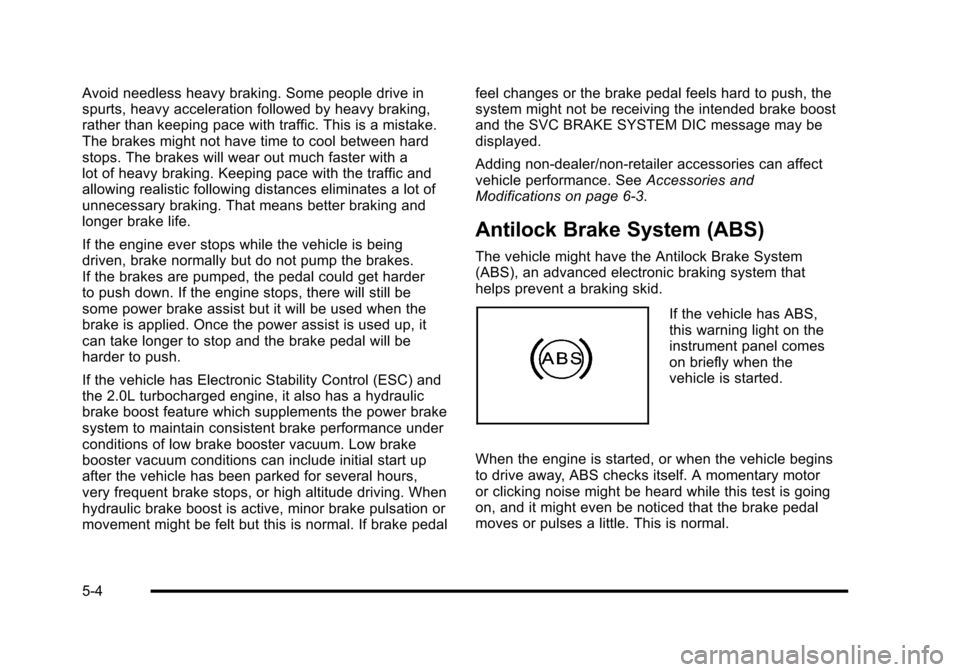
If the vehicle has ABS,
this warning light on the
instrument panel comes
on briefly when the
vehicle is started.
When the engine is started, or when the vehicle begins
to drive away, ABS checks itself. A momentary motor
or clicking noise might be heard while this test is going
on, and it might even be noticed that the brake pedal
moves or pulses a little. This is normal.
5-4
Page 268 of 480
Brake Assist
If this vehicle has ESC with ABS, it also has a Brake
Assist feature designed to assist the driver in stopping
or decreasing vehicle speed in emergency driving
conditions. This feature uses the stability system
hydraulic brake control module to supplement the power
brake system under conditions where the driver has
quickly and forcefully applied the brake pedal in an
attempt to quickly stop or slow down the vehicle. The
stability system hydraulic brake control module
increases brake pressure at each corner of the vehicle
until the ABS activates. Minor brake pedal pulsations or
pedal movement during this time is normal and the
driver should continue to apply the brake pedal as the
driving situation dictates The Brake Assist feature will
automatically disengage when the brake pedal is
released or brake pedal pressure is quickly decreased.
Electronic Stability Control (ESC)
The vehicle has an Electronic Stability Control (ESC)
system which combines antilock brake, and traction and
stability control systems that help the driver maintain
directional control of the vehicle in most driving
conditions.
When the vehicle is started and begins to move, the
system performs several diagnostic checks to ensure
there are no problems. The system may be heard or felt
while it is working. This is normal and does not mean
there is a problem with the vehicle. The system should
initialize before the vehicle reaches 20 mph (32 km/h).
If the system fails to turn on or activate, the ESC/TCS
light comes on, and the ESC OFF and/or SERVICE
ESC message displays.
For more information, seeDriver Information Center
(DIC)
on page 4‑46and Electronic Stability Control
(ESC)/Traction Control System (TCS) Indicator/Warning
Light on page 4‑33.
5-6
Page 269 of 480
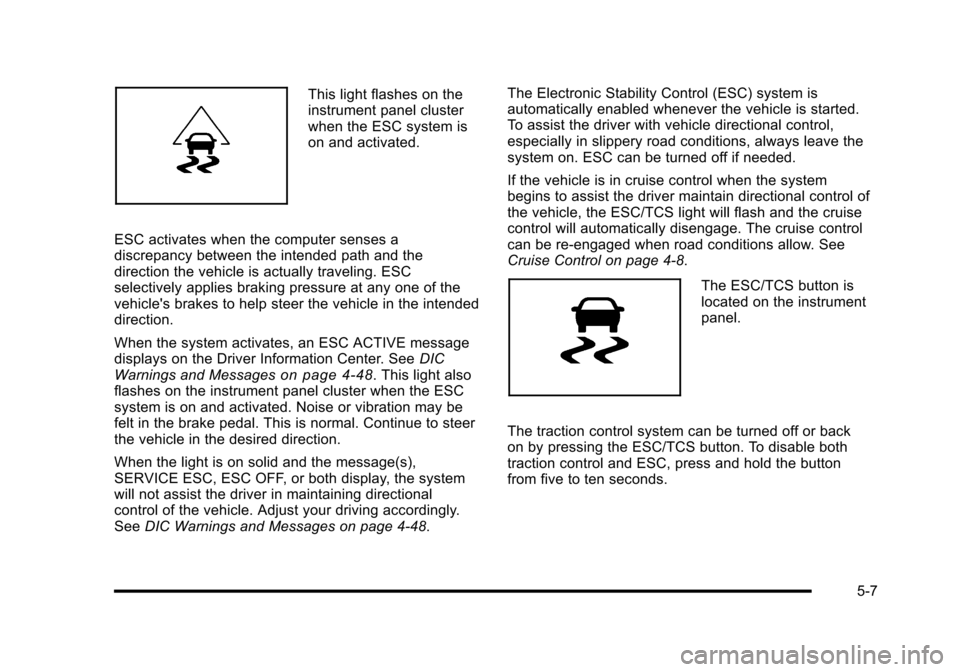
This light flashes on the
instrument panel cluster
when the ESC system is
on and activated.
ESC activates when the computer senses a
discrepancy between the intended path and the
direction the vehicle is actually traveling. ESC
selectively applies braking pressure at any one of the
vehicle's brakes to help steer the vehicle in the intended
direction.
When the system activates, an ESC ACTIVE message
displays on the Driver Information Center. See DIC
Warnings and Messages
on page 4‑48. This light also
flashes on the instrument panel cluster when the ESC
system is on and activated. Noise or vibration may be
felt in the brake pedal. This is normal. Continue to steer
the vehicle in the desired direction.
When the light is on solid and the message(s),
SERVICE ESC, ESC OFF, or both display, the system
will not assist the driver in maintaining directional
control of the vehicle. Adjust your driving accordingly.
See DIC Warnings and Messages on page 4‑48. The Electronic Stability Control (ESC) system is
automatically enabled whenever the vehicle is started.
To assist the driver with vehicle directional control,
especially in slippery road conditions, always leave the
system on. ESC can be turned off if needed.
If the vehicle is in cruise control when the system
begins to assist the driver maintain directional control of
the vehicle, the ESC/TCS light will flash and the cruise
control will automatically disengage. The cruise control
can be re-engaged when road conditions allow. See
Cruise Control on page 4‑8.
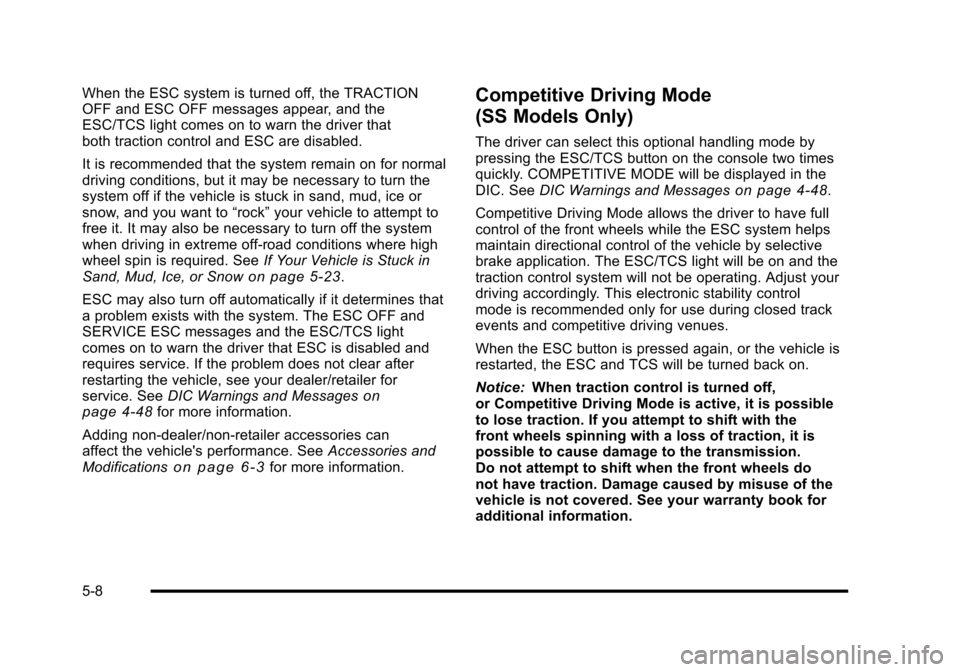
The ESC/TCS button is
located on the instrument
panel.
The traction control system can be turned off or back
on by pressing the ESC/TCS button. To disable both
traction control and ESC, press and hold the button
from five to ten seconds.
5-7
Page 270 of 480
When the ESC system is turned off, the TRACTION
OFF and ESC OFF messages appear, and the
ESC/TCS light comes on to warn the driver that
both traction control and ESC are disabled.
It is recommended that the system remain on for normal
driving conditions, but it may be necessary to turn the
system off if the vehicle is stuck in sand, mud, ice or
snow, and you want to“rock”your vehicle to attempt to
free it. It may also be necessary to turn off the system
when driving in extreme off-road conditions where high
wheel spin is required. See If Your Vehicle is Stuck in
Sand, Mud, Ice, or Snow
on page 5‑23.
ESC may also turn off automatically if it determines that
a problem exists with the system. The ESC OFF and
SERVICE ESC messages and the ESC/TCS light
comes on to warn the driver that ESC is disabled and
requires service. If the problem does not clear after
restarting the vehicle, see your dealer/retailer for
service. See DIC Warnings and Messages
on
page 4‑48for more information.
Adding non‐dealer/non‐retailer accessories can
affect the vehicle's performance. See Accessories and
Modifications
on page 6‑3for more information.
Competitive Driving Mode
(SS Models Only)
The driver can select this optional handling mode by
pressing the ESC/TCS button on the console two times
quickly. COMPETITIVE MODE will be displayed in the
DIC. See DIC Warnings and Messages
on page 4‑48.
Competitive Driving Mode allows the driver to have full
control of the front wheels while the ESC system helps
maintain directional control of the vehicle by selective
brake application. The ESC/TCS light will be on and the
traction control system will not be operating. Adjust your
driving accordingly. This electronic stability control
mode is recommended only for use during closed track
events and competitive driving venues.
When the ESC button is pressed again, or the vehicle is
restarted, the ESC and TCS will be turned back on.
Notice: When traction control is turned off,
or Competitive Driving Mode is active, it is possible
to lose traction. If you attempt to shift with the
front wheels spinning with a loss of traction, it is
possible to cause damage to the transmission.
Do not attempt to shift when the front wheels do
not have traction. Damage caused by misuse of the
vehicle is not covered. See your warranty book for
additional information.
5-8