Home CHEVROLET IMPALA 2020 Infotainment System Manual
[x] Cancel search | Manufacturer: CHEVROLET, Model Year: 2020, Model line: IMPALA, Model: CHEVROLET IMPALA 2020Pages: 97, PDF Size: 1.26 MB
Page 6 of 97
Chevrolet Impala Infotainment Manual (2.6) (GMNA-Localizing-U.S./Canada-
14402255) - 2020 - CRC - 6/5/19
Introduction 5
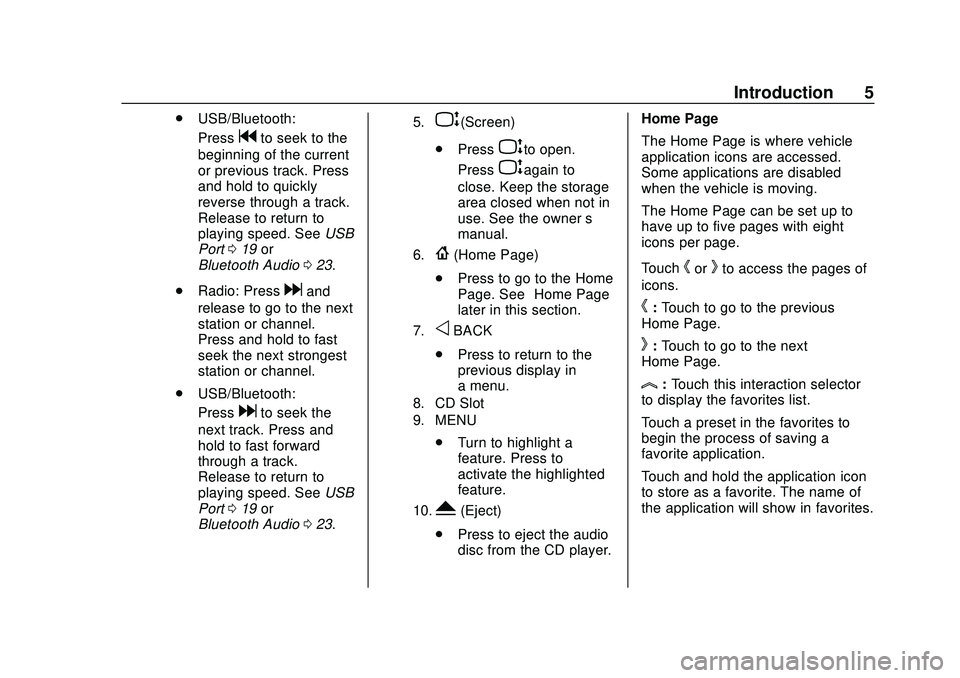
.USB/Bluetooth:
Press
gto seek to the
beginning of the current
or previous track. Press
and hold to quickly
reverse through a track.
Release to return to
playing speed. See USB
Port 019 or
Bluetooth Audio 023.
. Radio: Press
dand
release to go to the next
station or channel.
Press and hold to fast
seek the next strongest
station or channel.
. USB/Bluetooth:
Press
dto seek the
next track. Press and
hold to fast forward
through a track.
Release to return to
playing speed. See USB
Port 019 or
Bluetooth Audio 023.
5.P(Screen)
. Press
Pto open.
Press
Pagain to
close. Keep the storage
area closed when not in
use. See the owner ’s
manual.
6.{(Home Page)
. Press to go to the Home
Page. See “Home Page”
later in this section.
7.oBACK
. Press to return to the
previous display in
a menu.
8. CD Slot
9. MENU
.Turn to highlight a
feature. Press to
activate the highlighted
feature.
10.Y(Eject)
. Press to eject the audio
disc from the CD player. Home Page
The Home Page is where vehicle
application icons are accessed.
Some applications are disabled
when the vehicle is moving.
The Home Page can be set up to
have up to five pages with eight
icons per page.
Touch
horkto access the pages of
icons.
h: Touch to go to the previous
Home Page.
k: Touch to go to the next
Home Page.
l: Touch this interaction selector
to display the favorites list.
Touch a preset in the favorites to
begin the process of saving a
favorite application.
Touch and hold the application icon
to store as a favorite. The name of
the application will show in favorites.
Page 7 of 97
Chevrolet Impala Infotainment Manual (2.6) (GMNA-Localizing-U.S./Canada-
14402255) - 2020 - CRC - 6/5/19
6 Introduction
Managing Home Page Icons1. Touch and hold any of the Home Page icons to enter
edit mode.
2. Continue holding the icon and drag it to the desired position.
3. Release your finger to drop the icon in the desired position.
4. To move an application to another page, drag the icon to
the edge of the display toward
the desired page.
5. Continue dragging and dropping application icons as
desired.Steering Wheel Controls
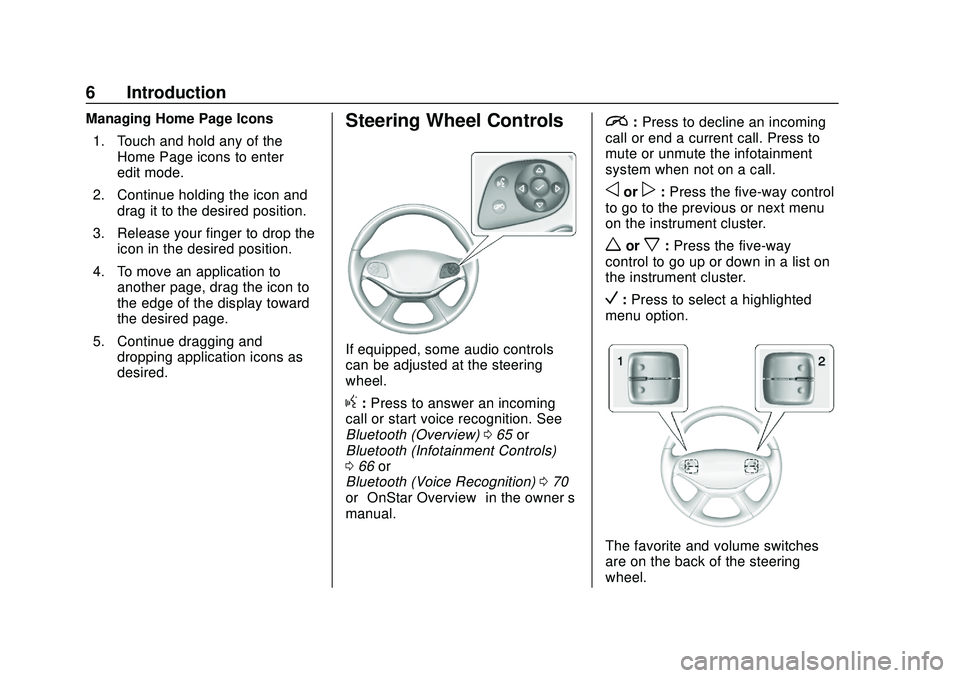
If equipped, some audio controls
can be adjusted at the steering
wheel.
g:Press to answer an incoming
call or start voice recognition. See
Bluetooth (Overview) 065 or
Bluetooth (Infotainment Controls)
0 66 or
Bluetooth (Voice Recognition) 070
or “OnStar Overview” in the owner’s
manual.
i: Press to decline an incoming
call or end a current call. Press to
mute or unmute the infotainment
system when not on a call.
oorp: Press the five-way control
to go to the previous or next menu
on the instrument cluster.
worx: Press the five-way
control to go up or down in a list on
the instrument cluster.
V: Press to select a highlighted
menu option.
The favorite and volume switches
are on the back of the steering
wheel.
Page 8 of 97
Chevrolet Impala Infotainment Manual (2.6) (GMNA-Localizing-U.S./Canada-
14402255) - 2020 - CRC - 6/5/19
Introduction 7
1. Favorites: Press to select thenext or previous favorite radio
station. While playing media,
press to select the next or
previous track or song.
2. Volume: Press to increase or decrease the volume.
Using the System
Home Page Features
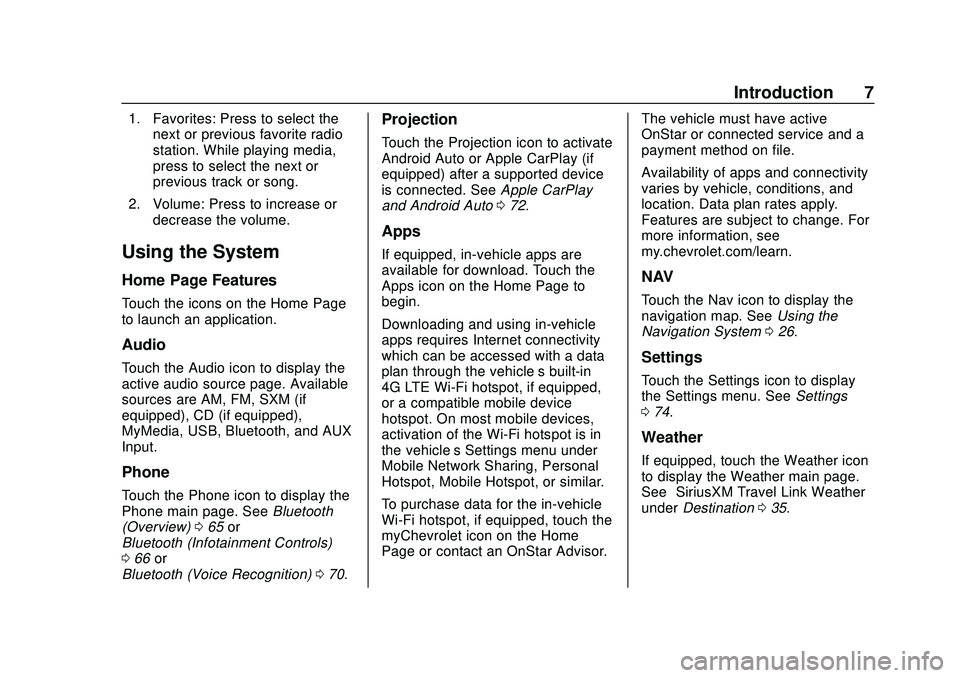
Touch the icons on the Home Page
to launch an application.
Audio
Touch the Audio icon to display the
active audio source page. Available
sources are AM, FM, SXM (if
equipped), CD (if equipped),
MyMedia, USB, Bluetooth, and AUX
Input.
Phone
Touch the Phone icon to display the
Phone main page. See Bluetooth
(Overview) 065 or
Bluetooth (Infotainment Controls)
0 66 or
Bluetooth (Voice Recognition) 070.
Projection
Touch the Projection icon to activate
Android Auto or Apple CarPlay (if
equipped) after a supported device
is connected. See Apple CarPlay
and Android Auto 072.
Apps
If equipped, in-vehicle apps are
available for download. Touch the
Apps icon on the Home Page to
begin.
Downloading and using in-vehicle
apps requires Internet connectivity
which can be accessed with a data
plan through the vehicle’s built-in
4G LTE Wi-Fi hotspot, if equipped,
or a compatible mobile device
hotspot. On most mobile devices,
activation of the Wi-Fi hotspot is in
the vehicle’ s Settings menu under
Mobile Network Sharing, Personal
Hotspot, Mobile Hotspot, or similar.
To purchase data for the in-vehicle
Wi-Fi hotspot, if equipped, touch the
myChevrolet icon on the Home
Page or contact an OnStar Advisor. The vehicle must have active
OnStar or connected service and a
payment method on file.
Availability of apps and connectivity
varies by vehicle, conditions, and
location. Data plan rates apply.
Features are subject to change. For
more information, see
my.chevrolet.com/learn.
NAV
Touch the Nav icon to display the
navigation map. See
Using the
Navigation System 026.
Settings
Touch the Settings icon to display
the Settings menu. See Settings
0 74.
Weather
If equipped, touch the Weather icon
to display the Weather main page.
See “SiriusXM Travel Link Weather”
under Destination 035.
Page 9 of 97
Chevrolet Impala Infotainment Manual (2.6) (GMNA-Localizing-U.S./Canada-
14402255) - 2020 - CRC - 6/5/19
8 Introduction
OnStar
If equipped, touch the Onstar icon to
display the OnStar main page and
start OnStar voice recognition. See
“OnStar Overview”in the owner’s
manual.
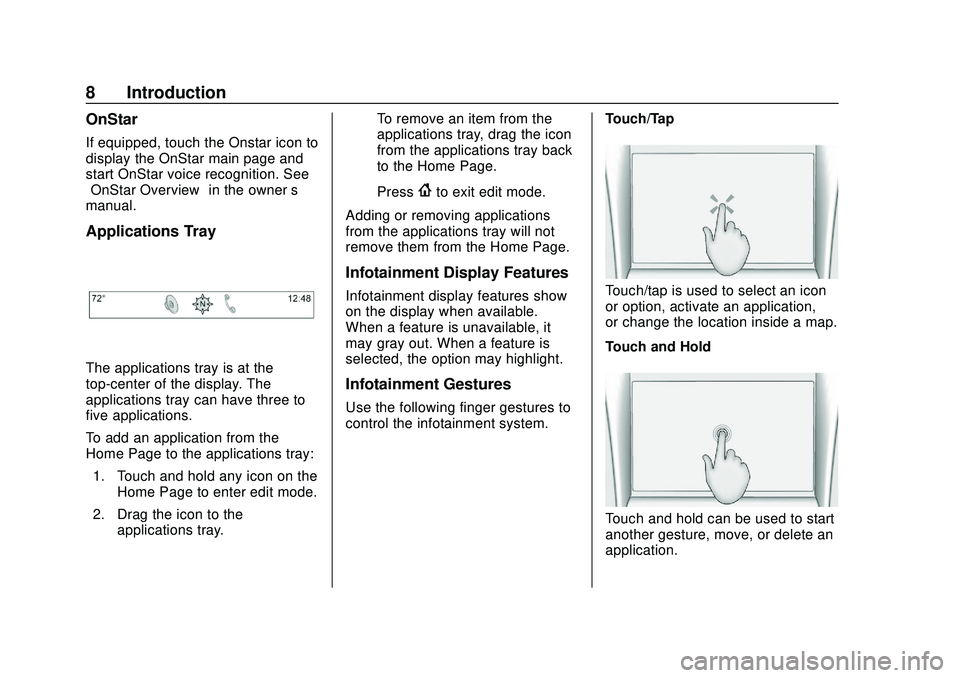
Applications Tray
The applications tray is at the
top-center of the display. The
applications tray can have three to
five applications.
To add an application from the
Home Page to the applications tray:
1. Touch and hold any icon on the Home Page to enter edit mode.
2. Drag the icon to the applications tray. To remove an item from the
applications tray, drag the icon
from the applications tray back
to the Home Page.
Press
{to exit edit mode.
Adding or removing applications
from the applications tray will not
remove them from the Home Page.
Infotainment Display Features
Infotainment display features show
on the display when available.
When a feature is unavailable, it
may gray out. When a feature is
selected, the option may highlight.
Infotainment Gestures
Use the following finger gestures to
control the infotainment system. Touch/Tap
Touch/tap is used to select an icon
or option, activate an application,
or change the location inside a map.
Touch and Hold
Touch and hold can be used to start
another gesture, move, or delete an
application.
Page 10 of 97
Chevrolet Impala Infotainment Manual (2.6) (GMNA-Localizing-U.S./Canada-
14402255) - 2020 - CRC - 6/5/19
Introduction 9
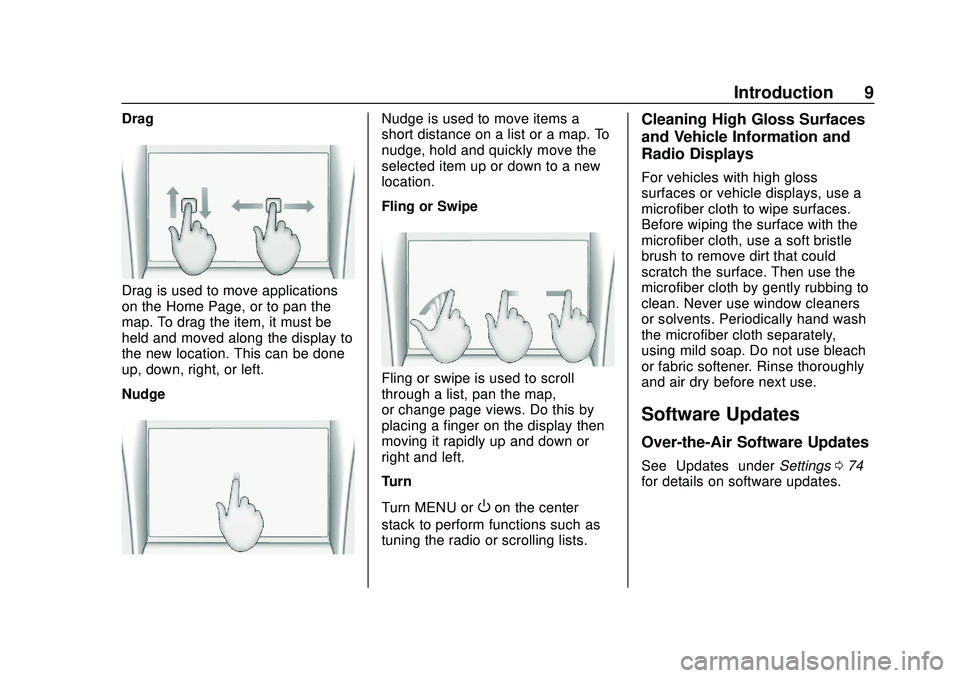
Drag
Drag is used to move applications
on the Home Page, or to pan the
map. To drag the item, it must be
held and moved along the display to
the new location. This can be done
up, down, right, or left.
Nudge
Nudge is used to move items a
short distance on a list or a map. To
nudge, hold and quickly move the
selected item up or down to a new
location.
Fling or Swipe
Fling or swipe is used to scroll
through a list, pan the map,
or change page views. Do this by
placing a finger on the display then
moving it rapidly up and down or
right and left.
Turn
Turn MENU or
Oon the center
stack to perform functions such as
tuning the radio or scrolling lists.
Cleaning High Gloss Surfaces
and Vehicle Information and
Radio Displays
For vehicles with high gloss
surfaces or vehicle displays, use a
microfiber cloth to wipe surfaces.
Before wiping the surface with the
microfiber cloth, use a soft bristle
brush to remove dirt that could
scratch the surface. Then use the
microfiber cloth by gently rubbing to
clean. Never use window cleaners
or solvents. Periodically hand wash
the microfiber cloth separately,
using mild soap. Do not use bleach
or fabric softener. Rinse thoroughly
and air dry before next use.
Software Updates
Over-the-Air Software Updates
See “Updates” underSettings 074
for details on software updates.
Page 11 of 97
Chevrolet Impala Infotainment Manual (2.6) (GMNA-Localizing-U.S./Canada-
14402255) - 2020 - CRC - 6/5/19
10 Radio
Radio
AM-FM Radio
Playing the Radio
While on the Audio main page the
available sources are: AM, FM,
SXM (if equipped), CD (if equipped),
MyMedia, USB, Bluetooth, and AUX
Input.
.Press RADIO on the center
stack or touch the Audio icon on
the Home Page to scroll through
AM, FM, or SXM (if equipped).
. Press MEDIA on the center
stack or touch the Audio icon on
the Home Page to access Media
and scroll through CD (if
equipped), MyMedia, USB,
Bluetooth, and AUX Input.
Infotainment System Settings
Press RADIO on the center stack to
access broadcast sources. Touch the Menu icon on the
infotainment display to display the
following menus:
Tone Settings:
.
Bass, Midrange, Treble,
Surround (if equipped): Touch +
or–to adjust. Surround adjusts
the headrest speaker
volume only.
. Balance: Touch
SorTfor more
sound from the left or right
speakers. The middle position
balances the sound between the
left and right speakers.
. Fade: Touch
yorzfor more
sound from the front or rear
speakers. The middle position
balances the sound between the
front and rear speakers.
DSP Modes (If Equipped):
. Bose Centerpoint surround
sound system has four DSP
modes:
‐Normal: Adjusts the audio to
provide the best sound for all
seating positions. ‐
Driver: Adjusts the audio to
provide the best sound for the
driver.
‐ Rear: Adjusts the audio to
provide the best sound for the
rear seat occupants.
‐ Centerpoint: Turns on Bose
Centerpoint surround
technology. This setting
creates a surround sound from
nearly any audio source:
existing stereo, CD collection,
and MP3 players. For more
information on Bose
Centerpoint surround
technology, see
www.boseautomotive.com.
Categories : Touch Categories
under the Audio menu to access the
categories list for AM, FM, or SXM
(if equipped). The list contains
names associated with the AM, FM,
and SXM, if equipped, stations or
channels. Touch a category name to
display a list of stations or channels
for that category. Touching a station
or channel from the list tunes the
radio to that station or channel and
returns the display to Now Playing.
Page 17 of 97
Chevrolet Impala Infotainment Manual (2.6) (GMNA-Localizing-U.S./Canada-
14402255) - 2020 - CRC - 6/5/19
16 Audio Players
Audio Players
Avoiding Untrusted Media
Devices
When using media devices such as
CDs, DVDs, Blu-ray Discs, SD
cards, USB devices, and mobile
devices, consider the source.
Untrusted media devices could
contain files that affect system
operation or performance. Avoid use
if the content or origin cannot be
trusted.
CD Player
If equipped, use the CD player to
play CDs and MP3 audio.
The system can play:
.Most audio CDs
. CD-R
. CD-RW
. MP3 or unprotected WMA
formats When playing any compatible
recordable disc, the sound quality
can be reduced due to disc quality,
the method of recording, the quality
of the music that has been
recorded, or the way the disc has
been handled.
There can be increased skipping,
difficulty in recording tracks,
difficulty in finding tracks, and/or
difficulty in loading and ejecting.
If these problems occur, check the
disc for damage or try a known
good disc.
To avoid damage to the CD player:
.
Do not use scratched or
damaged discs.
. Do not apply labels to discs. The
labels could get caught in the
player.
. Insert only one disc at a time.
. Keep the loading slot free of
foreign materials, liquids, and
debris.
. Use a marking pen to label the
top of the disc.
Loading and Ejecting Discs
To load a disc:
1. Turn the vehicle on.
2. Insert a disc into the slot, label side up. The player pulls it in
the rest of the way. If the disc
is damaged or improperly
loaded, there is an error and
the disc ejects.
Press
Xto eject a disc from the
CD player. If the disc is not removed
within a short period of time, it is
automatically pulled back into the
player.
Playing an Audio CD
Press MEDIA on the center stack or
touch the Audio icon on the Home
Page to access Media. Scroll until
the CD Audio view is selected.
On the CD main page, a track
number displays at the beginning of
each track, or Song, Artist, and
Album information displays when
available.
Page 24 of 97
Chevrolet Impala Infotainment Manual (2.6) (GMNA-Localizing-U.S./Canada-
14402255) - 2020 - CRC - 6/5/19
Audio Players 23
Playing from the AUX Port
An auxiliary device is played
through the audio system and
controlled through the device itself.
AUX Menu
Press MENU on the center stack to
display the AUX Input menu and the
following may display:
Tone Settings :Touch to adjust
Bass, Midrange, Treble, Balance,
Fade, and EQ (Equalizer). See
AM-FM Radio 010.
Auto Volume (If Equipped) : This
feature adjusts the volume based on
the vehicle speed. See AM-FM
Radio 010.
Bose AudioPilot Noise
Compensation Technology (If
Equipped) : This feature adjusts
the volume based on the noise in
the vehicle and speed. See “Bose
AudioPilot” inAM-FM Radio 010.Bluetooth Audio
If equipped, music may be played
from a paired Bluetooth device. See
Bluetooth (Overview) 065 or
Bluetooth (Infotainment Controls)
0 66 or
Bluetooth (Voice Recognition) 070
for help pairing a device.
The music can be controlled by
either the infotainment controls or
the controls on the device.
Music can be launched by pressing
MEDIA on the center stack or go
into the audio application from the
Home Page or through the
applications tray. Touch the Media
icon until Bluetooth displays.
To play music via Bluetooth:
1. Power on the device, and pair to connect the device.
2. Once paired, go into the audio application from the Home
Page or through the
applications tray. Touch the
Media icon until Bluetooth
displays. Bluetooth Audio Menu
Touch the Menu icon on the
infotainment display or MENU on
the center stack to display the
Bluetooth Audio menu. The
following may be available:
Tone Settings :
Touch + or–to
adjust the tone settings. See AM-FM
Radio 010.
Auto Volume (If Equipped) : This
feature adjusts the volume based on
the vehicle speed. See AM-FM
Radio 010.
Bose AudioPilot Noise
Compensation Technology (If
Equipped) : This feature adjusts
the volume based on the noise in
the vehicle and speed. See AM-FM
Radio 010.
Touch the Back icon on the
infotainment display to go back to
the previous menu.
Page 26 of 97

Chevrolet Impala Infotainment Manual (2.6) (GMNA-Localizing-U.S./Canada-
14402255) - 2020 - CRC - 6/5/19
OnStar System 25
OnStar System
4G LTE
If equipped with 4G LTE, up to
seven devices, such as
smartphones, tablets, and laptops,
can be connected to high-speed
Internet through the vehicle’s built-in
Wi-Fi hotspot.
Call 1-888-4ONSTAR
(1-888-466-7827) to connect to an
OnStar Advisor for assistance. See
www.onstar.com for vehicle
availability, details, and system
limitations. Service and connectivity
may vary by make, model, year,
carrier, availability, and conditions.
4G LTE service is available in select
markets. 4G LTE performance is
based on industry averages and
vehicle systems design. Some
services require a data plan.
The OnStar App
If equipped, the infotainment system
has OnStar controls in the
embedded OnStar app on the Home
Page. All OnStar functions that can
be performed with the buttons can
be done using the app. To open the
app, touch the OnStar icon on the
Home Page. Features vary by
region and model. Features are
subject to change. For more
information on this feature, see
my.chevrolet.com/learn.
Page 27 of 97
Chevrolet Impala Infotainment Manual (2.6) (GMNA-Localizing-U.S./Canada-
14402255) - 2020 - CRC - 6/5/19
26 Navigation
Navigation
Using the Navigation
System
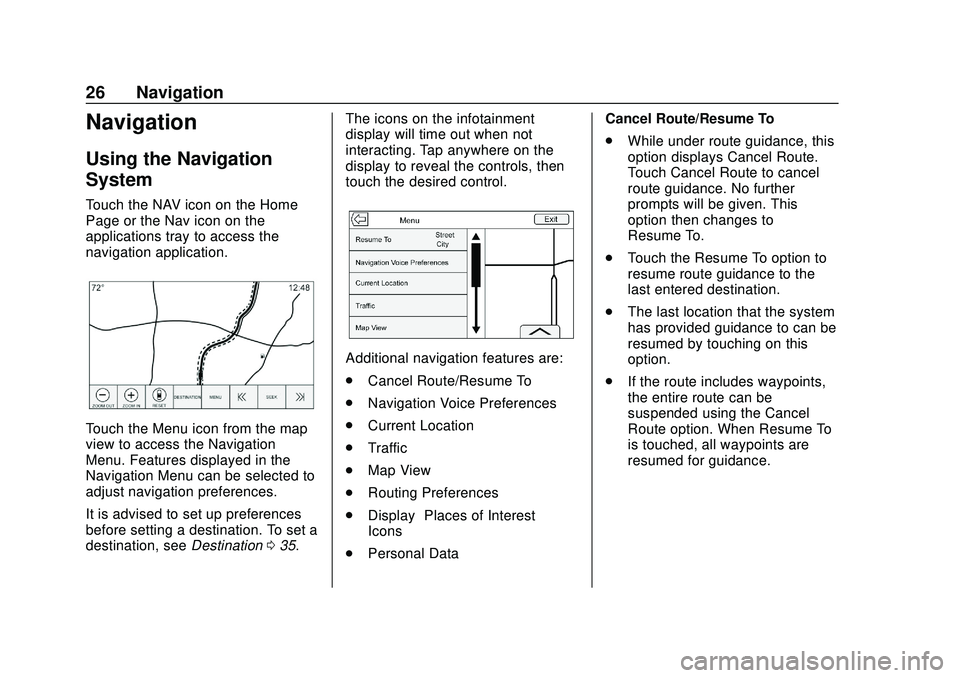
Touch the NAV icon on the Home
Page or the Nav icon on the
applications tray to access the
navigation application.
Touch the Menu icon from the map
view to access the Navigation
Menu. Features displayed in the
Navigation Menu can be selected to
adjust navigation preferences.
It is advised to set up preferences
before setting a destination. To set a
destination, seeDestination035. The icons on the infotainment
display will time out when not
interacting. Tap anywhere on the
display to reveal the controls, then
touch the desired control.
Additional navigation features are:
.
Cancel Route/Resume To
. Navigation Voice Preferences
. Current Location
. Traffic
. Map View
. Routing Preferences
. Display “Places of Interest”
Icons
. Personal Data Cancel Route/Resume To
.
While under route guidance, this
option displays Cancel Route.
Touch Cancel Route to cancel
route guidance. No further
prompts will be given. This
option then changes to
Resume To.
. Touch the Resume To option to
resume route guidance to the
last entered destination.
. The last location that the system
has provided guidance to can be
resumed by touching on this
option.
. If the route includes waypoints,
the entire route can be
suspended using the Cancel
Route option. When Resume To
is touched, all waypoints are
resumed for guidance.