bluetooth CHEVROLET MALIBU 2017 9.G User Guide
[x] Cancel search | Manufacturer: CHEVROLET, Model Year: 2017, Model line: MALIBU, Model: CHEVROLET MALIBU 2017 9.GPages: 419, PDF Size: 7.81 MB
Page 173 of 419
Chevrolet Malibu Owner Manual (GMNA-Localizing-U.S./Canada/Mexico-10122664) - 2017 - crc - 5/23/16
172 Infotainment System
functions may gray out when theyare unavailable. Many infotainmentfeatures are also available throughthe instrument cluster and steeringwheel controls.
Before driving:
.Become familiar with theoperation, faceplate buttons, andscreen buttons.
.Set up the audio by presettingfavorite stations, setting thetone, and adjusting thespeakers.
.Set up phone numbers inadvance so they can be calledeasily by pressing a singlebutton or by using a single voicecommand if equipped withBluetooth phone capability.
SeeDefensive Driving0216.
To p l a y t h e i n f o t a i n m e n t s y s t e m w i t hthe ignition off, seeRetainedAccessory Power (RAP)0230.
Theft-Deterrent Feature
The infotainment system has anelectronic security system installedto prevent theft.
The infotainment system only worksin the vehicle in which it was firstinstalled, and cannot be used inanother vehicle.
Page 174 of 419
Chevrolet Malibu Owner Manual (GMNA-Localizing-U.S./Canada/Mexico-10122664) - 2017 - crc - 5/23/16
Infotainment System 173
Overview
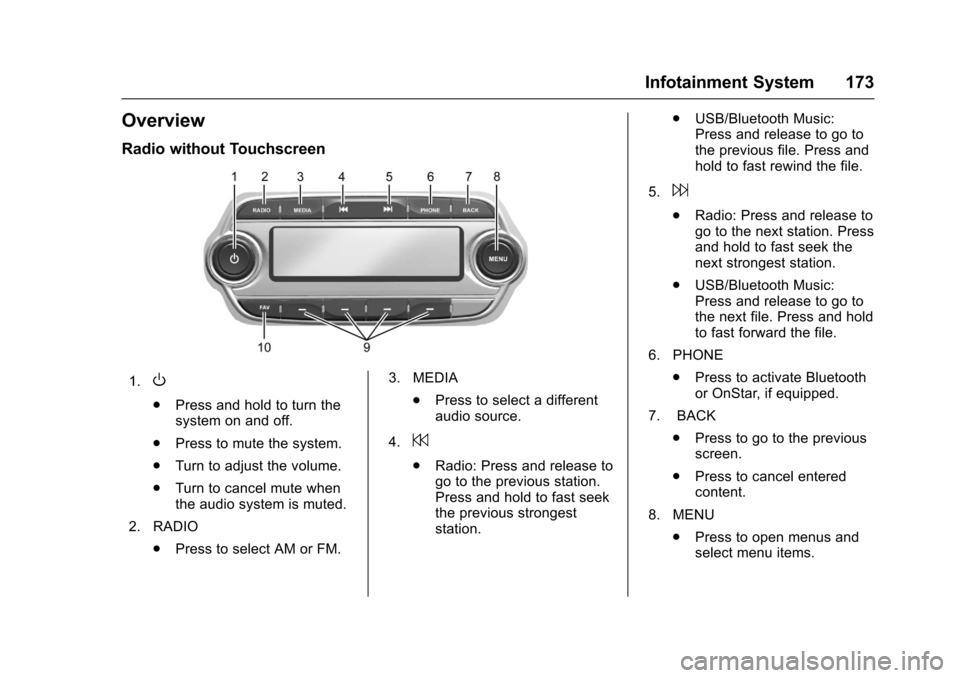
Radio without Touchscreen
1.O
.Press and hold to turn thesystem on and off.
.Press to mute the system.
.Turn to adjust the volume.
.Turn to cancel mute whenthe audio system is muted.
2. RADIO
.Press to select AM or FM.
3. MEDIA
.Press to select a differentaudio source.
4.7
.Radio: Press and release togo to the previous station.Press and hold to fast seekthe previous strongeststation.
.USB/Bluetooth Music:Press and release to go tothe previous file. Press andhold to fast rewind the file.
5.6
.Radio: Press and release togo to the next station. Pressand hold to fast seek thenext strongest station.
.USB/Bluetooth Music:Press and release to go tothe next file. Press and holdto fast forward the file.
6. PHONE
.Press to activate Bluetoothor OnStar, if equipped.
7. BACK
.Press to go to the previousscreen.
.Press to cancel enteredcontent.
8. MENU
.Press to open menus andselect menu items.
Page 176 of 419
Chevrolet Malibu Owner Manual (GMNA-Localizing-U.S./Canada/Mexico-10122664) - 2017 - crc - 5/23/16
Infotainment System 175
1.{
.Press to go to the HomePage. SeeHome Page(Radio withTo u c h s c r e e n )0175.
2.g
.Radio: Press and release togo to the previous station orchannel. Press and hold tofast seek the previousstrongest station orchannel.
.USB/Bluetooth Music/Pictures: Press and releaseto go to the previous track.Press and hold to fastrewind.
3.O
.Press to turn the power on.
.Press and hold to turn thepower off.
.Press to mute the systemwhen on.
.Turn to decrease orincrease the volume.
4.d
.Radio: Press and release togo to the next station orchannel. Press and hold tofast seek the next strongeststation or channel.
.USB/Bluetooth Music/Pictures: Press and releaseto go to the next track.Press and hold to fastforward.
5.5
.Press and release toaccess the phone screen,answer an incoming call,or access the device homescreen.
Home Page (Radio with
Touchscreen)
Touchscreen Buttons
If equipped, touchscreen buttonsshow on the screen when available.When a function is unavailable, thebutton may gray out. When afunction is selected, the button mayhighlight.
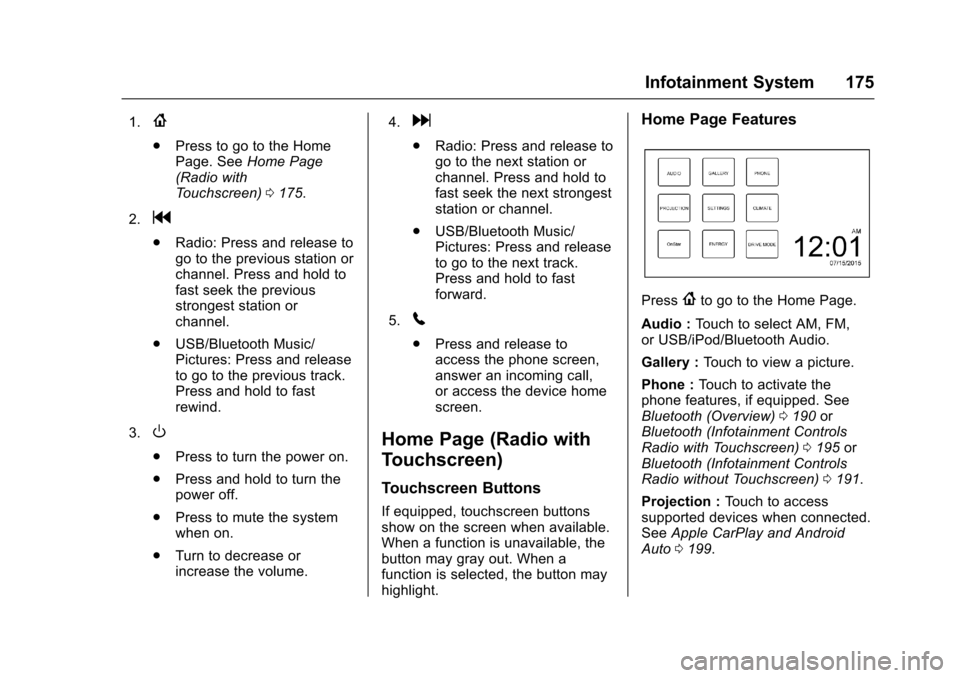
Home Page Features
Press{to go to the Home Page.
Audio :To u c h t o s e l e c t A M , F M ,or USB/iPod/Bluetooth Audio.
Gallery :To u c h t o v i e w a p i c t u r e .
Phone :To u c h t o a c t i v a t e t h ephone features, if equipped. SeeBluetooth (Overview)0190orBluetooth (Infotainment ControlsRadio with Touchscreen)0195orBluetooth (Infotainment ControlsRadio without Touchscreen)0191.
Projection :To u c h t o a c c e s ssupported devices when connected.SeeApple CarPlay and AndroidAuto0199.
Page 187 of 419
Chevrolet Malibu Owner Manual (GMNA-Localizing-U.S./Canada/Mexico-10122664) - 2017 - crc - 5/23/16
186 Infotainment System
.Do not use the USB terminal tocharge USB accessoryequipment. The heat generatedmay cause performance issuesor damage.
.Music files to which Digital RightManagement (DRM) is appliedcannot be played.
.USB storage device that has acapacity limit of no more than5,000 files, such as music,photo, video, 15 levels of folderstructure. Normal usage cannotbe guaranteed for a storagedevice that exceeds this limit.The iPod/iPhone can play allmusic files that are supported.The music file lists will onlydisplay up to 5,000 files on thescreen. These files are sorted inalphabetical order.
.Some iPod/iPhone productmodels may not support theconnectivity or functionality ofthis product.
.Only connect the iPod/iPhonewith connection cablessupported by iPod/iPhoneproducts. Other connectioncables cannot be used.
.The iPod/iPhone may bedamaged if it is connected to thevehicle with the ignition on.When not in use, disconnect theiPod/iPhone.
.When the iPod/iPhone isconnected to the USB port byusing the iPod/iPhone cable, theBluetooth music is notsupported.
.The iPod/iPhone playbackfunctions and the informationdisplayed may be different whenplayed on the infotainmentsystem.
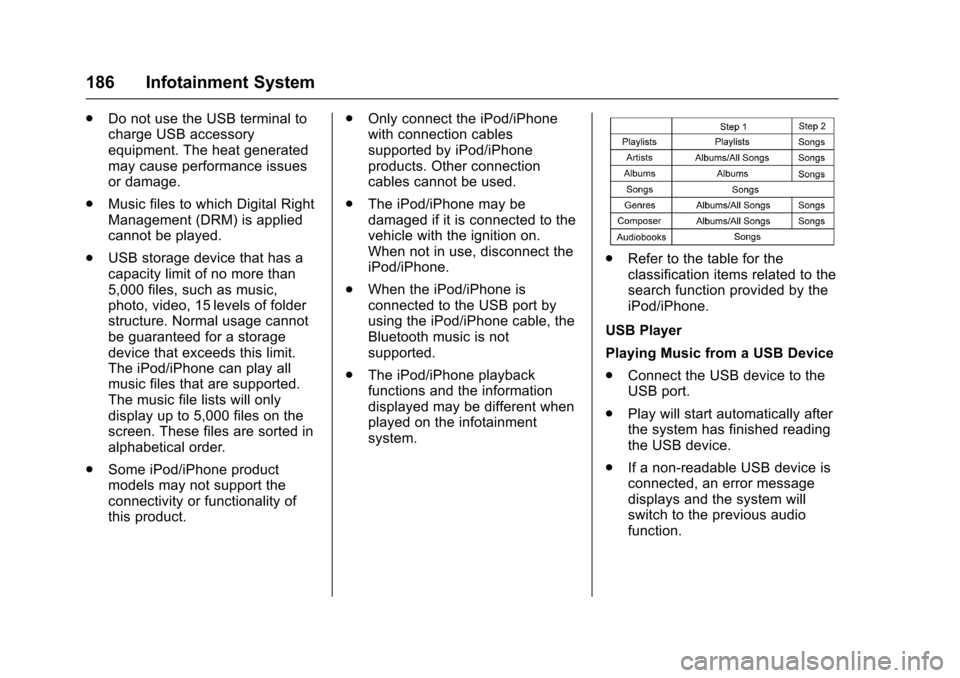
.Refer to the table for theclassification items related to thesearch function provided by theiPod/iPhone.
USB Player
Playing Music from a USB Device
.Connect the USB device to theUSB port.
.Play will start automatically afterthe system has finished readingthe USB device.
.If a non-readable USB device isconnected, an error messagedisplays and the system willswitch to the previous audiofunction.
Page 191 of 419
Chevrolet Malibu Owner Manual (GMNA-Localizing-U.S./Canada/Mexico-10122664) - 2017 - crc - 5/23/16
190 Infotainment System
Phone
Bluetooth (Overview)
If equipped with Bluetooth®
capability, the system can interactwith many Bluetooth phones, PDAs,or other devices to:
.Place and receive hands-freecalls.
.Transmit hands-free data.
.Play audio streaming files.
.Placing outgoing calls by voicerecognition.
The device must be paired first. See“Pairing”underBluetooth(Overview)0190orBluetooth(Infotainment Controls Radio withTo u c h s c r e e n )0195orBluetooth(Infotainment Controls Radio withoutTo u c h s c r e e n )0191.
To m i n i m i z e d r i v e r d i s t r a c t i o n ,before driving, and with the vehicleparked:
.Become familiar with thefeatures of the cell phone.Organize the phone book and
contact lists clearly and deleteduplicate or rarely used entries.If possible, program speed dialor other shortcuts.
.Review the controls andoperation of the infotainmentsystem.
.Pair cell phone(s) to the vehicle.The system may not work withall cell phones. See“Pairing”underBluetooth (Overview)0190orBluetooth (InfotainmentControls Radio withTo u c h s c r e e n )0195orBluetooth(Infotainment Controls Radiowithout Touchscreen)0191.
.See“Deleting a BluetoothDevice”underBluetooth(Overview)0190orBluetooth(Infotainment Controls Radiowith Touchscreen)0195orBluetooth (Infotainment ControlsRadio withoutTo u c h s c r e e n )0191.
{Warning
When using a cell phone, it can
be distracting to look too long or
too often at the screen of the
phone or the infotainment system.
Ta k i n g y o u r e y e s o f f t h e r o a d t o o
long or too often could cause a
crash resulting in injury or death.
Focus your attention on driving.
Vehicles with a Bluetooth systemcan use a Bluetooth-capable cellphone with a Hands-Free Profile tomake and receive phone calls. Theinfotainment system is used tocontrol the system. The system canbe used while in ACC/ACCESSORYor ON/RUN. SeeRetainedAccessory Power (RAP)0230.Notall phones support all functions andnot all phones work with theBluetooth system. Seewww.gm.com/bluetooth for moreinformation about compatiblephones in the U.S. andCanada only.
The Bluetooth system range can beup to 9.1 m (30 ft).
Page 192 of 419
Chevrolet Malibu Owner Manual (GMNA-Localizing-U.S./Canada/Mexico-10122664) - 2017 - crc - 5/23/16
Infotainment System 191
There may be restrictions on usingBluetooth wireless technology insome locations.
Due to the variety of Bluetoothdevices and their firmware versions,the device may respond differentlywhen performing over Bluetooth.
On a current phone call, an imageof the current contact from thephone's contact list may bedisplayed. Not all phones arecompatible with this feature.
Refer to the cell phonemanufacturer’suserguideforquestions about the phone'sBluetooth functionality.
Bluetooth Controls
If equipped with Bluetooth capability,use the buttons on the infotainmentsystem and the steering wheel tooperate the system.
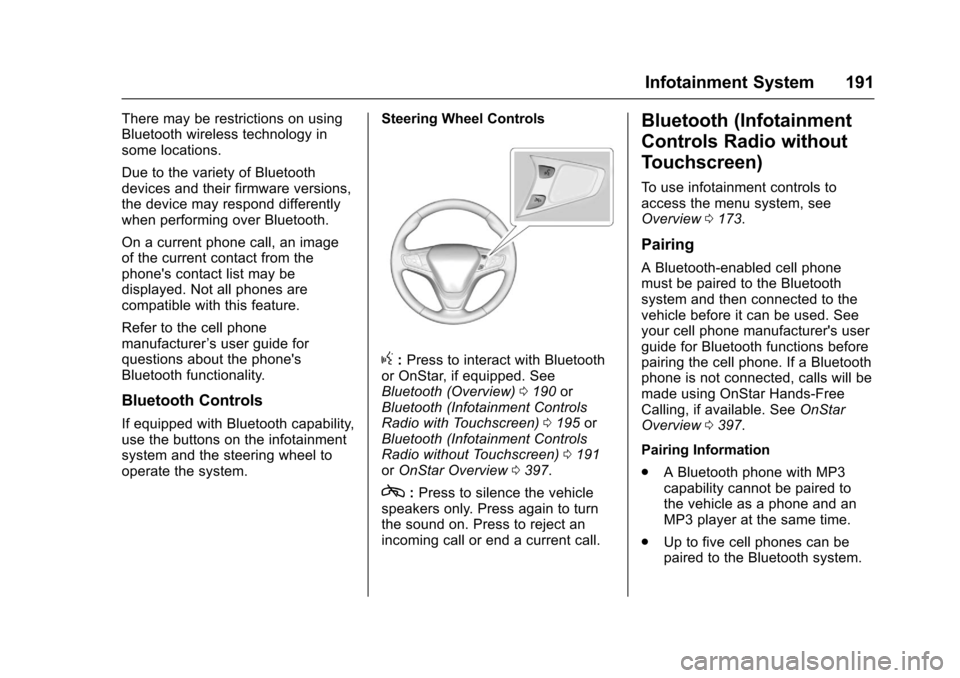
Steering Wheel Controls
g:Press to interact with Bluetoothor OnStar, if equipped. SeeBluetooth (Overview)0190orBluetooth (Infotainment ControlsRadio with Touchscreen)0195orBluetooth (Infotainment ControlsRadio without Touchscreen)0191orOnStar Overview0397.
c:Press to silence the vehiclespeakers only. Press again to turnthe sound on. Press to reject anincoming call or end a current call.
Bluetooth (Infotainment
Controls Radio without
Touchscreen)
To u s e i n f o t a i n m e n t c o n t r o l s t oaccess the menu system, seeOverview0173.
Pairing
ABluetooth-enabledcellphonemust be paired to the Bluetoothsystem and then connected to thevehicle before it can be used. Seeyour cell phone manufacturer's userguide for Bluetooth functions beforepairing the cell phone. If a Bluetoothphone is not connected, calls will bemade using OnStar Hands-FreeCalling, if available. SeeOnStarOverview0397.
Pairing Information
.ABluetoothphonewithMP3capability cannot be paired tothe vehicle as a phone and anMP3 player at the same time.
.Up to five cell phones can bepaired to the Bluetooth system.
Page 193 of 419
Chevrolet Malibu Owner Manual (GMNA-Localizing-U.S./Canada/Mexico-10122664) - 2017 - crc - 5/23/16
192 Infotainment System
.The pairing process is disabledwhen the vehicle is moving.
.Pairing only needs to becompleted once, unless thepairing information on the cellphone changes or the cell phoneis deleted from the system.
.Only one paired cell phone canbe connected to the Bluetoothsystem at a time.
.If multiple paired cell phones arewithin range of the system, thesystem connects to the firstavailable paired cell phone in theorder that they were first paired.
When the Bluetooth device andinfotainment system aresuccessfully paired, the phone bookis downloaded automatically. This isdependent on the type of phonepaired. If the automatic downloaddoes not occur, proceed with thephone book download on thephone.
Pairing a Phone–SSP and NoPaired Device
When there is no paired device onthe infotainment system and SimpleSecure Pairing (SSP) is supported:
1. Press PHONE or pressgon
the steering wheel withoutOnStar.
2. Press Pair to search forBluetooth Devices.
3. When the Bluetooth device andinfotainment system aresuccessfully paired, the phonescreen is displayed on theinfotainment system.
Pairing a Phone–SSP and PairedDevice
When a paired device is on theinfotainment system and SSP issupported:
1. Press PHONE or pressgon
the steering wheel withoutOnStar.
2. Press MENU, then selectBluetooth Devices.
3. Turn MENU to the desireddevice to pair.
4. Press MENU to select thedesired device to pair.
5. When the Bluetooth device andinfotainment system aresuccessfully paired, the phonescreen is displayed on theinfotainment system. If nodesired device is available goto Step 6.
6. Press Add to search for thedesired device.
.The connected phone is
highlighted by5.
.Z/5indicates the hands-free
and phone music functions areenabled.
.5indicates only the hands-free
function is enabled.
.Zindicates only Bluetooth
music is enabled.
Page 194 of 419
Chevrolet Malibu Owner Manual (GMNA-Localizing-U.S./Canada/Mexico-10122664) - 2017 - crc - 5/23/16
Infotainment System 193
Pairing a Phone–No SSP and NoPaired Device
When there is no paired device onthe infotainment system and SSP isnot supported:
1. Press PHONE or pressgon
the steering wheel withoutOnStar.
2. Press Pair to search forBluetooth Devices.
3. Input the PersonalIdentification Number (PIN)code (default: 1234) to theBluetooth device. When theBluetooth device andinfotainment system aresuccessfully paired, thePHONE screen is displayed onthe infotainment system.
When the connection fails, a failuremessage is displayed on theinfotainment system.
If a Bluetooth device was previouslyconnected, the infotainment systemexecutes the auto connection.However, if the Bluetooth setting on
the Bluetooth device is turned off, afailure message is displayed on theinfotainment system.
Pairing a Phone–No SSP andPaired Device
When a paired device is on theinfotainment system and SSP is notsupported:
1. Press PHONE or pressgon
the steering wheel withoutOnStar.
2. Press MENU, then selectBluetooth Devices.
3. Turn MENU to the desireddevice to pair.
4. Press MENU to select thedesired device to pair.
5. Input the PersonalIdentification Number (PIN)code (default: 1234) to theBluetooth device. When theBluetooth device andinfotainment system are
successfully paired,Z/5is
displayed on the pair devicescreen. If no desired device isavailable go to Step 6.
6. Press Add to search for thedesired device.
.The connected phone is
highlighted by5.
.Z/5indicates the hands-free
and phone music functions areenabled.
.5indicates only the hands-free
function is enabled.
.Zindicates only Bluetooth
music is enabled.
Checking the BluetoothConnection
1. Press PHONE.
2. Turn MENU to highlightBluetooth Devices.
3. Press MENU to selectBluetooth Devices.
4. The paired device will show.
Disconnecting a Bluetooth Device
1. Press PHONE.
2. Turn MENU to highlightBluetooth Devices.
Page 195 of 419
Chevrolet Malibu Owner Manual (GMNA-Localizing-U.S./Canada/Mexico-10122664) - 2017 - crc - 5/23/16
194 Infotainment System
3. Press MENU to selectBluetooth Devices.
4. Turn MENU to highlight thedesired Bluetooth device.
5. Press Disconnect.
Deleting a Bluetooth Device
1. Press PHONE.
2. Turn MENU to highlightBluetooth Devices.
3. Press MENU to selectBluetooth Devices.
4. Turn MENU to highlight thedesired Bluetooth device.
5. Press Delete.
Bluetooth Music
Before playing Bluetooth music,read the following information.
.AcellphoneorBluetoothdevicethat supports Advanced AudioDistribution Profile (A2DP)versions over 1.2 must beregistered and connected to theproduct.
.From the cell phone or Bluetoothdevice, find the Bluetooth devicetype to set/connect the item as astereo headset.
.ewill appear on the screen if
the stereo headset issuccessfully connected.
.The sound played by theBluetooth device is deliveredthrough the infotainment system.
.Bluetooth music can be playedonly when a Bluetooth devicehas been connected. To playBluetooth music, connect theBluetooth phone to theinfotainment system.
.If the Bluetooth device isdisconnected while playingphone music, the music isdiscontinued. The audiostreaming function may not besupported in some Bluetoothphones. Only one function canbe used at a time between theBluetooth hands-free or Phonemusic function. For example,if you convert to Bluetoothhands-free while playing Phonemusic, the music is
discontinued. Playing music fromthe car is not possible whenthere are no music files stored inthe cell phone.
.For Bluetooth music to play, themusic must be played at leastonce from the music playermode of the cell phone orBluetooth device afterconnecting as a stereo headset.After being played at least once,the music player willautomatically play upon enteringplay mode, and it willautomatically stop when themusic player mode ends. If thecell phone or Bluetooth device isnot in the waiting screen mode,some devices may notautomatically play in Bluetoothmusic play mode.
Playing Bluetooth Music
Press Media repeatedly, untilBluetooth Audio is selected.
Pause
Turn MENU to highlightj,then
press MENU to pause.
Page 196 of 419
Chevrolet Malibu Owner Manual (GMNA-Localizing-U.S./Canada/Mexico-10122664) - 2017 - crc - 5/23/16
Infotainment System 195
Turn MENU to highlightr,then
press MENU to resume.
Playing the Next Song
Turn MENU to highlightl,then
press MENU to pause.
Playing the Previous Song
Turn MENU to highlightg,then
press MENU within two seconds ofplayback time to play theprevious song.
Returning to the Beginning of theCurrent Song
Turn MENU to highlightg,then
press MENU after two seconds ofplayback time.
Search
Turn MENU to highlightgorl,
then press and hold MENU torewind or fast forward.
Playing Music Randomly
Turn MENU to highlightZ,then
press MENU during playback. PressMENU again to return tonormal play.
This function may not be supporteddepending on the cell phone.
Do not change the track too quicklywhen playing Bluetooth music.
Conditions that may occur whenplaying Bluetooth music:
.It takes time to transmit datafrom the cell phone to theinfotainment system.
.If the cell phone or Bluetoothdevice is not in the waitingscreen mode, it may notautomatically play.
.The infotainment systemtransmits the order to play fromthe cell phone in the Bluetoothmusic play mode. If this is donein a different mode, then thedevice transmits the order tostop. Depending on the cellphone’soptions,thisordertoplay/stop may take time toactivate.
.If the Bluetooth music playbackis not functioning, then check tosee if the cell phone is in thewaiting screen mode.
.Sounds may be cut off duringthe Bluetooth music playback.
.The infotainment system outputsthe audio from the cell phone orBluetooth device as it istransmitted.
Bluetooth (Infotainment
Controls Radio with
Touchscreen)
To u s e i n f o t a i n m e n t c o n t r o l s t oaccess the menu system, seeOverview0173.
Pairing
ABluetooth-enabledcellphonemust be paired to the Bluetoothsystem and then connected to thevehicle before it can be used. Seeyour cell phone manufacturer's userguide for Bluetooth functions beforepairing the cell phone. If a Bluetoothphone is not connected, calls will bemade using OnStar Hands-FreeCalling, if available. SeeOnStarOverview0397.