lock CHEVROLET ORLANDO 2017 Workshop Manual
[x] Cancel search | Manufacturer: CHEVROLET, Model Year: 2017, Model line: ORLANDO, Model: CHEVROLET ORLANDO 2017Pages: 372, PDF Size: 6.71 MB
Page 128 of 372
Black plate (28,1)Chevrolet Orlando Owner Manual - 2013 - CRC - 6/5/12
5-28 Instruments and Controls
Object Detection System
Messages
PARK ASSIST OFF
This message displays when the
park assist system has been turned
off or when there is a temporary
condition causing the system to be
disabled. SeeUltrasonic Parking
Assist on page 9‑33.
SERVICE PARK ASSIST
This message displays if there is a
problem with the Ultrasonic Rear
Parking Assist (URPA) system. Do
not use this system to help you
park. See Ultrasonic Parking Assist
on page 9‑33.
Ride Control System
Messages
SERVICE TRACTION
CONTROL
This message displays when there
is a problem with the Traction
Control System (TCS). See Traction
Control System (TCS) on
page 9‑28.
SERVICE STABILITRAK
This message displays if there is a
problem with the StabiliTrak system.
See StabiliTrak
®System on
page 9‑29.
Airbag System Messages
SERVICE AIRBAG
This message displays if there is a
problem with the airbag system.
Take the vehicle to your dealer for
service.
Security Messages
THEFT ATTEMPTED
This message displays if the vehicle
detects a tamper condition.
Service Vehicle Messages
SERVICE AC SYSTEM
This message displays if there is a
problem with the air conditioning
system. Take the vehicle to your
dealer for service.
SERVICE POWER STEERING
This message displays if there is a
problem with the power steering
system. Take the vehicle to your
dealer for service.
SERVICE STEERING
COLUMN LOCK
This message displays if there is a
problem with the steering column
lock. Take the vehicle to your dealer
for service.
Page 129 of 372
Black plate (29,1)Chevrolet Orlando Owner Manual - 2013 - CRC - 6/5/12
Instruments and Controls 5-29
SERVICE VEHICLE SOON
This message displays if there is a
problem with the vehicle. Take the
vehicle to your dealer for service.
Starting the Vehicle
Messages
TURN STEERING WHEEL
TURN KEY OFF THEN ON
This message displays when the
steering column is locked. Try
turning the steering wheel while
turning the vehicle off and then back
on to unlock the steering column.
TURN STEERING WHEEL
START VEHICLE AGAIN
This message displays when you try
to start the vehicle, but the column
remains locked. Try turning the
steering wheel while starting the
vehicle to unlock the steering
column. If the vehicle still does not
start, turn the steering wheel the
other way, and try starting the
vehicle again.
Tire Messages
SERVICE TIRE MONITOR
SYSTEM
This message displays if there is a
problem with the Tire Pressure
Monitor System (TPMS). SeeTire
Pressure Monitor Operation on
page 10‑45 for more information.
TIRE LEARNING ACTIVE
This message displays when the
system is learning new tires. See
Tire Pressure Monitor Operation on
page 10‑45for more information.
TIRE PRESSURE LOW ADD
AIR TO TIRE
On vehicles with the Tire Pressure
Monitor System (TPMS), this
message displays when the
pressure in one or more of the
vehicle's tires is low.
There is also an icon with the
warning that will indicate the
location of the low tire. The low tire pressure warning light
will also come on. See
Tire
Pressure Light on page 5‑17.
If a tire pressure message appears
on the DIC, stop as soon as you
can. Inflate the tires by adding air
until the tire pressure is equal to the
values shown on the Tire and
Loading Information label. See Tires
on page 10‑37, Vehicle Load Limits
on page 9‑9, and Tire Pressure on
page 10‑43.
You can receive more than one tire
pressure message at a time. To
read the other messages that may
have been sent at the same time,
press the SET/CLR button. The DIC
also shows the tire pressure values.
See Driver Information Center (DIC)
on page 5‑21.
Transmission Messages
SERVICE TRANSMISSION
This message displays if there is a
problem with the transmission. See
your dealer.
Page 130 of 372
Black plate (30,1)Chevrolet Orlando Owner Manual - 2013 - CRC - 6/5/12
5-30 Instruments and Controls
TRANSMISSION HOT—IDLE
ENGINE
This message displays and a chime
sounds if the transmission fluid in
the vehicle gets hot. Driving with the
transmission fluid temperature high
can cause damage to the vehicle.
Stop the vehicle and let it idle to
allow the transmission to cool. This
message clears when the fluid
temperature reaches a safe level.
Vehicle Reminder
Messages
ICE POSSIBLE DRIVE
WITH CARE
This message displays when ice
conditions are possible.
STEERING COLUMN IS
LOCKED
This message displays when the
steering column is locked.
Vehicle
Personalization
The audio system controls are used
to access the personalization
menus for customizing vehicle
features.
CONFIG (Configuration): Press to
access the Configuration
Settings menu.
MENU: Press the center of this
knob to enter the menus and select
menu items. Turn the knob to scroll
through the menus.
BACK: Press to exit or move
backward in a menu.
Entering the Personalization
Menus
1. Press CONFIG to access the
Configuration Settings menu.
2. Turn the MENU knob to highlight Vehicle Settings. Press the
CONFIG button until Vehicle is
highlighted on vehicles with a
navigation system only. 3. Press the center of the MENU
knob to select the Vehicle
Settings menu. The vehicle must
be in the run position.
The following list of menu items may
be available:
.Climate and Air Quality
.Comfort and Convenience
.Collision/Detection Systems
.Languages
.Lighting
.Power Door Locks
.Remote Locking, Unlocking,
Starting
.Return to Factory Settings
Turn the MENU knob to highlight the
menu. Press the knob to select it.
Each of the menus is detailed in the
following information.
Page 133 of 372
Black plate (33,1)Chevrolet Orlando Owner Manual - 2013 - CRC - 6/5/12
Instruments and Controls 5-33
Power Door Locks
Select Power Door Locks and the
following will be displayed:
.Auto Door Unlock
.Delayed Door Lock
.Unlocked Door Anti Lock Out
.Auto Door Lock
Auto Door Unlock
This allows selection of which of the
doors will automatically unlock when
the vehicle is shifted into P (Park).
Press the MENU knob when Auto
Door Unlock is highlighted. Turn the
knob to select All Doors, Driver
Door, or Off. Press the knob to
confirm and go back to the
last menu.
Delayed Door Lock
When on, this feature will delay the
locking of the doors until
five seconds after the last door is
closed. You will hear three chimes
to signal delayed locking is in use.
Press either the power lock button or
Qon the RKE transmitter twice to
override the delayed locking feature
and immediately lock all of the
doors.
Press the MENU knob when
Delayed Door Lock is highlighted to
select On or Off. Press BACK to
return to the last menu.
Unlocked Door Anti Lock Out
When on, all doors will lock. The
driver door will then unlock if door
locking is requested while the driver
door is open and disable the
Delayed Door Lock feature.
If Off is selected, the Delayed Door
Lock feature may be enabled
through an additional menu
selection.
Press the MENU knob when
Unlocked Door Anti Lock Out is
highlighted to select On or Off.
Press BACK to return to the
last menu. Auto Door Lock
This allows selection of which of the
doors will automatically lock when
the vehicle is shifted into P (Park).
Press the MENU knob when Auto
Door Lock is highlighted. Turn the
knob to select On or Off. Press the
knob to confirm and go back to the
last menu.
Remote Locking, Unlocking,
Starting
Select Remote Locking, Unlocking,
Starting and the following will be
displayed (depending on the
system):
.Remote Lock Feedback
.Door Unlock or Remote Door
Unlock
.Remote Unlock Light Feedback
.Remote Start
Remote Lock Feedback
This allows selection of what type of
feedback is given when locking the
vehicle with the RKE transmitter.
Page 134 of 372
Black plate (34,1)Chevrolet Orlando Owner Manual - 2013 - CRC - 6/5/12
5-34 Instruments and Controls
Press the MENU knob when
Remote Lock Feedback is
highlighted. Turn the knob to select
Lights and Horn, Lights Only, Horn
Only, or Off. Press the knob to
confirm and go back to the
last menu.
Door Unlock or Remote Door
Unlock
This allows selection of which doors
will unlock when pressing
Kon the
RKE transmitter.
Press the MENU knob when Door
Unlock is highlighted. Turn the knob
to select All Doors or Driver Door
Only. When set to Driver Door Only,
the driver door will unlock the first
time
Kis pressed and all doors will unlock when the button is pressed a
second time. When set to All Doors,
all of the doors will unlock at the
first press of
K. Press the knob
to confirm and go back to the
last menu.
Remote Unlock Light Feedback
If equipped, this allows selection of
what type of feedback is given when
unlocking the vehicle with the RKE
transmitter.
Press the MENU knob when
Remote Unlock Light Feedback is
highlighted. Turn the knob to select
On or Off. Press the knob to confirm
and go back to the last menu. Remote Start
If equipped, this allows Remote
Start to be turned on or off.
Press the MENU knob when
Remote Start is highlighted. Turn
the knob to select On or Off. Press
the knob to confirm and go back to
the last menu.
Return to Factory Settings
Select Return to Factory Settings to
return all vehicle personalization to
the default settings. Turn the knob
to select Yes or No. Press the knob
to confirm and go back to the
last menu.
Page 145 of 372
Black plate (3,1)Chevrolet Orlando Owner Manual - 2013 - CRC - 6/5/12
Infotainment System 7-3
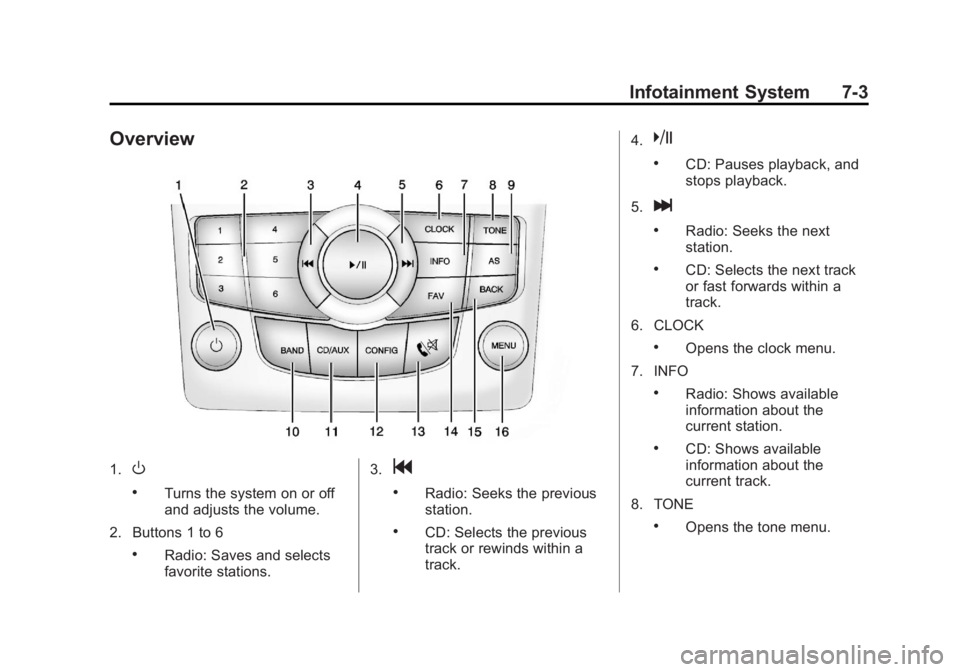
Overview
1.O
.Turns the system on or off
and adjusts the volume.
2. Buttons 1 to 6
.Radio: Saves and selects
favorite stations. 3.
g
.Radio: Seeks the previous
station.
.CD: Selects the previous
track or rewinds within a
track.4.
k
.CD: Pauses playback, and
stops playback.
5.
l
.Radio: Seeks the next
station.
.CD: Selects the next track
or fast forwards within a
track.
6. CLOCK
.Opens the clock menu.
7. INFO
.Radio: Shows available
information about the
current station.
.CD: Shows available
information about the
current track.
8. TONE
.Opens the tone menu.
Page 153 of 372
Black plate (11,1)Chevrolet Orlando Owner Manual - 2013 - CRC - 6/5/12
Infotainment System 7-11
Selecting a Channel Using the
MENU Knob
To select an XM channel using the
MENU knob:
Turn the MENU knob to highlight an
XM channel. The channel is
selected after a short delay.
To select a channel using the menu:
1. Turn the MENU knob and selectChannel List.
2. Select the desired channel.
Selecting a Channel Using the
Menu System
1. Turn the MENU knob.
2. Select XM Category List.
3. Select the category.
4. Select the channel.
Storing an SiriusXM Channel
as a Favorite
Channels from all bands can be
stored in any order in the favorite
pages. Up to six channels can be stored in
each favorite page and the number
of available favorite pages can
be set.
Storing a Channel as a Favorite
To store the channel to a position in
the list, press and hold the
corresponding 1 to 6 button until the
channel can be heard again.
Retrieving Channels
Press the FAV button to open a
favorite page or to change to
another favorite page. Briefly press
one of the 1 to 6 buttons to retrieve
the channel.
XM Messages
XL (Explicit Language
Channels):
These channels, or any
others, can be blocked by request,
by calling 1-866-635-2349 (U.S.),
and 1-877-209-0079 (Canada). XM Updating:
The encryption code
in the receiver is being updated. No
action is required. This process
should take no longer than
30 seconds.
Loading XM: The audio system is
acquiring and processing audio and
text data. No action is needed. This
message should disappear shortly.
Channel Off Air: This channel is
not currently in service. Tune in to
another channel.
Channel Unauth: This channel is
blocked or cannot be received with
your SiriusXM Subscription
package.
Channel Unavailable: This
previously assigned channel is no
longer assigned. Tune to another
station.
No Artist Info: The system is
working properly. No artist
information is available at this time
on this channel.
Page 154 of 372
Black plate (12,1)Chevrolet Orlando Owner Manual - 2013 - CRC - 6/5/12
7-12 Infotainment System
No Title Info:The system is
working properly. No song title
information is available at this time
on this channel.
No CAT Info: The system is
working properly. No category
information is available at this time
on this channel.
No Information: The system is
working properly. No text or
informational messages are
available at this time on this
channel.
No Subscription Please Renew:
SiriusXM subscription needs to be
reactivated. Contact SiriusXM at
www.siriusxm.com or call
1-866-635-2349 (U.S.) and
www.xmradio.ca or call
1-877-209-0079 (Canada).
No XM Signal: The system is
working properly. The vehicle may
be in a location where the SiriusXM
signal is being blocked. When the
vehicle is moved into an open area,
the signal should return. CAT Not Found:
The system is
working properly. There are no
channels available for the selected
category.
XM Radio ID: If tuned to channel 0,
this message alternates with the
SiriusXM Radio eight-digit radio ID
label. This label is needed to
activate the service.
Unknown: If this message is
received when tuned to channel 0,
there could be a receiver fault.
Consult with your dealer.
Check Antenna: If this message
does not clear within a short period
of time, the receiver could have a
fault. Consult with your dealer.
XM Not Available: If this message
does not clear within a short period
of time, the receiver could have a
fault. Consult with your dealer.
Radio Reception
The theft-deterrent feature works by
learning a portion of the Vehicle
Identification Number (VIN) to the infotainment system. The
infotainment system does not
operate if it is stolen or moved to a
different vehicle.
Satellite Radio Antenna
The SiriusXM Satellite Radio
antenna is located on the roof of the
vehicle. Keep the antenna clear of
obstructions for clear radio
reception.
If the vehicle has a sunroof, the
performance of the XM system may
be affected if the sunroof is open.
Multi-Band Antenna
The multi-band antenna is on the
roof of the vehicle. The antenna is
used for the AM-FM radio, OnStar,
the SiriusXM Satellite Radio Service
System, and GPS (Global
Positioning System), if the vehicle
has these features. Keep the
antenna clear of obstructions for
clear reception.
Page 172 of 372
Black plate (30,1)Chevrolet Orlando Owner Manual - 2013 - CRC - 6/5/12
7-30 Infotainment System
Explicit Language Notice: Channels
with frequent explicit language are
indicated with an“XL”preceding the
channel name. Channel blocking is
available for SiriusXM Satellite
Radio receivers by notifying
SiriusXM:
.USA Customers —Visit
www.siriusxm.com or call
1-866-635-2349.
.Canadian Customers —Visit
www.xmradio.ca or call
1-877-209-0079.
It is prohibited to copy, decompile,
disassemble, reverse engineer,
hack, manipulate, or otherwise
make available any technology or
software incorporated in receivers
compatible with the SiriusXM®
Satellite Radio System or that
support the SiriusXM website, the
Online Service or any of its content. Furthermore, the AMBER voice
compression software included in
this product is protected by
intellectual property rights including
patent rights, copyrights, and trade
secrets of Digital Voice
Systems, Inc.
General Requirements:
1. A License Agreement from
SiriusXM is required for any
product that incorporates
SiriusXM Technology and/or for
use of any of the SiriusXM
marks to be manufactured,
distributed, or marketed in the
SiriusXM service Area.
2. For products to be distributed, marketed, and/or sold in
Canada, a separate agreement
is required with Canadian
Satellite Radio Inc. (operating as
SiriusXM Canada).
Music and video recognition
technology and related data are
provided by Gracenote®. Gracenote
is the industry standard in music
recognition technology and related
content delivery. For more
information, visit
www.gracenote.com.
CD, DVD, Blu-ray Disc, and
music and video-related data from
Gracenote, Inc., copyright © 2000 to
present Gracenote. One or more
patents owned by Gracenote
apply to this product and service.
See the Gracenote website for a
non-exhaustive list of applicable
Gracenote patents. Gracenote and
Page 176 of 372
Black plate (2,1)Chevrolet Orlando Owner Manual - 2013 - CRC - 6/5/12
8-2 Climate Controls
6. Driver and Passenger HeatedSeats (If Equipped)
7. Rear Window Defogger
8. Recirculation
9. Defog
10. Air Conditioning
11. Defrost
Fan Control: Turn to increase or
decrease the fan speed.
Temperature Control: Turn to
increase or decrease the
temperature.
Air Delivery Mode Control: To
change the current mode, press one
of the following:
F (Vent): Air is directed to the
instrument panel outlets.
* (Bi-level): Air is directed to the
instrument panel outlets and the
floor outlets.
7 (Floor): Air is directed to the
floor outlets.W(Defog): Clears the windows of
fog or moisture. Air is directed to the
windshield and floor outlets.
0(Defrost): Clears the
windshield of fog or frost more
quickly. Air is directed to the
windshield and side window outlets.
For best results, clear all snow and
ice from the windshield before
defrosting.
Do not drive the vehicle until all the
windows are clear.
Air Conditioning
#(Air Conditioning, If
Equipped): Press to turn the air
conditioning on or off. If the fan is
turned off or the outside
temperature falls below freezing, the
air conditioning compressor will
not work.
h(Recirculation, If Equipped):
Press to turn on the recirculation.
An indicator light comes on. Air is
recirculated inside the vehicle. It helps to quickly cool the air inside
the vehicle or prevent outside air
and odors from entering.
Rear Window Defogger
1(Rear Defogger):
Press to turn
the rear window defogger on or off.
The rear window defogger turns off
after about 10 minutes. It can also
be turned off by turning the ignition
to ACC/ACCESSORY or LOCK/
OFF. If turned on again it runs for
about five minutes before
turning off.
Do not drive the vehicle until all the
windows are clear.
Notice: Do not use a razor blade
or sharp object to clear the inside
rear window. Do not adhere
anything to the defogger grid
lines in the rear glass. These
actions may damage the rear
defogger. Repairs would not be
covered by your warranty.