navigation system CHEVROLET SILVERADO 2012 2.G User Guide
[x] Cancel search | Manufacturer: CHEVROLET, Model Year: 2012, Model line: SILVERADO, Model: CHEVROLET SILVERADO 2012 2.GPages: 584, PDF Size: 8.03 MB
Page 259 of 584
Black plate (45,1)Chevrolet Silverado Owner Manual - 2012
Infotainment System 7-45
Remote Control
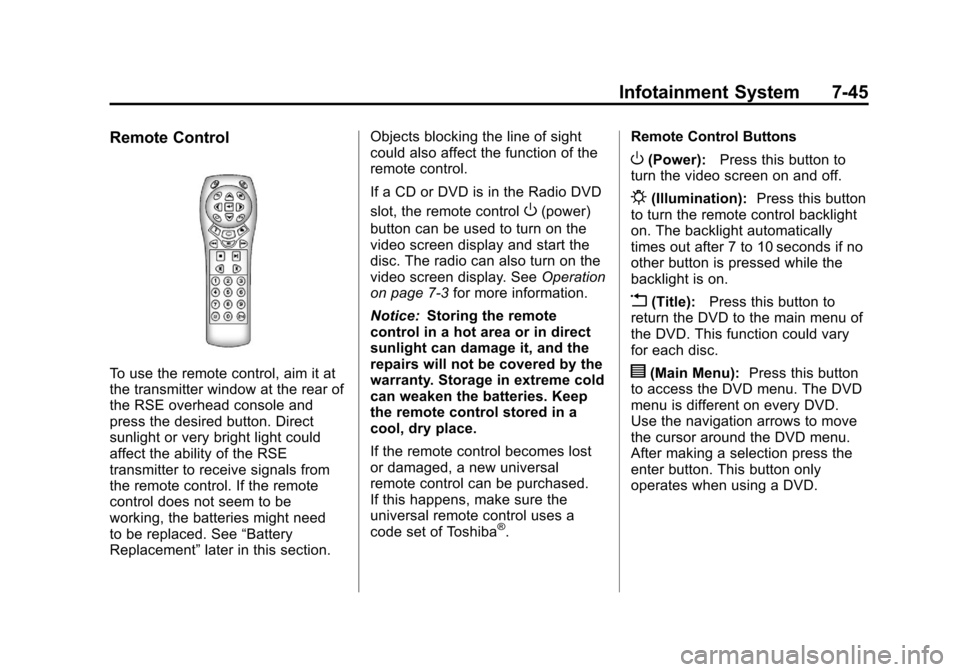
To use the remote control, aim it at
the transmitter window at the rear of
the RSE overhead console and
press the desired button. Direct
sunlight or very bright light could
affect the ability of the RSE
transmitter to receive signals from
the remote control. If the remote
control does not seem to be
working, the batteries might need
to be replaced. See“Battery
Replacement” later in this section. Objects blocking the line of sight
could also affect the function of the
remote control.
If a CD or DVD is in the Radio DVD
slot, the remote control
O(power)
button can be used to turn on the
video screen display and start the
disc. The radio can also turn on the
video screen display. See Operation
on page 7‑3 for more information.
Notice: Storing the remote
control in a hot area or in direct
sunlight can damage it, and the
repairs will not be covered by the
warranty. Storage in extreme cold
can weaken the batteries. Keep
the remote control stored in a
cool, dry place.
If the remote control becomes lost
or damaged, a new universal
remote control can be purchased.
If this happens, make sure the
universal remote control uses a
code set of Toshiba
®. Remote Control Buttons
O(Power):
Press this button to
turn the video screen on and off.
P(Illumination): Press this button
to turn the remote control backlight
on. The backlight automatically
times out after 7 to 10 seconds if no
other button is pressed while the
backlight is on.
v(Title): Press this button to
return the DVD to the main menu of
the DVD. This function could vary
for each disc.
y(Main Menu): Press this button
to access the DVD menu. The DVD
menu is different on every DVD.
Use the navigation arrows to move
the cursor around the DVD menu.
After making a selection press the
enter button. This button only
operates when using a DVD.
Page 260 of 584

Black plate (46,1)Chevrolet Silverado Owner Manual - 2012
7-46 Infotainment System
n,q,p,o(Menu Navigation
Arrows): Use the arrow buttons to
navigate through a menu.
r(Enter): Press this button to
select the choice that is highlighted
in any menu.
z(Display Menu): Press this
button to adjust the brightness,
screen display mode (normal,
full, or zoom), and display the
language menu.
q(Return): Press this button to
exit the current active menu and
return to the previous menu.
This button operates only when
the display menu or a DVD menu
is active.
c(Stop): Press this button to stop
playing, fast reversing, or fast
forwarding a DVD. Press this button
twice to return to the beginning of
the DVD.
s(Play/Pause): Press this
button to start playing a DVD.
Press this button while a DVD is
playing to pause it. Press it again
to continue playing the DVD.
While the DVD is playing, the DVD
can be played slowly by pressing
the play/pause button then pressing
the fast forward button. The DVD
continues playing in a slow play
mode. Also, reverse can be played
slowly by pressing the play/pause
button and then pressing the fast
reverse button. To cancel slow play
mode, press the play/pause button.
t(Previous Track/Chapter):
Press this button to return to the
start of the current track or chapter.
Press this button again to go to
the previous track or chapter.
This button might not work when
the DVD is playing the copyright
information or the previews.
u(Next Track/Chapter): Press
this button to go to the beginning of
the next chapter or track. This
button might not work while the
DVD is playing the copyright
information or the previews.
r(Fast Reverse): Press this
button to quickly reverse the DVD or
CD. To stop fast reversing a DVD
video, press the play/pause button.
To stop fast reversing a DVD audio
or CD, release the fast reverse
button. This button might not work
when the DVD is playing the
copyright information or the
previews.
[(Fast Forward): Press this
button to fast forward the DVD or
CD. To stop fast forwarding a DVD
video, press the play/pause button.
To stop fast forwarding a DVD audio
or CD, release the fast forward
button. This button might not work
while the DVD is playing the
copyright information or the
previews.
Page 266 of 584
Black plate (52,1)Chevrolet Silverado Owner Manual - 2012
7-52 Infotainment System
Phone
Bluetooth
For vehicles equipped with
Bluetooth capability, the system
can interact with many cell phones,
allowing:
.Placement and receipt of calls
in a hands-free mode.
.Sharing of the cell phone’s
address book or contact list
with the vehicle.
To minimize driver distraction,
before driving, and with the vehicle
parked:
.Become familiar with the
features of the cell phone.
Organize the phone book and
contact lists clearly and delete
duplicate or rarely used entries.
If possible, program speed dial
or other shortcuts.
.Review the controls and
operation of the infotainment
system.
.Pair cell phone(s) to the vehicle.
The system may not work with
all cell phones. See “Pairing”in
this section for more information.
.If the cell phone has voice
dialing capability, learn to use
that feature to access the
address book or contact list.
See “Voice Pass-Thru” in this
section for more information.
.See “Storing and Deleting Phone
Numbers” in this section for
more information.
{WARNING
When using a cell phone, it can
be distracting to look too long or
too often at the screen of the
phone or the infotainment
(navigation) system. Taking your
eyes off the road too long or
too often could cause a crash
resulting in injury or death.
Focus your attention on driving. A Bluetooth system can use a
Bluetooth‐capable cell phone with a
Hands‐Free Profile to make and
receive phone calls. The system
can be used while the key is in the
ON/RUN or ACC/ACCESSORY
position. The range of the Bluetooth
system can be up to 9.1 m (30 ft).
Not all phones support all functions,
and not all phones work with the
in-vehicle Bluetooth system. See
www.gm.com/bluetooth for more
information on compatible phones.
Voice Recognition
The Bluetooth system uses voice
recognition to interpret voice
commands to dial phone numbers
and name tags.
For additional information, say
“Help”
while you are in a voice
recognition menu.
Noise: Keep interior noise levels to
a minimum. The system may not
recognize voice commands if there
is too much background noise.
Page 289 of 584
Black plate (3,1)Chevrolet Silverado Owner Manual - 2012
Driving and Operating 9-3
{WARNING
Taking your eyes off the road too
long or too often could cause a
crash resulting in injury or death.
Focus your attention on driving.
Refer to the Infotainment section
for more information on using that
system, including pairing and using
a cell phone.
If equipped, refer to the navigation
manual for information on that
system, including pairing and using
a cell phone.
Defensive Driving
Defensive driving means “always
expect the unexpected.” The first
step in driving defensively is to wear
the safety belt. See Safety Belts on
page 3‑13.
.Assume that other road users
(pedestrians, bicyclists, and
other drivers) are going to be
careless and make mistakes.
Anticipate what they might do
and be ready.
.Allow enough following distance
between you and the driver in
front of you.
.Focus on the task of driving.
Drunk Driving
Death and injury associated with
drinking and driving is a global
tragedy.
{WARNING
Drinking and then driving is
very dangerous. Your reflexes,
perceptions, attentiveness, and
judgment can be affected by
even a small amount of alcohol.
You can have a serious —or
even fatal —collision if you drive
after drinking.
Do not drink and drive or ride with
a driver who has been drinking.
Ride home in a cab; or if you are
with a group, designate a driver
who will not drink.
Page 357 of 584
Black plate (71,1)Chevrolet Silverado Owner Manual - 2012
Driving and Operating 9-71
WARNING (Continued)
Failure to use proper care before
backing may result in injury,
death, or vehicle damage. Always
check before backing by checking
behind and around the vehicle.
Vehicles without Navigation
System
The RVC system displays a view
of the area behind the vehicle.
When the vehicle is on and shifted
into R (Reverse) the video image
appears on the inside rearview
mirror. The video image disappears
after the vehicle is shifted out of
R (Reverse).Turning the RVC System On or Off
To turn off the RVC system,
press and hold
z, located on the
inside rearview mirror, until the left
indicator light turns off. The RVC
display is now disabled.
To turn the RVC system on, press
and hold
zuntil the left indicator
light comes on. The RVC system
display will appear in the mirror.
Vehicles with Navigation
System
The RVC system is designed to
help the driver when backing up by
displaying a view of the area behind
the vehicle. When the vehicle is
shifted into R (Reverse), the video
image appears on the navigation
screen. After a delay, the navigation
screen displays the last screen
after the vehicle is shifted out of
R (Reverse). Turning the RVC System On or Off
To turn the RVC system on or off:
1. Shift into P (Park).
2. Press MENU to enter the
configure menu options. Turn
the Multifunction knob until the
Display feature is highlighted
and press the Multifunction
knob. Or press the Display
screen button
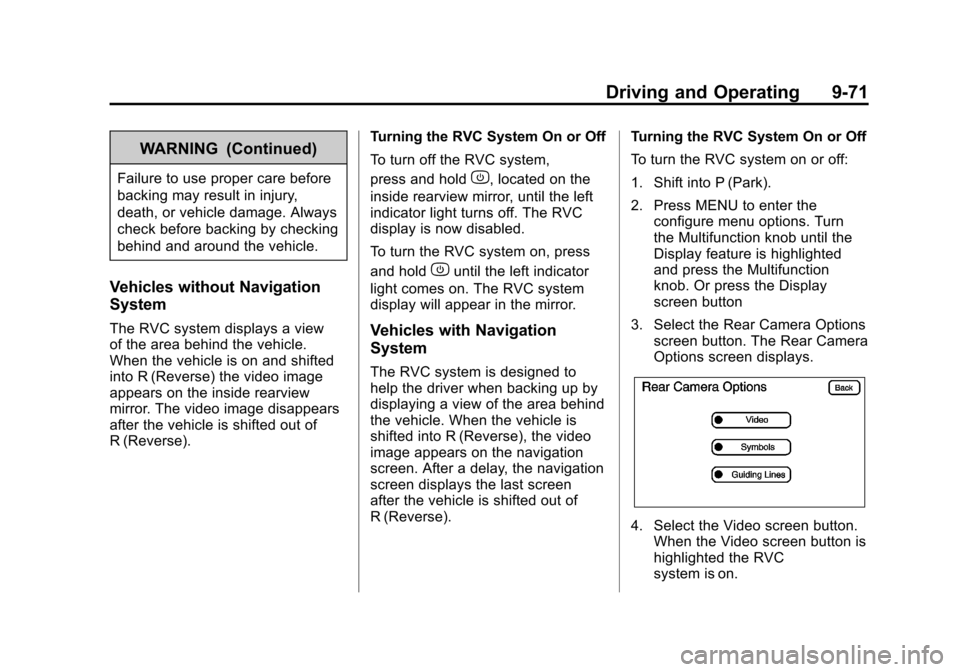
3. Select the Rear Camera Options screen button. The Rear Camera
Options screen displays.
4. Select the Video screen button.When the Video screen button is
highlighted the RVC
system is on.
Page 358 of 584
Black plate (72,1)Chevrolet Silverado Owner Manual - 2012
9-72 Driving and Operating
The delay after shifting out of
R (Reverse) is approximately
10 seconds. The delay can be
canceled by performing one of the
following:
.Pressing a hard key on the
navigation system.
.Shifting into P (Park).
.Reaching a vehicle speed of
8 km/h (5 mph).
Adjusting the Brightness and
Contrast of the Screen
To adjust the brightness and
contrast of the screen, press the
MENU button while the RVC image
is on the display. Any adjustments
made will only affect the RVC
screen.
](Brightness): Touch the + (plus)
or –(minus) screen buttons to
increase or decrease the brightness
of the screen.
_(Contrast): Touch the + (plus) or
– (minus) screen buttons to increase
or decrease the contrast of the
screen.
Symbols
The navigation system may have a
feature that allows for viewing
parking assist symbols on the
navigation screen while using the
RVC. The Ultrasonic Rear Park
Assist (URPA) system must not be
disabled to use the caution symbols.
If URPA has been disabled and the
symbols have been turned on, the
Rear Parking Assist Symbols
Unavailable error message may
display. See Ultrasonic Parking
Assist on page 9‑68.
The symbols appear near objects
detected by the URPA system.
The symbol may cover the object
when viewing the navigation screen. To turn the symbols on or off:
1. Make sure that URPA has not
been disabled.
2. Shift into P (Park).
3. Press MENU to enter the configure menu options. Turn
the Multifunction knob until the
Display feature is highlighted
and press the Multifunction
knob. Or press the Display
screen button
4. Select the Rear Camera Options screen button. The Rear Camera
Options screen displays.
5. Touch the Symbols screen button. The screen button will be
highlighted when on.
Page 541 of 584
Black plate (1,1)Chevrolet Silverado Owner Manual - 2012
Customer Information 13-1
Customer
Information
Customer Information
Customer SatisfactionProcedure (U.S. and
Canada) . . . . . . . . . . . . . . . . . . . . 13-1
Customer Satisfaction Procedure (Mexico) . . . . . . . . 13-3
Customer Assistance Offices (U.S. and Canada) . . . . . . . . . 13-4
Customer Assistance Offices (Mexico) . . . . . . . . . . . . . . . . . . . . 13-5
Customer Assistance for Text Telephone (TTY) Users
(U.S. and Canada) . . . . . . . . . 13-6
Online Owner Center . . . . . . . . 13-6
GM Mobility Reimbursement Program (U.S. and
Canada) . . . . . . . . . . . . . . . . . . . . 13-7
Roadside Assistance Program (U.S. and Canada) . . . . . . . . . 13-7
Roadside Assistance Program (Mexico) . . . . . . . . . . . . . . . . . . . . 13-9
Scheduling Service Appointments (U.S. and
Canada) . . . . . . . . . . . . . . . . . . 13-13 Courtesy Transportation
Program (U.S. and
Canada) . . . . . . . . . . . . . . . . . . 13-13
Collision Damage Repair (U.S. and Canada) . . . . . . . . 13-15
Service Publications Ordering Information . . . . . . 13-17
Reporting Safety Defects
Reporting Safety Defects tothe United States
Government . . . . . . . . . . . . . . . 13-18
Reporting Safety Defects to the Canadian
Government . . . . . . . . . . . . . . . 13-19
Reporting Safety Defects to General Motors . . . . . . . . . . . 13-19
Vehicle Data Recording and
Privacy
Vehicle Data Recording and
Privacy . . . . . . . . . . . . . . . . . . . . 13-19
Event Data Recorders . . . . . . 13-20
OnStar
®. . . . . . . . . . . . . . . . . . . . 13-20
Navigation System . . . . . . . . . 13-21
Radio Frequency Identification (RFID) . . . . . . . 13-21
Radio Frequency Statement . . . . . . . . . . . . . . . . . 13-21
Customer Information
Customer Satisfaction
Procedure (U.S. and
Canada)
Your satisfaction and goodwill are
important to your dealer and to
Chevrolet. Normally, any concerns
with the sales transaction or the
operation of the vehicle will be
resolved by your dealer's sales or
service departments. Sometimes,
however, despite the best intentions
of all concerned, misunderstandings
can occur. If your concern has not
been resolved to your satisfaction,
the following steps should be taken:
STEP ONE: Discuss your concern
with a member of dealership
management. Normally, concerns
can be quickly resolved at that level.
If the matter has already been
reviewed with the sales, service,
or parts manager, contact the owner
of your dealership or the general
manager.
Page 561 of 584
Black plate (21,1)Chevrolet Silverado Owner Manual - 2012
Customer Information 13-21
The OnStar Terms and Conditions
provides information on data
collection and use and is available
at www.onstar.com (U.S.) or
www.onstar.ca (Canada), or by
pressing the
Qbutton and
speaking to an advisor. See OnStar
Overview on page 14‑1 for more
information.
Navigation System
If the vehicle has a navigation
system, use of the system may
result in the storage of destinations,
addresses, telephone numbers, and
other trip information. Refer to the
navigation manual for information
on stored data and for deletion
instructions.
Radio Frequency
Identification (RFID)
RFID technology is used in some
vehicles for functions such as tire
pressure monitoring and ignition
system security, as well as in
connection with conveniences
such as key fobs for remote door
locking/unlocking and starting, and
in-vehicle transmitters for garage
door openers. RFID technology in
GM vehicles does not use or record
personal information or link with
any other GM system containing
personal information.
Radio Frequency
Statement
This vehicle has systems that
operate on a radio frequency that
comply with Part 15 of the Federal
Communications Commission (FCC)
rules and with Industry Canada
Standards RSS‐GEN/210/220/310.
Operation is subject to the following
two conditions:
1. The device may not cause harmful interference.
2. The device must accept any interference received, including
interference that may cause
undesired operation of the
device.
Changes or modifications to any of
these systems by other than an
authorized service facility could void
authorization to use this equipment.
Page 563 of 584
Black plate (1,1)Chevrolet Silverado Owner Manual - 2012
OnStar 14-1
OnStar
OnStar Overview
OnStar Overview . . . . . . . . . . . . 14-1
OnStar Services
Emergency . . . . . . . . . . . . . . . . . . 14-2
Security . . . . . . . . . . . . . . . . . . . . . . 14-2
Navigation . . . . . . . . . . . . . . . . . . . 14-2
Connections . . . . . . . . . . . . . . . . . 14-4
Diagnostics . . . . . . . . . . . . . . . . . . 14-5
OnStar Additional Information
OnStar AdditionalInformation . . . . . . . . . . . . . . . . . 14-5
OnStar Overview
If equipped, this vehicle has a
comprehensive, in-vehicle system
that can connect to a live Advisor
for Emergency, Security, Navigation,
Connection, and Diagnostic
Services. The OnStar system status light is
next to the OnStar buttons. If the
status light is:
.Solid Green: System is ready.
.Flashing Green: On a call.
.Red: Indicates a problem.
Push
Qor call 1‐888‐4‐ONSTAR
(1‐888‐466‐7827) to speak to an
Advisor.
Push
Xto:
.Make a call, end a call,
or answer an incoming call.
.Give OnStar Hands-Free Calling
voice commands.
.Give OnStar Turn-by-Turn
Navigation voice commands.
Requires the available Directions
and Connections service plan.
Page 564 of 584
Black plate (2,1)Chevrolet Silverado Owner Manual - 2012
14-2 OnStar
PushQto connect to a live
Advisor to:
.Verify account information or
update contact information.
.Get driving directions. Requires
the available Directions and
Connections service plan.
.Receive On-Demand
Diagnostics for a check on the
vehicle’s key operating systems.
.Receive Roadside Assistance.
Push
]to get a priority connection
to an Emergency Advisor available
24/7 to:
.Get help for an emergency.
.Be a Good Samaritan or
respond to an AMBER Alert.
.Get crisis assistance and
evacuation routes.
OnStar Services
Emergency
With Automatic Crash Response,
the built-in system can automatically
connect to help in a crash even if
you cannot ask for it.
Push
]to connect to an
Emergency Advisor. GPS
technology is used to identify the
vehicle location and can provide
critical information to emergency
personnel. The Advisor is also
trained to offer critical assistance in
emergency situations.
Security
OnStar provides services like Stolen
Vehicle Assistance, Remote Ignition
Block, and Roadside Assistance,
if the vehicle is equipped with these
services. OnStar can unlock the
vehicle doors remotely, if it is
equipped with automatic door locks,
and can help police locate the
vehicle if it is stolen.
Navigation
OnStar navigation requires the
Directions and Connections
service plan.
Push
Qto receive directions or
have them sent to the vehicle
navigation screen. Destinations
can also be forwarded to the
vehicle from Google Maps™ or
MapQuest.com. The OnStar
mapping database is continuously
updated. Visit www.onstar.com for
coverage maps.
Turn‐by‐Turn Navigation
1. PushQto connect to a live
Advisor.
2. Request directions.
3. Directions are downloaded to the vehicle.
4. Follow the voice-guided commands.