radio controls CHEVROLET SILVERADO 2017 3.G User Guide
[x] Cancel search | Manufacturer: CHEVROLET, Model Year: 2017, Model line: SILVERADO, Model: CHEVROLET SILVERADO 2017 3.GPages: 509, PDF Size: 8.87 MB
Page 168 of 509
Chevrolet Silverado Owner Manual (GMNA-Localizing-U.S./Canada/Mexico-9956065) - 2017 - CRC - 4/29/16
Instruments and Controls 167
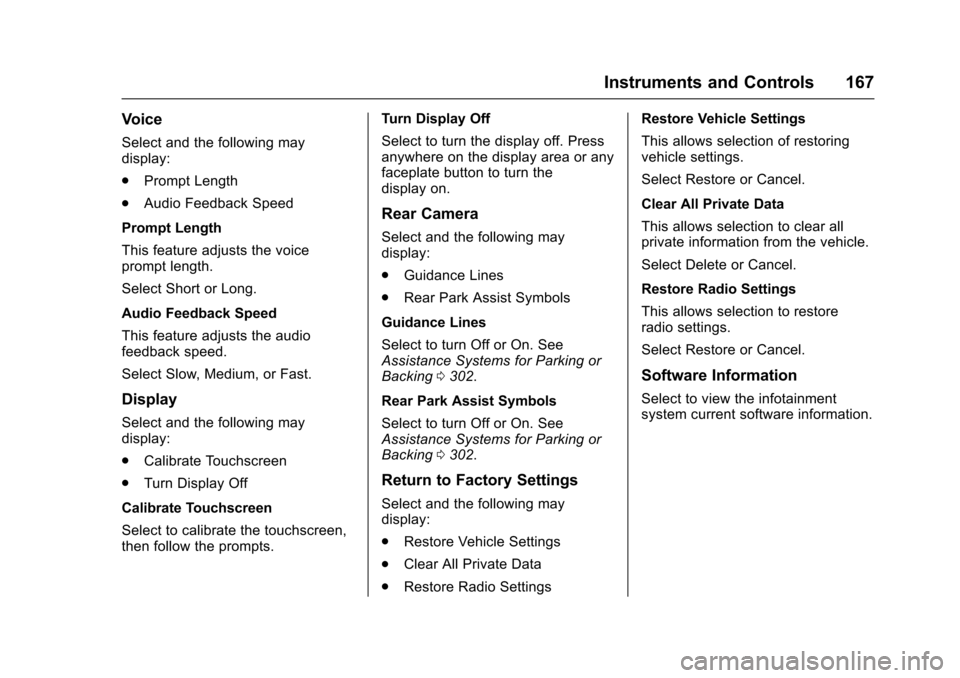
Voice
Select and the following maydisplay:
.Prompt Length
.Audio Feedback Speed
Prompt Length
This feature adjusts the voiceprompt length.
Select Short or Long.
Audio Feedback Speed
This feature adjusts the audiofeedback speed.
Select Slow, Medium, or Fast.
Display
Select and the following maydisplay:
.Calibrate Touchscreen
.Turn Display Off
Calibrate Touchscreen
Select to calibrate the touchscreen,then follow the prompts.
Turn Display Off
Select to turn the display off. Pressanywhere on the display area or anyfaceplate button to turn thedisplay on.
Rear Camera
Select and the following maydisplay:
.Guidance Lines
.Rear Park Assist Symbols
Guidance Lines
Select to turn Off or On. SeeAssistance Systems for Parking orBacking0302.
Rear Park Assist Symbols
Select to turn Off or On. SeeAssistance Systems for Parking orBacking0302.
Return to Factory Settings
Select and the following maydisplay:
.Restore Vehicle Settings
.Clear All Private Data
.Restore Radio Settings
Restore Vehicle Settings
This allows selection of restoringvehicle settings.
Select Restore or Cancel.
Clear All Private Data
This allows selection to clear allprivate information from the vehicle.
Select Delete or Cancel.
Restore Radio Settings
This allows selection to restoreradio settings.
Select Restore or Cancel.
Software Information
Select to view the infotainmentsystem current software information.
Page 169 of 509
Chevrolet Silverado Owner Manual (GMNA-Localizing-U.S./Canada/Mexico-9956065) - 2017 - CRC - 4/29/16
168 Instruments and Controls
Universal Remote
System
SeeRadio FrequencyStatement0482.
Universal Remote System
Programming
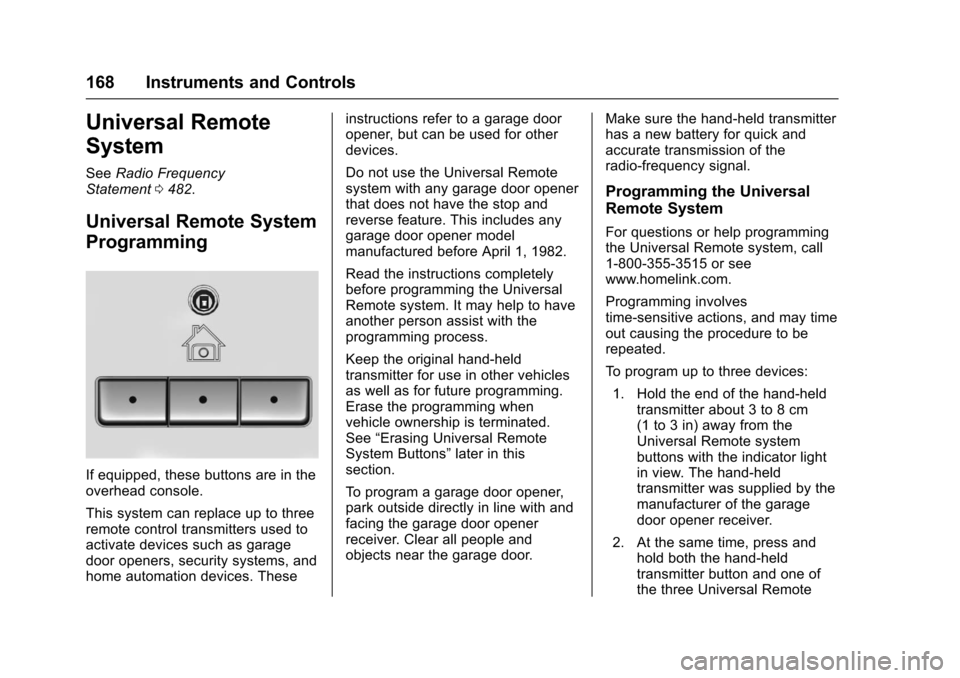
If equipped, these buttons are in theoverhead console.
This system can replace up to threeremote control transmitters used toactivate devices such as garagedoor openers, security systems, andhome automation devices. These
instructions refer to a garage dooropener, but can be used for otherdevices.
Do not use the Universal Remotesystem with any garage door openerthat does not have the stop andreverse feature. This includes anygarage door opener modelmanufactured before April 1, 1982.
Read the instructions completelybefore programming the UniversalRemote system. It may help to haveanother person assist with theprogramming process.
Keep the original hand-heldtransmitter for use in other vehiclesas well as for future programming.Erase the programming whenvehicle ownership is terminated.See“Erasing Universal RemoteSystem Buttons”later in thissection.
To p r o g r a m a g a r a g e d o o r o p e n e r ,park outside directly in line with andfacing the garage door openerreceiver. Clear all people andobjects near the garage door.
Make sure the hand-held transmitterhas a new battery for quick andaccurate transmission of theradio-frequency signal.
Programming the Universal
Remote System
For questions or help programmingthe Universal Remote system, call1-800-355-3515 or seewww.homelink.com.
Programming involvestime-sensitive actions, and may timeout causing the procedure to berepeated.
To p r o g r a m u p t o t h r e e d e v i c e s :
1. Hold the end of the hand-heldtransmitter about 3 to 8 cm(1 to 3 in) away from theUniversal Remote systembuttons with the indicator lightin view. The hand-heldtransmitter was supplied by themanufacturer of the garagedoor opener receiver.
2. At the same time, press andhold both the hand-heldtransmitter button and one ofthe three Universal Remote
Page 170 of 509
Chevrolet Silverado Owner Manual (GMNA-Localizing-U.S./Canada/Mexico-9956065) - 2017 - CRC - 4/29/16
Instruments and Controls 169
system buttons to be used tooperate the garage door. Donot release either button untilthe indicator light goes from aslow to a rapid flashing light.Then release both buttons.
Some garage door openersmay require substitution ofStep 2 with the procedureunder“Radio Signals forCanada and Some GateOperators”later in this section.
3. Press and hold the newlyprogrammed Universal Remotesystem button for five secondswhile watching the indicatorlight and garage dooractivation.
.If the indicator light stays oncontinuously or the garagedoor moves when thebutton is pressed, thenprogramming is complete.There is no need tocomplete Steps 4–6.
.If the indicator light doesnot come on or the garagedoor does not move, asecond button press may
be required. For a secondtime, press and hold thenewly programmed buttonfor five seconds. If the lightstays on or the garage doormoves, programming iscomplete.
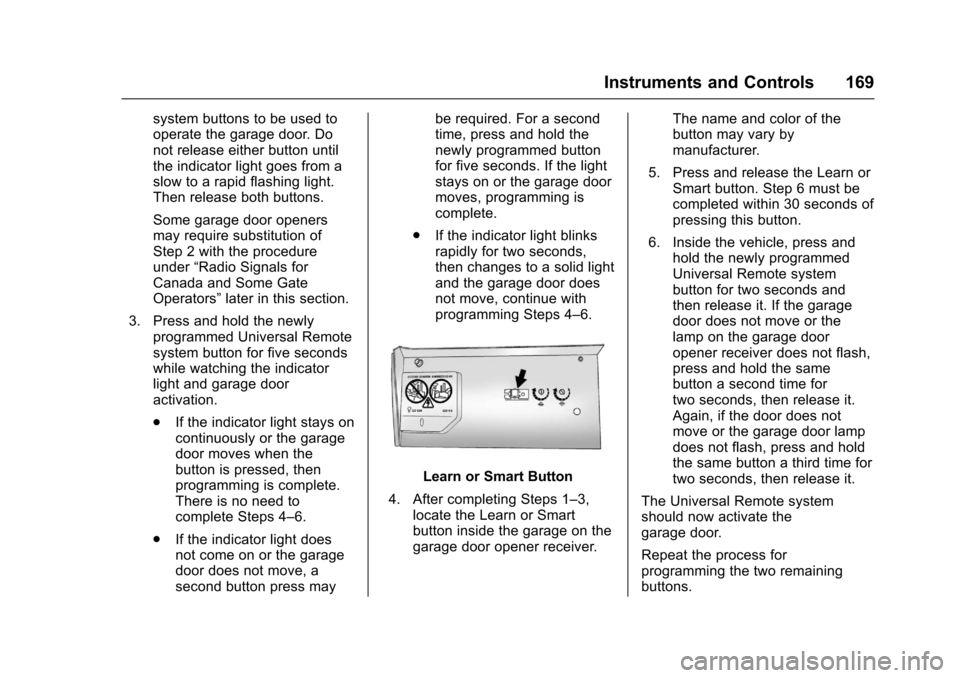
.If the indicator light blinksrapidly for two seconds,then changes to a solid lightand the garage door doesnot move, continue withprogramming Steps 4–6.
Learn or Smart Button
4. After completing Steps 1–3,locate the Learn or Smartbutton inside the garage on thegarage door opener receiver.
The name and color of thebutton may vary bymanufacturer.
5. Press and release the Learn orSmart button. Step 6 must becompleted within 30 seconds ofpressing this button.
6. Inside the vehicle, press andhold the newly programmedUniversal Remote systembutton for two seconds andthen release it. If the garagedoor does not move or thelamp on the garage dooropener receiver does not flash,press and hold the samebutton a second time fortwo seconds, then release it.Again, if the door does notmove or the garage door lampdoes not flash, press and holdthe same button a third time fortwo seconds, then release it.
The Universal Remote systemshould now activate thegarage door.
Repeat the process forprogramming the two remainingbuttons.
Page 171 of 509
Chevrolet Silverado Owner Manual (GMNA-Localizing-U.S./Canada/Mexico-9956065) - 2017 - CRC - 4/29/16
170 Instruments and Controls
Radio Signals for Canada and
Some Gate Operators
For questions or programming help,call 1-800-355-3515 or seewww.homelink.com.
Canadian radio-frequency laws andsome U.S. gate operators requiretransmitter signals to time out or quitafter several seconds oftransmission. This may not be longenough for the Universal Remotesystem to pick up the signal duringprogramming.
If the programming did not work,replace Step 2 under“Programmingthe Universal Remote System”withthe following:
Press and hold the UniversalRemote system button whilepressing and releasing thehand-held transmitter button everytwo seconds until the signal hasbeen successfully accepted by theUniversal Remote system. TheUniversal Remote system indicatorlight will flash slowly at first and thenrapidly. Proceed with Step 3 under“Programming the Universal RemoteSystem”to complete.
Universal Remote System
Operation
Using the Universal Remote
System
Press and hold the appropriateUniversal Remote system button forat least one-half second. Theindicator light will come on while thesignal is being transmitted.
Erasing Universal Remote
System Buttons
Erase all programmed buttons whenvehicle ownership is terminated.
To e r a s e :
1. Press and hold the two outsidebuttons until the indicator lightbegins to flash. This shouldtake about 10 seconds.
2. Release both buttons.
Reprogramming a Single
Universal Remote System
Button
To r e p r o g r a m a n y o f t h e s y s t e mbuttons:
1. Press and hold any one of thebuttons. Do not release thebutton.
2. The indicator light will begin toflash after 20 seconds. Withoutreleasing the button, proceedwith Step 1 under“Programming the UniversalRemote System.”
Page 182 of 509
Chevrolet Silverado Owner Manual (GMNA-Localizing-U.S./Canada/Mexico-9956065) - 2017 - CRC - 4/29/16
Infotainment System 181
Infotainment
System
Introduction
Infotainment . . . . . . . . . . . . . . . . . . 181Theft-Deterrent Feature . . . . . . 182Overview (Base Radio withTo u c h s c r e e n ) . . . . . . . . . . . . . . . 1 8 3Overview (Base Radio) . . . . . . . 184Home Page (Base Radio) . . . . 186Home Page (Base Radio withTo u c h s c r e e n ) . . . . . . . . . . . . . . . 1 8 8Software Updates . . . . . . . . . . . . 189
Radio
AM-FM Radio (BaseRadio) . . . . . . . . . . . . . . . . . . . . . . 189AM-FM Radio (Base Radiowith Touchscreen) . . . . . . . . . . . 191Satellite Radio (BaseRadio) . . . . . . . . . . . . . . . . . . . . . . 193Satellite Radio (Base Radiowith Touchscreen) . . . . . . . . . . . 193Radio Reception . . . . . . . . . . . . . . 195Fixed Mast Antenna . . . . . . . . . . 195Multi-Band Antenna . . . . . . . . . . 196
Audio Players
Avoiding Untrusted MediaDevices . . . . . . . . . . . . . . . . . . . . . 196CD Player . . . . . . . . . . . . . . . . . . . . 196USB Port (Base Radio) . . . . . . . 199USB Port (Base Radio withTo u c h s c r e e n ) . . . . . . . . . . . . . . . 2 0 1Auxiliary Jack . . . . . . . . . . . . . . . . 207Bluetooth Audio . . . . . . . . . . . . . . 208
Voice Recognition
Voice Recognition . . . . . . . . . . . . 209
Phone
Bluetooth (Overview) . . . . . . . . . 216Bluetooth (InfotainmentControls - Base Radio) . . . . . . 217Bluetooth (Voice Recognition -Base Radio) . . . . . . . . . . . . . . . . 221Bluetooth (InfotainmentControls - Base Radio withTo u c h s c r e e n ) . . . . . . . . . . . . . . . 2 2 6Apple CarPlay andAndroid Auto . . . . . . . . . . . . . . . . 230
Trademarks and License
Agreements
Trademarks and LicenseAgreements . . . . . . . . . . . . . . . . . 231
Introduction
Infotainment
Base radio information is included inthis manual. See the infotainmentmanual for information on otheravailable infotainment systems.
Read the following pages tobecome familiar with the BaseRadio features.
{Warning
Ta k i n g y o u r e y e s o f f t h e r o a d f o r
too long or too often while using
any infotainment feature can
cause a crash. You or others
could be injured or killed. Do not
give extended attention to
infotainment tasks while driving.
Limit your glances at the vehicle
displays and focus your attention
on driving. Use voice commands
whenever possible.
Page 183 of 509
Chevrolet Silverado Owner Manual (GMNA-Localizing-U.S./Canada/Mexico-9956065) - 2017 - CRC - 4/29/16
182 Infotainment System
The infotainment system has built-infeatures intended to help avoiddistraction by disabling somefunctions when driving. Thesefunctions may gray out when theyare unavailable. Many infotainmentfeatures are also available throughthe instrument cluster and steeringwheel controls.
Before driving:
.Become familiar with theoperation, faceplate buttons, andscreen buttons.
.Set up the audio by presettingfavorite stations, setting thetone, and adjusting thespeakers.
.Set up phone numbers inadvance so they can be calledeasily by pressing a singlebutton or by using a single voicecommand if equipped withBluetooth phone capability.
SeeDefensive Driving0248.
To p l a y t h e i n f o t a i n m e n t s y s t e m w i t hthe ignition off, seeRetainedAccessory Power (RAP)0271.
Theft-Deterrent Feature
TheftLock®is designed todiscourage theft of the vehicle'sradio by learning a portion of theVehicle Identification Number (VIN).The radio does not operate if it isstolen or moved to a differentvehicle.
Page 185 of 509
Chevrolet Silverado Owner Manual (GMNA-Localizing-U.S./Canada/Mexico-9956065) - 2017 - CRC - 4/29/16
184 Infotainment System
4.6
.Radio: Press and release togo to the next station orchannel. Press and hold tofast seek the next strongeststation or channel.
.USB/Bluetooth Music/Pictures: Press and hold togo to the next content.Press and hold to fastforward.
5.#
.Press and release toaccess the phone screen,answer an incoming call,or access the device homescreen. Press and hold toaccess Press to Talk.
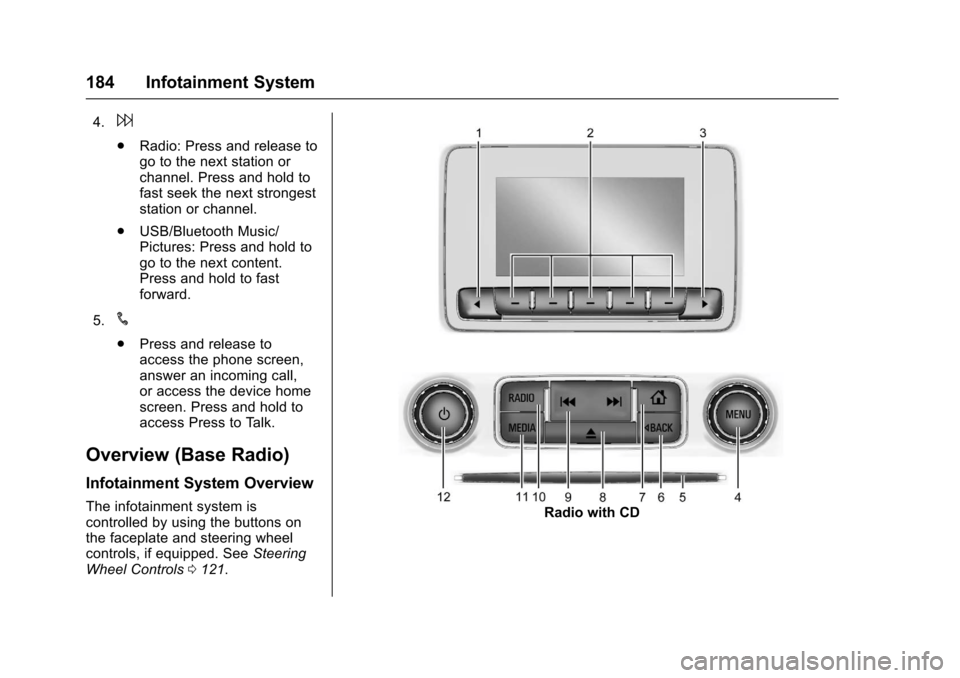
Overview (Base Radio)
Infotainment System Overview
The infotainment system iscontrolled by using the buttons onthe faceplate and steering wheelcontrols, if equipped. SeeSteeringWheel Controls0121.
Radio with CD
Page 187 of 509
Chevrolet Silverado Owner Manual (GMNA-Localizing-U.S./Canada/Mexico-9956065) - 2017 - CRC - 4/29/16
186 Infotainment System
current track will start from
the beginning. Presslto
seek the next track.
.AM, FM, or SiriusXM (If
Equipped):Pressgorl
to seek to the previous ornext strong station.
.CD (If Equipped):Press
and holdgto quickly
reverse through a track.Release the button to returnto playing speed. Press and
holdlto fast forward
through a track. Releasethe button to return toplaying speed.
10. RADIO
.Press to change the audiosource between AM, FM,or SiriusXM, if equipped.
11 . M E D I A
.Press to change the audiosource between CD, USB,AUX, and Bluetooth Audio,if equipped.
12.O
.Press to turn the audio on.
.Press and hold to turn it off.
.When on, press to mute thesystem. Press again tounmute.
.Turn to increase ordecrease the volume.
Home Page (Base Radio)
Home Page Features
The infotainment system displays aHome Page that makes it easy toaccess all of the applications. Turnthe MENU knob to highlight featureicons. Press the MENU knob toaccess the feature’soptions.
Va r i o u s f u n c t i o n s a r e d i s a b l e d w h e nthe vehicle is moving.
AUDIO :Select the AUDIO screenicon to display the active sourcepage. The sources available areAM, FM, SiriusXM®(if equipped),USB/iPod, AUX Input, and BluetoothAudio (if equipped). SeeAM-FMRadio (Base Radio withTo u c h s c r e e n )0191orAM-FMRadio (Base Radio)0189,SatelliteRadio (Base Radio)0193orSatellite Radio (Base Radio withTo u c h s c r e e n )0193,,Auxiliary Jack0207,andBluetooth Audio0208.
PHONE :Select the PHONE screenicon to display the Phone mainpage. SeeBluetooth (VoiceRecognition - Base Radio)0221orBluetooth (Infotainment Controls -Base Radio)0217orBluetooth(Overview)0216orBluetooth(Infotainment Controls - Base Radiowith Touchscreen)0226.
NAV (Navigation, If Equipped) :Select the NAV screen icon todisplay the OnStar Turn-by-TurnNavigation. SeeOnStar Overview0486,ifequipped.
Page 190 of 509
Chevrolet Silverado Owner Manual (GMNA-Localizing-U.S./Canada/Mexico-9956065) - 2017 - CRC - 4/29/16
Infotainment System 189
Phone :To u c h t o a c t i v a t e t h ephone features (if equipped). SeeBluetooth (Voice Recognition - BaseRadio)0221orBluetooth(Infotainment Controls - BaseRadio)0217orBluetooth(Overview)0216orBluetooth(Infotainment Controls - Base Radiowith Touchscreen)0226.
Projection :To u c h t o a c c e s ssupported devices when connected.SeeUSB Port (Base Radio)0199orUSB Port (Base Radio withTo u c h s c r e e n )0201.
Settings :To u c h t o a c c e s s t h ePersonalization menu. SeeVehiclePersonalization0160.
Climate :To u c h t o a c c e s s t h eClimate menu. SeeDual AutomaticClimate Control System0240.
OnStar :If equipped, touch toaccess the OnStar menu. SeeOnStar Overview0486.
Software Updates
See the website for moreinformation.
Website Information
In the U.S., see www.chevrolet.com
In Canada, seewww.chevrolet.gm.ca
In Mexico, seewww.chevrolet.com.mx
Radio
AM-FM Radio (Base
Radio)
Playing the Radio
While on the audio main page,press the RADIO button repeatedlyto cycle through the availablesources AM, FM, and SiriusXM®(ifequipped) or press the MEDIAbutton repeatedly to cycle throughthe available sources Bluetooth®
Audio (if equipped), USB, and AUX.
The steering wheel controls canalso be used to adjust the volume.SeeSteering Wheel Controls0121.
AM, FM, or SiriusXM (If Equipped)
To s e l e c t A M , F M , o r S i r i u s X M ( i fequipped), press the RADIO buttonto toggle to the desired broadcastsource.
Page 198 of 509
Chevrolet Silverado Owner Manual (GMNA-Localizing-U.S./Canada/Mexico-9956065) - 2017 - CRC - 4/29/16
Infotainment System 197
.Use a marking pen to label thetop of the disc.
Loading and Ejecting Discs
To l o a d a d i s c :
1. Turn the vehicle on.
2. Insert a disc into the slot, labelside up. The player pulls it inthe rest of the way. If the discis damaged or improperlyloaded, there is an error andthe disc ejects.
Playing an Audio CD
Press the MEDIA button on thefaceplate until CD is selected.
On the CD main page, either a tracknumber displays at the beginning ofeach track, or Song, Artist, andAlbum information displays whenavailable.
Use the following screen controls toplay the disc:
t:While on the CD main page:
.Press to seek to the beginning ofthe current or previous track.If the track has been playing forless than five seconds, it seeks
to the previous track. If longerthan five seconds, the currenttrack starts from the beginning.
.Press and hold to fast reversethrough a track. Release thebutton to return to playingspeed. Elapsed time displays.
u:While on the CD main page:
.Press to seek to the next track.
.Press and hold to fast forwardthrough a track. Release thebutton to return to playingspeed. Elapsed time displays.
j/r:While on the CD main page,press to pause. Press again toresume.
Z:PressZto play the songs inrandom order. Press again toturn off.
If a Blu-ray Disc®or DVD disc isloaded into the disc player and theCD screen button is selected, amessage comes on the screen touse the Video application. TheVideo application is only availableon vehicles with Rear SeatEntertainment (RSE).
CD Menu
While on the CD main page, pressthe MENU knob to display the CDmenu and the following may display:
Browse :Select to display the filesor songs on the CD.
To n e S e t t i n g s :Select to adjustBass, Midrange, Treble, Balance,Fade, and EQ (Equalizer). See“To n e S e t t i n g s”underAM-FM Radio(Base Radio with Touchscreen)0191orAM-FM Radio (BaseRadio)0189.
Auto Volume :If equipped, thisfeature adjusts the volume based onthe vehicle speed. Select the levelbetween Off, Low, Medium-Low,Medium, Medium-High, and High.Press BACK to go to theprevious menu.
DSP :If equipped, this featureadjusts the pre-defined settings.See“DSP”inAM-FM Radio (BaseRadio with Touchscreen)0191orAM-FM Radio (Base Radio)0189.