radio controls CHEVROLET SILVERADO 2017 3.G Owner's Manual
[x] Cancel search | Manufacturer: CHEVROLET, Model Year: 2017, Model line: SILVERADO, Model: CHEVROLET SILVERADO 2017 3.GPages: 509, PDF Size: 8.87 MB
Page 202 of 509

Chevrolet Silverado Owner Manual (GMNA-Localizing-U.S./Canada/Mexico-9956065) - 2017 - CRC - 4/29/16
Infotainment System 201
Artists:
1. Turn MENU to highlight andpress to view the artists storedon the device.
2. Turn MENU to highlight andpress to select an artist nameto view a list of all albums bythe artist.
3. Turn MENU to highlight andpress to select an album nameto view a list of all songs on thealbum.
4. Turn MENU to highlight andpress to select the song fromthe list to begin playback.
Albums:
1. Turn MENU to highlight andpress to view the albumsstored on the device.
2. Turn MENU to highlight andpress to select an album nameto view a list of all songs on thealbum.
3. Turn MENU to highlight andpress to select the song fromthe list to begin playback.
Genres:
1. Turn MENU to highlight andpress to view the genres storedon the device.
2. Turn MENU to highlight andpress to select a genre nameto view a list of artists of thatgenre.
3. Turn MENU to highlight andpress to select to view albumsby that artist.
4. Turn MENU to highlight andpress to select an album toview songs.
5. Turn MENU to highlight andpress to select the song fromthe list to begin playback.
Songs:
1. Turn MENU to highlight andpress to view a list of all songsstored on the device.
2. Turn MENU to highlight andpress to select the song fromthe list to begin playback.
USB Port (Base Radio
with Touchscreen)
Using the USB Port
The infotainment system can playmusic by connecting an auxiliarydevice to the USB port.
USB Support
If equipped, the USB connector is inthe center stack below the climatecontrols, and uses the USB 2.0standard.
USB Supported Devices
.USB Flash Drives
.Portable USB Hard Drives
Not all iPods and USB drives arecompatible with the USB port.
Make sure the iPod has the latestfirmware from Apple®for properoperation. iPod firmware can beupdated using the latest iTunes®
application. See www.apple.com/itunes.
For help with identifying your iPod,go to www.apple.com/support.
Page 209 of 509
Chevrolet Silverado Owner Manual (GMNA-Localizing-U.S./Canada/Mexico-9956065) - 2017 - CRC - 4/29/16
208 Infotainment System
AUX Menu
Press the MENU knob to display theAUX menu and the following maydisplay:
To n e S e t t i n g s :Select to adjustBass, Midrange, Treble, Balance,Fade, and EQ (Equalizer). See“To n e S e t t i n g s”inAM-FM Radio(Base Radio with Touchscreen)0191orAM-FM Radio (BaseRadio)0189.
Auto Volume :If equipped, see“Playing an Audio CD.”
DSP :If equipped, this featureadjusts the pre-defined settings.See“DSP”inAM-FM Radio (BaseRadio with Touchscreen)0191orAM-FM Radio (Base Radio)0189.
EQ (Equalizer) :If equipped, thisfeature adjusts the pre-definedequalizer settings. See“EQ(Equalizer)”inAM-FM Radio (BaseRadio with Touchscreen)0191orAM-FM Radio (Base Radio)0189.
Base Radio with Touchscreen
Play will begin when the system hasfinished reading the information onthe device.
Playing Music
To p l a y t h e m u s i c f r o m t h e d e v i c e ,if the device is already connected:
1. Press{.
2. Touch AUDIO.
3. Touch Source.
4. Touch AUX.
To a d j u s t t h e t o n e s e t t i n g s . S e e“Audio Settings”in“SystemSettings”underAM-FM Radio (BaseRadio with Touchscreen)0191orAM-FM Radio (Base Radio)0189.
Bluetooth Audio
If equipped, music may be playedfrom a paired Bluetooth device. See“Pairing”underBluetooth (VoiceRecognition - Base Radio)0221orBluetooth (Infotainment Controls -Base Radio)0217orBluetooth(Overview)0216orBluetooth(Infotainment Controls - Base Radiowith Touchscreen)0226for helppairing a device.
Volume and song selection may becontrolled by using the infotainmentcontrols or the phone/device.If Bluetooth Audio is selected andnothing is heard, check the volumesetting on both the phone/deviceand the infotainment system.
Launch music by pressing theMEDIA screen button on theHome Page.
To p l a y m u s i c v i a B l u e t o o t h :
1. Power on the device, and pairto connect the device.
Page 212 of 509
Chevrolet Silverado Owner Manual (GMNA-Localizing-U.S./Canada/Mexico-9956065) - 2017 - CRC - 4/29/16
Infotainment System 211
to complete the task, or the sessionis terminated, the voice recognitiondialog stops.
An example of this type of manualintervention is pressing on an entryof a displayed number list instead ofspeaking the number associatedwith the entry desired.
Canceling Voice Recognition
.Press the Home screen buttonto terminate the voicerecognition session which was
initiated by pressinggon the
infotainment screen on thecenter stack.
.Press or say“Cancel”or“Exit”toterminate the voice recognitionsession and display the screenfrom which voice recognitionwas initiated.
.Pression the steering wheel
controls to terminate the voicesession and display the screenfrom which voice recognitionwas initiated.
Helpful Hints for Speaking
Commands
Voice recognition can understandcommands that are either naturallystated in sentence form (Englishonly), or direct commands that statethe application and the task.
For languages that do not supportnatural language commands insentence form, use the directcommands shown as examples onthe display screen.
For best results:
.Listen for the prompt and waitfor the beep before saying acommand or reply.
.Say“Help”or look at the screendisplay for commands.
.Voice recognition system promptcan be interrupted during a
prompt by pressinggagain.
For example, if the promptseems to be taking too long tofinish, or if what is beingprompted causes a need for an
immediate reply, pressgagain
and wait for the beep.
.Speak the command naturally,not too fast, not too slow. Usedirect commands without a lot ofextra words.
.Usually Phone and Audiocommands can be spoken in asingle command.
For example,“Call Dave Smithat work,”“Play”followed by theartist or song name, or“Tune”followed by the radio stationnumber.
There is no need to memorizespecific command words. Directcommands might be more clearlyunderstood by the system. Anexample of a direct command wouldbe“Call 555-1212.”Examples ofthese direct commands aredisplayed on most of the screenswhile a voice session is active.If“Phone”or“Phone Commands,”isstated, the system understands thataphonecallisrequestedandwillrespond with questions until enoughdetails are gathered.
Page 213 of 509
Chevrolet Silverado Owner Manual (GMNA-Localizing-U.S./Canada/Mexico-9956065) - 2017 - CRC - 4/29/16
212 Infotainment System
If the phone number has beensaved with a name and a place, thedirect command should includeboth, for example“Call Dave Smithat work.”
Using Voice Recognition for
List Options
When a list is displayed, a voiceprompt will ask to confirm or selectan option from that list. A selectioncan be made by manually selectingthe item, or by speaking the linenumber for the item to select.
When a screen contains a list,options may be available but notdisplayed. The list on a voicerecognition screen functions thesame as a list on other screens.Scrolling can be used to helpdisplay other entries from the list.
Manually scrolling or paging the liston a screen during a voicerecognition session suspends thecurrent voice recognition event andplays the prompt“Make yourselection from the list using themanual controls or press the Backbutton to try again.”
If manual selection takes more than15 seconds, the session terminatesand prompts that it has timed out.The screen returns back to thescreen where voice recognition wasinitiated.
The Back Command
Say“Back”or press the Back buttonto go to the previous screen.
If in voice recognition, and“Back”isstated all the way through to theinitial screen, then“Back”is statedone more time, the voice recognitionsession will cancel.
Help
Say“Help”on any voice recognitionscreen and the help prompt for thescreen is played. Additionally, apop-up displays a text version of thehelp prompt. Depending on howvoice recognition was initiated, theHelp pop-up will either display onthe instrument cluster or theinfotainment screen. Press theDismiss button to make the pop-upgo away.
Pressinggwhile the help prompt is
playing will terminate the promptand a beep will be heard. Doing thiswill stop the help prompt so that avoice command can be used.
Voice Recognition for the
Radio
Select thegscreen button to
launch audio voice recognition.If the voice button is pressed in aradio screen, the voice commandsfor radio and media features areavailable.
“Switch to AM”:Switch bands toAM and tune to the last AM radiostation.
“Switch to FM”:Switch bands toFM and tune to the last FM radiostation.
“Switch to SXM”:Switch bands toSiriusXM (if equipped) and tune tothe last SiriusXM channel.
“Tu n e t o < A M f r e q u e n c y > A M”:Tune to the radio station whosefrequency is identified in thecommand (like“nine fifty”).
Page 216 of 509
Chevrolet Silverado Owner Manual (GMNA-Localizing-U.S./Canada/Mexico-9956065) - 2017 - CRC - 4/29/16
Infotainment System 215
“Call
“Call
“Pair Phone”:Begins theBluetooth pairing process. Followinstructions on the radio display.
“Switch Phone”:Select a differentphone for outgoing calls.
“Vo i c e K e y p a d”:Begins a dialogto enter special numbers likeinternational numbers. The numberscan be entered in groups of digitswith each group of digits beingrepeated back by the system. If thegroup of digits is not correct, the
command“Delete”will remove thelast group of digits and allow themto be re-entered. Once the entirenumber has been entered, thecommand“Call”will start dialing thenumber.
“Vo i c e M a i l”:Initiate a call to voicemail numbers.
Voice Recognition for OnStar
(If Equipped)
“OnStar”:Begin OnStar VoiceRecognition.
Bluetooth Speech Recognition
(If Equipped)
Voice Pass-Thru allows access tothe speech recognition commandson the cell phone. See your cellphone manufacturer’suserguidetosee if the cell phone supports thisfeature.
Activating this function will start theBluetooth Speech Recognition on aconnected phone.
The steering wheel controls areused to operate this function.
Press and holdgto activate.
Avoicesessionbeginssothatvoicecommands can be given to Siri®ormany other controls provided by thecell phone.
Press@to exit or pressito
close and return to the previousapplication prior to the start of VoicePass-Thru.
Page 217 of 509
Chevrolet Silverado Owner Manual (GMNA-Localizing-U.S./Canada/Mexico-9956065) - 2017 - CRC - 4/29/16
216 Infotainment System
Phone
Bluetooth (Overview)
Instructions for using the cell phonemay differ between infotainmentsystems. The base radio and baseradio with touchscreen instructionsare included in this manual. See theinfotainment manual for instructionson the uplevel radios.
Bluetooth-capable systems caninteract with many cell phones,allowing:
.Placement and receipt of calls inahands-freemode.
.Sharing of the cell phone’saddress book or contact list withthe vehicle.
To m i n i m i z e d r i v e r d i s t r a c t i o n ,before driving, and with the vehicleparked:
.Become familiar with thefeatures of the cell phone.Organize the phone book andcontact lists clearly and delete
duplicate or rarely used entries.If possible, program speed dialor other shortcuts.
.Review the controls andoperation of the infotainmentsystem.
.Pair cell phone(s) to the vehicle.The system may not work withall cell phones. See“Pairing”inthis section.
.If the cell phone has voicedialing capability, learn to usethat feature to access theaddress book or contact list.
.See“Deleting a Paired Phone”and/or“Deleting a BluetoothDevice”in this section.
{Warning
When using a cell phone, it can
be distracting to look too long or
too often at the screen of the
phone or the infotainment system.
Ta k i n g y o u r e y e s o f f t h e r o a d t o o
long or too often could cause a
crash resulting in injury or death.
Focus your attention on driving.
Vehicles with a Bluetooth systemcan use a Bluetooth-capable cellphone with a Hands-Free Profile tomake and receive phone calls. Theinfotainment system and voicerecognition are used to control thesystem. The system can be usedwhile in ON/RUN or ACC/ACCESSORY. The range of theBluetooth system can be up to 9.1 m(30 ft). Not all phones support allfunctions and not all phones workwith the Bluetooth system. For U.S.and Canada only, see www.gm.com/bluetooth for more information aboutcompatible phones.
Bluetooth Controls
Use the buttons on the instrumentpanel, faceplate, and the steeringwheel to operate the Bluetoothsystem.
Steering Wheel Controls
g:Press to answer incoming calls,confirm system information, andstart voice recognition.
Page 218 of 509
Chevrolet Silverado Owner Manual (GMNA-Localizing-U.S./Canada/Mexico-9956065) - 2017 - CRC - 4/29/16
Infotainment System 217
i:Press to end a call, reject acall, or cancel an operation. Pressto mute or unmute the infotainmentsystem.
Infotainment System Controls
For information about how tonavigate the menu system using theinfotainment controls, seeOverview(Base Radio with Touchscreen)0183orOverview (BaseRadio)0184.
MENU :Turn to scroll through a list.Press to select the highlighted listoption.
{:Press to go to the Home Page.SeeHome Page (Base Radio)0186orHome Page (Base Radiowith Touchscreen)0188.
PHONE or#:Select to enter the
phone main menu. SeeBluetooth(Voice Recognition - Base Radio)0221orBluetooth (InfotainmentControls - Base Radio)0217orBluetooth (Overview)0216orBluetooth (Infotainment Controls -Base Radio withTo u c h s c r e e n )0226.
Voice Recognition
If equipped, the voice recognitionsystem uses commands to controlthe system and dial phone numbers.
Noise :The system may notrecognize voice commands if thereis too much background noise, suchas noise from open windows or loudtalking inside the vehicle.
When to Speak :Atonesoundstoindicate that the system is ready foravoicecommand.Waitforthetoneand then speak.
How to Speak :Speak clearly in acalm and natural voice.
Audio System
When using the Bluetooth system,sound comes through the vehicle'sfront audio system speakers andoverrides the audio system. Use theOknob during a call to change thevolume level. The system maintainsaminimumvolumelevel.
Bluetooth Audio Quality
Turn off the Echo and Noisecancellation feature on your phone,if supported, for the best hands-freeperformance.
See www.gm.com/bluetooth for U.S.and Canada only.
Bluetooth (Infotainment
Controls - Base Radio)
For information about how tonavigate the menu system using theinfotainment controls, seeOverview(Base Radio with Touchscreen)0183orOverview (BaseRadio)0184.
Switching to Handset or
Hands-Free Mode
To s w i t c h b e t w e e n h a n d s e t m o d eand hands-free mode, use theOnStar command,“transfer call.”
Pairing
ABluetooth-enabledcellphonemust be paired to the Bluetoothsystem and then connected to thevehicle before it can be used. See
Page 222 of 509
Chevrolet Silverado Owner Manual (GMNA-Localizing-U.S./Canada/Mexico-9956065) - 2017 - CRC - 4/29/16
Infotainment System 221
.Pression the steering wheel
controls.
.Do nothing.
Call Waiting
Call waiting must be supported onthe Bluetooth phone and enabled bythe wireless service carrier to work.
Accepting a Call Waiting Call
To a c c e p t a c a l l w a i t i n g c a l l , d o o n eof the following:
.Press the button just below theSWITCH screen button.
.Pressgon the steering wheel
controls.
Declining a Call Waiting Call
To d e c l i n e a c a l l w a i t i n g c a l l , d o o n eof the following:
.Press the button just below theIGNORE screen button.
.Pression the steering wheel
controls.
.Do nothing.
Ending a Call
To e n d a c a l l , d o o n e o f t h efollowing:
.Press the button just below theEND screen button.
.Pression the steering wheel
controls.
Dual Tone Multi-Frequency
(DTMF) Tones
The in-vehicle Bluetooth system cansend numbers during a call. This isused when calling a menu-drivenphone system.
1. When a call is active, press thebutton just below the KEYPADscreen button.
2. Turn the MENU knob tohighlight the first digit andpress to select.
If not initially in the phoneapplication, from the Home Page,turn the MENU knob, then press toselect the PHONE screen button.From the PHONE main menu, turnthe MENU knob to highlight ActiveCall and press to select.
Bluetooth (Voice
Recognition - Base
Radio)
Using Voice Recognition
To u s e v o i c e r e c o g n i t i o n , p r e s sg
on the steering wheel. Use thecommands below for the variousvoice features. For additionalinformation, say“Help”while youare in a voice recognition menu.
Pairing
Pairing a Phone
1. Pressg.Thesystemresponds
“Ready,”followed by a tone.
2. Say“Bluetooth.”
3. Say“Pair.”The systemresponds with instructions andafour-digitPersonalIdentification Number (PIN).The PIN is used in Step 5.
4. Start the pairing process on thecell phone that you want topair. For help with this process,see your cell phonemanufacturer's user guide.
Page 227 of 509
Chevrolet Silverado Owner Manual (GMNA-Localizing-U.S./Canada/Mexico-9956065) - 2017 - CRC - 4/29/16
226 Infotainment System
The cell phone's normal promptmessages will go through their cycleaccording to the phone's operatinginstructions.
Dual Tone Multi-Frequency
(DTMF) Tones
The Bluetooth system can sendnumbers and the numbers stored asname tags during a call. You canuse this feature when calling amenu-driven phone system.Account numbers can also bestored for use.
Sending a Number or Name TagDuring a Call
1. Pressg.Thesystemresponds
“Ready,”followed by a tone.
2. Say“Dial.”
3. Say the number or name tagto send.
Clearing the System
Unless information is deleted out ofthe in-vehicle Bluetooth system, itwill be retained indefinitely. Thisincludes all phone pairing
information. For information on howto delete this information, see“Deleting a Paired Phone.”
Bluetooth (Infotainment
Controls - Base Radio
with Touchscreen)
To u s e i n f o t a i n m e n t c o n t r o l s t oaccess the menu system, seeOverview (Base Radio withTo u c h s c r e e n )0183orOverview(Base Radio)0184.
Pairing
ABluetooth-enabledcellphonemust be paired to the Bluetoothsystem and then connected to thevehicle before it can be used. Seeyour cell phone manufacturer's userguide for Bluetooth functions beforepairing the cell phone. If a Bluetoothphone is not connected, calls will bemade using OnStar Hands-FreeCalling, if available. SeeOnStarOverview0486.
Pairing Information
.ABluetoothphonewithMP3capability cannot be paired tothe vehicle as a phone and anMP3 player at the same time.
.Up to 10 cell phones can bepaired to the Bluetooth system.
.The pairing process is disabledwhen the vehicle is moving.
.Pairing only needs to becompleted once, unless thepairing information on the cellphone changes or the cell phoneis deleted from the system.
.Only one paired cell phone canbe connected to the Bluetoothsystem at a time.
.If multiple paired cell phones arewithin range of the system, thesystem connects to the firstavailable paired cell phone in theorder that they were first pairedto the system.
When the Bluetooth device andinfotainment system aresuccessfully paired, the phone bookis downloaded automatically. This isdependent on the type of the phone
Page 395 of 509
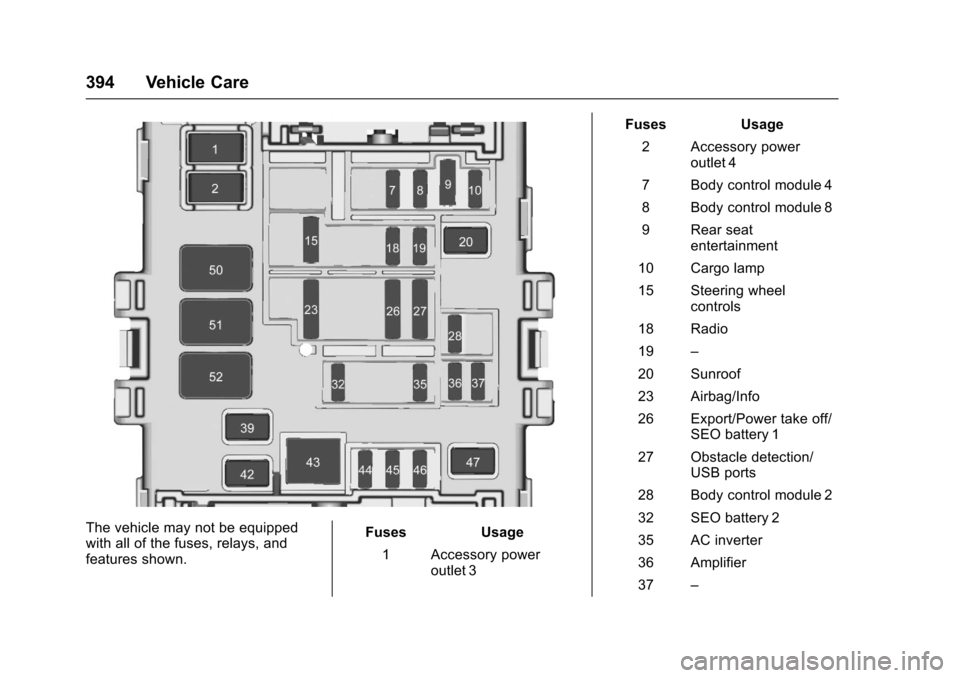
Chevrolet Silverado Owner Manual (GMNA-Localizing-U.S./Canada/Mexico-9956065) - 2017 - CRC - 4/29/16
394 Vehicle Care
The vehicle may not be equippedwith all of the fuses, relays, andfeatures shown.
Fuses Usage
1Accessorypoweroutlet 3
Fuses Usage
2Accessorypoweroutlet 4
7Bodycontrolmodule4
8Bodycontrolmodule8
9Rearseatentertainment
10 Cargo lamp
15 Steering wheelcontrols
18 Radio
19–
20 Sunroof
23 Airbag/Info
26 Export/Power take off/SEO battery 1
27 Obstacle detection/USB ports
28 Body control module 2
32 SEO battery 2
35 AC inverter
36 Amplifier
37–