phone CHEVROLET SPARK 2016 4.G Infotainment Manual
[x] Cancel search | Manufacturer: CHEVROLET, Model Year: 2016, Model line: SPARK, Model: CHEVROLET SPARK 2016 4.GPages: 113, PDF Size: 1.4 MB
Page 2 of 113
Chevrolet MyLink Infotainment System (GMNA-Localizing-U.S/Canada-
9085900) - 2016 - CRC - 8/10/15
ContentsIntroduction . . . . . . . . . . . . . . . . . .2
Radio . . . . . . . . . . . . . . . . . . . . . . .17
Audio Players . . . . . . . . . . . . . .27
OnStar System . . . . . . . . . . . . .35
Rear Seat Infotainment . . . .36
Navigation . . . . . . . . . . . . . . . . . .54
Voice Recognition . . . . . . . . . .80
Phone . . . . . . . . . . . . . . . . . . . . . .87
Settings . . . . . . . . . . . . . . . . . . . .95
Trademarks and LicenseAgreements . . . . . . . . . . . . . . .
98
Index . . . . . . . . . . . . . . . . . . . 109
Page 4 of 113
Chevrolet MyLink Infotainment System (GMNA-Localizing-U.S/Canada-
9085900) - 2016 - CRC - 8/10/15
Introduction 3
features are also available through
the instrument cluster and steering
wheel controls.
Before driving:
.Become familiar with the
operation, faceplate buttons, and
screen buttons.
. Set up the audio by presetting
favorite stations, setting the
tone, and adjusting the
speakers.
. Set up phone numbers in
advance so they can be called
easily by pressing a single
button or by using a single voice
command if equipped with
Bluetooth phone capability.
See “Defensive Driving” in the
owner manual.
To play the infotainment system with
the ignition off, see “Retained
Accessory Power (RAP)” in the
owner manual.Infotainment System
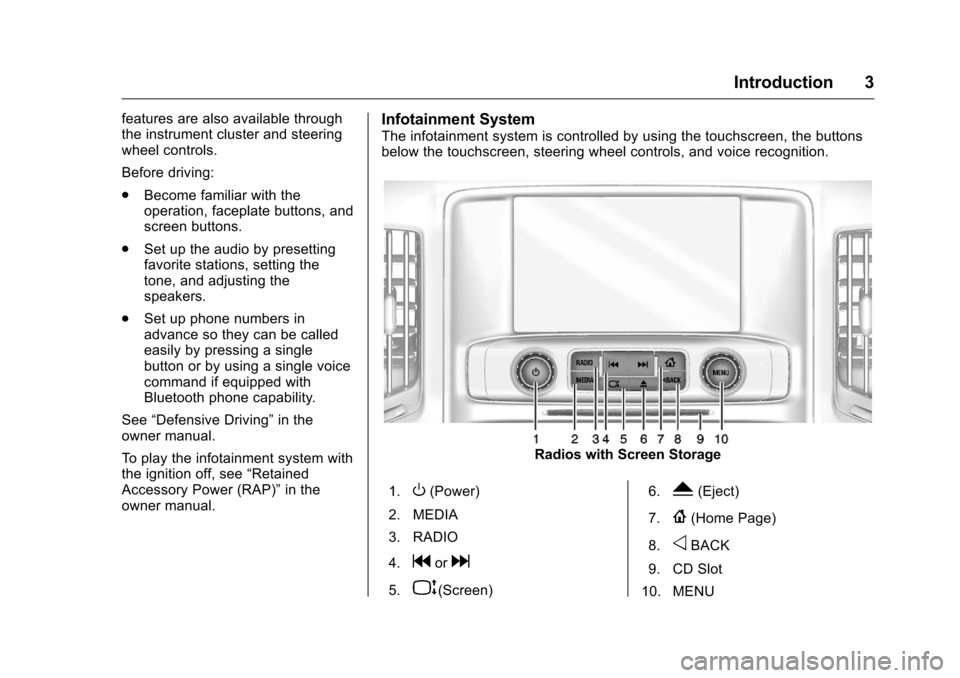
The infotainment system is controlled by using the touchscreen, the buttons
below the touchscreen, steering wheel controls, and voice recognition.
Radios with Screen Storage
1.
O(Power)
2. MEDIA
3. RADIO
4.
gord
5.P(Screen) 6.
Y(Eject)
7.
{(Home Page)
8.
oBACK
9. CD Slot
10. MENU
Page 11 of 113

Chevrolet MyLink Infotainment System (GMNA-Localizing-U.S/Canada-
9085900) - 2016 - CRC - 8/10/15
10 Introduction
i(Phone/Mute) :Press to
decline an incoming call, or end a
current call. Press to mute or
unmute the infotainment system
when not on a call.
oorp(Previous/Next Menu) :
Press to go to the previous or next
menu option.
worx(Next/Previous
Selection) : Press to go to the next
or previous selection.
@(Select) : Press to select a
highlighted menu option.
The favorites and volume switches
are on the back of the steering
wheel.
1. Favorite: When on a radio source, press to select the next
or previous audio broadcast
favorite. When listening to a
media device, press to select
the next or previous track.
2. Volume: Press to increase or decrease the volume.
Colorado Steering Wheel Controls
g(Talk) : For vehicles with OnStar®
or a Bluetooth®system, press to
interact with those systems. See
“OnStar Overview” in the owner
manual, Bluetooth (Overview) 087
or Bluetooth (Infotainment Controls)
0 88 orBluetooth (Voice
Recognition) 091.
i(Phone/Mute) : Press to
decline an incoming call, or end a
current call. Press to mute or
unmute the infotainment system
when not on a call.
SRC (Source) : Press to change
the source.
©or¨(Previous/Next Menu) :
Press to go to the previous or next
menu option.
+
xorx– (Volume) : Press to
increase or decrease the volume.
Page 12 of 113
Chevrolet MyLink Infotainment System (GMNA-Localizing-U.S/Canada-
9085900) - 2016 - CRC - 8/10/15
Introduction 11
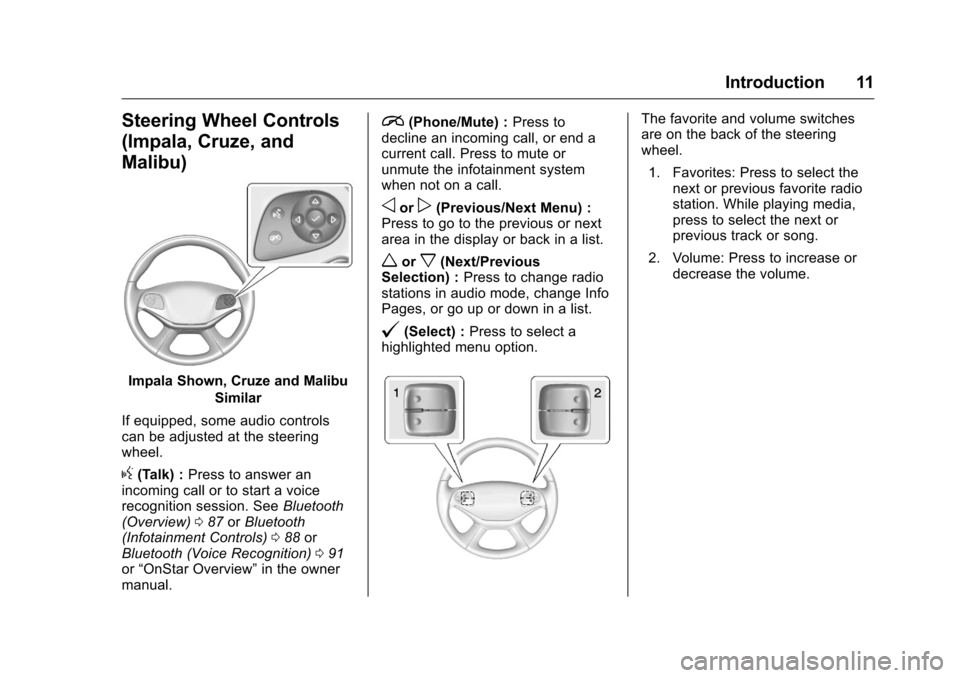
Steering Wheel Controls
(Impala, Cruze, and
Malibu)
Impala Shown, Cruze and MalibuSimilar
If equipped, some audio controls
can be adjusted at the steering
wheel.
g(Talk) : Press to answer an
incoming call or to start a voice
recognition session. See Bluetooth
(Overview) 087 orBluetooth
(Infotainment Controls) 088 or
Bluetooth (Voice Recognition) 091
or “OnStar Overview” in the owner
manual.
i(Phone/Mute) : Press to
decline an incoming call, or end a
current call. Press to mute or
unmute the infotainment system
when not on a call.
oorp(Previous/Next Menu) :
Press to go to the previous or next
area in the display or back in a list.
worx(Next/Previous
Selection) : Press to change radio
stations in audio mode, change Info
Pages, or go up or down in a list.
@(Select) : Press to select a
highlighted menu option.
The favorite and volume switches
are on the back of the steering
wheel.
1. Favorites: Press to select the next or previous favorite radio
station. While playing media,
press to select the next or
previous track or song.
2. Volume: Press to increase or decrease the volume.
Page 13 of 113
Chevrolet MyLink Infotainment System (GMNA-Localizing-U.S/Canada-
9085900) - 2016 - CRC - 8/10/15
12 Introduction
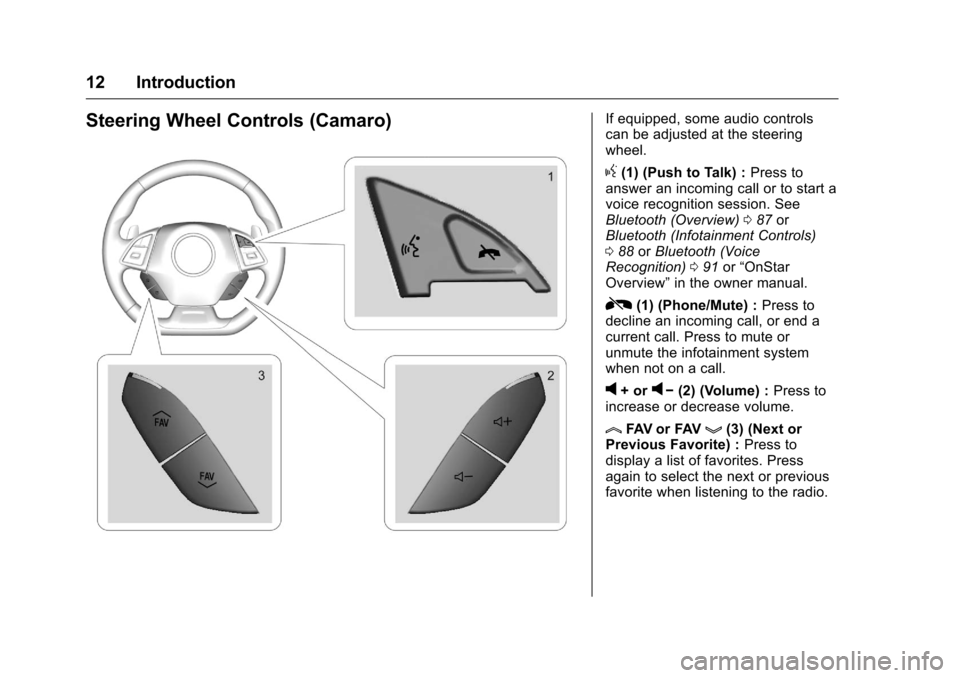
Steering Wheel Controls (Camaro)If equipped, some audio controls
can be adjusted at the steering
wheel.
g(1) (Push to Talk) :Press to
answer an incoming call or to start a
voice recognition session. See
Bluetooth (Overview) 087 or
Bluetooth (Infotainment Controls)
0 88 orBluetooth (Voice
Recognition) 091 or“OnStar
Overview” in the owner manual.
R(1) (Phone/Mute) : Press to
decline an incoming call, or end a
current call. Press to mute or
unmute the infotainment system
when not on a call.
v+ orv− (2) (Volume) : Press to
increase or decrease volume.
lFAV or FAVg(3) (Next or
Previous Favorite) : Press to
display a list of favorites. Press
again to select the next or previous
favorite when listening to the radio.
Page 14 of 113
Chevrolet MyLink Infotainment System (GMNA-Localizing-U.S/Canada-
9085900) - 2016 - CRC - 8/10/15
Introduction 13
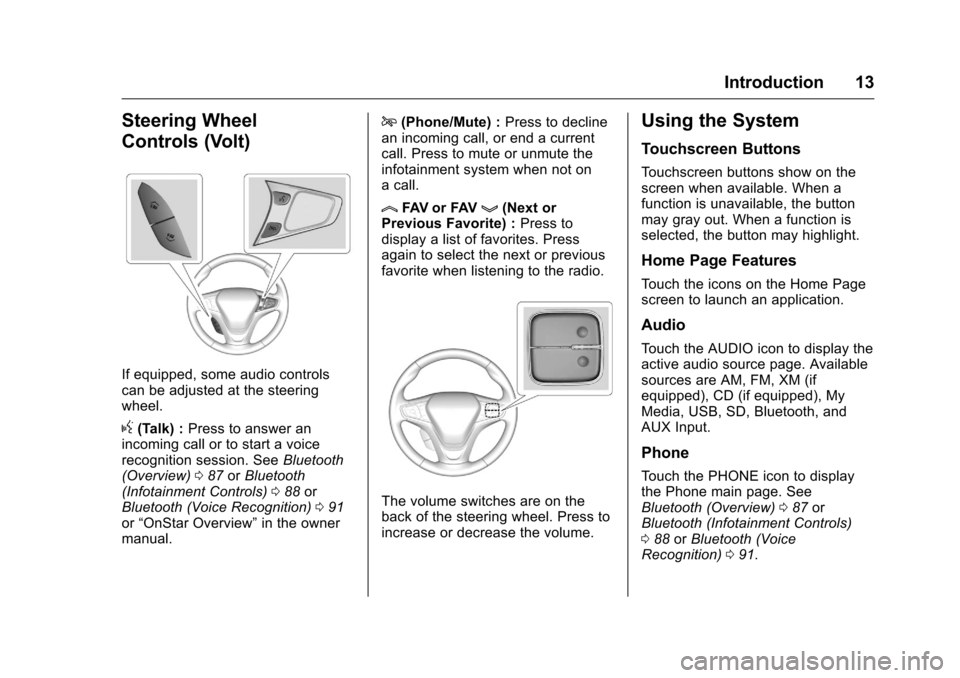
Steering Wheel
Controls (Volt)
If equipped, some audio controls
can be adjusted at the steering
wheel.
g(Talk) :Press to answer an
incoming call or to start a voice
recognition session. See Bluetooth
(Overview) 087 orBluetooth
(Infotainment Controls) 088 or
Bluetooth (Voice Recognition) 091
or “OnStar Overview” in the owner
manual.
i(Phone/Mute) : Press to decline
an incoming call, or end a current
call. Press to mute or unmute the
infotainment system when not on
a call.
lFAV or FAVg(Next or
Previous Favorite) : Press to
display a list of favorites. Press
again to select the next or previous
favorite when listening to the radio.
The volume switches are on the
back of the steering wheel. Press to
increase or decrease the volume.
Using the System
Touchscreen Buttons
Touchscreen buttons show on the
screen when available. When a
function is unavailable, the button
may gray out. When a function is
selected, the button may highlight.
Home Page Features
Touch the icons on the Home Page
screen to launch an application.
Audio
Touch the AUDIO icon to display the
active audio source page. Available
sources are AM, FM, XM (if
equipped), CD (if equipped), My
Media, USB, SD, Bluetooth, and
AUX Input.
Phone
Touch the PHONE icon to display
the Phone main page. See
Bluetooth (Overview) 087 or
Bluetooth (Infotainment Controls)
0 88 orBluetooth (Voice
Recognition) 091.
Page 23 of 113
Chevrolet MyLink Infotainment System (GMNA-Localizing-U.S/Canada-
9085900) - 2016 - CRC - 8/10/15
22 Radio
and uncheck the box. To delete an
alert, touch−. Touch
[Back to go
back to the previous menu.
Auto Volume (If Equipped) : This
feature adjusts the volume based on
the vehicle speed. See AM-FM
Radio 017.
Bose AudioPilot
®noise
compensation technology (If
Equipped) : This feature adjusts
the volume based on the noise in
the vehicle and speed. See AM-FM
Radio 017.
Radio Reception
Unplug electronic devices from the
accessory power outlets if there is
interference or static in the radio.
FM
FM signals only reach about 16 to
65 km (10 to 40 mi). Although the
radio has a built-in electronic circuit
that automatically works to reduce
interference, some static can occur,
especially around tall buildings or
hills, causing the sound to fade in
and out.
AM
The range for most AM stations is
greater than for FM, especially at
night. The longer range can cause
station frequencies to interfere with
each other. Static can also occur
when things like storms and power
lines interfere with radio reception.
When this happens, try reducing the
treble on the radio.
SiriusXM®Satellite Radio
Service
If equipped, SiriusXM Satellite
Radio Service provides digital radio
reception. Tall buildings or hills can
interfere with satellite radio signals,
causing the sound to fade in and
out. In addition, traveling or standing
under heavy foliage, bridges,
garages, or tunnels may cause loss
of the SiriusXM signal for a period
of time.
Cell Phone Usage
Cell phone usage, such as making
or receiving phone calls, charging,
or just having the phone on may cause static interference in the
radio. Unplug the phone or turn it off
if this happens.
Fixed Mast Antenna
The fixed mast antenna will go
through most car washes as long as
it is securely attached. If the
antenna becomes slightly bent,
straighten it out by hand. If it is
badly bent, replace it.
Occasionally check that the antenna
is tight at the base. If tightening is
required, protect the paint from
damage.
Multi-Band Antenna
The roof antenna is for OnStar®,
SiriusXM®Satellite Radio, and GPS
(Global Positioning System). Keep
clear of obstructions for clear
reception. If the vehicle has a
sunroof, and it is open, reception
can also be affected.
Page 24 of 113
Chevrolet MyLink Infotainment System (GMNA-Localizing-U.S/Canada-
9085900) - 2016 - CRC - 8/10/15
Radio 23
Pandora Internet Radio
If equipped, Pandora®is a free
Internet radio service that streams
personalized radio stations based
on songs, artists, tracks, genres,
and comedians. Create stations
using the Pandora website or
Smartphone application, then
use
-(thumbs up) or,(thumbs
down) to personalize stations. To
set up an account, or for more
information, go to
www.pandora.com.
A phone or tablet with Internet
connection and the Pandora
application installed is required.
Personal cell phone data plans are
used. Make sure the latest version
is installed on the device.
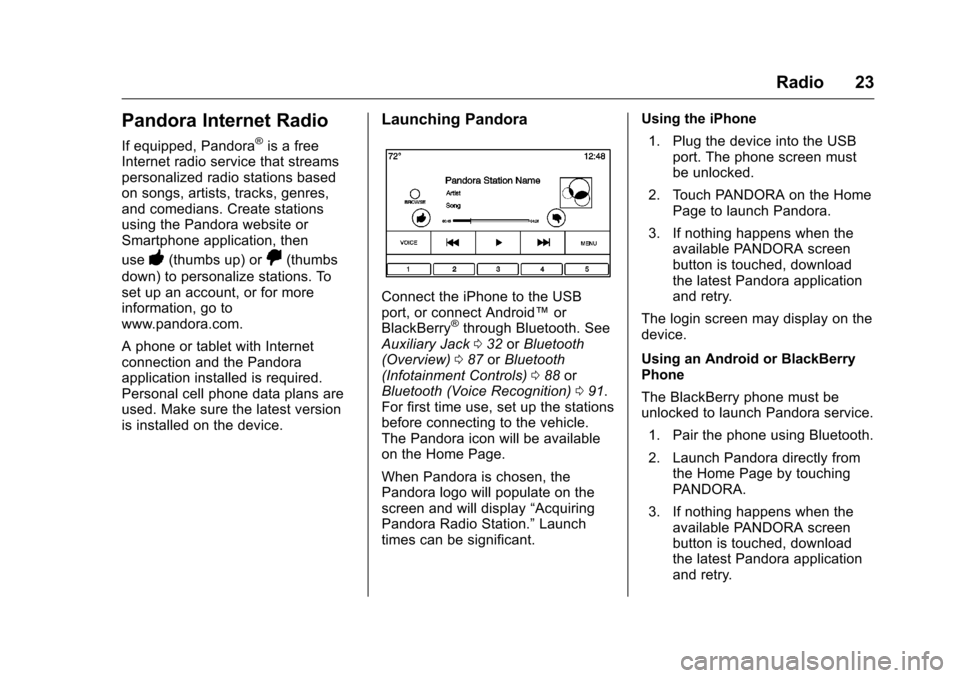
Launching Pandora
Connect the iPhone to the USB
port, or connect Android™ or
BlackBerry
®through Bluetooth. See
Auxiliary Jack 032 orBluetooth
(Overview) 087 orBluetooth
(Infotainment Controls) 088 or
Bluetooth (Voice Recognition) 091.
For first time use, set up the stations
before connecting to the vehicle.
The Pandora icon will be available
on the Home Page.
When Pandora is chosen, the
Pandora logo will populate on the
screen and will display “Acquiring
Pandora Radio Station.” Launch
times can be significant. Using the iPhone
1. Plug the device into the USB port. The phone screen must
be unlocked.
2. Touch PANDORA on the Home Page to launch Pandora.
3. If nothing happens when the available PANDORA screen
button is touched, download
the latest Pandora application
and retry.
The login screen may display on the
device.
Using an Android or BlackBerry
Phone
The BlackBerry phone must be
unlocked to launch Pandora service. 1. Pair the phone using Bluetooth.
2. Launch Pandora directly from the Home Page by touching
PANDORA.
3. If nothing happens when the available PANDORA screen
button is touched, download
the latest Pandora application
and retry.
Page 26 of 113
Chevrolet MyLink Infotainment System (GMNA-Localizing-U.S/Canada-
9085900) - 2016 - CRC - 8/10/15
Radio 25
Pandora Troubleshooting
Unable to Connect Device to
Vehicle
If the device is unable to connect to
the USB or Bluetooth:1. Turn the vehicle off.
2. Take the Remote Keyless Entry (RKE) transmitter at least 6 m
(20 ft) away from the vehicle.
3. Wait about 30 seconds, and try to connect the device again.
See Auxiliary Jack 032 or
Bluetooth (Overview) 087 or
Bluetooth (Infotainment
Controls) 088 orBluetooth
(Voice Recognition) 091.
Unable to Start Pandora
If the device is unable to launch
Pandora:
. Check that the latest version of
Pandora is installed.
. Check that there is an active
account logged into Pandora.
. End a call. Pandora will not work
during an active call. .
Have at least one station
created.
. For Android and BlackBerry
devices, check that the device is
paired with the vehicle, and
whether the device displays in
the Connected phone sources
list under the PHONE icon from
the Home Page.
. For an iPhone, check that the
USB cable is connected to the
USB port and the screen is
unlocked.
. Close Pandora on the device
and launch again. Devices that
allow multitasking may require
an extra step to quit the Pandora
application. See the cell phone
manufacturer's user guide.
Thumbs Up or Thumbs Down
Error
If there is an error trying to rate a
track with the
,or-buttons, the
message “Thumbs Down Error” or
“Thumbs Up Error” will display.
Touch OK to dismiss. Loss of Audio
Loss of Pandora audio can happen
in different ways:
.
Weak or lost data connection.
. Device needs to be charged.
. Application needs to be
relaunched.
. Connection between phone and
radio lost.
. An iPhone is connected to both
Bluetooth and the USB port.
Playback can be resumed from
a loss of audio by double
tapping on the iPhone menu
button then scrolling through the
icons to find an icon that allows
a change of flow between
Bluetooth and USB cable.
Common Pandora Messages
Pandora Error/Please Check
Connected Device : Not signed in
or Pandora is down for
maintenance.
No Stations Available : No stations
are available on the Pandora server
through the connected device.
Page 33 of 113
Chevrolet MyLink Infotainment System (GMNA-Localizing-U.S/Canada-
9085900) - 2016 - CRC - 8/10/15
32 Audio Players
4. Select a song from the list tobegin playback.
Audiobooks: 1. Touch to view the audiobooks stored on the device.
2. Select the audiobook from the list. Select a chapter to begin
playback.
Folder View (If Equipped):
1. Touch to view the directories on the USB.
2. Select a folder to view a list of all files.
3. Select a file from the list to begin playback.
File System and Naming
The songs, artists, albums, and
genres are taken from the file’s
song information and are only
displayed if present. The radio
displays the file name as the track
name if the song information is not
available.
Supported Apple
®Devices
To view supported devices in the
U.S., see my.chevrolet.com\learned. To view supported devices in
Canada, see chevroletowner.ca.
Loss of Audio
If a phone currently paired over
Bluetooth is plugged in with a USB
cable, the system will automatically
mute the phone audio. Playback
can be resumed by changing the
audio source from Bluetooth to USB
cable.
Source USB from the Audio MEDIA
screen button to resume playback.
Bluetooth Streaming Audio and
Voice Recognition
See
Bluetooth Audio 033 for
information using voice recognition
with Bluetooth streaming audio.
Make sure all devices have the
latest software downloaded.
SD Card Reader
If equipped, this vehicle has an SD
card reader in the center console,
and one in the Rear Seat
Entertainment (RSE) system,
if equipped. The SD card reader is for audio and
video playback and uses the same
controls as the USB port. Playback
from an SD card follows the same
file formats and restrictions defined
under
USB Port 029. Not all video
formats are supported.
Set up the SD card while the vehicle
is in P (Park). See “Audio”under
Using the System 013.
Place the card into the card reader.
If an SD card has already been
connected, but a different source is
currently active, touch the MEDIA
screen button to scroll through the
audio source screens until USB/SD
card displays.
Viewing photos is supported on the
RSE SD card reader.
Auxiliary Jack
This vehicle has an auxiliary input
jack in the center console under the
armrest. Possible auxiliary audio
sources include:
. Laptop computer
. Audio music player