steering CHEVROLET SS 2017 1.G Owner's Manual
[x] Cancel search | Manufacturer: CHEVROLET, Model Year: 2017, Model line: SS, Model: CHEVROLET SS 2017 1.GPages: 400, PDF Size: 7.31 MB
Page 119 of 400
Chevrolet SS Sedan Owner Manual (GMNA-Localizing-U.S.-10122752) -2017 - crc - 8/31/16
118 Instruments and Controls
Service Vehicle Messages
SERVICE AC SYSTEM
This message displays if there is aproblem with the air conditioningsystem. Take the vehicle to yourdealer for service.
SERVICE POWER STEERING
This message displays and a chimemay sound when there may be aproblem with the power steeringsystem. If this message displaysand a reduction in steeringperformance or loss of powersteering assistance is noticed, seeyour dealer.
SERVICE SUSPENSION
SYSTEM
This message displays when theMagnetic Ride Control system hasdetected a malfunction and thevehicle speed will be limited. Thesystem must be serviced. See yourdealer. SeeDriver Mode Control0247and“SPEED LIMITED TOXXX”underVehicle SpeedMessages0120.
SERVICE VEHICLE SOON
This message displays if there is aproblem with the vehicle. Take thevehicle to your dealer for service.
Starting the Vehicle
Messages
PRESS BRAKE TO START
This message is displayed whenattempting to start an automatictransmission equipped vehiclewithout first pressing the brakepedal.
PRESS CLUTCH TO START
This message is displayed whenattempting to start a manualtransmission equipped vehiclewithout first pressing the clutchpedal.
SERVICE KEYLESS START
SYSTEM
This message is displayed if there isaproblemwiththepushbuttonstartsystem. Take the vehicle to yourdealer for service.
Tire Messages
SERVICE TIRE MONITOR
SYSTEM
This message displays if there is aproblem with the Tire PressureMonitor System (TPMS). SeeTirePressure Monitor Operation0312for more information.
TIRE LEARNING ACTIVE
This message displays when thesystem is learning new tires. SeeTire Pressure Monitor Operation0312for more information.
TIRE PRESSURE LOW ADD
AIR TO TIRE
On vehicles with the Tire PressureMonitor System (TPMS), thismessage displays when thepressure in one or more of thevehicle's tires is low.
There is also an icon with thewarning that will indicate thelocation of the low tire.
The low tire pressure warning lightwill also come on. SeeTirePressure Light0106.
Page 127 of 400
Chevrolet SS Sedan Owner Manual (GMNA-Localizing-U.S.-10122752) -2017 - crc - 8/31/16
126 Lighting
Lighting
Exterior Lighting
Exterior Lamp Controls . . . . . . . 126Headlamp High/Low-BeamChanger . . . . . . . . . . . . . . . . . . . . 126Flash-to-Pass . . . . . . . . . . . . . . . . 126Daytime RunningLamps (DRL) . . . . . . . . . . . . . . . 127Automatic HeadlampSystem . . . . . . . . . . . . . . . . . . . . . . 127Hazard Warning Flashers . . . . . 127Turn and Lane-ChangeSignals . . . . . . . . . . . . . . . . . . . . . . 128
Interior Lighting
Instrument Panel IlluminationControl . . . . . . . . . . . . . . . . . . . . . . 128Dome Lamps . . . . . . . . . . . . . . . . . 129Reading Lamps . . . . . . . . . . . . . . 129
Lighting Features
Entry Lighting . . . . . . . . . . . . . . . . 130Exit Lighting . . . . . . . . . . . . . . . . . . 130Battery Power Protection . . . . . 130
Exterior Lighting
Exterior Lamp Controls
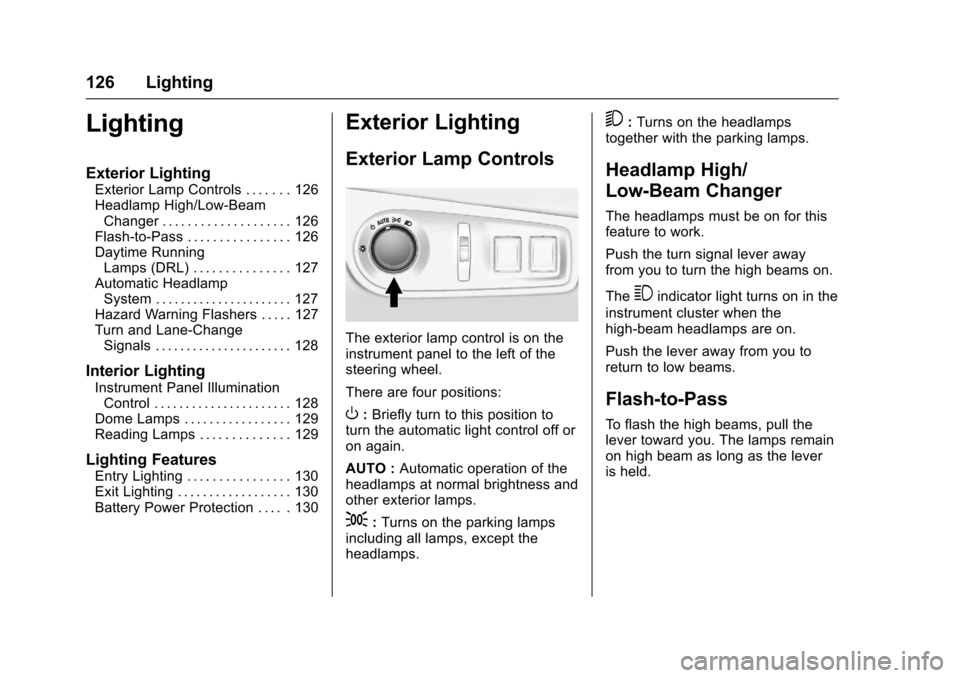
The exterior lamp control is on theinstrument panel to the left of thesteering wheel.
There are four positions:
O:Briefly turn to this position toturn the automatic light control off oron again.
AUTO :Automatic operation of theheadlamps at normal brightness andother exterior lamps.
;:Turns on the parking lampsincluding all lamps, except theheadlamps.
5:Turns on the headlampstogether with the parking lamps.
Headlamp High/
Low-Beam Changer
The headlamps must be on for thisfeature to work.
Push the turn signal lever awayfrom you to turn the high beams on.
The3indicator light turns on in the
instrument cluster when thehigh-beam headlamps are on.
Push the lever away from you toreturn to low beams.
Flash-to-Pass
To f l a s h t h e h i g h b e a m s , p u l l t h elever toward you. The lamps remainon high beam as long as the leveris held.
Page 129 of 400
Chevrolet SS Sedan Owner Manual (GMNA-Localizing-U.S.-10122752) -2017 - crc - 8/31/16
128 Lighting
Turn and Lane-Change
Signals
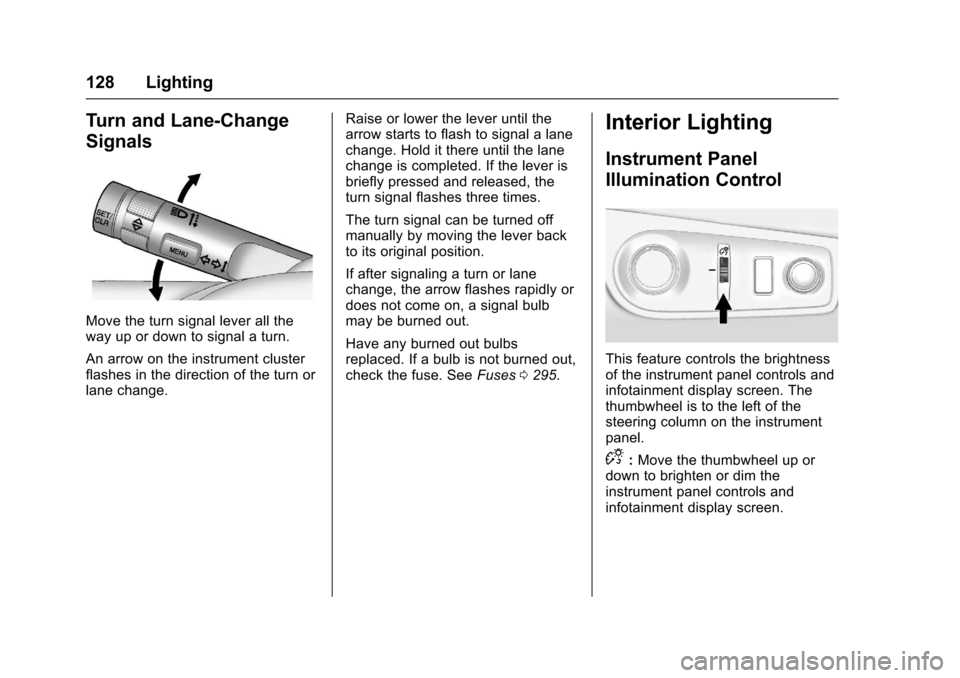
Move the turn signal lever all theway up or down to signal a turn.
An arrow on the instrument clusterflashes in the direction of the turn orlane change.
Raise or lower the lever until thearrow starts to flash to signal a lanechange. Hold it there until the lanechange is completed. If the lever isbriefly pressed and released, theturn signal flashes three times.
The turn signal can be turned offmanually by moving the lever backto its original position.
If after signaling a turn or lanechange, the arrow flashes rapidly ordoes not come on, a signal bulbmay be burned out.
Have any burned out bulbsreplaced. If a bulb is not burned out,check the fuse. SeeFuses0295.
Interior Lighting
Instrument Panel
Illumination Control
This feature controls the brightnessof the instrument panel controls andinfotainment display screen. Thethumbwheel is to the left of thesteering column on the instrumentpanel.
D:Move the thumbwheel up ordown to brighten or dim theinstrument panel controls andinfotainment display screen.
Page 132 of 400
Chevrolet SS Sedan Owner Manual (GMNA-Localizing-U.S.-10122752) -2017 - crc - 8/31/16
Infotainment System 131
Infotainment
System
Introduction
Infotainment . . . . . . . . . . . . . . . . . . 131Overview . . . . . . . . . . . . . . . . . . . . . 132Steering Wheel Controls . . . . . . 134Using the System . . . . . . . . . . . . 134Software Updates . . . . . . . . . . . . 139
Radio
AM-FM Radio . . . . . . . . . . . . . . . . 139Radio Data System (RDS) . . . . 141Satellite Radio . . . . . . . . . . . . . . . . 142Radio Reception . . . . . . . . . . . . . . 147Backglass Antenna . . . . . . . . . . . 147Multi-Band Antenna . . . . . . . . . . 148Quick Info . . . . . . . . . . . . . . . . . . . . 148Pandora Internet Radio . . . . . . . 149Stitcher Internet Radio . . . . . . . . 153Pictures . . . . . . . . . . . . . . . . . . . . . . 157
Audio Players
USB . . . . . . . . . . . . . . . . . . . . . . . . . . 158Bluetooth Audio . . . . . . . . . . . . . . 163
OnStar System
OnStar System . . . . . . . . . . . . . . . 165
Navigation
Using the NavigationSystem . . . . . . . . . . . . . . . . . . . . . . 165Maps . . . . . . . . . . . . . . . . . . . . . . . . . 168Navigation Symbols . . . . . . . . . . 169Destination . . . . . . . . . . . . . . . . . . . 171OnStar®DestinationDownload . . . . . . . . . . . . . . . . . . . 180Configure Menu . . . . . . . . . . . . . . 181Global PositioningSystem (GPS) . . . . . . . . . . . . . . 186Vehicle Positioning . . . . . . . . . . . 187Problems with RouteGuidance . . . . . . . . . . . . . . . . . . . 187If the System NeedsService . . . . . . . . . . . . . . . . . . . . . 188Map Data Updates . . . . . . . . . . . 188Database CoverageExplanations . . . . . . . . . . . . . . . . 188
Voice Recognition
Voice Recognition . . . . . . . . . . . . 189
Bluetooth Phone/Devices
Bluetooth . . . . . . . . . . . . . . . . . . . . . 195Te x t M e s s a g i n g . . . . . . . . . . . . . . . 2 0 2
Trademarks and License
Agreements
Trademarks and LicenseAgreements . . . . . . . . . . . . . . . . . 205
Introduction
Infotainment
Read the following pages tobecome familiar with these features.
{Warning
Ta k i n g y o u r e y e s o f f t h e r o a d f o r
too long or too often while using
any infotainment feature can
cause a crash. You or others
could be injured or killed. Do not
give extended attention to
infotainment tasks while driving.
Limit your glances at the vehicle
displays and focus your attention
on driving. Use voice commands
whenever possible.
The infotainment system has built-infeatures intended to help avoiddistraction by disabling somefunctions when driving. Thesefunctions may gray out when theyare unavailable. Many infotainment
Page 133 of 400
Chevrolet SS Sedan Owner Manual (GMNA-Localizing-U.S.-10122752) -2017 - crc - 8/31/16
132 Infotainment System
features are also available throughthe instrument cluster and steeringwheel controls.
Before driving:
.Become familiar with theoperation, center stack controls,and infotainment display options.
.Set up the audio by presettingfavorite stations, setting thetone, and adjusting thespeakers.
.Set up phone numbers inadvance so they can be calledeasily by pressing a singlecontrol or by using a single voicecommand if equipped withBluetooth phone capability.
SeeDefensive Driving0217.
To p l a y t h e i n f o t a i n m e n t s y s t e m w i t hthe ignition off, seeRetainedAccessory Power (RAP)0232.
Overview
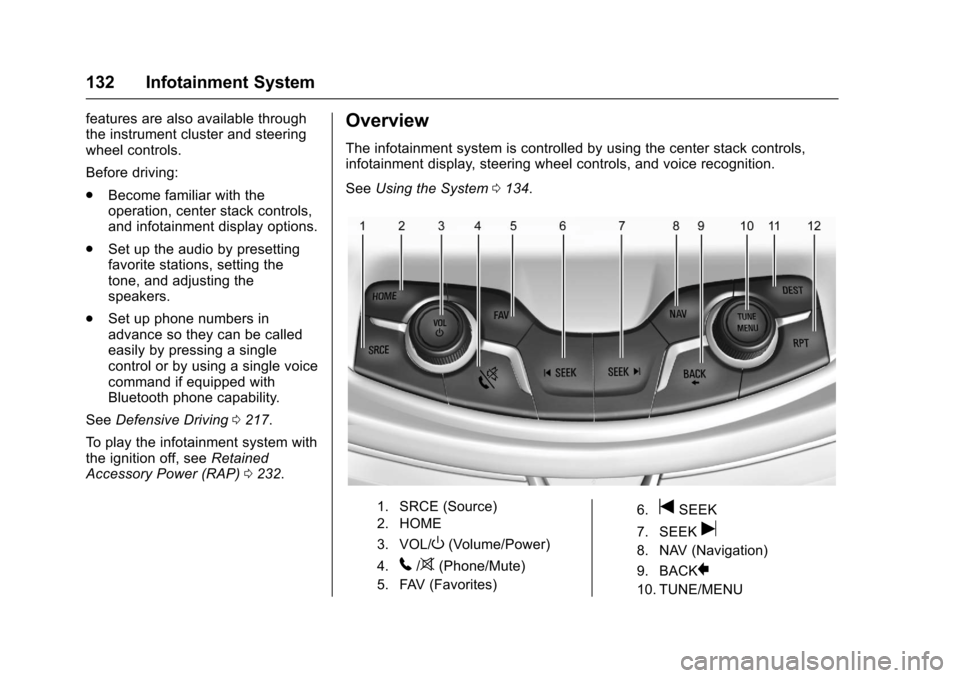
The infotainment system is controlled by using the center stack controls,infotainment display, steering wheel controls, and voice recognition.
SeeUsing the System0134.
1. SRCE (Source)
2. HOME
3. VOL/O(Volume/Power)
4.5/>(Phone/Mute)
5. FAV (Favorites)
6.tSEEK
7. SEEKu
8. NAV (Navigation)
9. BACK}
10. TUNE/MENU
Page 135 of 400
Chevrolet SS Sedan Owner Manual (GMNA-Localizing-U.S.-10122752) -2017 - crc - 8/31/16
134 Infotainment System
.If a destination has already beenentered, press to access theDestination Menu. SeeDestination0171.
RPT :Press to repeat the last voiceguidance prompt.
Infotainment Display Icons
The touch icons are on theinfotainment display and highlightedwhen a feature is available. Sometoggle display icons highlight whenactive and gray out when inactive.
Steering Wheel Controls
Depending on the vehicle options,some audio functions can becontrolled through the steeringwheel controls.
b/g:Press to answer incomingcalls, interact with Bluetooth, or startvoice recognition. SeeBluetooth0195orVoice Recognition0189.
$/i:Press to decline incomingcalls or to end a current call. Pressto silence the vehicle speakerswhile using the infotainment system.Press again to turn the sound on.Press to cancel voice recognition.
_SRC^:Press to select an audiosource.
Use the thumbwheel to select thenext or previous favorite radiostation, MP3 track, USB, andBluetooth Audio.
Use_SRC to skip to the next song
or show using Stitcher. SeeStitcherInternet Radio0153.
+x✓:Press + to increase the
volume. Press✓to decrease.
Using the System
The infotainment system iscontrolled by touching the display,and by using the center stackcontrols.
Voice recognition, through thesteering wheel controls, can beused to control the infotainmentfeatures.
Pressb/gon the steering wheel
controls to begin voice recognition.SeeVoice Recognition0189.
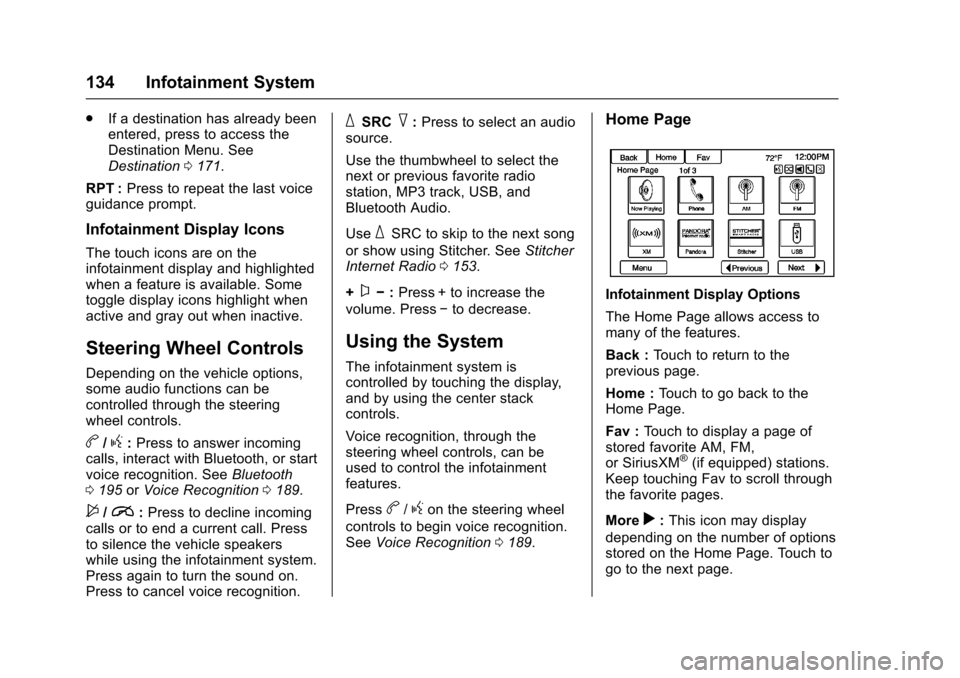
Home Page
Infotainment Display Options
The Home Page allows access tomany of the features.
Back :To u c h t o r e t u r n t o t h eprevious page.
Home :To u c h t o g o b a c k t o t h eHome Page.
Fav :To u c h t o d i s p l a y a p a g e o fstored favorite AM, FM,or SiriusXM®(if equipped) stations.Keep touching Fav to scroll throughthe favorite pages.
Morer:This icon may display
depending on the number of optionsstored on the Home Page. Touch togo to the next page.
Page 140 of 400
Chevrolet SS Sedan Owner Manual (GMNA-Localizing-U.S.-10122752) -2017 - crc - 8/31/16
Infotainment System 139
Cleaning High Gloss Surfaces
and Vehicle Information and
Radio Displays
For vehicles with high glosssurfaces or vehicle displays, use amicrofiber cloth to wipe surfaces.Before wiping the surface with themicrofiber cloth, use a soft bristlebrush to remove dirt that couldscratch the surface. Then use themicrofiber cloth by gently rubbing toclean. Never use window cleanersor solvents. Periodically hand washthe microfiber cloth separately,using mild soap. Do not use bleachor fabric softener. Rinse thoroughlyand air dry before next use.
Caution
Do not attach a device with a
suction cup to the display. This
may cause damage and would
not be covered by the warranty.
Software Updates
See www.chevrolet.com for softwareupdates.
Radio
AM-FM Radio
Playing the Radio
VOL/O:
.Press to turn the radio on or off.
.Turn to increase or decrease thevolume of the active source.
The steering wheel controls canalso be used to adjust the volume.SeeSteering Wheel Controls0134.
To p l a y t h e i n f o t a i n m e n t s y s t e m w i t hthe ignition off, seeRetainedAccessory Power (RAP)0232.
Audio Source
Press SRCE on the center stack orSRC on the steering wheel controlsto display and scroll through theavailable sources AM, FM, SiriusXM(if equipped), Pandora (if equipped),Stitcher, USB, and Bluetooth Audio.
Infotainment System Settings
Tone Settings
To a c c e s s t h e t o n e s e t t i n g s , t o u c hthe Tone Settings icon on the HomePage. Tone settings are specific toeach source.
To a d j u s t t h e s e t t i n g s :
.Bass: Touch + or✓to changethe level.
.Mid (Midrange): Touch + or✓tochange the level.
.Treble: Touch + or✓to changethe level.
.EQ: Touch or turn the TUNE/MENU knob to cycle through thepreset EQ options.
.Fade: Touch F or R for moresound from the front or rearspeakers. The middle positionbalances the sound between thefront and rear speakers.
.Balance: Touch L or R for moresound from the left or rightspeakers. The middle positionbalances the sound between theleft and right speakers.
Page 141 of 400
Chevrolet SS Sedan Owner Manual (GMNA-Localizing-U.S.-10122752) -2017 - crc - 8/31/16
140 Infotainment System
Finding a Station
Press SRCE on the center stack orSRC on the steering wheel controlsto select AM, FM, SiriusXM (ifequipped), Pandora (if equipped),Stitcher, USB, and Bluetooth Audio.
Turn the TUNE/MENU knob to findaradiostation.Toselectapresetstation, press FAV to scroll throughthe favorite pages and then touch apreset on the radio or touch a preseticon on the infotainment display.
Seeking a Station
PresstSEEK or SEEKuto
search for a station.
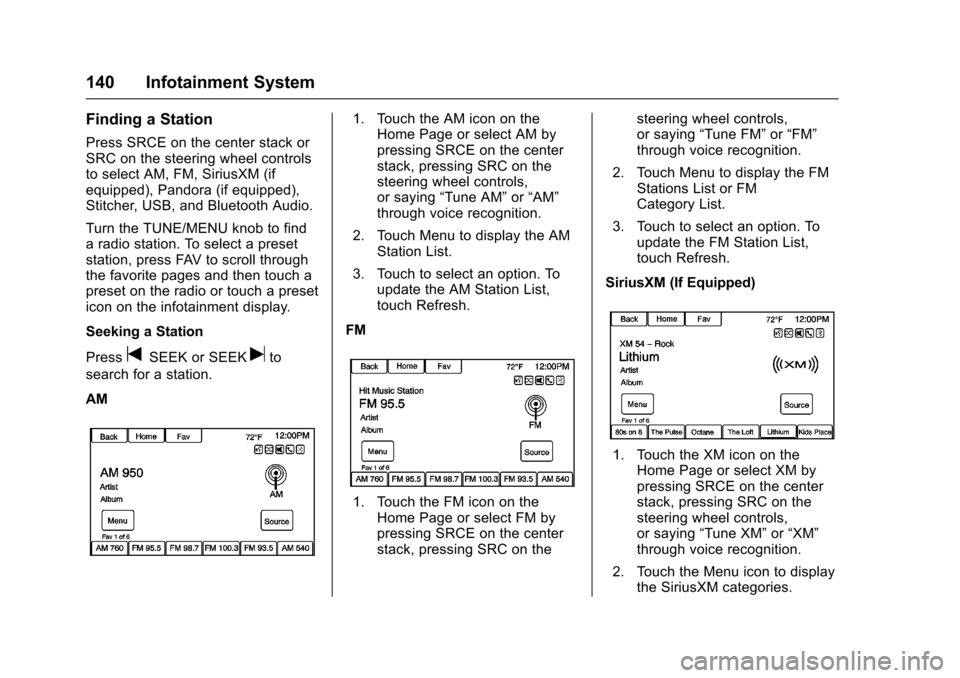
AM
1. Touch the AM icon on theHome Page or select AM bypressing SRCE on the centerstack, pressing SRC on thesteering wheel controls,or saying“Tune AM”or“AM”through voice recognition.
2. Touch Menu to display the AMStation List.
3. Touch to select an option. Toupdate the AM Station List,touch Refresh.
FM
1. Touch the FM icon on theHome Page or select FM bypressing SRCE on the centerstack, pressing SRC on the
steering wheel controls,or saying“Tune FM”or“FM”through voice recognition.
2. Touch Menu to display the FMStations List or FMCategory List.
3. Touch to select an option. Toupdate the FM Station List,touch Refresh.
SiriusXM (If Equipped)
1. Touch the XM icon on theHome Page or select XM bypressing SRCE on the centerstack, pressing SRC on thesteering wheel controls,or saying“Tune XM”or“XM”through voice recognition.
2. Touch the Menu icon to displaythe SiriusXM categories.
Page 150 of 400
Chevrolet SS Sedan Owner Manual (GMNA-Localizing-U.S.-10122752) -2017 - crc - 8/31/16
Infotainment System 149
5-day Forecast :Displays the5-day forecast for the weatherstation closest to the currentlocation. See“SiriusXM Travel LinkWeather”inSatellite Radio0142.
Nearby Fuel Stations :Displaysfuel prices and distances for closefuel stations. See“SiriusXM TravelLink Weather”under“SiriusXMTravel Link (If Equipped)”inSatelliteRadio0142.
Movie Showtimes :Displays a listof movies playing in the theatersclosest to current location. See“SiriusXM Travel Link MovieListings”inSatellite Radio0142.
Pandora Internet Radio
Pandora (if equipped) is a freeInternet radio service that streamspersonalized radio stations basedon artists, songs, genres, andcomedians. Create stations usingthe Pandora website or smartphone
application, then use-(thumbs up)
or,(thumbs down) to personalize
stations. To set up an account, or formore information, go towww.pandora.com.
AphoneortabletwithInternetconnection and the Pandoraapplication installed is required.Personal cell phone data plans areused. Make sure the latest versionis installed on the device and thevolume is turned up.
To i n s t a l l P a n d o r a :
.On an Android™phone orAndroid Tablet, go to the AndroidPlay Store, and search forPandora. Install to the phone,not to the SD card.
.On a BlackBerry®phone, go tothe BlackBerry App World™andsearch for Pandora.
.On an iPhone®,iPad®,oriPodtouch®,gototheiTunes®Storeand search for Pandora.
Launching Pandora
Connect the iPhone, iPad, or iPodtouch to the USB port, or connectan Android or BlackBerry throughBluetooth. SeeUSB0158
orBluetooth0195.Forfirst-timeuse, set up stations beforeconnecting to the vehicle. ThePandora icon will be available onthe Home Page and the sourcepop-up displays if the latestapplication is installed on thedevice.
Using the iPhone, iPod touch,or iPad
1. Plug the device into the USBport. The phone screen mustbe unlocked.
2. To launch, do one of thefollowing:
.Launch the application onthe device.
.To u c h t h e P a n d o r a i c o n o nthe Home Page.
.Pressb/gand say
“Pandora”or“TunePandora.”
.Accept any notification onthe screen of the device.
To r e l a u n c h P a n d o r a , p r e s s S R C Eon the center stack or press SRC onthe steering wheel controls.
Page 151 of 400
Chevrolet SS Sedan Owner Manual (GMNA-Localizing-U.S.-10122752) -2017 - crc - 8/31/16
150 Infotainment System
If nothing happens when theavailable Pandora icon is touched,download the latest Pandoraapplication and retry.
Pandora will always be highlightedon the Home Page when an iPhone,iPad, or iPod touch is connectedusing the USB port. To use, log intoyour account.
If the“Please See Device”messageis shown, the login screen maydisplay on the device.
If the“Please unlock your phone orrestart the app”message is shown,then the phone may be locked.Unlock the phone, close the app,then restart the app and make surethe Home Page is visible on thephone/device.
If Pandora is shut down on thephone or another audio app is used,Pandora may not start on the nextignition cycle. If iPod source isselected, it may show iPod and thenswitch to Pandora.
Using an Android Phone
1. Pair the Android phone usingBluetooth.
2. Use one of the following tolaunch:
.Launch the application onthe device.
.To u c h t h e P a n d o r a i c o n o nthe Home Page.
.Pressb/gand say
“Pandora”or“TunePandora.”
After Pandora has been launched,press SRCE on the center stack orpress SRC on the steering wheelcontrols to access Pandorafeatures.
If nothing happens when theavailable Pandora icon is touched,download the latest Pandoraapplication and retry.
If the“Please See Device”messageis shown, the login screen maydisplay on the device.
If the "Please unlock your phone orrestart the app" message is shown,then the phone may be locked.Unlock the phone, close the app,then restart the app to ensureproper communication.
Using a BlackBerry Phone
The phone must be unlocked. Tolaunch Pandora service:
1. Pair the BlackBerry phoneusing Bluetooth.
2. Use one of the following tolaunch:
.Launch the application onthe device.
.To u c h t h e P a n d o r a i c o n o nthe Home Page.
.Pressb/gand say
“Pandora”or“TunePandora.”
After Pandora has been launched,press SRCE on the center stack orpress SRC on the steering wheelcontrols to access Pandorafeatures.
If nothing happens when theavailable Pandora icon is touched,download the latest Pandoraapplication and retry.
If the“Please See Device”messageis shown, the login screen maydisplay on the device.