low CHEVROLET SUBURBAN 2012 10.G Owners Manual
[x] Cancel search | Manufacturer: CHEVROLET, Model Year: 2012, Model line: SUBURBAN, Model: CHEVROLET SUBURBAN 2012 10.GPages: 514, PDF Size: 7.54 MB
Page 213 of 514
Black plate (19,1)Chevrolet Tahoe/Suburban Owner Manual - 2012
Infotainment System 7-19
the disc. The radio may begin
playing while it is scanning in the
background.
When the scan is finished, the disc
begins playing files in order by
artist. The current artist playing is
shown on the second line of the
display. Once all songs by that artist
are played, the player moves to the
next artist in alphabetical order and
begins playing files by that artist.
To listen to files by another artist,
press the softkey located below
either arrow tab. The disc goes
to the next or previous artist in
alphabetical order. Continue
pressing either softkey below the
arrow tab until the desired artist
displays.
To change from playback by artist to
playback by album:
1. Press the softkey located belowthe Sort By tab.
2. Press one of the softkeys below the album tab from the sort
screen. 3. Press the softkey below the
back tab to return to the main
music navigator screen.
The album name displays on the
second line between the arrows
and songs from the current album
begins to play. Once all songs
from that album have played, the
player moves to the next album in
alphabetical order on the CD and
begins playing MP3 files from that
album.
To exit music navigator mode, press
the softkey below the Back tab to
return to normal MP3 playback.
CD Player Messages
CHECK DISC: If this message
displays and/or the CD ejects, it
could be for one of the following
reasons:
.It is very hot. When the
temperature returns to normal,
the CD should play.
.The road is very rough. When
the road becomes smoother, the
CD should play.
.The CD is dirty, scratched, wet,
or upside down.
.The air is very humid. If so, wait
about an hour and try again.
.There could have been a
problem while burning the CD.
.The label could be caught in the
CD player.
If the CD is not playing correctly, for
any other reason, try a known
good CD.
If any error occurs repeatedly or if
an error cannot be corrected,
contact your dealer. If the radio
displays an error message, write it
down and provide it to your dealer
when reporting the problem.
Page 215 of 514
Black plate (21,1)Chevrolet Tahoe/Suburban Owner Manual - 2012
Infotainment System 7-21
source through the vehicle
speakers. See“Using the
Auxiliary Input Jack” inAuxiliary
Devices on page 7‑30, or “Audio/
Video (A/V) Jacks” underRear Seat
Entertainment (RSE) System on
page 7‑35 for more information.
In some vehicles, depending on
audio options, the rear speakers
can be muted when the RSA power
is turned on. See Rear Seat Audio
(RSA) System on page 7‑45 for
more information.
Inserting a Disc
Insert a disc partway into either slot,
label side up. The player pulls it in
and the disc should begin playing.
(Loading a disc into the system,
depending on media type and
format, ranges from 5 to 20 seconds
for a CD, and up to 30 seconds for a
DVD to begin playing.)
Ejecting a Disc
ZCD (Eject): Press and release
to eject the disc that is currently
playing. The CD ejects from the
bottom slot. A beep sounds and
Ejecting Disc displays. Once the
disc is ejected, Remove Disc
displays. The disc can be removed.
If the disc is not removed,
after several seconds the disc
automatically pulls back into the
player.
ZDVD (Eject): Press and
release to eject the disc that is
currently playing in the top slot.
A beep sounds and Ejecting Disc
displays.
If loading and reading of a disc
cannot be completed, due to
unknown format, etc., and the disc
fails to eject, press and hold for
more than five seconds to force the
disc to eject.
Playing a CD (in Either the
DVD or CD Slot)
If the ignition or radio is turned off
with a CD in the player, it stays in
the player. When the ignition or
radio is turned on, the CD starts
playing where it stopped, if it was
the last selected audio source. The
CD is controlled by the buttons on
the radio faceplate or by the RSA
unit. See Rear Seat Audio (RSA)
System on page 7‑45 for more
information. The DVD/CD decks
(the upper slot is the DVD deck and
the lower slot is the CD deck) of
the radio are compatible with most
audio CDs, CD-Rs, CD-RWs,
and MP3s.
When a CD is inserted, the text tab
DVD or CD symbol displays on the
left side of the radio display. As
each new track starts to play, the
track number displays.
Page 218 of 514
Black plate (24,1)Chevrolet Tahoe/Suburban Owner Manual - 2012
7-24 Infotainment System
When the disc contains only
playlists and compressed audio
files, but no folders, all files are
located under the root folder. The
folder down and the folder up
buttons search playlists first and
then go to the root folder. When the
radio displays the name of the
folder, the radio displays ROOT.
Order of Play
Compressed audio files are
accessed in the following order:
.Playlists (Px).
.Files stored in the root directory.
.Files stored in folders in the root
directory.
Tracks are played in the following
order:
.Play begins from the first track in
the first playlist and continues
sequentially through all tracks
in each playlist. When the last
track of the last playlist has
played, play continues from the
first track of the first playlist.
.Play begins from the first track
in the first folder and continues
sequentially through all tracks in
each folder. When the last track
of the last folder has played,
play continues from the first
track of the first folder.
When play enters a new folder, the
display does not automatically show
the new folder name unless the
folder mode has been chosen as
the default display. The new track
name displays.
File System and Naming
The song name that displays is the
song name that is contained in the
ID3 tag. If the song name is not
present in the ID3 tag, then the
radio displays the file name without
the extension (such as .mp3) as the
track name.
Track names longer than
32 characters or 4 pages are
shortened. Parts of words on the
last page of text and the extension
of the file name do not display. Preprogrammed Playlists
Preprogrammed playlists that
were created using WinAmp™,
MusicMatch™, or Real Jukebox™
software can be accessed; however,
they cannot be edited using the
radio. These playlists are treated as
special folders containing
compressed audio song files.
Playlists that have an .m3u or .pls
file extension and are stored on a
USB device may be supported by
the radio with a USB port.
Playing an MP3 or WMA
(in Either the DVD or CD Slot)
If a disc is inserted into the top DVD
slot, the rear seat operator can turn
on the video screen and use the
remote control to navigate the CD
(tracks only).
f(Tune):
Turn to select MP3/WMA
files.
©SEEK: Press to go to the start of
the track, if more than five seconds
have played. Press and hold or
press multiple times, if less than
Page 219 of 514
Black plate (25,1)Chevrolet Tahoe/Suburban Owner Manual - 2012
Infotainment System 7-25
five seconds have played, to
continue moving backward through
tracks.
¨SEEK:Press to go to the next
track.
Press and hold, or press multiple
times, to continue moving forward
through tracks.
sREV (Reverse): Press and hold
to reverse playback quickly.
\FWD (Fast Forward): Press
and hold to advance playback
quickly.
S c(Previous Folder): Press
the softkey below the
S ctab to
go to the first track in the previous
folder.
c T(Next Folder): Press the
softkey below the
c Ttab to go
to the first track in the next folder.
RDM (Random): Press to listen
to tracks in random, rather than
sequential order. To use random:
1. Press the softkey under the
RDM tab until Random Current
Disc displays
2. Press the same softkey again to turn off random play.
h(Music Navigator): Press the
softkey below the
htab to play
files in order by artist or album.
The player scans the disc to sort the
files by artist and album ID3 tag
information. It can take several
minutes to scan the disc depending
on the number of files on the disc.
The radio may begin playing while it
is scanning in the background.
When the scan is finished, the disc
begins playing files in order by
artist. The current artist playing is
shown on the second line of the
display. Once all songs by that artist
are played, the player moves to the
next artist in alphabetical order and
begins playing files by that artist. To listen to files by another artist,
press the softkey located below
either arrow tab. The disc goes
to the next or previous artist in
alphabetical order. Continue
pressing either softkey below the
arrow tab until the artist displays.
To change from playback by artist to
playback by album:
1. Press the softkey below the Sort
By tab.
2. Press one of the softkeys below the Album tab from the sort
screen.
3. Press the softkey below the Back tab to return to the main
music navigator screen.
The album name displays on the
second line between the arrows,
and songs from the current album
begin to play. Once all songs from
that album have played, the player
moves to the next album in
alphabetical order on the CD and
begins playing MP3 files from that
album.
Page 220 of 514
Black plate (26,1)Chevrolet Tahoe/Suburban Owner Manual - 2012
7-26 Infotainment System
To exit music navigator mode, press
the softkey below the Back tab to
return to normal MP3 playback.
Using the DVD Player
The DVD player can be controlled
by the buttons on the remote
control, the RSA system, or by the
buttons on the radio faceplate. See
“Remote Control”underRear Seat
Entertainment (RSE) System on
page 7‑35 andRear Seat Audio
(RSA) System on page 7‑45 for
more information.
The DVD player is only compatible
with DVDs of the appropriate region
code printed on the jacket of
most DVDs.
The DVD slot of the radio is
compatible with most audio CDs
and CD-R/RW, DVD-Video,
DVD-Audio, DVD-R/RW, and DVD
+R/RW media, along with MP3 and
WMA formats. If an error message displays on the
video screen or the radio, see
“DVD
Display Error Messages” under
Rear Seat Entertainment (RSE)
System on page 7‑35, and “CD/DVD
Player Messages” later in this
section for more information.
Inserting a Disc
Insert a disc partway into the top
slot, label side up. The player pulls
it in and the disc should begin
playing. “Loading Disc” shows on
the radio display. At the same time,
the radio displays a softkey menu of
option(s). Some discs automatically
play the movie while others default
to the softkey menu display,
which requires the Play, Enter,
or Navigation softkeys to be
pressed, either by softkey or by
the rear seat passenger using the
remote control.
Loading a disc into the system,
depending on media type and
format, ranges from 5 to 20 seconds
for a CD, and up to 30 seconds for
a DVD.
Ejecting a Disc
ZDVD (Eject): Press and
release to eject the disc currently
playing in the top slot. A beep
sounds and Ejecting Disc displays.
If loading and reading of a disc
cannot be completed, due to
unknown format, etc., and the disc
fails to eject, press and hold for
more than five seconds to force the
disc to eject.
Playing a DVD
DVD/CD AUX (Auxiliary): Press to
cycle through DVD, CD, or Auxiliary
when listening to the radio. The
DVD/CD text tab and a message
showing the track or chapter
number will display when a disc is in
either slot. Press the DVD/CD AUX
button again and the system
automatically searches for an
auxiliary input device; see Auxiliary
Devices on page 7‑30 for more
information. If a portable audio
player is not connected, “No Aux
Input Device” displays. If a disc is in
both the DVD slot and the CD slot,
Page 224 of 514
Black plate (30,1)Chevrolet Tahoe/Suburban Owner Manual - 2012
7-30 Infotainment System
Player Error:This message
displays if there are disc load or
disc eject problems.
.It is very hot. When the
temperature returns to normal,
the disc should play.
.The road is very rough. When
the road becomes smoother, the
disc should play.
.The disc is dirty, scratched, wet,
or upside down.
.The air is very humid. If so, wait
about an hour and try again.
.There was a problem while
burning the disc.
.The label is caught in the CD/
DVD player.
If the disc is not playing correctly,
for any other reason, try a known
good disc.
If any error occurs repeatedly or
if an error cannot be corrected,
contact your dealer. If the radio displays an error message, write it
down and provide it to your dealer
when reporting the problem.
Auxiliary Devices
Using the Auxiliary Input Jack
Radios with an auxiliary input jack
located on the lower right side of the
faceplate can connect to an external
audio device such as an iPod
®,
MP3 player, CD player, for use as
another source for audio listening.
This input jack is not an audio
output; do not plug headphones into
the front auxiliary input jack.
Drivers are encouraged to set up
any auxiliary device while the
vehicle is in P (Park). See
Defensive Driving on page 9‑3 for
more information on driver
distraction.
To use a portable audio player,
connect a 3.5 mm (1/8 in) cable to
the radio's front auxiliary input jack.
When a device is connected, press the radio CD/AUX button to begin
playing audio from the device over
the vehicle speakers.
For optimal sound quality, increase
the portable audio device's volume
to the loudest level.
It is always best to power the
portable audio device through its
own battery while playing.O(Power/Volume):
Turn clockwise
or counterclockwise to increase
or decrease the volume of the
portable player. Additional volume
adjustments might have to be made
from the portable device if the
volume is not loud or soft enough.
BAND: Press to listen to the radio
when a portable audio device is
playing. The portable audio device
continues playing.
CD/AUX (CD/Auxiliary): Press to
play a CD when a portable audio
device is playing. Press again and
the system begins playing audio
from the connected portable audio
Page 227 of 514
Black plate (33,1)Chevrolet Tahoe/Suburban Owner Manual - 2012
Infotainment System 7-33
\FWD (Fast Forward):Press
and hold to advance playback
quickly. Sound is heard at a
reduced volume. Release
\FWD
to resume playing. The elapsed time
of the file displays.
4(Information): Press to display
additional information about the
selected track.
Using Softkeys to Control a
USB Storage Device or iPod
The five softkeys below the radio
display are used to control the
functions listed below.
To use the softkeys:
1. Press the first or fifth softkey below the radio display to
display the functions listed
below, or press the softkey
below the function if it is
currently displayed.
2. Press the softkey below the tab with the function on it to use that
function.
j(Pause): Press the softkey
below
jto pause the track. The tab
appears raised when pause is being
used. Press the softkey below
j
again to resume playback.
Back: Press the softkey below the
back tab to go back to the main
display screen on an iPod, or the
root directory on a USB storage
device.
c(Folder View): Press the
softkey below
cto view the
contents of the current folder on the
USB drive. To browse and select
files:
1. Press the softkey below
c.
2. Turn
fto scroll through the list
of folders.
3. Press
fto select the desired
folder. If there is more then one
folder, repeat Steps 1 and 2 until
the desired folder is reached. 4. Turn
fto scroll through the files
in the selected folder.
5. Press
fto select the desired file
to be played.
To skip through large lists, the five
softkeys can be used to navigate in
the following order:
.First softkey, first item in the list.
.Second softkey, 1% through the
list each time the softkey is
pressed.
.Third softkey, 5% through the list
each time the softkey is pressed.
.Fourth softkey, 10% through the
list each time the softkey is
pressed.
.Fifth softkey, end of the list.
Page 228 of 514
Black plate (34,1)Chevrolet Tahoe/Suburban Owner Manual - 2012
7-34 Infotainment System
h(Music Navigator):Press the
softkey below
hto view and
select a file on an iPod, using the
iPod's menu system. Files are
sorted by:
.Playlists
.Artists
.Albums
.Genres
.Songs
.Composers
To select files:
1. Press the softkey below
h.
2. Turn
fto scroll through the list
of menus.
3. Press
fto select the
desired menu. 4. Turn
fto scroll through the
folders or files in the
selected menu.
5. Press
fto select the desired file
to be played.
To skip through large lists, the five
softkeys can be used to navigate in
the following order:
.First softkey, first item in the list.
.Second softkey, 1% through the
list each time the softkey is
pressed.
.Third softkey, 5% through the list
each time the softkey is pressed.
.Fourth softkey, 10% through the
list each time the softkey is
pressed.
.Fifth softkey, end of the list. Repeat Functionality
To use Repeat:
Press the softkey below
"or'
to select between Repeat All and
Repeat Track.
"(Repeat All):
Press the softkey
below
"to repeat all tracks. The
tab appears lowered when Repeat
All is being used. This is the default
mode when a USB storage device
or iPod is first connected.
'(Repeat Track): Press the
softkey below
'to repeat one
track. The tab appears raised when
Repeat Track is being used.
Page 229 of 514
Black plate (35,1)Chevrolet Tahoe/Suburban Owner Manual - 2012
Infotainment System 7-35
Shuffle Functionality
To use Shuffle:
Press the softkey below
>,2,
Cor=to select between
Shuffle Off, Shuffle All Songs/
Shuffle Songs, Shuffle Album,
or Shuffle Folder.
>(Shuffle Off): Press the
softkey below
2to turn shuffle
off. This is the default mode when a
USB storage device or iPod is first
connected.
2(Shuffle All Songs / Shuffle
Songs): Press the softkey
below
=orCto shuffle all
songs on the USB storage device
or iPod.
C(Shuffle Album): Press the
softkey below
>to shuffle all
songs in the current album on
an iPod.
=(Shuffle Folder): Press the
softkey below
>to shuffle all
songs in the current folder on a USB
storage device.
Rear Seat
Infotainment
Rear Seat Entertainment
(RSE) System
The vehicle may have an
Overhead DVD Rear Seat
Entertainment (RSE) system.
The RSE system works with the
vehicle's audio system. The DVD
player is part of the front radio. The
RSE system includes a radio with a
DVD player, a video display screen,
and if the vehicle has a third row
seat, it could have a second video
display screen, audio/video jacks,
two wireless headphones, and a
remote control. See CD/DVD Player
on page 7‑20 for more information
on the vehicle's DVD system.
Before Driving
The RSE is designed for rear seat
passengers only. The driver cannot
safely view the video screen while
driving and should not try to do so. In severe or extreme weather
conditions, the RSE system might
not work until the temperature is
within the operating range. The
operating range for the RSE system
is above
−20°C (−4°F) or below
60°C (140°F). If the temperature of
the vehicle is outside this range,
heat or cool the vehicle until the
temperature is within the operating
range of the RSE system.
Parental Control
The RSE system may have a
Parental Control feature, depending
on which radio the vehicle has. To
start Parental Control, press and
hold the radio power button for more
than two seconds to stop all system
features such as: radio, video
screen, Rear Seat Audio (RSA),
DVD, and/or CD. While Parental
Control is on, a padlock icon
displays.
Page 231 of 514
Black plate (37,1)Chevrolet Tahoe/Suburban Owner Manual - 2012
Infotainment System 7-37
power if the RSE system and RSA
are shut off, or if the headphones
are out of range of the transmitters
for more than three minutes. If you
move too far forward or step out of
the vehicle, the headphones lose
the audio signal.
To adjust the volume on the
headphones, use the volume
control located on the right side.
For optimal audio performance, the
headphones must be worn correctly.
Headphones should be worn with
the headband over the top of the
head for best audio reception. The
symbol L (Left) appears on the
outside bottom edge of the ear cup
and should be positioned on the left
ear. The symbol R (Right) appears
on the outside bottom edge of the
ear cup and should be positioned on
the right ear.
Notice:Do not store the
headphones in heat or direct
sunlight. This could damage the
headphones and repairs will not
be covered by the warranty. Storage in extreme cold can
weaken the batteries. Keep the
headphones stored in a cool, dry
place.
If the foam ear pads attached to
the headphones become worn or
damaged, the pads can be replaced
separately from the headphone set.
To purchase replacement ear pads,
call 1‐888‐293‐3332, then prompt
zero (0), or contact your dealer.
Battery Replacement
To change the batteries on the
headphones:
1. Turn the screw to loosen the
battery door located on the left
side of the headphones. Slide
the battery door open.
2. Replace the two batteries in the compartment. Make sure that
they are installed correctly, using
the diagram on the inside of the
battery compartment.
3. Replace the battery door and tighten the door screw. If the headphones are to be stored
for a long period of time, remove the
batteries and keep them in a cool,
dry place.
Audio/Video (A/V) Jacks
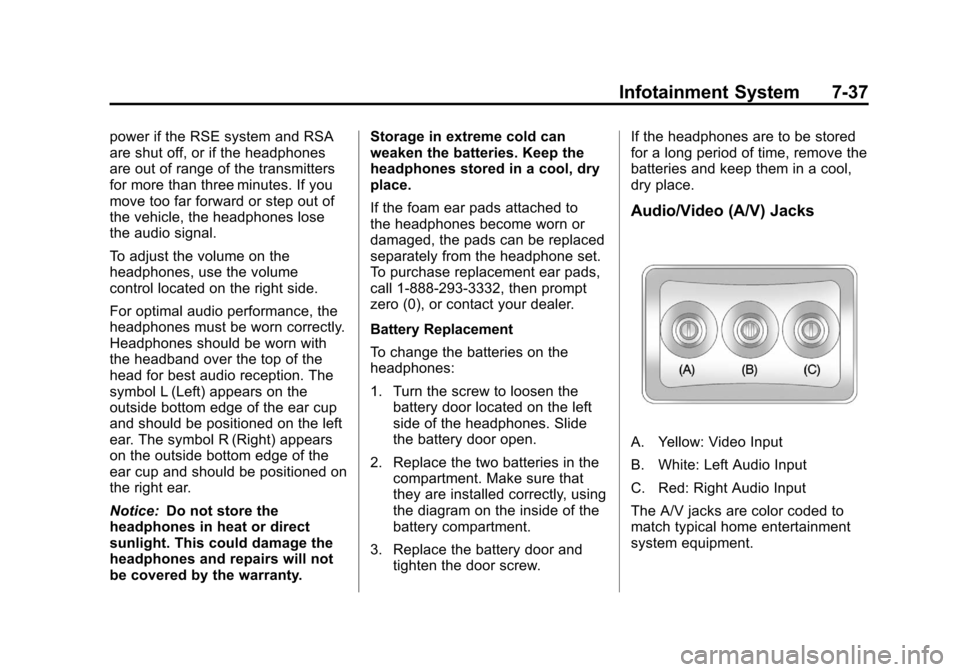
A. Yellow: Video Input
B. White: Left Audio Input
C. Red: Right Audio Input
The A/V jacks are color coded to
match typical home entertainment
system equipment.